> This is part 1 of 17 of the full documentation (pages 1–100 of 1679).
> The content is paginated: fetch every part to see all of it.
> Next part: https://docs.advantys.com/workflowgen-administration-module-reference-guide/llms-full.txt/1
> Page index: https://docs.advantys.com/workflowgen-administration-module-reference-guide/llms.txt

# Overview

This guide describes all the screens of the WorkflowGen Administration Module and provides a complete list of related operating rules. It also describes the built-in workflow applications and how to use them.

The guide also includes a list of possible errors along with their explanations.


# Administration Module Overview

## Overview <a href="#overview-main" id="overview-main"></a>

The WorkflowGen Administration Module is a web application whose main functions are:

* Managing directories, groups, and users
* Creating processes and defining global information
* Defining security relating to users and processes

Since these operations are highly sensitive, access to and management of the Administration Module should be considered carefully.

## Administration Module access

The Administration Module can be accessed through the following URL: `http://yourwebsite/wfgen/admin/default.aspx`.

{% hint style="info" %}

* `default.aspx` is optional if preconfigured as the default document of the WorkflowGen website.&#x20;
* &#x20;`yourwebsite` can be a DNS or an IP address; however, a DNS address is recommended to ensure a smooth transition if the site is moved to a different server or when using a web farm configuration.
  {% endhint %}

WorkflowGen Administrators and process managers can access the Administration Module from their User Portals by clicking ![](https://content.gitbook.com/content/q3iSjJknrpzTBBqAK0np/blobs/nkarOtP4D46SSf3OO6Sv/left_menu_admin_small.png) in the left menu.

## Authentication

Depending on the authentication method chosen by the WorkflowGen Administrator, you may have to enter a username and a password when you want to log in to WorkflowGen. These login credentials can also match the ones you use when opening a Windows session.

## User settings

You can select a language, time zone, and display theme and layout, as well as change your password, by clicking on your user icon in the top left corner of the dashboard.

### Language

The country next to the language allows the system to use the correct regional settings in the application (mainly when displaying dates or numeric values).

#### 📌 Example

* **English (United Kingdom)** corresponds to an English UI with the regional settings of the United Kingdom (date format: `dd/mm/yyyy`)
* **English (United States)** corresponds to an English UI with the regional settings of the United States (date format: `m/d/yyyy`)

Currently, you can choose from the following languages and regional settings:

* English (Australia)
* English (Canada)
* English (United Kingdom)
* English (United States)
* Français (Canada)
* Français (France)
* Français (Suisse)
* Deutsch (Deutschland)
* Deutsch (Schweiz)
* Italiano (Italia)
* Português (Portugal)
* Español (España)

{% hint style="info" %}
If the list isn't displayed, the application has been configured to use a specific language.&#x20;
{% endhint %}

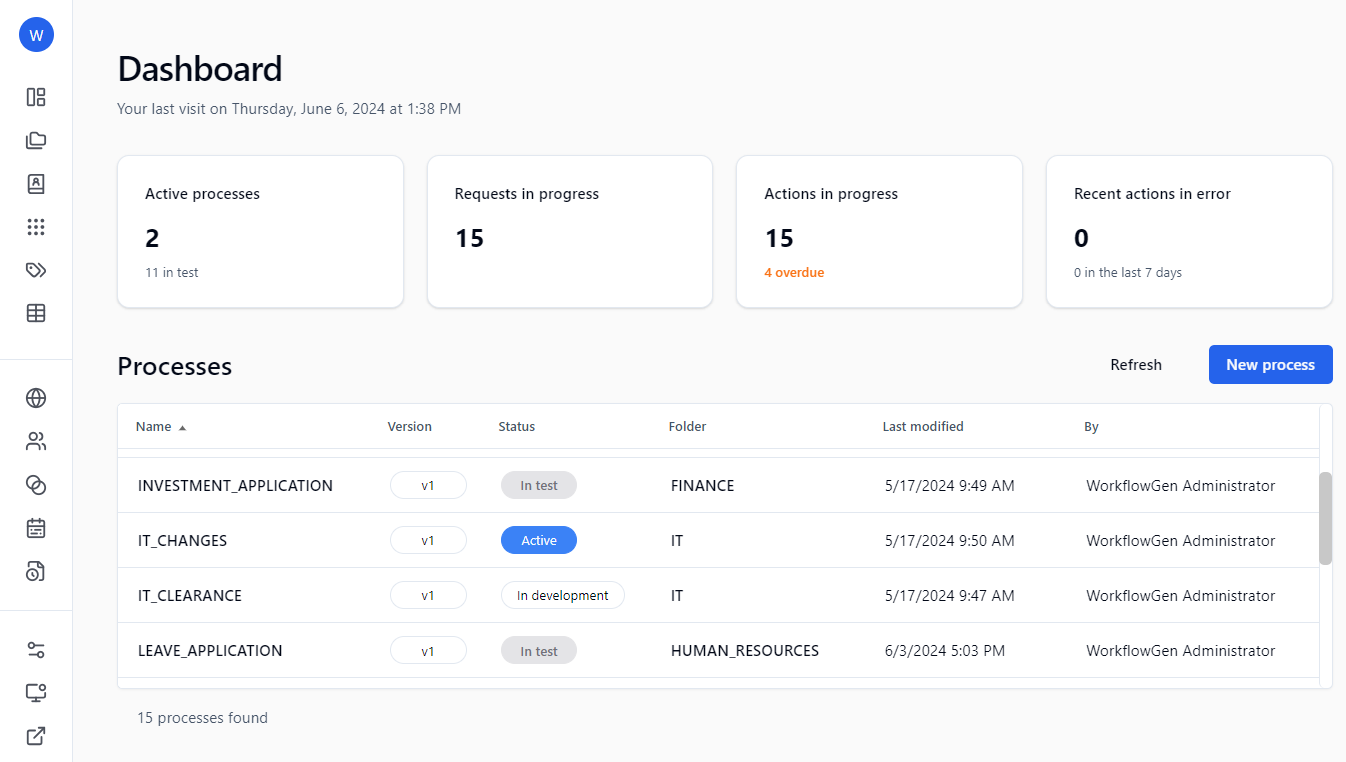
## Administration Module dashboard

<div data-full-width="true"><figure><img src="https://content.gitbook.com/content/q3iSjJknrpzTBBqAK0np/blobs/NyCXZnTTYrcCiExsy9En/admin_home.png" alt=""><figcaption></figcaption></figure></div>

### Left menu

<table><thead><tr><th width="114" align="center">Icon</th><th>Description</th></tr></thead><tbody><tr><td align="center"><img src="https://content.gitbook.com/content/q3iSjJknrpzTBBqAK0np/blobs/l9vne6gooEA80ZWMlC0I/left_menu_dashboard.png" alt="" data-size="original"></td><td>Dashboard</td></tr><tr><td align="center"><img src="https://content.gitbook.com/content/q3iSjJknrpzTBBqAK0np/blobs/QBLPz0tlC6jaJ81Z2yRC/left_menu_folders.png" alt="" data-size="original"></td><td>Processes (see <a href="/workflowgen-administration-module-reference-guide/10.0/process-definition">Process Definition</a>)</td></tr><tr><td align="center"><img src="https://content.gitbook.com/content/q3iSjJknrpzTBBqAK0np/blobs/5jEilALRCuvvpe1CAVBt/left_menu_participants.png" alt="" data-size="original"></td><td>Participants (see <a href="/workflowgen-administration-module-reference-guide/10.0/global-information/participants">Participants</a>)</td></tr><tr><td align="center"><img src="https://content.gitbook.com/content/q3iSjJknrpzTBBqAK0np/blobs/FJU9dG7ChUth7Fpu3rmH/left_menu_applications.png" alt="" data-size="original"></td><td>Applications (see <a href="/workflowgen-administration-module-reference-guide/10.0/global-information/applications">Applications</a>)</td></tr><tr><td align="center"><img src="https://content.gitbook.com/content/q3iSjJknrpzTBBqAK0np/blobs/SCQqJZad3aEP13MUfGLV/left_menu_categories.png" alt="" data-size="original"></td><td>Categories (see <a href="/workflowgen-administration-module-reference-guide/10.0/global-information/categories">Categories</a>)</td></tr><tr><td align="center"><img src="https://content.gitbook.com/content/q3iSjJknrpzTBBqAK0np/blobs/xRqGmeqvrwW4WDeY0XOn/left_menu_global_lists.png" alt="" data-size="original"></td><td>Global lists (see <a href="/workflowgen-administration-module-reference-guide/10.0/global-information/global-lists">Global Lists</a>)</td></tr><tr><td align="center"><img src="https://content.gitbook.com/content/q3iSjJknrpzTBBqAK0np/blobs/bIyiNoy61TWDFggZ82z5/left_menu_directories.png" alt="" data-size="original"></td><td>Directories (see <a href="/workflowgen-administration-module-reference-guide/10.0/user-management/directories">Directories</a>)</td></tr><tr><td align="center"><img src="https://content.gitbook.com/content/q3iSjJknrpzTBBqAK0np/blobs/t54kEVr0uzaQ7HeCnEiL/left_menu_users.png" alt="" data-size="original"></td><td>Users (see <a href="/workflowgen-administration-module-reference-guide/10.0/user-management/users">Users</a>)</td></tr><tr><td align="center"><img src="https://content.gitbook.com/content/q3iSjJknrpzTBBqAK0np/blobs/ylLhDrYkZkoMKPF1DMfO/left_menu_groups.png" alt="" data-size="original"></td><td>Groups (see <a href="/workflowgen-administration-module-reference-guide/10.0/user-management/groups">Groups</a>)</td></tr><tr><td align="center"><img src="https://content.gitbook.com/content/q3iSjJknrpzTBBqAK0np/blobs/bgrf5QLY4Fd74NXxdSQH/left_menu_delegations.png" alt="" data-size="original"></td><td>Delegations (see <a href="/workflowgen-administration-module-reference-guide/10.0/user-management/delegations">Delegations</a>)</td></tr><tr><td align="center"><img src="https://content.gitbook.com/content/q3iSjJknrpzTBBqAK0np/blobs/p218rLN4obICk8TTUzJj/left_menu_sync_logs.png" alt="" data-size="original"></td><td>Sync logs (see <a href="/workflowgen-administration-module-reference-guide/10.0/directory-synchronization">Directory Synchronization</a>)</td></tr><tr><td align="center"><img src="https://content.gitbook.com/content/q3iSjJknrpzTBBqAK0np/blobs/bIOfqNEimV7ClAAQ5He6/left_menu_config_panel.png" alt="" data-size="original"></td><td>Configuration panel (see <a href="/workflowgen-administration-module-reference-guide/10.0/configuration-panel">Configuration Panel</a>)</td></tr><tr><td align="center"><img src="https://content.gitbook.com/content/q3iSjJknrpzTBBqAK0np/blobs/Zh6qE21tCoqaZnqkNRNo/left_menu_portal.png" alt="" data-size="original"></td><td>User Portal (see the <a href="https://docs.advantys.com/workflowgen-user-portal-reference-guide">WorkflowGen User Portal Guide</a>)</td></tr><tr><td align="center"><img src="https://content.gitbook.com/content/q3iSjJknrpzTBBqAK0np/blobs/u1a4HXCdVezgyUMoF85A/left_menu_resource_center.png" alt="" data-size="original"></td><td>Resource Center</td></tr><tr><td align="center"><img src="https://content.gitbook.com/content/q3iSjJknrpzTBBqAK0np/blobs/UlKO9kCMzMnUynPIQLsP/left_menu_logout.png" alt="" data-size="original"></td><td>Logout</td></tr></tbody></table>

## Nomenclature

Most of the information stored in the WorkflowGen database is identified through a combination internal ID name.

For technical reasons and legibility, these names must contain only characters: alphanumeric combinations, hyphens (`-`), and underscores (`_`), but no spaces.

Administrators can limit the characters to the ANSI table or allow the use of the entire range of alphanumeric characters, including double-byte characters (Unicode).

On the **Administration** tab in the **Configuration** panel, check the **Name encoding restriction** checkbox. In most cases, the name must not be longer than 30 characters.

## Security

Access to the Administration Module is limited to users with an Administrator profile and users who are participants designated as process managers. However, during the software installation, access control can be temporarily deactivated.

Once authentication is activated, the following restrictions apply:

* Administrators have no access restrictions except for the **Configuration** panel, which requires specific access rights (see the [WorkflowGen Technical Guide](https://docs.advantys.com/workflowgen-technical-guide) for more information).
* Process managers have access to the process definition and the statistics of their folders; however, they have no control over directories, groups, user management, delegations, global participants, or application management.
* Process supervisors can access the statistics of their processes from the User Portal, but cannot log in to the Administration Module.

## Deleting and archiving

To maintain the integrity of completed requests, information cannot be deleted if it relates to the process definition or to global data. Similarly, information used in real (active) requests made by users cannot be deleted.


# Configuration Panel

## Overview

The **Configuration** panel is used to configure the main WorkflowGen settings. It can be accessed from the Administration Module home page by clicking  ![](https://content.gitbook.com/content/q3iSjJknrpzTBBqAK0np/blobs/dacxGMvjYMMYMYUWG6wL/left_menu_config_panel_small.png)  in the left menu or by using the URL `http://[servername]/wfgen/admin/Config.aspx`.

Access to the Configuration panel can be set in the WorkflowGen `web.config` configuration file, located in your site's `\wfgen` directory. To add Administrators, add their usernames (separated by commas) to the `ApplicationConfigAllowedUsersLogin` parameter. (The users must first have Administrator profiles.)

The Configuration panel contains the following tabs:

* [**General**](/workflowgen-administration-module-reference-guide/10.0/configuration-panel#general): General WorkflowGen settings (e.g. database connection string)
* [**Portal**](/workflowgen-administration-module-reference-guide/10.0/configuration-panel#portal): User Portal settings (e.g. behavior, banner settings, etc.)
* [**Administration**](/workflowgen-administration-module-reference-guide/10.0/configuration-panel#administration): Administration Module settings (e.g. language settings)
* [**Directory sync**](#directory-sync): Directory synchronization settings (e.g. logs, schedules)
* [**Integration**](/workflowgen-administration-module-reference-guide/10.0/configuration-panel#integration): Integration settings (e.g. GraphQL, webhooks)
* [**Applications**](/workflowgen-administration-module-reference-guide/10.0/configuration-panel#applications): Workflow application settings
* [**Remote approval**](/workflowgen-administration-module-reference-guide/10.0/configuration-panel#remote-approval): Remote approval settings (e.g. log file trace level, mail server)
* [**Diagnostic**](/workflowgen-administration-module-reference-guide/10.0/configuration-panel#diagnostic): File size usage and request-related errors
* [**Product info**](#product-info): Product installation information page

## General

### Primary database

#### Type

This is the type of database that WorkflowGen is using (Microsoft SQL Server).

#### Connection string

To test if the master database connection string entered is valid, click the **Test** button.

📌 **SQL server example**

```
Data Source=DB_SERVER_1;Initial Catalog=WFGEN;User ID=WFGEN_USER;Password=admin123!;
```

### Replica database

The database scaling feature allows for the addition of database servers to significantly improve server performance and response times. The additional read-only replica database server can be used as a dedicated read-only server (`SELECT` SQL queries). The read-only database server is replicated from the existing primary database server.

#### Connection string

The read-only replica database connection string. To test if the connection string entered is valid, click the **Test** button.

📌 **SQL server example**

```
Data Source=DB_SERVER_2;Initial Catalog=WFGEN;User ID=WFGEN_USER;Password=admin123!;
```

#### Use the database for reading

Select the **Enable** checkbox to activate the database scaling feature.

#### Portal <a href="#general-portal" id="general-portal"></a>

If the **Use the database for reading** option is enabled, the checkboxes of the different Portal components will be activated. If checked, the components will use the read-only replica database. Otherwise, if left unchecked, they'll use the primary database.

#### Modules

If the **Use the database for reading** option is enabled, the checkboxes of the different Portal modules will be activated. If checked, the modules will use the read-only replica database. Otherwise, if left unchecked, they'll use the primary database.

### Web server

#### Web application URL (required)

The base URL of the web application. You can specify the protocol to use (HTTP or HTTPS), the IP or DNS name of the web server, and the TCP port of the website. To test if the value entered is valid, click the **Test** button.\
📌 **URL example:** `http://www.mycompany.com/`

### Messaging

#### SMTP server

You can choose between two delivery methods: **Server**, which will use your SMTP server to send email notifications, and **Pickup directory**, which will save email notifications in a pickup folder.

* **Server:**
  * **Host name:** The SMTP server address
  * **Port:** The SMTP server port; if not set, the SMTP connection will use the default SMTP port (`25`)
  * **Use SSL/TLS:** Check to enable SSL/TLS
  * **Username:** The username used for the SMTP connection
  * **Password:** The password used for the SMTP connection
  * **Connection timeout (seconds):** The time in seconds allowed before server connection timeout (default: `3`)
* **Pickup directory:** Specify the path of the pickup folder. This option requires that you set up an SMTP gateway or external SMTP service to retrieve and send email notifications.

To test the SMTP configuration, click the **Test** button and enter sender and recipient email addresses. An email will be sent to the address you entered.

### Instant messaging

See the [SENDMESSAGE workflow application](/workflowgen-administration-module-reference-guide/10.0/workflow-applications/sendmessage-workflow-application#sendmessage-workflow-application) section for information on how to configure instant messaging in WorkflowGen.

#### Provider

The SMS provider (Twilio).

#### API URL

The Twilio API URL.

#### Account SID

The Twilio account security identifier.

#### Auth token

The Twilio authorization token.

#### Sender phone number

The telephone number of the instant message sender to display.

#### Logs

Enables instant messaging logs.

### Authentication

#### Mode

Select the authentication mode used to log in to WorkflowGen:

* **IIS:** Users are authenticated by IIS.
* **WorkflowGen:** Authentication and user passwords are managed in WorkflowGen.
* **Custom:** Authentication and user passwords are managed using your own custom .NET HTTP module.
* **Azure v1:** OIDC-compliant Microsoft Entra ID (formerly Azure AD) authentication.
* **Auth0:** OIDC-compliant Auth0 authentication.
* **ADFS:** OIDC-compliant Active Directory Federation Services 2016 authentication.
* **Okta:** OIDC-compliant Okta authentication.
* **Microsoft Identity Platform v2:** OIDC-compliant Microsoft Identity Platform v2.0 authentication.
* **Gardian:** OIDC-compliant Gardian authentication.

#### Password management mode

* **One-way Hashing (SHA256 FIPS Compliant)** stores hashed account passwords in the WorkflowGen database, compatible with Windows FIPS enabled mode.
* **One-way Hashing (SHA256)** stores hashed account passwords in the WorkflowGen database.
* **Version 5 (Legacy)** uses the same password management mode as earlier versions of WorkflowGen.

#### Maximum login attempts

Sets the maximum number of user login attempts before the account is locked. Enter `0` for unlimited attempts.

#### Minimum password length

Sets the minimum length of user passwords.

#### Remove domain name prefix from username (required)

You can specify a domain to remove from users' usernames when they log in to WorkflowGen. If this value is set to **All**, any domain name will be removed from the value.

### Security

#### Configuration password management mode

The password management mode for directories, applications, SMTP server, and the Remote approval incoming mail server.

* **AES (FIPS Compliant)** mode uses symmetric password encryption, compatible with Windows FIPS enabled mode.
* **Version 5 (Legacy)** uses the legacy symmetric password management mode.

#### Encryption key

Password encryption key.

#### Workflow engine service default identity (required)

The Windows Service identity to use in order to run the WorkflowGen services.

### Working days and hours

#### New user default time zone

Sets what time zone is selected by default on the user’s User Portal home page. This is used when creating a new user account, whether manually or by directory synchronization. Since it's used only for account creation, it won't override the current user’s selected time zone.

#### Weekdays off (optional)

Specifies which weekdays are normally off. This is used by WorkflowGen to calculate process and action deadlines.\
📌 **Example:** Selecting `Saturday, Sunday` will exclude these days from deadline calculations.

#### Working hours begin (required)

Specifies at which hour the workday begins (based on the current server time zone). This value is used by WorkflowGen to calculate process and action deadlines. It will be converted to GMT for calculations. \
📌 **Example:** `8` specifies that deadlines are to start being calculated at 8:00 a.m. every day.

#### Working hours end (required)

Specifies at which hour the workday ends (based on the current server time zone). This value is used by WorkflowGen to calculate the process and action deadlines. It will be converted to GMT for calculations. \
📌 **Example:** `18` specifies that deadlines are to stop being calculated at 6:00 p.m. every day.

#### Working hours time zone

Specifies the time zone in which working hours begin and end.

#### Days off country (required)

Selects the country to be used to calculate the legal public holidays. This value is used by WorkflowGen to calculate the process and action deadlines, based on one of the `DaysOff.*.resx` files located in `\wfgen\App_GlobalResources`. These files can be updated and new ones can be created based on their regional settings. By default, it uses the `DaysOff.en-US.resx` resource file, which is based on the value of the `EngineCountryDaysOff` configuration setting in the WorkflowGen `web.config` file. \
📌 **Example:** `United States (English)`

#### Special days off (d/m separated by comma (,)) (optional)

This value allows you to specify your custom days off. \
📌 **Example:** `2/1, 11/1` specifies January 2nd and January 11th as holidays.

### Skin

Defines the look and feel of the UI, including colors, margins, etc. The Administrator can use the default skin or manually edit the CSS files to create a different look.

## Portal

### General

#### Application name (required)

Customizes the `WorkflowGen` word displayed in the User Portal. \
📌 **Example:** `Acme Flow`

#### Application language

Defines the User Portal language. Selecting **User preference** allows the user to choose their language, but you can impose one by selecting it in the list, in which case the language selection option will be hidden in the User Portal user settings panel.

#### Display code names

Uncheck this to display process and action descriptions instead of code names.

#### Process grouping

Enable this option to group processes by category in the drop-down list box used to switch to the single process view.

#### Link and email address formatting

Enable this option to display URLs and email addresses as clickable links.

#### Calling card

User calling cards are enabled by default. Uncheck this option to disable them.

### Banner

#### Customized banner URL

URL of the banner displayed at the top of the User Portal. \
📌 **Example:** `http://www.mycompany.com/welcome.htm`

#### Customized banner height (optional)

Height of the banner (in pixels) displayed at the top of the User Portal. \
📌 **Example:** `50`

### Dashboard

#### Display new request in the home page

Display mode of the **New request** link on the User Portal home page. You can choose between:

* Display requests
* Display requests grouped by category
* Display categories and hide processes

#### Maximum number of records in home page list (required)

Maximum number of records to display in lists on the User Portal home page before switching to multiple pages.

#### Dashboard pop-up view refresh rate (seconds)

Refresh rate (in seconds) of pop-up views displayed in the Dashboard.

### Search

#### Search redirection

Specifies if the search result is redirected to the follow-up form when there is only one item found.

### Lists

#### Number of records per page displayed in lists (required)

Number of records displayed in different lists of the User Portal. Default: `10`

#### Number of pages displayed in lists (required)

Number of pages displayed in different lists of the User Portal. Default: `10`

#### Maximum number of records displayed in lists (required)

Limits the number of records displayed in a search or statistics (data) result list. Default: `1000`

#### Maximum number of users in a list before filtering by name (required)

You can specify the maximum limit before a filter appears in user lists. Default: `100`

#### Default process data column size (required)

Specifies the default width (in pixels) of the columns that display the associated data when the end-user UI is switched to the single-process view. Default: `150`

#### Common process data name list

This parameter allows you to enter the same names and data types, which can then be used in a multi-process view.

For example, if you have a process data called `CUSTOMER (TEXT)` that is used in most of your processes, you can define it as Portal common process data by entering it in the **Common process data name list** field.

{% hint style="info" %}
When entering multiple data types in this parameter, each data type must be separated by a comma.
{% endhint %}

### Advanced view

The following options are available for the Advanced view feature:

* Display the result as a customizable report by default
* Enable Quick approval by default: Enables the **Display Quick approval buttons** option in the **Search** form by default.
* Enable custom column editing for process managers and supervisors
* Enable custom column editing for standard users
* Enable custom chart editing for process managers and supervisors
* Enable custom chart editing for standard users

### Quick view

#### Activate Quick view

Enables or disables the Quick view functionality in the User Portal.

#### Quick view data name

Specifies the process data value to display within the Quick view dialog box. \
📌 **Example:** `FORM_ARCHIVE`

#### Display Quick view on mouse event

You can choose between two different mouse events to trigger the Quick view dialog box to open: **Click** (default) or **Hover**.

### Behavior

#### When a request is launched

When a new request is launched, you can choose how WorkflowGen behaves from the following options:

* Display the request follow-up form
* Display the follow-up form of the first action
* Start the first action

#### Request launching

If this option is checked, the user has to confirm the launch of a new request.

#### When clicking on an action to do

* Launch the action
* Display the follow-up form of the action

#### When an action is completed

* Display the follow-up form of the request
* Display the follow-up form of the request or the next action
* Display the follow-up form of the request (except if action to assign)
* Display the follow-up form of the request (except if action to do)
* Display the list of actions to do
* Display the list of actions to do or the next action
* Display the list of actions to do (except if action to assign)
* Display the list of actions to do (except if action to do)
* Display the homepage
* Display the homepage or the next action
* Display the homepage (except if action to assign)
* Display the homepage (except if action to do)
* Display the homepage and expand the actions to do
* Display the homepage and expand the actions to do or the next action
* Display the homepage and expand the actions to do (except if action to assign)
* Display the homepage and expand the actions to do (except if action to do)
* Display the homepage and expand my requests in progress

#### When an action is launched from a view is completed, return to the view

Enable this option to return to the view when an action launched from it is completed.

#### When team action is assigned to another member

Enable this option to display the action in the team actions list and allow it to be relaunched by another member from the follow-up form.

#### Action completion mode

Specifies if the action completion treatment is processed in the background (threading). This option can sometimes improve the response time to the end user or prevent timeout issues, especially if there are large amounts of processing after a web form submission.

### Request

#### Follow-up of actions

Enable this option to display ongoing actions in request lists.

#### Delete ghost requests that are older than (required)

Specifies the maximum number of days, hours, or minutes before deleting requests in progress that contain only one action that is not yet completed and assigned to the requester only. Defaults: `3` and `days`

#### Maximum number of simultaneous instance creations per action (required)

The maximum number of simultaneous launches of the same process action. This parameter allows you to avoid simple loops at runtime. \
📌 **Example:** `100`

#### Request deletion

When this is selected, managers and supervisors can delete requests even if the process status is set to Active.

#### Associated data

Uncheck this to hide data with empty values in the follow-up form.

#### Request data lock timeout for concurrent applications (minutes) (required)

Request data will be locked during the time period specified in order to avoid "competition" for access to the same data. \
📌 **Example:** `5`

### User notification

#### Email notification

This option enables or disables email notifications. This will affect all processes regardless of their status.

#### **Notify the user when they are both the sender and recipient of the notification**

If this option is enabled, email notifications are sent even if the sender and recipient email addresses are the same.

#### **Notify the delegator**

If this parameter is enabled, email notifications are sent to the delegator and all the delegatees concerned. Otherwise, notifications are sent only to the delegatees.

#### Default sender name (optional)

Sets the default sender name for email notifications. If not set, the default sender email address will be displayed as the sender name.

#### Default sender email (required)

Sets the default email sender for email notifications (this is only used if a notification is sent by the system).\
📌 **Example:** `workflowgen@mycompany.com`

#### Default reply-to email (required)

Default email address for replies to email notifications.

#### Maximum number of users to notify per notification (required)

Maximum number of users to send email notifications to per notification.\
📌 **Example:** `100`

#### Maximum attachment size (MB) (required)

Maximum size of request attachments in megabytes.

#### Notification default language

If the user has no default or preferred language selected, this parameter is used to specify which language to use for email notification texts.

#### Link and email address formatting

If this option is enabled, URLs and email addresses will be displayed as clickable links.

#### Log level

This sets the type of information stored in the notification log file:

* **0 – Disabled:** No log file will be created.
* **1 – Errors only:** The log file will display only information pertaining to errors.
* **2 – All notifications:** The log file will contain information pertaining to errors and notifications, such as the time stamp and the recipient’s email address.

### Delegation

#### Activate user delegation

If this option is enabled, end-users can delegate their tasks to other WorkflowGen users. Otherwise, only Administrators are able to manage the delegation rules from the Administration Module.

### Host application

This is used to specify the URL of the host application. For example, in SharePoint, you can create a web part to display and use the WorkflowGen User Portal or Administration Module in the same way as a stand-alone web browser. This way, a user can remain in the SharePoint portal and use WorkflowGen at the same time without having to work in separate windows.

In this case, you have to specify the host URL in order for WorkflowGen to function properly inside the SharePoint webpart.

{% hint style="warning" %}
CORS configuration is required to use the host application feature. See the [Cross-origin resource sharing (CORS)](https://docs.advantys.com/workflowgen-technical-reference-guide/security#cross-origin-resource-sharing-cors) section in the WorkflowGen Technical Guide for instructions on how to enable it.
{% endhint %}

### Assignment <a href="#portal-security" id="portal-security"></a>

#### Self-service: Throw an exception when a data assignment error occurs

This option will force WorkflowGen to throw an assignment exception error when a self-service action is assigned to an invalid user. You should design your process to handle assignment exceptions, otherwise it will halt your workflow.

### Analytics

#### Number of processes displayed in report (required)

Number of processes displayed in analytics reports. \
📌 **Example:** `10`

#### Number of users displayed in report (required)

Number of users displayed in analytics reports.\
📌 **Example:** `10`

#### Number of actors displayed in report (required)

Number of actors displayed in analytics reports.\
📌 **Example:** `10`

#### Number of requesters displayed in report (required)

Number of requesters displayed in analytics reports. \
📌 **Example:** `10`

#### Link and email address formatting

Displays URLs and email addresses as clickable links.

#### Export format

You can choose between two different formats when exporting the results generated from a data statistics report. The available formats are:

* **Unicode text (tab separator):** The values are separated by tab characters but the Unicode character range is supported.
* **CSV (comma-separated values):** This format does not support Unicode characters.\
  ✏️ **Note:** You can configure different separators for certain languages and/or cultures by modifying the `CSVFieldDelimiter` value in the language's `\wfgen\App_GlobalResources\Advantys.Workflow.Web.UI.Portal.*.resx` file.

### Comments

#### Activate portal comments

Enables or disables User Portal comments.

#### Maximum number of comments displayed on the home page (required)

Sets the total number of comments that can be displayed on the home page.

#### Auto-refresh frequency (required)

Sets the follow-up form comments list auto-refresh rate in milliseconds. Use the value `0` to disable the auto-refresh feature. Default: `300000` (5 minutes)

#### Window pop-up width (pixels) (required)

Sets the action runtime menu comments list window pop-up width size in pixels. Default: `380`

{% hint style="info" %}
The following corresponding style widths must be updated separately in the Portal’s Cascading Style Sheet (`\App_Themes\Default\portal\css\Default.css`) when the pop-up width is changed:

* `div.CommentsViewOpenedRightAlign`
* `div.CommentsViewSubOpenedRightAlign`&#x20;
* `div.CommentsViewOpenedPopUpRightAlign`
* `div.CommentsViewSubOpenedPopUpRightAlign` &#x20;
* `.CommentsListHeader .ListRow .CellOpenedRightAlign`&#x20;
* `.CommentsList .ListRow .ListCell .Comment .Row .CellHeader`&#x20;
* `.CommentsListInput .ListRow .ListCell .NewComment .Row .Cell .TextArea`
  {% endhint %}

#### Window pop-up height (pixels) (required)

Sets the action runtime menu comments list window pop-up height size in pixels. Default: `550`

{% hint style="info" %}
The following corresponding style heights must be updated separately in the Portal’s Cascading Style Sheet (`\App_Themes\Default\portal\css\Default.css`) when the pop-up height is changed:

* `div.CommentsListBodyPopUp`&#x20;
* `div.CommentsListBodyPopUpHidden`&#x20;
* `div.CommentsListBodyPopUpReadOnly`&#x20;
* `div.CommentsListBodyPopUpReadOnlyHidden`
  {% endhint %}

#### Default sort field

Sets the default comment list sort by field. Default: `Date`

#### Default sort order

Sets the default comment list sort order. Default: `Ascending`

#### Default display mode

**Expand the comments view** displays the comment list the first time the follow-up form is displayed. Default: unchecked (hidden)

## Administration

### General <a href="#administration-display" id="administration-display"></a>

#### Application language

Allows you to define the application language for the Administration Module. Selecting **User preference** allows users to choose their own language, but you can impose one by selecting a language from the list.

#### Name encoding restriction (required)

If **Restrict name encoding to ANSI character set** is checked, only ANSI characters are permitted in the "Name" fields. If this parameter is not checked, only special characters (`'`, `"`, tab, space, `%`, `/`, `\`, `*`) are discarded.

### Lists

#### Number of records displayed in lists (required)

Number of records displayed in lists of the Administration Module. Default: `100`

#### Number of pages displayed in lists (required)

Number of pages displayed in lists of the Administration Module. Default: `10`

#### Maximum number of users in a list before filtering by name (required)

You can specify a maximum limit before a filter appears in the users’ lists. Default: `100`

### Form

#### Databind data providers

The databind data providers, separated by commas (`,`).

#### Maximum number of undo operations (required)

Sets the maximum number of undo operations in the form designer. Default: `30`

### Workflow

#### Associate actions with participants in swim lanes

Enable this option to keep actions in their respective participants' swim lanes in the workflow designer.

#### Default condition language

Sets the default language for conditions: **JavaScript** or **VBScript**.

### User

#### New user default language

When a new user is created, the language selected here will be applied to their profile as their default language.

#### Check deletion rules when displaying users, groups, and directories

Enables the deletion rules check for users, groups, and directories. Disable this option to improve list and form response times.

### Security <a href="#administration-security" id="administration-security"></a>

#### Restrict process managers from editing global participants

Disables process managers’ permissions to modify a global participant’s information (either via the process participants or while importing a process) such as name, description, and user/group/directory associations.

{% hint style="info" %}
Even if this option is enabled, process managers cannot create new global participants.
{% endhint %}

## Directory sync

### General <a href="#directory-synchronization-general" id="directory-synchronization-general"></a>

#### Synchronize only group members that are associated with a participant

If this option is enabled, the directory synchronization will synchronize the group’s members only if the group is associated to at least one participant. This option is useful to reduce synchronization run time by skipping a group’s member synchronization when the group isn't used in a participant.

#### Maximum number of users to delete per synchronization cycle (required)

Defines the maximum number of account deletions per synchronization run. This option is useful for batch account deletion in order to optimize synchronization performance. The default is `0` (unlimited).

### Logs <a href="#directory-synchronization-logs" id="directory-synchronization-logs"></a>

#### Remove temporary files

If **Automatically delete old log files** is enabled, the temporary XML files created by WorkflowGen are removed once the synchronization is complete.

#### Detailed report

If **Display update entries in logs** is enabled, the synchronization logs each action performed on the directory data.

#### Keep log files history for (days) (required)

Number of days before deleting the log files. \
📌 **Example:** `31`

#### Warnings: Display warnings in logs

If this is enabled, warnings will be displayed in the log files.

### Automatic synchronization

#### Week day for the weekly synchronization

Day of the week to perform the automatic weekly synchronization.\
📌 **Example:** `Monday`

#### Month date for the monthly synchronization

Date of the month to perform the automatic monthly synchronization.\
📌 **Example:** `1` for the 1st of the month)

#### Start synchronization at

Hour of the day to perform the automatic monthly synchronization (in 24-hour format).

## Integration

### GraphQL

#### Maximum page size

Maximum page size for page number based pagination (default: `30`; maximum: `100`).

#### Default page number

Default page number for page number based pagination (default: `1`).

#### Default page size

Default page size for page number based pagination (default: `30`).

#### GraphiQL

Enable GraphiQL (default: disabled).

#### Data caching

Enable data caching.

#### Debug mode

Enable debug mode.

#### Query timeout (ms)

The query execution timeout in milliseconds.

#### Operation timeout (ms)

The operation execution timeout in milliseconds.

#### Maximum operations per query

The maximum number of operations per query.

#### Maximum input file size (kB)

The maximum file size to send in `FILE` type parameter URLs in kilobytes.

#### Maximum input file content size (kB)

The maximum content size of `FILE` type parameters encoded in base64 (only recommended for small files, e.g. under 1 MB).

#### Input file allowed folders (comma separated values)

The local or remote folders where files used by `FILE` type parameters are stored.&#x20;

{% hint style="info" %}
When using file uploads, you don't need to add the original file folder to this setting.
{% endhint %}

You can disallow input file allowed folders by leaving this field empty, or allow certain folders only by entering comma-separated values according to the table below:

| **Value**                    | **Description**                                                                                                                                                                                                                                                |
| ---------------------------- | -------------------------------------------------------------------------------------------------------------------------------------------------------------------------------------------------------------------------------------------------------------- |
| Empty                        | No folders allowed                                                                                                                                                                                                                                             |
| `*`                          | All folders allowed                                                                                                                                                                                                                                            |
| `c:\*`                       | All folders on drive `c:`                                                                                                                                                                                                                                      |
| `c:\Inetpub\*`               | All subfolders in a specific folder                                                                                                                                                                                                                            |
| `c:\Inetpub\folder*`         | <p>All <code>c:\Inetpub</code> folders whose names start with <code>folder</code> <br>📌 <strong>Examples:</strong></p><ul><li><code>c:\Inetpub\folder1</code> </li><li><code>c:\Inetpub\folder1\abc</code> </li><li><code>c:\Inetpub\folder2</code></li></ul> |
| `c:\Inetpub\folder2\abc\def` | Specific folder only                                                                                                                                                                                                                                           |

#### **Input file allowed HTTP URLs**

You can disallow file uploads using HTTP and/or HTTPS URLs by leaving this field empty, or allow certain URLs only by entering comma-separated values according to the table below:

| **Value**                         | **Description**                                                                                                                                                                                                                                                                         |
| --------------------------------- | --------------------------------------------------------------------------------------------------------------------------------------------------------------------------------------------------------------------------------------------------------------------------------------- |
| Empty                             | No HTTP or HTTPS URLs allowed                                                                                                                                                                                                                                                           |
| `*`                               | All HTTP and HTTPS URLs allowed                                                                                                                                                                                                                                                         |
| `https://*`                       | HTTPS URLs only                                                                                                                                                                                                                                                                         |
| `http://*`                        | HTTP URLs only                                                                                                                                                                                                                                                                          |
| `http://mydomain/*`               | HTTP from a specific domain only                                                                                                                                                                                                                                                        |
| `http://mydomain/folder/*`        | HTTP from a specific folder only                                                                                                                                                                                                                                                        |
| `http://mydomain/folder*`         | <p>All files and folders whose names start with <code>folder</code> <br>📌 <strong>Examples:</strong></p><ul><li><code><http://mydomain/folderfile.jpg></code></li><li><code><http://mydomain/folder/file.jpg></code></li><li><code><http://mydomain/folder2/file.jpg></code></li></ul> |
| `http://mydomain/folder/file.jpg` | Specific file only                                                                                                                                                                                                                                                                      |

### Webhooks

#### Debug mode

Enable debug mode.

#### Operation timeout (ms)

The operation execution timeout in milliseconds.

#### Maximum input file size (kB)

The maximum file size limit for `FILE` type parameters.

#### Maximum input file content size (kB)

The maximum content size of `FILE` type parameters encoded in base64 (only recommended for small files, e.g. under 1 MB).

#### Input file allowed folders (comma separated values)

The local or remote folders where files used by `FILE` type parameters are stored.&#x20;

{% hint style="info" %}
When using file uploads, you don't need to add the original file folder to this setting.
{% endhint %}

You can disallow input file allowed folders by leaving this field empty, or allow certain folders only by entering comma-separated values according to the table below:

| **Value**                    | **Description**                                                                                                                                                                                                                                               |
| ---------------------------- | ------------------------------------------------------------------------------------------------------------------------------------------------------------------------------------------------------------------------------------------------------------- |
| Empty                        | No folders allowed                                                                                                                                                                                                                                            |
| `*`                          | All folders allowed                                                                                                                                                                                                                                           |
| `c:\*`                       | All folders on drive `c:`                                                                                                                                                                                                                                     |
| `c:\Inetpub\*`               | All subfolders in a specific folder                                                                                                                                                                                                                           |
| `c:\Inetpub\folder*`         | <p>All <code>c:\Inetpub</code> folders whose names start with <code>folder</code><br>📌 <strong>Examples:</strong></p><ul><li><code>c:\Inetpub\folder1</code> </li><li><code>c:\Inetpub\folder1\abc</code> </li><li><code>c:\Inetpub\folder2</code></li></ul> |
| `c:\Inetpub\folder2\abc\def` | Specific folder only                                                                                                                                                                                                                                          |

#### **Input file allowed HTTP URLs**

You can disallow file uploads using HTTP and/or HTTPS URLs by leaving this field empty, or allow certain URLs only by entering comma-separated values according to the table below:

| **Value**                         | **Description**                                                                                                                                                                                                                                                                         |
| --------------------------------- | --------------------------------------------------------------------------------------------------------------------------------------------------------------------------------------------------------------------------------------------------------------------------------------- |
| Empty                             | No HTTP or HTTPS URLs allowed                                                                                                                                                                                                                                                           |
| `*`                               | All HTTP and HTTPS URLs allowed                                                                                                                                                                                                                                                         |
| `https://*`                       | HTTPS URLs only                                                                                                                                                                                                                                                                         |
| `http://*`                        | HTTP URLs only                                                                                                                                                                                                                                                                          |
| `http://mydomain/*`               | HTTP from a specific domain only                                                                                                                                                                                                                                                        |
| `http://mydomain/folder/*`        | HTTP from a specific folder only                                                                                                                                                                                                                                                        |
| `http://mydomain/folder*`         | <p>All files and folders whose names start with <code>folder</code> <br>📌 <strong>Examples:</strong></p><ul><li><code><http://mydomain/folderfile.jpg></code></li><li><code><http://mydomain/folder/file.jpg></code></li><li><code><http://mydomain/folder2/file.jpg></code></li></ul> |
| `http://mydomain/folder/file.jpg` | Specific file only                                                                                                                                                                                                                                                                      |

### Security <a href="#integration-security" id="integration-security"></a>

#### System operations allowed users (usernames separated by commas)

Usernames (separated by commas) of users who have permissions to perform system or sensitive administration operations through the API, such as process management and deployment, participant management, user management, group management, raise exception, complete activity instance, or other regular API operations through impersonation.

## Applications

### DocuSign

{% hint style="info" %}

* These parameters must be associated to a DocuSign account and application.
* It's necessary to have authorized your DocuSign application for use. To do this, go to the following address: `<SERVER>/oauth/auth?response_type=code&scope=signature%20impersonation&client_id=<CLIENT_ID>&redirect_uri=<REDIRECT_URI>`
  * `<SERVER>`: `https://account.docusign.com` (production) or `https://account-d.docusign.com` (demo)
  * `<CLIENT_ID>`: Corresponds to the value of your DocuSign application's `Integration Key`
  * `<REDIRECT_URI>`: Redirect address (e.g.  `https://docusign.com`)
    {% endhint %}

#### Client ID

DocuSign user ID. Corresponds to your DocuSign application's `Integration Key` value.

#### User GUID

DocuSign user GUID. Corresponds to the `API Username` value in the DocuSign configuration panel.

#### Authentication server

DocuSign Auth server.&#x20;

DocuSign values:

* `account.docusign.com` (production)
* `account-d.docusign.com` (demo)

#### Host server

DocuSign host server.

DocuSign values:

* `https://docusign.net` (production)
* `https://demo.docusign.net` (demo)

#### RSA key

DocuSign RSA key. Corresponds to your DocuSign application's `Private Key`.

#### Log level for DOCUSIGNSEND

Sets the amount and type of information stored in the DOCUSIGNSEND notification log file:

* **0 – Disabled:** None (no log file will be created)
* **1 – Error messages:** Exception error messages only
* **2 – Information and error messages:** Execution summary messages and exception error messages
* **3 – Full details for debugging:** Execution summary messages and full detail exception messages

#### Log level for DOCUSIGNCHECK

Sets the amount and type of information stored in the DOCUSIGNCHECK notification log file:

* **0 – Disabled:** None (no log file will be created)
* **1 – Error messages:** Exception error messages only
* **2 – Information and error messages:** Execution summary messages and exception error messages
* **3 – Full details for debugging:** Execution summary messages and full detail exception messages

### Adobe Sign

{% hint style="info" %}
These settings must be associated with an Adobe Sign account and application.
{% endhint %}

#### Client ID

Adobe Sign client ID. Corresponds to your Adobe Sign application's `Client ID` value.

#### Client secret

Adobe Sign client secret. Corresponds your Adobe Sign application's `Client secret` value.

#### Host server

Adobe Sign host server. In general, the URL is composed as follows: `https://api.naX.adobesign.com`, where `X` is the server identifier.

#### Refresh token

Your application's refresh token (see the [Obtaining the refresh token](/workflowgen-administration-module-reference-guide/10.0/workflow-applications/adobe-sign/adobesignsend-workflow-application#obtaining-the-refresh-token) section).

#### Refresh URL

Your application's refresh URL. The default value is  `/oauth/v2/token`.

#### ADOBESIGNSEND log level

Sets the amount and type of information stored in the ADOBESIGNSEND notification log file:

* **0 – Disabled:** None (no log file will be created)
* **1 – Error messages:** Exception error messages only
* **2 – Information and error messages:** Execution summary messages and exception error messages
* **3 – Full details for debugging:** Execution summary messages and full detail exception messages

#### ADOBESIGNCHECK log level

Sets the amount and type of information stored in the ADOBESIGNCHECK notification log file:

* **0 – Disabled:** None (no log file will be created)
* **1 – Error messages:** Exception error messages only
* **2 – Information and error messages:** Execution summary messages and exception error messages
* **3 – Full details for debugging:** Execution summary messages and full detail exception messages

### Docaposte

{% hint style="info" %}
These parameters must be associated with a Docaposte - Contralia account.
{% endhint %}

#### Username

Your Docaposte - Contralia account username.

#### Password

Your Docaposte - Contralia account password.

#### Host server

Docaposte host server (e.g. `https://test.contralia.fr:443`).

#### Offer code

Offer code. Available in **My account > API access**.

#### Organizational unit code

Organizational unit code. Available in **My account > API access**.

#### DOCAPOSTESEND log level

Sets the amount and type of information stored in the DOCAPOSTESEND notification log file:

* **0 – Disabled:** None (no log file will be created)
* **1 – Error messages:** Exception error messages only
* **2 – Information and error messages:** Execution summary messages and exception error messages
* **3 – Full details for debugging:** Execution summary messages and full detail exception messages

#### DOCAPOSTECHECK log level

Sets the amount and type of information stored in the DOCAPOSTECHECK notification log file:

* **0 – Disabled:** None (no log file will be created)
* **1 – Error messages:** Exception error messages only
* **2 – Information and error messages:** Execution summary messages and exception error messages
* **3 – Full details for debugging:** Execution summary messages and full detail exception messages

## Remote approval

See the [Remote Approval](/workflowgen-administration-module-reference-guide/10.0/remote-approval#remote-approval) section for information on setting up Remote approval, such as approval emails, actions, and questions.

### Remote approval

#### Activate

Enable Remote approval.

#### Refresh interval (seconds) (required)

Refresh interval for Remote approval email (in seconds). Default: `180`

#### Quick mode

Enables Quick approval mode, which lets the user reply to approval emails on one line, without any other formatting necessary (the user can still leave an optional comment on the second line). Default: disabled

#### Subject line validation

Enable this mode to use the action reference code in the subject line for validation. Default: disabled (recommended for greater security)

#### Case sensitive answer

Enable this to enforce case sensitivity on email answers. Default: disabled

#### Log file trace level

Sets the amount and type of information stored in the notification log file:

* **0 – Disabled:** None (no log file will be created)
* **1 – General messages:** Execution summary messages only
* **2 – Error messages:** Exception error messages only
* **3 – General and error messages:** Execution summary messages and exception error messages
* **4 – Full details for debugging (including Event Viewer):** Execution summary messages and full detail exception messages (including Event Viewer information logs)

#### Log file life span (days)

Sets the life span for temporary log files. Default: 1 day

### Incoming mail server

#### Type

Type of email server: **POP**, **IMAP**, **Exchange 2007**, **Exchange 2010 and later** (Exchange 2013, 2016, and 2019 are supported), or **Exchange Online - Modern Authentication**.

{% hint style="info" %}
**Exchange Online - Modern Authentication** is supported as of WorkflowGen version 7.22.5.

This email server type supports authorization via the industry-standard **OAuth 2.0** protocol for Exchange Online EWS servers.\
\
For the setup procedure, see the [Exchange Online: Modern Authentication for Remote Approval](https://docs.advantys.com/workflowgen-for-azure/v/8.0.0/exchange-online-modern-authentication-for-remote-approval) chapter in the [WorkflowGen for Azure](https://docs.advantys.com/workflowgen-for-azure/v/8.0.0/) guide.
{% endhint %}

#### Server address (required)

The address (or, if using Exchange 2007+, the name) of the server to receive emails. For Exchange Online, use `outlook.office365.com`  or your own Exchange Online domain name.

#### Port

The port number for an IMAP or POP connection (not required for Exchange 2007+ or Exchange Online).

#### Security

Enables SSL (use SSL for Exchange 2007+). Default: SSL

#### Default reply-to email (required)

Email address for Remote Approval to send and receive approval emails. For Exchange Online, use the email address of the **Remote Approval Office user**.

#### Username (required)

The username used to log in to the POP, IMAP, or Exchange 2007+ server. For Exchange Online, use the username of the **Remote Approval Office user**.

#### Password (required)

Password used to log in to the POP, IMAP, or Exchange 2007+ server.

#### Domain

Domain name of the incoming Exchange 2007+ account.

#### Application (client) ID (required for Exchange Online)

Application (client) ID from the Azure Portal.

#### Client secret (required for Exchange Online)

A secret string that the application uses to prove its identity when requesting a token; can also be referred to as an application password.

#### Scope (required for Exchange Online)

Scope of the application, e.g. `https://outlook.office365.com/.default&grant_type=client_credentials`. Replace `outlook.office365.com` with your own Exchange Online domain name if needed.

#### Access token URI (required for Exchange Online)

Endpoint where the access token is provided, e.g. `https://login.microsoftonline.com/{directory_tenant_ID}/oauth2/v2.0/token`. Replace `{directory_tenant_ID}` with your own directory (tenant) ID from the Azure Portal.

## Diagnostic

#### File size

The total size refers to the combined size of all the files on the server. The average size refers to the average size of the files on the server. The maximum size refers to the largest filerev on the server.

#### Stuck requests

This refers to a request that is open, but with no follow-up action associated with it. It is an irregular request.

#### Automatic actions in timeout

Displays a list of actions that have timed out.

#### Unexpected errors

Displays a list of errors that are not timeout errors.

## Product info

### License information

#### Version

The current version of the WorkflowGen installation.

#### Expiration date

The number of days left until the license expires and the expiration date.

### Assembly versions

The library versions used by the WorkflowGen application.


# User Management

## Overview

To participate in a process or manage processes, a user must be identified as a user in WorkflowGen and have an account (username and password) in the company directory that WorkflowGen will use for authentication.

Users can be members of one or more directory groups; however, a directory group cannot belong to another directory group.

A user can have an active or inactive status. If a user’s status is set to inactive, they cannot access the application.

A user can only be truly deleted from the WorkflowGen database if they aren't referenced anywhere in WorkflowGen. If they are referenced, then the user will be archived. Archiving means that the username will be renamed and set to archived status, and the user will no longer be able to access the application.

Several directories can be managed in WorkflowGen. This is particularly useful when the synchronization module is used. For example, one directory can be managed manually in WorkflowGen while another can be synchronized based on an existing directory (e.g. Active Directory). Even if many directories are being used, each username must be unique across the entire system. If multiple directories are being used to synchronize several Active Directory domains, domain names can be prefixed to the user name to eliminate the unique user issue (in the event that user names are identical across domains).

User management can only be performed by users with an Administrator profile.

By default, WorkflowGen is installed with the `WORKFLOWGEN` directory and one Administrator user, neither of which can be deleted.


# Directories

## Directories screen

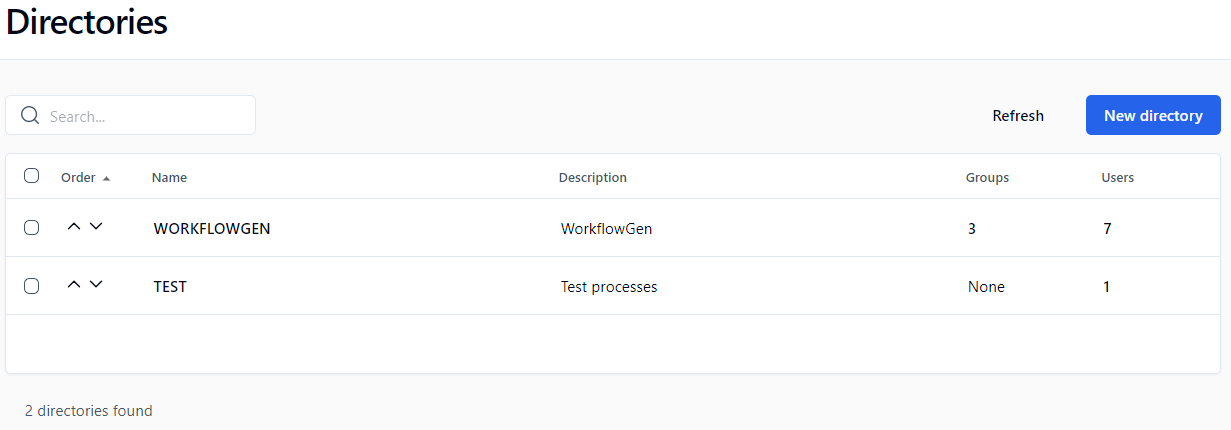
In the left menu on the Administration Module home page, click ![](https://content.gitbook.com/content/q3iSjJknrpzTBBqAK0np/blobs/g9YN3Y0En0uKs9oXf3mt/directories_small.png) to display the **Directories** screen.

<figure><img src="https://content.gitbook.com/content/q3iSjJknrpzTBBqAK0np/blobs/m94HzaypT4NML9lBwWmu/directories.png" alt=""><figcaption></figcaption></figure>

| **Buttons**                                                  | **Remarks**                                  |
| ------------------------------------------------------------ | -------------------------------------------- |
| Refresh                                                      | Refreshes the directory listing              |
| New directory                                                | Displays a blank form to add a new directory |
| Delete (displayed when one or more directories are selected) | Deletes a directory                          |

## Directories list

| **Columns** | **Remarks**                                                                                        |
| ----------- | -------------------------------------------------------------------------------------------------- |
| Order       | Use the up and down arrows to change the order of the list                                         |
| Name        | Directory name; click this to display the directory form in edit mode                              |
| Description | Directory description                                                                              |
| Group(s)    | Number of groups associated to the directory; click the number to display the corresponding groups |
| User(s)     | Number of users associated to the directory; click the number to display the corresponding users   |

## Editing a directory

To edit a directory, click its name in the **Directories** list. (See the [Directory Synchronization](/workflowgen-administration-module-reference-guide/10.0/directory-synchronization) section for information on those settings.)

| **Fields**          | **Remarks**                                                                                                     |
| ------------------- | --------------------------------------------------------------------------------------------------------------- |
| Name                | Unique identifier for the directory; must respect nomenclature and be limited to 50 characters (required field) |
| Description         | Directory description limited to 255 characters (required field)                                                |
| Default directory   | If checked, the directory is displayed first among the directory selection lists in the Administration Module   |
| User password       | Check to allow WorkflowGen to manage passwords                                                                  |
| Directory connector | Various sources that can be used for authentication management                                                  |

## Deleting a directory

* The `WORKFLOWGEN` directory cannot be deleted.
* A directory containing users or groups cannot be deleted.
* A directory can only be deleted if it is empty.


# Users

## Users screen

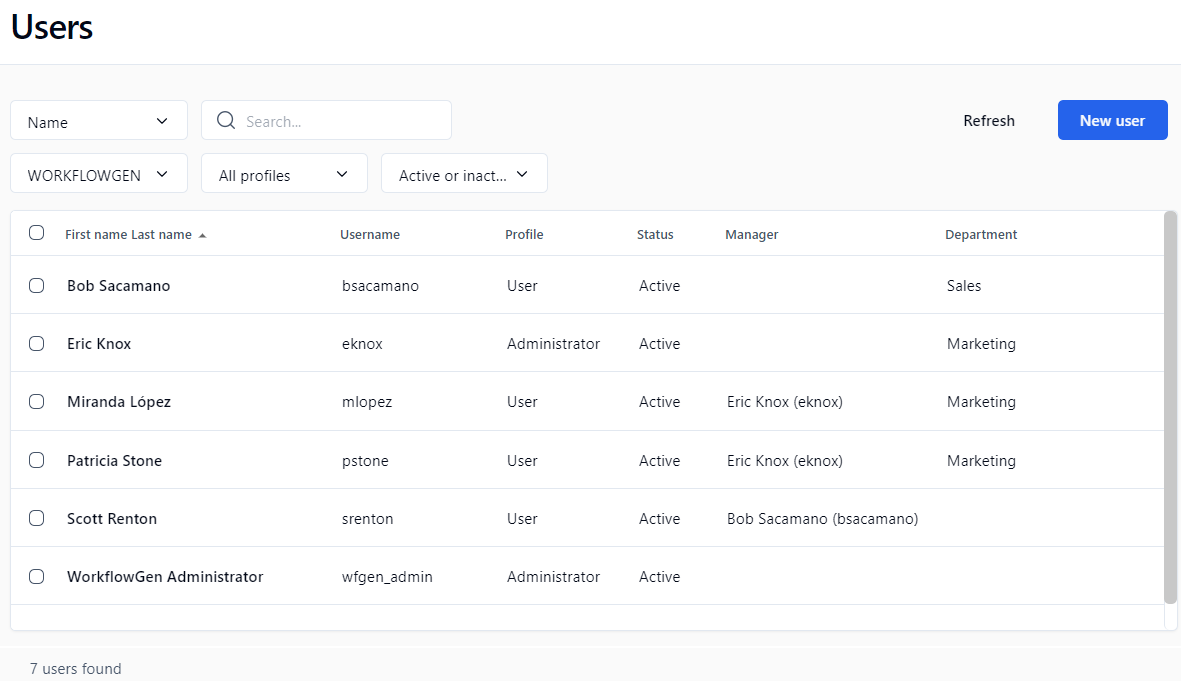
In the left menu on the Administration Module home page, click ![](https://content.gitbook.com/content/q3iSjJknrpzTBBqAK0np/blobs/jeATkvALTftNcJbQKlzM/left_menu_users_small.png) to display the **Users** screen.

<figure><img src="https://content.gitbook.com/content/q3iSjJknrpzTBBqAK0np/blobs/IhYeRga7Vz3aB3ND8umD/users%20list.png" alt=""><figcaption></figcaption></figure>

## Menu banner

| **Buttons** | **Remarks**                                  |
| ----------- | -------------------------------------------- |
| Refresh     | Refreshes the user list displayed            |
| New user    | Displays a blank user form to add a new user |

## Filters

| **External filters**  | **Remarks**                                                                                                                                           |
| --------------------- | ----------------------------------------------------------------------------------------------------------------------------------------------------- |
| Filter drop-down list | Filters by specified criteria (e.g. name, username, email, etc.); see next table                                                                      |
| Search                | Searches for users by name, username, email, etc.                                                                                                     |
| Directory             | Displays the specified user directory                                                                                                                 |
| Profile               | <p>Displays users with the selected profile(s):</p><ul><li>All profiles</li><li>Administrator</li><li>User</li></ul>                                  |
| Status                | <p>Displays users with the specified status(es):</p><ul><li>All</li><li>Active or inactive</li><li>Active</li><li>Inactive</li><li>Archived</li></ul> |

| **Filter drop-down list \*** | **Remarks**                               |
| ---------------------------- | ----------------------------------------- |
| City                         | Filters by user’s city                    |
| Common name                  | Filters by user’s common name             |
| Company                      | Filters by user's company name            |
| Country                      | Filters by user’s country                 |
| Department                   | Filters by user’s department name         |
| Distinguished name           | Filters by user’s distinguished name      |
| Email                        | Filters by user’s email address           |
| Employee number              | Filters by user’s employee number         |
| Employee type                | Filters by user’s employee type           |
| Extended attribute 1         | Filters by user’s extended attribute #1   |
| Extended attribute 2         | Filters by user's extended attribute #2   |
| Extended attribute 3         | Filters by user's extended attribute #3   |
| Extended attribute 4         | Filters by user's extended attribute #4   |
| Extended attribute 5         | Filters by user's extended attribute #5   |
| Fax                          | Filters by user's fax number              |
| Group name                   | Filters by user’s group name              |
| Initials                     | Filters by user’s initials                |
| Job title                    | Filters by user's job title               |
| LDAP ADsPath                 | Filters by user's LDAP ADsPath            |
| Mobile                       | Filters by user's mobile phone number     |
| Name                         | Filters by user's name                    |
| Office                       | Filters by user's office number           |
| Pager                        | Filters by user's pager number            |
| Personal title               | Filters by user’s personal title          |
| Phone                        | Filters by user’s phone number            |
| Postal address               | Filters by user’s postal address          |
| State/Province               | Filters by user’s state or province       |
| System identifier            | Filters by user’s system identifier (SID) |
| Username                     | Filters by user’s username                |
| Zip code                     | Filters by user's zip or postal code      |

\* A filter can be applied to a part of a field.

## User lists

| **Columns**             | **Remarks**                                                                                                                                                                        |
| ----------------------- | ---------------------------------------------------------------------------------------------------------------------------------------------------------------------------------- |
| Multi-select checkboxes | <p>Actions:</p><ul><li>Activate the selected user(s)</li><li>Deactivate the selected user(s)</li><li>Delete the selected user(s)</li></ul>                                         |
| Lastname Firstname      | User’s last name and first name (click to open the user form in edit mode)                                                                                                         |
| Username                | Username of the user                                                                                                                                                               |
| Profile                 | Profile of the user                                                                                                                                                                |
| Status                  | Status of the user’s account: active or inactive                                                                                                                                   |
| Directory               | <p>User directory </p><p></p><p>✏️ <strong>Note:</strong> This column is only visible when you select <strong>All</strong> from the <strong>Directory</strong> drop-down list.</p> |

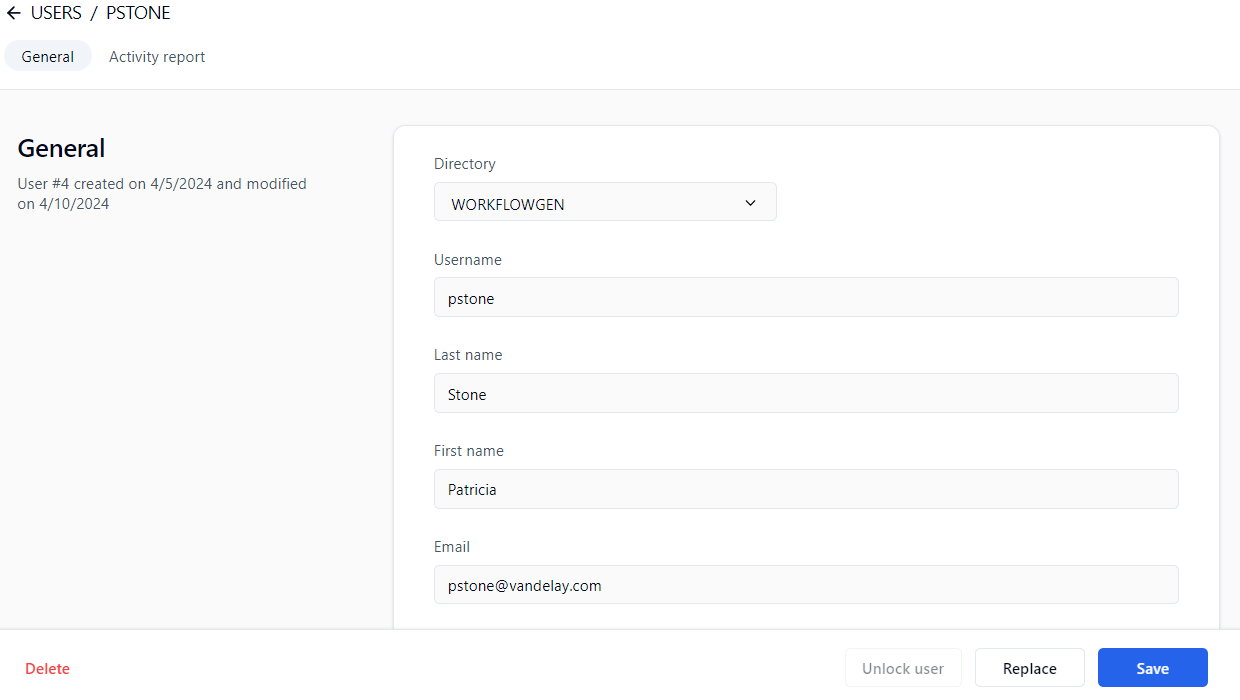
## User form

Click a username to open that user's form.

<figure><img src="https://content.gitbook.com/content/q3iSjJknrpzTBBqAK0np/blobs/JYCXIRvLadoXojwRZUsm/user_form.png" alt=""><figcaption></figcaption></figure>

| **Sections & fields**        | **Remarks**                                                                                                                                                                                         |
| ---------------------------- | --------------------------------------------------------------------------------------------------------------------------------------------------------------------------------------------------- |
| **General**                  |                                                                                                                                                                                                     |
| Directory                    | User directory                                                                                                                                                                                      |
| Username                     | <p>Unique user identifier in all directories; limited to 255 characters (required field)<br></p><p>✏️ <strong>Note:</strong> Usernames cannot contain the <code>:</code> (colon) character.</p>     |
| Last name                    | User’s last name (required field)                                                                                                                                                                   |
| First name                   | User’s first name                                                                                                                                                                                   |
| Email                        | User’s email address                                                                                                                                                                                |
| Synchronized                 | If checked, the user is synchronized                                                                                                                                                                |
| **Authorizations**           |                                                                                                                                                                                                     |
| Profile                      | User’s profile (defines application access rights, either administrator or user)                                                                                                                    |
| Status \*                    | User’s account status: **Active** or **Inactive**                                                                                                                                                   |
| Password                     | User’s password (click **Change password** to change the user’s password)                                                                                                                           |
| **Localizations**            |                                                                                                                                                                                                     |
| Default language             | Language applied when the user's account was created                                                                                                                                                |
| Selected language            | Language selected by the user                                                                                                                                                                       |
| Default time zone            | Time zone applied when the user’s account was activated                                                                                                                                             |
| Selected time zone           | Time zone selected by the user                                                                                                                                                                      |
| **Associations**             |                                                                                                                                                                                                     |
| Group(s)                     | Name of the directory group(s) to which the user is associated; click a group name to open the **Select groups** panel                                                                              |
| Manager                      | The user's manager; click **Add...** to add a manager or ![](https://content.gitbook.com/content/q3iSjJknrpzTBBqAK0np/blobs/1Xng4QXESmwMnnYwyqdN/delete_x_small.png) to remove the selected manager |
| Staff members                | List of users who've been assigned this user as manager; clicking this allows access to the staff member list                                                                                       |
| **Properties**               |                                                                                                                                                                                                     |
| Phone \*                     | User’s telephone number                                                                                                                                                                             |
| Mobile \*                    | User’s mobile telephone number                                                                                                                                                                      |
| Fax \*                       | User’s fax number                                                                                                                                                                                   |
| Pager \*                     | User’s pager number                                                                                                                                                                                 |
| Office \*                    | User’s office number                                                                                                                                                                                |
| Department \*                | User’s department number                                                                                                                                                                            |
| Company                      | User’s company name                                                                                                                                                                                 |
| Job title \*                 | User’s job title                                                                                                                                                                                    |
| Employee type \*             | Employee type the user belongs to                                                                                                                                                                   |
| Initials \*                  | User’s initials                                                                                                                                                                                     |
| Title \*                     | User’s title                                                                                                                                                                                        |
| Employee number              | User’s employee number                                                                                                                                                                              |
| Postal address \*            | User’s postal address                                                                                                                                                                               |
| Zip code \*                  | User’s zip code                                                                                                                                                                                     |
| City \*                      | User’s city                                                                                                                                                                                         |
| State/Area \*                | User’s state or area                                                                                                                                                                                |
| Country \*                   | User’s country                                                                                                                                                                                      |
| LDAP path \*                 | User’s LDAP path                                                                                                                                                                                    |
| Common name \*               | User’s displayed name                                                                                                                                                                               |
| Distinctive name \*          | User’s distinctive name                                                                                                                                                                             |
| Extended attribute 1 to 5 \* | User's extended attribute                                                                                                                                                                           |
| System identifier \*         | User's SID                                                                                                                                                                                          |

\* These fields can be synchronized with Active Directory. These fields aren't required by the application; however, it's possible to use them in workflow macros.

## Deleting and archiving users

A user will be archived and not deleted if:

* The user is associated to a participant as a user.
* The user is the creator or modifier of a process.
* The user is associated to a request or an action.

A user cannot have an inactive, deleted, or archived status if:

* The user is the only person assigned as a coordinator to a **List of persons**.
* The user is the only person in a group assigned to a **List of persons** type participant.
* The user is the only person in a **List of persons** type participant.

## Replacing users

You can replace a user with another one; this replacement user must belong to the same directory and to the same groups. All roles in process definitions will be reassigned to the new user.

Ongoing (open) requests will be reassigned to the new user; closed (historical) actions will keep the participant who actually performed the action.

This function is useful when a someone leaves their position in the organization and their ongoing tasks and roles must be reassigned.

## Unlocking a user account

If a user exceeds the maximum number of connection attempts set in the Configuration Panel, their account will be locked and must be unlocked by an Administrator. To do this, open the user’s profile and click the **Unlock user** button.

## Activity report

Click **Activity report** in the user form to display their usage (requests and actions), delegations to and from them, the participants to which they belong, and their folder and global list managers.

<figure><img src="https://content.gitbook.com/content/q3iSjJknrpzTBBqAK0np/blobs/4IgMICRszZZDoT15ShWM/user_activity_report.png" alt=""><figcaption></figcaption></figure>

The generated report summarizes all the activities for the selected user, such as:

#### **Usage: Requests**

* Request type (real or in test)
* In progress
* Closed
* Total

#### **Usage: Actions**

* Action type (real or in test)
* In progress
* Closed
* Total

#### **Delegations from the user**

* Process
* Participant
* Global
* Delegatee
* Begin
* End

#### **Delegations to the user**

* Process
* Participant
* Global
* User (delegator)
* Begin
* End

#### **Participants that the user belongs to**

* Process
* Participant
* Global
* Role
* Directory
* Groups
* User
* Coordinator

#### **Folder manager**

* Folder
* Participant
* Directory
* Groups
* User

#### **Global list managers**

* Participant
* Directory
* Groups
* User


# Groups

## Groups screen

In the left menu on the Administration Module home page, click ![](https://content.gitbook.com/content/q3iSjJknrpzTBBqAK0np/blobs/GFGqq0w9OfHZhgKZthkT/left_menu_groups_small.png) to display the **Groups** screen.

<figure><img src="https://content.gitbook.com/content/q3iSjJknrpzTBBqAK0np/blobs/tAHoYzhHDRGkKRHsWPJw/groups%20list.png" alt=""><figcaption></figcaption></figure>

## Menu banner

| **Buttons** | **Remarks**                              |
| ----------- | ---------------------------------------- |
| Refresh     | Refreshes the group list displayed       |
| New group   | Displays a blank form to add a new group |

## Filters

| **External filters**     | **Remarks**                                                                                                                                                                                                                                                                                                                |
| ------------------------ | -------------------------------------------------------------------------------------------------------------------------------------------------------------------------------------------------------------------------------------------------------------------------------------------------------------------------- |
| Filter drop-down list    | Filters by specified criteria (e.g. name, description, email address, etc.); see next table                                                                                                                                                                                                                                |
| Search                   | Searches for groups by name, description, etc.                                                                                                                                                                                                                                                                             |
| Directory drop-down list | Displays the specified group directory                                                                                                                                                                                                                                                                                     |
| Type drop-down list      | <ul><li><strong>All</strong></li><li><strong>Directory</strong>: A group of users from a single directory (created by a synchronization or defined within WorkflowGen)</li><li><strong>Virtual group</strong>: A virtual group of users from a single directory filtered by an SQL-like query (directory filter)</li></ul> |

| **Filter drop-down list \*** | **Remarks**                                |
| ---------------------------- | ------------------------------------------ |
| ADS Path                     | Filters by group's ADS Path                |
| Common name                  | Filters by group's common name             |
| Description                  | Filters by group’s description             |
| Disintguished name           | Filters by group's distinguished name      |
| Email                        | Filters by group's email address           |
| Group code                   | Filters by group's group code              |
| Name                         | Filters by group's name                    |
| Query                        | Filters by group's query                   |
| System identifier            | Filters by group's system identifier (SID) |

\* A filter can be applied to part of a field.

## Groups list

| **Columns**             | **Remarks**                                                                                                                                                                                                                 |
| ----------------------- | --------------------------------------------------------------------------------------------------------------------------------------------------------------------------------------------------------------------------- |
| Multi-select checkboxes | <p>Clicking one or more checkboxes will display buttons to:</p><ul><li>Delete the selected group(s)</li><li>Activate the members of the selected group(s)</li><li>Deactivate the members of the selected group(s)</li></ul> |
| Name                    | Name of the group (click to open the group form in edit mode)                                                                                                                                                               |
| Description             | Description of the group                                                                                                                                                                                                    |
| Users                   | Number of users associated to the group (a link displays the corresponding users)                                                                                                                                           |
| Directory               | Group directory                                                                                                                                                                                                             |

## Group form

Click a group name to open its form, which contains the following sections and fields.

| **Sections / Fields**                                                                                                                         | **Remarks**                                                                                                                                                                                                       |
| --------------------------------------------------------------------------------------------------------------------------------------------- | ----------------------------------------------------------------------------------------------------------------------------------------------------------------------------------------------------------------- |
| **General**                                                                                                                                   |                                                                                                                                                                                                                   |
| Directory                                                                                                                                     | Group directory                                                                                                                                                                                                   |
| Name                                                                                                                                          | Unique identifier for the group in the directory (required field)                                                                                                                                                 |
| Description                                                                                                                                   | Group description (required field)                                                                                                                                                                                |
| Synchronized                                                                                                                                  | If checked, the group is managed by the directory synchronization                                                                                                                                                 |
| **Associations**                                                                                                                              |                                                                                                                                                                                                                   |
| Virtual group query                                                                                                                           | Statement allowing a group definition based on query parameters (directory filter); see below for [query examples](/workflowgen-administration-module-reference-guide/10.0/user-management/groups#query-examples) |
| <img src="https://content.gitbook.com/content/q3iSjJknrpzTBBqAK0np/blobs/cl9vEeWPo2rMHzuFt28Z/question_mark.png" alt="" data-size="original"> | Help on query syntax (field name list)                                                                                                                                                                            |
| Test                                                                                                                                          | Query syntax test and query result                                                                                                                                                                                |
| Users                                                                                                                                         | Number of users associated to the group (a link displays the corresponding users); see [Associated users](#associated-users) below for more information                                                           |
| **Properties**                                                                                                                                |                                                                                                                                                                                                                   |
| Email                                                                                                                                         | Group's email address                                                                                                                                                                                             |
| Group code                                                                                                                                    | Group's code                                                                                                                                                                                                      |
| LDAP ADsPath                                                                                                                                  | Group's LDAP ADsPath string                                                                                                                                                                                       |
| Common name                                                                                                                                   | Group's common name                                                                                                                                                                                               |
| Distinguished name                                                                                                                            | Group's distinguished name                                                                                                                                                                                        |
| System identifier                                                                                                                             | Group's SID                                                                                                                                                                                                       |

### Associated users

Users are associated with a group only when the group is saved (at creation or when manually re-saved). If synchronized, the user list is refreshed at the time of the synchronization. If no synchronization has been defined for that directory, users in the virtual groups of that directory will not be updated automatically.

### Query examples

* User of a group: `{ISMEMBER(FINANCE)}`
* Users from a defined city: `CITY = 'LOS ANGELES'`
* Combinations, such as: `Country='USA'` and `{ISMEMBER(FINANCE)}`

## Deleting a group

Deleting a group does not delete the associated users.


# Delegations

## Delegations screen

In the left menu on the Administration Module home page, click ![](https://content.gitbook.com/content/q3iSjJknrpzTBBqAK0np/blobs/4HGNm9FsLCixWXs3i53N/left_menu_delegations_small.png) to display the **Delegations** screen.

<figure><img src="https://content.gitbook.com/content/q3iSjJknrpzTBBqAK0np/blobs/f9AUozrylNPj68xI7dtQ/delegations.png" alt=""><figcaption></figcaption></figure>

## Menu banner

| **Buttons**    | **Remarks**                                   |
| -------------- | --------------------------------------------- |
| Refresh        | Refreshes the delegations list                |
| New delegation | Displays a blank form to add a new delegation |

## Filters

| **External filters**   | **Remarks**                                                                                     |
| ---------------------- | ----------------------------------------------------------------------------------------------- |
| Process drop-down list | Displays the delegations of the selected process (only active or archived processes are listed) |

| **Filter on** | **Remarks**                      |
| ------------- | -------------------------------- |
| Participant   | Filter by participant            |
| Delegator     | Filter by user who delegated     |
| Delegatee     | Filter by user to whom delegated |

## Delegation list

| **Column**  | **Remarks**                                                        |
| ----------- | ------------------------------------------------------------------ |
| Process     | Process name                                                       |
| Participant | Participant name                                                   |
| Delegator   | User who delegated                                                 |
| Delegatee   | User to whom delegated                                             |
| From        | Delegation start date; if not defined, the delegation is unlimited |
| To          | Delegation end date; if not defined, the delegation is unlimited   |

## Adding a delegation

When adding a new delegation, you can decide whether or not to send a notification email to the delegatee via the displayed message box.

A delegation is unique based on the process, the participant, the delegator, the delegatee, the begin date, and the end date. This means that you cannot define multiple time periods for a given delegation.

{% hint style="info" %}
As of WorkflowGen 8.0.3:

* You can define cross-delegations on overlapping periods between the same users on the same participant.
* You can define multi-level delegations, so if user A has delegated actions to user B, user B can then delegate these actions to user C.
  {% endhint %}

## Deleting a delegation

Deleting a delegation does not delete the associated user.

## Process versioning

Delegations are process version-specific:

* New versions of a process copy all existing delegations where possible, based on matching participant names.
* Since delegations can only be created for active processes, delegations are only carried forward when a versioned process is activated.
* A delegatee can only see the delegator’s actions and requests from the version at which they were delegated the role, and going forward if copied by creating a new version and not changed subsequently.
* When a user changes a delegation in the current version, it does not affect prior delegations performed for previous versions.
* If prior version actions and requests also need to be delegated, an Administrator must use their delegation screen to add the prior versions' delegations.


# Directory Synchronization

## Overview

The **Directory synchronization** module provides an efficient way to synchronize WorkflowGen users and groups with one or more existing enterprise directories.

Here are some important things to know about synchronization:

* The synchronization process can be manual or automatic.
* The built-in `WORKFLOWGEN` directory cannot be synchronized.
* A user’s username must be unique across all WorkflowGen directories.
* You can synchronize multiple directories or multiple portions of a directory with different connectors.
* When a user account is deleted, that user will either be archived or deactivated, depending on the parameters specified. If archived, the username will then be renamed and the account disabled.

#### Recommendation for per-user license mode

It's recommended that you synchronize a new user account with the **New user default status** option set to **Inactive**. These new accounts can later be activated either manually by the Administrator in the user/group lists or automatically by using the self-activation feature.

## General usage

### Accessing the synchronization settings

Only users with an Administrator profile can access the synchronization module.

To access a directory's synchronization settings, click its name in the **Directories** list, then scroll down to the **Synchronization** section.

When creating a new synchronization based on Active Directory, LDAP, or TEXT, the applicable fields listed below will appear based on the selected synchronization method.

{% hint style="warning" %}
Once saved, it's no longer possible to change the directory connector.
{% endhint %}

#### Separator

For the text connector, the column separation character in the text file can be a semicolon (`;`), a comma (`,`), or a `Tab` character.

#### File path

This field makes it possible to specify a path to access the files for the text connector. It takes as a value the path where the files are located, followed by the synchronization name.

{% hint style="info" %}
The synchronization name is used to name the files.
{% endhint %}

#### LDAP path

For Active Directory, an LDAP path is required. Only a single LDAP path is supported per connector.

#### Data to synchronize

With WorkflowGen, groups and users can be synchronized. User synchronization is required, but group synchronization can be activated or deactivated.

{% hint style="info" %}
With LDAP synchronization, a group query must be defined even if the group is not set to synchronize.
{% endhint %}

#### User synchronization field

In order to perform synchronization, the module uses a field to identify the users, and defines the additions, deletions, or updates. The default field is `USERNAME`, but you can choose any field from WorkflowGen (e.g. `Ads_Path`, `EMPLOYEENUMBER`, etc.) as long as it's processed by the connector.

#### Group synchronization field

As with users, parameters can be set for the group synchronization field.

#### User synchronization query

For an LDAP connector, an LDAP query must be specified to query user accounts.

#### Group synchronization query

For an LDAP connector, an LDAP query must be specified to query groups.

#### Directory login and password

For Active Directory or LDAP connectors, a login and password may be required to provide access to the directory server.

#### Deep search mode

For the Active Directory connector, define if the synchronization should include only the container of the targeted OU or include all the subtrees of the targeted OU.

**User synchronization field** & **Group synchronization field**&#x20;

These are set to **System identifier** by default. If you have an existing WorkflowGen installation that uses an Active Directory connector for synchronization, we recommend switching the user and group synchronization fields to **System identifier**, since this is a unique identifier for each user and group object in Active Directory.

#### Prefix username by

To facilitate importing, and in certain cases to avoid double entries concerning usernames, it's possible to prefix usernames with a character string.\
📌 **Example:** `Domain\`

{% hint style="info" %}
The username prefix cannot contain the `:` (colon) character.
{% endhint %}

#### Prefix groupname by

To facilitate importing and in certain cases to avoid double entries concerning group names, it's possible to prefix group names with a character string.\
📌 **Example:** `Domain\`

#### User synchronization type

There are three synchronization modes: **Add only** allows new users to be imported, **Add and update** also allows data for existing users to be updated, and **Add, update and delete** has an additional function that enables archiving of WorkflowGen users who aren't included in the imported directory.

* **Add only:** During synchronization, any user that exists in the directory to be imported but doesn't exist in the WorkflowGen directory will be added to the latter. Data for existing users will not be modified. In order to be added, a user must at least have a user name (`USERNAME`) and a last name (`LASTNAME`). If this condition isn't satisfied, an error occurs and the add is cancelled. In case of a defect with one of these values (`USERNAME` and `LASTNAME`), an alert (`WARNING`) is generated.
* **Add and update:** This type of synchronization functions the same as the preceding one with regards to additions. It also allows you to update data for users who are already present in the directory and are to be synchronized. In this way, data for a user present in the WorkflowGen directory and in the directory to be imported will be updated.
* **Add, update and delete:** You can delete users from a WorkflowGen directory through synchronization. In this mode, the user is deleted when they're present in the WorkflowGen directory but not in the directory to be imported.

#### Group synchronization type

There are three synchronization modes: **Add only** allows only new groups to be imported, **Add and update** allows data for existing groups to be updated, and **Add, update and delete** has an additional function that enables archiving of WorkflowGen groups that aren't included in the imported directory.

#### New user default status

This option defines the default status of new user accounts that are created during the synchronization. Set the status to **Active** if you want a new user account to be activated by default. Set the status to **Inactive** if you want to manage new user account activation manually, or to enable the user self-activation feature. This is recommended for clients who are using the per-user license mode.

#### Self-activation

This option allows an inactive new user account to activate itself when the user logs in to WorkflowGen for the first time. The **Inactive** new user default status option must first be selected in order to use this option.

#### If a user is deleted

In order to provide proper user tracking in WorkflowGen, when a deletion request is generated, users that have performed actions are not actually deleted; you can either deactivate them or archive them. Once archived, the user will retain their unique internal ID, but their username will be renamed with an `archive` suffix and sequence number.

#### Launching mode

Triggering can occur manually (using the **Synchronize** button) or automatically.

* **Manual:** Manual synchronization makes it possible to perform synchronization on an on-demand basis only. To do this, click the **Synchronize** button on the synchronization file concerned.
* **Test:** This mode has the same running mode as manual synchronization, except that in reality, processing isn't performed. Instead, it's only simulated in order to anticipate if synchronization will take place correctly or not. To do this, click the **Test** button. A synchronization test is logged in the same way as a real synchronization.
* **Automatic:** Data synchronization can take place automatically. In this case, a scheduled task analyzes the configuration of all the synchronizations on a daily basis, and subsequently runs the process.

#### Frequency

If synchronization is performed automatically, you can choose the frequency for synchronization. This can be every day, once a week, or once a month. For automatic synchronization, see the [Configuration Panel](/workflowgen-administration-module-reference-guide/10.0/configuration-panel#configuration-panel) section for instructions on how to set specific dates and times for the operation.

## Active Directory connector

### Overview

The purpose of this connector is to import users and groups from Active Directory into a WorkflowGen directory. The connector operates with the LDAP protocol using ADSI (Active Directory Service Interface). Access to Active Directory is read-only.

### Requirements

* Read-only LDAP access to Active Directory is required for an anonymous account or for an account that has access to the Active Directory server.
* If the Active Directory server is located behind a firewall, the LDAP protocol must be open.
* You can use the ADSVIEW utility tool provided in the setup package to check that your LDAP path refers to the correct container to retrieve the users and groups of your directory.

### LDAP path

The connector needs an LDAP path in order to retrieve the data in Active Directory. This path consists of:

* The protocol: `LDAP://`, in this case.
* The name of the server or its IP address.
* Optionally, the port separated from the name of the server with `:` (colon). Default: `389`\
  ✏️ **Note:** If you’re using LDAP in SSL mode, you must use port 636; otherwise, you can omit the port number, or use the default one.
* The path in the server's LDAP tree structure.

In order to run the query that is needed to synchronize the users, the Organization (`O`) and the Organizational Units (`OU`) must be specified starting from the bottom upwards, preceding them with `DC=` and separating them with `,` (comma).

#### 📌 Example

An Active Directory structure is as follows:

* **Top level Domain (DC):** `thecompany.com`
* **Organization unit (OU):** group within the domain: `BusinessUnit2`&#x20;
* **Sub-unit (OU):** sub-group within the domain: `IT Department`

In order to access users and groups of `IT Department`, the LDAP path would be:

```
LDAP://servername:port/OU=IT Department,OU=BusinessUnit2,DC=thecompany,DC=com
```

The LDAP path doesn't support the `.` operator, but it does support spaces. Therefore, the `.com` is identified by the `DC=com` operator.

{% hint style="warning" %}

* CN is also supported as a container type.<br>
* Only one branch of the directory can be associated with a given directory. If multiple OUs at the same level must be queried, then the parent of both OUs must be queried, or two directories created. For example, if the structure `/Company/Department1` and `/Company/Department2` and `/Company/Department3` exists, and only departments 1 and 2 must be queried, then either the entire `/Company` OU should be specified (all three department OUs will be synchronized), or two separate synchronization directories should be created each with one OU specified.<br>
* LDAP query filters are not supported.<br>
* The group query is inherently the same as the user query.<br>
* Groups and users linked to them must exist within the same LDAP path, otherwise mismatched group/user combinations will be excluded from the synchronization and appear as errors in the synchronization log. This typically occurs when Active Directory groups are defined as CNs within an OU that point to users that are in fact defined in other OUs outside the scope in the LDAP path provided.\
  \
  For example, this situation will arise if the LDAP path is defined to link only to the `/Company/Department1` OU, and within this OU the `/Company/Department1/Team1` group points to users in `/Company/Department2`. In this case, it is recommended to either choose an LDAP path that includes all OUs that are involved in the groups, or to use the `LDAP` connector type instead to create more refined individual user/group queries and filters.
  {% endhint %}

For more information, see [LDAP connector](/workflowgen-administration-module-reference-guide/10.0/directory-synchronization#ldap-connector).

### Data to import

Synchronization is performed for users. However, it is also possible to synchronize groups, and consequently group user memberships. You can import data directly from the OU or the container that is the target path. You can retrieve data from the child containers by activating the **Deep search mode**.

For users to be synchronized, their `sn` and `sAMAccountName` attributes must be set in Active Directory. These map to Last name and Username, respectively.

{% hint style="warning" %}
The Active Directory connector does not take into account the `Disabled` property of AD user accounts; these accounts will therefore be synchronized as active users. If you don't want the synchronization to include inactive AD accounts, you'll need to use the [LDAP connector](/workflowgen-administration-module-reference-guide/10.0/directory-synchronization#ldap-connector) instead, with the `(!(userAccountControl:1.2.840.113556.1.4.803:=2))` filter added to the user synchronization query. As well, make sure to set the desired behavior for the **If a user is archived** option to either **Archive** (default) or **Deactivate** whenever an existing account becomes inactive in AD.
{% endhint %}

### Retrieving Active Directory data

The information is retrieved in Active Directory using the LDAP path. As such, it provides an in-depth access to the data by targeting the OU from which the users and groups are to be retrieved.

The following tables list the mapping between the key-entry fields for a user and the field names with Active Directory. These mappings can't be edited, so if you want to edit them, you'll need to use the directory LDAP connector (see [LDAP connector](/workflowgen-administration-module-reference-guide/10.0/directory-synchronization#ldap-connector) below).

#### Users

| **Field**            | **Active Directory default mapping** |
| -------------------- | ------------------------------------ |
| Username             | `sAMAccountName`                     |
| Password             | `userPassword`                       |
| Name                 | `sn`                                 |
| First name           | `givenName`                          |
| Email                | `mail`                               |
| Default time zone    | (none)                               |
| Manager              | `manager`                            |
| Phone                | `telephoneNumber`                    |
| Mobile               | `mobile`                             |
| Fax                  | `facSimileNumber`                    |
| Pager                | `pager`                              |
| Office               | `physicalDeliveryOfficeName`         |
| Department           | `department`                         |
| Company              | `company`                            |
| Job title            | `title`                              |
| Employee type        | `employeeType`                       |
| Initials             | `initials`                           |
| Title                | `personalTitle`                      |
| Employee number      | `employeeID`                         |
| Postal address       | `postalAddress`                      |
| Zip code             | `postalCode`                         |
| City                 | `l`                                  |
| State/Area           | `st`                                 |
| Country              | `co`                                 |
| LDAP path            | `ADsPath`                            |
| Display name         | `distinguishedName`                  |
| Distinctive name     | `cn`                                 |
| Extended attribute 1 | `extensionAttribute1`                |
| Extended attribute 2 | `extensionAttribute2`                |
| Extended attribute 3 | `extensionAttribute3`                |
| Extended attribute 4 | `extensionAttribute4`                |
| Extended attribute 5 | `extensionAttribute5`                |
| System identifier    | `objectSid`                          |

#### Groups

| **Field**         | **Active Directory default mapping** |
| ----------------- | ------------------------------------ |
| Name              | `sAMAccountName`                     |
| Description       | `Description`                        |
| Email             | `mail`                               |
| Group code        | `groupCode`                          |
| LDAP path         | `AdsPath`                            |
| Display name      | `cn`                                 |
| Distinctive name  | `DistinguishedName`                  |
| System identifier | `objectSid`                          |

## LDAP connector

### Overview

The purpose of the LDAP connector is to import users and groups from a generic LDAP directory (e.g. AD, Sun ONE, ADAM, etc.) into a WorkflowGen directory. The connector operates with the LDAP protocol and the connection is performed as read-only.

### Requirements

Read-only LDAP access is required for an anonymous account or for an account that has access to the LDAP server. If the LDAP server is located behind a firewall, the LDAP protocol must be open.

### User and group synchronization queries

The connector needs an LDAP query in order to retrieve the data in the directory. This query consists of:

* The protocol: `LDAP://`, in this case.
* The name of the server or its IP address.
* Optionally, the port separated from the name of the server with `:` (colon). The default port is `389`.
* The top level domain.
* The LDAP query and/or filters.

#### 📌 Examples

An LDAP structure is as follows:

* **Top level Domain (DC):** `thecompany.com`&#x20;
* **Organization unit (OU):** Group within the domain: `BusinessUnit2`
* **Sub-unit (OU):** Sub-group within the domain: `IT Department`

In order to access users and groups of `IT Department`, the LDAP queries would be (assuming an Active Directory LDAP structure):

#### User

```
LDAP://servername:port/DC=thecompany,DC=com;(&(objectCategory=person)(objectClass=user)(sn=*)(sAMAccountName=*)(memberOf=CN=TheSpecificCN,OU=LowestOU,OU=HigherOU,DC=thecompany,DC=com)(!(userAccountControl:1.2.840.113556.1.4.803:=2)));adsPath,objectSid,sAMAccountName,sn,GivenName,mail,telephoneNumber,mobile,pager,facSimileTelephoneNumber,department,company,EmployeeType,EmployeeId,title,initials,postalAddress,postalCode,physicalDeliveryOfficeName,st,L,co,manager;subtree
```

#### Group

```
LDAP://servername:port/DC=thecompany,DC=com;(&(objectClass=group));adsPath,objectSid,sAMAccountName,Description;subtree
```

To use a specific CN referencing two groups, the following query filters may be used:

#### User

```
LDAP://servername:port/DC=thecompany,DC=com;(&(objectCategory=person)(objectClass=user)(sn=*)(sAMAccountName=*) (memberOf=CN=TheSpecificCN,OU=LowestOU,OU=HigherOU,DC=thecompany,DC=com)(!(userAccountControl:1.2.840.113556.1.4.803:=2)));adsPath,objectSid,sAMAccountName,sn,GivenName,mail,telephoneNumber,mobile,pager,facSimileTelephoneNumber,department,company,EmployeeType,EmployeeId,title,initials,postalAddress,postalCode,physicalDeliveryOfficeName,st,L,co,manager;subtree
```

#### Group

```
LDAP://thecompany/dc=thcompany,dc=com;(&(objectClass=group)(|(sAMaccountName=Group1)(sAMaccountName=Group2)));adsPath,objectSid,sAMAccountName,Description;subtree
```

{% hint style="warning" %}

* Only one user and group query can be associated with a given directory. If multiple OUs at the same level must be queried, then the parent of both OUs must be queried, two directories created, or a specific query filter devised that includes both OUs.<br>

  For example, if the structure `/Company/Department1` and `/Company/Department2` and `/Company/Department3` exists, and only departments 1 and 2 must be queried, then either the entire `/Company` OU should be specified (all the department OUs will be synchronized), or a specific filter must be devised that queries only those two OUs.<br>
* Groups and users linked to them must exist within the same LDAP path, otherwise mismatched group/user combinations will be excluded from the synchronization, and appear as errors in the synchronization log. This typically occurs when AD groups are defined as CNs within an OU that point to users that are in fact defined in other OUs outside the scope of the LDAP path provided.<br>

  For example, if the LDAP path is defined to link only to the `/Company/Department1` OU, and within this OU the `/Company/Department1/Team1` group points to users in `/Company/Department2`, this situation will arise. In this case, it is suggested to choose a user query that includes all OUs that are involved in the groups.
  {% endhint %}

{% hint style="info" %}
See the [Search Filter Syntax](https://learn.microsoft.com/en-us/windows/win32/adsi/search-filter-syntax) Microsoft article for additional samples of generic LDAP queries.
{% endhint %}

### Data to import

Synchronization is performed for users. However, it is also possible to synchronize groups, and consequently, group user memberships.

For users to be synchronized, their `sn` and `sAMAccountName` attributes must be set in Active Directory. These map to Last name and Username, respectively.

You can import data directly from the OU or the container that is the target path. You can also retrieve data from the child containers by activating the Deep Search Mode.

### Synchronization fields

The default synchronization fields are set as follows:

* **Users:** System identifier
* **Groups:** name (`sn`)

### Retrieving LDAP data

The following tables list the mapping between the key-entry fields for a user and the field names with LDAP. These mappings can be edited by selecting the **Edit mapping** button on the directory editing page.

{% hint style="warning" %}
Make sure to save the field mapping whenever you add or modify an LDAP query.
{% endhint %}

#### Users

| **Field**                          | **LDAP default mapping**     |
| ---------------------------------- | ---------------------------- |
| Username                           | `sAMAccountName`             |
| Password                           | (none)                       |
| Name                               | `sn`                         |
| Firstname                          | `givenName`                  |
| Email                              | `mail`                       |
| Default time zone                  | (none)                       |
| Manager (must be a valid username) | `manager`                    |
| Phone                              | `telephoneNumber`            |
| Mobile                             | `mobile`                     |
| Fax                                | `facSimileNumber`            |
| Pager                              | `pager`                      |
| Office                             | `physicalDeliveryOfficeName` |
| Department                         | `department`                 |
| Company                            | `company`                    |
| Job title                          | `title`                      |
| Employee type                      | `employeeType`               |
| Initials                           | `initials`                   |
| Title                              | `personalTitle`              |
| Employee number                    | `employeeID`                 |
| Postal address                     | `postalAddress`              |
| Zip code                           | `postalCode`                 |
| city                               | `l`                          |
| State/Area                         | `st`                         |
| Country                            | `co`                         |
| LDAP path                          | `ADsPath`                    |
| Display name                       | `distinguishedName`          |
| Distinctive name                   | `cn`                         |
| Extended attribute 1               | `extensionAttribute1`        |
| Extended attribute 2               | `extensionAttribute2`        |
| Extended attribute 3               | `extensionAttribute3`        |
| Extended attribute 4               | `extensionAttribute4`        |
| Extended attribute 5               | `extensionAttribute5`        |
| System identifier                  | `objectSid`                  |

#### Groups

| **Field**         | **LDAP default mapping** |
| ----------------- | ------------------------ |
| Name              | `sAMAccountName`         |
| Description       | `Description`            |
| Email             | `mail`                   |
| Group code        | `groupCode`              |
| LDAP path         | `AdsPath`                |
| Display name      | `cn`                     |
| Distinctive name  | `DistinguishedName`      |
| System identifier | `objectSid`              |

## Text connector

### Overview

The purpose of the text connector is to import users and groups using text files into a WorkflowGen directory.

### Requirements

The text connector requires three different text files:

* **User:** One text file that contains the data related to the users to synchronize.
* **Group:** One text file that contains the data related to the groups to synchronize.
* **Usergroup:** One text file that contains the relationships between the users and the groups according to the selected synchronization fields.

### Data to import

Synchronization takes place for the users, but it can also be activated for groups. To do this, check the corresponding box in the synchronization configuration sheet.

### Selecting files

Since files to be imported have a standard suffix, use `Filepath` and key in the path followed by the part that is common to the names of the three files.

#### 📌 Example

If you decide to name your import `importWorkflowGen` and you have saved it to the `DRIVE:\Extract\` directory, you'll need to have the `importWorkflowGen_USER.txt` file in this directory. If you want to perform group synchronization as well, you'll also need the `importWorkflowGen_GROUP.txt` and `importWorkflowGen_USERGROUP.txt` files. When setting the parameters for synchronization, once you've chosen the `Text` connector, enter `DRIVE:\Extract\importWorkflowGen` in `Filepath`.

### Text file names

Data import files must have suffixes as described in the following manner:

* The user file must end with `_USER.txt`
* The group file must end with `_GROUP.txt`
* The group user member file must end with `_USERGROUP.txt`

The rest of the file name must be the same for the three files.

### Text file structure

Text files begin with a line listing each of the property names separated with a character that is defined as a constant in the connector file. Each line then corresponds to a record, such as a user, with the values also separated by the delimiting character. If a property is empty, it must nevertheless be delimited by the separating character. The default delimiter is `;` (semicolon).

{% hint style="info" %}
The `,` (comma) separator cannot be used on a server that uses this character as a decimal separator, such as a French server.
{% endhint %}

The group user member file only has two fields: synchronization fields for groups and for users. These fields are chosen in the directory synchronization module. As well, it's possible to prefix the names of these fields in order to avoid cases where a field name for synchronizing users is the same as that for groups. These parameters are set in the **Configuration Panel** in the **Administration Module** when setting the Active Directory synchronization values.

For example, if the user synchronizing field is `Username` and the field for the groups is name, the file must contain the `GROUP_sAMAccountName` and `USER_sAMAccountName` fields.

### ADS path

With text files exported from Active Directory, the connector needs the LDAP path in order to allow it to rebuild the `ADSPATH` property for the users.

### List of properties

The following tables list the properties that are needed for synchronizing users, with their equivalents in WorkflowGen. These mappings define the column names in the text file and can be edited by selecting the **Edit mapping** button in the directory editing page.

#### Users

| **Field**                          | **Text default mapping**     |
| ---------------------------------- | ---------------------------- |
| Username                           | `sAMAccountName`             |
| Password                           | (none)                       |
| Name                               | `sn`                         |
| Firstname                          | `givenName`                  |
| Email                              | `mail`                       |
| Default time zone                  | (none)                       |
| Manager (must be a valid username) | `manager`                    |
| Phone                              | `telephoneNumber`            |
| Mobile                             | `mobile`                     |
| Fax                                | `facSimileNumber`            |
| Pager                              | `pager`                      |
| Office                             | `physicalDeliveryOfficeName` |
| Department                         | `department`                 |
| Company                            | `company`                    |
| Job title                          | `title`                      |
| Employee type                      | `employeeType`               |
| Initials                           | `initials`                   |
| Title                              | `personalTitle`              |
| Employee number                    | `employeeID`                 |
| Postal address                     | `postalAddress`              |
| Zip code                           | `postalCode`                 |
| City                               | `l`                          |
| State/Area                         | `st`                         |
| Country                            | `co`                         |
| LDAP path                          | (none)                       |
| Display name                       | (none)                       |
| Distinctive name                   | (none)                       |
| Extended attribute 1               | (none)                       |
| Extended attribute 2               | (none)                       |
| Extended attribute 3               | (none)                       |
| Extended attribute 4               | (none)                       |
| Extended attribute 5               | (none)                       |
| System identifier                  | (none)                       |

#### Groups

| Field       | Text default mapping |
| ----------- | -------------------- |
| Name        | `sAMAccountName`     |
| Description | `Description`        |

#### User groups

These are the required fields for the group user member file:

* Synchronization field name for groups (e.g. `GROUP_SAMAccountName`)
* Synchronization field name for users (e.g. `USER_SAMAccountName`)

### Active Directory export text file

You can generate an export text file for user data by using the following command:

```
csvde –f file.csv –s SERVERNAME –d "OU=myOu,DC=mycompany,DC=com" –p subtree –r "(objectClass=OrganizationalPerson)" –l "ADsPath,cn,displayName,givenName,sn,sAMAccountName,mail, telephoneNumber,mobile,pager,facSimileTelephoneNumber,physicalDeliveryOfficeName,department,company, initials,title,employeeID,employeeType,postalAddress,postalCode,l,st,co,personalTitle"
```

In this case `SERVERNAME` is the name of the server hosting the directory, `file.CSV` is the name of the resulting text file, and `OU=myOu,DC=mycompany,DC=com` is the path to the container in which you want to put the list of users.

To execute this synchronization automatically, this data export process must be added to the task scheduler before the synchronization script is run. To add a task, see the administrator documentation for the **Synchronization module**. This method does not allow groups to be synchronized.

### Examples of text files

#### User file

```
sn;givenName;sAMAccountName;mail;
"USER1-01";"Paul Smith";"psmith";"paul.smith@mycompany.com";
"USER1-02";"John Doe";"jdoe";"john.doe@mycompany.com";
"USER1-03";"Jack Ryan";"jryan";"jack.ryan@mycompany.com";
"USER1-04";"Ted Graham";"tgraham";"ted.graham@mycompany.com";
```

#### Group file

```
sAMAccountName;Description
"HR";"GRP1-01"
"IT";"GRP1-02"
```

#### User group file

```
GROUP_sAMAccountName;USER_sAMAccountName
"HR";"psmith"
"HR";"jdoe"
"IT";"jryan"
"IT";"tgraham"
```

## SCIM connector

The SCIM connector lets you define a new directory that will be used by Microsoft Entra ID (formerly Azure Active Directory) to synchronize users and groups. For information on how to configure this, see the [Microsoft Entra ID Synchronization](https://docs.advantys.com/workflowgen-for-azure/azure-active-directory-synchronization) section in the [WorkflowGen for Azure](https://docs.advantys.com/workflowgen-for-azure/) guide.

## Self-provisioning connector

The self-provisioning connector is a directory connector that automatically creates and synchronizes a user based on the user's session token claims that contain claims from the OpenID Connect provider ID token. For instructions on how to configure this, see the [Auth0 user provisioning](https://advantys.gitbooks.io/workflowgen-technical-reference-guide/content/auth0-integration.html#auth0-user-provisioning) section in the [WorkflowGen Technical Guide](https://advantys.gitbooks.io/workflowgen-technical-reference-guide/content/).

## Synchronization logs

### Overview

Synchronization logs are set up on the **Directory synchronization** tab in the **Configuration Panel**; see [Directory synchronization](/workflowgen-administration-module-reference-guide/10.0/configuration-panel#directory-synchronization) in the [Configuration Panel](/workflowgen-administration-module-reference-guide/10.0/configuration-panel) section.

Each synchronization, whether manual or automatic, is logged and available to be viewed by Administrators only, in the **Synchronization logs** option in the **Directories** menu.

By default, 31 days of logs are maintained. This parameter can be changed by an Administrator in the Configuration Panel.

Each log provides the details of each synchronization action performed, including listing all users and groups added, modified, or deleted (archived). This also includes warnings (such as a missing email) and errors (such as a missing last name). Log files can be viewed or deleted.

### Location of log files

Log files can be found on the WorkflowGen server under the `\wfgen` application folder at the following location: `\wfgen\App_Data\LogFiles\Dir\Synchro`.


# Global Information

## Overview

**Global information** relates to information that can be used by all processes:

* [**Participants**](/workflowgen-administration-module-reference-guide/10.0/global-information/participants) represent how the company has organized the management and execution of processes.
* [**Applications**](/workflowgen-administration-module-reference-guide/10.0/global-information/applications) are the definitions of workflow apps called by WorkflowGen to execute human or system actions.
* [**Categories**](/workflowgen-administration-module-reference-guide/10.0/global-information/categories) are keywords associated with processes for search and sort purposes in the User Portal only.
* [**Global lists**](/workflowgen-administration-module-reference-guide/10.0/global-information/global-lists) allow authorized users to manage data lists to be used with web forms.

Global information can only be managed by users with a WorkflowGen Administrator profile.


# Participants

## Participants screen

In the left menu on the Administration Module home page, click ![](https://content.gitbook.com/content/q3iSjJknrpzTBBqAK0np/blobs/wYUIb6NQevFAm4QmqjFr/left_menu_participants_small.png) to display the **Participants** screen.

<figure><img src="https://content.gitbook.com/content/q3iSjJknrpzTBBqAK0np/blobs/JVt3vwJ4rpy6wsLgB5Ky/participants.png" alt=""><figcaption></figcaption></figure>

## Menu banner

| **Buttons**     | **Remarks**                              |
| --------------- | ---------------------------------------- |
| Refresh         | Refreshes the participant list displayed |
| New participant | Opens a blank **Add a participant** form |

## Filters

| **Filter on \*** | **Remarks**                        |
| ---------------- | ---------------------------------- |
| Name             | Filters by participant name        |
| Description      | Filters by participant description |

\* A filter can be applied to a part of a field.

## Participants list

| **Columns** | **Remarks**                                                                                                        |
| ----------- | ------------------------------------------------------------------------------------------------------------------ |
| Name        | Participant’s name (click to display the participant form in edit mode)                                            |
| Description | Participant description                                                                                            |
| Utilization | Number of processes the participant belongs to, added to the number of files of which the participant is a manager |
| Users       | Number of potential users of the participant                                                                       |

## Participant form

| **Fields**                | **Remarks**                                                                                                                                                                                                                |
| ------------------------- | -------------------------------------------------------------------------------------------------------------------------------------------------------------------------------------------------------------------------- |
| Name                      | Unique identifier for the participant; must respect nomenclature and be limited to 30 characters (required field)                                                                                                          |
| Description               | Participant description limited to 255 characters (required field)                                                                                                                                                         |
| Participant type          | Type of participant defining possible associations to the directory (required field): **Person**, **List of persons**, or **List of persons with coordinator(s)**  (a link allows associated users to be added or deleted) |
| Users                     | List of users associated to a participant (a link allows associated users to be added or deleted)                                                                                                                          |
| Groups (see note 1)       | List of groups associated to a participant (a link allows associated groups to be added or deleted)                                                                                                                        |
| Directories (see note 1)  | List of directories associated to a participant (a link allows associated directories to be added or deleted)                                                                                                              |
| Coordinators (see note 2) | List of coordinators associated to a participant (a link allows associated coordinators to be added or deleted)                                                                                                            |

1. Accessible only to **List of persons** and Li**st of persons with coordinator** type participants.
2. Accessible only to **List of persons with coordinator** type participants.

## Directory associations

| **Fields** | **Remarks**                                    |
| ---------- | ---------------------------------------------- |
| Name \*    | Filters by person’s name                       |
| Available  | List of possible associations to the directory |
| Selected   | List of existing associations to the directory |

\* Visible only if associated with a user or a coordinator and if the number of users in the database is higher than the limit set by the software administrator.

* A **Person** type participant is associated with a single user.
* A **List of persons** type participant is associated to one or more users and/or groups and/or directories.
* A **List of persons with coordinator** type participant is associated with one or more coordinators, and to one or more users and/or groups and/or directories.

When adding users, groups, and directories to a participant, note that the list is cumulative in that adding 3 users, 2 groups, and 4 directories will result in a list of users that contain the sum of those users, groups, and directories.

A group or directory does not need to be specific to add users that belong to those groups or directories; adding those groups or directories will result in adding all the users that are part of those groups and directories to the participant list.

## Changing the participant type

The following conditions apply when changing the participant type:

* **Person** to **List of persons** or **List of persons with coordinator(s):** The participant must not be used in a process action.
* **List of persons** to **Person:** A single user must be associated to the participant, and the participant must not be used in a process action.
* **List of persons** to **List of persons with coordinator(s):** Add at least one coordinator.
* **List of persons with coordinator(s)** to **List of persons:** The participant must not be used in a process action where the assignment is made by the coordinator.

## Deleting a participant

A participant cannot be deleted if the person (or persons) is part of a process or is a process/folder manager.


# Applications

## Applications screen

In the left menu on the Administration Module home page, click  ![](https://content.gitbook.com/content/q3iSjJknrpzTBBqAK0np/blobs/Xc6ZpF2tDlPSIhE0wq2h/left_menu_applications_small.png)  to display the **Applications** screen.

<figure><img src="https://content.gitbook.com/content/q3iSjJknrpzTBBqAK0np/blobs/tvIGSpFNA5DlacYOykxZ/applications_list.png" alt=""><figcaption></figcaption></figure>

## Menu banner

| **Buttons**     | **Remarks**                              |
| --------------- | ---------------------------------------- |
| Refresh         | Refreshes the displayed application list |
| New application | Opens a blank **New application** form   |

## Filters

| **Filter on \*** | **Remarks**                        |
| ---------------- | ---------------------------------- |
| Name             | Filters by application name        |
| Description      | Filters by application description |

\* A filter can be applied to a part of a field.

| **External filters** | **Remarks**                       |
| -------------------- | --------------------------------- |
| Active               | Displays active applications only |

## Applications list

| **Columns** | **Remarks**                                                                                                      |
| ----------- | ---------------------------------------------------------------------------------------------------------------- |
| Order       | Use the arrows to change the order in which the applications are listed when adding or editing a workflow action |
| Name        | Application name (click to display the application form in edit mode)                                            |
| Description | Application description                                                                                          |
| Active      | Application active status                                                                                        |
| Utilization | Number of actions in which the application is used                                                               |

## Application form

### General tab

{% hint style="info" %}
These fields are displayed as applicable to the selected application type.
{% endhint %}

| **Fields**           | **Remarks**                                                                                                                                                                                                                                                                              |
| -------------------- | ---------------------------------------------------------------------------------------------------------------------------------------------------------------------------------------------------------------------------------------------------------------------------------------- |
| Name                 | Unique identifier for the application; must respect nomenclature and be limited to 30 characters (required field)                                                                                                                                                                        |
| Description          | Application description limited to 255 characters (required field)                                                                                                                                                                                                                       |
| Type                 | <p>Application type:</p><ul><li>Assembly</li><li>Asynchronous Web Procedure</li><li>Incoming Webhook</li><li>Non Interactive Client</li><li>SOAP Web Service</li><li>WCF Service</li><li>Web Application</li><li>Web Procedure</li></ul>                                                 |
| URL                  | The relative or the absolute URL of the application; both will work (required field)                                                                                                                                                                                                     |
| WSDL                 | The WSDL URL to define a WSDL-based web service (if applicable); see [WSDL web services](/workflowgen-administration-module-reference-guide/10.0/global-information/applications#wsdl-web-services) for details on WSDL-based web services                                               |
| Username \*          | Username to be used if an authentication is required to access the application’s URL                                                                                                                                                                                                     |
| Password \*          | Password to be used if an authentication is required to access the application’s URL                                                                                                                                                                                                     |
| Content type         | <p>Type of data encoding to be used when the application returns to WorkflowGen: </p><ul><li><code>application/x-www-form-urlencoded</code></li><li><code>application/xml; charset=UTF-8</code></li><li><code>application/json</code></li><li><code>multipart/form-data</code></li></ul> |
| Context format       | <p>Defines the format type of the context parameters exchanged between the application and WorkflowGen:</p><ul><li>JSON</li><li>XML ADO.NET DataSet (default WorkflowGen schema)</li><li>XML ADO Recordset</li></ul>                                                                     |
| Schema definition    | If checked, the schema will be embedded inline in the XML (for XML context formats only)                                                                                                                                                                                                 |
| Parameters           | Application parameters (a link displays the parameters form in edit mode)                                                                                                                                                                                                                |
| Default application  | If checked, the application is selected by default                                                                                                                                                                                                                                       |
| Active               | If checked, the application is active                                                                                                                                                                                                                                                    |
| Impersonate username | A WorkflowGen username to impersonate by the application (for the **Incoming Webhook** and **Non Interactive Client** application types)                                                                                                                                                 |
| Client ID            | A client ID from the `registered application` of your authentication service provider e.g. Azure Active Directory (for the **Non Interactive Client** application type)                                                                                                                  |

\* Only needed by the web procedures and the web services.

### Parameters tab

<figure><img src="https://content.gitbook.com/content/q3iSjJknrpzTBBqAK0np/blobs/HthY5zSoZAWqlZBkSiM5/applications_parameters_screen.png" alt=""><figcaption></figcaption></figure>

| **Columns** | **Remarks**                                                                                                                 |
| ----------- | --------------------------------------------------------------------------------------------------------------------------- |
| Name        | Application parameter name                                                                                                  |
| Description | Application parameter description                                                                                           |
| Data type   | Application parameter data type                                                                                             |
| Direction   | Application parameter direction                                                                                             |
| Required    | Required parameter                                                                                                          |
| Default     | Optional parameter; displays the parameter in the parameter list of the actions based on the current application by default |

### Adding an application parameter

Click the **Add** button to open the **Add an application parameter** panel.

| **Fields**  | **Remarks**                                                                                                                                                                                                                 |
| ----------- | --------------------------------------------------------------------------------------------------------------------------------------------------------------------------------------------------------------------------- |
| Name        | Application parameter name (required field; see the list of XML naming rules below)                                                                                                                                         |
| Description | Application parameter description (required field)                                                                                                                                                                          |
| Data type   | <p>Application parameter data type:</p><ul><li>Text</li><li>Numeric</li><li>Date/Time</li><li>File</li></ul>                                                                                                                |
| Direction   | <p>Application parameter directions: </p><ul><li>IN (send the value into the parameter)</li><li>OUT (receive the value from the parameter)</li><li>INOUT (send and receive the value into and from the parameter)</li></ul> |
| Required    | <p>Is this parameter required? </p><ul><li>Yes (disables the default property)</li><li>No (enables the default property)</li></ul>                                                                                          |
| Default     | If checked, the parameter is displayed in the parameter list of the action based on the current application                                                                                                                 |

{% hint style="info" %}
Application parameter names should respect the following XML naming rules:

* They should begin with a letter or an underscore
* They should contain only letters, digits, hyphens, underscores, and periods
* They should not contain spaces
* They should not begin with the letters `XML` in any case (e.g. `xml` or `Xml`)

For more information, see <https://www.w3schools.com/xml/xml_elements.asp>.
{% endhint %}

## Deleting an application

An application cannot be deleted if it's used in a process.

## Deleting a parameter

A parameter cannot be deleted if its application is used in a process.

## Assembly application

This application allows you to declare a .NET class method as a workflow application. This is the fastest solution to develop a custom workflow application (compared to web services). The execution performance is exceptional because WorkflowGen instantiates the assembly directly without network communication or web service authentication.

#### 📌 **Example**

1. Copy a sample `.dll` assembly into a WorkflowGen `bin` folder.
2. In the **Administration Module**, click ![](https://content.gitbook.com/content/q3iSjJknrpzTBBqAK0np/blobs/viUNMmRnQRTFmHh2QfHx/left_menu_applications_small.png) in the left menu and then **New application**.
3. Enter the following information in the appropriate fields:
   * **Name:** `SAMPLE_GET_STRING`
   * **Description:** Returns a string with a `!` (exclamation point)
   * **Type:** Assembly
4. **Assembly full name or path:** `WorkflowAppSample`
5. Click **Save**.

* **Class full name:** Select `WorkflowApp.Test`
  * **Method:** Select `GetString`

These parameters are automatically generated:

* **IN:** `message` (Text)
* **OUT:** `RETURN_VALUE` (Text)

You can now use this workflow application in your process.

## WCF service application

This application allows you to declare a WCF service client proxy .NET class method as a workflow application.

#### 📌 **Example**

1. In the WorkflowGen **Administration Module**, click ![](https://content.gitbook.com/content/q3iSjJknrpzTBBqAK0np/blobs/7zDco3dIwsobTNroUEsU/left_menu_applications_small.png) in the left menu and then **New application**.
2. Enter the following information in the appropriate fields:
   * **Name:** `WCFSERVICE_SAMPLE_GET_STRING`
   * **Description:** Returns a string with a `!` (exclamation point)
   * **Type:** WCF service
3. **Assembly full name or path:** `WorkflowAppWCFSampleTest`&#x20;
4. Click **Save**.

* **Class full name:** Select `workflowAppWCFSampleTest.ServiceClient`
  * **Method:** Select `GetString`

These parameters are automatically generated:

* **IN:** `message` (Text)
* **OUT:** `RETURN_VALUE` (Text)

You can now use this workflow application in your process.

* **Name:** `WCFSERVICE_SAMPLE_GET_STRING`

## WSDL web services

### **Overview**

WorkflowGen supports web services based on the SOAP standard. This means that web services can be integrated into WorkflowGen to be used by process actions, without the need to program them. WorkflowGen can use predefined web services and reference them by using their WSDL (Web Services Description Language) files.

A URL to the WSDL file defining the web service is required to display the available web methods that can be called by WorkflowGen. Once the WSDL is referenced and saved (in the WorkflowGen application definition), and one of its defined web methods are selected, the WorkflowGen application parameters are automatically generated.

The data types of the parameters are mapped to the corresponding WorkflowGen data types (numeric, text, datetime). All complex XML types are mapped to a WorkflowGen file data.

### **Public web services**

Public web services are web services that are available for public re-use. To reference one as a WorkflowGen application, follow the example below.

#### **Creating a WSDL web service**

1. In the Administration Module, click ![](https://content.gitbook.com/content/q3iSjJknrpzTBBqAK0np/blobs/U4g21cVQxGIhuNTLcI7V/left_menu_applications_small.png) in the left menu, then create a new WorkflowGen application and define the following:
   * **Name**
   * **Description**
   * **Type:** Web service
   * **Username:** A valid WorkflowGen Administrator
   * **Password:** The valid password for the username
2. Reference a web service and WSDL by defining a URL to a valid web service and to its related WSDL file and save the application.<br>

   📌 **URL example:**&#x20;

   ```
   http://quickstarts.asp.net/QuickStartv20/webservices/Samples/MathService/vb/Server/MathService.asmx
   ```

   \
   📌 **WSDL example:**&#x20;

   ```
   http://quickstarts.asp.net/QuickStartv20/webservices/Samples/MathService/vb/Server/MathService.asmx?WSDL
   ```
3. Select the web method to use. The WSDL defines which web methods are available to be used. Once you select a web method and save the application, the associated parameters are automatically mapped and the application may now be used by process actions.

## Private web service example

### Overview

Private web services are web services that are not available for public re-use. They generally use a secure URL that requires the proper authentication. To reference one as a WorkflowGen application, follow the example below.

### **Creating a WSDL web service**

1. In the Administration Module, click ![](https://content.gitbook.com/content/q3iSjJknrpzTBBqAK0np/blobs/U4g21cVQxGIhuNTLcI7V/left_menu_applications_small.png) in the left menu, then create a new WorkflowGen application and define the following:
   * **Name**
   * **Description**
   * **Type:** Web service
   * **Username:** A valid WorkflowGen Administrator
   * **Password:** The valid password for the username<br>

2. Reference a web service and WSDL by defining a URL to a valid web service and to its related WSDL file and save the application.<br>

   The examples below demonstrate the use of a web service located on a SharePoint 2007 website. In this example, the web service is called `lists.asmx`. For more information, see <http://msdn2.microsoft.com/en-us/library/ms445760.aspx>.<br>

   📌 **URL example:** &#x20;

   ```
   http://myspsserver/_vti_bin/lists.asmx
   ```

   \
   📌 **WSDL example:** &#x20;

   ```
   http://myspsserver/_vti_bin/lists.asmx?WSDL
   ```

3. Select the web method to use. The WSDL defines which web methods are available to be used. Once you select a web method and save the application, the associated parameters are automatically mapped and the application can now be used by process actions.

## WSDL web service action: other parameters

### **Overview**

WorkflowGen will create some extra parameters when referencing a WSDL. Other parameters can also be used in addition to those already defined in the WSDL file.

### **Other parameters**

The other parameters that are defined by WorkflowGen are:

* `RETURN_VALUE`: If the web service returns a value, WorkflowGen will automatically add an OUT parameter.
* `WFG_WS_URL`: Specify a web service URL to override the predefined URL.
* `WFG_WS_USERNAME`: Specify a username to override the predefined username.
* `WFG_WS_PASSWORD`: Specify a password to override the predefined password.


# Categories

## Categories screen

In the left menu on the Administration Module home page, click ![](https://content.gitbook.com/content/q3iSjJknrpzTBBqAK0np/blobs/IwCe8yRKhKHDwS8YkHP3/left_menu_categories_small.png) to display the **Categories** screen.

<figure><img src="https://content.gitbook.com/content/q3iSjJknrpzTBBqAK0np/blobs/1ZI37vgzC4DHqM7EKnpo/categories_list.png" alt=""><figcaption></figcaption></figure>

## Menu banner

| **Links**    | **Remarks**                           |
| ------------ | ------------------------------------- |
| Refresh      | Refreshes the displayed category list |
| New category | Opens a blank **Add a category** form |

## Filters

| **Filter on \*** | **Remarks**                     |
| ---------------- | ------------------------------- |
| Name             | Filters by category name        |
| Description      | Filters by category description |

\* A filter can be applied to a part of a field.

## Category list

| **Columns** | **Remarks**                                                     |
| ----------- | --------------------------------------------------------------- |
| Name        | Category name (click to display the category form in edit mode) |
| Description | Category description                                            |
| Utilization | Number of processes listed in the category                      |

## Category form

| **Fields**  | **Remarks**                                                                                                    |
| ----------- | -------------------------------------------------------------------------------------------------------------- |
| Name        | Unique identifier for the category; must respect nomenclature and be limited to 30 characters (required field) |
| Description | Category description limited to 255 characters (required field)                                                |

## Deleting a category

A category cannot be deleted if it's used by a process.


# Global Lists

## Overview

The **Global lists** module allows authorized users to manage data lists from the Administration Module. It's a solution to manage and centralize data that you can use to populate drop-down lists in your web forms.

There's no limit to the number of items in a global list, which can have up to 20 columns. Good user interface performance depends on the number of cells (items × columns), and is optimized for at least 5000 cells (for example, 1000 items with 5 columns or 250 items with 20 columns).

The supported data types for columns are TEXT, NUMERIC, or DATE.

The data that populate a **static global list** come from within the user interface.

The data that populate a **dynamic global list** come from a database. The contents of the list are updated each time the web form is executed.

## Global lists screen

In the left menu on the Administration Module home page, click ![](https://content.gitbook.com/content/q3iSjJknrpzTBBqAK0np/blobs/zPlrKeT3UoBUBzXn66P9/left_menu_global_lists_small.png) to display the **Global lists** screen.

<figure><img src="https://content.gitbook.com/content/q3iSjJknrpzTBBqAK0np/blobs/KioQkLdlUR1Fi3Th25FY/global_lists_screen.png" alt=""><figcaption></figcaption></figure>

## Menu banner

| **Buttons** | **Remarks**                                                                                                                                                  |
| ----------- | ------------------------------------------------------------------------------------------------------------------------------------------------------------ |
| New list    | Adds a new global list                                                                                                                                       |
| Refresh     | Refreshes the global lists screen                                                                                                                            |
| Import      | Imports data from CSV or XML format into an existing list or as a new list; this is useful to quickly add data from a file or copy/paste from the clipboard. |
| Export      | Exports data to a CSV or XML file; this is useful to export data for use in multiple environments (development, production, test, etc.)                      |
| Duplicate   | Duplicates a global list                                                                                                                                     |
| Delete      | Deletes a global list                                                                                                                                        |

## Filters

| **Search**  | **Remarks**                                                                 |
| ----------- | --------------------------------------------------------------------------- |
| Name        | Filters on the list’s name                                                  |
| Manager     | Filters on the name of the manager of the list                              |
| Update date | Filters on the update date (period from/to)                                 |
| Updated by  | Filters on the last user who has updated the list (last name or first name) |

## Global lists list

| **Columns** | **Remarks**                                                                                                                                                       |
| ----------- | ----------------------------------------------------------------------------------------------------------------------------------------------------------------- |
| Name        | Name of the list                                                                                                                                                  |
| Manager     | None (no restriction) or the global participant authorized to update the list; you can restrict the access to the global list to user(s) of a global participant. |
| Content     | Number of items or a link to define the global list form                                                                                                          |
| Last update | Date and time of the last update                                                                                                                                  |
| By          | Last user who has updated the list                                                                                                                                |

## Global lists form

Click **Define** in the **Content** column to define or edit a global list.

| **Tabs** | **Remarks**                                                                                                                                                                                                                                                                                                                                                                                                                                                                                                                                       |
| -------- | ------------------------------------------------------------------------------------------------------------------------------------------------------------------------------------------------------------------------------------------------------------------------------------------------------------------------------------------------------------------------------------------------------------------------------------------------------------------------------------------------------------------------------------------------- |
| Items    | Add static items into the list; items can be sorted by value or descriptive text, and translation languages can be chosen from a drop-down list.                                                                                                                                                                                                                                                                                                                                                                                                  |
| Columns  | <p>Add columns (limited to 10 columns) </p><p></p><p>Supported datatypes:</p><ul><li>Text</li><li>Numeric</li><li>Date</li></ul><p>By default, columns are Text (text data type) and Value (text data type).</p>                                                                                                                                                                                                                                                                                                                                  |
| Databind | <p>Connection name or string to the bound database </p><ul><li>Name of the connection string defined by the Administrator in the WorkflowGen <code>web.config</code> file</li><li>Connection string to a database</li><li>SQL query (<code>SELECT</code> command) to retrieve data</li></ul><p>✏️ <strong>Note:</strong> It's strongly recommended to use a connection name rather than a connection string to simplify multi-environment management. Connection names are centrally managed in the WorkflowGen <code>web.config</code> file.</p> |

## Importing data

Click the **Import** button in the menu banner to import data into a global list from a file or a copy of your clipboard. The supported formats are WorkflowGen global list XML or CSV.

<div align="left"><figure><img src="https://content.gitbook.com/content/q3iSjJknrpzTBBqAK0np/blobs/GdWYq7gvLalQKujztQQN/import_global_list.png" alt=""><figcaption></figcaption></figure></div>

The CSV format must be as follows:

```
COL_NAME[,...n]
["TEXT|NUMERIC|DATE"[,...n]]
VALUE[ ,...n]
```

### **Examples**

#### **Importing text-only columns**

By default, columns are considered as TEXT data types; therefore, if all columns are TEXT data type, it's not necessary to specify the data types.

```
iso,country
AD,Andorra
AE,United Arab Emirates
AF,Afghanistan
AG,Antigua and Barbuda
AI,Anguilla
```

#### **Importing with numeric and/or date data types**

In this case, the second line is used to set the columns’ data types.

```
Id,iso,Country
NUMERIC,TEXT,TEXT
1,AD,Andorra
2,AE,United Arab Emirates
3,AF,Afghanistan
4,AG,Antigua and Barbuda
5,AI,Anguilla
```

#### **Importing with enclosed strings**

To protect some data like double quotes, commas, etc., you can enclose the string with double quotes.

```
Id,Lastname,Firstname,Address,Birthday
NUMERIC,TEXT,TEXT,TEXT,DATE
1,DOE,John,"1111 N. Sample, Mt. Prospect, IL 60000","01/01/1980"
```

## Exporting data

You can export data from a global list to a file by selecting the list and clicking the **Export** button in the menu banner.

<div align="left"><figure><img src="https://content.gitbook.com/content/q3iSjJknrpzTBBqAK0np/blobs/5yM9MY3HlYQNRa41B8yD/export_global_list.png" alt=""><figcaption></figcaption></figure></div>

## Security

All connection strings in `\wwwroot\wfgen\web.config` are available for use in global lists and the Form Designer, except for the master database connection string. While the application tries to verify that user-supplied SQL queries used in these contexts are secure and contain only SELECT statements, you should also make sure that exposed connection strings are secured at the database level. This means that if you don’t want a process manager or a global list manager to be able to update or modify a certain database, the connection string should have read-only access to your database.

Keep in mind that process designers can also use any connection string that they have access to from the Form Designer’s code-behind editor. If you want to restrict a global list manager’s access to a connection string while still allowing the process designer to use it, you should add the connection string to the WebForm application’s `web.config` file (`\wwwroot\wfgen\WfApps\WebForms\web.config`).

Connection strings in the WebForms `web.config` aren't exposed in the WorkflowGen UI, so for process designers to be able to use them, they must know the name of the connection string. This is also a convenient way to give different process managers access to specific connection strings.


# Process Definition

## Overview

Processes are organized in folders administered by managers. Only one folder level is possible in WorkflowGen.

A folder is assigned to a global participant. The persons who are part of that participant are known as folder managers or process managers. A manager may be one or more persons. However, the participant type **List of persons with a coordinator** cannot be used for the purpose of assigning folder managers.

Managers have full access to the process definition of their processes, but not to other folders or other administration features.

Users with a WorkflowGen Administrator profile have complete access to all folders and their associated processes.

A process can have several versions, but only one can be active at any one time for the purpose of launching new requests. Existing requests launched in prior versions continue to function with the older process definition until the requests are closed but the processes for those prior versions cannot, for the most part, be edited.

A process can be declared as a sub-process and then used in another process action as an independent or embedded sub-process.

A process is made up of the following components:

* Participants (e.g. requester, actor)
* Relevant data (e.g. form, agreement, amount, etc.)
* Actions (e.g. find information, validate, process, wait)
* Transitions (e.g. next actions, conditions)
* Assignment method (e.g. automatic, manual, etc.)
* Notifications (e.g. assignment, closing, etc.)

Defining a process involves building a number of rules. To simplify implementation, WorkflowGen groups process definition into several sections:

#### Process information

Information related to process creation (status, version, etc.) and general parameters (archiving, notification upon closing, process lead time).

#### Participant

Global participants selected or process-specific participants that will take on the roles of either a requester, an actor, or a process supervisor.

#### Data

Data that are used by the process per request and that are relevant and necessary to carry out the process workflow.

#### Form

WYSIWYG built-in form designer to create the forms used by the workflow.

#### Workflow

Workflow definition that is made up of actions and their associated transitions, conditions, and exceptions.

#### Full screen / Exit full screen

Display or quit the process definition full screen mode.

#### Report

Provides both an overview and details of all parameters used in the process, and also provides a description of any workflow design errors. As well, the report shows summary usage statistics on the process.

#### Test

Allow testing the process if the status is set to **In test**. To be able to select the **Test** link, the process/folder manager must be one of the requesters of the process.

## Process folder

### Process folder list screen

In the left menu on the Administration Module home page, click ![](https://content.gitbook.com/content/q3iSjJknrpzTBBqAK0np/blobs/Ypxp99nFWwIrtifMx9Bc/left_menu_folders_small.png) to display the **Folders** screen.

<figure><img src="https://content.gitbook.com/content/q3iSjJknrpzTBBqAK0np/blobs/J8Y7aihRQnDMr0BFwYWu/process_folder_screen.png" alt=""><figcaption></figcaption></figure>

### Menu banner

| **Links**  | **Remarks**                                      |
| ---------- | ------------------------------------------------ |
| Refresh    | Refreshes the folder list displayed              |
| New folder | Displays a blank folder form to add a new folder |

### Filters

| **Filter on \*** | **Remarks**                   |
| ---------------- | ----------------------------- |
| Name             | Filters by folder name        |
| Description      | Filters by folder description |

\* A filter can be applied to a part of a field.

### Folder list

| **Columns** | **Remarks**                                                           |
| ----------- | --------------------------------------------------------------------- |
| Folder      | Folder name; a link displays the process list contained in the folder |
| Description | Folder description                                                    |
| Process     | Number of processes contained in the folder                           |
| Edit        | Link to edit the folder information                                   |

### Folder form

| **Fields**      | **Remarks**                                                                                                  |
| --------------- | ------------------------------------------------------------------------------------------------------------ |
| Folder name     | Unique identifier for the folder; must respect nomenclature and be limited to 30 characters (required field) |
| Description     | Folder description limited to 255 characters (required field)                                                |
| Process manager | Name of the global participant managing the folder (required field)                                          |

### Process manager

A process manager must be a **Person** or **List of persons** type global participant.

### Deleting a folder

A folder cannot be deleted if it contains processes.

## Process list screen

<figure><img src="https://content.gitbook.com/content/q3iSjJknrpzTBBqAK0np/blobs/DdBBEKbT7ykQovoAq7Gl/process_folder.png" alt=""><figcaption></figcaption></figure>

### Menu banner

| **Links** | **Remarks**                                                      |
| --------- | ---------------------------------------------------------------- |
| Refresh   | Updates the process list                                         |
| New       | Displays a blank process form to where you can add a new process |

### Filters

| **Filter on \*** | **Remarks**                    |
| ---------------- | ------------------------------ |
| Name             | Filters by process name        |
| Description      | Filters by process description |

\* A filter can be applied to a part of a field.

| **External filters** | **Remarks**               |
| -------------------- | ------------------------- |
| Status               | Filters by process status |

### Process list

| **Columns** | **Remarks**                                                             |
| ----------- | ----------------------------------------------------------------------- |
| Name        | Process name and version; a link displays the process form in edit mode |
| Description | Process description                                                     |
| Status      | Process status                                                          |


# Editing

## Process information screen

<figure><img src="https://content.gitbook.com/content/q3iSjJknrpzTBBqAK0np/blobs/pxQoYjekVhqwpEoWulnC/process_info_screen.png" alt=""><figcaption></figcaption></figure>

## Menu banner

| **Tabs**                                                                                                                                          | **Remarks**                                                                              |
| ------------------------------------------------------------------------------------------------------------------------------------------------- | ---------------------------------------------------------------------------------------- |
| General                                                                                                                                           | Displays the process form in edit mode                                                   |
| Participants                                                                                                                                      | Displays the process participant list                                                    |
| Data                                                                                                                                              | Displays the process data list                                                           |
| Form                                                                                                                                              | Displays the Form Designer                                                               |
| Workflow                                                                                                                                          | Displays the Workflow Designer                                                           |
| Activities                                                                                                                                        | Displays the workflow activities list view                                               |
| Report                                                                                                                                            | Displays the process documentation and checks for the validity of the process definition |
| <img src="https://content.gitbook.com/content/q3iSjJknrpzTBBqAK0np/blobs/f4VtwbES6eQ5UrSCWJyS/test_process_icon.png" alt="" data-size="original"> | Launches a new test request for this process                                             |

## Process form

| **Sections / Fields**                                                     | **Remarks**                                                                                                                                                                                                                                                                                                                                                                                                                                                                                                                                                                                                                                                                                                                                                                                                                                                                                                                                                      |
| ------------------------------------------------------------------------- | ---------------------------------------------------------------------------------------------------------------------------------------------------------------------------------------------------------------------------------------------------------------------------------------------------------------------------------------------------------------------------------------------------------------------------------------------------------------------------------------------------------------------------------------------------------------------------------------------------------------------------------------------------------------------------------------------------------------------------------------------------------------------------------------------------------------------------------------------------------------------------------------------------------------------------------------------------------------- |
| <p><br>Template<br>(displayed only when creating a new process)</p>       | <p>Selection of customizable workflow templates</p><p><br><strong>Default:</strong></p><ul><li>2 levels approval</li><li>Parallel tasks</li><li>Simple approval</li><li>Simple request</li></ul><p><strong>Library:</strong></p><ul><li>Expense report</li><li>Software helpdesk</li><li>Investment application</li><li>IT Changes</li><li>IT Clearance application</li><li>Leave application</li><li>New Product Creation</li><li>Work Order</li></ul><p>A customized workflow template can be created and deployed on the server with the following folder and file structure: <code>\wfgen\App\_Data\Templates\Processes\[language]\[folder name]\[process name]v\[x].xml</code></p><p></p><p>📌 <strong>Example:</strong>  <code>\wfgen\App\_Data\Templates\Processes \En\MyCompany\MY\_PROCESSv1.xml</code></p><p></p><p>✏️ <strong>Note:</strong> Only processes with forms created with the built-in Form Designer can be used as workflow templates.</p> |
| **General**                                                               |                                                                                                                                                                                                                                                                                                                                                                                                                                                                                                                                                                                                                                                                                                                                                                                                                                                                                                                                                                  |
| Name                                                                      | Unique identifier for the process; must respect nomenclature and be limited to 30 characters (required field)                                                                                                                                                                                                                                                                                                                                                                                                                                                                                                                                                                                                                                                                                                                                                                                                                                                    |
| Description                                                               | Process description, limited to 255 characters (required field)                                                                                                                                                                                                                                                                                                                                                                                                                                                                                                                                                                                                                                                                                                                                                                                                                                                                                                  |
| Status                                                                    | <p>Process status:</p><ul><li>Active</li><li>In test</li><li>In development (default)</li><li>Archived</li></ul>                                                                                                                                                                                                                                                                                                                                                                                                                                                                                                                                                                                                                                                                                                                                                                                                                                                 |
| Built-in form: Enable Form Designer                                       | Activate the built-in Form Designer                                                                                                                                                                                                                                                                                                                                                                                                                                                                                                                                                                                                                                                                                                                                                                                                                                                                                                                              |
| Sub-process: Enable sub-process mode                                      | Determines if the process can be used as a sub-process by another process, from an API call, or as a stand-alone process                                                                                                                                                                                                                                                                                                                                                                                                                                                                                                                                                                                                                                                                                                                                                                                                                                         |
| Access level                                                              | <p>Required field if the sub-process option is checked</p><p></p><p>If the process was declared as a sub-process, you can choose between two access levels:</p><ul><li><strong>Private:</strong> The process can only be instantiated by a parent process</li><li><strong>API</strong>: The process can only be instantiated from one of the API endpoints (<code>GraphQL</code>, <code>Webhooks</code>, <code>SOAP Web Services</code>, and <code>Remote Launch URL</code>)  </li><li><strong>Public:</strong> The process can be manually launched from the User Portal or instantiated by a parent process or external application</li></ul>                                                                                                                                                                                                                                                                                                                  |
| **Options**                                                               |                                                                                                                                                                                                                                                                                                                                                                                                                                                                                                                                                                                                                                                                                                                                                                                                                                                                                                                                                                  |
| Categories                                                                | <p>Process categories list</p><p></p><p>The <strong>Add</strong> link lets you add or remove categories from the process.</p>                                                                                                                                                                                                                                                                                                                                                                                                                                                                                                                                                                                                                                                                                                                                                                                                                                    |
| Request lead time                                                         | <p>The amount of time before the process is considered late</p><p></p><p>Units:</p><ul><li>Years</li><li>Months</li><li>Days (takes only working days into account)</li><li>Hours (takes working days and hours into account)</li><li>Minutes (takes working days and hours into account)</li><li>Seconds (takes working days and hours into account)</li></ul><p>You can choose the way lead time will be calculated enabling or disabling the <strong>Use working days/hours to calculate the duration</strong> option.</p>                                                                                                                                                                                                                                                                                                                                                                                                                                    |
| Use working days/hours to calculate the duration                          | Calculate duration based on working hours                                                                                                                                                                                                                                                                                                                                                                                                                                                                                                                                                                                                                                                                                                                                                                                                                                                                                                                        |
| Request closure notification: Notify the requester of a request's closure | Send an email to the requester of the process upon closing the process (unchecked by default)                                                                                                                                                                                                                                                                                                                                                                                                                                                                                                                                                                                                                                                                                                                                                                                                                                                                    |
| Archiving of action results: Archive action associated data               | <p>Save the result of each request action at each step of the process (unchecked by default)</p><p></p><p>If this option is not activated, all of the action history data and files are deleted once the request is closed and only the final data and files will be stored.</p>                                                                                                                                                                                                                                                                                                                                                                                                                                                                                                                                                                                                                                                                                 |
| Request files storage                                                     | <p>Allow process file data (including attachments) to be stored in the database</p><p></p><p>This allows you to perform online WorkflowGen data backup without interrupting service (WorkflowGen users can continue to work during the backup). </p><p></p><p>✏️ <strong>Note:</strong> The maximum supported process data file size is 2147 MB (2.147 GB)</p>                                                                                                                                                                                                                                                                                                                                                                                                                                                                                                                                                                                                   |
| Help text                                                                 | Process help text in the user module; the **Add** link allows this text to be edited                                                                                                                                                                                                                                                                                                                                                                                                                                                                                                                                                                                                                                                                                                                                                                                                                                                                             |
| Help link                                                                 | URL of an external help document on the process, visible in the user module                                                                                                                                                                                                                                                                                                                                                                                                                                                                                                                                                                                                                                                                                                                                                                                                                                                                                      |
| Test                                                                      | Test the **Help** link in a new browser window                                                                                                                                                                                                                                                                                                                                                                                                                                                                                                                                                                                                                                                                                                                                                                                                                                                                                                                   |
| Support email                                                             | Email for process support which will be displayed in the user module                                                                                                                                                                                                                                                                                                                                                                                                                                                                                                                                                                                                                                                                                                                                                                                                                                                                                             |

## Process actions

| **Functions**   | **Remarks**                                                                                                                                                                                                                                                                                                              |
| --------------- | ------------------------------------------------------------------------------------------------------------------------------------------------------------------------------------------------------------------------------------------------------------------------------------------------------------------------ |
| New version     | <p>Creates a new version during process development</p><p></p><p>This also allows the capability to create a new version from an XPDL definition file. The version number found in the XPDL will be kept if the version number was not already used for the current process; otherwise, it automatically increments.</p> |
| Duplicate       | Duplicates the current process definition as a new process                                                                                                                                                                                                                                                               |
| Move            | Allows the process to be moved into a new folder                                                                                                                                                                                                                                                                         |
| Import          | Allows the process to be created from an XPDL file                                                                                                                                                                                                                                                                       |
| Export          | Allows the process to be exported as an XPDL file                                                                                                                                                                                                                                                                        |
| Delete requests | Displays the **Delete requests** dialog box (see [Deleting requests](#deleting-requests) below)                                                                                                                                                                                                                          |
| Delete          | Deletes the process                                                                                                                                                                                                                                                                                                      |

## Deleting requests

| **Fields**       | **Remarks**                                                                                                                                 |
| ---------------- | ------------------------------------------------------------------------------------------------------------------------------------------- |
| Request type     | <p>Type of requests to delete<strong>:</strong></p><ul><li>All</li><li>In test</li><li>Real</li></ul>                                       |
| Request status   | <p>Status of requests to delete:</p><ul><li>All</li><li>Open</li><li>Closed</li><li>Closed (completed)</li><li>Closed (cancelled)</li></ul> |
| Launching period | <p>Defines the launching period for requests to be deleted from<br><br>Icons display a calendar allowing the date to be chosen.</p>         |
| Request number   | Request numbers to delete (separated by commas)                                                                                             |

## Deleting a process

Only the process manager or an Administrator can delete a process. Deleting a process causes all of the associated requests to be deleted.

If the process has "real" (active) requests, only an Administrator can delete the process. This is allowed only if the process is not used as a sub-process by actions of another process.

## Deleting process requests

Only the process/folder manager or an Administrator can delete requests that are associated with a process in test mode.

Only an Administrator can delete requests that are associated with an active process.

## Operational restrictions on active and archived status processes

If the process is active, modifications on it are restricted to the following:

* Modify process status
* Modify process categories
* Modify text, link, or support email of the process and actions
* Delete the process
* Create a new version of the process
* Duplicate the process
* Delete associated requests
* Modify which users are associated with the process participants from the directories
* Modify data visibility (but not security)

If the process is archived, modifications on it are restricted to the following:

* Delete the process
* Create a new version of the process
* Duplicate the process
* Delete associated requests
* Modify which users are associated with the process participants from the directories
* Modify data visibility (but not security)

Activating a process causes a previous active version to be archived. Current/ongoing requests will continue to use the process version that was used when they were launched.

## Folder changes

Only a WorkflowGen Administrator can move a process from one folder to another. This does not affect the end users, but will affect which process/folder managers may then access the process.

## Process categories

<figure><img src="https://content.gitbook.com/content/q3iSjJknrpzTBBqAK0np/blobs/Iz9SG1eazQW827GGgwIX/select_categories.png" alt=""><figcaption></figcaption></figure>

| **Area / Actions**                                                                                                                                                      | **Remarks**                                                                  |
| ----------------------------------------------------------------------------------------------------------------------------------------------------------------------- | ---------------------------------------------------------------------------- |
| Available                                                                                                                                                               | Available categories                                                         |
| Selected                                                                                                                                                                | Selected categories                                                          |
| Add ...                                                                                                                                                                 | Link to a simple add category screen                                         |
| Click ![](https://content.gitbook.com/content/q3iSjJknrpzTBBqAK0np/blobs/Q2XykPCf00SMrQ4nbwPZ/double_arrow_right.png) or double-click an item in the **Available** list | Add selected categories from the **Available** list to the **Selected** list |
| Click ![](https://content.gitbook.com/content/q3iSjJknrpzTBBqAK0np/blobs/o2I7LGazjsnfQ0XjKPUP/double_arrow_left.png) or double-click an item in the **Selected** list   | Remove selected categories from the **Selected** list                        |
| Save button                                                                                                                                                             | Saves updates                                                                |
| Close button                                                                                                                                                            | Closes the window                                                            |

## Exporting and importing XPDL process definitions

Only a WorkflowGen Administrator or a process/folder manager can export and import a process as an XPDL file.

### Exported process elements

| **Elements**        | **Description**                 |
| ------------------- | ------------------------------- |
| Process Information | All process general information |
| Participants        | All participant information     |
| Data                | All data information            |
| Form                | All form data                   |
| Workflow            | All workflow action information |

### Imported process elements

| **Elements**        | **Description**                 |
| ------------------- | ------------------------------- |
| Process Information | All process general information |
| Participants        | All participant information     |
| Data                | All data information            |
| Form                | All form data                   |
| Workflow            | All workflow action information |

{% hint style="info" %}
As of version 5.1.7, any process that includes a Prior Overdue notification in an action cannot be imported into a version of WorkflowGen 5.1.6 or earlier due to incompatibilities.
{% endhint %}

### Import rules for specific process elements

| **Fields**                                  | **Remarks**                                                                                                                                                                                                                                                                                                                                                                                                                                                                                                                                                                                                  |
| ------------------------------------------- | ------------------------------------------------------------------------------------------------------------------------------------------------------------------------------------------------------------------------------------------------------------------------------------------------------------------------------------------------------------------------------------------------------------------------------------------------------------------------------------------------------------------------------------------------------------------------------------------------------------ |
| Process version                             | <ul><li>When creating a new process by importing an XPDL, the version number of the process in the XPDL will be used.</li><li>When creating a new version of a process from the WorkflowGen database, the version number of the new process will have the latest version number.</li><li>When creating a new version of a process from an XPDL file, the version number of the new process will have the version number in the XPDL file if the version number of the process hasn’t been already used; otherwise the latest version number will be automatically incremented for the new process.</li></ul> |
| Process category                            | No category will be added to the process if the category information is missing in the XPDL file. If the category doesn’t exist in WorkflowGen, it won't be added to the process.                                                                                                                                                                                                                                                                                                                                                                                                                            |
| Process notification to requester on closed | The notification will be checked if the notification value is missing in the XPDL file or the value is set to `Y`. If `N` is set as value in the XPDL file then the notification is unchecked.                                                                                                                                                                                                                                                                                                                                                                                                               |
| Participant scope                           | See the next section, [Import rules for participants](/workflowgen-administration-module-reference-guide/10.0/process-definition/editing#import-rules-for-participants).                                                                                                                                                                                                                                                                                                                                                                                                                                     |
| Participant associated user(s)              | No user will be added to the participant if the user information is missing in the XPDL file. If the user doesn’t exist in WorkflowGen, it won't be added to the participant.                                                                                                                                                                                                                                                                                                                                                                                                                                |
| Participant associated group(s)             | No group will be added to the participant if the group information is missing in the XPDL file. If the group of a directory doesn’t exist in WorkflowGen, it won't be added to the participant.                                                                                                                                                                                                                                                                                                                                                                                                              |
| Participant associated directory(ies)       | No directory will be added to the participant if the directory information is missing in the XPDL file. If the directory doesn’t exist in WorkflowGen, it won't be added to the participant.                                                                                                                                                                                                                                                                                                                                                                                                                 |
| Participant associated coordinator(s)       | No coordinator will be added to the participant if the coordinator information is missing in the XPDL file. If the coordinator doesn’t exist in WorkflowGen, it won't be added to the participant.                                                                                                                                                                                                                                                                                                                                                                                                           |
| Data security                               | In the "allow access for specific participants" case, if the user doesn’t exist in WorkflowGen, it won't be added to the access list.                                                                                                                                                                                                                                                                                                                                                                                                                                                                        |

### Import rules for participants

The import rules for participants vary depending on whether they are global or process participants, whether or not a participant with the same name already exists, and whether the import is being performed by an administrator or by a process manager.

#### Import rules for participants with global scope

If a global participant with the same name as the global participant being imported exists:

* The existing global participant will be associated to the process being imported.
* The associations in the XPDL file will be added to the existing global participant if the **Import associations into existing global participants** option is checked; otherwise, the associations in the XPDL file will be ignored.

  ✏️ **Note:** The **Import associations into existing global participants** option is always available to administrators, but is only available to process managers when **Restrict process managers from editing global participants** is set to **false**. For information on this, see [Security](/workflowgen-administration-module-reference-guide/10.0/configuration-panel#administration-security) in the [Configuration Panel](/workflowgen-administration-module-reference-guide/10.0/configuration-panel) section.

**If a process participant with the same name as the global participant being imported exists:**

* The participant will be created in the process scope.
* The associations in the XPDL file will be added to the new process participant.

**If the participant doesn't exist:**

* Only administrators can create new global participants. (Process managers can only create process participants.)
* The participant will be created in the global scope.
* The associations in the XPDL will be added to the new global participant.

#### Import rules for participants with process scope

**If a global participant (in WorkflowGen) with the same name as the process participant being imported exists:**

* The existing global participant will be associated to the process being imported.
* The associations in the XPDL file will be added to the existing global participant if the **Import associations into existing global participants** option is checked; otherwise, the associations in the XPDL file will be ignored.

  ✏️ **Note:** The **Import associations into existing global participants** option is always available to administrators, but is only available to process managers when **Restrict process managers from editing global participants** option is unchecked in the **Security** section on the **Administration** tab in the **Configuration Panel**.

**If a process participant (in WorkflowGen) with the same name as the process participant being imported exists:**

* The participant will be created in the process scope.

**If the participant doesn't exist:**

* The participant will be created in the process scope.

### Import procedure

1. Click the **Import** button.

   <figure><img src="https://content.gitbook.com/content/q3iSjJknrpzTBBqAK0np/blobs/fnQqhuAAYUNVnnQh7cXs/import_process.png" alt=""><figcaption></figcaption></figure>
2. Browse for the XPDL file.
3. Select **Import new participants as global participants** to import the new participants as global participants (see the previous section, [Import rules for participants](/workflowgen-administration-module-reference-guide/10.0/process-definition#import-rules-for-participants)).
4. Select **Import directory associations** to import users associated to existing participants.
5. Select **Import process version number** to import the version number.
6. Select **Add your user account to new participants** to add your user account as a user (and coordinator, if applicable) to participants representing more than one person (such as **A list of persons** or **A list of persons with coordinators**). This option is checked by default. Unchecking this option allows you to not add yourself as long as the participant has the minimum number of users and coordinators to be valid.
7. Click **Import** to start the import.


# Participants

## Process participant list screen

<figure><img src="https://content.gitbook.com/content/q3iSjJknrpzTBBqAK0np/blobs/mHvAFCSTOTyjjSMVUXVu/participants_list.png" alt=""><figcaption></figcaption></figure>

## Participant list

| **Columns** | **Remarks**                                                                                                                                                                                                    |
| ----------- | -------------------------------------------------------------------------------------------------------------------------------------------------------------------------------------------------------------- |
| Order       | Use the arrows to change the display order of the participant                                                                                                                                                  |
| Name        | <p>Participant name<br></p><p>A link displays the participant form in edit mode. Click <strong>New participant</strong> to associate a global participant or to create a new process specific participant.</p> |
| Description | Participant description                                                                                                                                                                                        |
| Role        | Role of the participant in the process                                                                                                                                                                         |
| Users       | Number of users associated to the participant                                                                                                                                                                  |

## Participant form

<figure><img src="https://content.gitbook.com/content/q3iSjJknrpzTBBqAK0np/blobs/zHhoueEHF11dk5a7aZkd/edit_participant.png" alt=""><figcaption></figcaption></figure>

| **Sections / Fields**          | **Remarks**                                                                                                                                                                                                                                                                                                                |
| ------------------------------ | -------------------------------------------------------------------------------------------------------------------------------------------------------------------------------------------------------------------------------------------------------------------------------------------------------------------------- |
| **General**                    |                                                                                                                                                                                                                                                                                                                            |
| Scope                          | Scope information: Process or Global                                                                                                                                                                                                                                                                                       |
| Name \[1]                      | Unique identifier for the participant (including global ones); must respect nomenclature and be limited to 30 characters (required field)                                                                                                                                                                                  |
| Description                    | Participant description limited to 255 characters (required field)                                                                                                                                                                                                                                                         |
| Role \[2]                      | <p>Role of the participant in the process:</p><ul><li>Requester</li><li>Actor</li><li>Process supervisor \[5]</li></ul>                                                                                                                                                                                                    |
| Participant type \[1]          | <p>Participant type, define possible associations to the directory (required field):</p><ul><li>Person</li><li>A list of persons</li><li>A list of persons with coordinator(s)</li></ul>                                                                                                                                   |
| **Associations**               |                                                                                                                                                                                                                                                                                                                            |
| Users                          | List of users associated with a participant; a link allows associated users to be added or deleted.                                                                                                                                                                                                                        |
| Groups \[3]                    | List of groups associated with a participant; a link allows associated groups to be added or deleted.                                                                                                                                                                                                                      |
| Directories \[3]               | List of directories associated with a participant; a link allows associated directories to be added or deleted.                                                                                                                                                                                                            |
| Coordinators \[4]              | List of coordinators associated with a participant; a link allows associated coordinators to be added or deleted.                                                                                                                                                                                                          |
| **Authorizations**             |                                                                                                                                                                                                                                                                                                                            |
| Graphical follow-up            | Allow the associated users of the participant to view the graphical follow-up of the requests and the graphical help of the process from the user module.                                                                                                                                                                  |
| Permission for requests \[6]   | Allow the associated users of the participant to access all requests, actions and data of the process in **read-only** user mode.                                                                                                                                                                                          |
| Permission for supervisors     | <ul><li>Reassign current actions</li><li>Cancel current requests</li><li>View statistics</li></ul>                                                                                                                                                                                                                         |
| Permission for comments        | <ul><li><strong>None:</strong> The comments list will be hidden to the participant’s associated users</li><li><strong>Read:</strong> The participant’s associated users can only view the comments list</li><li><strong>Read + Write:</strong> The participant’s associated users can view and post new comments</li></ul> |
| Supervisor limited scope query | The supervisor limited scope feature allows for dynamic filtering of requests and actions for process supervisor participants only. A test link is available to validate the syntax of the supervisor limited scope query.                                                                                                 |

1. In read-only mode if the participant is of the global type.
2. Only one requester is allowed per process.
3. Accessible only to **List of persons** and **List of persons with coordinator** type participants.
4. Accessible only to **List of persons with coordinator** type participants.
5. Supervisor’s participant does not have to be associated to an action.&#x20;
6. This request access permission is specific per process version.

## Association with the directory

| **Fields** | **Remarks**                                  |
| ---------- | -------------------------------------------- |
| Name \*    | Filters by person’s name                     |
| Available  | Lists possible associations to the directory |
| Selected   | Lists current associations to the directory  |

\* Visible only if associated with a user or a coordinator and when the number of users in the base is greater than the limit set by the software administrator.

* A **person** type participant can only be associated with a single user.
* A **list of persons** type participant is associated to one or several users or groups or directories.
* A **list of persons with coordinators** type participant is associated with one or several coordinators and to one or several users, groups or directories.

## Deleting a participant

A participant cannot be deleted if the participant is being used in a process action.

## Adding a global participant

A global participant can only be associated once to a process.

## Process requester

There can only be one participant in the Requester role in a process.

## Process supervisor

There can be multiple participants with the Supervisor role in a process, each with different security settings and different follow-up access specified via the limited scope query.

## Changing the participant type

The following conditions apply when changing the participant type:

* **A person** to **A list of persons** or **A list of persons with coordinators:** The participant must not be used in a process action.
* **A list of persons** to **A person:** A single user must be associated to the participant, and the participant must not be used in a process action.
* **A list of persons** to **A list of persons with coordinators:** Add at least one coordinator.
* **A list of persons with coordinators** to **A list of persons:** The participant must not be used in a process action where the assignment is made by the coordinator.

## Supervisor limited scope

The supervisor limited scope feature allows dynamic filtering of requests and action follow-up access for process supervisors. When a user is associated with a process supervisor participant with limited scope access enabled, the User Portal homepage follow-up results, Portlet RSS feeds, follow-up search results, and statistics reports will be shown only with accessible requests and actions. The supervisor limited scope is defined using criteria conditions in which the syntax is similar to SQL query criteria conditions and allows the usage of a user’s profile and requests data information as filter criteria in the query definition.

### Definitions

A limited scope query can be defined for process participant with the process supervisor role only. You need to add a new process or edit a process supervisor participant and define the query in order to enable the limited scope feature. The query length is limited to a maximum of 255 characters.

If a query is empty, then the process supervisor has follow-up access to all requests and actions of the specific process.

### Query help

To access online supervisor limited scope query definition help, click ![](https://content.gitbook.com/content/q3iSjJknrpzTBBqAK0np/blobs/VPx8vul5AQxvnBPDj88B/help_question_mark.png) next to **Supervisor limited scope query**.

### Query syntax validation

Click the **Test** button to validate the syntax of a supervisor limited scope query. Saving an invalid syntax query is not allowed.

### Available fields and macros for queries

The fields and macros available for supervisor limited scope queries are listed below. The fields refer to the user’s profile information. You can also use request data as a comparison value in criteria conditions for a query to filter the results.

| **Available fields** | **Definition**       |
| -------------------- | -------------------- |
| `LASTNAME`           | Last name            |
| `FIRSTNAME`          | First name           |
| `USERNAME`           | Username             |
| `EMAIL`              | Email                |
| `PHONE`              | Telephone            |
| `MOBILE`             | Mobile               |
| `PAGER`              | Pager                |
| `FAX`                | Fax                  |
| `OFFICE`             | Office               |
| `DEPARTMENT`         | Department           |
| `COMPANY`            | Company              |
| `JOBTITLE`           | Job title            |
| `PERSONALTITLE`      | Title                |
| `EMPLOYEENUMBER`     | Employee number      |
| `EMPLOYEETYPE`       | Employee type        |
| `POSTALADDRESS`      | Postal address       |
| `POSTALCODE`         | Zip/postal code      |
| `CITY`               | City                 |
| `STATE`              | State/Area           |
| `COUNTRY`            | Country              |
| `EXTATT_1`           | Extended attribute 1 |
| `EXTATT_2`           | Extended attribute 2 |
| `EXTATT_3`           | Extended attribute 3 |
| `EXTATT_4`           | Extended attribute 4 |
| `EXTATT_5`           | Extended attribute 5 |

| **Available macros**           | **Definition**                      |
| ------------------------------ | ----------------------------------- |
| `{ISMEMBER(groupname)}` \*     | Member of the group `groupname`     |
| `{ISMANAGER(username)}` \*     | Manager of the user `username`      |
| `{ISSTAFFMEMBER(username)}` \* | Staff member of the user `username` |

\* Macros only support hard-coded static text as a parameter. Indicating a process data name is not supported. For example:

* **Valid:** `{ISMEMBER(my_group_name)}`
* **Not valid:** `{ISMEMBER(@GROUP_NAME)}`

### Query examples

This example matches requests/actions for users is in the province of Quebec:

```
STATE = 'QC'
```

This example matches requests/actions for users who have an email ending with `advantys.com`:

```
EMAIL LIKE '%ADVANTYS.COM'
```

This example matches users in my group:

```
{ISMEMBER(MYGROUPNAME)}
```

This example matches requests/actions for users whose department is equal to the value of the `DEPT_DATA` request data:

```
DEPARTMENT = @DEPT_DATA
```

#### Comparing a text to a request data

To compare a text to a request data, you must **inverse the comparison order**, with the text first, followed by the operator and the data.

This example matches requests/actions for users whose city is equal to the value of the `MY_CITY` request data and the value of the `MY_COUNTRY` request data is `CANADA`:

```
CITY = @MY_CITY AND 'CANADA' = @MY_COUNTRY
```

### Comparison operators

You can use standard SQL comparison operators such as `=`, `!=`, `<>`, `IS NULL`, `NOT IS NULL`, `LIKE`, `NOT LIKE`, etc.

For better compatibility, it is recommended to use standard operators that are supported on the database hosting WorkflowGen.

#### 📌 **Example**

This example matches requests/actions for users who are not located in Montreal:

```
CITY <> 'MONTREAL'
```

### Logical operators and parentheses

You can use standard SQL logical operators such as `AND` and `OR` to combine multiple criteria conditions to a maximum of 255 characters length in the query. When there are many criteria conditions, it is strongly recommended to use parentheses to logically enclose them.

#### 📌 **Example**

This example matches requests/actions for users who are located in either Toronto or `CITY_DATA` of `CANADA`:

```
COUNTRY = 'CANADA' AND (CITY = 'TORONTO' OR CITY = @CITY_DATA)
```

### Text values

Text values in criteria conditions must be enclosed between single quotes. Double quotes (`"`) aren't supported for enclosure but are valid as a value. Wildcard characters such as `%` (percent sign) and `_` (underscore) can be used with the `LIKE` operator.

#### 📌 **Example**

This example matches requests/actions for users whose last name starts with `AN`:

```
LASTNAME LIKE 'AN%'
```

### Request data

You can use request data in criteria conditions to filter requests dynamically, since the request data value can be different from one request to another. To do this, call these request data in the criteria condition by prefixing them with the `@` character.

#### 📌 **Example**

This example matches requests/actions for users whose company is equal to the value of request data `DATA1`:

```
COMPANY = @DATA1
```

(`DATA1` is an arbitrary convention; any request data name may be used.)

{% hint style="info" %}
Ensure that the requested data name used in the criteria condition has the exact name as the one defined in the WorkflowGen process data list.
{% endhint %}

### Macros

You can also use macros in criteria conditions contained in the query. You just have to add an available macro in the criteria condition.

#### 📌 **Example**

This example matches requests/actions for a user who is member of the `Dev` group, member of the `WORKFLOWGEN` directory and comes from Montreal:

```
CITY = 'MONTREAL' and {ISMEMBER(Dev)}
```

{% hint style="warning" %}
It's very important to respect the syntax in the **Available macros** list.
{% endhint %}

### Performance impacts

In some cases, the WorkflowGen User Portal is reduced in performance or has a slower response time when the limited scope is applied for a process supervisor with filtering queries that use `LIKE` operators and wildcard characters (`%`,`_`) in criteria conditions. This is possibly due to large amount of information that needs to be filtered by the limited scope engine for user accessible requests and actions.

We suggest testing the supervisor-limited scope query in a development environment before releasing for production.


# Data

## Process data list screen

<figure><img src="https://content.gitbook.com/content/q3iSjJknrpzTBBqAK0np/blobs/46bnkNWC3tt034GsKU92/process_data_screen.png" alt=""><figcaption></figcaption></figure>

| **Columns**  | **Remarks**                                                                                                                                                                           |
| ------------ | ------------------------------------------------------------------------------------------------------------------------------------------------------------------------------------- |
| Order        | <p>The arrows allow the data display order to be modified (this can also be done by drag-and-drop)</p><p></p><p>This affects the position of the data in the User Portal as well.</p> |
| Name         | <p>Data name; a link displays the data form in edit mode</p><p></p><p>To add new data, click <strong>New data</strong> to open a blank data form.</p>                                 |
| Description  | Data description                                                                                                                                                                      |
| Data type    | Type of data                                                                                                                                                                          |
| Direction \* | Direction of the sub-process parameter                                                                                                                                                |

\* Only displayed if the process was defined as a sub-process.

## Editing data

The options available in the **Edit data** panel vary depending on the data file type (**File**, **Text**, **Numeric**, or **Date/Time**).

| **Sections / Fields**      | **Remarks**                                                                                                                                                                                                                                                                                                                                                                                                                                                                                                                                                                                                                                                                                                                                                                                                                                                                                                                                                                                                                                                                                                                                                                                                                                                                                                                                                                                                                   |
| -------------------------- | ----------------------------------------------------------------------------------------------------------------------------------------------------------------------------------------------------------------------------------------------------------------------------------------------------------------------------------------------------------------------------------------------------------------------------------------------------------------------------------------------------------------------------------------------------------------------------------------------------------------------------------------------------------------------------------------------------------------------------------------------------------------------------------------------------------------------------------------------------------------------------------------------------------------------------------------------------------------------------------------------------------------------------------------------------------------------------------------------------------------------------------------------------------------------------------------------------------------------------------------------------------------------------------------------------------------------------------------------------------------------------------------------------------------------------- |
| **General**                |                                                                                                                                                                                                                                                                                                                                                                                                                                                                                                                                                                                                                                                                                                                                                                                                                                                                                                                                                                                                                                                                                                                                                                                                                                                                                                                                                                                                                               |
| Name                       | <p>Unique identifier for the data; must respect nomenclature and be limited to 30 characters (required field)</p><p></p><p>✏️ <strong>Note:</strong> Data names should respect the following XML naming rules:</p><ul><li>They should begin with a letter or an underscore</li><li>They should contain only letters, digits, hyphens, underscores, and periods</li><li>They should not contain spaces</li><li>They should not begin with the letters <code>XML</code> in any case (e.g. <code>xml</code> or <code>Xml</code>)</li></ul><p>For more information, see <a href="https://www.w3schools.com/xml/xml_elements.asp"><https://www.w3schools.com/xml/xml_elements.asp></a>.</p>                                                                                                                                                                                                                                                                                                                                                                                                                                                                                                                                                                                                                                                                                                                                        |
| Browse                     | <p>Lists the IDs of all the form fields created with the built-in form designer and enables it to manually select the fields with their IDs to declare as process data</p><p></p><p>✏️ <strong>Note:</strong> This button appears on the <strong>Add data</strong> form.</p>                                                                                                                                                                                                                                                                                                                                                                                                                                                                                                                                                                                                                                                                                                                                                                                                                                                                                                                                                                                                                                                                                                                                                  |
| Description                | Data description limited to 255 characters (required field)                                                                                                                                                                                                                                                                                                                                                                                                                                                                                                                                                                                                                                                                                                                                                                                                                                                                                                                                                                                                                                                                                                                                                                                                                                                                                                                                                                   |
| Data type                  | <p>Type of data (required field):</p><ul><li><p>Text</p><ul><li>Includes automatic detection of URLs (<code>http\://</code>) and email addresses and displays them as links rather than plain text</li></ul></li><li>Numeric</li><li>Date/Time</li><li>File</li></ul>                                                                                                                                                                                                                                                                                                                                                                                                                                                                                                                                                                                                                                                                                                                                                                                                                                                                                                                                                                                                                                                                                                                                                         |
| **Value**                  |                                                                                                                                                                                                                                                                                                                                                                                                                                                                                                                                                                                                                                                                                                                                                                                                                                                                                                                                                                                                                                                                                                                                                                                                                                                                                                                                                                                                                               |
| Default value              | <p>Default value of the data</p><ul><li><strong>For text type data:</strong> Click the <img src="https://content.gitbook.com/content/q3iSjJknrpzTBBqAK0np/blobs/y7CEiwDhakUpxFDivRQv/pencil.png" alt=""> icon to open the <strong>Edit text</strong> inline editor. </li><li><strong>For file type data:</strong> Click the <img src="https://content.gitbook.com/content/q3iSjJknrpzTBBqAK0np/blobs/BhBOiej82iaSo0Xqp7xs/pencil.png" alt=""> icon to open the <strong>Create file</strong> or <strong>Edit file</strong> inline editor. You can specify a file name (otherwise the file will be saved with the data name by default) and the file will be saved with the extension that matches its type. If you enter an extension that doesn’t match the file type, it will be appended with the correct extension. Alternately, click <strong>Browse</strong> or <strong>Choose file</strong> (depending on your browser) to choose a file. (If you choose a file in a format not supported by the editor, you will not be able to edit it and so the pencil icon will not appear.)</li></ul><p>In both editors, press <strong><code>Ctrl+Space</code></strong> to display a drop-down list from which you can choose and insert process data and WorkflowGen macros.</p>                                                                                                                                                 |
| **Formatting**             |                                                                                                                                                                                                                                                                                                                                                                                                                                                                                                                                                                                                                                                                                                                                                                                                                                                                                                                                                                                                                                                                                                                                                                                                                                                                                                                                                                                                                               |
| Format                     | <p>Only applicable to Numeric and Date/Time type data. Upon saving the data, the <strong>Format</strong> drop-down will be populated with the following formats:                  </p><p></p><p><strong>Numeric formats:</strong></p><ul><li>Custom (user-defined)</li><li>Currency (<code>{0:C}</code>)</li><li>Decimal (<code>{0:D}</code>)</li><li>Scientific (<code>{0:E}</code>)</li><li>Fixed-point (<code>{0:F}</code>)</li><li>General (<code>{0:G}</code>)</li><li>Number (<code>{0:N}</code>)</li><li>Percent (<code>{0:P}</code>)</li><li>Round-trip (float) (<code>{0:R}</code>)</li><li>Hexadecimal (<code>{0:X}</code>)</li></ul><p><strong>Date/Time formats:</strong></p><ul><li>Custom (user-defined)</li><li>Short date</li><li>Long date</li><li>Full date/time (short time)</li><li>Full date/time (long time)</li><li>General date/time (short time)</li><li>General date/time (long time)</li><li>Month day</li><li>Round-trip date/time</li><li>RFC 1123 date/time</li><li>Sortable date/time (ISO 8601)</li><li>Short time</li><li>Long time</li><li>Universal sortable date/time</li><li>Universal full date/time</li><li>Year month</li></ul>                                                                                                                                                                                                                                                       |
| Custom                     | Displays associated format; allows custom formats to be specified if Custom formatting is specified above.                                                                                                                                                                                                                                                                                                                                                                                                                                                                                                                                                                                                                                                                                                                                                                                                                                                                                                                                                                                                                                                                                                                                                                                                                                                                                                                    |
| Precision                  | Number of decimal places displayed (for applicable formats)                                                                                                                                                                                                                                                                                                                                                                                                                                                                                                                                                                                                                                                                                                                                                                                                                                                                                                                                                                                                                                                                                                                                                                                                                                                                                                                                                                   |
| Culture                    | Force data to display using the selected culture (language format); the default value is the current user’s culture.                                                                                                                                                                                                                                                                                                                                                                                                                                                                                                                                                                                                                                                                                                                                                                                                                                                                                                                                                                                                                                                                                                                                                                                                                                                                                                          |
| Time zone                  | Applicable only to Date/Time type data. Specifying a specific time zone will force data to display using the selected time zone. The default value is the current user’s time zone.                                                                                                                                                                                                                                                                                                                                                                                                                                                                                                                                                                                                                                                                                                                                                                                                                                                                                                                                                                                                                                                                                                                                                                                                                                           |
| New file \[1]              | File to update/add                                                                                                                                                                                                                                                                                                                                                                                                                                                                                                                                                                                                                                                                                                                                                                                                                                                                                                                                                                                                                                                                                                                                                                                                                                                                                                                                                                                                            |
| Choose file                | Displays a file browser in a pop-up window                                                                                                                                                                                                                                                                                                                                                                                                                                                                                                                                                                                                                                                                                                                                                                                                                                                                                                                                                                                                                                                                                                                                                                                                                                                                                                                                                                                    |
| Sub-process parameter \[2] | Direction of the data when used as parameter by a parent process                                                                                                                                                                                                                                                                                                                                                                                                                                                                                                                                                                                                                                                                                                                                                                                                                                                                                                                                                                                                                                                                                                                                                                                                                                                                                                                                                              |
| **Authorizations**         |                                                                                                                                                                                                                                                                                                                                                                                                                                                                                                                                                                                                                                                                                                                                                                                                                                                                                                                                                                                                                                                                                                                                                                                                                                                                                                                                                                                                                               |
| Security                   | <p>Defines participants who have access to the data; a link allows data access to be restricted to certain participants or processes.</p><p></p><p>✏️ <strong>Note:</strong> You can only select from Participants with Requester or Actor roles.</p>                                                                                                                                                                                                                                                                                                                                                                                                                                                                                                                                                                                                                                                                                                                                                                                                                                                                                                                                                                                                                                                                                                                                                                         |
| **Options**                |                                                                                                                                                                                                                                                                                                                                                                                                                                                                                                                                                                                                                                                                                                                                                                                                                                                                                                                                                                                                                                                                                                                                                                                                                                                                                                                                                                                                                               |
| Visibility                 | <p>Defines visibility options</p><p></p><p>✏️ <strong>Note:</strong> Data visibility is still updatable on active or archived processes.</p><p></p><p><strong>Option 1: Show the data into the follow-up forms (checked by default)</strong></p><p>The selected data will be visible in the following places:</p><ul><li>Request and Action follow-up forms</li><li>Default notification messages (e-mails)</li><li>Action data pop-up window</li><li>Search criteria list</li></ul><p>✏️ <strong>Note:</strong> Unchecking this option disables and unchecks the three other options.</p><p></p><p><strong>Option 2: Search criteria by default (unchecked by default)</strong></p><p>The selected data will appear in every search screen as selected criteria without search parameters.</p><p></p><p>✏️ <strong>Note:</strong> You can only filter by the data defined in the active process version or the latest process version if none are active.</p><p></p><p><strong>Option 3: Display in column in the lists (unchecked by default)</strong></p><p>The selected data will appear in every action or request list in a column when a single process is selected (single-process mode).</p><p></p><p><strong>Option 4: Display in column in home page (unchecked by default)</strong></p><p>The selected data will appear in the home page in a column when a single process is selected (single-process mode).</p> |
| Column size (in pixels)    | Define the data column size in the lists and home page; enabled when visibility option 3 or visibility option 4 is checked                                                                                                                                                                                                                                                                                                                                                                                                                                                                                                                                                                                                                                                                                                                                                                                                                                                                                                                                                                                                                                                                                                                                                                                                                                                                                                    |
| Read-only                  | <p>Define data as read-only<br><br>This saves disk space when used on file process data by associating a single copy of the file per process for all closed actions and closed requests.<br><br>✏️ <strong>Note:</strong> An action’s OUT and INOUT parameters using data declared as read-only will not be updated.<br><br>⚠️ <strong>Caution:</strong> In general, don't define EFORM applications'<code>FORM\_DATA</code> elements (which contain the data of a form) as read-only.</p>                                                                                                                                                                                                                                                                                                                                                                                                                                                                                                                                                                                                                                                                                                                                                                                                                                                                                                                                    |

1. Only displayed if the process data is a file.
2. Only displayed if the process was defined as a sub-process.&#x20;

## Changing the data type

The type of data can only be changed if the data are not used:

* By the parameters of the actions of the process
* In the dynamic assignment of an action of the process
* In the transition or notification conditions
* If the data is not a parameter of a sub-process that is in use

## Deleting data

Data cannot be deleted if they are involved in the workflow of the process (as a parameter or in the transition conditions). Data cannot be deleted if they are set as a sub-process parameter and used by a parent process.


# Form

## Form Designer

### Design mode

<figure><img src="https://content.gitbook.com/content/q3iSjJknrpzTBBqAK0np/blobs/MxcNqqmgH8jfJE1UYrEO/fd_simple_request.png" alt=""><figcaption></figcaption></figure>

### ASP.NET editor

Click ![](https://content.gitbook.com/content/q3iSjJknrpzTBBqAK0np/blobs/uJnkeCFbfhxHB16TlnFi/fd_aspnet.png) in the toolbar to open the ASP.NET code editor, which can be used to define server-side procedures, events, and global variables to handle any specific custom tasks. This feature is mainly intended for ASP.NET server-side development.

<figure><img src="https://content.gitbook.com/content/q3iSjJknrpzTBBqAK0np/blobs/uYxXwjuhx6d3mVtJa6SG/fd_aspnet_editor.png" alt=""><figcaption></figcaption></figure>

{% hint style="info" %}
As of WorkflowGen version 7.19.0, all `default.aspx` files are saved with the `Page Async` property set to `true` (e.g. `<%@ Page Async="true" ... %>`). This allows asynchronous ASP.NET web form development (see the [Using Asynchronous Methods in ASP.NET 4.5](https://docs.microsoft.com/en-us/aspnet/web-forms/overview/performance-and-caching/using-asynchronous-methods-in-aspnet-45) Microsoft article for more information).
{% endhint %}

### JavaScript editor

Click ![](https://content.gitbook.com/content/q3iSjJknrpzTBBqAK0np/blobs/GfjByYzUDW7yC9Fp10zf/fd_js_small.png) in the toolbar to open the JavaScript code editor, which can be used to define server-side procedures, events, and global variables to handle any specific custom tasks. This feature is mainly intended for JavaScript client-side development.

<figure><img src="https://content.gitbook.com/content/q3iSjJknrpzTBBqAK0np/blobs/ndAENTKqvTJtb9cFS14F/fd_js_editor.png" alt=""><figcaption></figcaption></figure>

### Advanced features

#### Server-side editing mode

Check **Enable server-side editing mode** on the **General** tab in the **Form configuration** panel to activate this mode, which allows form designers to modify the content of the form's C# `runat` server tag (e.g. `<script runat="server"`) and JavaScript script tag (e.g. `<script jseditor="true">`) directly in the generated `default.aspx` file on the server (usually located in the `\wfapps\webforms[PROCESSNAME]\V[VERSION]` folder) using Visual Studio Professional or Visual Studio Code.&#x20;

{% hint style="info" %}
The .NET and JavaScript editors are disabled when server-side editing mode is enabled.
{% endhint %}

{% hint style="warning" %}
You must save the form on the WorkflowGen **Form** screen every time you make changes to a script's code in the `default.aspx` file in order to keep the form's HTML script tags (`FORM_HTML`) up to date. This is mandatory before you can export the XPDL process definition for deployment on another server.
{% endhint %}

#### AJAX mode

If you're using the Form Designer, you can enable AJAX mode by checking **Enable AJAX mode** on the **General** tab of the **Form configuration** panel.

{% hint style="info" %}
When adding a custom control (e.g. a button to handle form submission), you must register the control ID as a postback control in the `Page_Load` event's `ScriptManager` object. For example:

```csharp
protected void Page_Load(object sender, EventArgs e)
{
    base.Page_Load(sender, e);    
    
    // Register the custom button to the script manager for postback management in AJAX mode
    if (ScriptManager.GetCurrent(this) != null) {
        ScriptManager.GetCurrent(this).RegisterPostBackControl(ACTION1_BUTTON1);
    }
}
```

{% endhint %}

## Toolbars

### Design mode

<table data-header-hidden><thead><tr><th align="center" valign="top">Icon</th><th valign="top">Name</th><th valign="top">Description</th></tr></thead><tbody><tr><td align="center" valign="top"><strong>Icon</strong></td><td valign="top"><strong>Name</strong></td><td valign="top"><strong>Description</strong></td></tr><tr><td align="center" valign="top"><img src="https://content.gitbook.com/content/q3iSjJknrpzTBBqAK0np/blobs/MtZxorkjGcUJUmm1zOe2/fd_save.png" alt="" data-size="original"></td><td valign="top">Save the form</td><td valign="top">Saves the current form (you can also press <strong><code>Ctrl+S</code></strong> to save)</td></tr><tr><td align="center" valign="top"><img src="https://content.gitbook.com/content/q3iSjJknrpzTBBqAK0np/blobs/gNQxfr3CypyPAsaK1w9L/fd_duplicate.png" alt="" data-size="original"></td><td valign="top">Duplicate a section or field</td><td valign="top">Makes a copy of the selected section or field and inserts it in the form; the duplicate section or field will appear below the selected section or field</td></tr><tr><td align="center" valign="top"><img src="https://content.gitbook.com/content/q3iSjJknrpzTBBqAK0np/blobs/nnGiHhDe9vJOIiu7ZpBi/fd_delete.png" alt="" data-size="original"></td><td valign="top">Delete a section or field</td><td valign="top">Deletes the selected section or field from the form</td></tr><tr><td align="center" valign="top"><img src="https://content.gitbook.com/content/q3iSjJknrpzTBBqAK0np/blobs/c8zOYedGgUp0cbqc3fQ8/fd_undo.png" alt="" data-size="original"> <img src="https://content.gitbook.com/content/q3iSjJknrpzTBBqAK0np/blobs/QEM5h715tBj4v9XPPCYo/image.png" alt=""></td><td valign="top">Undo/redo</td><td valign="top">Undoes or redoes the most recent changes made to the form</td></tr><tr><td align="center" valign="top"><img src="https://content.gitbook.com/content/q3iSjJknrpzTBBqAK0np/blobs/gd4XeDb0KtueeaIgaxsh/fd_style.png" alt="" data-size="original"></td><td valign="top">Select a style</td><td valign="top">List of default and custom styles; select an item to change the style of the current form</td></tr><tr><td align="center" valign="top"><strong>Tools</strong><br><strong>drop-down list</strong> </td><td valign="top">Select a tool</td><td valign="top">List of default and custom tools; select an item in order to add the tool to the form using the Insert button</td></tr><tr><td align="center" valign="top"><img src="https://content.gitbook.com/content/q3iSjJknrpzTBBqAK0np/blobs/aq5s6emIfpIVB0no9mmc/fd_insert_tool.png" alt="" data-size="original"></td><td valign="top">Insert the selected tool</td><td valign="top">Inserts the selected tool in the form</td></tr><tr><td align="center" valign="top"><img src="https://content.gitbook.com/content/q3iSjJknrpzTBBqAK0np/blobs/4pZ3soVQndCZoo1L2CSZ/fd_id.png" alt="" data-size="original"></td><td valign="top">Edit field ID</td><td valign="top">Edit section and field identifiers</td></tr><tr><td align="center" valign="top"><img src="https://content.gitbook.com/content/q3iSjJknrpzTBBqAK0np/blobs/2eLWRHLS927rmt4Dx5yQ/fd_tooltip.png" alt="" data-size="original"></td><td valign="top">Edit field tooltip</td><td valign="top">Edit section and field tooltips</td></tr><tr><td align="center" valign="top"><img src="https://content.gitbook.com/content/q3iSjJknrpzTBBqAK0np/blobs/W9ZpNsRTuR2qi7neR8pP/fd_field_format.png" alt="" data-size="original"></td><td valign="top">Edit field format</td><td valign="top">Edit section and field format</td></tr><tr><td align="center" valign="top"><img src="https://content.gitbook.com/content/q3iSjJknrpzTBBqAK0np/blobs/OZHOCHXbbeNvuIqHd4tP/fd_style_layout.png" alt="" data-size="original"></td><td valign="top">Edit form's style and layout</td><td valign="top">Edit the appearance of headers, footers, labels, sections, and fields (see <a href="/workflowgen-administration-module-reference-guide/10.0/form/form-appearance-and-management#appearance">Appearance</a>)</td></tr><tr><td align="center" valign="top"><img src="https://content.gitbook.com/content/q3iSjJknrpzTBBqAK0np/blobs/QHZ4UvFd7wEp8dVHAoQY/fd_behavior.png" alt="" data-size="original"></td><td valign="top">Edit field's action behavior</td><td valign="top">Displays the interactive view of the workflow, activates the <strong>Required</strong>, <strong>Read-only</strong>, and <strong>Hidden</strong> clickable options for each form field, and sets the behavior of sections and form fields for each action (see <a href="/workflowgen-administration-module-reference-guide/10.0/form/form-appearance-and-management#field-and-section-behavior">Field &#x26; section behavior</a>)</td></tr><tr><td align="center" valign="top"><img src="https://content.gitbook.com/content/q3iSjJknrpzTBBqAK0np/blobs/BvO6PrVzieRhhfOPXTbP/fd_mapping.png" alt="" data-size="original"></td><td valign="top">Edit field’s action data mapping</td><td valign="top">Displays the interactive view of the workflow, activates clickable options <strong>Retrieve the value</strong> and <strong>Send the value</strong> for each form field and defines the data input and output for each action (see <a href="/workflowgen-administration-module-reference-guide/10.0/form/form-appearance-and-management#field-data-mapping">Field data mapping</a>)</td></tr><tr><td align="center" valign="top"><img src="https://content.gitbook.com/content/q3iSjJknrpzTBBqAK0np/blobs/HA4ZUOMFDZ8gxARs4x2U/fd_aspnet.png" alt="" data-size="original"></td><td valign="top">ASP.NET</td><td valign="top">Switch to the ASP.NET code-behind editor</td></tr><tr><td align="center" valign="top"><img src="https://content.gitbook.com/content/q3iSjJknrpzTBBqAK0np/blobs/kylbE51NbBJFOu1ESr9A/fd_js.png" alt="" data-size="original"></td><td valign="top">JavaScript</td><td valign="top">Switch to the JavaScript code editor</td></tr><tr><td align="center" valign="top"><img src="https://content.gitbook.com/content/q3iSjJknrpzTBBqAK0np/blobs/zOMVogQUlNh2SoOKsT5Z/wfd_maximize.png" alt="" data-size="original"></td><td valign="top">Maximize canvas</td><td valign="top">Maximize the canvas size</td></tr><tr><td align="center" valign="top"><img src="https://content.gitbook.com/content/q3iSjJknrpzTBBqAK0np/blobs/khSBt0aO3r3UcpaQI5Zn/wfd_restore_size.png" alt="" data-size="original"></td><td valign="top">Restore canvas</td><td valign="top">Restore the canvas to its default size</td></tr><tr><td align="center" valign="top"><em>Click</em> <img src="https://content.gitbook.com/content/q3iSjJknrpzTBBqAK0np/blobs/8Zs0ABo6HZkKofrGjmLw/fd_additional_small.png" alt=""> <em>to display the additional functions listed below</em></td><td valign="top"></td><td valign="top"></td></tr><tr><td align="center" valign="top"><img src="https://content.gitbook.com/content/q3iSjJknrpzTBBqAK0np/blobs/9mjy2e1BQMhkpCf6gtPo/fd_new_form.png" alt="" data-size="original"></td><td valign="top">New form</td><td valign="top">Creates a new form or replaces the current form</td></tr><tr><td align="center" valign="top"><img src="https://content.gitbook.com/content/q3iSjJknrpzTBBqAK0np/blobs/RviyhEHhKJFMTs8UOE2K/fd_save_as_tool.png" alt="" data-size="original"></td><td valign="top">Save a section or field as tool</td><td valign="top">Saves the selected section or field as a custom tool</td></tr><tr><td align="center" valign="top"><img src="https://content.gitbook.com/content/q3iSjJknrpzTBBqAK0np/blobs/dC86cIS3dlL1iSYtPlzl/fd_manage_tools.png" alt="" data-size="original"></td><td valign="top">Manage custom tools</td><td valign="top">Allows you to name custom sections and tools</td></tr><tr><td align="center" valign="top"><img src="https://content.gitbook.com/content/q3iSjJknrpzTBBqAK0np/blobs/Xl49STaqCKcEekSL0vG0/fd_workflow_view.png" alt="" data-size="original"></td><td valign="top">Workflow view</td><td valign="top">Displays the interactive workflow view</td></tr><tr><td align="center" valign="top"><img src="https://content.gitbook.com/content/q3iSjJknrpzTBBqAK0np/blobs/4VoCForto5ykgc8kXQZo/fd_config.png" alt="" data-size="original"></td><td valign="top">Form configuration</td><td valign="top">Opens the <strong>Form configuration</strong> panel</td></tr><tr><td align="center" valign="top"><img src="https://content.gitbook.com/content/q3iSjJknrpzTBBqAK0np/blobs/0a31yqh5zOwv4pLZbzPh/wfd_print.png" alt="" data-size="original"></td><td valign="top">Print</td><td valign="top">Prints the current form</td></tr></tbody></table>

### ASP.NET editor

<table data-header-hidden><thead><tr><th align="center" valign="top">Icon</th><th valign="top">Name</th><th valign="top">Description</th></tr></thead><tbody><tr><td align="center" valign="top"><strong>Icon</strong></td><td valign="top"><strong>Name</strong></td><td valign="top"><strong>Description</strong></td></tr><tr><td align="center" valign="top"><img src="https://content.gitbook.com/content/q3iSjJknrpzTBBqAK0np/blobs/NjVO73LHlzSjtmW0jUeY/fd_save.png" alt="" data-size="original"></td><td valign="top">Save</td><td valign="top">Saves the ASP.NET code</td></tr><tr><td align="center" valign="top"><img src="https://content.gitbook.com/content/q3iSjJknrpzTBBqAK0np/blobs/VGkzUPlZCXj3gBff3obm/fd_asp_comment.png" alt="" data-size="original"></td><td valign="top">Comment/uncomment</td><td valign="top">Adds or removes <code>//</code> before the selected line(s)</td></tr><tr><td align="center" valign="top"><img src="https://content.gitbook.com/content/q3iSjJknrpzTBBqAK0np/blobs/PTFYCCFEpzHX3QQO97Ay/fd_asp_switch_form_designer.png" alt="" data-size="original"></td><td valign="top">Form Designer</td><td valign="top">Switch to the Form Designer</td></tr><tr><td align="center" valign="top"><img src="https://content.gitbook.com/content/q3iSjJknrpzTBBqAK0np/blobs/TcOVHv7otUdaCfPYMtEt/fd_js.png" alt="" data-size="original"></td><td valign="top">JavaScript</td><td valign="top">Switch to the JavaScript code editor</td></tr><tr><td align="center" valign="top"><img src="https://content.gitbook.com/content/q3iSjJknrpzTBBqAK0np/blobs/zOMVogQUlNh2SoOKsT5Z/wfd_maximize.png" alt="" data-size="original"></td><td valign="top">Maximize canvas</td><td valign="top">Maximize the canvas size</td></tr><tr><td align="center" valign="top"><img src="https://content.gitbook.com/content/q3iSjJknrpzTBBqAK0np/blobs/khSBt0aO3r3UcpaQI5Zn/wfd_restore_size.png" alt="" data-size="original"></td><td valign="top">Restore canvas</td><td valign="top">Restore the canvas to its default size</td></tr><tr><td align="center" valign="top"><em>Click</em> <img src="https://content.gitbook.com/content/q3iSjJknrpzTBBqAK0np/blobs/8Zs0ABo6HZkKofrGjmLw/fd_additional_small.png" alt=""> <em>to display the additional function listed below</em></td><td valign="top"></td><td valign="top"></td></tr><tr><td align="center" valign="top"><img src="https://content.gitbook.com/content/q3iSjJknrpzTBBqAK0np/blobs/HA4ZUOMFDZ8gxARs4x2U/fd_aspnet.png" alt="" data-size="original"></td><td valign="top">New</td><td valign="top">Clears the ASP.NET code</td></tr></tbody></table>

### JavaScript editor

<table data-header-hidden><thead><tr><th align="center" valign="top">Icon</th><th valign="top">Name</th><th valign="top">Description</th></tr></thead><tbody><tr><td align="center" valign="top"><strong>Icon</strong></td><td valign="top"><strong>Name</strong></td><td valign="top"><strong>Description</strong></td></tr><tr><td align="center" valign="top"><img src="https://content.gitbook.com/content/q3iSjJknrpzTBBqAK0np/blobs/NjVO73LHlzSjtmW0jUeY/fd_save.png" alt="" data-size="original"></td><td valign="top">Save</td><td valign="top">Saves the JavaScript code</td></tr><tr><td align="center" valign="top"><img src="https://content.gitbook.com/content/q3iSjJknrpzTBBqAK0np/blobs/VGkzUPlZCXj3gBff3obm/fd_asp_comment.png" alt="" data-size="original"></td><td valign="top">Comment/uncomment</td><td valign="top">Adds or removes <code>//</code> before the selected line(s)</td></tr><tr><td align="center" valign="top"><img src="https://content.gitbook.com/content/q3iSjJknrpzTBBqAK0np/blobs/PTFYCCFEpzHX3QQO97Ay/fd_asp_switch_form_designer.png" alt="" data-size="original"></td><td valign="top">Form Designer</td><td valign="top">Switch to the Form Designer</td></tr><tr><td align="center" valign="top"><img src="https://content.gitbook.com/content/q3iSjJknrpzTBBqAK0np/blobs/HA4ZUOMFDZ8gxARs4x2U/fd_aspnet.png" alt="" data-size="original"></td><td valign="top">ASP.NET</td><td valign="top">Switch to the ASP.NET code-behind editor</td></tr><tr><td align="center" valign="top"><em>Click</em> <img src="https://content.gitbook.com/content/q3iSjJknrpzTBBqAK0np/blobs/8Zs0ABo6HZkKofrGjmLw/fd_additional_small.png" alt=""> <em>to display the additional function listed below</em></td><td valign="top"></td><td valign="top"></td></tr><tr><td align="center" valign="top"><img src="https://content.gitbook.com/content/q3iSjJknrpzTBBqAK0np/blobs/n7ChhRdAfC8jC2TYC8eM/fd_js.png" alt="" data-size="original"></td><td valign="top">New</td><td valign="top">Clears the JavaScript code</td></tr></tbody></table>

## Form configuration

A form created with the built-in Form Designer has one header, one or several sections, one or several fields per section, a **Submit** button, an optional **Save as a draft** button, and one footer.

Click ![](https://content.gitbook.com/content/q3iSjJknrpzTBBqAK0np/blobs/CPWG4kJO48i0QLnnmigv/image.png) in the top right corner of the Form Designer toolbar then ![](https://content.gitbook.com/content/q3iSjJknrpzTBBqAK0np/blobs/u6430ooew1Y8vcxhbsuN/fd_config_small.png) to open the **Form configuration** panel.&#x20;

### General tab

<figure><img src="https://content.gitbook.com/content/q3iSjJknrpzTBBqAK0np/blobs/nnbudOC7oyg9Sj6j1FIE/fd_form_config_general.png" alt=""><figcaption></figcaption></figure>

<table data-header-hidden><thead><tr><th valign="top">Name</th><th valign="top">Description</th></tr></thead><tbody><tr><td valign="top"><strong>Name</strong></td><td valign="top"><strong>Description</strong></td></tr><tr><td valign="top"><strong>Web forms</strong></td><td valign="top"></td></tr><tr><td valign="top">Enable server-side code editing mode</td><td valign="top">See <a href="/workflowgen-administration-module-reference-guide/10.0/form#server-side-editing-mode">Server-side editing mode</a></td></tr><tr><td valign="top">Enable AJAX mode</td><td valign="top">See <a href="/workflowgen-administration-module-reference-guide/10.0/form#ajax-mode">AJAX mode</a></td></tr><tr><td valign="top"><strong>Header</strong></td><td valign="top"></td></tr><tr><td valign="top">Title</td><td valign="top">The title of the form</td></tr><tr><td valign="top">Width</td><td valign="top"><p>The width of the form header</p><p></p><p>Numeric value with or without the unit of measure (<code>px</code>, <code>pt</code>, <code>in</code>, <code>cm</code>, <code>mm</code>, <code>pc</code>, <code>em</code>, <code>ex</code>, <code>%</code>), e.g. <code>720px</code></p></td></tr><tr><td valign="top">Height</td><td valign="top"><p>The height of the form header</p><p></p><p>Numeric value with or without the unit of measure (<code>px</code>, <code>pt</code>, <code>in</code>, <code>cm</code>, <code>mm</code>, <code>pc</code>, <code>em</code>, <code>ex</code>, <code>%</code>), e.g. <code>38px</code></p></td></tr><tr><td valign="top">Image alignment</td><td valign="top"><p>The alignment for the header image:</p><ul><li><strong>Right</strong>: The image will be aligned to the right</li><li><strong>Left</strong>: The image will be aligned to the left</li><li><strong>None</strong>: No alignment</li></ul></td></tr><tr><td valign="top">Image URL</td><td valign="top">The URL of the image to be shown</td></tr><tr><td valign="top">Image width</td><td valign="top">The width of the image</td></tr><tr><td valign="top">Image height</td><td valign="top">The height of the image</td></tr><tr><td valign="top">Image repeat</td><td valign="top"><p>Sets if and how the image will be repeated:</p><ul><li><strong>No-repeat</strong>: the image will not be repeated</li><li><strong>Repeat</strong>: the image will be repeated both vertically and horizontally (this is the default setting)</li><li><strong>Repeat x</strong>: the image will be repeated only horizontally</li><li><strong>Repeat y</strong>: the image will be repeated only vertically</li></ul></td></tr><tr><td valign="top"><strong>Sections</strong></td><td valign="top"></td></tr><tr><td valign="top">Width</td><td valign="top"><p>The width for all sections</p><p></p><p>Numeric value with or without the unit of measure (<code>px</code>, <code>pt</code>, <code>in</code>, <code>cm</code>, <code>mm</code>, <code>pc</code>, <code>em</code>, <code>ex</code>, <code>%</code>), e.g. <code>720px</code></p></td></tr><tr><td valign="top">Adjust width automatically</td><td valign="top">Check to apply adjusted width to all sections</td></tr><tr><td valign="top"><strong>Labels</strong></td><td valign="top"></td></tr><tr><td valign="top">Alignment</td><td valign="top"><p>The alignment for all field labels:</p><ul><li><strong>Right</strong>: the label will be aligned to the right of the field</li><li><strong>Left</strong>: the label will be aligned to the left of the field</li><li><strong>Top</strong>: the label will be aligned on top of the field</li></ul></td></tr><tr><td valign="top">Width</td><td valign="top"><p>The width for all field labels</p><p></p><p>Numeric value with or without the unit of measure (<code>px</code>, <code>pt</code>, <code>in</code>, <code>cm</code>, <code>mm</code>, <code>pc</code>, <code>em</code>, <code>ex</code>, <code>%</code>), e.g. <code>150px</code></p></td></tr><tr><td valign="top">Apply the width</td><td valign="top">Check to apply the width to all field labels</td></tr><tr><td valign="top"><strong>Buttons</strong></td><td valign="top"></td></tr><tr><td valign="top">Submit label</td><td valign="top">The label for the submit button</td></tr><tr><td valign="top">Save-as-draft label</td><td valign="top">The label for the save as draft button</td></tr><tr><td valign="top">Enable save-as-draft</td><td valign="top">Check to enable and display the save as draft button</td></tr><tr><td valign="top"><strong>Footer</strong></td><td valign="top"></td></tr><tr><td valign="top">Width</td><td valign="top"><p>The width of the form footer</p><p></p><p>Numeric value with or without the unit of measure (<code>px</code>, <code>pt</code>, <code>in</code>, <code>cm</code>, <code>mm</code>, <code>pc</code>, <code>em</code>, <code>ex</code>, <code>%</code>), e.g. <code>720px</code></p></td></tr><tr><td valign="top">Height</td><td valign="top"><p>The height of the form header</p><p></p><p>Numeric value with or without the unit of measure (<code>px</code>, <code>pt</code>, <code>in</code>, <code>cm</code>, <code>mm</code>, <code>pc</code>, <code>em</code>, <code>ex</code>, <code>%</code>), e.g. <code>22px</code></p></td></tr><tr><td valign="top">Image alignment</td><td valign="top"><p>The alignment for the footer image:</p><ul><li><strong>Right</strong>: the image will be aligned to the right side</li><li><strong>Left</strong>: the image will be aligned to the left side</li><li><strong>None</strong>: no alignment</li></ul></td></tr><tr><td valign="top">Image URL</td><td valign="top">The URL of the image to be shown</td></tr><tr><td valign="top">Image width</td><td valign="top">The width of the image</td></tr><tr><td valign="top">Image height</td><td valign="top">The height of the image</td></tr><tr><td valign="top">Image repeat</td><td valign="top"><p>Sets if and how the image will be repeated:</p><ul><li><strong>No repeat</strong>: the image will not be repeated</li><li><strong>Repeat</strong>: the image will be repeated both vertically and horizontally (this is the default setting)</li><li><strong>Repeat-x</strong>: the image will be repeated only horizontally</li><li><strong>Repeat-y</strong>: the image will be repeated only vertically</li></ul></td></tr><tr><td valign="top"><strong>Security</strong></td><td valign="top"></td></tr><tr><td valign="top">Enable XML Signature</td><td valign="top"><p>Check to enable the use of XML signature in the form data</p><p></p><p>Digital signatures are used to certify that a document has not been modified by the system or by someone who gained unauthorized access to the system. The XML signature is a W3C standard that defines the syntax and processing rules for creating and representing digital signatures. This is a method of associating a key with referenced data to insure the integrity of this data.</p></td></tr><tr><td valign="top"><strong>Misc.</strong></td><td valign="top"></td></tr><tr><td valign="top">Display a confirmation message for quick deletion</td><td valign="top">Check to prompt a confirmation message prior to deletion</td></tr></tbody></table>

### Web References tab

<figure><img src="https://content.gitbook.com/content/q3iSjJknrpzTBBqAK0np/blobs/InusnywG92VuX1jzbLMN/fd_form_config_web_ref.png" alt=""><figcaption></figcaption></figure>

<table data-header-hidden><thead><tr><th valign="top">Name</th><th valign="top">Description</th></tr></thead><tbody><tr><td valign="top"><strong>Name</strong></td><td valign="top"><strong>Description</strong></td></tr><tr><td valign="top">Include jQuery API and jQuery UI libraries</td><td valign="top"><p>Check this option to include the <strong>jQuery</strong> and <strong>jQuery UI</strong> libraries in runtime mode (form execution); by default, these libraries are available in design mode</p><p></p><p>Available versions:</p><ul><li>v1.7.2 &#x26; v1.8.20</li><li>v1.10.2 &#x26; v1.10.3</li><li>v3.5.1 &#x26; v1.12.1 (default)</li></ul></td></tr><tr><td valign="top">Free text</td><td valign="top"><p>Custom web references to be included in the HTML head that will be available in both design and run-time modes. Only <code>&#x3C;script></code>, <code>&#x3C;meta></code>, <code>&#x3C;link></code>, and <code>&#x3C;style></code> tags are supported. When you enter a tag, the free text editor automatically inserts its closing tag.</p><p></p><p>📌 <strong>Example:</strong></p><pre class="language-html"><code class="lang-html">&#x3C;link rel="stylesheet" type="text/css" href="mystyle.css" />
&#x3C;style type="text/css">
    body {background-color: yellow;}
    p {color: blue;}
&#x3C;/style>
&#x3C;meta name="description" content="my content" />
&#x3C;script type="text/javascript">
    alert("Hello World!");
&#x3C;/script>
&#x3C;script type="text/javascript" src="myscript.js">
&#x3C;/script>
</code></pre><p><br>To fold a code block, click the down arrow next to the line number, which will insert a double-arrow icon in place of the code. To unfold the code block, click the right arrow. <br><br>Press <strong><code>Ctrl+Space</code></strong>to display a drop-down menu that lists the available variables and keywords.</p></td></tr></tbody></table>

### Translations tab

<figure><img src="https://content.gitbook.com/content/q3iSjJknrpzTBBqAK0np/blobs/cKVTMRZgfMl5RNfyB3Un/fd_form_config_translations.png" alt=""><figcaption></figcaption></figure>

<table data-header-hidden><thead><tr><th valign="top">Name</th><th valign="top">Description</th></tr></thead><tbody><tr><td valign="top"><strong>Name</strong></td><td valign="top"><strong>Description</strong></td></tr><tr><td valign="top">Select a language</td><td valign="top"><p>The Form Designer allows you to translate form labels and error messages to the languages available in WorkflowGen. Select a language for translation from the languages available in the drop-down list.</p><p></p><p>✏️ <strong>Note:</strong> Generic language selections such as English, French, Spanish, etc., correspond to the version of the language that the administrator initially used to create a form. For example, if the administrator used <strong>English (United States)</strong> to create a form, then in this instance the selections <strong>English (United States)</strong> and <strong>English</strong> would be one and the same.</p></td></tr><tr><td valign="top">Free text</td><td valign="top">Write translated text that corresponds to the selected language. If a field is left empty, then the language will defer in the following order: <strong>Country-specific language > Generic language > Default language</strong>.</td></tr></tbody></table>


# Structure, Sections & Fields

<figure><img src="https://content.gitbook.com/content/q3iSjJknrpzTBBqAK0np/blobs/YnuZV9chPcNrkAVsl3dZ/form_structure_sections_fields.png" alt=""><figcaption></figcaption></figure>

## Structure

### Header

* The header contains a title, a label, and an optional image.
* The title can be used to display the process name. Its text can be edited directly in the form.
* The label is used to display the current request number. Its default identifier is `CURRENT_REQUEST` and can be referenced in an action parameter to receive the `Request.Id` macro.
* The image is used to display a logo. It can be resized or realigned.
* A fixed width and height can be set for the header in the form configuration window.

### Section

* The section has a title to display the section name. Its text can be edited directly on the form.
* It can have one or several fields.
* Each section must have a unique identifier.
* Sections can only be aligned vertically and reordered with a drag-and-drop.
* When inserting a section tool into the form, the new section will be placed in the last position.
* Section width will be resized automatically based on the widest field in the form whenever there is a field width change.
* A fixed width can be set for all sections.
* The section’s settings can be edited by clicking the pencil icon on the right side of the section name.

See [Tools](/workflowgen-administration-module-reference-guide/10.0/form/form-structure-sections-and-fields#tools) for the different types of default section.

### Field

* The field has a label and an input control.
* The label is used to display the name of the field. Its text can be edited directly on the form. It can be resized and realigned.
* A fixed width can be set for all labels (**General / Labels**).
* The input control is where a value is captured in the form. It can be resized and realigned.
* Each field must have a unique identifier.
* Fields within the same section are prefixed with the section’s identifier following an underscore character.
* Fields within a section can be reordered vertically with a drag-and-drop.
* A field can be moved from one section to another section with a drag-and-drop.
* When inserting a field tool into the form, the new field will be placed in the last position of the selected section or the first section if no section is selected.
* By default, fields are aligned vertically on the same column.
* Two fields can be aligned horizontally on the same row using the **Remove line break** button ( ![](https://content.gitbook.com/content/q3iSjJknrpzTBBqAK0np/blobs/YM3JFnPCXBjZdUWuhAly/remove_line_break.png) ) to the right of the first field.
* Two fields can be aligned vertically on the same column using the **Line break** button ( ![](https://content.gitbook.com/content/q3iSjJknrpzTBBqAK0np/blobs/KE1O0pFl5MV5FPFM3Ppp/line_break.png) ) to the right of the first field.
* The field’s settings can be edited edited by clicking the pencil icon ( ![](https://content.gitbook.com/content/q3iSjJknrpzTBBqAK0np/blobs/PHURmzx5ptUad3MMZJwJ/pencil.png) ) to the right of the field.

See [Tools](/workflowgen-administration-module-reference-guide/10.0/form/form-structure-sections-and-fields#tools) for the different types of default field.

### Button

* The **Submit** and **Save as draft** buttons can be renamed in the form configuration window (**General / Buttons**) or in the **Appearance editor** (see [Appearance editor](/workflowgen-administration-module-reference-guide/10.0/form/form-appearance-and-management#appearance-editor)).
* The **Save as draft** button can be enabled or disabled as well.
* Their identifiers are `submitButton` and `saveAsDraftButton`, respectively.

### Footer

* The footer contains a title and an optional image.
* The title can be used to display a note. Its text can be edited directly on the form.
* The image is used to display a logo. It can be resized or realigned in the form configuration window (**General / Footer**) or in the **Appearance Editor** (see [Appearance Editor](/workflowgen-administration-module-reference-guide/10.0/form/form-appearance-and-management#appearance-editor)).
* A fixed width and height can be set for the footer.

{% hint style="info" %}
You can also change the web form style sheet and other attributes (header image, footer, text, etc.) at runtime by adding the following .NET code to your form:

```csharp
protected void Page_Load(object sender, EventArgs e)
{
    base.Page_Load(sender, e);
    String stylePath=HttpContext.Current.Request.PhysicalApplicationPath.Replace("WfApps\\WebForms\\","App_Data\\Templates\\Forms\\En\\Default\\css");
    Page.Header.Controls.Remove(this.FindControl("StyleSheet"));
    Page.Header.Controls.Add(
        new LiteralControl(
            System.IO.File.ReadAllText(stylePath + "\\" + "metal.css")
        )
    );
    string imageUrl="http://mywebsite/mylogo.jpg"
    HeaderImage.Style["background-image"] = "url('" + imageUrl+ "')";
    HeaderTitleLabel.Text="My Title #";
    FooterTitleLabel.Text="My footer";
    imageUrl="http://mywebsite/myfooter.jpg";
    FooterImage.Style["background-image"] = "url('" + imageUrl+ "')";
}
```

This replaces:

* The current style sheet with the `metal.css` template
* The header title label
* The header image
* The footer title label
* The footer image
  {% endhint %}

{% hint style="info" %}
You should define the width and height of the images in the form configuration in the .NET code.

#### 📌 Example:

```
FooterImage.Style["width"] = "200px";
FooterImage.Style["height"] = "100px";
```

An absolute URL is recommended because the generated form archive (HTML) could be opened in the email notification.
{% endhint %}

## Sections & fields

### Tools

Default and custom tools are available in the **Tools** drop-down list.&#x20;

<table data-header-hidden><thead><tr><th valign="top">Name</th><th valign="top">Description</th></tr></thead><tbody><tr><td valign="top"><strong>Name</strong></td><td valign="top"><strong>Description</strong></td></tr><tr><td valign="top">Custom – sections</td><td valign="top">List of custom section templates<br><br>A custom section template can be created by using the <strong>Save a section or field as tool</strong> feature or by manually deploying it on the server with the following folder and file structures: <code>\wfgen\App_Data\Templates\Forms\[language]\[folder name]\sections\[section name].txt</code><br>📌 <strong>Example:</strong>  <code>\wfgen\App_Data\Templates\Forms\En\MyCompany\sections\MySection.txt</code><br><br>✏️ <strong>Note:</strong> A custom section template must comply with the content structures and rules used and known by the form designer. This is aimed at advanced users.</td></tr><tr><td valign="top">Custom – field</td><td valign="top"><p>List of custom field templates</p><p></p><p>A custom field template can be created by using the <strong>Save a section or field as tool</strong> feature or by manually deploying it on the server with the following folder and file structures: <code>\wfgen\App_Data\Templates\Forms\[language]\[folder name]\fields\[field name].txt</code><br>📌 <strong>Example:</strong> <code>\wfgen\App_Data\Templates\Forms\En\MyCompany\fields\MyField.txt</code><br><br>✏️ <strong>Note:</strong> A custom field template must comply with the content structures and rules used and known by the form designer. This is intended for advanced users.</p></td></tr><tr><td valign="top"><strong>Default sections</strong></td><td valign="top"></td></tr><tr><td valign="top">Approval</td><td valign="top"><p><img src="https://content.gitbook.com/content/q3iSjJknrpzTBBqAK0np/blobs/oAoMPAgvNcGbGsZ7iiA8/approval_247x165.png" alt=""></p><p>A section that contains first name, last name, and date fields in read-only, plus an approval radio button list and comment multiline textbox</p></td></tr><tr><td valign="top">Empty</td><td valign="top"><p><img src="https://content.gitbook.com/content/q3iSjJknrpzTBBqAK0np/blobs/mGOumPoO1iGJhcDQ5vw0/empty_247x44.png" alt=""></p><p>A section that has no fields</p></td></tr><tr><td valign="top">Request</td><td valign="top"><p><img src="https://content.gitbook.com/content/q3iSjJknrpzTBBqAK0np/blobs/AnHldfQKbaRCEK8B00IK/request_247x184.png" alt=""></p><p>A section that contains first name, last name, and date fields in read-only, plus a category drop-down list, subject textbox, and description multiline textbox</p></td></tr><tr><td valign="top">Standard</td><td valign="top"><p><img src="https://content.gitbook.com/content/q3iSjJknrpzTBBqAK0np/blobs/trJcDKVE7gyb9Gl4MP8B/standard_247x104.png" alt=""></p><p>A section that contains first name, last name, and date fields in read-only</p></td></tr><tr><td valign="top"><strong>Default fields</strong></td><td valign="top"></td></tr><tr><td valign="top">Attachment</td><td valign="top"><p><img src="https://content.gitbook.com/content/q3iSjJknrpzTBBqAK0np/blobs/d40gg8zU6yXFMjB5KdzY/attachment.png" alt=""></p><p>Attach one file</p></td></tr><tr><td valign="top">CheckBox</td><td valign="top"><p><img src="https://content.gitbook.com/content/q3iSjJknrpzTBBqAK0np/blobs/f4xMHMAp5qcVuBQ7qFK6/checkbox.png" alt=""></p><p>Single checkbox</p></td></tr><tr><td valign="top">CheckBoxList</td><td valign="top"><p><img src="https://content.gitbook.com/content/q3iSjJknrpzTBBqAK0np/blobs/ApAaTaVpERSo9AWdeI8k/checkboxlist.png" alt=""></p><p>Multiple checkboxes in horizontal alignment</p></td></tr><tr><td valign="top">CheckBoxListVertical</td><td valign="top"><p><img src="https://content.gitbook.com/content/q3iSjJknrpzTBBqAK0np/blobs/0MYTnRzAHxXTKaUccSEe/checkboxlist_vertical.png" alt=""></p><p>Multiple checkboxes in vertical alignment</p></td></tr><tr><td valign="top">Currency</td><td valign="top"><p><img src="https://content.gitbook.com/content/q3iSjJknrpzTBBqAK0np/blobs/06rx26F2Ovey3v3hDHza/currency.png" alt=""></p><p>Input for currency value</p></td></tr><tr><td valign="top">Date</td><td valign="top"><p><img src="https://content.gitbook.com/content/q3iSjJknrpzTBBqAK0np/blobs/JAaGaCfrCnPGs8bdgaub/date.png" alt=""></p><p>Input for date value</p></td></tr><tr><td valign="top">DateTime</td><td valign="top"><p><img src="https://content.gitbook.com/content/q3iSjJknrpzTBBqAK0np/blobs/4UC4Y6eCSFafq5CpHAR1/datetime.png" alt=""></p><p>Input for date time value</p></td></tr><tr><td valign="top">DropDownListBox</td><td valign="top"><p><img src="https://content.gitbook.com/content/q3iSjJknrpzTBBqAK0np/blobs/TEhFe5ztY3UXUOiemzIv/dropdownlistbox.png" alt=""></p><p>List of items for a single choice selection</p></td></tr><tr><td valign="top">GridView</td><td valign="top"><p><img src="https://content.gitbook.com/content/q3iSjJknrpzTBBqAK0np/blobs/KMKYnxvCL9Ne9nFXFA15/gridview_247x35.png" alt=""></p><p>Dynamic table of multiple input fields; each column represents a field and each row represents a record</p></td></tr><tr><td valign="top">Label</td><td valign="top"><p><img src="https://content.gitbook.com/content/q3iSjJknrpzTBBqAK0np/blobs/C22fprwWt4j7eGCozRb9/label.png" alt=""></p><p>Text displayed in read-only</p></td></tr><tr><td valign="top">ListBox</td><td valign="top"><p><img src="https://content.gitbook.com/content/q3iSjJknrpzTBBqAK0np/blobs/hTJ28qgJ9qpR3LcGEPSF/listbox.png" alt=""></p><p>List of items for a multiple choice selection</p></td></tr><tr><td valign="top">Numeric</td><td valign="top"><p><img src="https://content.gitbook.com/content/q3iSjJknrpzTBBqAK0np/blobs/uSq158hESLVy89REYiuu/numeric.png" alt=""></p><p>Input for numeric value</p></td></tr><tr><td valign="top">Password</td><td valign="top"><p><img src="https://content.gitbook.com/content/q3iSjJknrpzTBBqAK0np/blobs/bIv8XLZCVlA7NNJEFqNf/password.png" alt=""></p><p>Input for password value (the entered text will be masked)</p></td></tr><tr><td valign="top">RadioButton</td><td valign="top"><p><img src="https://content.gitbook.com/content/q3iSjJknrpzTBBqAK0np/blobs/g1o2o8g3V2KGHJrtPJfw/radiobutton.png" alt=""></p><p>Single radio button</p></td></tr><tr><td valign="top">RadioButtonList</td><td valign="top"><p><img src="https://content.gitbook.com/content/q3iSjJknrpzTBBqAK0np/blobs/nnMAbchyZLCgIR2l0xd9/radiobuttonlist.png" alt=""></p><p>Multiple radio buttons in horizontal alignment</p></td></tr><tr><td valign="top">RadioButtonListVertical</td><td valign="top"><p><img src="https://content.gitbook.com/content/q3iSjJknrpzTBBqAK0np/blobs/Nu9zPXjNsfvnVIjvMSp3/radiobuttonlist_vertical.png" alt=""></p><p>Multiple radio buttons in vertical alignment</p></td></tr><tr><td valign="top">ReadOnlyCurrency</td><td valign="top"><p><img src="https://content.gitbook.com/content/q3iSjJknrpzTBBqAK0np/blobs/LAmyD6rYSOoYTZqwg5I7/readonly_currency.png" alt=""></p><p>Read-only currency value</p></td></tr><tr><td valign="top">ReadOnlyDate</td><td valign="top"><p><img src="https://content.gitbook.com/content/q3iSjJknrpzTBBqAK0np/blobs/GOGHkRwCCd7LLPgxghZ4/readonly_date.png" alt=""></p><p>Read-only date value</p></td></tr><tr><td valign="top">ReadOnlyDateTime</td><td valign="top"><p><img src="https://content.gitbook.com/content/q3iSjJknrpzTBBqAK0np/blobs/lAyiaStEKGkpMgRZkFxe/readonly_datetime.png" alt=""></p><p>Read-only date time value</p></td></tr><tr><td valign="top">ReadOnlyNumeric</td><td valign="top"><p><img src="https://content.gitbook.com/content/q3iSjJknrpzTBBqAK0np/blobs/eGarNlPjXYn8YRFLDvwn/readonly_numeric.png" alt=""></p><p>Read-only numeric value</p></td></tr><tr><td valign="top">ReadOnlyText</td><td valign="top"><p><img src="https://content.gitbook.com/content/q3iSjJknrpzTBBqAK0np/blobs/nBYiyR56gyd4o7CwRqQK/readonly_text.png" alt=""></p><p>Read-only text value</p></td></tr><tr><td valign="top">TextArea</td><td valign="top"><p><img src="https://content.gitbook.com/content/q3iSjJknrpzTBBqAK0np/blobs/8vcDFcbndbvjyW5Thss9/textarea.png" alt=""></p><p>Multiline textbox</p></td></tr><tr><td valign="top">TextBox</td><td valign="top"><p><img src="https://content.gitbook.com/content/q3iSjJknrpzTBBqAK0np/blobs/TMfsl9N7dzMvkznQ9bjs/textbox.png" alt=""></p><p>Single line textbox</p></td></tr></tbody></table>

### Save a section or field as tool

This feature allows a form designer to save an existing section or field in the current form as a custom tool template in order to be reused in other forms. To open the **Save as tool** panel, select a section or field, click ![](https://content.gitbook.com/content/q3iSjJknrpzTBBqAK0np/blobs/ZjpR57CnjvYrRZG3m1eO/fd_additional_small.png) in the right-hand corner of the toolbar, then click ![](https://content.gitbook.com/content/q3iSjJknrpzTBBqAK0np/blobs/jEKwt3ZEGrGBrYsnPPyP/fd_save_as_tool_small.png) in the drop-down list that opens.

<table data-header-hidden><thead><tr><th valign="top">Field</th><th valign="top">Description</th></tr></thead><tbody><tr><td valign="top"><strong>Field</strong></td><td valign="top"><strong>Description</strong></td></tr><tr><td valign="top">Name</td><td valign="top">Enter a unique name for the custom tool</td></tr><tr><td valign="top">Tools</td><td valign="top">Select an existing tool in the drop-down list for replacement</td></tr></tbody></table>

### Manage custom tools

To open the **Manage custom tools** panel, click ![](https://content.gitbook.com/content/q3iSjJknrpzTBBqAK0np/blobs/YlShMFcRKJ00datKm5aj/fd_additional_small.png)  in the right-hand corner of the toolbar, then click ![](https://content.gitbook.com/content/q3iSjJknrpzTBBqAK0np/blobs/HlkYkneaQFnOVZATcFU1/fd_manage_tools_small.png) in the drop-down list that opens.

<table data-header-hidden><thead><tr><th valign="top">Name / Icon</th><th valign="top">Description</th></tr></thead><tbody><tr><td valign="top"><strong>Name / Icon</strong></td><td valign="top"><strong>Description</strong></td></tr><tr><td valign="top"><strong>Sections</strong></td><td valign="top"></td></tr><tr><td valign="top">Name</td><td valign="top">Name of the custom section tool</td></tr><tr><td valign="top"><img src="https://content.gitbook.com/content/q3iSjJknrpzTBBqAK0np/blobs/93c47ka5SqY0F4biw8qX/delete_x_small.png" alt="" data-size="original"></td><td valign="top">Delete the current custom section tool</td></tr><tr><td valign="top"><strong>Fields</strong></td><td valign="top"></td></tr><tr><td valign="top">Name</td><td valign="top">Name of the custom field tool</td></tr><tr><td valign="top"><img src="https://content.gitbook.com/content/q3iSjJknrpzTBBqAK0np/blobs/KfCSCyRFqggScABnZDKi/delete_x_small.png" alt="" data-size="original"></td><td valign="top">Delete the current custom field tool</td></tr></tbody></table>

### Section settings

Click the ![](https://content.gitbook.com/content/q3iSjJknrpzTBBqAK0np/blobs/fZ4Mf3eXgxJzOVAPBOpo/pencil.png) icon next to the section title to open its **Settings** panel.

<table data-header-hidden><thead><tr><th valign="top">Name / Icon</th><th valign="top">Description</th></tr></thead><tbody><tr><td valign="top"><strong>Name / Icon</strong></td><td valign="top"><strong>Description</strong></td></tr><tr><td valign="top"><img src="https://content.gitbook.com/content/q3iSjJknrpzTBBqAK0np/blobs/aZQZUC01f2bbDfwysXn3/close_apply.png" alt="" data-size="original"></td><td valign="top">Close and apply the changes to the section</td></tr><tr><td valign="top"><img src="https://content.gitbook.com/content/q3iSjJknrpzTBBqAK0np/blobs/TiGux5nmU9tcBdsDN7w8/close_cancel.png" alt="" data-size="original"></td><td valign="top">Close and cancel the changes</td></tr><tr><td valign="top"><strong>Validation</strong></td><td valign="top"></td></tr><tr><td valign="top"><strong>Section behavior</strong></td><td valign="top">✏️ <strong>Note:</strong> To simplify the capture of a condition, the form fields and operators are listed in the <strong>Select a field...</strong> and <strong>Select an operator...</strong> drop-down menus. You can also press <strong><code>Ctrl+Space</code></strong>to display a drop-down menu that lists the available variables and keywords.</td></tr><tr><td valign="top">Required</td><td valign="top">Sets the section fields to be required</td></tr><tr><td valign="top">Condition</td><td valign="top"><p>The section fields are required based on a custom condition. If the condition is empty then it will be true. The custom condition must be server-side C# syntax code.</p><p>📌 <strong>Example:</strong> <code>MyTextBox.Text == "Hello World"</code></p></td></tr><tr><td valign="top">Read-only</td><td valign="top">Sets the section’s fields to read-only</td></tr><tr><td valign="top">Condition</td><td valign="top"><p>The section fields are read-only based on a custom condition. If the condition is empty then it will be true. The custom condition must be server-side C# syntax code.</p><p>📌 <strong>Example:</strong> <code>MyTextBox.Text == "Hello World"</code></p></td></tr><tr><td valign="top">Hidden</td><td valign="top">Sets the section fields to be hidden</td></tr><tr><td valign="top">Condition</td><td valign="top"><p>The section fields are hidden based on a custom condition. If the condition is empty then it will be true. The custom condition must be server-side C# syntax code.</p><p>📌 <strong>Example:</strong> <code>MyTextBox.Text == "Hello World"</code></p></td></tr></tbody></table>

### File attachment field settings

Click the ![](https://content.gitbook.com/content/q3iSjJknrpzTBBqAK0np/blobs/1cqNuE4ZdHz6QXx4UsZP/pencil.png) icon next to the field to open its **Settings** panel.

<table data-header-hidden><thead><tr><th valign="top">Name / Icon</th><th valign="top">Description</th></tr></thead><tbody><tr><td valign="top"><strong>Name / Icon</strong></td><td valign="top"><strong>Description</strong></td></tr><tr><td valign="top"><img src="https://content.gitbook.com/content/q3iSjJknrpzTBBqAK0np/blobs/hdpYdUjFprFtGpGnEdts/close_apply.png" alt="" data-size="original"></td><td valign="top">Close and apply the changes to the field</td></tr><tr><td valign="top"><img src="https://content.gitbook.com/content/q3iSjJknrpzTBBqAK0np/blobs/2Og9FoY1Uvz3uaM4Tf3u/close_cancel.png" alt="" data-size="original"></td><td valign="top">Close and cancel the changes</td></tr><tr><td valign="top"><strong>General</strong></td><td valign="top"></td></tr><tr><td valign="top">Enable advanced mode</td><td valign="top">Enables the file attachment settings listed below</td></tr><tr><td valign="top">Enable download link</td><td valign="top">Enables a link to open the file</td></tr><tr><td valign="top">Show file size</td><td valign="top">Displays the size of the uploaded file beside the download link</td></tr><tr><td valign="top">Upload file automatically</td><td valign="top">Automatically uploads the file; otherwise, an upload button will be displayed</td></tr><tr><td valign="top">Control style</td><td valign="top">Display the Modify and Delete controls as buttons or links</td></tr><tr><td valign="top">Image/PDF preview</td><td valign="top">Display an image or PDF preview (thumbnail)</td></tr><tr><td valign="top">Position</td><td valign="top">Display the image preview above (Top) or below (Bottom) the attachment filename and controls</td></tr><tr><td valign="top">Width / Height</td><td valign="top"><p>Sets the width and/or height of the image preview in pixels</p><p></p><p>⚠️ <strong>Important:</strong> You should only set one of these values in order to preserve the aspect ratio of the original image as displayed in the preview; otherwise, the image will appear distorted.</p></td></tr><tr><td valign="top">Storage in form archive</td><td valign="top"><ul><li><strong>Web address (URL):</strong> Stores the image in the form folder</li><li><strong>Embedded image:</strong> Embeds the image in the form archive HTML</li></ul></td></tr><tr><td valign="top">File size limit (kB)</td><td valign="top">Defines the maximum size of the uploaded file in kilobytes</td></tr><tr><td valign="top">Size restriction error message</td><td valign="top">Write error that will appear if file exceeds the file size limit</td></tr><tr><td valign="top">Allowed extensions</td><td valign="top">Restricts the allowed file types by extension, separated by commas (e.g. <code>txt,doc,html,xml,png</code>)</td></tr><tr><td valign="top">Forbidden extensions</td><td valign="top">List of file extensions not allowed for links</td></tr><tr><td valign="top">Extension restriction error message</td><td valign="top">Write error message that will be displayed when file extension error occurs</td></tr><tr><td valign="top">Empty file error message</td><td valign="top">Write error message that will display when there is no file to link to</td></tr><tr><td valign="top">Add button label</td><td valign="top">Display text for the add button</td></tr><tr><td valign="top">Update button label</td><td valign="top">Display text for update button</td></tr><tr><td valign="top">Delete button label</td><td valign="top">Display text for delete button</td></tr><tr><td valign="top">Overwrite button label</td><td valign="top">Allows you to choose a new file</td></tr><tr><td valign="top">Cancel button label</td><td valign="top">Allows you to cancel request for a new file</td></tr><tr><td valign="top">Display mode</td><td valign="top"><p>Sets the default display mode:</p><ul><li><strong>Display</strong>: the field is read-only</li><li><strong>Edit</strong>: the field can be edited</li></ul></td></tr><tr><td valign="top">Download link</td><td valign="top">Check to display a link to download the uploaded file</td></tr><tr><td valign="top"><strong>Validation</strong></td><td valign="top"></td></tr><tr><td valign="top"><strong>Field behavior</strong></td><td valign="top">✏️ <strong>Note:</strong> To simplify the capture of a condition, the form fields and operators are listed in the <strong>Select a field...</strong> and <strong>Select an operator...</strong> drop-down menus. You can also press <strong><code>Ctrl+Space</code></strong>to display a drop-down menu that lists the available variables and keywords.</td></tr><tr><td valign="top">Required</td><td valign="top">Sets the field to be required</td></tr><tr><td valign="top">Condition</td><td valign="top"><p>The field is required based on a custom condition. If the condition is empty then it will be true. The custom condition must be server-side C# syntax code. To help with the capture of the condition, the list of form fields and a list of operators are displayed. </p><p>📌 <strong>Example:</strong> <code>MyTextBox.Text == "Hello World"</code></p></td></tr><tr><td valign="top">Read-only</td><td valign="top">Sets the field to be read-only</td></tr><tr><td valign="top">Condition</td><td valign="top"><p>The field is read-only based on a custom condition. If the condition is empty then it will be true. The custom condition must be server-side C# syntax code. To help with the capture of the condition, the list of form fields and a list of operators are displayed.</p><p>📌 <strong>Example:</strong> <code>MyTextBox.Text == "Hello World"</code></p></td></tr><tr><td valign="top">Hidden</td><td valign="top">Sets the field to be hidden</td></tr><tr><td valign="top">Condition</td><td valign="top"><p>The field is hidden based on a custom condition. If the condition is empty then it will be true. The custom condition must be server-side C# syntax code. To help with the capture of the condition, the list of form fields and a list of operators are displayed.</p><p>📌 <strong>Example:</strong> <code>MyTextBox.Text == "Hello World"</code></p></td></tr><tr><td valign="top"><strong>Custom attributes</strong></td><td valign="top"></td></tr><tr><td valign="top">Name</td><td valign="top"><p>Any name that isn't in the list of standard reserved attribute names (<code>id</code>, <code>name</code>, <code>class</code>, <code>style</code>, <code>title</code>, <code>multiple</code>, <code>type</code>, <code>value</code>, <code>checked</code>, <code>runat</code>)</p><p></p><p>Additional reserved attribute names specific to <strong>File attachment / General</strong>: <code>accesskey</code>, <code>dir</code>, <code>lang</code>, <code>tabindex</code>, <code>xml:lang</code>, <code>onblur</code>, <code>onchange</code>, <code>onclick</code>, <code>onfocus</code>, <code>onmousedown</code>, <code>onmousemove</code>, <code>onmouseout</code>, <code>onmouseover</code>, <code>onmouseup</code>, <code>onkeydown</code>, <code>onkeypress</code>, <code>onkeyup</code>, <code>onselect</code>, <code>enabled</code>, <code>visible</code>, <code>ondatabinding</code>, <code>ondisposed</code>, <code>oninit</code>, <code>onload</code>, <code>onprerender</code>, <code>onunload</code></p><p></p><p>A list of examples of custom attributes is displayed at the beginning of the tab; you can choose one or enter a specific name.</p></td></tr><tr><td valign="top">Value</td><td valign="top">Any value</td></tr><tr><td valign="top"><img src="https://content.gitbook.com/content/q3iSjJknrpzTBBqAK0np/blobs/8qws5FfPuuG2RTKd4bu3/image.png" alt="" data-size="original"></td><td valign="top">Add a new attribute</td></tr><tr><td valign="top"><img src="https://content.gitbook.com/content/q3iSjJknrpzTBBqAK0np/blobs/JxHqmVHWHsLmcbQRny5l/image.png" alt="" data-size="original"></td><td valign="top">Remove the current attribute</td></tr></tbody></table>

### CheckBox/RadioButton field settings <a href="#checkbox-radio-button-field-settings" id="checkbox-radio-button-field-settings"></a>

Click the ![](https://content.gitbook.com/content/q3iSjJknrpzTBBqAK0np/blobs/1cqNuE4ZdHz6QXx4UsZP/pencil.png) icon next to the field to open its **Settings** panel.

{% hint style="info" %}
These settings apply to CheckBoxList, CheckBoxListVertical, RadioButtonList, and RadioButtonListVertical fields as well.
{% endhint %}

<table data-header-hidden><thead><tr><th valign="top">Name / Icon</th><th valign="top">Description</th></tr></thead><tbody><tr><td valign="top"><strong>Name / Icon</strong></td><td valign="top"><strong>Description</strong></td></tr><tr><td valign="top"><img src="https://content.gitbook.com/content/q3iSjJknrpzTBBqAK0np/blobs/u1uOfUGhuQteodlQyo5Y/add.png" alt="" data-size="original"></td><td valign="top">Add a new checkbox/radio button</td></tr><tr><td valign="top"><img src="https://content.gitbook.com/content/q3iSjJknrpzTBBqAK0np/blobs/ljz5srtjP8X6XgjpMLPB/delete_x_small.png" alt="" data-size="original"></td><td valign="top">Delete the current checkbox/radio button</td></tr><tr><td valign="top"><strong>Items</strong></td><td valign="top"></td></tr><tr><td valign="top"><img src="https://content.gitbook.com/content/q3iSjJknrpzTBBqAK0np/blobs/ipDJRaGXYHZG545XmLS2/reorder_arrow.png" alt="" data-size="original"></td><td valign="top">Drag and drop to change the order of the items</td></tr><tr><td valign="top">Checked</td><td valign="top">Check the default selected items in the field. The radio button field supports single selection whereas the checkbox field supports multiple selections.</td></tr><tr><td valign="top">Value</td><td valign="top">Value of the checkbox/radio button</td></tr><tr><td valign="top">Text</td><td valign="top">Display text of the checkbox/radio button</td></tr><tr><td valign="top"><strong>Validation</strong></td><td valign="top"></td></tr><tr><td valign="top"><strong>Behavior</strong></td><td valign="top">✏️ <strong>Note:</strong> To simplify the capture of a condition, the form fields and operators are listed in the <strong>Select a field…</strong> and <strong>Select an operator...</strong> drop-down menus. You can also press <strong><code>Ctrl+Space</code></strong>to display a drop-down menu that lists the available variables and keywords.</td></tr><tr><td valign="top">Required</td><td valign="top">Sets the field to be required</td></tr><tr><td valign="top">Condition</td><td valign="top"><p>The field is required based on a custom condition. If the condition is empty then it will be true. The custom condition must be server-side C# syntax code.<br>📌 <strong>Example:</strong> <code>MyTextBox.Text == "Hello World"</code></p><p></p><p>✏️ <strong>Note:</strong> The checkbox fields (list or single) and single radio button are not supported by this behavior.</p></td></tr><tr><td valign="top">Read-only</td><td valign="top">Sets the field to be read-only</td></tr><tr><td valign="top">Condition</td><td valign="top">The field is required based on a custom condition. If the condition is empty then it will be true. The custom condition must be server-side C# syntax code.<br>📌 <strong>Example:</strong> <code>MyTextBox.Text == "Hello World"</code></td></tr><tr><td valign="top">Hidden</td><td valign="top">Sets the field to be hidden</td></tr><tr><td valign="top">Condition</td><td valign="top">The field is required based on a custom condition. If the condition is empty then it will be true. The custom condition must be server-side C# syntax code.<br>📌 <strong>Example:</strong> <code>MyTextBox.Text == "Hello World"</code></td></tr><tr><td valign="top"><strong>Custom attributes</strong></td><td valign="top"></td></tr><tr><td valign="top"><code>aslist</code></td><td valign="top">This property allows a radio button and checkbox field with one item to be converted as a list control (RadioButtonList / CheckBoxList) instead of a RadioButton / CheckBox control in the web form. Accepted Boolean values: <code>true</code> or <code>false</code></td></tr></tbody></table>

### TextBox field settings

Click the ![](https://content.gitbook.com/content/q3iSjJknrpzTBBqAK0np/blobs/1cqNuE4ZdHz6QXx4UsZP/pencil.png) icon next to the field to open its **Settings** panel.

{% hint style="info" %}
These settings apply to Currency, Date, DateTime, Numeric, Password, and TextArea fields.
{% endhint %}

<table data-header-hidden><thead><tr><th valign="top">Name / Icon</th><th valign="top">Description</th></tr></thead><tbody><tr><td valign="top"><strong>Name / Icon</strong></td><td valign="top"><strong>Description</strong></td></tr><tr><td valign="top"><img src="https://content.gitbook.com/content/q3iSjJknrpzTBBqAK0np/blobs/0Lg2UKF794Rlg94Nf6u2/close_apply.png" alt="" data-size="original"></td><td valign="top">Close and apply the changes to the field</td></tr><tr><td valign="top"><img src="https://content.gitbook.com/content/q3iSjJknrpzTBBqAK0np/blobs/TiGux5nmU9tcBdsDN7w8/close_cancel.png" alt="" data-size="original"></td><td valign="top">Close and cancel the changes</td></tr><tr><td valign="top"><strong>Validation</strong></td><td valign="top"></td></tr><tr><td valign="top"><strong>Behavior</strong></td><td valign="top">✏️ <strong>Note:</strong> To simplify the capture of a condition, the form fields and operators are listed in the <strong>Select a field...</strong> and <strong>Select an operator...</strong> drop-down menus. You can also press <strong><code>Ctrl+Space</code></strong>to display a drop-down menu that lists the available variables and keywords.</td></tr><tr><td valign="top">Maximum length</td><td valign="top"><p>The maximum number of characters that can be entered</p><p>✏️ <strong>Note:</strong> This is also available for TextArea fields.</p></td></tr><tr><td valign="top">Required</td><td valign="top">Sets the field to be required</td></tr><tr><td valign="top">Condition</td><td valign="top"><p>The field is required based on a custom condition. If the condition is empty then it will be true. The custom condition must be server-side C# syntax code. </p><p>📌 <strong>Example:</strong> <code>MyTextBox.Text == "Hello World"</code></p></td></tr><tr><td valign="top">Read-only</td><td valign="top">Sets the field to be read-only</td></tr><tr><td valign="top">Condition</td><td valign="top"><p>The field is read-only based on a custom condition. If the condition is empty then it will be true. The custom condition must be server-side C# syntax code. </p><p>📌 <strong>Example:</strong> <code>TextBox.Text == "Hello World"</code></p></td></tr><tr><td valign="top">Hidden</td><td valign="top">Sets the field to be hidden</td></tr><tr><td valign="top">Condition</td><td valign="top"><p>The field is hidden based on a custom condition. If the condition is empty then it will be true. The custom condition must be server-side C# syntax code. </p><p>📌 <strong>Example:</strong> <code>MyTextBox.Text == "Hello World"</code></p></td></tr><tr><td valign="top"><strong>Regular expression</strong></td><td valign="top"></td></tr><tr><td valign="top">Expression</td><td valign="top"><p>A regular expression to determine validity. </p><p>📌 <strong>Example:</strong> email address:  <code>\b[A-Za-z0-9._%+-]+@[A-Za-z0-9.-]+\.[A-Za-z]{2,4}\b</code></p><p></p><p>A regular expression can be entered freely into the designated area. It's also possible to use regular expressions in the <strong>Select a regular expression</strong> list.</p></td></tr><tr><td valign="top">Error message</td><td valign="top">Message to display when the validated field is invalid</td></tr><tr><td valign="top"><strong>Range</strong></td><td valign="top"></td></tr><tr><td valign="top">Minimum value</td><td valign="top">Minimum value for the field being validated</td></tr><tr><td valign="top">Maximum value</td><td valign="top">Maximum value for the field being validated</td></tr><tr><td valign="top">Error message</td><td valign="top">Message to display when the validated field is invalid</td></tr><tr><td valign="top"><strong>Custom</strong></td><td valign="top"></td></tr><tr><td valign="top">OnServerValidate</td><td valign="top">Server-side C# syntax validation code; must return a Boolean value (<code>true</code> or <code>false</code>)</td></tr><tr><td valign="top">Validate empty text</td><td valign="top">Whether the validator validates the control when the text of the control is empty</td></tr><tr><td valign="top">Error message</td><td valign="top">Message to display when the validated field is invalid</td></tr><tr><td valign="top"><strong>Compare</strong></td><td valign="top"></td></tr><tr><td valign="top">Value to compare</td><td valign="top">Value to compare against</td></tr><tr><td valign="top">Control to compare</td><td valign="top">Select another field in the current form to compare against</td></tr><tr><td valign="top">Operator</td><td valign="top"><p>Comparison operation to apply to values:</p><ul><li>Equal (<code>=</code>)</li><li>Greater than (<code>></code>)</li><li>Greater than or equal to (<code>>=</code>)</li><li>Less than (<code>&#x3C;</code>)</li><li>Less than or equal to (<code>&#x3C;=</code>)</li><li>Not equal (<code>&#x3C;></code>)</li></ul></td></tr><tr><td valign="top">Error message</td><td valign="top">Message to display when the validated field is invalid</td></tr><tr><td valign="top"><strong>Custom attributes</strong></td><td valign="top"></td></tr><tr><td valign="top"><code>timezoneconversion</code></td><td valign="top"><p>Applicable to Date and DateTime textbox fields only</p><p></p><p>This property allows the disabling of the default user time zone conversion behavior when the form field is in the Date or DateTime format.</p><p></p><p>This option is useful if you want to capture and maintain a consistent date-only value in the form field and process data without applying the time zone conversion that sometimes changes the date value depending on the original and current user time zones.</p><p></p><p>Accepted Boolean values: <code>true</code> or <code>false</code></p></td></tr><tr><td valign="top">Additional reserved attribute names specific to validation</td><td valign="top"><code>maxlength</code>, <code>requiredcondition</code>, <code>readonlycondition</code>, <code>hiddencondition</code>, <code>validationexpression</code>, <code>regularexpressionerrormessage</code>, <code>minimumvalue</code>, <code>maximumvalue</code>, <code>rangeerrormessage</code>, <code>onservervalidate</code>, <code>validateemptytext</code>, <code>customerrormessage</code>, <code>valuetocompare</code>, <code>controltocompare</code>, <code>operator</code>, <code>compareerrormessage</code></td></tr></tbody></table>

### ListBox/DropDownListBox field settings <a href="#listbox-dropdownlistbox-field-settings" id="listbox-dropdownlistbox-field-settings"></a>

Click the ![](https://content.gitbook.com/content/q3iSjJknrpzTBBqAK0np/blobs/1cqNuE4ZdHz6QXx4UsZP/pencil.png) icon next to the field to open its **Settings** panel.

{% hint style="info" %}
These settings (except **Items**) apply to Label, ReadOnlyCurrency, ReadOnlyDate, ReadOnlyDateTime, ReadOnlyNumeric, and ReadOnlyText fields as well.
{% endhint %}

<table data-header-hidden><thead><tr><th valign="top">Name / Icon</th><th valign="top">Description</th></tr></thead><tbody><tr><td valign="top"><strong>Name / Icon</strong></td><td valign="top"><strong>Description</strong></td></tr><tr><td valign="top"><img src="https://content.gitbook.com/content/q3iSjJknrpzTBBqAK0np/blobs/KcrYVGhqJIe9OjTS63q7/close_apply.png" alt="" data-size="original"></td><td valign="top">Close and apply the changes to the field</td></tr><tr><td valign="top"><img src="https://content.gitbook.com/content/q3iSjJknrpzTBBqAK0np/blobs/PfB1uifZXRBMdxV4jtSb/close_cancel.png" alt="" data-size="original"></td><td valign="top">Close and cancel the changes</td></tr><tr><td valign="top"><strong>Items</strong></td><td valign="top"></td></tr><tr><td valign="top"><img src="https://content.gitbook.com/content/q3iSjJknrpzTBBqAK0np/blobs/medMtnycEdUhzN2iS3pU/reorder_arrow.png" alt="" data-size="original"></td><td valign="top">Drag and drop to change the order of the items</td></tr><tr><td valign="top">Selected</td><td valign="top"><p>Check the default selected items in the field<br></p><p>The DropdownListBox field supports single selection whereas the ListBox field supports multiple selections.</p></td></tr><tr><td valign="top">Value</td><td valign="top">Value of the item</td></tr><tr><td valign="top">Text</td><td valign="top">Displays text of the item</td></tr><tr><td valign="top"><img src="https://content.gitbook.com/content/q3iSjJknrpzTBBqAK0np/blobs/2SjL0G2NXA2ZXzDUWBt1/add.png" alt="" data-size="original"></td><td valign="top">Add a new item</td></tr><tr><td valign="top"><img src="https://content.gitbook.com/content/q3iSjJknrpzTBBqAK0np/blobs/elWSQkBtrr7GpQRpzwRH/delete_x_small.png" alt="" data-size="original"></td><td valign="top">Delete the current item</td></tr><tr><td valign="top"><strong>Databind</strong></td><td valign="top"></td></tr><tr><td valign="top">Connection mode</td><td valign="top"><p>Select the type of connection for databinding:</p><ul><li>Name</li><li>String</li><li>Global lists</li><li>XML</li><li>SharePoint</li></ul></td></tr><tr><td valign="top"><strong>Connection by name</strong></td><td valign="top"></td></tr><tr><td valign="top">Connection name</td><td valign="top"><p>List of connection names defined in the WorkflowGen web configuration file (<code>&#x3C;connectionStrings></code>)</p><p>✏️ <strong>Note:</strong> It is strongly recommended to use a connection name rather than a connection string to simplify multi-environment management. Connection names are centrally managed in the WorkflowGen <code>web.config</code> file.</p></td></tr><tr><td valign="top">Select command</td><td valign="top"><p>SQL select query</p><p>📌 <strong>Examples:</strong> <code>select column_id</code>, <code>column_text from table_name;</code></p></td></tr><tr><td valign="top">Data value field</td><td valign="top"><p>The data field that provides the item value</p><p>📌 <strong>Example:</strong> <code>column_id</code></p></td></tr><tr><td valign="top">Data text field</td><td valign="top"><p>The data field that provides the item text</p><p>📌 <strong>Example:</strong> <code>column_text</code></p></td></tr><tr><td valign="top">Append databound items</td><td valign="top">Check to append the databound items to the list. Otherwise, the data bound items will replace all the existing items in the list.</td></tr><tr><td valign="top"><strong>Parameters</strong></td><td valign="top"></td></tr><tr><td valign="top">Name</td><td valign="top"><p>Specifies the parameter name if the <code>Select</code> command uses a filter with a dynamic value from a parameter in the select query</p><p>📌 <strong>Example</strong>: <code>Name=PARAM; Select command=select column_id, column_text from table_name where column_id > @PARAM</code></p></td></tr><tr><td valign="top">Data type</td><td valign="top">Specifies the data type of the parameter: <code>Boolean</code>, <code>Byte</code>, <code>Char</code>, <code>DateTime</code>, <code>DBNull</code>, <code>Decimal</code>, <code>Double</code>, <code>Empty</code>, <code>Int16</code>, <code>Int32</code>, <code>Int64</code>, <code>Object</code>, <code>SByte</code>, <code>Single</code>, <code>String</code>, <code>UInt16</code>, <code>UInt32</code>, <code>UInt64</code></td></tr><tr><td valign="top">Filter by field</td><td valign="top">Specifies another field in the current form where the dynamic value will be retrieved</td></tr><tr><td valign="top">Default filter value</td><td valign="top">Specifies the default value if the parameter field has an empty value or no value</td></tr><tr><td valign="top">If the value is empty</td><td valign="top"><p>Select from one of the following:</p><ul><li>Do nothing</li><li>Remove all items</li><li>Filter on empty value</li></ul></td></tr><tr><td valign="top"><strong>Connection by string</strong></td><td valign="top"></td></tr><tr><td valign="top">Connection string</td><td valign="top"><p>Specifies the connection string</p><p>📌 <strong>Example:</strong> <code>Data Source=sqlserver_name;Initial Catalog=wfgen;User ID=wfgen_user;Password=abc123!;</code></p></td></tr><tr><td valign="top">Provider name</td><td valign="top"><p>List of provider names defined in the WorkflowGen web configuration file (<code>AdministrationFormDataProviderName</code>). It also supports custom defined third-party .NET data providers.</p><ul><li>NET FWK Data Provider for SQL Server</li><li>.NET FWK Data Provider for OLE DB</li><li>.NET FWK Data Provider for ODBC</li><li>.NET FWK Data Provider for Oracle</li><li>Oracle Data Provider for .NET</li></ul></td></tr><tr><td valign="top">Select command, Data value field, Data text field, Append data bound items, Parameters (Name, Field, Default value and Data type)</td><td valign="top">Same as <strong>Connection by name</strong></td></tr><tr><td valign="top"><strong>Connection by global lists</strong></td><td valign="top"></td></tr><tr><td valign="top">List name</td><td valign="top">Specifies the list name</td></tr><tr><td valign="top">Data value column</td><td valign="top">Select the column used for item’s value</td></tr><tr><td valign="top">Data text column</td><td valign="top">Select the column used for item’s label</td></tr><tr><td valign="top">Sort column</td><td valign="top">Select the column used to sort the list</td></tr><tr><td valign="top">Append data bound items</td><td valign="top">Check to append the data bound items to the list. Otherwise, the data bound items will replace all the existing items in the list.</td></tr><tr><td valign="top"><strong>Filter</strong></td><td valign="top"></td></tr><tr><td valign="top">Column</td><td valign="top">Specifies the column name used to filter data</td></tr><tr><td valign="top">Comparison operator</td><td valign="top"><ul><li>Equal (<code>=</code>)</li><li>Not equal (<code>&#x3C;></code>)</li><li>Greater than (<code>></code>)</li><li>Greater than or equal to (<code>>=</code>)</li><li>Less than (<code>&#x3C;</code>)</li><li>Less than or equal to (<code>>=</code>)</li><li>Contains</li><li>Begins with</li><li>Ends with</li><li>Is null</li><li>Is not null</li><li>In</li><li>Not In</li><li>Between</li></ul></td></tr><tr><td valign="top">Filter by field</td><td valign="top">Select the form field that contains the filter’s value</td></tr><tr><td valign="top">Default filter value</td><td valign="top">The default value if the field is empty</td></tr><tr><td valign="top">If the value is empty</td><td valign="top">Set the behavior of the filter if the value is empty</td></tr><tr><td valign="top"><strong>Connection by XML</strong></td><td valign="top"></td></tr><tr><td valign="top">URL</td><td valign="top"><p>Specifies the file name of an XML file for data binding</p><p>📌 <strong>Examples:</strong></p><ul><li><code>c:\myfile.xml</code></li><li><code>http://server_name/myfile.xml</code></li><li><code>http://server_name/service.asmx/getmyfilexml</code></li></ul><p>The XML file must be structured so that the properties of each element are expressed as attributes. If you have an XML file in which property values are expressed in a format other than attributes, you must:</p><ul><li>Create a transformation file (<code>.xslt</code>) that can dynamically reformat the <code>.xml</code> file so that it is compatible with the <code>XmlDataSource</code> control.</li><li>Specify the path of your XSLT file in the <code>XSL transform file</code> parameter (see below).</li></ul></td></tr><tr><td valign="top">XPath</td><td valign="top">Specifies an XPath expression to be applied to the XML data contained by the XML file, e.g. <code>rss/channel/item</code></td></tr><tr><td valign="top">XSL transform file</td><td valign="top"><p>Specifies the file name of an Extensible Stylesheet Language (XSL) file (<code>.xsl</code>) that defines an XSLT transformation to be performed on the XML file</p><p>📌 <strong>Example:</strong> <code>c:\myfile.xsl</code></p></td></tr><tr><td valign="top">Data value field, Data text field, Append data bound items</td><td valign="top">Same as <strong>Connection by Name</strong></td></tr><tr><td valign="top"><strong>Connection by SharePoint 2007 and 2010</strong></td><td valign="top">✏️ <strong>Note:</strong> The settings in the config file have to be set to detect SharePoint for this option to be active.</td></tr><tr><td valign="top">URL</td><td valign="top"><p>URL of the SharePoint list</p><p>📌 <strong>Example:</strong> <code>http://www.mysitesps.com/mylists</code></p></td></tr><tr><td valign="top">Name of the list</td><td valign="top"><p>Name of the SharePoint list</p><p>📌 <strong>Example:</strong> <code>Country</code></p></td></tr><tr><td valign="top">Data field value</td><td valign="top"><p>Name of the column containing the value of the item</p><p>📌 <strong>Example:</strong> <code>Id_Country</code></p></td></tr><tr><td valign="top">Data text field</td><td valign="top"><p>Name of the column containing the text of the item</p><p>📌 <strong>Example:</strong> <code>Description</code></p></td></tr><tr><td valign="top"><strong>Validation</strong></td><td valign="top"></td></tr><tr><td valign="top"><strong>Behavior</strong></td><td valign="top">✏️ <strong>Note:</strong> To simplify the capture of a condition, the form fields and operators are listed in the <strong>Select a field…</strong> and <strong>Select an operator…</strong> drop-down menus. You can also press <strong><code>Ctrl+Space</code></strong>to display a drop-down menu that lists the available variables and keywords.</td></tr><tr><td valign="top">Maximum length</td><td valign="top"><p>The maximum number of characters that can be entered</p><p>✏️ <strong>Note:</strong> Not available for TextArea fields.</p></td></tr><tr><td valign="top">Required</td><td valign="top">Sets the field to be required</td></tr><tr><td valign="top">Condition</td><td valign="top"><p>The field is required based on a custom condition. If the condition is empty then it will be true. The custom condition must be server-side C# syntax code.</p><p>📌 <strong>Example:</strong> <code>MyTextBox.Text == "Hello World"</code></p></td></tr><tr><td valign="top">Read-only</td><td valign="top">Sets the field to be read-only</td></tr><tr><td valign="top">Condition</td><td valign="top"><p>The field is read-only based on a custom condition. If the condition is empty then it will be true. The custom condition must be server-side C# syntax code.</p><p>📌 <strong>Example:</strong> <code>MyTextBox.Text == "Hello World"</code></p></td></tr><tr><td valign="top">Hidden</td><td valign="top">Sets the field to be hidden</td></tr><tr><td valign="top">Condition</td><td valign="top"><p>The field is hidden based on a custom condition. If the condition is empty then it will be true. The custom condition must be server-side C# syntax code.</p><p>📌 <strong>Example:</strong> <code>MyTextBox.Text == "Hello World"</code></p></td></tr><tr><td valign="top"><strong>Custom attributes</strong></td><td valign="top"></td></tr><tr><td valign="top">timezoneconversion</td><td valign="top"><p>Applicable to Date and DateTime Label fields only</p><p></p><p>This property allows for the disabling of the the default user time zone conversion behavior when the form field is in Date or DateTime format.</p><p></p><p>This option is useful if you want to capture and maintain a consistent date-only value in the form field and process data without applying the time zone conversion that sometimes changes the date value depending on the original and current user time zones.</p><p></p><p>Accepted Boolean value: <code>true</code> or <code>false</code></p></td></tr><tr><td valign="top">Additional reserved attribute names specific to Databind</td><td valign="top"><code>connectionname</code>, <code>connectionstring</code>, <code>providername</code>, <code>xmldatasource</code>, <code>xpath</code>, <code>transformfile</code>, <code>selectcommand</code>, <code>parametername</code>, <code>parametercontrolid</code>, <code>parameterdefaultvalue</code>, <code>parametertype</code>, <code>datavaluefield</code>, <code>datatextfield</code>, <code>appenddatabounditems</code>, <code>spsdatasource</code>, <code>spsdatalist</code>, <code>spsdatavaluefield</code>, <code>spsdatatextfield</code></td></tr></tbody></table>

### GridView field settings

Click the ![](https://content.gitbook.com/content/q3iSjJknrpzTBBqAK0np/blobs/1cqNuE4ZdHz6QXx4UsZP/pencil.png) icon next to the field to open its **Settings** panel.

<table data-header-hidden><thead><tr><th valign="top">Name / Icon</th><th valign="top">Description</th></tr></thead><tbody><tr><td valign="top"><strong>Name / Icon</strong></td><td valign="top"><strong>Description</strong></td></tr><tr><td valign="top"><img src="https://content.gitbook.com/content/q3iSjJknrpzTBBqAK0np/blobs/dkldfLITtBAedeppT6Cj/close_apply.png" alt="" data-size="original"></td><td valign="top">Close and apply the changes to the field</td></tr><tr><td valign="top"><img src="https://content.gitbook.com/content/q3iSjJknrpzTBBqAK0np/blobs/oxXuQAwU540xaWSDxmpZ/close_cancel.png" alt="" data-size="original"></td><td valign="top">Close and cancel the changes</td></tr><tr><td valign="top"><strong>Columns</strong></td><td valign="top"></td></tr><tr><td valign="top"><img src="https://content.gitbook.com/content/q3iSjJknrpzTBBqAK0np/blobs/ZUf5uI8uuYigYFYdCXVr/reorder_arrow.png" alt="" data-size="original"></td><td valign="top">Drag and drop to change the order of the columns</td></tr><tr><td valign="top">Header text</td><td valign="top">Display text on the column header</td></tr><tr><td valign="top">Field type</td><td valign="top"><p>List of field types supported in the GridView:</p><ul><li>DropDownListBox</li><li>ListBox</li><li>Label</li><li>TextArea</li><li>TextBox</li></ul><p>✏️ <strong>Notes:</strong></p><ul><li>TextBox and TextArea fields in the GridView do not support the validation settings.</li><li>The Label field in the GridView does not support the databind settings.</li></ul></td></tr><tr><td valign="top">Footer text</td><td valign="top"><p>Display text of the column’s footer</p><p></p><p>The column’s footer text can be plain text or an expression used to filter rows, calculate the values in a column, or create an aggregate column (e.g. to calculate a summary from all the row values of the same column: <code>=SUM</code>). For more information, refer to <code>DataColumn.Expression</code> at <a href="http://msdn.microsoft.com/en-us/library/system.data.datacolumn.expression(v=VS.80).aspx">http://msdn.microsoft.com/en-us/library/system.data.datacolumn.expression(v=VS.80).aspx</a>.</p></td></tr><tr><td valign="top"><img src="https://content.gitbook.com/content/q3iSjJknrpzTBBqAK0np/blobs/SDzY36hQ4HfeTiYQVTL5/image.png" alt="" data-size="original"></td><td valign="top">Add a new column</td></tr><tr><td valign="top"><img src="https://content.gitbook.com/content/q3iSjJknrpzTBBqAK0np/blobs/hLabPKg0IUWv0i0BYRbn/image.png" alt="" data-size="original"></td><td valign="top">Delete the current column</td></tr><tr><td valign="top"><strong>Appearance</strong></td><td valign="top"></td></tr><tr><td valign="top">Edit button label</td><td valign="top">Display text for the edit button</td></tr><tr><td valign="top">Delete button label</td><td valign="top">Display text for the delete button</td></tr><tr><td valign="top">Update button label</td><td valign="top">Display text for the update button</td></tr><tr><td valign="top">Cancel button label</td><td valign="top">Display text for the cancel button</td></tr><tr><td valign="top">Show edit button</td><td valign="top">Check to display edit button</td></tr><tr><td valign="top">Show delete button</td><td valign="top">Check to display delete button</td></tr><tr><td valign="top">Show header</td><td valign="top">Check to display the header</td></tr><tr><td valign="top">Show footer</td><td valign="top">Check to display the footer</td></tr><tr><td valign="top"><strong>Validation</strong></td><td valign="top"></td></tr><tr><td valign="top"><strong>Behavior</strong></td><td valign="top">✏️ <strong>Note:</strong> To simplify the capture of a condition, the form fields and operators are listed in the <strong>Select a field...</strong> and <strong>Select an operator...</strong> drop-down menus. You can also press <strong><code>Ctrl+Space</code></strong>to display a drop-down menu that lists the available variables and keywords.</td></tr><tr><td valign="top">Required</td><td valign="top">Sets the field to be required</td></tr><tr><td valign="top">Condition</td><td valign="top"><p>The field is required based on a custom condition. If the condition is empty then it will be true. The custom condition must be server-side C# syntax code.</p><p>📌 <strong>Example:</strong> <code>MyTextBox.Text == "Hello World"</code></p></td></tr><tr><td valign="top">Read-only</td><td valign="top">Sets the field to be read-only</td></tr><tr><td valign="top">Condition</td><td valign="top"><p>The field is read-only based on a custom condition. If the condition is empty then it will be true. The custom condition must be server-side C# syntax code.</p><p>📌 <strong>Example:</strong> <code>MyTextBox.Text == "Hello World"</code></p></td></tr><tr><td valign="top">Hidden</td><td valign="top">Sets the field to be hidden</td></tr><tr><td valign="top">Condition</td><td valign="top"><p>The field is hidden based on a custom condition. If the condition is empty then it will be true. The custom condition must be server-side C# syntax code.</p><p>📌 <strong>Example:</strong> <code>MyTextBox.Text == "Hello World"</code></p></td></tr><tr><td valign="top">Additional reserved attribute names specific to <strong>GridView / Appearance</strong></td><td valign="top"><code>edittext</code>, <code>deletetext</code>, <code>updatetext</code>, <code>showheader</code>, <code>showfooter</code></td></tr></tbody></table>

### ASP.NET user control field tool <a href="#asp-net-user-control-field-tool" id="asp-net-user-control-field-tool"></a>

The Form Designer supports a custom field tool that is an ASP.NET user control. You can create this tool and manually deploy it on the server. It must have the following elements, folder and file structures:

**User control field template:** \
\
`\wfgen\App_Data\Templates\Forms\[language]\[folder name]\fields\[user control name].txt`&#x20;

**User control sources:**

* ASCX: `\wfgen\WfApps\WebForms\[user control name].ascx`&#x20;
* Code-behind: `\wfgen\WfApps\WebForms\[user control name].ascx.cs`

When you enter a tag, the user control field automatically inserts its closing tag. To collapse a code block, click the down arrow next to the line number, which will insert a double-arrow icon in place of the code. To expand the code block, click the right arrow. Press **`Ctrl+Space`** to show a drop-down menu that displays the available variables and keywords.

The user control field supports the Custom attributes settings (see [File attachment field settings](/workflowgen-administration-module-reference-guide/10.0/form/form-structure-sections-and-fields#file-attachment-field-settings)).

### ID editing

Click ![](https://content.gitbook.com/content/q3iSjJknrpzTBBqAK0np/blobs/CsZZecOD3Qgn6BNmBjOq/fd_id_small.png) in the toolbar to activate the field’s identifier edit mode. You can change the identifier of the header label, sections and fields. Identifiers are normally used to identify a form element such as a section or a field in WorkflowGen’s action parameters (e.g. `FORM_FIELDS_REQUIRED`) or in the form’s ASP.NET code-behind.

#### Rules

* Each identifier must be unique.
* It must start with a letter.
* It can only contain alphanumeric and underscore characters.
* It is case sensitive.
* Each field within a section will be automatically prefixed with the section’s identifier following an underscore character (e.g. `section id=ACTION1; field id=ACTION1_MYFIELD1`)
* Each field within a GridView field will be automatically prefixed with the GridView’s identifier following the underscore character (e.g. `gridview id=ACTION1_MYGRIDVIEW1; field id=ACTION1_MYGRIDVIEW1_TITLE1`).
  * If the field is moved from one section to another section, then the field’s identifier will be automatically prefixed with the new section’s identifier.
  * If the section’s identifier is changed then all the fields within the section will be automatically prefixed with the new section’s identifier.

{% hint style="info" %}
A tooltip with the full/real identifier of the element will be displayed when you mouseover the identifier input field.
{% endhint %}

### Tooltip editing

Click ![](https://content.gitbook.com/content/q3iSjJknrpzTBBqAK0np/blobs/G3kFaiK96GmQ4naKsYdD/fd_tooltip_small.png) in the toolbar to activate the field’s tooltip edit mode. You can change the tooltip for the form fields only. Tooltips are normally used to display more information about the field when the user moves the mouse pointer over it.

### Format editing

Click ![](https://content.gitbook.com/content/q3iSjJknrpzTBBqAK0np/blobs/pHnO2MMHtHMzX1ZaSpZ9/fd_field_format_small.png) in the toolbar to activate the field’s format edit mode. You can change the format of TextBox, Currency, Date, DateTime, Numeric, Label, ReadOnlyCurrency, ReadOnlyDate, ReadOnlyDateTime, ReadOnlyNumeric and ReadOnlyText fields. Formats are normally used to specify the way to capture and display a specific type of value based on the user’s language and culture.

<table data-header-hidden><thead><tr><th valign="top">Format types</th><th valign="top">Description</th></tr></thead><tbody><tr><td valign="top"><strong>Format types</strong></td><td valign="top"><strong>Description</strong></td></tr><tr><td valign="top">Numeric</td><td valign="top">The value is numeric</td></tr><tr><td valign="top">Currency</td><td valign="top">The value is a currency</td></tr><tr><td valign="top">Date Time (system)</td><td valign="top">WorkflowGen's default date time</td></tr><tr><td valign="top">Short date</td><td valign="top">1/10/2024 1:45:30 PM ➞ 1<code>/10/2024</code> (en-US)</td></tr><tr><td valign="top">Long date</td><td valign="top">1/10/2024 1:45:30 PM ➞ <code>Wednesday, January 10, 2024</code> (en-US)</td></tr><tr><td valign="top">Short time</td><td valign="top">1/10/2024 1:45:30 PM ➞ <code>1:45 PM</code> (en-US)</td></tr><tr><td valign="top">Long time</td><td valign="top">1/10/2024 1:45:30 PM ➞ <code>1:45:30 PM</code> (en-US)</td></tr><tr><td valign="top">Full date/time (short time)</td><td valign="top">1/10/2024 1:45:30 PM ➞ <code>Wednesday, January 10, 2024 1:45 PM</code> (en-US)</td></tr><tr><td valign="top">Full date/time (long time)</td><td valign="top">1/10/2024 1:45:30 PM ➞ <code>Wednesday, January 10, 2024 1:45:30 PM</code> (en-US)</td></tr><tr><td valign="top">General date/time (short time)</td><td valign="top">1/10/2024 1:45:30 PM ➞ 1<code>/10/2025 1:45 PM</code> (en-US)</td></tr><tr><td valign="top">General date/time (long time)</td><td valign="top">1/10/2024 1:45:30 PM ➞ <code>1/10/2024 1:45:30 PM</code> (en-US)</td></tr><tr><td valign="top">Month/day</td><td valign="top">1/10/2024 1:45:30 PM ➞ <code>June 10</code> (en-US)</td></tr><tr><td valign="top">Round-trip date/time</td><td valign="top">1/10/2024 1:45:30 PM ➞ <code>2024-01-10T13:45:30.0900000</code></td></tr><tr><td valign="top">RFC1123</td><td valign="top">1/10/2024 1:45:30 PM ➞ <code>Wed, 10 Jan 2024 20:45:30 GMT</code></td></tr><tr><td valign="top">Sortable date/time</td><td valign="top">1/10/2024 1:45:30 PM ➞ <code>2024-01-10T13:45:30</code></td></tr><tr><td valign="top">Universal sortable date/time</td><td valign="top">1/10/2024 1:45:30 PM ➞ <code>2024-01-10 20:45:30Z</code></td></tr><tr><td valign="top">Universal full date/time</td><td valign="top">1/10/2024 1:45:30 PM ➞ <code>Wednesday, January 10, 2024 8:45:30 PM</code> (en-US)</td></tr><tr><td valign="top">Year/month</td><td valign="top">1/10/2024 1:45:30 PM ➞ <code>January, 2024</code> (en-US)</td></tr></tbody></table>


# Appearance, Behavior & Mapping

## Appearance

### Styles

Built-in style templates are available in the ![](https://content.gitbook.com/content/q3iSjJknrpzTBBqAK0np/blobs/TpR2wXLmq3H1UrxXP8id/fd_style_small.png) drop-down menu in the Form Designer toolbar. These contain additional CSS that will automatically format and optimize web forms to display on smartphone and tablet devices based on their screen resolution.

Custom styles can be created and deployed on the server using the following folder and file structure: `\wfgen\App_Data\Templates\Forms[language][folder name]\css[style name].css`

📌 **Example**

`\wfgen\App_Data\Templates\Forms\En\MyCompany\css\MyStyle.css`

{% hint style="info" %}
Styles selected in the ![](https://content.gitbook.com/content/q3iSjJknrpzTBBqAK0np/blobs/BNz9RpCMvjL9UMKEgcBJ/image.png) drop-down menu will be applied to the entire form. The **Appearance Editor** lets you fully customize individual form elements, such as font and size, text and background colors, border styles and colors, etc.
{% endhint %}

### Appearance Editor

The **Appearance Editor** lets you customize the appearance of individual form items and provides further options. You can change the appearance of headers and footers, fields and their labels, radio buttons, checkboxes, the **Submit** button, and the optional **Save-as-draft** button. Click ![](https://content.gitbook.com/content/q3iSjJknrpzTBBqAK0np/blobs/a33GC3FXak65x5raZWp5/fd_style_layout_small.png) in the Form Designer toolbar to open the Appearance Editor, which you can use in **Express** or **Advanced** modes.

#### Express mode

To use **Express** mode, hover the mouse over the item you want to customize and a toolbar will appear that lets you change the appearance of text and the size of the top margin. (If the item contains several fields, toolbars will appear in the corresponding positions.) You can also change the width of labels and fields.&#x20;

<div align="left"><figure><img src="https://content.gitbook.com/content/q3iSjJknrpzTBBqAK0np/blobs/MR87zo3OQNuwqcrRGj7q/form_appearance_express.png" alt=""><figcaption><p>Editing form item appearance in Express mode</p></figcaption></figure></div>

{% hint style="info" %}
To display the Express mode toolbars for all of the items on the form, press **`Ctrl+Shift+A`**.
{% endhint %}

<div align="left"><figure><img src="https://content.gitbook.com/content/q3iSjJknrpzTBBqAK0np/blobs/szKteRzujaHCAyiH1QuI/appearance_editor_ctrlshifta.png" alt=""><figcaption><p>Express mode toolbars displayed for all form items</p></figcaption></figure></div>

#### **Advanced mode**

**Advanced** mode provides extended customization options. To display the Advanced mode panel, hover the mouse over the form item to display the Express mode toolbar, then click the ![](https://content.gitbook.com/content/q3iSjJknrpzTBBqAK0np/blobs/Io7WXFJQEQeDZTB87Wja/pencil.png) icon to the right.

<div align="left"><figure><img src="https://content.gitbook.com/content/q3iSjJknrpzTBBqAK0np/blobs/Nf3cZK7Sjrq4r9rWzvCQ/appearance_editor_advanced.png" alt=""><figcaption><p>Editing form item appearance in Advanced mode</p></figcaption></figure></div>

The **Text** section lets you set the text appearance, alignment, and word spacing. The **Layout** section sets the width and padding of the item. In the **Borders** section, you can add borders and customizes their appearance. The **Field** section sets the top, left, and right margins of the field.

On the **Apply to...** tab, you can choose the items to which you want to apply the customized appearance settings using the checkboxes.

To apply your customized appearance and exit the Advanced mode editor, click the ![](https://content.gitbook.com/content/q3iSjJknrpzTBBqAK0np/blobs/jFeWfbJ56DkDzAUyWAEn/close_apply.png) icon at the top right of the panel. To cancel changes and exit, click the ![](https://content.gitbook.com/content/q3iSjJknrpzTBBqAK0np/blobs/fHTIOTo2OC2NfDGlnwcf/close_cancel.png) icon.

## Field & section behavior

<div align="left"><figure><img src="https://content.gitbook.com/content/q3iSjJknrpzTBBqAK0np/blobs/eYC42vf7FfihuTA6nia5/fd_behavior.png" alt=""><figcaption><p>Interactive workflow view: Behavior</p></figcaption></figure></div>

The **Behavior** screen is used to visually define the behavior of form sections nd fields for each action of the workflow.

To activate the interactive workflow view and define the behavior of the form, click ![](https://content.gitbook.com/content/q3iSjJknrpzTBBqAK0np/blobs/8gMeeShCxkydfvYKnrEh/fd_behavior_small.png) on the toolbar.

To define the behavior of sections and fields of the form at the action level, click the desired action in the interactive workflow view. Once the action is selected, the **Required**, **Read-only**, and **Hidden** settings are activated as clickable buttons for each section and the form field.

To activate the **Required**, **Read-only**, and **Hidden** settings of each section and form field, click the button related to the section or field for which you want to manage the behavior.

To define the behavior of the form for the other actions of the workflow, click another action via the interactive workflow view and repeat the above operation according to the desired behavior.

#### Table of supported behaviors for sections

| **Sections** | **Required** | **Read-only** | **Hidden** |
| ------------ | :----------: | :-----------: | :--------: |
| All sections |      ✔️      |       ✔️      |     ✔️     |

#### Table of supported behaviors per field type

| **Default – Fields**                                 | **Required** | **Read-only** | **Hidden** |
| ---------------------------------------------------- | :----------: | :-----------: | :--------: |
| File attachment (Standard .NET `FileUpload` control) |      ✔️      |       ✔️      |     ✔️     |
| File attachment (`WorkflowFileUpload` control)       |       ❌      |       ✔️      |     ✔️     |
| CheckBox                                             |       ❌      |       ✔️      |     ✔️     |
| CheckBoxList                                         |       ❌      |       ✔️      |     ✔️     |
| CheckBoxListVertical                                 |       ❌      |       ✔️      |     ✔️     |
| Currency                                             |      ✔️      |       ✔️      |     ✔️     |
| Date                                                 |      ✔️      |       ✔️      |     ✔️     |
| DateTime                                             |      ✔️      |       ✔️      |     ✔️     |
| DropdownListBox                                      |      ✔️      |       ✔️      |     ✔️     |
| Gridview                                             |     ✔️\*     |       ✔️      |     ✔️     |
| Gridview - Column                                    |     ✔️\*     |       ❌       |      ❌     |
| Label                                                |       ❌      |       ❌       |     ✔️     |
| ListBox                                              |      ✔️      |       ✔️      |     ✔️     |
| Numeric                                              |      ✔️      |       ✔️      |     ✔️     |
| Password                                             |      ✔️      |       ✔️      |     ✔️     |
| RadioButton                                          |       ❌      |       ✔️      |     ✔️     |
| RadioButtonList                                      |      ✔️      |       ✔️      |     ✔️     |
| RadioButtonList Vertical                             |      ✔️      |       ✔️      |     ✔️     |
| ReadOnlyCurrency                                     |       ❌      |       ❌       |     ✔️     |
| ReadOnlyDate                                         |       ❌      |       ❌       |     ✔️     |
| ReadOnlyDateTime                                     |       ❌      |       ❌       |     ✔️     |
| ReadOnlyNumeric                                      |       ❌      |       ❌       |     ✔️     |
| ReadOnlyText                                         |       ❌      |       ❌       |     ✔️     |
| TextArea                                             |      ✔️      |       ✔️      |     ✔️     |
| Text                                                 |      ✔️      |       ✔️      |     ✔️     |

\* Not supported in field conditions.

## Field data mapping

The **Mapping** screen enables you to visually define the default values ​​(data in) and/or data to be stored by the workflow (data out) of the form fields for each action of the workflow.

To activate the interactive workflow view and manage the mapping of the form, click ![](https://content.gitbook.com/content/q3iSjJknrpzTBBqAK0np/blobs/FSjVzwWAHsot8Wd6r6sz/fd_mapping_small.png) on the toolbar.

<figure><img src="https://content.gitbook.com/content/q3iSjJknrpzTBBqAK0np/blobs/slOFPf9oCurUBHly5oj1/fd_mapping.png" alt=""><figcaption><p>Interactive workflow view: Mapping</p></figcaption></figure>

To set the default values ​​of form fields at the action level, click the desired action in the interactive workflow view.

Once the action is selected, the value **IN** and value **OUT** buttons are activated in each form field.

#### Default value (data in)

A default value will automatically populate a field when displaying the form following the launch of an action. These default values can be of several types:

* Manually-entered text
* A macro selected from the list of available macros
* Workflow data selected in the data list

To set the default value of a field at the action level, click the **IN** button to the right of the field concerned.

<div align="left"><figure><img src="https://content.gitbook.com/content/q3iSjJknrpzTBBqAK0np/blobs/goyed44bFqRtGQlEIa9W/fd_mapping_default_value.png" alt=""><figcaption><p>Interactive workflow view: Mapping default IN values</p></figcaption></figure></div>

In the dialog box that appears, set the default value of the field by entering text in the **Text** section, by selecting a macro from the drop-down **Macro** list, or by selecting process data in the **Data** combo box. Click the check mark at the top right to save.

To set the default values ​​of other form fields for each of the actions of the workflow, click another action via the interactive workflow view and repeat the previous operation.

#### Data stored by the workflow (data out)

To set the form data to be stored for an action, click the desired action in the interactive workflow view.

Data stored by the workflow corresponds to the value of form fields that will be retrieved by the workflow as a result of an action, and that can be used for the following purposes:

* As workflow conditions
* In the assignment of an action, setting the time for action and content of notifications
* Through the tracking features and/or statistics (reporting)

To send the value of a form field and therefore store it as process data, click **OUT** to the right of each field in question.

<div align="left"><figure><img src="https://content.gitbook.com/content/q3iSjJknrpzTBBqAK0np/blobs/Sc8Q22FIdbPKL163vteI/fd_mapping_out_value.png" alt=""><figcaption><p>Interactive workflow view: Mapping OUT values</p></figcaption></figure></div>

Fields whose values have been sent are automatically declared in the **Data** tab of the process definition and will be usable as workflow transitions, as tracking features and analytics (reporting), etc.

{% hint style="info" %}
Data names should respect the following XML naming rules:

* They should begin with a letter or an underscore
* They should contain only letters, digits, hyphens, underscores, and periods
* They should not contain spaces
* They should not begin with the letters `XML` in any case (e.g. `xml` or `Xml`)

Otherwise, the action parameter will be successfully saved, but a warning message will be displayed upon saving. For more information, see <https://www.w3schools.com/xml/xml_elements.asp>.
{% endhint %}

To define the data stored for each of the actions of the workflow, click another action via the interactive view and repeat the previous operation.

#### Quick approval

To enable the **Quick approval** feature on validation actions, click the **Quick approval** tab and check **Enable Quick approval**. Click **Edit email approval keywords** to specify email approval keywords (comma-separated) for the configured Quick approval parameters. Once enabled, you can also **Enable Quick approval comments** for comments actions.

To enable Quick approval by default, check **Enable Quick approval by default** on the **Portal** tab in the **Configuration** panel.

{% hint style="info" %}
If you've modified the default Quick approval parameters or added additional ones, the parameter values must be static and not bound to dynamic process data.
{% endhint %}


# Management

## Lifecycle

The Form Designer creates a web form (ASPX and code-behind) that's based mainly on both ASP.NET Framework and WorkflowGen.My libraries.

This gives you the advantage of many possibilities for customizing and integrating the web form to your specific needs, especially in an advanced and integrated development environment such as Visual Studio.

### Example of the process lifecycle

* A first version is created, which is done quickly and easily using the built-in form designer. The end-users will then test the first version as proof of concept.
* Later, the process can be deployed for production if it meets the organization's and end-users' expectations.
* If there are custom or advanced functionalities required in a new version that aren't available in the built-in form designer, then the process can be migrated to the web form development.

## Migrating a process

In order to migrate a process with a built-in form to a process web form, follow these steps:

1. Create a new version of or duplicate the process.
2. Uncheck the **Built-in form designer** option in the **New process** information tab.
3. In Visual Studio, open the web form website with the folder path (`\wfgen\wfapps\webforms[process name]\V[version number]`) and start your development.
4. You can choose to leave your web form folder (`[process name]\V[version number]`) as a sub-folder within the web forms web application (`\wfgen\wfapps\webforms`) or transform this folder into a web application in IIS.
   * The former case will make your web form dependent and uses the web form's web application resources (e.g. `\bin`, `\App_Data`, `\App_Resource`, `\App_Themes`, etc.) as it did prior to migration.
   * The latter case will make your web form as an independent web application. In this case, you'll need to copy the web form's `\bin` sub-folder to your web form’s folder and refresh the opened project in Visual Studio, if needed.

## Security

All connection strings in `\wwwroot\wfgen\web.config` are available for use in the Form Designer and Global Lists except for the master database connection string. While the application tries to verify that user-supplied SQL queries used in these contexts are secure and contain only `SELECT` statements, you should also make sure that exposed connection strings are secured at the database level. This means that if you don’t want a process manager or a Global List manager to be able to update or modify a certain database, the connection string should have read-only access to your database.

Keep in mind that process designers can also use any connection string that they have access to from the Form Designer’s code-behind editor. If you want to restrict a Global List manager’s access to a connection string, while still allowing the process designer to use it, you should add the connection string to the web form application’s `web.config` (`\wwwroot\wfgen\WfApps\WebForms\web.config`).

Connection strings in web forms'`web.config` files are not exposed in the WorkflowGen UI, so for process designers to be able to use them, they must know the name of the connection string. This is also a convenient way to give different process managers access to specific connection strings.


# Workflow

## Process workflow screen (activities list view) <a href="#process-workflow-screen-list-view" id="process-workflow-screen-list-view"></a>

<figure><img src="https://content.gitbook.com/content/q3iSjJknrpzTBBqAK0np/blobs/uT78QAtQCaOuAlfySoSn/wfd_activities_view.png" alt=""><figcaption></figcaption></figure>

<table data-header-hidden><thead><tr><th valign="top">Button/Column</th><th valign="top">Remarks</th></tr></thead><tbody><tr><td valign="top"><strong>Button/Column</strong></td><td valign="top"><strong>Remarks</strong></td></tr><tr><td valign="top">New action</td><td valign="top">Opens the <strong>Select an action type</strong> window and then the <strong>Add action</strong> form</td></tr><tr><td valign="top">Refresh</td><td valign="top">Updates the action list</td></tr><tr><td valign="top">Delete</td><td valign="top">Deletes the selected action</td></tr><tr><td valign="top">Order</td><td valign="top">The arrows allow the action display order to be modified within the process workflow</td></tr><tr><td valign="top">Name</td><td valign="top"><p>Action name</p><p></p><p>Click the name to open the <strong>Edit action</strong> panel.</p></td></tr><tr><td valign="top">Description</td><td valign="top">Action description</td></tr><tr><td valign="top">Previous actions</td><td valign="top">Lists actions preceding the current action within the workflow</td></tr><tr><td valign="top">Next actions</td><td valign="top"><p>Lists actions following the current action within the workflow</p><p></p><p>A link displays the <strong>Edit action</strong> form, which lists actions that following the current one. The <strong>Add</strong> link on the <strong>Edit action</strong> form displays the action form in edit mode for each following action.</p></td></tr></tbody></table>

## Process workflow screen (graphical view) <a href="#graphical-view" id="graphical-view"></a>

WorkflowGen features an HTML5 graphical process workflow designer, built on the latest HTML5 and SVG standards. It provides a simple user interface and intuitive behavior for a more fluid design experience and enhanced compatibility with different design environments (such as mobile devices).

<figure><img src="https://content.gitbook.com/content/q3iSjJknrpzTBBqAK0np/blobs/e6H6xk5XPJ1KAYJAhCGi/wfd_leave_application.png" alt=""><figcaption></figcaption></figure>

### Toolbar

<table data-header-hidden><thead><tr><th align="center" valign="top">Icon</th><th valign="top">Tools</th><th valign="top">Remarks</th></tr></thead><tbody><tr><td align="center" valign="top"><strong>Icon</strong></td><td valign="top"><strong>Tools</strong></td><td valign="top"><strong>Remarks</strong></td></tr><tr><td align="center" valign="top"><img src="https://content.gitbook.com/content/q3iSjJknrpzTBBqAK0np/blobs/N6c0huKnUegOEeOcmD31/wfd_save.png" alt="" data-size="original"></td><td valign="top">Save the layout</td><td valign="top">Save the current layout of the workflow diagram</td></tr><tr><td align="center" valign="top"><img src="https://content.gitbook.com/content/q3iSjJknrpzTBBqAK0np/blobs/rjbE9lQ4j2q805OvQhr8/wfd_print.png" alt="" data-size="original"></td><td valign="top">Print the diagram</td><td valign="top">Print the current diagram</td></tr><tr><td align="center" valign="top"><img src="https://content.gitbook.com/content/q3iSjJknrpzTBBqAK0np/blobs/AO9ilkH10zbg0WJXH69M/wfd_add_participant.png" alt="" data-size="original"></td><td valign="top">Add participant</td><td valign="top">Add a new participant to the process</td></tr><tr><td align="center" valign="top"><img src="https://content.gitbook.com/content/q3iSjJknrpzTBBqAK0np/blobs/XiZovuPXlUQudU4g8lpu/wfd_add_action.png" alt="" data-size="original"></td><td valign="top">Add action</td><td valign="top">Add a new action to the process</td></tr><tr><td align="center" valign="top"><img src="https://content.gitbook.com/content/q3iSjJknrpzTBBqAK0np/blobs/pSi6iHYoVqacuPFRoos7/wfd-designer-synchronization.png" alt=""></td><td valign="top">Add synchronization</td><td valign="top">Add a synchronization action to the process</td></tr><tr><td align="center" valign="top"><img src="https://content.gitbook.com/content/q3iSjJknrpzTBBqAK0np/blobs/YtmSPL2flLWb2JiREFCS/wfd-designer-endState.png" alt=""></td><td valign="top">Add end point</td><td valign="top">Add an end point to the process</td></tr><tr><td align="center" valign="top"><img src="https://content.gitbook.com/content/q3iSjJknrpzTBBqAK0np/blobs/pjNs09hitBb1ZGT8ThP5/wfd-designer-comment.png" alt=""></td><td valign="top">Add comment</td><td valign="top">Add a comment to the process</td></tr><tr><td align="center" valign="top"><img src="https://content.gitbook.com/content/q3iSjJknrpzTBBqAK0np/blobs/JWVWvkcxF5b9O1fE73lh/wfd-designer-text.png" alt=""></td><td valign="top">Add text</td><td valign="top">Add text to the process</td></tr><tr><td align="center" valign="top"><img src="https://content.gitbook.com/content/q3iSjJknrpzTBBqAK0np/blobs/xIpioA0Fm6FULf3681xp/wfd_breakpoint.png" alt="" data-size="original"></td><td valign="top">Add break points</td><td valign="top">Add break points to transitions</td></tr><tr><td align="center" valign="top"><img src="https://content.gitbook.com/content/q3iSjJknrpzTBBqAK0np/blobs/azS1PrlHvYQkJg70oId0/wfd_auto_positioning.png" alt="" data-size="original"></td><td valign="top">Choose auto positioning mode</td><td valign="top">Switch between auto and manual positioning mode for the transition anchors</td></tr><tr><td align="center" valign="top"><img src="https://content.gitbook.com/content/q3iSjJknrpzTBBqAK0np/blobs/iNtqO1ntCRhRJPB0sFss/wfd-designer-view-assignment-mode.png" alt=""></td><td valign="top">Show assignment methods</td><td valign="top">Show assignment methods on actions</td></tr><tr><td align="center" valign="top"><img src="https://content.gitbook.com/content/q3iSjJknrpzTBBqAK0np/blobs/Hppbaf6wFpMkOl5Eoz2j/wfd_vert_swimlanes.png" alt="" data-size="original"></td><td valign="top">Display vertical swimlanes</td><td valign="top">Add a vertical swim lane overlay on the graphical view with actions displayed in the participant columns</td></tr><tr><td align="center" valign="top"><img src="https://content.gitbook.com/content/q3iSjJknrpzTBBqAK0np/blobs/6Sn4ckx13hcungl64VAq/wfd_horiz_swimlanes.png" alt="" data-size="original"></td><td valign="top">Display horizontal swimlanes</td><td valign="top">Add a horizontal swim lane overlay on the graphical view with actions displayed in the participant rows</td></tr><tr><td align="center" valign="top"><img src="https://content.gitbook.com/content/q3iSjJknrpzTBBqAK0np/blobs/nHySwWFm3RP7yS6hd7tO/wfd_vert_panels.png" alt="" data-size="original"></td><td valign="top">Display vertical panels</td><td valign="top">Add a vertical panel overlay on the graphical view with actions displayed in the participant columns</td></tr><tr><td align="center" valign="top"><img src="https://content.gitbook.com/content/q3iSjJknrpzTBBqAK0np/blobs/0M70UJdA3nP0oss1kA6Q/wfd_horiz_panels.png" alt="" data-size="original"></td><td valign="top">Display horizontal panels</td><td valign="top">Add a horizontal panel overlay on the graphical view with actions displayed in the participant columns</td></tr><tr><td align="center" valign="top"><img src="https://content.gitbook.com/content/q3iSjJknrpzTBBqAK0np/blobs/1USF28527MlheChNpp2D/wfd_color_picker.png" alt="" data-size="original"></td><td valign="top">Display color picker</td><td valign="top">Display a color picker from which you can choose the swimlane/panel and the background color</td></tr><tr><td align="center" valign="top"><img src="https://content.gitbook.com/content/q3iSjJknrpzTBBqAK0np/blobs/k0TaF4Ps2wUZPSHZC4qy/wfd-designer-zoom-out.png" alt=""></td><td valign="top">Decrease zoom</td><td valign="top">Decrease the zoom scale by 15%</td></tr><tr><td align="center" valign="top"><img src="https://content.gitbook.com/content/q3iSjJknrpzTBBqAK0np/blobs/YTU18ZojFkqaykj7Afir/image.png" alt="" data-size="original"></td><td valign="top">Increase zoom</td><td valign="top">Increase the zoom scale by 15%</td></tr><tr><td align="center" valign="top"><img src="https://content.gitbook.com/content/q3iSjJknrpzTBBqAK0np/blobs/3YDoH4mjPy32PazfjwQG/wfd_maximize.png" alt="" data-size="original"></td><td valign="top">Maximize canvas</td><td valign="top">Maximize the canvas size</td></tr><tr><td align="center" valign="top"><img src="https://content.gitbook.com/content/q3iSjJknrpzTBBqAK0np/blobs/EZHiMfD1b764rCz6YEHg/wfd_restore_size.png" alt="" data-size="original"></td><td valign="top">Restore canvas</td><td valign="top">Restore the default canvas size</td></tr></tbody></table>

## Graphical workflow designer functions

<table data-header-hidden><thead><tr><th valign="top">Function</th><th valign="top">Method</th></tr></thead><tbody><tr><td valign="top"><strong>Function</strong></td><td valign="top"><strong>Method</strong></td></tr><tr><td valign="top">Add an element (action, synchronization, endpoint, comment, text)</td><td valign="top">Drag and drop the element from the toolbar onto the canvas.</td></tr><tr><td valign="top">Delete an element (action, synchronization, endpoint, comment, text)</td><td valign="top">Click the element, then click the <strong><code>x</code></strong> that appears in the top right corner.</td></tr><tr><td valign="top">Add a transition</td><td valign="top">Click the action and click the down arrow, then drag and drop it onto the desired action.</td></tr><tr><td valign="top">Add a transition loop</td><td valign="top">Click the action and click the down arrow, then drag and drop the transition onto the same action.</td></tr><tr><td valign="top">Delete a transition</td><td valign="top">Click the transition, then click the <strong><code>x</code></strong> that appears in the top right corner.</td></tr><tr><td valign="top">Add a condition</td><td valign="top">Double-click the transition.</td></tr><tr><td valign="top">Add more than one condition to a transition</td><td valign="top">You cannot add more than one condition to a single transition. Instead, create a new transition between the actions and add the condition here.</td></tr><tr><td valign="top">Update a condition</td><td valign="top">Double-click the transition or condition.</td></tr><tr><td valign="top">Delete a condition</td><td valign="top">Click the condition, then click the <strong><code>x</code></strong> that appears in the top right corner.</td></tr><tr><td valign="top">Delete a participant</td><td valign="top">Click the participant, then click the <strong><code>x</code></strong> that appears in the top right corner.</td></tr><tr><td valign="top">Auto positioning mode</td><td valign="top">Click the auto positioning mode tool then choose one of the options.</td></tr><tr><td valign="top">Add a breakpoint</td><td valign="top">Click the add breakpoint tool then click the transition (breakpoints will be created individually). As well, clicking the breakpoint tool will show all of the existing breakpoints.</td></tr><tr><td valign="top">Delete a breakpoint</td><td valign="top">Click the breakpoint, then click the <strong><code>x</code></strong> that appears in the top right corner or press the <strong><code>Delete</code></strong> key (only the selected breakpoint will be deleted). In the case of loop transitions, a minimum of two breakpoints are required.</td></tr><tr><td valign="top">Change the position of a loop transition</td><td valign="top">Change the position of each of the breakpoints so that the transition points to the new position.</td></tr><tr><td valign="top">Change the target/source of a transition</td><td valign="top">Click the transition, hover over the target/source of a transition until the hand pointer appears, then drag and drop the target/source onto another action.</td></tr><tr><td valign="top">Change the loop of an action toward another action</td><td valign="top">Click the loop, then change the target and the source toward the other action.</td></tr><tr><td valign="top">Resize swimlanes</td><td valign="top">Click the participant, place the pointer over the border between participants, click the border, then drop it on the new position.</td></tr><tr><td valign="top">Change the order of participants</td><td valign="top">Click the participant, then drag and drop it onto the new position (the orange header indicates the new position of the participant).</td></tr><tr><td valign="top">Associate actions with participants in swimlanes</td><td valign="top">Can be enabled and disabled in the <strong>Workflow</strong> section on the <strong>Administration</strong> tab in the <strong>Configuration</strong> panel.</td></tr><tr><td valign="top">Zoom</td><td valign="top">The zoom percentage is displayed in the top right corner of the workflow.</td></tr></tbody></table>


# Actions

## Adding an action

Drag and drop the **Add action** icon onto the view to open the **Select an action type** screen.

<table data-header-hidden><thead><tr><th valign="top">Fields</th><th valign="top">Remarks</th></tr></thead><tbody><tr><td valign="top"><strong>Fields</strong></td><td valign="top"><strong>Remarks</strong></td></tr><tr><td valign="top">Application</td><td valign="top">Allows an action to be created based on the selected application</td></tr><tr><td valign="top">Synchronization</td><td valign="top">Allows a synchronization type action to be created (synchronization bar)</td></tr><tr><td valign="top">Manual</td><td valign="top">Allows a manual type action to be created (an action that is not associated with a form)</td></tr><tr><td valign="top">Sub-process independent</td><td valign="top">Allows an independent sub-process type action to be created</td></tr><tr><td valign="top">Sub-process embedded</td><td valign="top">Allows an embedded sub-process type action to be created</td></tr></tbody></table>

## Action editing screen

<table data-header-hidden><thead><tr><th valign="top">Tab</th><th valign="top">Remarks</th></tr></thead><tbody><tr><td valign="top"><strong>Tab</strong></td><td valign="top"><strong>Remarks</strong></td></tr><tr><td valign="top">Information</td><td valign="top">Displays the action form in edit mode</td></tr><tr><td valign="top">Parameters</td><td valign="top">Displays the list of required and additional parameters of an application type action</td></tr><tr><td valign="top">Next actions</td><td valign="top">Displays the list of actions following the current action in the workflow process</td></tr><tr><td valign="top">Notifications</td><td valign="top">Displays the automatic and additional notification lists for the action</td></tr></tbody></table>

## Information tab

<figure><img src="https://content.gitbook.com/content/q3iSjJknrpzTBBqAK0np/blobs/sIHVBdqwkbv7RqC2q8Cq/edit_action_information.png" alt=""><figcaption></figcaption></figure>

{% hint style="info" %}
The fields displayed in the **Edit action** panel vary depending on the action type (for example, a human-based web form action or a sub-process action).
{% endhint %}

<table data-header-hidden><thead><tr><th valign="top">Fields</th><th valign="top">Remarks</th></tr></thead><tbody><tr><td valign="top"><strong>Fields</strong></td><td valign="top"><strong>Remarks</strong></td></tr><tr><td valign="top">Application or action type</td><td valign="top">Type of action or application used by the action</td></tr><tr><td valign="top">Name</td><td valign="top">Unique identifier for the action; must respect nomenclature and be limited to 30 characters (required field)</td></tr><tr><td valign="top">Description</td><td valign="top">Action description (limited to 255 characters)</td></tr><tr><td valign="top">Participant [1]</td><td valign="top">Participant involved in the action (required field)</td></tr><tr><td valign="top">Sub-process [1]</td><td valign="top"><p>Sub-process associated to the action (required field)</p><p></p><p>The list of available sub-processes is built according to the process status:</p><ul><li>If the process is active, you can choose only active or archived sub-processes</li><li>If the process is in test or under construction, you can choose in test, active, or archived sub-processes</li></ul><p>⚠️ <strong>Warning:</strong> If you change the sub-process to another one, all of the current parameters of the previous sub-process will be deleted.</p></td></tr><tr><td valign="top">Sub-process version</td><td valign="top"><p>The sub-process version (optional)<br></p><p><strong>Auto</strong> finds the most recent active, in test, or archived version (in that order) and chooses it, but if you specify a specific version in the <strong>Number</strong> field, that version will be chosen regardless of its status.</p></td></tr><tr><td valign="top">Sub-process requester [1]</td><td valign="top">Process users automatically defined as the requester of the sub-process (required field)</td></tr><tr><td valign="top">Assignment method [2]</td><td valign="top">Method of assigning the action to a participant (required field)</td></tr><tr><td valign="top">Retrieve users from [3]</td><td valign="top">Process data containing a list of usernames (separated by commas) of the persons to whom the action will be assigned (required field)</td></tr><tr><td valign="top">Split mode</td><td valign="top"><p>Sets the action's behavior between a traditional <strong>synchronization bar</strong> and a <strong>split bar</strong>.<br><br><strong>Disabling incoming transition synchronization:</strong></p><ul><li>Checked (split bar): Do not synchronize incoming transitions (e.g. parallel actions)</li><li>Unchecked (synchronization bar): Synchronize incoming transitions (e.g. parallel actions) </li></ul><p>✏️ <strong>Note:</strong> Applicable to <strong>synchronization</strong> and <strong>split</strong> bars only.</p></td></tr><tr><td valign="top">Begin block activity</td><td valign="top"><p>Defines a new block of activities specifying the <strong>begin</strong> action of the block (e.g. <strong>split action</strong>). The <strong>split</strong> action can be any type;  the current synchronization bar will be automatically considered as the <strong>end</strong> action of the block (e.g. <strong>joint action</strong>).<br></p><p>✏️ <strong>Note:</strong> Applicable to <strong>synchronization</strong> bars only.</p></td></tr><tr><td valign="top">Lead time [4]</td><td valign="top"><p>Amount and unit of time before the action is considered late; the value can be specified by a fixed value or retrieved at runtime from a data value.</p><p></p><p><strong>Units:</strong></p><ul><li>Years</li><li>Months</li><li>Days (takes working days into account)</li><li>Hours (takes working days and hours into account)</li><li>Minutes (takes working days and hours into account)</li><li>Seconds (takes working days and hours into account)</li></ul><p>You can choose the way the lead time will be calculated by checking (or not checking) the <strong>Use working days/hours to calculate the duration</strong> option.</p></td></tr><tr><td valign="top">Pause during</td><td valign="top"><p>Amount and unit of time a <strong>synchronization</strong> or <strong>split</strong> bar will be paused before launch; the value can be specified by a fixed value or retrieved at runtime from a data value</p><p></p><p>You can choose the way the pause time will be calculated by checking (or not checking) the <strong>Use working days/hours to calculate the duration</strong> option.</p><p></p><p>✏️ <strong>Note:</strong> Applicable to <strong>synchronization</strong> and <strong>split</strong> bars only.</p></td></tr><tr><td valign="top">Delay / Start time</td><td valign="top"><p>Amount and unit of time a <strong>system</strong> action will be delayed before launch; the value can be specified by a fixed value or retrieved at runtime from a data value<br><br>You can choose the way the delay/start time will be calculated by checking (or not checking) the <strong>Use working days/hours to calculate the duration</strong> option.</p><p></p><p>You can also choose to start the first action execution without the specified delay by checking the <strong>Skip delay for the first execution when action is in direct loop</strong> option (enabled by default).</p><p></p><p>✏️ <strong>Note:</strong> Applicable to system actions only (e.g. assembly, web service, web procedure, etc.).</p></td></tr><tr><td valign="top">Cancel the assignment if the delay is greater than [5]</td><td valign="top">The action assignment can be automatically cancelled if the delay is greater than this specified value. You must specify a duration unit for this field.</td></tr><tr><td valign="top">Completion mode</td><td valign="top"><p>Indicates if the action must be completed by the workflow engine in background</p><p></p><p>This option is useful when the completion takes a long time (a lot of notifications, the action is followed by a web service or a web process, etc.).</p><p></p><p>In this case, the user doesn't have to wait for the action completion to be redirected to the request follow-up form or the portal home page (according to the redirection setting defined in the Configuration Panel by the administrator).</p></td></tr><tr><td valign="top">Direct loop history</td><td valign="top"><p><strong>Keep direct loop actions history:</strong></p><ul><li>Checked (default): Creates a separate action for every execution when the action loops to itself only (original behavior)</li><li>Unchecked: Creates a single action for all executions when the action loops to itself only</li></ul><p>✏️ <strong>Note:</strong> Applicable to system actions only (e.g. assembly, web service, web procedure, etc.).</p></td></tr><tr><td valign="top">Visible</td><td valign="top">Indicates if the action is displayed in the request follow-up form's actions history in the User Portal</td></tr><tr><td valign="top">Help text [6]</td><td valign="top">Help text for the action, visible in the User Portal; a link allows this text to be edited</td></tr><tr><td valign="top">Help link</td><td valign="top">URL of an external help document for the action, visible in the User Portal</td></tr><tr><td valign="top">Support email</td><td valign="top">Email address for support on the action, visible in user mode</td></tr><tr><td valign="top">Icon size</td><td valign="top">The action icon size for the process workflow graphical view; check <strong>Apply size to all actions</strong> to change the size of all action icons at once</td></tr><tr><td valign="top">Internal ID</td><td valign="top">Action’s ID</td></tr></tbody></table>

1. If the action is a sub-process.
2. If the action is an application.
3. Available for **Automatic to the person** and **Manual** assignment methods.
4. Enabled if the assignment method is **Manual**.
5. Enabled if a lead time is specified.&#x20;
6. The default help text limit of 10,000 characters can be customized by editing the value of the `AdministrationMaxHelpTextSize` parameter in the `web.config` file.

## Deleting an action

Only a process/folder manager or an administrator can delete an action. If the process is active or archived, the action cannot be deleted.

## Adding a loop on the first action

It's not possible to create a transition leading back to the first action of a process (this isn't the same as a loop transition, which is permitted). You must add a new action that will be automatically assigned to the requester and create a loop with it.

#### 📌 Example

Here, the action `UPDATES` is added:

`- INITIATES > VALIDATES > UPDATES > VALIDATES > UPDATES > VALIDATES > ...`

## Assignment methods

### Automatic

<table data-header-hidden><thead><tr><th valign="top">Method</th><th valign="top">Remarks</th></tr></thead><tbody><tr><td valign="top"><strong>Method</strong></td><td valign="top"><strong>Remarks</strong></td></tr><tr><td valign="top">Automatic to the requester</td><td valign="top">The action is assigned to the user who initiates the request (e.g. first action of the process is assigned to the requester).</td></tr><tr><td valign="top">Automatic to the action initiator [1]</td><td valign="top">The action is assigned to the user who handled the previous action (e.g. launch of several actions one after the other by the same person).</td></tr><tr><td valign="top">Automatic to the person [2]</td><td valign="top"><p>If the type of participant is <strong>Person</strong>, the action is assigned to the user associated with the participant.</p><p></p><p>If the type of participant is <strong>List of persons</strong>, the action can be assigned to the user whose username is found in the chosen process data. If the process data contains a list of usernames (separated by commas) then one instance of the activity is created and assigned to each user of the list. In this case, an assignment error might occur if the assigned user is not associated with the participant.</p></td></tr><tr><td valign="top">Automatic to the person who handled... (an action)</td><td valign="top">The action is assigned to the user who handled the selected action (e.g. the final approval must be done by the same user who approved first). The list of available actions to select (in the second drop-down) will be the ones to which the selected participant has previously been associated.</td></tr><tr><td valign="top">Automatic to the manager of the requester</td><td valign="top">The action is assigned to the manager of the user who initiates the request. An assignment error might occur if no manager is associated with the requester.</td></tr><tr><td valign="top">Automatic to the manager of the action initiator</td><td valign="top">The action is assigned to the manager of the user who handled the previous action. An assignment error might occur if no manager is associated with the action initiator.</td></tr><tr><td valign="top">Automatic to the manager of the person who handled  … (an action)</td><td valign="top">The action is assigned to the manager of the user who handled the selected action. An assignment error might occur if no manager is associated with the user who handled the selected action. The list of available actions to select (in the second drop-down) will be the ones that the selected participant has previously been associated to.</td></tr><tr><td valign="top">Automatic to the system</td><td valign="top">Used for a synchronization related application or an automatic application (web procedure, asynchronous web procedure, or web service).</td></tr></tbody></table>

1. The **Automatic to the action initiator** method is available if the participant of the previous action is the same as the participant of the current action.
2. If the **Automatic to the person** method is selected, the **Retrieve the user from the data** field must be filled in.

### Manual

<table data-header-hidden><thead><tr><th valign="top">Method</th><th valign="top">Remarks</th></tr></thead><tbody><tr><td valign="top"><strong>Method</strong></td><td valign="top"><strong>Remarks</strong></td></tr><tr><td valign="top">Manual by the action initiator</td><td valign="top">The user who handled the previous action selects the user to receive the next action assignment in the participant user list.</td></tr><tr><td valign="top">Manual by the person who handled... (an action)</td><td valign="top"><p>The user who handled the selected action chooses the user who will receive the next action assignment in the participant user list. The list of available actions to select (in the second drop-down) menu will be the ones to which the selected participant has previously been associated.</p><p></p><p>For processes that contain sub-processes or automatic applications, this method can replace <strong>By the action initiator</strong> when the previous action has been handled by the system.</p></td></tr><tr><td valign="top">Manual by the coordinator</td><td valign="top">(Dispatching) One of the coordinators (of the selected participant) assigns the action to a user associated with the action participant.</td></tr><tr><td valign="top">Self-service</td><td valign="top">The first user associated with the participant who decides to handle the action receives the action assignment, at which time others are not able to handle the action anymore.</td></tr></tbody></table>

### Available assignment methods by action type

The following table shows the available assignment methods depending on the action type (synchronization, application, or sub-process) and the action application type (web procedure, web service, asynchronous web procedure, or web application).

<table data-header-hidden><thead><tr><th>Available assignment methods</th><th width="259" align="center">Synchronization</th><th align="center">Web procedure, web service, asynchronous web procedure</th><th align="center">Web application</th><th align="center">Sub-process</th></tr></thead><tbody><tr><td><strong>Available assignment methods</strong></td><td align="center"><strong>Sync</strong></td><td align="center"><strong>Web procedure, web service, async web procedure</strong></td><td align="center"><strong>Web application</strong></td><td align="center"><strong>Sub-process</strong></td></tr><tr><td><strong>Automatic</strong></td><td align="center"></td><td align="center"></td><td align="center"></td><td align="center"></td></tr><tr><td>Automatic to the requester</td><td align="center">❌</td><td align="center">❌</td><td align="center">See next table</td><td align="center">✔️</td></tr><tr><td>Automatic to the action initiator [1]</td><td align="center">❌</td><td align="center">❌</td><td align="center">✔️</td><td align="center">✔️</td></tr><tr><td>Automatic to the person [2]</td><td align="center">❌</td><td align="center">❌</td><td align="center">✔️</td><td align="center">✔️</td></tr><tr><td>Automatic to the person who handled...</td><td align="center">❌</td><td align="center">❌</td><td align="center">See next table</td><td align="center">✔️</td></tr><tr><td>Automatic to the manager of the requester</td><td align="center">❌</td><td align="center">❌</td><td align="center">See next table</td><td align="center">✔️</td></tr><tr><td>Automatic to the manager of the action initiator</td><td align="center">❌</td><td align="center">❌</td><td align="center">See next table</td><td align="center">✔️</td></tr><tr><td>Automatic to the manager of the person who handled...</td><td align="center">❌</td><td align="center">❌</td><td align="center">See next table</td><td align="center">✔️</td></tr><tr><td>Automatic to the system</td><td align="center">✔️</td><td align="center">✔️</td><td align="center">See next table</td><td align="center">✔️</td></tr><tr><td><strong>Manual</strong></td><td align="center"></td><td align="center"></td><td align="center"></td><td align="center"></td></tr><tr><td>Manual by the action initiator</td><td align="center">❌</td><td align="center">❌</td><td align="center">See next table</td><td align="center">❌</td></tr><tr><td>Manual by the person who handled...</td><td align="center">❌</td><td align="center">❌</td><td align="center">See next table</td><td align="center">❌</td></tr><tr><td>Manual by the coordinator</td><td align="center">❌</td><td align="center">❌</td><td align="center">See next table</td><td align="center">❌</td></tr><tr><td>Self-service</td><td align="center">❌</td><td align="center">❌</td><td align="center">See next table</td><td align="center">❌</td></tr></tbody></table>

1. The **Automatic to the action initiator** method is available if the participant of the previous action is the same as the participant of the current action.
2. If the **Automatic to the person** method is selected, the **Retrieve the user from the data** field must be filled in.

### Available assignment methods for Web application actions by participant type and role

The following table shows the available assignment methods when selecting an **Application** action type and a **Web application** action application type depending on the associated participant type and participant role.

| **Available assignment methods**                      | **Person** | **List of persons: Participant** | **List of persons: Requester** | **List of persons with coordinator: Participant** | **List of persons with coordinator: Requester** |
| ----------------------------------------------------- | :--------: | :------------------------------: | :----------------------------: | :-----------------------------------------------: | :---------------------------------------------: |
| **Automatic**                                         |            |                                  |                                |                                                   |                                                 |
| Automatic to the requester                            |      ❌     |                 ❌                |               ✔️               |                         ❌                         |                        ✔️                       |
| Automatic to the action initiator \[1]                |     ✔️     |                 ❌                |                ❌               |                         ❌                         |                        ❌                        |
| Automatic to the person \[2]                          |     ✔️     |                ✔️                |               ✔️               |                         ✔️                        |                        ✔️                       |
| Automatic to the person who handled...                |      ❌     |                ✔️                |               ✔️               |                         ✔️                        |                        ✔️                       |
| Automatic to the manager of the requester             |      ❌     |                ✔️                |               ✔️               |                         ✔️                        |                        ✔️                       |
| Automatic to the manager of the action initiator      |      ❌     |                ✔️                |               ✔️               |                         ✔️                        |                        ✔️                       |
| Automatic to the manager of the person who handled... |      ❌     |                ✔️                |               ✔️               |                         ✔️                        |                        ✔️                       |
| Automatic to the system                               |      ❌     |                 ❌                |                ❌               |                         ❌                         |                        ❌                        |
| **Manual**                                            |            |                                  |                                |                                                   |                                                 |
| Manual by the action initiator                        |      ❌     |                ✔️                |               ✔️               |                         ✔️                        |                        ✔️                       |
| Manual by the person who handled...                   |      ❌     |                ✔️                |               ✔️               |                         ✔️                        |                        ✔️                       |
| Manual by the coordinator                             |      ❌     |                 ❌                |                ❌               |                         ✔️                        |                        ✔️                       |
| Self-service                                          |      ❌     |                ✔️                |               ✔️               |                         ✔️                        |                        ✔️                       |

1. The **Automatic to the action initiator** method is available if the participant of the previous action is the same as the participants of the current action.
2. If the **Automatic to the person** method is selected, the **Retrieve the user from the data** field must be filled in.

## Next action tab

<table data-header-hidden><thead><tr><th valign="top">Field</th><th>Remarks</th></tr></thead><tbody><tr><td valign="top"><strong>Field</strong></td><td><strong>Remarks</strong></td></tr><tr><td valign="top">Action to be added *</td><td>Process action to add as the action following the current action</td></tr></tbody></table>

\* An action can only be used once as the "next action" in the transition from the current action.

<table data-header-hidden><thead><tr><th valign="top">Columns</th><th>Remarks</th></tr></thead><tbody><tr><td valign="top"><strong>Columns</strong></td><td><strong>Remarks</strong></td></tr><tr><td valign="top">Next action</td><td>Name of the next action</td></tr><tr><td valign="top">Transitions to</td><td>List of possible actions to follow</td></tr><tr><td valign="top">Condition/Exception</td><td>A link displays the transition’s condition form in edit mode</td></tr><tr><td valign="top">Deletion</td><td>Clicking <strong><code>x</code></strong> deletes the transition to the next action</td></tr></tbody></table>


# Parameters

## Parameters tab

<figure><img src="https://content.gitbook.com/content/q3iSjJknrpzTBBqAK0np/blobs/UXZA65eYB4fw9AuMYyM5/edit_action_parameters.png" alt=""><figcaption></figcaption></figure>

### Required parameters list

<table data-header-hidden><thead><tr><th valign="top">Columns</th><th valign="top">Remarks</th></tr></thead><tbody><tr><td valign="top"><strong>Columns</strong></td><td valign="top"><strong>Remarks</strong></td></tr><tr><td valign="top">Parameter</td><td valign="top">Name of the application or sub-process parameter required by the action; a link displays the parameter form in edit mode</td></tr><tr><td valign="top">Direction</td><td valign="top">Parameter direction</td></tr><tr><td valign="top">Value</td><td valign="top">Process data associated to the parameter; a link displays the parameter form in edit mode</td></tr></tbody></table>

### Additional parameters list

<table data-header-hidden><thead><tr><th valign="top">Columns</th><th valign="top">Remarks</th></tr></thead><tbody><tr><td valign="top"><strong>Columns</strong></td><td valign="top"><strong>Remarks</strong></td></tr><tr><td valign="top">Parameter</td><td valign="top"><p>Parameter name; a link displays the parameter form in edit mode</p><p></p><p>The <strong>Add</strong> link displays a blank parameter form to add new data.</p></td></tr><tr><td valign="top">Direction</td><td valign="top">Parameter direction</td></tr><tr><td valign="top">Value</td><td valign="top">Data associated to the parameter</td></tr><tr><td valign="top">Deletion</td><td valign="top">Click <img src="https://content.gitbook.com/content/q3iSjJknrpzTBBqAK0np/blobs/bQ5ZPghlWGq5L0eCZyeW/delete_x_small.png" alt="">  to delete the parameter</td></tr></tbody></table>

### Invalid parameters list

If there are parameters that are no longer required by the selected sub-process, they become invalid and will appear in this list and can be deleted manually.

## Parameter editing screen

<table data-header-hidden><thead><tr><th valign="top">Fields</th><th valign="top">Remarks</th></tr></thead><tbody><tr><td valign="top"><strong>Fields</strong></td><td valign="top"><strong>Remarks</strong></td></tr><tr><td valign="top">Parameter</td><td valign="top"><p>Unique identifier for the parameter; must respect nomenclature and be limited to 30 characters (required field)</p><p></p><p>Application parameters such as <code>FORM_FIELDS_READONLY</code> are available through the <strong>Other parameters</strong> button. This is commonly associated with the name/ID of the form field.</p><p></p><p>✏️ <strong>Note:</strong> Parameter names should respect the following XML naming rules:</p><ul><li>They should begin with a letter or an underscore</li><li>They should contain only letters, digits, hyphens, underscores, and periods</li><li>They should not contain spaces</li><li>They should not begin with the letters <code>XML</code> in any case (e.g. <code>xml</code> or <code>Xml</code>)</li></ul><p>For more information, see <a href="https://www.w3schools.com/xml/xml_elements.asp">https://www.w3schools.com/xml/xml_elements.asp</a>.</p></td></tr><tr><td valign="top">Browse</td><td valign="top">This button is only visible for actions that have at least one default application parameter defined</td></tr><tr><td valign="top">Direction</td><td valign="top"><p>Parameter direction:</p><ul><li><strong>IN</strong>: When the action is instantiated, the value of the parameter is initialized with a text, or the value of a macro or process data.</li><li><strong>OUT</strong>: When the action is being closed, the value of the parameter is stored in a process data value.</li><li><strong>INOUT</strong>: When the action is instantiated, the value of the parameter is initialized with a text, or the value of a macro or process data, and then, when the action is being closed, the value of the parameter is stored in a process data value.</li></ul></td></tr><tr><td valign="top">Send the value of</td><td valign="top">The <strong>IN</strong> value to send to the parameter Depending on the type of data to be associated, this value can be process data, a macro or a freeform text value.</td></tr><tr><td valign="top">Receive the value into</td><td valign="top">The process data where the <strong>OUT</strong> value of the parameter is stored</td></tr><tr><td valign="top">Save button</td><td valign="top">Save changes</td></tr><tr><td valign="top">Save and close button</td><td valign="top">Save changes and close the screen</td></tr><tr><td valign="top">Add button</td><td valign="top">Save the current parameter and display a blank form to add a new parameter</td></tr><tr><td valign="top">Delete button</td><td valign="top">Allow the deletion of the current parameter</td></tr><tr><td valign="top">Close button</td><td valign="top">Close the screen without saving</td></tr></tbody></table>

## Editing parameter expressions

WorkflowGen supports VBScript and JavaScript expressions in action parameters, which can be created either directly as action parameter values, or in TEXT type process data mapped to action parameters as IN values.

### **Creating an expression as an action parameter value**

1. Under **Send the value of** in the **Edit parameter** panel, choose **a text** and place the expression in the text area.<br>
2. Next to **Scripting**, check **Enable**, then choose either **JavaScript** or **VBScript**.

### **Creating an expression as a TEXT process data**

1. In the **Edit data** panel, place the expression in the **Default value** text area.<br>

   **Tip:** Click the pencil icon next to the **Default value** text area to open a larger text editor that includes JavaScript and VBScript syntax highlighting.<br>
2. Specify the language either on the **Mapping** tab in the Form Designer, or in the **Edit parameter** panel:<br>
   * In the **Edit parameter** panel, check **Enable** next to **Scripting**, then choose either **JavaScript** or **VBScript**.<br>

     **OR**<br>
   * On the **Mapping** tab in the Form Designer, choose the data's **Value IN** button, select the expression from the **Data** drop-down list, check **Enable** next to **Scripting**, then choose either **JavaScript** or **VBScript**.

All WorkflowGen macros (except notification macros) are fully supported in both languages and are enclosed by `< >`(e.g. `<WF_PROCESS_INST_ID>` for the request number).

In both languages, the expected result must be either a number, a string, or a date.

### **Examples**

This example would return the request number plus 5 in both JavaScript and VBScript:

```
<WF_PROCESS_INST_ID> + 5
```

{% hint style="info" %}
No `return` keyword is needed for expressions, with the exception of JavaScript inside a function. However, you cannot directly return the function; instead, it must be invoked and must return something like the following example, which would get tomorrow's date:

```javascript
(function(){
    var today = <WF_SYSTEM_DATE>;
    var tomorrow = new Date();
    tomorrow.setDate(today.getDate()+1);
    return tomorrow;
})();
```

**OR**

```javascript
function test(){
    var today = <WF_SYSTEM_DATE>;
    var tomorrow = new Date();
    tomorrow.setDate(today.getDate()+1);
    return tomorrow;
}
test();
```

{% endhint %}


# Conditions & Exceptions

## Editing transition conditions

<figure><img src="https://content.gitbook.com/content/q3iSjJknrpzTBBqAK0np/blobs/MCEXNvwsMi9DRcwliVtQ/edit_condition_panel.png" alt=""><figcaption></figcaption></figure>

The **Edit condition** panel allows a condition (evaluated during the transition to the next action) to be modified. The banner located above the input area allows the condition’s expression syntax to be edited quickly. Any JavaScript or VBScript expression with a correct syntax can be used as a condition (select either **JavaScript** or **VBScript** next to **Language**). The syntax is validated upon saving the condition or by clicking the **Check the syntax** button.

{% hint style="info" %}

* This JavaScript implementation is based on ECMAScript 3.5.<br>
* In JavaScript, time units are expressed in milliseconds:

  * 1 minute = 60,000 milliseconds (`1 * 60 * 1000 = 60000`)
  * 1 hour = 3,600,000 milliseconds (`1 * 60 * 60 * 1000 = 3600000`)
  * 1 day = 86,400,000 milliseconds (`1 * 24 * 60 * 60 * 1000 = 86400000`)<br>

  In conditions, you can divide by the time unit's equivalent in milliseconds to use in comparisons. For example, a notification sent when a request is 12 or more hours late might look like this:

  ```
  <WF_SYSTEM_DATETIME> - <WF_ACTIVITY_INST_LIMIT_DATETIME>) / 3600000 >= 12
  ```

{% endhint %}

### Functions

<table data-header-hidden><thead><tr><th valign="top">Fields</th><th valign="top">Remarks</th></tr></thead><tbody><tr><td valign="top"><strong>Fields</strong></td><td valign="top"><strong>Remarks</strong></td></tr><tr><td valign="top">Data</td><td valign="top">List of process data that can be used in the condition</td></tr><tr><td valign="top">Macros</td><td valign="top">List of WorkflowGen macros that can be used in the condition</td></tr><tr><td valign="top"><code>Otherwise</code></td><td valign="top">Inserts the keyword <code>OTHERWISE</code></td></tr><tr><td valign="top"><strong>JavaScript</strong></td><td valign="top"></td></tr><tr><td valign="top"><code>Fnc()</code></td><td valign="top">Encapsulate the condition in an IIFE (see <a href="/workflowgen-administration-module-reference-guide/10.0/workflow/conditions-and-exceptions#iife">IIFE</a> below)</td></tr><tr><td valign="top"><code>&#x26;&#x26;</code></td><td valign="top">Inserts the logical operator <code>AND</code></td></tr><tr><td valign="top"><code>||</code></td><td valign="top">Inserts the logical operator <code>OR</code></td></tr><tr><td valign="top"><code>==</code></td><td valign="top">Inserts the logical operator <code>EQUAL TO</code></td></tr><tr><td valign="top"><code>!=</code></td><td valign="top">Inserts the logical operator <code>NOT</code></td></tr><tr><td valign="top"><code>null</code></td><td valign="top">Test function to find out if the data contains no value</td></tr><tr><td valign="top"><code>getTime()</code></td><td valign="top">Returns the numerical value of a date in milliseconds</td></tr><tr><td valign="top"><strong>VBScript</strong></td><td valign="top"></td></tr><tr><td valign="top"><code>( )</code></td><td valign="top">Enclose the selected text between parentheses</td></tr><tr><td valign="top"><code>And</code></td><td valign="top">Inserts the logical operator <code>AND</code></td></tr><tr><td valign="top"><code>Or</code></td><td valign="top">Inserts the logical operator <code>OR</code></td></tr><tr><td valign="top"><code>Not</code></td><td valign="top">Inserts the logical operator <code>NOT</code></td></tr><tr><td valign="top"><code>IsNull()</code></td><td valign="top">Test function to find out if the data contains no value</td></tr><tr><td valign="top"><code>DateDiff</code></td><td valign="top">Inserts blank <code>DateDiff</code> condition syntax to set values (see <a href="/workflowgen-administration-module-reference-guide/10.0/workflow/notifications#overdue-and-pre-overdue-notifications">Overdue and pre-overdue notifications</a>)</td></tr></tbody></table>

{% hint style="info" %}
Press **`Ctrl+Space`** or **`Alt+Space`** directly within the editor to display a drop-down list from which you can insert process data and WorkflowGen macros, instead of choosing them from the **Data** and **Macros** drop-down lists above the editor.
{% endhint %}

### IIFE

In JavaScript mode, use the `Fnc()` button to encapsulate the condition in an IIFE (Immediately-Invoked Function Expression). For example:

```javascript
(function(){
  var myVar = <DATA>
  return myVar == "Lorem ipsum"
})()
```

### Examples

#### Process data equal to `Lorem ipsum`:

* JavaScript: `<DATA> == "Lorem ipsum"`
* VBScript: `<DATA> = "Lorem ipsum"`&#x20;

#### Process data greater than `5`:

* JavaScript: `<DATA> > 5`
* VBScript: `<DATA> > 5` <br>

#### Compare process data dates:

* JavaScript: `<DATE1> > <DATE2>`
* VBScript: `DateDiff("s",<DATE1>,<DATE2>) > 0`

#### More than 5 hours have elapsed since:

* JavaScript: `(<WF_SYSTEM_DATETIME> - <DATE1>) * 3600000 > 5`
* VBScript: `DateDiff("h",<WF_SYSTEM_DATETIME>, <DATE1>) > 5`

#### Combination of different comparisons:

* JavaScript: `<DATA1> == "Lorem ipsum" || (<DATA2> > 10000 && <DATA3> == "Director")`
* VBScript: `<DATA1> = "Lorem ipsum" Or (<DATA2> > 10000 And <DATA3> = "Director")`&#x20;

### Condition rules

* You can only add one condition to a transition. To add more conditions between the same actions, create additional transitions between the actions and place the additional conditions on them.
* You can only place one condition or one exception on a given transition.
* Each condition is evaluated individually. For example, if there are two conditions on separate transitions between actions, and both are TRUE, then the next action will be created twice.

## Editing exceptions

To edit an exception, click the **Exception** tab in the **Edit condition** panel.

<figure><img src="https://content.gitbook.com/content/q3iSjJknrpzTBBqAK0np/blobs/Z8t4yxeWqr56Q4tPix76/edit_exception_panel.png" alt=""><figcaption></figcaption></figure>

<table data-header-hidden><thead><tr><th valign="top">Exception type</th><th valign="top">Remarks</th></tr></thead><tbody><tr><td valign="top"><strong>Exception type</strong></td><td valign="top"><strong>Remarks</strong></td></tr><tr><td valign="top">Action overdue</td><td valign="top">Exception triggered by the system when an action is overdue</td></tr><tr><td valign="top">Action cancellation triggered by</td><td valign="top"><p>Exception triggered when a user or supervisor cancels an ongoing action or sub-process</p><p></p><p>To prevent users and/or supervisors from cancelling the action, uncheck <strong>Users</strong> and/or <strong>Supervisors</strong>. Otherwise, <strong>Users</strong>, <strong>Supervisors</strong>, <strong>Administrators</strong>, and <strong>System</strong> are checked by default, and can all cancel actions.</p><p></p><p>✏️ <strong>Note: Administrators</strong> and <strong>System</strong> cannot be unchecked, and can always cancel actions.</p></td></tr><tr><td valign="top">Assignment error</td><td valign="top">Exception triggered when an action is assigned to a user that is not associated with the participant</td></tr><tr><td valign="top">Execution error</td><td valign="top">Exception triggered by the system when an error occurs during an automatic application execution (a system action)</td></tr><tr><td valign="top">Default</td><td valign="top">Exception triggered by default</td></tr></tbody></table>

### Exception rules

* You can only add one exception to a transition. To add more exceptions between the same actions, create additional transitions between the actions and place the additional exceptions on them.
* You can only place one exception or one condition on a given transition.
* Each exception is evaluated individually. For example, if there are two exceptions on separate transitions between actions, and both exceptions occur, then the next action will be created twice.
* When an exception occurs at runtime, the default exception is assumed if no specific exception path corresponding to the exception type was defined in the process definition.
* If an exception path is linked to the end of the process and the exception occurs at runtime, all the ongoing actions are cancelled and the request is closed with the status `Closed – Cancelled`.


# Notifications

## Notifications tab

<figure><img src="https://content.gitbook.com/content/q3iSjJknrpzTBBqAK0np/blobs/gxaJp6fjpthWVQ7kK54A/edit_action_notification.png" alt=""><figcaption></figcaption></figure>

## Automatic notifications

<table data-header-hidden><thead><tr><th valign="top">Fields</th><th valign="top">Remarks</th></tr></thead><tbody><tr><td valign="top"><strong>Fields</strong></td><td valign="top"><strong>Remarks</strong></td></tr><tr><td valign="top">To assign</td><td valign="top">Specifies if an email is automatically sent to the user who has to assign the action</td></tr><tr><td valign="top">To do</td><td valign="top">Specifies if an email is automatically sent to the user who has to handle the action</td></tr><tr><td valign="top">Overdue</td><td valign="top">Specifies if an email is automatically sent to the user who has to handle an overdue action</td></tr><tr><td valign="top">Assignment cancelled</td><td valign="top">Specifies if an email is automatically sent when an action assignment has been automatically or manually cancelled</td></tr></tbody></table>

## Additional notifications

<table data-header-hidden><thead><tr><th valign="top">Fields</th><th valign="top">Remarks</th></tr></thead><tbody><tr><td valign="top"><strong>Fields</strong></td><td valign="top"><strong>Remarks</strong></td></tr><tr><td valign="top">Event</td><td valign="top"><p>Type of event notifications:</p><ul><li>To do</li><li>Cancelled</li><li>Assignment cancelled</li><li>Assignment error</li><li>Overdue</li><li>Prior overdue (pre-overdue) *</li><li>Closed</li><li>Execution error</li></ul></td></tr><tr><td valign="top">Recipients</td><td valign="top"><p>Recipient(s) of the notification:</p><ul><li>The requester</li><li>The action initiator (if the assignment method is manual)</li><li>The action assignee</li><li>Free-form email addresses (comma or semicolon separated)</li><li>The users associated to a participant</li><li>The user who has handled the action ... (action name)</li><li>Email addresses contained in the data ... (selected from the list below). Use  <strong><code>,</code></strong>  (comma) or  <strong><code>;</code></strong> (semicolon) as email separator.</li></ul></td></tr><tr><td valign="top">Template</td><td valign="top"><p>Email message templates:</p><ul><li>Default (uses the standard email template located in <code>\App_Data\Templates\Emails</code>)</li><li>Use the content of the data (select one in the list below); the list is filled in with text and file process data.</li></ul><p>When defining your own template in data or a file you can use:</p><ul><li>The reserved keyword <code>SUBJECT</code> to define an email custom subject line</li><li>Macros</li><li>Custom email templates; see <a href="broken://pages/-LV-mVmjYhUTba6pXbDF#custom-notification-templates">Custom notification templates</a> for instructions on how to create custom email templates</li></ul></td></tr></tbody></table>

\* The pre-overdue notification feature is available in WorkflowGen 5.1.7 and higher. A process XPDL using this feature will not be compatible with previous versions of WorkflowGen including release 5.1.6. An error will be raised when trying to import the new XPDL into those versions.

<table data-header-hidden><thead><tr><th valign="top">Columns</th><th valign="top">Remarks</th></tr></thead><tbody><tr><td valign="top"><strong>Columns</strong></td><td valign="top"><strong>Remarks</strong></td></tr><tr><td valign="top">Event</td><td valign="top">The type of event notification</td></tr><tr><td valign="top">Recipients</td><td valign="top">Recipient(s) of the email</td></tr><tr><td valign="top">Template</td><td valign="top">The selected template of the message to be sent</td></tr><tr><td valign="top">Condition</td><td valign="top">A link displays the notifications condition form in edit mode</td></tr><tr><td valign="top">Deletion</td><td valign="top">Click the <strong><code>x</code></strong> to delete the notification</td></tr></tbody></table>

### Adding and editing additional notifications

To add an additional notification, click the plus sign (**`+`**) in the rightmost column header, choose an event and a template if desired (otherwise these will use the defaults of **To do** and **Default**, respectively), then choose the recipient(s). Click again to save the notification. You can then add a condition if desired.

Click on the event, the recipient(s), the template, or the condition to edit them. To remove a notification, click the **`x`** to the right of the notification.

{% hint style="info" %}
While additional notifications are automatically saved, you must click **Save** or **Save and close** to save changes to automatic notifications.
{% endhint %}

## Overdue and pre-overdue notifications

You can define a hierarchy to handle overdue and pre-overdue action notifications by specifying additional notification conditions based on JavaScript or VBScript date/time calculation functions. You can do this in JavaScript by manipulating the date object directly, in VBScript using the `DateDiff` function, or by using the `Current Action.Overdue` and `Current Action.Pre-overdue` macros (see the [Macros](broken://pages/-LV-mVmkmznsMq6vMuqs#macros) section for more information).

{% hint style="info" %}

* With overdue notification macros, the actual time overdue is rounded **down** to the nearest time unit, while with pre-overdue notification macros, the actual time pre-overdue is rounded **up** to the nearest time unit.
* For better precision in calculating the duration, it is suggested to use minutes as the time unit in your condition. For example, if you’re using the VBScript `DateDiff` function in a condition, use `n` as the unit parameter; if you’re using a macro, use `<WF_ACTIVITY_INST_OVERDUE_MINUTES>` or `<WF_ACTIVITY_INST_PREOVERDUE_MINUTES>`.
  {% endhint %}

### Examples

In a process action, if you want to notify the requester that the action is late within one day, and also notify the process supervisor should the action continue to be late after two days, you have to add the two additional notifications on the action with the following settings:

#### **Notify the requester if the action is late within 1 day**

**Type:** Overdue\
**Recipient:** Requester

* JavaScript: &#x20;

  ```javascript
  (<WF_SYSTEM_DATETIME> - <WF_ACTIVITY_INST_LIMIT_DATETIME>) / 3600000 < 24
  ```
* VBScript: &#x20;

  ```javascript
  DateDiff("h",<WF_ACTIVITY_INST_LIMIT_DATETIME>,<WF_SYSTEM_DATETIME>) < 24
  ```
* Using a macro:&#x20;

  ```
  <WF_ACTIVITY_INST_OVERDUE_HOURS> < 24
  ```

#### **Notify the process supervisor if the action is late by 2 days**

**Type:** Overdue\
**Recipient:** The supervisor participant

* JavaScript:&#x20;

  ```javascript
  (<WF_SYSTEM_DATETIME> - <WF_ACTIVITY_INST_LIMIT_DATETIME>) / 3600000 >= 48
  ```
* VBScript:&#x20;

  ```javascript
  DateDiff("h",<WF_ACTIVITY_INST_LIMIT_DATETIME>,<WF_SYSTEM_DATETIME>) >= 48
  ```
* Using a macro:&#x20;

  ```
  <WF_ACTIVITY_INST_OVERDUE_HOURS> >= 48j
  ```

### Pre-overdue notifications

In a process action, if you want to notify a user that an action will become late in advance of a due date, you have to add an additional notification on the action using the **Prior overdue** (pre-overdue) event.

To add a new pre-overdue notification to an action:

1. In a process action notification tab, under the **Additional** section, select the **Prior overdue** event.
2. Select the recipient(s).
3. Select the `Default` template or a custom template previously created.
4. Click **Add**.
5. Enter the condition (see below for examples).

#### 📌 Examples

#### **Notification sent within 3 days prior to being overdue**

* JavaScript:&#x20;

  ```javascript
  (<WF_ACTIVITY_INST_LIMIT_DATETIME> - <WF_SYSTEM_DATETIME>) / 86400000 <= 3
  ```
* VBScript: &#x20;

  ```javascript
  DateDiff("d", <WF_SYSTEM_DATETIME> , <WF_ACTIVITY_INST_LIMIT_DATETIME>) <= 3
  ```
* Using a macro:&#x20;

  ```
  <WF_ACTIVITY_INST_PREOVERDUE_DAYS> <= 3
  ```

#### **Notification sent within 15 minutes prior to being overdue**

* JavaScript: &#x20;

  ```javascript
  (<WF_ACTIVITY_INST_LIMIT_DATETIME> - <WF_SYSTEM_DATETIME>) / 60000 <= 15
  ```
* VBScript: &#x20;

  ```javascript
  DateDiff("n", <WF_SYSTEM_DATETIME> , <WF_ACTIVITY_INST_LIMIT_DATETIME>) <= 15
  ```
* Using a macro:&#x20;

  ```
  <WF_ACTIVITY_INST_PREOVERDUE_MINUTES> <= 15
  ```

There's no limit to the number of additional pre-overdue notifications that can be added to an action (e.g. 2 days, 1 day, 1 hour, 30 minutes, etc.).

{% hint style="info" %}

* If you don't specify a condition, the pre-overdue notification will be sent whenever an action is created with a lead time and the Windows Engine service is run. It is best practice to add a condition as per the above examples to control when the prior overdue notification is sent.
* As of version 5.1.7, any process that includes a pre-overdue notification in an action cannot be imported into WorkflowGen versions 5.1.6 and earlier due to incompatibilities.
  {% endhint %}


# Reports

## Process report screen

<figure><img src="https://content.gitbook.com/content/q3iSjJknrpzTBBqAK0np/blobs/wfVrGAR5tdVU6uT4tyVg/report.png" alt=""><figcaption></figcaption></figure>

## Errors and warnings

### Errors (prevent the workflow from running)

#### General validations performed by the report generator

* A process must have at least a beginning and an end.
* A process must have one single participant in the role of requester.
* There can only be one `OTHERWISE` condition in an action's transitions.
* If more than one transition exists between two actions, all of the transitions must be conditions.
* All process data must be used in the action parameters or in the transition conditions.
* Data used in a condition must be associated to an OUT or INOUT direction action parameter if no default value is set.

#### Action validations performed by the report generator

* All actions must have at least one next action or END.
* If an action has a transition to an end of a process, the transition of the next actions must have a condition.
* An action that loops must have a condition.
* For an application or a sub-process, all the required parameters of an action must be defined.
* Actions that include a transition with an `OTHERWISE` condition must have another transition with a condition that is not an `OTHERWISE` condition.
* If the action comes from a synchronization, the **By the action initiator** assignment method is not possible.
* If the action can be launched after an exception transition, the **By the action initiator** assignment method is not possible.
* The **Automatic to the action initiator** assignment method is not allowed if the participant is not a requester and if the participant of the previous action is different.
* The **By the action initiator** assignment method is not allowed if the action is called after an exception.
* Ensure that all required application parameters for an action are defined.
* Ensure that all the required action parameters for a sub-process are defined

### Warnings (don't prevent the workflow from running)

#### Action validations performed by the report generator

* It's recommended to use an exception transition if actions use the following assignment methods and if the username is retrieved from process data:
  * Automatic to the person who handled...
  * Manual by the person who handled...
  * Automatic to the person
* It's recommended to use an exception transition if actions use an automatic application (web proc, web service or asynchronous web proc).
* It's advised to use an exception transition if actions use a sub-process.
* All process data must be used.
* Ensure that default and additional parameters used as OUT types are linked with data.
* Automatic applications must use an exception.

## Usage

<table data-header-hidden><thead><tr><th valign="top">Fields</th><th valign="top">Remarks</th></tr></thead><tbody><tr><td valign="top"><strong>Fields</strong></td><td valign="top"><strong>Remarks</strong></td></tr><tr><td valign="top">Requests</td><td valign="top">Request environment</td></tr><tr><td valign="top">In progress</td><td valign="top">Number of requests in progress</td></tr><tr><td valign="top">Closed</td><td valign="top">Number of requests closed</td></tr><tr><td valign="top">Total</td><td valign="top">Total requests launched</td></tr></tbody></table>

## General information

<table data-header-hidden><thead><tr><th valign="top">Fields</th><th valign="top">Remarks</th></tr></thead><tbody><tr><td valign="top"><strong>Fields</strong></td><td valign="top"><strong>Remarks</strong></td></tr><tr><td valign="top">Name</td><td valign="top">Process name</td></tr><tr><td valign="top">Version</td><td valign="top">Process version</td></tr><tr><td valign="top">Description</td><td valign="top">Process description</td></tr><tr><td valign="top">Status</td><td valign="top">Process status</td></tr><tr><td valign="top">Sub-process</td><td valign="top">Is this a sub-process?</td></tr><tr><td valign="top">Access level</td><td valign="top">Public or private access level</td></tr><tr><td valign="top">Categories</td><td valign="top">List of categories with which the process is associated</td></tr><tr><td valign="top">Lead time</td><td valign="top">Process lead time</td></tr><tr><td valign="top">Use working days/hours in duration calculation</td><td valign="top">Uses only office hours to calculate time schedule</td></tr><tr><td valign="top">Notify the requester when closed</td><td valign="top">Notification is sent to the requester when the request is closed</td></tr><tr><td valign="top">Archive the results of the actions</td><td valign="top">Saves the result of each process action at each step of the process</td></tr></tbody></table>

## Participants

<table data-header-hidden><thead><tr><th valign="top">Fields</th><th valign="top">Remarks</th></tr></thead><tbody><tr><td valign="top"><strong>Fields</strong></td><td valign="top"><strong>Remarks</strong></td></tr><tr><td valign="top">Description</td><td valign="top">Participant description</td></tr><tr><td valign="top">Scope</td><td valign="top">The participant is defined in the global information</td></tr><tr><td valign="top">Role</td><td valign="top">Participant role in the process</td></tr><tr><td valign="top">Participant type</td><td valign="top">Type of association to the directory</td></tr><tr><td valign="top">Users</td><td valign="top">List of users associated with this participant</td></tr><tr><td valign="top">Groups</td><td valign="top">List of groups associated with this participant</td></tr><tr><td valign="top">Directories</td><td valign="top">List of directories associated with this participant</td></tr><tr><td valign="top">Coordinators</td><td valign="top">List of coordinator users for this participant</td></tr><tr><td valign="top">Graphical follow-up</td><td valign="top">Visible in the graphical follow-up</td></tr><tr><td valign="top">Permission for requests</td><td valign="top">Access to all requests</td></tr><tr><td valign="top">Permission for supervisors</td><td valign="top">Special permissions for supervisors</td></tr><tr><td valign="top">Permission for comments</td><td valign="top">None, read, or read/write permissions</td></tr><tr><td valign="top">Query</td><td valign="top">Supervisor limited scope query</td></tr><tr><td valign="top">Used in actions</td><td valign="top">Actions in which this participant is used</td></tr></tbody></table>

## Data

<table data-header-hidden><thead><tr><th valign="top">Fields</th><th valign="top">Remarks</th></tr></thead><tbody><tr><td valign="top"><strong>Fields</strong></td><td valign="top"><strong>Remarks</strong></td></tr><tr><td valign="top">Description</td><td valign="top">Data description</td></tr><tr><td valign="top">Data type</td><td valign="top">Type of data</td></tr><tr><td valign="top">Default value</td><td valign="top">Default value of the data</td></tr><tr><td valign="top">Security</td><td valign="top">List of participants with access to the data</td></tr><tr><td valign="top">Show the data in the follow-up forms</td><td valign="top"><p>The selected data will be visible in the following places:</p><ul><li>Request and action follow-up forms</li><li>Default notification messages (emails)</li><li>Action data popup window</li><li>Search criteria list</li></ul><p>✏️ <strong>Note:</strong> Unchecking this option disables and unchecks the <strong>Search criteria by default</strong>, <strong>Display in columns in the lists</strong>, and <strong>Display in column</strong> options.</p></td></tr><tr><td valign="top">Search criteria by default</td><td valign="top">The selected data will appear in every search screen as selected criteria without search parameters</td></tr><tr><td valign="top">Display in columns in the lists</td><td valign="top">The selected data will appear in a column in all lists of requests and actions (single-process mode)</td></tr><tr><td valign="top">Display in column in homepage</td><td valign="top">The selected data will appear in a column on the home page (single-process mode)</td></tr><tr><td valign="top">Read-only</td><td valign="top">Define data as read-only<br><br>This saves disk space when used on file process data by associating a single copy of the file per process for all closed actions and closed requests.<br><br>✏️ <strong>Note:</strong> An action’s OUT and INOUT parameters using data declared as read-only will not be updated.<br><br>⚠️ <strong>Caution:</strong> In general, do not define EFORM applications'<code>FORM_DATA</code> elements (which contain the data of a form) as read-only.</td></tr><tr><td valign="top">Used in actions</td><td valign="top">List of actions in which the data is used</td></tr><tr><td valign="top">Used in conditions</td><td valign="top">List of process transitions in which the data is used</td></tr></tbody></table>

## Actions

<figure><img src="https://content.gitbook.com/content/q3iSjJknrpzTBBqAK0np/blobs/5KrfXZI8XDLmD5SKDNeD/report_actions.png" alt=""><figcaption></figcaption></figure>

Action sections have sub-sections that provide information about the following:

* General
* Required parameters
* Additional parameters
* Previous action
* Next actions
* Notifications
* Additional notifications


# Remote Approval

## About Remote Approval

The Remote Approval feature lets users perform request approvals via email, as an alternative to launching the actual form within the WorkflowGen User Portal.

Remote Approval is an optional route for a regular form approval action in a WorkflowGen process. It's embedded inside the form approval action that asynchronously triggers a notification to the user using the WorkflowGen notification engine.

Users can still reply via the normal form approval procedure. The system will take the approval result from either approach based on a first-come-first-served basis and complete the action accordingly. No separate action is required in the workflow design process.

{% hint style="info" %}
As of WorkflowGen 7.21.0, Remote Approval supports delegations, allowing delegatees to perform approvals by email.
{% endhint %}

Remote Approval settings are set on the **Remote Approval** tab in the Configuration Panel (see [Remote Approval](/workflowgen-administration-module-reference-guide/10.0/configuration-panel#remote-approval)).

## Remote Approval action configuration

Remote Approval requires parameters to control which information to provide to the remote approver, and how. These parameters also control how to return the approval results as well as other approver information back to the WorkflowGen system.

### Using parameters in a Remote Approval action

Remote Approval requires additional parameters to be added to an EFORMASPX action. These parameters are to define the questions for the remote approver and map their response to the action.

{% hint style="warning" %}
To successfully complete a web form action with Remote Approval, the action must have a valid `FORM_DATA` IN parameter. In the case of a first action (when the form data is not available), `FORM_DATA` should have a template XML file with the following format:

```xml
<?xml version="1.0" standalone="yes"?>
<NewDataSet>
    <Table1>
        <CURRENT_REQUEST></CURRENT_REQUEST>
    </Table1>
</NewDataSet>
```

{% endhint %}

Only approval answers and the approver’s information need to be returned via Remote Approval parameters. Other regular action parameters that pass values in or out of the web form remain unchanged.

In order to send out a notification email to approver, a custom notification must be defined. Under the notification tab of an approval action, add an additional notification with **To do** as the event, an action assignee as recipient, and a custom email template with the information about the remote approval. This custom notification is the same as a regular custom notification for any WorkflowGen action.

#### Default parameters

<table data-header-hidden><thead><tr><th valign="top">Parameter</th><th valign="top">Type</th><th valign="top">Direction</th><th valign="top">Description</th></tr></thead><tbody><tr><td valign="top"><strong>Parameter</strong></td><td valign="top"><strong>Type</strong></td><td valign="top"><strong>Direction</strong></td><td valign="top"><strong>Description</strong></td></tr><tr><td valign="top"><code>FORM_DATA</code> (required)</td><td valign="top">FILE</td><td valign="top">INOUT</td><td valign="top">INOUT parameter that holds the WorkflowGen request form data file. This is a default parameter for EFORMASPX actions.</td></tr><tr><td valign="top"><code>FORM_ARCHIVE</code></td><td valign="top">FILE</td><td valign="top">OUT</td><td valign="top"><p>Remote Approval requires passing the <code>FORM_ARCHIVE</code> process data as a WorkflowGen parameter in order to capture all the field updates that occur during Remote Approval. The parameter direction must be OUT in order to return the updated archive content back to WorkflowGen.<br></p><p>✏️ <strong>Notes:</strong></p><ul><li>No update will be made to the archived web form if <code>FORM_ARCHIVE</code> is not defined in the Remote Approval action.</li><li><code>FORM_ARCHIVE</code> is needed for EFORMASPX actions only.</li></ul></td></tr><tr><td valign="top"><code>Qx_KEYWORDS_n</code></td><td valign="top">TEXT</td><td valign="top">IN</td><td valign="top">See the <a href="/workflowgen-administration-module-reference-guide/10.0/remote-approval#email-customization">Email customization</a> section for details on this parameter.</td></tr><tr><td valign="top"><code>Qx_RESULT_n</code></td><td valign="top">TEXT</td><td valign="top">IN</td><td valign="top">See the <a href="/workflowgen-administration-module-reference-guide/10.0/remote-approval#email-customization">Email customization</a> section for details on this parameter.</td></tr><tr><td valign="top"><code>Qx_RETURN_FIELDNAME</code></td><td valign="top">TEXT</td><td valign="top">IN</td><td valign="top"><p>The normalized result from <code>Qx_RESULT_n</code> will be passed to the field name specified in this parameter.<br></p><p>✏️ <strong>Note:</strong> No other parameter should be defined in a Remote Approval that has the suffix <code>_RETURN_FIELDNAME</code>.</p></td></tr></tbody></table>

#### Optional parameters

<table data-header-hidden><thead><tr><th valign="top">Parameter</th><th valign="top">Type</th><th valign="top">Direction</th><th valign="top">Description</th></tr></thead><tbody><tr><td valign="top"><strong>Parameter</strong></td><td valign="top"><strong>Type</strong></td><td valign="top"><strong>Direction</strong></td><td valign="top"><strong>Description</strong></td></tr><tr><td valign="top"><code>KEYWORDS_BRACKETS</code></td><td valign="top">TEXT</td><td valign="top">IN</td><td valign="top"><p>To answer a Remote Approval question in regular approval mode, you must follow a pre-defined syntax:<br></p><p><code>Q1: [answer]</code></p><p><br>The square brackets (<code>[</code> and <code>]</code>) are the default value if this parameter is not used. You can customize it by assigning different characters to enclose the answer. For example, you can set <code>KEYWORDS_BRACKETS</code> to <code>##</code> for an answer format:<br></p><p><code>Q1: #answer#</code></p><p><br>✏️ <strong>Note:</strong> This consists of two characters only, for the opening and closing characters.</p></td></tr><tr><td valign="top"><code>USER_NAME_FORMAT</code></td><td valign="top">TEXT</td><td valign="top">IN</td><td valign="top"><p>The full name of the approver who replies will be retrieved from the WorkflowGen database. The approver’s full name will be returned to the field control in the web form if <code>USER_NAME_FIELDNAME</code> is defined. <br><br>By default, the user’s full name will be in <code>Firstname Lastname</code> format. You can customize the format by using the control characters <code>L</code> and <code>F</code>, for last name and first name, respectively. For example:</p><ul><li>John Doe → <code>F L</code> </li><li>Doe, John → <code>L, F</code></li><li>John (Doe) → <code>F (L)</code></li></ul></td></tr><tr><td valign="top"><code>USER_NAME_FIELDNAME</code></td><td valign="top">TEXT</td><td valign="top">IN</td><td valign="top"><p>Regular web forms can use WorkflowGen macros to obtain the assignee’s full name. In Remote Approval, the approver is defined based on the receipt of the approval reply, a specific parameter is required to return the actual approver’s name back to WorkflowGen.<br></p><p>Create this parameter to specify the field control ID that receives the returned approver name. Only TextBox type field control IDs are supported.</p></td></tr><tr><td valign="top"><code>USER_FIRSTNAME_FIELDNAME</code></td><td valign="top">TEXT</td><td valign="top">IN</td><td valign="top">Create this parameter by assigning the field control ID in your form to display the approver’s first name in the WorkflowGen user profile on the form archive page.</td></tr><tr><td valign="top"><code>USER_LASTNAME_FIELDNAME</code></td><td valign="top">TEXT</td><td valign="top">IN</td><td valign="top">Create this parameter by assigning the field control ID in your form to display the approver’s last name in the WorkflowGen user profile on the form archive page.</td></tr><tr><td valign="top"><code>USER_TITLE_FIELDNAME</code></td><td valign="top">TEXT</td><td valign="top">IN</td><td valign="top">Create this parameter by assigning the field control ID in your form to display the approver’s job title in the WorkflowGen user profile on the form archive page. Only TextBox, RadioButtonList, and DropDownList type field control IDs are supported.</td></tr><tr><td valign="top"><code>COMMENT_FIELDNAME</code></td><td valign="top">TEXT</td><td valign="top">IN</td><td valign="top"><p>Create this parameter by assigning the field control ID in your form to display the approver’s comment on the form archive page. Only TextBox type field control IDs are supported.</p><p></p><p>✏️ <strong>Note:</strong> You can specify the control ID by entering the text string or by passing a process data only if the process data contains the ID of the control. If no control ID is found, or the control ID is invalid, no name will be displayed and this parameter will be ignored.</p></td></tr><tr><td valign="top"><code>COMMENT_REQUIRED_RESULTS</code></td><td valign="top">TEXT</td><td valign="top">IN</td><td valign="top"><p>Create this parameter by specifying which approver results will require a mandatory comment. Approver results refer to <code>Qx_RESULT_n</code> parameters. You can enter a comma-separated text string for this parameter to specify more than one result requiring a comment. <br><br>📌 <strong>Example:</strong></p><p><code>Q1_RESULT_2,Q2_RESULT_2,Q3_RESULT_1</code></p><p>Here, the second answers of questions <code>1</code> and <code>2</code> (<code>Q1</code> and <code>Q2</code>) and the first answer of question 3 (<code>Q3</code>) will require comments.<br></p><p>✏️ <strong>Notes:</strong></p><ul><li>Mandatory comments require the <code>COMMENT</code> parameter in the action.</li><li>All required results share the same <code>COMMENT</code> parameter.</li><li>The approver will receive an email for re-approval if a mandatory comment is missing.</li></ul></td></tr><tr><td valign="top"><code>QUICKAPPROVALMODE</code></td><td valign="top">TEXT</td><td valign="top">IN</td><td valign="top"><p><strong>Quick mode</strong> can be enabled or disabled globally for all Remote Approval actions in the <strong>Configuration Panel</strong> as a default setting. Defining the <code>QUICKAPPROVALMODE</code> parameter for an individual Remote Approval action in a process will override the global default setting.<br></p><p>✏️ <strong>Note:</strong> The only text string allowed for this parameter is <code>Y</code> or <code>N</code>.</p></td></tr></tbody></table>

## Remote Approval questions

Remote Approval supports three different types of approval questions: multiple choice, questions with numeric answers, and questions with free-form text answers.

Usually, Remote Approval is used to provide approval questions with two possible answers (for example, `Yes` or `No`). To do this, three main parameters are used:

* `Qx_KEYWORDS_n` holds a list of possible keywords (comma-separated) for choice `n`
* `Qx_RESULT_n` holds the normalized answer for choice `n`
* `Qx_RETURN_FIELDNAME` specifies the web form field name that holds the final normalized answer for question `x`.

Since there can be more than one question in an action, `x` in these parameters represents the question number, and `n` at the end represents the choice of answer. You can define as many keywords and results as you need.

### Defining a question with two choices

In this example, there are two Y/N questions in a Remote Approval action:

#### Question 1

```
Q1_KEYWORDS_1=yes,y,ok
Q1_RESULT_1=yes

Q1_KEYWORDS_2=no,n,refused  
Q1_RESULT_2=no
```

#### Question 2

```
Q2_KEYWORDS_1=approved,approve,ok  
Q2_RESULT_1=approve

Q2_KEYWORDS_2=refuse,refused,reject,rejected  
Q2_RESULT_2=reject
```

If the approver replies `ok` to question 1 and `bad` to question 2, the final normalized answers for questions 1 and 2 will be `yes` and `reject`, respectively.

### Defining a question with more than two choices

If you need to define more than two choices, you must add a new keywords/result combination. For example:

```
Q1_KEYWORDS_1=yes,y,ok  
Q1_RESULT_1=yes

Q1_KEYWORDS_2=no,n,refused  
Q1_RESULT_2=no

Q1_KEYWORDS_3=modify,moreinfo  
Q1_RESULT_3=moreinfo
```

You can define as many keyword/result combinations as you need.

### Defining other types of questions

Remote Approval also supports numeric and free-form type questions.

A numeric type question requires the following keywords/result combinations:

* `Qx_KEYWORDS_1=[0-9]`: `[0-9]` is a keyword reserved for numeric type questions; you only need to use `Qx_KEYWORDS_1`&#x20;
* `Qx_RETURN_FIELDNAME`: The web form field name that holds the retrieved answer)

A free-form text type question does not require a keyword, only `Qx_RETURN_FIELDNAME` (the web form field name that holds the retrieved answer).

### Replying to a Remote Approval request

There are two Remote Approval answer modes: normal and quick.

In normal approval mode, a Remote Approval email can ask more than one question, and will expect replies in a structured format.

In quick approval mode, the email recipient can respond to the first question without any formatting needed. As well, they can include a comment by adding it to the second line under the response to the first question. This mode accepts only one question; as such, questions other than `Q1_RETURN` that have been specified as action parameters will be ignored. Quick approval mode is enabled on the **Remote Approval** tab in the **Configuration Panel** (see [Remote Approval](/workflowgen-administration-module-reference-guide/10.0/configuration-panel#remote-approval)).

#### 📌 Example in normal approval mode

An approval email contains the following:

```
What is your choice?  
Question 1: Y or N  
Question 2: Y or N
```

To answer these questions, you would need to reply to the email using the following syntax:

```
Q1: [Y]  
Q2: [N]  
COMMENT: [Request approved.]
```

Each answer is prefixed with `Qx:` where `x` is the question number. As well, answers are enclosed in brackets to indicate the beginning and end of the answer. Similarly, `COMMENT` has the same structure, except it is prefixed with the reserved word `COMMENT:`.

#### 📌 Example in Quick approval mode

Only a keyword for question 1 is needed, with an optional comment. The first line below is the answer to question 1, and the second line is the comment:

```
Y  
Request approved.
```

### Validating approval emails

A custom to-do email notification must be defined to be sent to action assignees for a Remote Approval action. This is similar to the default to-do notification of a regular EFORMASPX action. This custom email relies on the WorkflowGen notification system to distribute the approval email to one or multiple approvers.

To prevent spam or other unrelated incoming emails from arriving in the Remote Approval collector email account, and to assure the approver’s identity, a valid reply to a Remote Approval request must follow the following four conditions:

* The email subject line cannot be empty.
* The reply email should have the same email header key (`Thread-Index`) as registered for the associated request action in the WorkflowGen database.
* The remote approver's email address must match the one used by WorkflowGen in order to ensure the reply address belongs to a valid WorkflowGen user.
* The remote approver must be one of the action assignees for the particular request action.

Invalid emails will automatically be deleted from the collector email account.

{% hint style="warning" %}
In some unusual cases, certain email server types or configurations might automatically remove the default header key (`Thread-Index`) from incoming emails. To prevent this:

1. Enable **Subject line validation** on the **Remote Approval** tab in the **Configuration Panel**.<br>
2. Add the WorkflowGen request and action IDs in the email subject in the following format:\
   \
   WorkflowGen request ID prefixed by `#` (number sign)\
   WorkflowGen action ID prefixed by `-` (hyphen)
   {% endhint %}

The following is an example of an email subject line containing the WorkflowGen request and action IDs:

`Authorization for expenditure required #1374-4`

Here, `Authorization for expenditure required` is the email subject, `1374` is the request ID (prefixed by a number sign), and `4` is the action ID (prefixed by a hyphen).

The email subject is defined on the first line of the custom email template with the prefix `SUBJECT:`. The WorkflowGen request and action IDs can be appended to the subject line using the `<WF_PROCESS_INST_ID>` and `<WF_ACTIVITY_INST_ID>` WorkflowGen macros, respectively.

Remote Approval will validate the email reply by verifying the request and action IDs obtained from the email subject. Validation conditions 2 and 3 (see above) are still applicable during the validation process.

It is highly recommended to keep the **Subject line validation** option disabled for greater security.

### Approval email with incorrect answer or missing comment

In case of an email approval reply with an incorrect answer or missing a required comment, Remote Approval will send the email back to the approval sender and ask for a revision.

#### 📌 Example 1: Notification email for approval reply with incorrect keyword

```
Your decision is in an incorrect format. Please reply to this email with one of the valid keywords or a numeric type value.

Q1: [n,NO or y,YES]

----Your reply was----

Q1: [maybe]
```

#### 📌 Example 2: Notification email for approval reply with keyword that requires a mandatory comment

```
Your decision requires a mandatory COMMENT. Please reply to this email again with the valid keywords and a comment.

Q1: [n,NO or y,YES]  
COMMENT: [your comment]

----Your message----

Q1: [n]
```

This email will provide the possible keywords to remind the approval of which can be used for the answer. As well, the approver must reply to all of the questions again following the syntax (in normal approval mode), even if there was only one incorrect or missing answer.

Depending on the approver’s WorkflowGen user profile default language preference, either an English or a French message will appear on the revision notification email. If the user has a preferred language other than English or French, English will be used by default.

#### 📌 Example of a French notification email

```
Votre réponse est incorrecte, veuillez répondre avec un des mots-clés suivants :

Q1: [n,NON ou o,OUI]

----Votre réponse était----

Q1: [possible]
```

## Email customization

A custom email notification must be defined in order to distribute Remote Approval emails to approvers.

### How to build the email template

The creation of custom notifications follows the same rules as any other WorkflowGen custom notification; all WorkflowGen macros are supported (see the [Custom notification templates](broken://pages/-LV-mVmjYhUTba6pXbDF) section for more information)

#### Attachments

File process data can be attached to a Remote Approval email so that the approver can have direct access to any file type data. A special macro can be used to add a file process data to the email:

`<WF_PROCESS_INST_RELDATA_FILE.XXXXX>`

Add this tag to the email body, and the file from the `XXXXX` process data will be appended to the email as an attachment. It will not be rendered as text in the body of the email. If multiple attachments are required, add this tag multiple times with the relevant process data name.

### How to set up the overdue notification

In case an overdue notification must be sent, add an additional notification by specifying the event as "Overdue" and use the same Remote Approval email template.

{% hint style="info" %}
For additional notifications, only "To-do" and "Overdue" events will incorporate the email thread-index for email validation (see [Validating approval emails](https://docs.advantys.com/workflowgen-administration-module-reference-guide/10.0/pages/-LV-mVmU8n5EVQ6T2f5o#remote-approval.md#validating-approval-emails) for more information).
{% endhint %}

## Remote Approval web form design

### Considerations

Remote Approval attempts to process an approval reply as if an approver has actually launched an approval action and submitted the web form. The form data and action parameter values are updated accordingly. This means that when the next action is launched, WorkflowGen already obtains the form data from Remote Approval and is able to display the result on the web form.

However, in order to reflect the approval result in the form archive, the approval field control must be visible by the time the action before the Remote Approval action is submitted. Remote Approval updates the form archive generated by the previous action by searching for the matching field control and assigning the value via JavaScript. It does not perform any re-rendering of the web form. For example, if a process has two actions, and the approval field in the first action is hidden by default in the web form, the form archive generated by the first action will not contain the approval field control.

Remote Approval will not be able to populate the approval result on the archive form even though WorkflowGen is still able to retrieve the latest form data and action parameter values.

Remote Approval fields only support the CheckBoxList, RadioButtonList, ListBox, and DropdownListBox controls. Remote Approval comment fields only support the TextBox and TextArea controls.

When considering the incorporation of Remote Approval in an action, we suggest the following:

* Set the relevant approval field as always visible but read-only in the previous action.
* Set the approval field as visible only after `SubmitToWorkflow()` is called in the previous action, in order to add the approval field to the archive page only.
* Use CSS to hide the approval field in the previous action.

## Error logging

### Log file

Remote Approval will automatically generate basic event log information in the Windows Event Viewer as well as detailed log files within the WorkflowGen `\App_Data` folder. By default, the log is located in the WorkflowGen web folder `DRIVE:\wwwroot\wfgen\App_Data\LogFiles\RemoteApproval\`.

If WorkflowGen has been configured to use a different `ApplicationDataPath` (defined in the `web.config` file), the log files will be within the path specified in the config file. For example, if `ApplicationDataPath` is set to `\SERVER_B\App_Data\`, then the Remote Approval log files will be created in `\SERVER_B\App_Data\LogFiles\RemoteApproval\`.

The log file name will be the date, in the format `YYYY-MM-DD.log`.

The log file will contain a summary of activity, including details of technical issues, and information on the WorkflowGen actions closed via the Remote Approval application. There are five levels of details:

* **Level 0:** None (no log file will be created)
* **Level 1:** Execution summary message only
* **Level 2:** Exception error message only
* **Level 3:** Execution summary messages and exception error messages
* **Level 4:** Execution summary messages and full detail exception messages (including event viewer information logs)

{% hint style="info" %}
**Level 3** is recommended, because its file size and details are well balanced.
{% endhint %}

The log file level is set on the **Remote Approval** tab in the Configuration Panel (see [Remote Approval](/workflowgen-administration-module-reference-guide/10.0/configuration-panel#remote-approval)).

{% hint style="info" %}
The number and size of these log files may grow according to the selected log level and the number of WorkflowGen actions handled by the application. It is recommended that you back up and clean up archived log files periodically.
{% endhint %}

### Error messages

The following table provides brief explanations of some possible error messages found in the Remote Approval log.

<table data-header-hidden><thead><tr><th valign="top">Error message</th><th valign="top">Description</th></tr></thead><tbody><tr><td valign="top"><strong>Error message</strong></td><td valign="top"><strong>Description</strong></td></tr><tr><td valign="top">Socket Error: No such host is known.</td><td valign="top">The application was not able to connect to the incoming email server. Check the collector email address settings.</td></tr><tr><td valign="top">Server Respond: ERR access denied.</td><td valign="top">There is an error in the username used for the incoming email server. Check the spellings of the incoming email address and password.</td></tr><tr><td valign="top">Socket Error: A connection attempt failed because the connected party did not properly respond after a period of time, or established connection failed because connected host has failed to respond [server address]:[port number].</td><td valign="top"><p>The email server is not responding and timed out. Possible reasons:</p><ul><li>Email server is not online</li><li>Incorrect port number: Check the incoming mail server port</li><li>Incorrect email server type: Check the incoming mail server type</li></ul></td></tr><tr><td valign="top">System Error: The token supplied to the function is invalid.</td><td valign="top">Possible incorrect email server security. Check the incoming mail server security.</td></tr><tr><td valign="top">Server Respond: ERR maildrop already locked.</td><td valign="top">The response email is being locked by the email server.</td></tr><tr><td valign="top">wfgResponse Error: Remote reply for action (Req #xxxx) cannot be accepted. Action may have already been expired/opened/completed by webform.</td><td valign="top">The application cannot complete the action, possibly due to an error connecting to WorkflowGen, or the action may have already expired or been closed or completed within the WorkflowGen User Portal.</td></tr><tr><td valign="top">Cannot clean up temp file ([FILENAME]) yet. It may be still in use.</td><td valign="top">The application has tried to clean up temporary files in the <code>tmp</code> folder, but the files might still be in use; in this case, the application will skip the removal of this file.</td></tr><tr><td valign="top">The response for Request #xxxx is in an incorrect format ([YOUR ANSWER]). An email has been sent.</td><td valign="top">The response is improperly formatted, no keyword has been detected in the email contents, or the keyword is invalid. Check also if Quick mode is enabled.</td></tr><tr><td valign="top">Email subject does not indicate it is a Remote Approval reply; email has been removed from mailbox.</td><td valign="top">An email received by the email server does not contain the required prefix <code>RE:</code> that indicates it is a reply to a remote approval request. This email will be automatically removed from the server.</td></tr><tr><td valign="top">Error parsing request information or reading email header/content before processing reply.</td><td valign="top">An email received by the email server does not contain all the necessary information such as thread index or the request/action IDs in the subject line that are needed to identify the associated WorkflowGen request action. Check the email server settings if the thread index was discarded, or you can add the request to action IDs in the email notification subject.</td></tr><tr><td valign="top">The response for Request #XXXX is missing a mandatory comment for answer ([YOUR ANSWER]). An email has been sent.</td><td valign="top">The response provided requires a mandatory comment. The approver must add <code>COMMENT: [YYYYYY]</code> (or <code>YYYYY</code> if <strong>Quick mode</strong> is enabled) in the email reply. The email will be automatically removed from the server.</td></tr><tr><td valign="top">Client found response content type of ‘text/html; charset=utf-8’, but expected ‘text/xml’</td><td valign="top">The WorkflowGen API web service is not returning a proper XML data. Make sure the <code>\ws</code> folder is enabled as an IIS application.</td></tr><tr><td valign="top">Applicative error + detail (level 4)</td><td valign="top"><p>This refers to the exception detail to determine the source of the error. Check the following settings that can cause the application to throw an applicative error:</p><ul><li>Connection string toward the WorkflowGen database: Ensure that the connection string is well defined, that the server and the database name are correct and available from the web server, and that the given user has sufficient rights to connect, read and write data into the database.</li><li>SMTP server information: Check that the SMTP server address is correct and can be resolved by the web server. Ensure that the sender email address is allowed to send messages from your SMTP server. As well, make sure that the given server can relay the message correctly.</li></ul></td></tr></tbody></table>


# Custom Notification Templates

## Overview

Custom notification templates can be used instead of the default WorkflowGen notification templates. These templates can be created in HTML or as plain text and can also use many regular WorkflowGen macros to display process-specific information.

## Process

### Process data

For WorkflowGen to use the custom notifications, they must be added to the process data as FILE type.

To do this, first create new process data for each template to be used, then browse to and attach the custom template to be used.

### Action notifications

WorkflowGen can use an unlimited number of custom notifications per action. To add a custom notification, follow the steps below.

On the **Notifications** tab, in the **Additional** section:

1. Select the event that will cause the notification.<br>
2. Select the recipient of the notification.<br>
3. Select the process data that contains the attached notification template. You can choose the custom template created or use the default WorkflowGen template.

### Templates

To create a template, use a text editor to create a file as follows:

#### Subject

To create a custom subject line for the templates, the first line in the HTML template must be `SUBJECT:` followed by the subject line to display. Macros may also be used here.

#### HTML

Create an HTML page that will act as a template for the email. In order to support Unicode, we recommend saving the file using UTF-8 encoding and adding a UTF-8 character set in the header of the HTML page, as shown below. CSS styles can also be applied within the HTML page.

#### Embedded images

Add images to standard notification templates (custom or built-in, e.g. `\wfgen\App_Data\Templates\Emails`). Image tags whose source (`src=""`) begin with `http` are not included in the email and simply related. Image tags whose source begins with a drive letter (e.g. `C:\`) will be included in the email and result in a larger size email. However a connection to the server is not required.

#### 📌 Examples

The image is included in the message:

```markup
<img src="C:\inetpub\wwwroot\wfgen\App_Themes\Default\portal\images\activity_s.gif">
```

The image is not included in the message:

```markup
<img src="http://localhost/wfgen/App_Themes/Default/portal/images/activity_s.gif">
```

#### 📌 Sample HTML template

```markup
<html>
<head>
    <meta http-equiv="Content-Type" content="text/html; charset=UTF-8">
    <title>My Title</title>
    <style type="text/css">
        body
        {
            font-family:Arial;
        }
    </style>
</head>
<body>
    <table width="90%">
    <tr>
        <td>
            <img src="C:\inetpub\wwwroot\wfgen\App_Themes\Default\portal\images\activity_s.gif"> <WF_PROCESS_INST_NAME>
        </td>
    </tr>
    <tr>
        <td>
            Manager Decision
        </td>
        <td>
            <WF_PROCESS_INST_RELDATA_VALUE.MGR_DEC>
        </td>
    </tr>
    <tr>
        <td>
            Date
        </td>
        <td>
            <WF_SYSTEM_DATE>
        </td>
    </tr>
    <tr>
        <td>
            Launch the Action
        </td>
        <td>
            <a href="<WF_LINK_ACTIVITY_INST_LAUNCH>">link 1</a>
        </td>
    </tr>
    <tr>
        <td>
            Go To Action Follow-Up Form
        </td>
        <td>
            <a href="<WF_LINK_ACTIVITY_INST_FORM>">link 2</a>
        </td>
    </tr>
    <tr>
        <td>
            Go To Request Follow-Up Form
        </td>
        <td>
            <a href="<WF_LINK_PROCESS_INST_FORM>">link 3</a>
        </td>
    </tr>
    <tr>
        <td>
            Go To Request Follow-Up Form
        </td>
        <td>
            <a href="http://YOURSITE/wfgen/show.aspx?QUERY=PROCESS_INSTANCE_FORM&ID_PROCESS_INST=<WF_PROCESS_INST_ID>">Request Link</a>
        </td>
    </tr>
    </table>
</body>
</html>
```

#### Text

A non-Unicode text notification template can be created using a text editor such as Notepad and must be saved as a `.txt` file.

#### 📌 Sample text template

```
SUBJECT: My Custom Subject line

Manager Decision: <WF_PROCESS_INST_RELDATA_VALUE.MGR_DEC>

Date: <WF_SYSTEM_DATE>

Launch the Action: <WF_LINK_ACTIVITY_INST_LAUNCH>

Go To Action Follow-Up Form: <WF_LINK_ACTIVITY_INST_FORM>

Go To Request Follow-Up Form: http://YOURSITE/wfgen/Show.aspx?QUERY=PROCESS_INSTANCE_FORM&ID_PROCESS_INST=<WF_PROCESS_INST_ID>
```

## Macros

In addition to some regular macros that are available, the following macros may also be used in the custom notification templates.

<table data-header-hidden><thead><tr><th valign="top">Macro</th><th valign="top">Remarks</th></tr></thead><tbody><tr><td valign="top"><strong>Macro</strong></td><td valign="top"><strong>Remarks</strong></td></tr><tr><td valign="top"><code>&#x3C;WF_PROCESS_INST_RELDATA_VALUE.DATANAME></code></td><td valign="top">A process data value where <code>DATANAME</code> is the name of the data whose value you want to display</td></tr><tr><td valign="top"><code>&#x3C;WF_PROCESS_INST_RELDATA_DESCRIPTION.DATANAME></code></td><td valign="top">Retrieves the description of a process data</td></tr><tr><td valign="top"><code>&#x3C;WF_PROCESS_INST_RELDATA_FILE.DATANAME></code></td><td valign="top">A process data value where <code>DATANAME</code> is the name of the data whose value you want to add as an attachment to the email</td></tr><tr><td valign="top"><code>&#x3C;WF_LINK_ACTIVITY_INST_LAUNCH></code></td><td valign="top">A link will be displayed to launch the action directly from the notification</td></tr><tr><td valign="top"><code>&#x3C;WF_LINK_ACTIVITY_INST_FORM></code></td><td valign="top">A link will be displayed to view the action follow-up form directly from the notification</td></tr></tbody></table>


# Macros

## Overview

The following macros can be used in transition conditions or in the additional parameters of application type actions. They will be replaced by their associated value during process execution.

## List of available macros

<table data-header-hidden><thead><tr><th valign="top">Macro</th><th valign="top">Tag</th><th valign="top">Value</th></tr></thead><tbody><tr><td valign="top"><strong>Macro</strong></td><td valign="top"><strong>Tag</strong></td><td valign="top"><strong>Value</strong></td></tr><tr><td valign="top">Current user.<br>field *</td><td valign="top"><code>&#x3C;WF_USER_field></code> *</td><td valign="top">User information</td></tr><tr><td valign="top">Assigned user.<br>field *</td><td valign="top"><code>&#x3C;WF_ASSIGNEE_field></code> *</td><td valign="top">Assignee user information</td></tr><tr><td valign="top">Requester.<br>field *</td><td valign="top"><code>&#x3C;WF_REQUESTER_field></code> *</td><td valign="top">Requester information</td></tr><tr><td valign="top">Action initiator.<br>field *</td><td valign="top"><code>&#x3C;WF_INITIATOR_field></code> *</td><td valign="top">Action initiator information</td></tr><tr><td valign="top">Process.<br>Id</td><td valign="top"><code>&#x3C;WF_PROCESS_ID></code></td><td valign="top">Process identifier</td></tr><tr><td valign="top">Process.<br>Name</td><td valign="top"><code>&#x3C;WF_PROCESS_NAME></code></td><td valign="top">Process name</td></tr><tr><td valign="top">Process.<br>Description</td><td valign="top"><code>&#x3C;WF_PROCESS_DESC></code></td><td valign="top">Process description</td></tr><tr><td valign="top">Process.<br>Status</td><td valign="top"><code>&#x3C;WF_PROCESS_STATUS></code></td><td valign="top">Process status</td></tr><tr><td valign="top">Process.<br>FormUrl</td><td valign="top"><code>&#x3C;WF_PROCESS_FORM_URL></code></td><td valign="top">Process form URL</td></tr><tr><td valign="top">Process.<br>Version</td><td valign="top"><code>&#x3C;WF_PROCESS_VERSION></code></td><td valign="top">Process version</td></tr><tr><td valign="top">Action.<br>Id</td><td valign="top"><code>&#x3C;WF_ACTIVITY_ID></code></td><td valign="top">Action identifier</td></tr><tr><td valign="top">Action.<br>Name</td><td valign="top"><code>&#x3C;WF_ACTIVITY_NAME></code></td><td valign="top">Action name</td></tr><tr><td valign="top">Action.<br>Description</td><td valign="top"><code>&#x3C;WF_ACTIVITY_DESC></code></td><td valign="top">Action description</td></tr><tr><td valign="top">Current action.<br>Id</td><td valign="top"><code>&#x3C;WF_ACTIVITY_INST_ID></code></td><td valign="top">Action instance identifier</td></tr><tr><td valign="top">Current action.<br>Name</td><td valign="top"><code>&#x3C;WF_ACTIVITY_INST_NAME></code></td><td valign="top">Action instance name</td></tr><tr><td valign="top">Current action.<br>Creation date</td><td valign="top"><code>&#x3C;WF_ACTIVITY_INST_CREATION_DATETIME></code></td><td valign="top">Action creation date</td></tr><tr><td valign="top">Current action.<br>Deadline</td><td valign="top"><code>&#x3C;WF_ACTIVITY_INST_LIMIT_DATETIME></code></td><td valign="top">Action deadline</td></tr><tr><td valign="top">Current action.<br>Pre-overdue days</td><td valign="top"><code>&#x3C;WF_ACTIVITY_INST_PREOVERDUE_DAYS></code></td><td valign="top">Number of days before the action becomes overdue, rounded up to the nearest day</td></tr><tr><td valign="top">Current action.<br>Pre-overdue hours</td><td valign="top"><code>&#x3C;WF_ACTIVITY_INST_PREOVERDUE_HOURS></code></td><td valign="top">Number of hours before the action becomes overdue, rounded up to the nearest hour</td></tr><tr><td valign="top">Current action.<br>Pre-overdue minutes</td><td valign="top"><code>&#x3C;WF_ACTIVITY_INST_PREOVERDUE_MINUTES></code></td><td valign="top">Number of minutes before the action becomes overdue, rounded up to the nearest minute</td></tr><tr><td valign="top">Current action.<br>Pre-overdue seconds</td><td valign="top"><code>&#x3C;WF_ACTIVITY_INST_PREOVERDUE_SECONDS></code></td><td valign="top">Number of seconds before the action becomes overdue, rounded up to the nearest second</td></tr><tr><td valign="top">Current action.<br>Overdue days</td><td valign="top"><code>&#x3C;WF_ACTIVITY_INST_OVERDUE_DAYS></code></td><td valign="top">Number of days that the action is overdue, rounded down to the nearest day</td></tr><tr><td valign="top">Current action.<br>Overdue hours</td><td valign="top"><code>&#x3C;WF_ACTIVITY_INST_OVERDUE_HOURS></code></td><td valign="top">Number of hours that the action is overdue, rounded down to the nearest hour</td></tr><tr><td valign="top">Current action.<br>Overdue minutes</td><td valign="top"><code>&#x3C;WF_ACTIVITY_INST_OVERDUE_MINUTES></code></td><td valign="top">Number of minutes that the action is overdue, rounded down to the nearest minute</td></tr><tr><td valign="top">Current action.<br>Overdue seconds</td><td valign="top"><code>&#x3C;WF_ACTIVITY_INST_OVERDUE_SECONDS></code></td><td valign="top">Number of seconds that the action is overdue, rounded down to the nearest second</td></tr><tr><td valign="top">Current action.<br>Count</td><td valign="top"><code>&#x3C;WF_ACTIVITY_INST_COUNT></code></td><td valign="top">Number of completed instances for the current action</td></tr><tr><td valign="top">Current action.<br>Direct loop count</td><td valign="top"><code>&#x3C;WF_ACTIVITY_INST_DIRECT_LOOP_COUNT></code></td><td valign="top">Number of completed instances on direct loop for the current action</td></tr><tr><td valign="top">Request.<br>Id</td><td valign="top"><code>&#x3C;WF_PROCESS_INST_ID></code></td><td valign="top">Request identifier (process instance)</td></tr><tr><td valign="top">Request.<br>Relative Id</td><td valign="top"><code>&#x3C;WF_PROCESS_INST_RELATIVE_ID></code></td><td valign="top">Request relative identifier</td></tr><tr><td valign="top">Request.<br>Month relative Id</td><td valign="top"><code>&#x3C;WF_PROCESS_INST_MONTH_RELATIVE_ID></code></td><td valign="top">Request month relative identifier</td></tr><tr><td valign="top">Request.<br>Year relative Id</td><td valign="top"><code>&#x3C;WF_PROCESS_INST_YEAR_RELATIVE_ID></code></td><td valign="top">Request year relative identifier</td></tr><tr><td valign="top">Request.<br>Name</td><td valign="top"><code>&#x3C;WF_PROCESS_INST_NAME></code></td><td valign="top">Request name (process instance)</td></tr><tr><td valign="top">Request.<br>Creation date</td><td valign="top"><code>&#x3C;WF_PROCESS_INST_CREATION_DATETIME></code></td><td valign="top">Request creation date (process instance)</td></tr><tr><td valign="top">Request.<br>Deadline</td><td valign="top"><code>&#x3C;WF_PROCESS_INST_LIMIT_DATETIME></code></td><td valign="top">Request deadline (process instance)</td></tr><tr><td valign="top">Action.<br>Participant name</td><td valign="top"><code>&#x3C;WF_PARTICIPANT_NAME></code></td><td valign="top">Action participant name</td></tr><tr><td valign="top">System.<br>Date</td><td valign="top"><code>&#x3C;WF_SYSTEM_DATE></code></td><td valign="top">System date</td></tr><tr><td valign="top">System.<br>Date/time</td><td valign="top"><code>&#x3C;WF_SYSTEM_DATETIME></code></td><td valign="top">System date/time</td></tr><tr><td valign="top">System.<br>Time</td><td valign="top"><code>&#x3C;WF_SYSTEM_TIME></code></td><td valign="top">System time</td></tr><tr><td valign="top">System.<br>Language</td><td valign="top"><code>&#x3C;WF_SYSTEM_LANGUAGE></code></td><td valign="top">User system language</td></tr><tr><td valign="top">System.<br>Null</td><td valign="top"><code>&#x3C;WF_SYSTEM_NULL></code></td><td valign="top">Enable process designer to reinitialize a PDF form field value to Null</td></tr><tr><td valign="top">System.<br>ApplicationBase<br>Url</td><td valign="top"><code>&#x3C;WF_SYSTEM_APPLICATION_BASE_URL></code></td><td valign="top">Returns the application root URL (e.g. <code>http://[servername]</code>)</td></tr><tr><td valign="top">System.<br>ApplicationUrl</td><td valign="top"><code>&#x3C;WF_SYSTEM_APPLICATION_URL></code></td><td valign="top">Returns the WorkflowGen application URL (e.g. <code>http://[servername]/wfgen</code>)</td></tr><tr><td valign="top">System.<br>ApplicationPortal<br>ScriptUrl</td><td valign="top"><code>&#x3C;WF_SYSTEM_APPLICATION_PORTAL_SCRIPT_URL></code></td><td valign="top">Returns the WorkflowGen application portal page URL (e.g. <code>http://[servername]/wfgen/show.aspx</code>)</td></tr><tr><td valign="top">System.<br>ApplicationConfigPath</td><td valign="top"><code>&#x3C;WF_SYSTEM_APPLICATION_CONFIG_PATH></code></td><td valign="top">Returns the physical path to the WorkflowGen <code>web.config</code> (e.g. <code>C:\inetpub\wwwroot\wfgen\web.config</code>)</td></tr><tr><td valign="top"><p>System.</p><p>ApplicationDataPath</p></td><td valign="top"><code>&#x3C;WF_SYSTEM_APPLICATION_DATA_PATH></code></td><td valign="top">Returns the physical path of the application data folder (e.g. <code>C:\inetpub\wwwroot\wfgen\app_data</code>)</td></tr><tr><td valign="top">System.Guid</td><td valign="top"><code>&#x3C;WF_SYSTEM_GUID></code></td><td valign="top"><p>System-generated globally unique identifier</p><p></p><p>⚠️ <strong>Important</strong>: The generated GUID will be the same when used in standard action parameters except when the scripting option is enabled, in which case each expression will have a unique GUID.</p></td></tr><tr><td valign="top">Parent.<br>Process Name</td><td valign="top"><code>&#x3C;WF_PARENT_PROCESS_NAME></code></td><td valign="top">Returns the parent process name in a sub-process action</td></tr><tr><td valign="top">Parent.<br>Process Version</td><td valign="top"><code>&#x3C;WF_PARENT_PROCESS_VERSION></code></td><td valign="top">Returns the parent process version in a sub-process action</td></tr><tr><td valign="top">Parent.<br>Request Id</td><td valign="top"><code>&#x3C;WF_PARENT_PROCESS_INST_ID></code></td><td valign="top">Returns the parent request ID in a sub-process action</td></tr><tr><td valign="top">Parent.<br>Current action Id</td><td valign="top"><code>&#x3C;WF_PARENT_ACTIVITY_INST_ID></code></td><td valign="top">Returns the parent current action ID in a sub-process action</td></tr><tr><td valign="top">Web configuration app settings</td><td valign="top"><code>&#x3C;WF_APP_SETTING_name></code></td><td valign="top">Macros created based on custom web configuration app settings (see the <a href="broken://pages/-LV-mVmkmznsMq6vMuqs#web-configuration-app-settings-macros">Web configuration app settings macros</a> section)</td></tr></tbody></table>

\* `field`: See the next table.

See [Examples of macros](#examples-of-macros) below for examples of values for the macros listed above.

## User macro suffixes

<table data-header-hidden><thead><tr><th valign="top">Field</th><th valign="top">Description</th></tr></thead><tbody><tr><td valign="top"><strong>Field</strong></td><td valign="top"><strong>Description</strong></td></tr><tr><td valign="top"><code>LASTNAME</code></td><td valign="top">Last name</td></tr><tr><td valign="top"><code>FIRSTNAME</code></td><td valign="top">First name</td></tr><tr><td valign="top"><code>USERNAME</code></td><td valign="top">Name of the user</td></tr><tr><td valign="top"><code>MANAGER</code></td><td valign="top">Manager's username</td></tr><tr><td valign="top"><code>MANAGER_LASTNAME</code></td><td valign="top">Manager's last name</td></tr><tr><td valign="top"><code>MANAGER_FIRSTNAME</code></td><td valign="top">Manager's first name</td></tr><tr><td valign="top"><code>EMAIL</code></td><td valign="top">Email address</td></tr><tr><td valign="top"><code>PHONE</code></td><td valign="top">Telephone number</td></tr><tr><td valign="top"><code>MOBILE</code></td><td valign="top">Mobile telephone number</td></tr><tr><td valign="top"><code>PAGER</code></td><td valign="top">Pager number</td></tr><tr><td valign="top"><code>FAX</code></td><td valign="top">Fax number</td></tr><tr><td valign="top"><code>OFFICE</code></td><td valign="top">Office number</td></tr><tr><td valign="top"><code>DEPARTMENT</code></td><td valign="top">Department number</td></tr><tr><td valign="top"><code>COMPANY</code></td><td valign="top">Company</td></tr><tr><td valign="top"><code>JOBTITLE</code></td><td valign="top">Title</td></tr><tr><td valign="top"><code>INITIALS</code></td><td valign="top">Initials</td></tr><tr><td valign="top"><code>TITLE</code></td><td valign="top">Civic status</td></tr><tr><td valign="top"><code>EMPLOYEENUMBER</code></td><td valign="top">Employee number</td></tr><tr><td valign="top"><code>EMPLOYEETYPE</code></td><td valign="top">Type of employee</td></tr><tr><td valign="top"><code>POSTALADDRESS</code></td><td valign="top">Postal address</td></tr><tr><td valign="top"><code>ZIPCODE</code></td><td valign="top">Zip code</td></tr><tr><td valign="top"><code>CITY</code></td><td valign="top">City</td></tr><tr><td valign="top"><code>STATE</code></td><td valign="top">State</td></tr><tr><td valign="top"><code>COUNTRY</code></td><td valign="top">Country</td></tr><tr><td valign="top"><code>OBJECTSID</code></td><td valign="top">SID</td></tr><tr><td valign="top"><code>EXTATT1</code></td><td valign="top">Extended attribute 1</td></tr><tr><td valign="top"><code>EXTATT2</code></td><td valign="top">Extended attribute 2</td></tr><tr><td valign="top"><code>EXTATT3</code></td><td valign="top">Extended attribute 3</td></tr><tr><td valign="top"><code>EXTATT4</code></td><td valign="top">Extended attribute 4</td></tr><tr><td valign="top"><code>EXTATT5</code></td><td valign="top">Extended attribute 5</td></tr></tbody></table>

## Using macros

You can use macros in the transitions and additional notification conditions or in the action parameters to send the value of the macro to the parameter value by choosing one macro from the list or by concatenating several macro codes as a text value.

#### 📌 Example 1

If you want to send the username of the requester in the action's `REQUESTER_USERNAME` field, you have to add an additional parameter with the following settings:

* **Parameter name:** `REQUESTER_USERNAME`
* **Send the value of a macro:** `Requester.Username`

#### 📌 Example 2

If you want to send the first name and the last name of the requester in the action's `REQUESTER_NAME` field with a space in between the two, you have to add an additional parameter with the following settings:

* **Parameter name:** `REQUESTER_NAME`
* **Send the value of a text:** `<WF_REQUESTER_FIRSTNAME>` `<WF_REQUESTER_LASTNAME>`

## File data macros

### Access to the file properties

In transition or notification conditions, you can use the following macros on file type process data to access the file properties.

<table data-header-hidden><thead><tr><th valign="top">Field</th><th valign="top">Type</th><th valign="top">Description</th></tr></thead><tbody><tr><td valign="top"><strong>Field</strong></td><td valign="top"><strong>Type</strong></td><td valign="top"><strong>Description</strong></td></tr><tr><td valign="top"><code>FILENAME</code></td><td valign="top">TEXT</td><td valign="top">File name</td></tr><tr><td valign="top"><code>SIZE</code></td><td valign="top">NUMERIC</td><td valign="top">File size in bytes</td></tr><tr><td valign="top"><code>CONTENTTYPE</code></td><td valign="top">TEXT</td><td valign="top">File content type</td></tr><tr><td valign="top"><code>DESCRIPTION</code></td><td valign="top">TEXT</td><td valign="top">File description</td></tr><tr><td valign="top"><code>DATELASTMODIFIED</code></td><td valign="top">DATETIME</td><td valign="top">Date of last modification of the file</td></tr></tbody></table>

### Syntax examples

The following examples assume you have a file type data called `MY_FILE`.

#### 📌 Example 1

* **Rule:** Check if the file name contains the keyword "report":
  * **Method:** `InStr(1,<MY_FILE.FILENAME>,"report",1) <> 0`

#### 📌 Example 2

* **Rule:** Check if the file size is less than 1 MB:
  * **Method:** `<MY_FILE.SIZE> < 1024`

#### 📌 Example 3

* **Rule:** Check if the file is a Microsoft Word document:
  * **Method:** `<MY_FILE.CONTENTTYPE> = "application/msword"`

#### 📌 Example 4

* **Rule:** Check if the file was modified today:
  * **Method:** `<MY_FILE.DATELASTMODIFIED> > [Date]`

### Check if a file exists

You can also use the name of the data to check if the file exists in the process by using the `IsNull()` function.

#### 📌 Example

If you have a FILE type data called `MY_FILE`, you can use the syntax below in a condition to check if the file exists:

`IsNull(<MY_FILE>)`

## Examples of macros

The following table shows examples of the macros listed above.

<table data-header-hidden><thead><tr><th valign="top">Macro</th><th valign="top">Example</th></tr></thead><tbody><tr><td valign="top"><strong>Macro</strong></td><td valign="top"><strong>Example</strong></td></tr><tr><td valign="top">Current user.field</td><td valign="top"><code>&#x3C;WF_USER_FIRSTNAME> &#x3C;WF_USER_DEPARTMENT></code> will give <code>"John Accounting"</code></td></tr><tr><td valign="top">Assigned user.field</td><td valign="top"><code>&#x3C;WF_ASSIGNEE_EMPLOYEENUMBER></code> <br><code>&#x3C;WF_ASSIGNEE_EMPLOYEETYPE></code> will give <code>"11225 Permanent"</code></td></tr><tr><td valign="top">Requester.field</td><td valign="top"><p><code>&#x3C;WF_REQUESTER_COMPANY></code> </p><p><code>&#x3C;WF_REQUESTER_LASTNAME></code> will give <code>"My company Smith"</code></p></td></tr><tr><td valign="top">Action initiator.field</td><td valign="top"><p><code>&#x3C;WF_INITIATOR_FIRSTNAME></code> </p><p><code>&#x3C;WF_INITIATOR_LASTNAME></code> will give <code>"John Smith"</code></p></td></tr><tr><td valign="top">Process.Id</td><td valign="top"><code>12</code></td></tr><tr><td valign="top">Process.Name</td><td valign="top"><code>"2_LEVELS_APPROVAL"</code></td></tr><tr><td valign="top">Process.Description</td><td valign="top"><code>"2 levels approval"</code></td></tr><tr><td valign="top">Process.Status</td><td valign="top"><code>"ACTIVE"</code></td></tr><tr><td valign="top">Process.FormUrl</td><td valign="top"><code>"http://mycompany.com/wfgen/wfapps/webforms/MACRO_TEST_2/V1/Default.aspx"</code></td></tr><tr><td valign="top">Process.Version</td><td valign="top"><code>1</code></td></tr><tr><td valign="top">Action.Id</td><td valign="top"><code>2</code></td></tr><tr><td valign="top">Action.Name</td><td valign="top"><code>"INITIATES"</code></td></tr><tr><td valign="top">Action.Description</td><td valign="top"><code>"The Requester initiates the request"</code></td></tr><tr><td valign="top">Current action.Id</td><td valign="top"><code>2</code></td></tr><tr><td valign="top">Current action.Name</td><td valign="top"><code>"2-VALIDATES"</code></td></tr><tr><td valign="top">Current action.Creation date</td><td valign="top"><code>2019-04-20T20:23:07Z</code></td></tr><tr><td valign="top">Current action.Deadline</td><td valign="top"><code>2019-04-30-T20:25:25:46Z</code></td></tr><tr><td valign="top">Current action.Count</td><td valign="top"><code>2</code></td></tr><tr><td valign="top">Request.Id</td><td valign="top"><code>1701</code></td></tr><tr><td valign="top">Request.Relative Id</td><td valign="top"><code>12</code></td></tr><tr><td valign="top">Request.Month relative Id</td><td valign="top"><code>12</code></td></tr><tr><td valign="top">Request.Year relative Id</td><td valign="top"><code>12</code></td></tr><tr><td valign="top">Request.Name</td><td valign="top"><code>"2_LEVELS_APPROVAL #1795"</code></td></tr><tr><td valign="top">Request.Creation date</td><td valign="top"><code>2019-04-20T20:35:00Z</code></td></tr><tr><td valign="top">Request.Deadline</td><td valign="top"><code>2019-04-30T09:00:00Z</code></td></tr><tr><td valign="top">Action.Participant name</td><td valign="top"><code>"John"</code></td></tr><tr><td valign="top">System.Date</td><td valign="top"><code>4/20/2019</code></td></tr><tr><td valign="top">System.Date/time</td><td valign="top"><code>4/20/2019 2:44 PM</code></td></tr><tr><td valign="top">System.Time</td><td valign="top"><code>1:44 PM</code></td></tr><tr><td valign="top">System.Language</td><td valign="top"><code>"en-US"</code></td></tr><tr><td valign="top">System.Null</td><td valign="top"><code>&#x3C;NULL></code></td></tr><tr><td valign="top">Application.BaseUrl</td><td valign="top"><code>http://myserver.com</code></td></tr></tbody></table>

## Web configuration app settings macros

This feature helps to simplify the deployment of business processes in a multi-instance WorkflowGen environment by allowing you to define common data or instance-specific data as a key-value pair that can be used in your process by way of a macro in action parameters, in transition conditions to control the flow, and in action notifications instead of hard-coding these data in the process definition.

You can create your own macros by defining custom app settings in the WorkflowGen web configuration file.

You must use the `EngineMacroAppSettings` configuration parameter to define your custom macros. You can specify the exact key name, or use a prefix followed by `*` (asterisk) as shown in the example below, which adds the three custom macros (`<WF_APP_SETTING_MySecretKey1>`, `<WF_APP_SETTING_MySecretKey2>`, and `<WF_APP_SETTING_MySecretKey3>`).

#### 📌 Example

The `<WF_APP_SETTING_MySecretKey1>`, `<WF_APP_SETTING_MySecretKey2>`, and  `<WF_APP_SETTING_MySecretKey3>` macros will be available at design and runtime with the app setting below in the `web.config`:

```markup
<configuration>
  <appSettings>
    <add key="MySecretKey1" value="4n(#N$HT0$Bohv!" />
    <add key="MySecretKey2" value="9et9tzV{Hnn]EsDE" />
    <add key="MySecretKey3" value="e#8BHvXa8N*LvFaY" />
    <add key="EngineMacroAppSettings" value="MySecretKey1, MySecret*" />
  </appSettings>
</configuration>
```


# WorkflowGen URLs

## Overview

The main WorkflowGen modules can be accessed directly from the address bar of your browser by entering the URLs for each.

## User Portal

`http://YOURSITE/wfgen/default.aspx`

{% hint style="info" %}
If the website is configured to use a default document, specifying the name of the document isn't required.
{% endhint %}

## Administration Module

`http://YOURSITE/wfgen/admin/default.aspx`

{% hint style="info" %}
If the website is configured to use a default document, specifying the name of the document isn't required.
{% endhint %}

## Configuration Panel

To access the Configuration Panel directly, use the following URL:

`http://YOURSITE/wfgen/admin/Config.aspx`

## Integration using WorkflowGen URLs

For information on how to use WorkflowGen URLs for integration, see the [Integration using WorkflowGen URLs](https://docs.advantys.com/workflowgen-integration-guide/integration-using-workflowgen-urls) section in the [WorkflowGen Integration Guide](https://advantys.gitbooks.io/workflowgen-integration-guide/content/).


# Custom Menus

## Administration Module

### Overview <a href="#overview-admin" id="overview-admin"></a>

To create custom menus in the Administration Module, you must create and modify an XML file called `admin.xml` in the `CustomMenu` folder located in the `\wwwroot\wfgen\App_Data\customMenus` folder.

These custom menus will then be available as extra menu options in the Administration Module. WorkflowGen supports two levels of custom menu items.

Menu items can be secured by user profile.

### XML content <a href="#xml-content-admin" id="xml-content-admin"></a>

#### Menu item/node properties

<table data-header-hidden><thead><tr><th valign="top">Parameter</th><th valign="top">Description</th></tr></thead><tbody><tr><td valign="top"><strong>Parameter</strong></td><td valign="top"><strong>Description</strong></td></tr><tr><td valign="top"><code>Title</code></td><td valign="top">Specifies the title of the node<br><br>The title of the <code>menuItem</code> node will be the name used for the menu item on the Administration Module home page.</td></tr><tr><td valign="top"><code>Profile</code></td><td valign="top"><p>Specifies if the link will be visible to users with an Administrator or User profile</p><p></p><p><strong>Possible values:</strong> <code>user</code> or <code>admin</code></p><p></p><p>✏️ <strong>Note:</strong> If <code>user</code> is specified, it does not grant access to all users but only to those that have access to the Administration Module (for example, folder managers).</p></td></tr><tr><td valign="top"><code>URL</code></td><td valign="top"><p>Specifies the URL to add as a custom link</p><p>📌 <strong>Example:</strong> <code>http://www.workflowgen.com/</code></p></td></tr><tr><td valign="top"><code>Description</code></td><td valign="top"><p>Specifies a description for the custom link.</p><p>📌 <strong>Example:</strong> <code>Visit the WorkflowGen website!</code></p></td></tr><tr><td valign="top"><code>Target</code></td><td valign="top"><p>Specifies if the custom link will be opened within the WorkflowGen page (default) or in a new browser</p><p></p><p><strong>Possible values:</strong> <code>""</code> (default) or <code>_new</code></p></td></tr><tr><td valign="top"><code>showInHomepage</code></td><td valign="top"><p>Specifies if the custom link will be displayed in the new menu item only or also on the Administration Module home page (default)</p><p></p><p><strong>Possible values:</strong> <code>true</code> (default) or <code>false</code></p></td></tr><tr><td valign="top"><code>Icon</code></td><td valign="top">Specifies the path to a custom icon to be displayed instead of the default circular arrow icon</td></tr></tbody></table>

#### Images

You can also use images in a custom theme. To do this, create a new Theme package for WorkflowGen and direct the icon path to its location in the `\wfgen\App_Themes\MYTHEME\admin\images` folder.

The default path is `\wfgen\App_Themes\Default\admin\images`. You can also add your custom images to this folder and use them from the `Default` theme folder (see the example below).

### Sample `admin.xml` file <a href="#sample-admin-xml-file" id="sample-admin-xml-file"></a>

```markup
<?xml version="1.0" encoding="utf-8" ?>
<menu>
    <menuItem title="My links..." profile="user">
        <menuItem title="Advantys" url="http://www.advantys.com/" target="_new" description="Advantys Web Site" profile="user" showInHomepage="true"  />
        <menuItem title="WorkflowGen" url="http://www.workflowgen.com/" target="" description="WorkflowGen Web Site" profile="admin" icon="myicon.gif" showInHomepage="false"  />
    </menuItem>
</menu>
```

## User Portal

### Overview <a href="#overview-portal" id="overview-portal"></a>

To create custom menus in the User Portal, you must create and modify an XML file called `portal.xml` in the `CustomMenu` folder located in the `\wwwroot\wfgen\App_Data\customMenus` folder.

These custom menus will then be available as extra **Menu** options on the User Portal home page.

Menu items can be secured by user profile.

### XML content <a href="#xml-content-portal" id="xml-content-portal"></a>

#### Menu item/node properties

<table data-header-hidden><thead><tr><th valign="top">Parameter</th><th valign="top">Description</th></tr></thead><tbody><tr><td valign="top"><strong>Parameter</strong></td><td valign="top"><strong>Description</strong></td></tr><tr><td valign="top"><code>Title</code></td><td valign="top">Specifies the title of the node<br><br>The title of the <code>menuItem</code> node will be the name used for the menu item on the User Portal home page.</td></tr><tr><td valign="top"><code>Profile</code></td><td valign="top"><p>Specifies if the link will be visible to users with a User, Supervisor, Manager, or Administrator profile</p><p></p><p><strong>Possible values:</strong></p><ul><li><code>user</code></li><li><code>supervisor</code></li><li><code>manager</code></li><li><code>admin</code></li></ul></td></tr><tr><td valign="top"><code>URL</code></td><td valign="top"><p>Specifies the URL to add as a custom link</p><p>📌 <strong>Example:</strong> <code>http://www.workflowgen.com/</code></p></td></tr><tr><td valign="top"><code>Description</code></td><td valign="top"><p>Specifies a description for the custom link.</p><p>📌 <strong>Example:</strong> <code>Visit the WorkflowGen website!</code></p></td></tr><tr><td valign="top"><code>Target</code></td><td valign="top"><p>Specifies if the custom link will be opened within the WorkflowGen page (default) or in a new browser</p><p></p><p><strong>Possible values:</strong> <code>""</code> (default) or <code>_new</code></p></td></tr><tr><td valign="top"><code>Icon</code></td><td valign="top">Specifies the path to a custom icon to be displayed instead of the default "Earth" icon</td></tr></tbody></table>

#### Images

You can also use images in a custom theme. To do this, create a new Theme package for WorkflowGen and direct the icon path to its location in the `\wfgen\App_Themes\MYTHEME\portal\images` folder .

The default path is `\wfgen\App_Themes\Default\portal\images`. You can also add your custom images to this folder and use them from the `Default` theme folder (see the example below).

### Sample `portal.xml` file <a href="#sample-portal-xml-file" id="sample-portal-xml-file"></a>

```markup
<?xml version="1.0" encoding="utf-8" ?>
<menu>
    <menuItem title="WorkflowGen Resource Center" profile="user" url="http://www.workflowgen.com/resources" description="Open the WorkflowGen Resource Center web site" target="_new" icon="" />  
    <menuItem title="WorkflowGen" profile="supervisor" url="http://www.workflowgen.com/" description="Open the WorkflowGen website" target="_blank" icon="" />  
    <menuItem title="Advantys" profile="manager" url="http://www.advantys.com/" description="Open the Advantys web site" target="_self" icon="" />  
    <menuItem title="Google Search" profile="admin" url="http://www.google.com/" description="Open Google Search" target="_parent" icon="search_l.gif" />  
    <menuItem title="Yahoo!" profile="user" url="http://www.yahoo.com/" description="Open the Yahoo! website" target="_top" icon="" />  
    <menuItem title="New Leave Application" profile="user" url="/wfgen/show.aspx?QUERY=START&amp;P=LEAVE_APPLICATION" description="Launch a new leave application" target="_new" icon="http://dev4/wfgen/App_Themes/Default/portal/images/request_followup_form_l.gif" />
</menu>
```


# Portlet

## Overview

The Portlet allows you to retrieve information from the WorkflowGen User Portal homepage.

The results received from HTTP are stored in XML RSS format and classified by category. This format allows the processing and presentation of the data with any language able to read and parse XML content.

## URL and HTTP parameters

### URL

You can reach the content generated by the Portlet module with the following URL: `http://yoursite/wfgen/show.aspx?QUERY=SHOW_RSS`.

### Parameters

<table data-header-hidden><thead><tr><th valign="top">Parameter</th><th valign="top">Description</th></tr></thead><tbody><tr><td valign="top"><strong>Parameter</strong></td><td valign="top"><strong>Description</strong></td></tr><tr><td valign="top"><code>USERNAME</code></td><td valign="top"><p>Retrieve data for this user. The current login is assumed if this parameter is missing.</p><p>📌 <strong>Example:</strong> <code>wfgen_admin</code></p></td></tr><tr><td valign="top"><code>CATEGORY</code></td><td valign="top"><p>List of categories to retrieve separated by <code>;</code> (semicolon). If this parameter is missing, all the available categories are returned.</p><p>📌 <strong>Example:</strong> <code>REQUEST_RUNNING_NB;ACTION_TODO_NB</code></p></td></tr><tr><td valign="top"><code>PROCESS</code></td><td valign="top"><p>Allows content to be filtered by some specific processes. Specify the names of the processes separated by <code>;</code> (semicolon).</p><p>📌 <strong>Example:</strong> <code>LEAVE_APPLICATION</code></p></td></tr><tr><td valign="top"><code>PROCESS_CATEGORY</code></td><td valign="top"><p>Allows content to be filtered by some specific process categories. Specify the names of the categories separated by  <code>;</code> (semicolon).</p><p>📌 <strong>Example:</strong> <code>HR</code></p></td></tr><tr><td valign="top"><code>SHOW_NEW_REQUEST</code></td><td valign="top"><p>Retrieve the list of processes that the current user can launch.</p><p>📌 <strong>Example:</strong> <code>Y</code></p></td></tr><tr><td valign="top"><code>XSL</code></td><td valign="top"><p>Path of the XSL sheet used to transform the RSS content.</p><p>📌 <strong>Example:</strong> <code>http://yoursite/portlet.xsl</code></p></td></tr></tbody></table>

### Examples

Retrieve all categories for the user whose username is `johnd`:

```
http://yoursite/wfgen/show.aspx?QUERY=SHOW_RSS&USERNAME=johnd
```

Retrieve the actions to do (normal and overdue) for the user whose username is `johnd`:

```
http://yoursite/wfgen/show.aspx?QUERY=SHOW_RSS&USERNAME=johnd&CATEGORY=ACTION_TODO_NB;ACTION_TODO_OVERDUE_NB
```

Retrieve information relative to the `HR` category for the current user:

```
http://yoursite/wfgen/show.aspx?QUERY=SHOW_RSS&PROCESS_CATEGORY=HR
```

### Security

#### Authentication

To connect to the Portlet module, you must use an account that has access to the WorkflowGen User Portal (e.g. `wfgen_admin`).

#### Username with or without a domain name

You must remove the domain name from the username when calling the Portlet module if the usernames are prefixed by the domain name (see [User Management](/workflowgen-administration-module-reference-guide/10.0/user-management) for more information).

## RSS format specification

### Official specification

Official information about the RSS 2.0 standard is available at <http://blogs.law.harvard.edu/tech/rss>.

### Content example

```xml
<?xml version="1.0" encoding="UTF-8" ?>
<rss version="2.0">
    <channel>
        <title>WorkflowGen</title>
        <description>WorkflowGen</description>
        <pubdate>Fri, 24 Oct 2011 15:19:42 GMT</pubdate>
        <language>en-US</language>
        <item>
            <title>Ongoing requests</title>
            <link>http://yoursite/wfgen/...</link>
            <description>15</description>
            <category>REQUEST_RUNNING_NB</category>
        </item>
        <item>
            <title>Actions to do</title>
            <link>http://yoursite/wfgen/...</link>
            <description>10</description>
            <category>ACTION_TODO_NB</category>
        </item>
    </channel>
</rss>
```

### XML RSS nodes description

<table data-header-hidden><thead><tr><th valign="top">Name</th><th valign="top">Path</th><th valign="top">Description</th></tr></thead><tbody><tr><td valign="top"><strong>Name</strong></td><td valign="top"><strong>Path</strong></td><td valign="top"><strong>Description</strong></td></tr><tr><td valign="top"><code>channel</code></td><td valign="top"><code>rss</code></td><td valign="top">Root node</td></tr><tr><td valign="top"><code>title</code></td><td valign="top"><code>rss/channel</code></td><td valign="top"><p>Channel title</p><p>📌 <strong>Example:</strong> <code>WorkflowGen</code></p></td></tr><tr><td valign="top"><code>description</code></td><td valign="top"><code>rss/channel</code></td><td valign="top"><p>Channel description</p><p>📌 <strong>Example:</strong> <code>WorkflowGen</code></p></td></tr><tr><td valign="top"><code>pubdate</code></td><td valign="top"><code>rss/channel</code></td><td valign="top">Channel content publication date</td></tr><tr><td valign="top"><code>language</code></td><td valign="top"><code>rss/channel</code></td><td valign="top">Channel language</td></tr><tr><td valign="top"><code>item</code></td><td valign="top"><code>rss/channel</code></td><td valign="top">Categories container node</td></tr><tr><td valign="top"><code>title</code></td><td valign="top"><code>rss/channel/item</code></td><td valign="top">Category title</td></tr><tr><td valign="top"><code>link</code></td><td valign="top"><code>rss/channel/item</code></td><td valign="top">Contextual link of the category in WorkflowGen</td></tr><tr><td valign="top"><code>description</code></td><td valign="top"><code>rss/channel/item</code></td><td valign="top">Category value</td></tr><tr><td valign="top"><code>category</code></td><td valign="top"><code>rss/channel/item</code></td><td valign="top">Category name</td></tr></tbody></table>

## List of available categories

The available categories are as follows:

<table data-header-hidden><thead><tr><th valign="top">Name</th><th valign="top">Description</th></tr></thead><tbody><tr><td valign="top"><strong>Name</strong></td><td valign="top"><strong>Description</strong></td></tr><tr><td valign="top"><code>REQUEST_RUNNING_NB</code></td><td valign="top">Number of ongoing requests</td></tr><tr><td valign="top"><code>REQUEST_RUNNING_OVERDUE_NB</code></td><td valign="top">Number of overdue ongoing requests</td></tr><tr><td valign="top"><code>ACTION_TODO_NB</code></td><td valign="top">Number of actions to do</td></tr><tr><td valign="top"><code>ACTION_TODO_OVERDUE_NB</code></td><td valign="top">Number of overdue actions to do</td></tr><tr><td valign="top"><code>ACTION_TEAM_NB</code></td><td valign="top">Number of team actions to do</td></tr><tr><td valign="top"><code>ACTION_TEAM_OVERDUE_NB</code></td><td valign="top">Number of overdue team actions to do</td></tr><tr><td valign="top"><code>ACTION_TOASSIGN_NB</code></td><td valign="top">Number of actions to assign</td></tr><tr><td valign="top"><code>ACTION_TOASSIGN_OVERDUE_NB</code></td><td valign="top">Number of overdue actions to assign</td></tr><tr><td valign="top"><code>REQUEST_CLOSED_NB</code></td><td valign="top">Number of requests closed since my last visit</td></tr><tr><td valign="top"><code>REQUEST_CLOSED_OVERDUE_NB</code></td><td valign="top">Number of overdue requests closed since my last visit</td></tr><tr><td valign="top"><code>REQUEST_TOFOLLOW_NB</code></td><td valign="top">Number of requests to follow</td></tr><tr><td valign="top"><code>REQUEST_TOFOLLOW_OVERDUE_NB</code></td><td valign="top">Number of overdue requests to follow</td></tr><tr><td valign="top"><code>ACTION_TOFOLLOW_NB</code></td><td valign="top">Number of actions to follow</td></tr><tr><td valign="top"><code>ACTION_TOFOLLOW_OVERDUE_NB</code></td><td valign="top">Number of overdue actions to follow</td></tr><tr><td valign="top"><code>NEW_REQUEST</code></td><td valign="top">List of available processes that the user can launch</td></tr></tbody></table>

{% hint style="info" %}
If a category is empty at runtime, it is not added to the RSS content.
{% endhint %}

## Possible errors

When an error occurs, the HTTP status of the page is modified and a runtime error will be displayed with a custom number.

The following errors can occur during the execution of the script:

<table data-header-hidden><thead><tr><th valign="top">Error</th><th valign="top">Description</th><th valign="top">Number</th><th valign="top">HTTP status</th></tr></thead><tbody><tr><td valign="top"><strong>Error</strong></td><td valign="top"><strong>Description</strong></td><td valign="top"><strong>Number</strong></td><td valign="top"><strong>HTTP status</strong></td></tr><tr><td valign="top">Unable to connect to the database</td><td valign="top">The database is unavailable.</td><td valign="top"><code>100</code></td><td valign="top"><code>500</code></td></tr><tr><td valign="top">Unknown user</td><td valign="top">The username passed through the <code>USERNAME</code> parameter does not correspond to an existing WorkflowGen user.</td><td valign="top"><code>101</code></td><td valign="top"><code>500</code></td></tr><tr><td valign="top">Error during the execution of the request <code>&#x3C;CATEGORY></code></td><td valign="top">An error occurred during the execution of the SQL request corresponding to the <code>&#x3C;CATEGORY></code> category.</td><td valign="top"><code>102</code></td><td valign="top"><code>500</code></td></tr></tbody></table>


# Error Messages

## License

<table data-header-hidden><thead><tr><th valign="top">Error</th><th valign="top">Cause</th></tr></thead><tbody><tr><td valign="top"><strong>Error</strong></td><td valign="top"><strong>Cause</strong></td></tr><tr><td valign="top">Your license has expired</td><td valign="top">Your trial period has expired. You must enter a valid serial number to activate your version.</td></tr><tr><td valign="top">A valid license cannot be found</td><td valign="top">The license file doesn’t match your serial number.</td></tr><tr><td valign="top">License error</td><td valign="top">This operation is not allowed with your license.</td></tr></tbody></table>

## Security

<table data-header-hidden><thead><tr><th valign="top">Error</th><th valign="top">Cause</th></tr></thead><tbody><tr><td valign="top"><strong>Error</strong></td><td valign="top"><strong>Cause</strong></td></tr><tr><td valign="top">You are not authorized to view this page</td><td valign="top">The user must be a WorkflowGen user or administrator to access the application.</td></tr><tr><td valign="top">You are not authorized to access this file</td><td valign="top">If downloading is secured, only an administrator, a process manager, or a participant with sufficient read rights may access the request files.</td></tr></tbody></table>


# Workflow Applications

## [EFORMASPX](/workflowgen-administration-module-reference-guide/10.0/workflow-applications/eformaspx-workflow-application)

The **EFORMASPX** workflow application lets you display and fill out the different fields of your electronic forms through a web form. A web form is the ASP.NET equivalent of an MS Windows form and has similar programming characteristics.

## [XMLTODATABASE](/workflowgen-administration-module-reference-guide/10.0/workflow-applications/xmltodatabase-workflow-application)

The **XMLTODATABASE** workflow application lets you export data from any XML document to one or several databases. It is a synchronous system application that does not require the user to take action. The configuration of the SQL transaction is done via an XML document that enables SQL queries to be performed on ODBC, OLEDB, or other custom data sources.

## [GETUSERSFROMDIR](/workflowgen-administration-module-reference-guide/10.0/workflow-applications/getusersfromdir-workflow-application)

The **GETUSERSFROMDIR** workflow application lets you retrieve a username list, a user email list, or a user ID list. These lists are obtained from a WorkflowGen automatic system action that executes SQL queries on the WorkflowGen database.

## [XMLTRANS](#xmltrans)

The **XMLTRANS** workflow application transforms any XML document to any kind of other format using an XSLT sheet.

## [RAISEEXCEPTION](/workflowgen-administration-module-reference-guide/10.0/workflow-applications/raiseexception-workflow-application)

The **RAISEEXCEPTION** workflow application raises the cancel exceptions on specified actions, as controlled by the action cancellation workflow exception in the conditions definition panel. This workflow application can thus be called by an action to cancel one or several other actions in a running request.

## [UPDATEPROCESSDATA](/workflowgen-administration-module-reference-guide/10.0/workflow-applications/updateprocessdata-workflow-application)

The **UPDATEPROCESSDATA** workflow application allows you to update process data associated with a request. It provides a simple solution for inter-process communications.

## [STARTPROCESS](/workflowgen-administration-module-reference-guide/10.0/workflow-applications/startprocess-workflow-application)

The **STARTPROCESS** workflow application lets you launch a new request with the corresponding parameters. It provides a simple solution for inter-process communications.

## [COMPLETEACTION](/workflowgen-administration-module-reference-guide/10.0/workflow-applications/completeaction-workflow-application)

The **COMPLETEACTION** workflow application lets you complete an ongoing action with the corresponding parameters. It provides a simple solution for inter-process communications and synchronization.

## [GETPROCESSDATA](/workflowgen-administration-module-reference-guide/10.0/workflow-applications/getprocessdata-workflow-application)

The **GETPROCESSDATA** workflow application lets you retrieve process data values for a specified request. It is very useful for inter-process communications.

## [GETFORMDATA](/workflowgen-administration-module-reference-guide/10.0/workflow-applications/getformdata-workflow-application)

The **GETFORMDATA** workflow application lets you retrieve form field values for a specified request. It is useful when you need to retrieve form data which is not mapped to process data.

## [CANCELREQUEST](/workflowgen-administration-module-reference-guide/10.0/workflow-applications/cancelrequest-workflow-application)

The **CANCELREQUEST** workflow application lets you cancel an ongoing request.

## [MERGEFORM](/workflowgen-administration-module-reference-guide/10.0/workflow-applications/mergeform-workflow-application)

The **MERGEFORM** workflow application takes multiple form data files and merges them into one file. It can also merge form archives into a target form archive by merging the HTML sections from both files.

## [COPYDATA](/workflowgen-administration-module-reference-guide/10.0/workflow-applications/copydata-workflow-application)

The **COPYDATA** workflow application is used to copy data from a parameter to a different data.

## [SENDMESSAGE](/workflowgen-administration-module-reference-guide/10.0/workflow-applications/sendmessage-workflow-application)

The **SENDMESSAGE** workflow application lets users send SMS notifications using the Twilio SMS platform.

## [SENDHTTPPOST](/workflowgen-administration-module-reference-guide/10.0/workflow-applications/sendhttppost-workflow-application)

The **SENDHTTPPOST** workflow application lets you create outgoing webhooks to external systems. Webhooks allow an API to exchange information with other applications through HTTP POST requests, and can be used to build integrations with extendable applications such as Slack, GitHub, and Dropbox.&#x20;

{% hint style="info" %}
It's preferable to use the **RESTAPICLIENT** application, which is more efficient and more sophisticated, instead of SENDHTTPPOST.
{% endhint %}

## [RESTAPICLIENT](/workflowgen-administration-module-reference-guide/10.0/workflow-applications/restapiclient-workflow-application)

The **RESTAPICLIENT** workflow application allows you to call REST API endpoints to exchange information with other applications through HTTP requests, and can be used to build integrations with extendable applications (such as Azure Services and Slack).&#x20;

## [EXECSQL](/workflowgen-administration-module-reference-guide/10.0/workflow-applications/execsql-workflow-application)

The **EXECSQL** workflow application allows you to execute one or multiple SQL queries in a process. It lets you retrieve information via `SELECT` queries, for example, in order to use the results in process conditions.

## [JSONTODATA](/workflowgen-administration-module-reference-guide/10.0/workflow-applications/jsontodata-workflow-application)

The **JSONTODATA** workflow application lets you parse JSON content into process data.

## [DocuSign](/workflowgen-administration-module-reference-guide/10.0/workflow-applications/docusign)

Using the **DOCUSIGNSEND** and **DOCUSIGNCHECK** applications, you can have documents electronically signed through DocuSign and retrieve them in WorkflowGen.

### [DOCUSIGNSEND](/workflowgen-administration-module-reference-guide/10.0/workflow-applications/docusign/docusignsend-workflow-application)

The **DOCUSIGNSEND** workflow application lets you send one or more documents to DocuSign for electronic signature.

### [DOCUSIGNCHECK](/workflowgen-administration-module-reference-guide/10.0/workflow-applications/docusign/docusigncheck-workflow-application)

The **DOCUSIGNCHECK** workflow application lets you check the status of an envelope and download its associated file, which is a concatenation of attached files.

## [Adobe Sign](/workflowgen-administration-module-reference-guide/10.0/workflow-applications/adobe-sign)

Using the **ADOBESIGNSEND** and **ADOBESIGNCHECK** applications, you can have documents electronically signed through Adobe Sign and retrieve them in WorkflowGen.

### [ADOBESIGNSEND](/workflowgen-administration-module-reference-guide/10.0/workflow-applications/adobe-sign/adobesignsend-workflow-application)

The **ADOBESIGNSEND** workflow application lets you send one or multiple documents to Adobe Sign for electronic signature.

### [ADOBESIGNCHECK](/workflowgen-administration-module-reference-guide/10.0/workflow-applications/adobe-sign/adobesigncheck-workflow-application)

The **ADOBESIGNCHECK** workflow application lets you verify the status of an agreement and download its associated file, which is a concatenation of attached files.

## [Docaposte](/workflowgen-administration-module-reference-guide/10.0/workflow-applications/docaposte)

Using the **DOCAPOSTESEND** and **DOCAPOSTECHECK** applications, you can have documents electronically signed through Docaposte and retrieve them in WorkflowGen.

### [DOCAPOSTESEND](#docapostesend)

The **DOCAPOSTESEND** workflow application lets you send one or more documents to Docaposte for electronic signature.

### [DOCAPOSTECHECK](#docapostecheck)

The **DOCAPOSTECHECK** workflow application lets you check the status of a transaction and download the associated files.

## [Yousign](/workflowgen-administration-module-reference-guide/10.0/workflow-applications/yousign)

Using the **YOUSIGNSEND** and **YOUSIGNCHECK** applications, you can have documents electronically signed through Yousign and retrieve them in WorkflowGen.

### [YOUSIGNSEND](/workflowgen-administration-module-reference-guide/10.0/workflow-applications/yousign/yousignsend)

The **YOUSIGNSEND** workflow application lets you send one or more documents to Yousign for electronic signature.

### [YOUSIGNCHECK](/workflowgen-administration-module-reference-guide/10.0/workflow-applications/yousign/yousigncheck)

The **YOUSIGNCHECK** workflow application lets you verify the status of an agreement and download its associated file, which is a concatenation of attached files.

## [OpenAI](/workflowgen-administration-module-reference-guide/10.0/workflow-applications/openai)

With OpenAI integration, you have the ability to interact with audio extraction models via **OPENAITRANSCRIPTION** or with completion models via **OPENAICHAT**.

### [OPENAITRANSCRIPTION](/workflowgen-administration-module-reference-guide/10.0/workflow-applications/openai/openaitranscription)

The **OPENAITRANSCRIPTION** workflow application lets you interact with an OpenAI audio model to transcribe an audio file.

### [OPENAICHAT](/workflowgen-administration-module-reference-guide/10.0/workflow-applications/openai/openaichat)

The **OPENAICHAT** workflow application lets you interact with an OpenAI chat model.

### [OPENAIADDMESSAGE](/workflowgen-administration-module-reference-guide/10.0/workflow-applications/openai/openaiaddmessage)

The **OPENAIADDMESSAGE** workflow application allows you to update the message history of a conversation to add user or tool interactions. It's also possible to update the history directly from a sub-process.

## [COUNTER](/workflowgen-administration-module-reference-guide/10.0/workflow-applications/counter)

The **COUNTER** workflow application allows you to easily manipulate a counter in a loop.

## [GETAGENTTOOLDATA](/workflowgen-administration-module-reference-guide/10.0/workflow-applications/getagenttooldata)

The **GETAGENTTOOLDATA** workflow application allows you to extract information from a tool that can be provided by an application such as [OPENAICHAT](/workflowgen-administration-module-reference-guide/10.0/workflow-applications/openai/openaichat).

## [GETAGENTTOOL](/workflowgen-administration-module-reference-guide/10.0/workflow-applications/getagenttool)

The GETAGENTTOOL workflow application allows you to extract a tool and its information from a list of tools that can be provided by an application such as [OPENAICHAT](/workflowgen-administration-module-reference-guide/10.0/workflow-applications/openai/openaichat).


# EFORMASPX

## Overview

The **EFORMASPX** workflow application lets you display and fill out the different fields of your electronic forms through a web form. A web form is the ASP.NET equivalent of an MS Windows form and has similar programming characteristics.

## Required parameters

<table data-header-hidden><thead><tr><th valign="top">Parameter</th><th valign="top">Type</th><th valign="top">Direction</th><th valign="top">Description</th></tr></thead><tbody><tr><td valign="top"><strong>Parameter</strong></td><td valign="top"><strong>Type</strong></td><td valign="top"><strong>Direction</strong></td><td valign="top"><strong>Description</strong></td></tr><tr><td valign="top"><code>FORM_DATA</code></td><td valign="top">FILE</td><td valign="top">INOUT</td><td valign="top">Contains the form data: the dataset in .NET to store the data to/from the WorkflowGen XML file (see below for an example of this file)<br><br>WorkflowGen generates this file at every form submit and no default value needs to be defined. WorkflowGen will create and update this file automatically.</td></tr><tr><td valign="top"><code>FORM_URL</code></td><td valign="top">TEXT</td><td valign="top">IN</td><td valign="top"><p>Used to display the ASP.NET form that users complete during process execution or whose fields are populated with default values defined during process design</p><p></p><p>It should contain the path/location of the blank form that can be stored in the process data or associated directly to this parameter, and can be an absolute or relative path.</p></td></tr></tbody></table>

#### 📌 Example of an empty `FORM_DATA` file

An XML file `formData.xml` containing:

```markup
<?xml version="1.0" encoding="UTF-8" ?>  
<NewDataSet>  
    <Table1 />  
</NewDataSet>
```

#### 📌 Example of a `FORM_URL`

`/wfgen/WfApps/WebForms/MyFirstWebForm/v1/Form.aspx`

## Using additional parameters

### Field initialization

You can pre-populate web form fields by specifying which values are to populate which form fields. This is done by providing the field name to an action parameter as an IN or INOUT parameter and then sending the value of a freeform text, a WorkflowGen macro, or a process data.

#### 📌 Example

* **Rule:** Display the requester’s name in the web form field called `REQ_NAME` when the form loads.
  * **Method:** Associate the form field name with the `Requester.Name` macro.

### Retrieving field values

You can store the various web form field values in the process data by specifying which field values are to be stored to which process data. This is done by providing a field name to an action parameter as an OUT (or INOUT) parameter and by retrieving that field value to a specified process data.

{% hint style="info" %}

* Process data can only be used to store one and only one field value per action.
* As of WorkflowGen version 7.15.0, TEXT process data no longer have a 4000-character limit for MS SQL Server database.
  {% endhint %}

#### 📌 Example

* **Rule:** Retrieve the Manager's answer/decision in process data called `MGR_DECISION`&#x20;
  * **Method:** Associate the form field name with pre-defined process data

## Additional parameters to change form field properties

### Overview

You can control the required, read-only, and hidden ASPX form field properties through the action parameters without developing any .NET code. The value of the parameter has to be set to a list of fields to set (or not) separated by a comma or a semicolon. This list supports the generic wildcard character `*` (asterisk) and the exclusion character `^` (caret). A standardized field naming convention makes it easy to set the various field properties per action.

### List of available parameters

<table data-header-hidden><thead><tr><th valign="top">Parameter</th><th valign="top">Type</th><th valign="top">Direction</th><th valign="top">Description</th></tr></thead><tbody><tr><td valign="top"><strong>Parameter</strong></td><td valign="top"><strong>Type</strong></td><td valign="top"><strong>Direction</strong></td><td valign="top"><strong>Description</strong></td></tr><tr><td valign="top"><code>FORM_FIELDS_READONLY</code></td><td valign="top">TEXT</td><td valign="top">IN</td><td valign="top">List of read-only fields</td></tr><tr><td valign="top"><code>FORM_FIELDS_REQUIRED</code></td><td valign="top">TEXT</td><td valign="top">IN</td><td valign="top">List of required fields</td></tr><tr><td valign="top"><code>FORM_FIELDS_HIDDEN</code></td><td valign="top">TEXT</td><td valign="top">IN</td><td valign="top">List of hidden fields</td></tr></tbody></table>

### Examples of use

* **Rule:** The fields `EMP_NAME` and `EMP_DATE` are required
  * **Method:** `FORM_FIELDS_REQUIRED = EMP_NAME, EMP_DATE` <br>
* **Rule:** All the fields are set to read-only except the fields with a name that begins with `EMP_`
  * **Method:** `FORM_FIELDS_READONLY = *, ^EMP_*` <br>
* **Rule:** All the fields are set to visible except the `DATE` field and the fields with a name that begins with `SUP_` and ends with `_APP`
  * **Method:** `FORM_FIELDS_HIDDEN = ^*, DATE, SUP_*_APP`

## The `FORM_ARCHIVE` additional parameter <a href="#form-archive" id="form-archive"></a>

### Overview

This is a way to have a static copy of the form, so that the copy can be viewed, printed, or sent by email without having to create any additional web form code.

### Parameter

`FORM_ARCHIVE`: HTML static copy of the ASP.NET form (OUT)

The value of the filename has to be set in the initial XML file:

`<FORM_ARCHIVE>form_archive.htm</FORM_ARCHIVE>`

As well, the dataset must have a field named `FORM_ARCHIVE`.

WorkflowGen handles this, so no extra work by the process or form designers is needed.

### How it works

When the web form is submitted by the end-user, the EFORMASPX application will create a static copy of the form and store it within the WorkflowGen directory. WorkflowGen will then be able to link this static copy to the `FORM_ARCHIVE` parameter.

The only things that the process designer needs to do are:

1. Create a process data to store the static form (generated by WorkflowGen).
2. Associate it to the `FORM_ARCHIVE` action parameter.


# XMLTODATABASE

## Overview

The **XMLTODATABASE** workflow application lets you export data from any XML document to one or several databases. It is a synchronous system application that does not require the user to take action. The configuration of the SQL transaction is done via an XML document that enables SQL queries to be performed on ODBC, OLEDB, or other custom data sources.

## How it works

The WorkflowGen engine calls the XMLTODATABASE application with the context and the parameters. XMLTODATABASE uses the context and the parameters to get the following:

* The XML data document to export
* The transactions document, which contains:
  * Information on how to connect to the database
  * Information on where the data should be taken in the XML data document (using XPaths)

After XMLTODATABASE has gathered all of the above information, it is ready to perform the export. Once the export is complete, it returns the context to WorkflowGen so that the workflow may continue.

## Description of the XML transactions document

### Overview

The XML transactions document specifies the SQL commands that will be executed on the databases. It is used for two main functions: connecting to the database, and mapping the fields of the query to the fields of the XML data document. Remember that the XML data document (generally named `FORM_DATA`) can be constructed in many ways. For this reason, XPaths are used to map the database fields to the XML fields.

### Structure

Any one XMLTODATABASE activity can have an unlimited number of databases and an unlimited number of commands per database. This means that the export can be done to several databases, and each database can have more than one command.

#### 📌 Example of an XML transactions document

```markup
<transactions>
    <transaction name="">
        <databases>
            <database name="" connectionstringname="" connectionstring="" provider="" transaction="">
                <command type="" loop="" xpath="">
                [QUERY HERE]
                 </command>
            </database>
        </databases>
    </transaction>
</transactions>
```

### Attributes

#### `transaction` node

<table data-header-hidden><thead><tr><th valign="top">Attribute</th><th valign="top">Description</th></tr></thead><tbody><tr><td valign="top"><strong>Attribute</strong></td><td valign="top"><strong>Description</strong></td></tr><tr><td valign="top"><code>name</code></td><td valign="top"><p>Used to map the transaction to the XMLTODATABASE activity/action</p><p></p><p>In WorkflowGen, a <code>TRANSACTION</code> parameter (TEXT type data) must be defined for every XMLTODATABASE activity/action. The text entered in the parameter must match the transaction name attribute in order to use the right transaction for the right activity.</p></td></tr></tbody></table>

#### `database` node

<table data-header-hidden><thead><tr><th valign="top">Attribute</th><th valign="top">Description</th></tr></thead><tbody><tr><td valign="top"><strong>Attribute</strong></td><td valign="top"><strong>Description</strong></td></tr><tr><td valign="top"><code>name</code></td><td valign="top">Name of the database used for the transaction</td></tr><tr><td valign="top"><code>connectionstringname</code></td><td valign="top">Contains the name of a connection string that is centrally managed in the WorkflowGen <code>web.config</code> file (see the <a href="/workflowgen-administration-module-reference-guide/10.0/workflow-applications/xmltodatabase-workflow-application#connection-string-name-example">example</a> below)</td></tr><tr><td valign="top"><code>connectionstring</code></td><td valign="top">Contains the <code>ConnectionString</code> to connect to the database</td></tr><tr><td valign="top"><code>provider</code></td><td valign="top">Used to inform XMLTODATABASE which namespace should be used to create the access to the database (<code>System.Data.OleDb</code> or <code>System.Data.Odbc</code>)<br><br>✏️ <strong>Note:</strong> This attribute can only be used with the <code>connectionstring</code> attribute.</td></tr><tr><td valign="top"><code>transaction</code></td><td valign="top">Used to inform XMLTODATABASE whether to use a DB transaction for the export (values: <code>yes</code> or <code>no</code>)</td></tr></tbody></table>

{% hint style="info" %}

* You can use either the `connectionstringname` or `connectionstring` attributes, but not both.
* It's strongly recommended to use a connection name rather than a connection string to simplify multi-environment management.
  {% endhint %}

#### `command` node

<table data-header-hidden><thead><tr><th valign="top">Attribute</th><th valign="top">Description</th></tr></thead><tbody><tr><td valign="top"><strong>Attribute</strong></td><td valign="top"><strong>Description</strong></td></tr><tr><td valign="top"><code>type</code></td><td valign="top">Used to inform XMLTODATABASE what kind of command is being performed<br><br>Possible values can be any valid SQL command, except if it is calling a stored procedure. In this case, the type must be <code>PROCEDURE</code>.</td></tr><tr><td valign="top"><code>loop</code></td><td valign="top"><p>Used to perform a batch of commands using all of the values returned by the XPath in the <code>xpath</code> attribute of the <code>command</code> node (possible values: <code>yes</code> or <code>no</code>)</p><p></p><p>For example, if the <code>loop</code> attribute is set to <code>yes</code>, and the XPath returns 10 results, the XPath contained in the command query will be executed 10 times (once for each result). If the <code>loop</code> attribute is set to <code>no</code>, the command will be executed only once with the first node returned by the XPath contained in the query.</p></td></tr><tr><td valign="top"><code>xpath</code></td><td valign="top">Used to specify a part of the XPaths used in the query</td></tr></tbody></table>

### Connection string name example

#### XMLTODATABASE transaction file

```markup
...
<database name="MYDB" connectionstringname="MYDBSOURCE">
..
```

#### WorkflowGen `web.config` file

```markup
..
<connectionStrings>
    <add name="MYDBSOURCE" connectionString="Data Source=MYSQLSERVER;Initial Catalog=MYDB;User ID=user;password=pwd;" providerName="System.Data.SqlClient"/>
<connectionString>
...
```

## Location of the XML transactions document

There are four ways to define an XML transaction for an XMLTODATABASE action. In all of the following cases, the transaction document is defined as follows:

```markup
<transactions>
    <transaction name="MY_TRANSACTION">
        ...
    </transaction>
</transactions>
```

1. XMLTODATABASE first looks for a `TRANSACTIONS_TEXT` parameter.
2. If this parameter is not found, it then looks for a `TRANSACTIONS_FILE` parameter.
3. If this parameter is not found either, it then looks for a file with your transaction’s name.
4. If this file is not not found either, it then parses the `Transactions.xml` file to find a node with your transaction’s name.

The priority order, then, is as follows:

1. `TRANSACTIONS_TEXT` parameter.
2. `TRANSACTIONS_FILE` parameter.
3. `MyTransaction.xml` file.
4. `Transactions.xml` file.

### In the common file

In this case, the transaction file is located in the `\wfgen\App_Data\Files\XmlToDatabase` folder, and named `Transactions.xml`. The XMLTODATABASE application parses this file to find your transaction.

The XMLTODATABASE action contains the following parameters:

* `TRANSACTION`: IN direction text type data
* `XML`: IN direction file type data

### In a specific file

If your transaction is not found inside the `Transactions.xml` file, the XMLTODATABASE application looks for an `.xml` file with the same name as your transaction. The transaction document should be created in the `MY_TRANSACTION.xml` file.

The XMLTODATABASE action contains the `TRANSACTION` and `XML` parameters.

{% hint style="info" %}
You can change from the common transaction file to a specific transaction file without updating your process definition by removing the transaction from the `Transactions.xml` file and adding it in a file named with your transaction’s name.
{% endhint %}

### In a process file data type

If you can’t access the web server's `\App_Data` folder, or if you want to include your transaction in your process definition (to be exported and shared by an XPDL file), you can upload your transaction file in a process file data type. To do this:

1. Create a process file data type and upload your `MY_TRANSACTION.xml` file.
2. Edit your XMLTODATABASE action, add a new parameter named `TRANSACTIONS_FILE`, and send the value of your process data.

### In a process text data type

If you can’t access the `\App_Data` folder of the web server, or if you want to include your transaction in your process definition (to be exported and shared by an XPDL file), you can write your transaction within a process text data type.

{% hint style="info" %}
As of WorkflowGen version 7.15.0, the XML transaction contained in a TEXT process data no longer has a 4000-character limit for MS SQL Server database.
{% endhint %}

To do this:

1. Create a process text data type and write your transaction as a default value.
2. Edit your XMLTODATABASE action, add a new parameter named `TRANSACTIONS_TEXT`, and send the value of your process data:

{% hint style="info" %}
It is not necessary to create process data. You can send the value of your XML transaction within the `TRANSACTION_TEXT` parameter.
{% endhint %}

## Date and numeric field formatting

You can specify which fields must be formatted as date or numeric values using the following parameters:

<table data-header-hidden><thead><tr><th valign="top">Parameter</th><th valign="top">Description</th></tr></thead><tbody><tr><td valign="top"><strong>Parameter</strong></td><td valign="top"><strong>Description</strong></td></tr><tr><td valign="top"><code>XML_FIELDS_DATE</code></td><td valign="top">List of date type fields; must contain a list of XPath expressions separated by <code>,</code> (comma) characters</td></tr><tr><td valign="top"><code>XML_FIELDS_NUMERIC</code></td><td valign="top">List of numeric type fields; must contain a list of XPath expressions separated by <code>,</code> (comma) characters</td></tr><tr><td valign="top"><code>XML_LOCALE</code></td><td valign="top">Culture code to use to format the date and numeric values (e.g. <code>en-GB</code> or <code>en-US</code>)<br></td></tr></tbody></table>

#### Date format generated into the SQL queries

DATE type fields are formatted as follows: `yyyy-mm-dd hh:MM:ss`

#### Numerical format generated into the SQL queries

Numeric fields are formatted as follows: `XXXX.XX`

#### 📌 Example

* **Rule:** All the nodes found in the XML document with the name `REQUEST_DATE` and the specific node situated at `/MyData/MyExample/Date_Field` will be formatted as date
  * **Method:** `XML_FIELDS_DATE = //*/REQUEST_DATE, /MyData/MyExample/Date_Field`

## Details of the transaction execution

The SQL commands can be launched as transactions. If errors occur, a rollback is launched and the initial state of the database is restored. The value of the transaction attribute of the database node must be set to `yes`.

If the transaction handles many databases, the execution of the commands will be multi-transactional, meaning if an error occurs in a command in one of the databases, a rollback on all database transactions performed will be launched.

## Test mode

The transactions can be tested before being executed on the database. The value of the constant `XmlToDatabaseTestMode` in the configuration file must be set to `Y`.

{% hint style="info" %}
If this constant is set to `Y` and you have specified using transactions on the database nodes, the transactions will not be committed at the end of the execution.
{% endhint %}

## Description of the log file

If the `XmlToDatabaseEnableTrace` parameter in the configuration file of the web service is set to `Y`, a log file will be created in the `\wfgen\App_Data\LogFiles\XmlToDatabase` directory.

The log entries are in the following format:

`Date; [Database name;] Transaction name; SQL query; Execution result`

`Execution result` values are:

* `OK` if the query was run successfully, or
* `ERROR: Error code - Error description` if an error occurred.

#### 📌 Examples

```
02/12/2020 4:41:23 PM; ACCESS; TEST_TRANS; INSERT INTO DATA ...; OK
```

```markup
02/12/2020 4:41:24 PM; ACCESS; TEST_TRANS; DELETE FROM DATA2; ERROR: 1234-Table was not found
```

## Possible execution errors

The following errors can occur during the execution of the transactions:

<table data-header-hidden><thead><tr><th valign="top">Error</th><th valign="top">Cause</th></tr></thead><tbody><tr><td valign="top"><strong>Error</strong></td><td valign="top"><strong>Cause</strong></td></tr><tr><td valign="top">The XML file parameter is missing</td><td valign="top">The required XML parameter has a null value or is not completed.</td></tr><tr><td valign="top">The XML context cannot be empty</td><td valign="top">The XMLTODATABASE application must receive a context from WorkflowGen; it cannot be used without being part of a WorkflowGen process.</td></tr><tr><td valign="top">XML parsing error (1)</td><td valign="top">The XML parameter is pointing to an invalid XML file.</td></tr><tr><td valign="top">XML parsing error (2)</td><td valign="top">The XML transaction file is an invalid XML file.</td></tr><tr><td valign="top">XML parsing error. The provider attribute is required</td><td valign="top">The provider attribute of the database node is not present in the transaction.</td></tr><tr><td valign="top">Unable to commit transactions</td><td valign="top">The commit operation has not succeeded.</td></tr><tr><td valign="top">Error while opening log file</td><td valign="top">The log file cannot be opened.</td></tr><tr><td valign="top">The <code>TRANSACTION</code> parameter is missing</td><td valign="top">The required <code>TRANSACTION</code> parameter has a null value or is not completed.</td></tr><tr><td valign="top">The definition of the transaction has not been found</td><td valign="top">The <code>transactions.xml</code> file has no transaction with the name attribute corresponding to the value of the <code>TRANSACTION</code> parameter.</td></tr><tr><td valign="top">SQL Instruction not valid: the parameter has not been found</td><td valign="top">The PARAM {parameter name} has not been found.</td></tr><tr><td valign="top">XML parsing error. The <code>connectionstring</code> attribute is required</td><td valign="top">The <code>connectionstring</code> attribute has not been specified in the database node.</td></tr><tr><td valign="top">The XML field was expected to be date, but its value is not valid</td><td valign="top">One of the XPaths in the <code>XML_FIELDS_DATE</code> that was passed refers to a field that is not a date field.</td></tr><tr><td valign="top">The XML field was expected to be numeric, but its value is not valid</td><td valign="top">One of the XPaths in the <code>XML_FIELDS_NUMERIC</code> that was passed refers to a field that is not a numeric field.</td></tr><tr><td valign="top">The XPath is not a valid XPath expression</td><td valign="top">One of the XPaths in your transaction file is not a valid XPath expression.</td></tr><tr><td valign="top">The XPath passed as a parameter is not a valid XPath expression</td><td valign="top">One of the XPaths in your  <code>XML_FIELDS_DATE</code> or <code>XML_FIELDS_NUMERIC</code> parameters is not a valid XPath expression.</td></tr><tr><td valign="top">Error while loading the XML file: File was not found</td><td valign="top">The XML parameter is not pointing to an XML file.</td></tr><tr><td valign="top">Database connection error</td><td valign="top"><p>The connection to the database cannot be established. Check the validity of the connection string contained in the database node's <code>connectionstring</code> attribute. </p><p></p><p>✏️ <strong>Note:</strong> It is strongly recommended to use a connection name rather than a connection string to simplify multi-environment management.</p></td></tr><tr><td valign="top">Error during the execution of the SQL command</td><td valign="top">The execution of the SQL command failed. Check the syntax of the related SQL command.</td></tr><tr><td valign="top">Error during the execution of the SQL loop command</td><td valign="top">The execution of the SQL command failed. Check the syntax of the related SQL command.</td></tr><tr><td valign="top">SQL instruction not valid: the XML field has not been found.</td><td valign="top">One of the XPath expressions you have used in your parameters of the command returned no fields. Check the syntax of your XPath expressions.</td></tr><tr><td valign="top">The culture code for the XML file in the param <code>XML_LOCALE</code> is not valid.</td><td valign="top">Check that the <code>XML_LOCALE</code> parameter is in the right format (e.g. <code>en-US</code> or <code>fr-CA</code>).</td></tr></tbody></table>

## Export examples

#### 📌 Example 1

XML file structure:

```markup
<data>
    <request_number>1</request_number>
    <request_first_name>John</request_first_name>
    <request_last_name>Smith</request_last_name>
</data>
```

The `command` node could look like this:

```markup
<command type="INSERT" loop="no" xpath="/data/">
    INSERT INTO EXAMPLE (request_number, request_first_name, request_last_name, request_date)
    VALUES (
        {XPATH:request_number},
        '{XPATH:request_first_name}',   
        '{XPATH:request_last_name}',
        '{PARAM:REQUEST_DATE}')
</command>
```

The `XPATH:` tags in the query will be replaced with `/data/`, which is the XPath attribute value.

The `PARAM:` tag is used to identify a WorkflowGen parameter instead of using an XML field.

{% hint style="info" %}

* XPaths that return no nodes will use `null` values.
* It's not possible to use the qualified XPath by using `XPATH::` instead of `XPATH:`.
  {% endhint %}

#### 📌 Example 2

The following is a more complex example using the `loop` property.

XML file structure:

```markup
<Library>
    <publishers>
        <publisher>Grasset</publisher>
    </publishers>
    <AUTHORS>
        <author id="100">
            <name>Stephen King</name>
            <description>Horror novel author</description>
            <birth_date>1947-09-21</birth_date>
        </author>
        <author id="200">
            <name>John Smith</name>
            <description>Description of the author</description>
            <birth_date>1972-06-06</birth_date>
        </author>
    </AUTHORS>
    <BOOKS>
        <book id="38">
            <title>Title of book #38</title>
            <description>Description of the book #38</description>
            <author id="100"/>
        </book>
        <book id="39">
            <title>Title of book #39</title>
            <description>Description of the book #39</description>
            <author id="200"/>
        </book>
        <book id="40">
            <title>Title of book #40</title>
            <description />    // Will insert a NULL value automatically
            <author id=""/>    // Will insert a NULL value automatically
        </book>
    </BOOKS>
</Library>
```

The `command` nodes could look like this:

```markup
<command loop="yes" type="INSERT" xpath="/Library/AUTHORS/">
    INSERT INTO AUTHORS
        ([AUTHOR_ID],[AUTHOR_NAME],[AUTHOR_DESC],[AUTHOR_PUBLISHER])
    VALUES ({XPATH:author/@id},
        '{XPATH:author/name}',
        '{XPATH:author/description}',
        '{XPATH::/Library/publishers/publisher}' )
</command>
<command loop="yes" type="INSERT" xpath="/Library/BOOKS/">
    INSERT INTO BOOKS 
        ([BOOK_ID],[BOOK_TITLE],[BOOK_DESCRIPTION],[BOOK_AUTHOR_ID])
    VALUES ({XPATH:book/@id},
        '{XPATH:book/title}',
        '{XPATH:book/description}',
        '{XPATH:book/author/@id}')
</command>
```

{% hint style="info" %}
You must use two `:` (colon) characters when you don't want to use the qualified XPath in the `command` node, as shown in `{XPATH::/Library/publishers/publisher}` above.
{% endhint %}


# GETUSERSFROMDIR

## Overview

The **GETUSERSFROMDIR** workflow application lets you retrieve a username list, a user email list, or a user ID list. These lists are obtained from a WorkflowGen automatic system action that executes SQL queries on the WorkflowGen database. They can either be used for automatic notifications or to define the users of an action in a WorkflowGen process (by storing the output of GETUSERSFROMDIR as a data element and using the resulting data element to specify the users in the notification or action assignment).

## Definitions

* **The** `x` **character:** The `x` character in some parameter names means that there can be more than one instance of the parameter. For example, `QUERYx_CMD` means there can be `QUERY1_CMD`, `QUERY2_CMD`, `QUERY3_CMD`, etc.
* **Action:** You must create a GETUSERSFROMDIR type WorkflowGen action to use this application.

## List of available fields and macros for queries

Listed below are the fields and macros available for the queries created in the `QUERYx_CMD` parameters. They can be used in the conditions for these queries to filter their results.

#### 📌 Examples

This example returns a username list of users in the province of Quebec:

```
QUERY1_CMD: STATE = 'QC'  
RESULT_LIST
```

This example returns a username list of users that have email addresses ending with `advantys.com`:

```
QUERY1_CMD: EMAIL LIKE '%ADVANTYS.COM'  
RESULT_LIST
```

This example returns a username list of users in my group:

```
QUERY1_CMD: {ISMEMBER(MYGROUPNAME)}  
RESULT_LIST
```

| **Available fields** | **Definition**       |
| -------------------- | -------------------- |
| `LASTNAME`           | Last name            |
| `FIRSTNAME`          | First name           |
| `USERNAME`           | Username             |
| `EMAIL`              | Email                |
| `PHONE`              | Telephone            |
| `MOBILE`             | Mobile               |
| `PAGER`              | Pager                |
| `FAX`                | Fax                  |
| `OFFICE`             | Office               |
| `DEPARTMENT`         | Department           |
| `COMPANY`            | Company              |
| `JOBTITLE`           | Job Title            |
| `PERSONALTITLE`      | Title                |
| `EMPLOYEENUMBER`     | Employee number      |
| `EMPLOYEETYPE`       | Employee type        |
| `POSTALADDRESS`      | Postal address       |
| `POSTALCODE`         | Zip code             |
| `CITY`               | City                 |
| `STATE`              | State/Area           |
| `COUNTRY`            | Country              |
| `EXTATT_1`           | Extended attribute 1 |
| `EXTATT_2`           | Extended attribute 2 |
| `EXTATT_3`           | Extended attribute 3 |
| `EXTATT_4`           | Extended attribute 4 |
| `EXTATT_5`           | Extended attribute 5 |

| **Available macros**    | **Definition**          |
| ----------------------- | ----------------------- |
| `{ISMEMBER(groupname)}` | Get the group’s members |

## Using additional parameters

### `QUERY1_CMD`: Executing an SQL query

#### Description

To execute an SQL query, you must add the `QUERY1_CMD` IN parameter to the action. If the parameter is empty or non-existent, no operation will be performed.

#### 📌 Example

This example returns the Montreal username list in the `RESULT_LIST` parameter:

```
QUERY1_CMD: CITY = 'MONTREAL'  
RESULT_LIST
```

### `RESULT_LIST` / `QUERYx_RESULT_LIST`: Retrieving queries results

#### Description

To get the result of all the queries (username list in string format), you must add the `RESULT_LIST` OUT parameter to the action. To retrieve the result by query, you have to add the `QUERYx_RESULT_LIST` OUT parameter for each query (associated to their process data).

#### 📌 Example

This example returns the username list of Montreal, Toronto, and New York in the `RESULT_LIST` parameter. `QUERY1_RESULT_LIST` contains the username list of Montreal, `QUERY2_RESULT_LIST` contains the username list of Toronto, and `QUERY3_RESULT_LIST` contains the username list of New York. `RESULT_LIST` contains the usernames of all three `QUERYx_CMD` parameters.

```
QUERY1_CMD: CITY = 'MONTREAL'  

QUERY2_CMD: CITY = 'TORONTO'  

QUERY3_CMD: CITY = 'NEW YORK'  

QUERY1_RESULT_LIST  

QUERY2_RESULT_LIST  

QUERY3_RESULT_LIST  

RESULT_LIST
```

{% hint style="info" %}
As of WorkflowGen version 7.15.0, the result of a query returned into a TEXT process data no longer has a 4000-character limit for MS SQL Server database.
{% endhint %}

### `QUERY1_DIR`: Directory specification

#### Description

You can specify the user directory on which the query will be executed. You have to add the `QUERY1_DIR` IN parameter in the action. If this parameter has a `NULL` value or does not exist, the default directory is `WORKFLOWGEN` (or the directory specified as the default by an Administrator).

#### 📌 Example

This example returns the username list of users in Montreal from the `YourCompany` directory into the `RESULT_LIST` parameter:

```
QUERY1_CMD: CITY = 'MONTREAL'  

QUERY1_DIR: YourCompany  

RESULT_LIST
```

{% hint style="warning" %}
If you manage users in WorkflowGen with multiple directories, you must use this parameter to specify the directory to search, and may need to use more than one query of a similar nature to specify all possible directory users (one query per directory).
{% endhint %}

### `QUERYx_CMD`: Using more than one query

#### Description

You can add queries in the same WorkflowGen action and retrieve all of the results in one complete list or in one list per query. You must add the `QUERYx_CMD` IN parameters, where `x` is the number of the query. To get the result of each query, you have to add the `QUERYx_RESULT_LIST` OUT parameters.

#### 📌 Example

This example returns the username list of users from Montreal in the `WORKFLOWGEN` directory into the `QUERY1_RESULT_LIST` parameter, the username list of users from Montreal in the `INTRANET` directory into the `QUERY2_RESULT_LIST` parameter, and the complete username list from the two queries into the `RESULT_LIST` parameter:

```
QUERY1_CMD: CITY = 'MONTREAL'  

QUERY1_DIR: WORKFLOWGEN  

QUERY2_CMD: CITY = 'MONTREAL'  

QUERY2_DIR: INTRANET  

QUERY1_RESULT_LIST  

QUERY2_RESULT_LIST  

RESULT_LIST
```

### `QUERYx_TOP`: Specify results maximum

#### Description

You can specify the maximum number of records returned by your queries by adding `QUERYx_TOP` as an IN parameter of the action. The query will not be able to return more results than the number specified in this parameter.

#### 📌 Examples

This example returns only the first two usernames of the query:

```
QUERY1_CMD: CITY = 'MONTREAL'  

QUERY1_TOP: 2  

RESULT_LIST
```

This example returns all usernames from this query:

```
QUERY1_CMD: CITY = 'MONTREAL'  

RESULT_LIST
```

### `QUERYx_DEFAULT_VALUE`: Specify a default value

#### Description

You can specify a default value to be returned for queries that return no values. You must add the `QUERYx_DEFAULT_VALUE` IN parameter in the action.

#### 📌 Example

In this example, the query returns no value because the company entered does not exist, so the `RESULT_LIST` parameter will contain `default1`:

```
QUERY1_CMD: COMPANY = 'COMPANY_DOES_NOT_EXIST'  

QUERY1_DEFAULT_VALUE = default1  

RESULT_LIST
```

### `RESULT_SEPARATOR`: Separator specification

#### Description

You can specify the character that will separate the result in the returned list by adding the `RESULT_SEPARATOR` IN parameter. The default separator is `,` (comma).

#### 📌 Example

In this example, the `RESULT_LIST` parameter value is: `name1***name2***name3`:

```
QUERY1_CMD: CITY = 'MONTREAL'  

RESULT_SEPARATOR: ***  

RESULT_LIST 

This example returns the value: name1, name2, name3:

QUERY1_CMD: CITY = 'MONTREAL'  

RESULT_LIST
```

### `RESULT_COUNT` / `QUERYx_RESULT_COUNT`: Number of records returned

#### Description

You can retrieve the number of records returned for each query or for all queries. For the total number of records returned for all queries, you must add the `RESULT_COUNT` OUT parameter to the action. For the number of records per query, you must add the `QUERYx_RESULT_COUNT` OUT parameters to the action.

#### 📌 Example

The following example returns the total number of records in the `RESULT_COUNT` parameter and the number of records of each query (`QUERY1` and `QUERY2`) in the `QUERY1_RESULT_COUNT` and `QUERY2_RESULT_COUNT` parameters:

```
QUERY1_CMD: CITY = 'NY'  

QUERY1_DIR: WORKFLOWGEN  

QUERY2_CMD: CITY = 'NY'  

QUERY2_DIR: INTRANET  

RESULT_LIST  

RESULT_COUNT  

QUERY1_RESULT_COUNT  

QUERY2_RESULT_COUNT
```

### Using parameter conditions in SQL queries

#### Description

You can also use parameters in the SQL conditions contained in the `QUERYx_CMD` parameter. You must add IN parameters with different names for the following reserved parameters:

* `QUERYx_CMD`
* `QUERYx_DIR`
* `QUERYx_TOP`
* `QUERYx_RESULT_COUNT`
* `QUERYx_RESULT_LIST`
* `RESULT_LIST`
* `RESULT_COUNT`
* `RESULT_SEPARATOR`

You can then call these parameters in the condition by prefixing them with the `@` character.

#### 📌 Example

This example returns the username list from Montreal in the `WORKFLOWGEN` directory:

```
QUERY1_CMD: CITY = @PARAM1  

PARAM1: MONTREAL  

RESULT_LIST
```

Remember that the parameter name used in the condition must have the same name as the one defined in the WorkflowGen action.

{% hint style="info" %}
`PARAM1` is an arbitrary convention; any parameter name may be used.
{% endhint %}

### `QUERYx_CMD`: Using macros in SQL query conditions

#### Description

You are also able to use macros in the SQL conditions contained in `QUERYx_CMD` by adding an available macro in the condition.

#### 📌 Example

The following example returns the username list of users who are members of the `Dev` group, members of the `WORKFLOWGEN` directory, and are in Montreal:

```
QUERY1_CMD: CITY = 'MONTREAL' and {ISMEMBER(Dev)}  

RESULT_LIST
```

{% hint style="warning" %}
You must respect the syntax in the **Available macros** list.
{% endhint %}

### `RESULT_LIST_EMAIL` / `QUERYx_RESULT_LIST_EMAIL`: Retrieving the queries result in an email list format

#### Description

If you want to retrieve the emails of the usernames returned by the queries, you must add the `RESULT_LIST_EMAIL` OUT parameter to the action. If you want to retrieve the emails by query, you must add the `QUERYx_RESULT_LIST_EMAIL` OUT parameter to each query.

#### 📌 Example

This example returns the Montreal and Toronto email list of Montreal and Toronto in the `RESULT_LIST_EMAIL` parameter. `QUERY1_RESULT_LIST_EMAIL` contains the Montreal email list and `QUERY2_RESULT_LIST_EMAIL` contains the Toronto email list:

```
QUERY1_CMD: CITY = 'MONTREAL'  

QUERY2_CMD: CITY = 'TORONTO'  

QUERY1_RESULT_LIST_EMAIL  

QUERY2_RESULT_LIST_EMAIL  

RESULT_LIST_EMAIL
```

## Error management in WorkflowGen

To manage execution errors, you must add a corrective (debug) action linked to the GETUSERSFROMDIR action. This corrective action is a manual action and is executed upon an execution error. You must add this exception on the transition between the two actions. The following table lists the most frequent errors returned by the application.

| **Error message**                                                                                                 | **Solution**                                                                            |
| ----------------------------------------------------------------------------------------------------------------- | --------------------------------------------------------------------------------------- |
| `This directory does not exist`                                                                                   | Check if the directory entered in the query is valid.                                   |
| `XML context is empty or incorrect`                                                                               | Verify if the application has been launched by WorkflowGen.                             |
| `Database connection error`                                                                                       | Check if the database connection string in the `config.inc` file is valid.              |
| `Query error`                                                                                                     | Check if the fields or macros used in the `QUERYx_CMD` parameter are valid.             |
| `The queries return too many values`                                                                              | Add conditions in the `QUERYx_CMD` parameter to filter the results.                     |
| `The parameter [parameter name] has the same name as a WorkflowGen-reserved parameter. You must change the name.` | Change the name of this parameter for a name other than the reserved parameters’ names. |
| `The queries return too many records`                                                                             | Add conditions in the `QUERYx_CMD` parameters to filter the results.                    |
| `The parameter [parameter name] must have a value`                                                                | Check in the WorkflowGen action if the parameter is empty.                              |
| `[Parameter name] parameter is required`                                                                          | Add this parameter to the WorkflowGen action.                                           |

## Maximum returned records number

The `GetUsersFromDirMaxResultNb` parameter in the WorkflowGen `web.config` file specifies the maximum number of records that can be returned by a query.

This limit reduces the risk of a time limit expiration error that may occur when query results are too large. If the number of returned records is higher than this constant value, an error message stating that the queries returned too many records will be displayed.


# XMLTRANS

## Overview

The **XMLTRANS** workflow application transforms any XML document to any kind of other format using an XSLT sheet.

## How it works

The WorkflowGen engine calls the XMLTRANS application with the context and the parameters. XMLTRANS uses the context and the parameters to get the following:

* An XML file to convert
* An XSLT file to convert the XML file to any kind of output
* A `RESULT` parameter to receive the output
* A `RESULT_FILEEXT` parameter to know the extension of the output
* A `RESULT_MIMETYPE` parameter to know the MIME type of the output

After XMLTRANS gathers this information, it’s ready to make the transformation, and then returns the context to WorkflowGen so that the workflow can continue.

## Possible execution errors

The following errors can occur during the execution of the transactions:

<table data-header-hidden><thead><tr><th width="79" align="center" valign="top">Code</th><th valign="top">Description</th></tr></thead><tbody><tr><td align="center" valign="top"><strong>Code</strong></td><td valign="top"><strong>Description</strong></td></tr><tr><td align="center" valign="top"><code>1</code></td><td valign="top">The <code>XML</code> required field is missing</td></tr><tr><td align="center" valign="top"><code>2</code></td><td valign="top">The <code>RESULT</code> required field is missing</td></tr><tr><td align="center" valign="top"><code>3</code></td><td valign="top">The <code>XSLT</code> required field is missing</td></tr><tr><td align="center" valign="top"><code>4</code></td><td valign="top">The XML file is not a valid XML document</td></tr><tr><td align="center" valign="top"><code>5</code></td><td valign="top">The XSLT file was not found</td></tr><tr><td align="center" valign="top"><code>6</code></td><td valign="top">The XML file was not found</td></tr><tr><td align="center" valign="top"><code>7</code></td><td valign="top">Cannot write the output to the <code>RESULT</code> parameter. Verify that the folder security settings are correct.</td></tr><tr><td align="center" valign="top"><code>8</code></td><td valign="top">Cannot read the XML file. Verify that the folder security settings are correct.</td></tr><tr><td align="center" valign="top"><code>9</code></td><td valign="top">The XSLT file is not a valid XSLT transformation style sheet</td></tr><tr><td align="center" valign="top"><code>10</code></td><td valign="top">The received context was not valid</td></tr><tr><td align="center" valign="top"><code>11</code></td><td valign="top">If <code>RESULT_FILEEXT</code> or <code>RESULT_MIMETYPE</code> is given, the other one must be given too</td></tr></tbody></table>


# RAISEEXCEPTION

## Overview

The **RAISEEXCEPTION** workflow application raises the cancel exceptions on specified actions, as controlled by the action cancellation workflow exception in the conditions definition panel. This workflow application can thus be called by an action to cancel one or several other actions in a running request. The application is converted as an assembly workflow to simplify configuration and improve performance.

{% hint style="info" %}
The RAISEEXCEPTION web app in IIS and the file system folder (`\wfgen\WfApps\WebServices\RaiseException`) can be disabled and removed. Authentication settings at the application level are not required.
{% endhint %}

RAISEEXCEPTION is useful when one or more actions need to be cancelled after a certain point in the workflow has been reached, even though those actions have already been activated. For example, if three parallel actions are ongoing, but one of the parallel actions is concluded ahead of the others and your workflow rules have determined that the two other actions are no longer required, you can activate RAISEEXCEPTION to cancel the other two actions and allow the workflow to continue.

Additionally, you can:

* Use default parameters to cancel all open actions in a specific request.
* Use optional parameters to cancel a list of action instantiations in a list of requests or to cancel on behalf of a specific user.
* Use additional parameters to define multiple pairs of action references.

## Default parameters

The `REQUEST_ID` and `ACTIVITY_NAME` parameters must always be used together.

<table data-header-hidden><thead><tr><th valign="top">Parameter</th><th valign="top">Type</th><th valign="top">Direction</th><th valign="top">Description</th></tr></thead><tbody><tr><td valign="top"><strong>Parameter</strong></td><td valign="top"><strong>Type</strong></td><td valign="top"><strong>Direction</strong></td><td valign="top"><strong>Description</strong></td></tr><tr><td valign="top"><code>REQUEST_ID</code></td><td valign="top">Numeric</td><td valign="top">IN</td><td valign="top">ID of the request where the action will be cancelled</td></tr><tr><td valign="top"><code>ACTIVITY_NAME</code></td><td valign="top">Text</td><td valign="top">IN</td><td valign="top">Name of the action that will be cancelled</td></tr></tbody></table>

#### 📌 Example

In this example, the application will cancel all instances of the `PENDING_ACTION` action in request `455`:

```
REQUEST_ID = 455  
ACTIVITY_NAME = "PENDING_ACTION"
```

## Optional parameters

The `REQUEST_ID_LIST` and `ACTIVITY_NAME_LIST` parameters must always be used together.

<table data-header-hidden><thead><tr><th valign="top">Parameter</th><th valign="top">Type</th><th valign="top">Direction</th><th valign="top">Description</th></tr></thead><tbody><tr><td valign="top"><strong>Parameter</strong></td><td valign="top"><strong>Type</strong></td><td valign="top"><strong>Direction</strong></td><td valign="top"><strong>Description</strong></td></tr><tr><td valign="top"><code>REQUEST_ID_LIST</code></td><td valign="top">TEXT</td><td valign="top">IN</td><td valign="top">List of request IDs where the action will be cancelled</td></tr><tr><td valign="top"><code>ACTIVITY_NAME_LIST</code></td><td valign="top">TEXT</td><td valign="top">IN</td><td valign="top">List of action names that will be cancelled</td></tr><tr><td valign="top"><code>USERNAME</code></td><td valign="top">TEXT</td><td valign="top">IN</td><td valign="top"><p>Used to set the username used to cancel the action <br><br>✏️ <strong>Notes:</strong></p><ul><li>This username must be part of a participant of the process.</li><li>If this parameter is not specified then the account used is the one specified as the <strong>Workflow engine service default identity</strong> in the <strong>Security</strong> section on the <strong>General</strong> tab in the <strong>Configuration Panel</strong>.</li></ul></td></tr><tr><td valign="top"><code>PASSWORD</code></td><td valign="top">TEXT</td><td valign="top">IN</td><td valign="top">Used to set the password corresponding to the username used to cancel the action</td></tr><tr><td valign="top"><code>EXCEPTION_NAME</code></td><td valign="top"></td><td valign="top"></td><td valign="top"><p>Exception that will be triggered on the action<br></p><p><strong>Possible values:</strong></p><ul><li><code>CANCEL</code></li><li><code>ERROR</code></li><li><code>TIMEOUT</code></li><li><code>ASSIGNMENT_ERROR</code></li></ul></td></tr><tr><td valign="top"><code>EXCEPTION_MESSAGE</code></td><td valign="top"></td><td valign="top"></td><td valign="top">Used with the <code>ERROR</code> exception name to provide more details about the error in the follow-up action</td></tr></tbody></table>

### Examples

In this example, the application will cancel all the instances of the actions `PENDING_ACTION1` and `PENDING_ACTION2` in each of requests `445`, `446`, and `447`:

```
REQUEST_ID_LIST = "455, 456, 457"  
ACTIVITY_NAME_LIST = "PENDING_ACTION1, PENDING_ACTION2"
```

In this example, the application will cancel all the instances of the action named `PENDING_ACTION` in request `445` on behalf of John Doe (`jdoe`):

```
REQUEST_ID = "455"  
ACTIVITY_NAME = "PENDING_ACTION"  
USERNAME = "jdoe"  
PASSWORD = "1234"
```

## Additional parameters

<table data-header-hidden><thead><tr><th valign="top">Parameter</th><th valign="top">Type</th><th valign="top">Direction</th><th valign="top">Description</th></tr></thead><tbody><tr><td valign="top"><strong>Parameter</strong></td><td valign="top"><strong>Type</strong></td><td valign="top"><strong>Direction</strong></td><td valign="top"><strong>Description</strong></td></tr><tr><td valign="top"><code>EX?_REQUEST_ID</code></td><td valign="top">Numeric</td><td valign="top">IN</td><td valign="top">Indicates the ID of the request where the action will be cancelled for the pair specified by the <code>?</code> (question mark)</td></tr><tr><td valign="top"><code>EX?_ACTIVITY_NAME</code></td><td valign="top">Text</td><td valign="top">IN</td><td valign="top">Indicates the name of the action that will be cancelled for the pair specified by the <code>?</code> (question mark)</td></tr><tr><td valign="top"><code>IGNORE_NOTHINGTODO_ERROR</code></td><td valign="top">Text</td><td valign="top">IN</td><td valign="top"><p>Ignore <code>Nothing to do</code> error</p><p></p><p>By default, <code>RAISE_EXCEPTION</code> returns an error if you try to cancel an action that doesn’t have any open instantiation. If you set this parameter value to <code>Y</code>, the application will ignore this type of error.</p></td></tr></tbody></table>

#### 📌 Example

In this example, the application will cancel all instances of the `PENDING_ACTION1` action in request `455` and all instantiations of the `PENDING_ACTION2` action in request `456`. If actions `455` and `456` have no instance then no error is raised.

```
EX1_REQUEST_ID = 455  
EX1_ACTIVITY_NAME = "PENDING_ACTION1"  
EX2_REQUEST_ID = 456  
EX2_ACTIVITY_NAME = "PENDING_ACTION2"  
IGNORE_NOTHINGTODO_ERROR = "Y"
```

## Possible execution errors

The following errors can occur during the execution of the transactions:

<table data-header-hidden><thead><tr><th valign="top">Error</th><th valign="top">Cause</th><th valign="top">Solution</th></tr></thead><tbody><tr><td valign="top"><strong>Error</strong></td><td valign="top"><strong>Cause</strong></td><td valign="top"><strong>Solution</strong></td></tr><tr><td valign="top">WorkflowGen Context is empty</td><td valign="top">All the <code>RAISE_EXCEPTION</code> parameters are empty</td><td valign="top">Check the <code>RAISE_EXCEPTION</code> parameters.</td></tr><tr><td valign="top">Application parameters are not correctly entered</td><td valign="top">The <code>RAISE_EXCEPTION</code> parameters are not correctly filled</td><td valign="top">Check the <code>RAISE_EXCEPTION</code> parameters.</td></tr><tr><td valign="top">(WorkflowGen Web Exception)<br>HTTP Status: ...Response error: ... or The <code>FUNCTION_NAME</code> parameter was not found</td><td valign="top">An error occurred while trying to send the HTTP request  to WorkflowGen</td><td valign="top"><p>Check the HTTP status:<br><code>401</code>: Security error <br></p><p>Check your authenticating parameters:</p><p><code>404</code>: Unable to connect to the URL</p><p><code>500</code>: Internal server error<br></p><p>Check for indications in the returned error message.</p></td></tr><tr><td valign="top">Error while trying to connect to WorkflowGen database<br>Error message: ...</td><td valign="top">An error occurred while trying to connect to the WorkflowGen database</td><td valign="top"><p>Check your connection string in the configuration file.<br></p><p>Check for indications in the returned error message</p></td></tr><tr><td valign="top">Parameters: <code>&#x3C;Request Id parameter name>/&#x3C;Activity Name parameter name></code>, Error: WorkflowGen has raised a security exception.</td><td valign="top">The user defined by the <code>IDENTITY</code> parameters is not a participant of the process</td><td valign="top"><p>Check <code>IDENTITY_USERNAME</code> and <code>IDENTITY_PASSWORD</code> parameters.</p><p></p><p>Identify the request with parameters names returned in the error message.</p></td></tr><tr><td valign="top">Parameters <code>&#x3C;Request Id parameter name>/&#x3C;Activity Name parameter name></code>, Error: The activity name <code>&#x3C;Activity Name></code> doesn’t exist in the request <code>&#x3C;Request Identifier></code>.</td><td valign="top">One of the activity names defined in the <code>RAISE_EXCEPTION</code> parameters doesn’t exist.</td><td valign="top"><p>Check the <code>RAISE_EXCEPTION</code> parameters.</p><p></p><p>Check for indications in the returned message.</p></td></tr><tr><td valign="top">Parameters <code>&#x3C;Request Id parameter name>/&#x3C;Activity Name parameter name></code>, Error: The action <code>&#x3C;Activity Name></code> doesn’t have any open instantiation in the request <code>&#x3C;Request Identifier></code>".</td><td valign="top">One of the actions to cancel is not open</td><td valign="top"><p>Check the <code>RAISE_EXCEPTION</code> parameters.</p><p></p><p>Check for indications in the returned message.</p><p></p><p>To ignore this error, set <code>IGNORE_NOTHINGTODO_ERROR</code> parameter to <code>Y</code>.</p></td></tr></tbody></table>


# UPDATEPROCESSDATA

## Overview

The **UPDATEPROCESSDATA** workflow application allows you to update process data associated with a request. It provides a simple solution for inter-process communications.

## Using default and other parameters

### Request

The required parameter is `REQUEST_ID:` IN parameter, numeric value. This parameter must contain a valid request ID.

### Activity

The optional parameters are the process data to update (the parameter name in the processing data name). You must define those parameters on the corresponding action parameters.

To create a workflow action using UPDATEPROCESSDATA, use the following parameters:

* `REQUEST_ID` send value of:
  * Data: `REQUEST_ID _UPDATE`
* `AMOUNT` send value of:
  * Data: `AMOUNT_UPDATE`

{% hint style="info" %}
You may have to add an exception management to handle possible errors (e.g. invalid request ID).
{% endhint %}

#### 📌 Example

If you want to update `AMOUNT` with the value of the `AMOUNT_UPDATE` process data, the request ID to update is stored in a `REQUEST_ID_UPDATE` process data.


# STARTPROCESS

## Overview

The **STARTPROCESS** workflow application lets you launch a new request with the corresponding parameters. It provides a simple solution for inter-process communications.

There are three ways to use STARTPROCESS to launch a new request:

* Process ID
* Process name with process version
* Process name with test

## Parameters

### Process

<table data-header-hidden><thead><tr><th valign="top">Parameter</th><th valign="top">Type</th><th valign="top">Direction</th><th valign="top">Description</th></tr></thead><tbody><tr><td valign="top"><strong>Parameter</strong></td><td valign="top"><strong>Type</strong></td><td valign="top"><strong>Direction</strong></td><td valign="top"><strong>Description</strong></td></tr><tr><td valign="top"><code>PROCESS_ID</code></td><td valign="top">Numeric</td><td valign="top">IN</td><td valign="top">Process ID of the request to launch (to be used independently, without the other parameters)</td></tr><tr><td valign="top"><code>PROCESS_NAME</code></td><td valign="top">Text</td><td valign="top">IN</td><td valign="top">Process name of the request to launch</td></tr><tr><td valign="top"><code>PROCESS_VERSION</code></td><td valign="top">Numeric</td><td valign="top">IN</td><td valign="top">Version of the process to launch</td></tr><tr><td valign="top"><code>TEST</code></td><td valign="top">Text</td><td valign="top">IN</td><td valign="top"><p>Test mode</p><ul><li><code>Y</code>: Launch a test version</li><li><code>N</code>: Launch the active version</li></ul></td></tr></tbody></table>

### Optional parameters

<table data-header-hidden><thead><tr><th valign="top">Parameter</th><th valign="top">Type</th><th valign="top">Direction</th><th valign="top">Description</th></tr></thead><tbody><tr><td valign="top"><strong>Parameter</strong></td><td valign="top"><strong>Type</strong></td><td valign="top"><strong>Direction</strong></td><td valign="top"><strong>Description</strong></td></tr><tr><td valign="top"><code>REQUEST_ID</code></td><td valign="top">Numeric</td><td valign="top">OUT</td><td valign="top">Returns the ID of the new request</td></tr><tr><td valign="top"><code>IMPERSONATE_USERNAME</code></td><td valign="top">Text</td><td valign="top">IN</td><td valign="top">Username of the impersonating user</td></tr></tbody></table>

You can define other parameters as needed in the workflow process to launch; for example `COMPANY` (text type IN parameter), e.g. `ACME_COMPANY`.

## Examples

### Process ID

<table data-header-hidden><thead><tr><th valign="top">Parameter</th><th valign="top">Type</th><th valign="top">Direction</th><th valign="top">Description</th></tr></thead><tbody><tr><td valign="top"><strong>Parameter</strong></td><td valign="top"><strong>Type</strong></td><td valign="top"><strong>Direction</strong></td><td valign="top"><strong>Description</strong></td></tr><tr><td valign="top"><code>PROCESS_ID</code></td><td valign="top">Numeric</td><td valign="top">IN</td><td valign="top">Send value of <code>MY_PROCESS_ID</code> (a numeric process data containing the ID of the process to start, e.g. <code>1320</code>)</td></tr></tbody></table>

### Process name with process version

<table data-header-hidden><thead><tr><th valign="top">Parameter</th><th valign="top">Type</th><th valign="top">Direction</th><th valign="top">Description</th></tr></thead><tbody><tr><td valign="top"><strong>Parameter</strong></td><td valign="top"><strong>Type</strong></td><td valign="top"><strong>Direction</strong></td><td valign="top"><strong>Description</strong></td></tr><tr><td valign="top"><code>PROCESS_NAME</code></td><td valign="top">Text</td><td valign="top">IN</td><td valign="top">Send value of <code>MY_PROCESS_NAME</code> (a text process data containing the name of the process to start, e.g. <code>LEAVE_APPLICATION</code>) </td></tr><tr><td valign="top"><code>PROCESS_VERSION</code></td><td valign="top">Numeric</td><td valign="top">IN</td><td valign="top">Send value of <code>MY_PROCESS_VERSION</code> (a numeric process data containing the version number of the process to start, e.g. <code>2</code>)</td></tr></tbody></table>

### Process name with test

<table data-header-hidden><thead><tr><th valign="top">Parameter</th><th valign="top">Type</th><th valign="top">Direction</th><th valign="top">Description</th></tr></thead><tbody><tr><td valign="top"><strong>Parameter</strong></td><td valign="top"><strong>Type</strong></td><td valign="top"><strong>Direction</strong></td><td valign="top"><strong>Description</strong></td></tr><tr><td valign="top"><code>PROCESS_NAME</code></td><td valign="top">Text</td><td valign="top">IN</td><td valign="top">Send value of <code>MY_PROCESS_NAME</code> (a text process data containing the name of the process to start, e.g. <code>LEAVE_APPLICATION</code>) </td></tr><tr><td valign="top"><code>TEST</code></td><td valign="top">Text</td><td valign="top">IN</td><td valign="top">Send value of <code>MY_TEST</code> (e.g. <code>Y</code>)</td></tr></tbody></table>


# COMPLETEACTION

## Overview

The **COMPLETEACTION** workflow application lets you complete an ongoing action with the corresponding parameters. It provides a simple solution for inter-process communications and synchronization.

## Parameters

### Request

<table data-header-hidden><thead><tr><th valign="top">Parameter</th><th valign="top">Type</th><th valign="top">Direction</th><th valign="top">Description</th></tr></thead><tbody><tr><td valign="top"><strong>Parameter</strong></td><td valign="top"><strong>Type</strong></td><td valign="top"><strong>Direction</strong></td><td valign="top"><strong>Description</strong></td></tr><tr><td valign="top"><code>REQUEST_ID</code></td><td valign="top">Numeric</td><td valign="top">IN</td><td valign="top">Request ID of the action to be completed</td></tr></tbody></table>

### Action

<table data-header-hidden><thead><tr><th valign="top">Parameter</th><th valign="top">Type</th><th valign="top">Direction</th><th valign="top">Description</th></tr></thead><tbody><tr><td valign="top"><strong>Parameter</strong></td><td valign="top"><strong>Type</strong></td><td valign="top"><strong>Direction</strong></td><td valign="top"><strong>Description</strong></td></tr><tr><td valign="top"><code>ACTION_NAME</code></td><td valign="top">Text</td><td valign="top">IN</td><td valign="top">Name of the action to be completed (the first instance found will be completed)</td></tr><tr><td valign="top"><code>ACTION_ID</code></td><td valign="top">Numeric</td><td valign="top">IN</td><td valign="top">Action instance ID of the action to be completed</td></tr><tr><td valign="top"><code>IMPERSONATE_USERNAME</code></td><td valign="top">Text</td><td valign="top">IN</td><td valign="top">Username of the user who will be associated with completing the action</td></tr></tbody></table>

### Optional parameters

The optional parameters are the parameters of the action to be completed. You will have to define these parameters in the corresponding action parameters.

#### 📌 Example

If you want to complete an asynchronous web procedure action called `MYASYNCACTION`, which has the following parameter:

* `AMOUNT`: receive data into `TOTAL` (you have to create this process data)

Then, in your process, you have to add an action using the COMPLETEACTION application with the following parameters:

<table data-header-hidden><thead><tr><th valign="top">Parameter</th><th valign="top">Type</th><th valign="top">Direction</th><th valign="top">Description</th></tr></thead><tbody><tr><td valign="top"><strong>Parameter</strong></td><td valign="top"><strong>Type</strong></td><td valign="top"><strong>Direction</strong></td><td valign="top"><strong>Description</strong></td></tr><tr><td valign="top"><code>REQUEST_ID</code></td><td valign="top">Numeric</td><td valign="top">IN</td><td valign="top">Send value of <code>MY_REQUEST_ID</code> (a numeric process data containing the request ID of the action to complete, e.g. <code>1320</code>)</td></tr><tr><td valign="top"><code>ACTION_NAME</code></td><td valign="top">Text</td><td valign="top">IN</td><td valign="top">Send value of the name of the action to complete (e.g. <code>MYSYNCACTION</code>)</td></tr><tr><td valign="top"><code>AMOUNT</code></td><td valign="top">Numeric</td><td valign="top">IN</td><td valign="top">Send value of <code>MY_AMOUNT</code> (a numeric process data containing a value for the amount, e.g. <code>1234.56</code>)</td></tr></tbody></table>

{% hint style="info" %}
You should add exception handling on COMPLETEACTION type actions in case of error (for example, an invalid request number or an invalid action number, etc.).
{% endhint %}


# GETPROCESSDATA

## Overview

The **GETPROCESSDATA** workflow application lets you retrieve process data values for a specified request. It is very useful for inter-process communications.

As an initial sub-process action, GETPROCESSDATA provides a flexible alternative to the sub-process parameters, since it involves no versioning management constraints with the parent process.

## Using default and other parameters

### Request

The required parameter request is `REQUEST_ID` (IN, numeric): the request ID that contains the process data to retrieve.

### Activity

The other parameters are defined in the workflow action according to your needs.

* **Parameter name**: The name of the remote process data to retrieve
* **Receive value into**: The process data to update

#### 📌 Example

To retrieve the value of the `COMPANY` process data into the `CUSTOMER_COMPANY` process data:

* **Parameter name**: `COMPANY`&#x20;
* **Receive value into**: `CUSTOMER_COMPANY`

The process data types must be the same. You can add an exception management to handle possible errors (e.g. invalid request ID).


# GETFORMDATA

## Overview

The **GETFORMDATA** workflow application lets you retrieve form field values for a specified request. It is useful when you need to retrieve form data which is not mapped to process data.

{% hint style="info" %}
GETFORMDATA can only be used with TEXT, NUMERIC, and DATETIME type fields and data.
{% endhint %}

## Using default and other parameters

The required parameter is `REQUEST_ID` (IN, numeric), which is the request ID that contains the process data to retrieve.

The optional parameter is `FORM_DATA_NAME` (IN, text), which is the process data name that contains the form data to query. By default, GETFORMDATA uses the `FORM_DATA` process data name.

The other parameters are defined in the workflow action according to your needs:

* **Parameter name**: The form field full ID (e.g. `REQUEST_AMOUNT`)
* **Receive value into**: The process data to update

#### 📌 Example

To retrieve the value of the `REQUEST_COMPANY` form field into the `CUSTOMER_COMPANY` process data , the process data and the field data types must be the same. You may have to add an exception management to handle possible errors (e.g. invalid request ID).


# CANCELREQUEST

## Overview

The **CANCELREQUEST** workflow application lets you cancel an ongoing request.

## Parameters

### Required

<table data-header-hidden><thead><tr><th valign="top">Parameter</th><th valign="top">Type</th><th valign="top">Direction</th><th valign="top">Description</th></tr></thead><tbody><tr><td valign="top"><strong>Parameter</strong></td><td valign="top"><strong>Type</strong></td><td valign="top"><strong>Direction</strong></td><td valign="top"><strong>Description</strong></td></tr><tr><td valign="top"><code>REQUEST_ID</code></td><td valign="top">Numeric</td><td valign="top">IN</td><td valign="top">The request ID to cancel</td></tr></tbody></table>

### Optional

<table data-header-hidden><thead><tr><th valign="top">Parameter</th><th valign="top">Type</th><th valign="top">Direction</th><th valign="top">Description</th></tr></thead><tbody><tr><td valign="top"><strong>Parameter</strong></td><td valign="top"><strong>Type</strong></td><td valign="top"><strong>Direction</strong></td><td valign="top">Description</td></tr><tr><td valign="top"><code>NOTIFY_PARTICIPANT</code></td><td valign="top">Text</td><td valign="top">IN</td><td valign="top">Notify request participants of the cancellation:<code>Y</code> or <code>N</code> (default)</td></tr></tbody></table>


# MERGEFORM

## Overview

The **MERGEFORM** workflow application takes multiple form data files and merges them into one file. It can also merge form archives into a target form archive by merging the HTML sections from both files.

## How it works

All parameters are optional, and parameter names can be set by the process designer. To copy a data from one to another, the only action required is to set the default value as the data to copy and set the data into which you want to retrieve it. There is no limit to the number of parameters.

## Parameters

### Required parameters

<table data-header-hidden><thead><tr><th valign="top">Parameter</th><th valign="top">Type</th><th valign="top">Direction</th><th valign="top">Description</th></tr></thead><tbody><tr><td valign="top"><strong>Parameter</strong></td><td valign="top"><strong>Type</strong></td><td valign="top"><strong>Direction</strong></td><td valign="top"><strong>Description</strong></td></tr><tr><td valign="top"><code>FORM_DATA</code></td><td valign="top">File</td><td valign="top">INOUT</td><td valign="top">The merge target <code>FORM_DATA</code>. All <code>FORM_DATA_SOURCE</code> parameters will merge into this parameter’s default value (IN) and will update the specified data (OUT) with the result.</td></tr><tr><td valign="top"><code>FORM_DATA_SOURCE1</code></td><td valign="top">File</td><td valign="top">IN</td><td valign="top">Specific form data to merge into the target form data.</td></tr><tr><td valign="top"><code>FORM_FIELDS_MERGE1</code></td><td valign="top">Text</td><td valign="top">IN</td><td valign="top"><p>The fields to merge from <code>FORM_DATA_SOURCE1</code> to <code>FORM_DATA</code>, separated by commas. It supports the asterisk (<code>*</code>) wildcard character to select all fields starting with the prefix.</p><p></p><p>✏️ <strong>Note:</strong> If you don’t specify a <code>FORM_FIELDS_MERGE[N]</code> parameter, all of the fields in <code>FORM_DATA_SOURCE[N]</code> will be merged.</p></td></tr></tbody></table>

### Optional parameters

<table data-header-hidden><thead><tr><th valign="top">Parameter</th><th valign="top">Type</th><th valign="top">Direction</th><th valign="top">Description</th></tr></thead><tbody><tr><td valign="top"><strong>Parameter</strong></td><td valign="top"><strong>Type</strong></td><td valign="top"><strong>Direction</strong></td><td valign="top"><strong>Description</strong></td></tr><tr><td valign="top"><code>FORM_DATA_SOURCE[2..N]</code></td><td valign="top">File</td><td valign="top">IN</td><td valign="top">Specific form data to merge into the target form data.</td></tr><tr><td valign="top"><code>FORM_FIELDS_MERGE[2..N]</code></td><td valign="top">Text</td><td valign="top">IN</td><td valign="top">The fields to merge from <code>FORM_DATA_SOURCE[2..N]</code> to <code>FORM_DATA</code>. It also supports the wildcard character.</td></tr><tr><td valign="top"><code>FORM_ARCHIVE</code></td><td valign="top">File</td><td valign="top">INOUT</td><td valign="top">The merge target <code>FORM_ARCHIVE</code>. All <code>FORM_ARCHIVE_SOURCE</code> parameters will merge into this parameter’s default value (IN) and will update the specified data (OUT) with the result.</td></tr><tr><td valign="top"><code>FORM_ARCHIVE_SOURCE[1..N]</code></td><td valign="top">File</td><td valign="top">IN</td><td valign="top">Specific form archive to merge into the target form archive.</td></tr><tr><td valign="top"><code>FORM_FIELDS_ARCHIVE[1..N]</code></td><td valign="top">Text</td><td valign="top">IN</td><td valign="top">Section IDs to merge from <code>FORM_ARCHIVE_SOURCE[1..N]</code> to <code>FORM_ARCHIVE</code>, separated by commas. It does not support the asterisk wildcard parameter; instead, you must specify the exact IDs of each section to merge.</td></tr></tbody></table>

### Examples of parameters

<table data-header-hidden><thead><tr><th valign="top">Parameter</th><th valign="top">Type</th><th valign="top">Direction</th><th valign="top">Description</th></tr></thead><tbody><tr><td valign="top"><strong>Parameter</strong></td><td valign="top"><strong>Type</strong></td><td valign="top"><strong>Direction</strong></td><td valign="top"><strong>Description</strong></td></tr><tr><td valign="top"><code>FORM_DATA</code></td><td valign="top">File</td><td valign="top">INOUT</td><td valign="top">Send value of <code>FORM_DATA</code><br>Receive value of <code>FORM_DATA</code></td></tr><tr><td valign="top"><code>FORM_DATA_SOURCE1</code></td><td valign="top">File</td><td valign="top">IN</td><td valign="top">Send value of <code>FORM_DATA_VALIDATES_ACCOUNTING</code></td></tr><tr><td valign="top"><code>FORM_FIELDS_MERGE1</code></td><td valign="top">Text</td><td valign="top">IN</td><td valign="top">Send value of <code>ACCOUNT_*</code></td></tr><tr><td valign="top"><code>FORM_DATA_SOURCE2</code></td><td valign="top">File</td><td valign="top">IN</td><td valign="top">Send value of <code>FORM_DATA_VALIDATES_SALES</code></td></tr><tr><td valign="top"><code>FORM_FIELDS_MERGE2</code></td><td valign="top">Text</td><td valign="top">IN</td><td valign="top">Send value of <code>SALES_DECISION,SALES_COMMENT</code></td></tr><tr><td valign="top"><code>FORM_ARCHIVE</code></td><td valign="top">File</td><td valign="top">INOUT</td><td valign="top">Send value of <code>FORM_ARCHIVE</code><br>Receive value into <code>FORM_ARCHIVE</code></td></tr><tr><td valign="top"><code>FORM_ARCHIVE_SOURCE1</code></td><td valign="top">File</td><td valign="top">IN</td><td valign="top">Send value of <code>FORM_DATA_VALIDATES_ACCOUNTING</code></td></tr><tr><td valign="top"><code>FORM_FIELDS_ARCHIVE1</code></td><td valign="top">Text</td><td valign="top">IN</td><td valign="top">Send value of <code>ACCOUNT</code></td></tr><tr><td valign="top"><code>FORM_ARCHIVE_SOURCE2</code></td><td valign="top">File</td><td valign="top">IN</td><td valign="top">Send value of <code>FORM_ARCHIVE_VALIDATES_SALES</code></td></tr><tr><td valign="top"><code>FORM_FIELDS_ARCHIVE2</code></td><td valign="top">File</td><td valign="top">IN</td><td valign="top">Send value of <code>SALES</code></td></tr></tbody></table>


# COPYDATA

## Overview

The **COPYDATA** workflow application is used to copy data from a parameter to a different data.

## How it works

All parameters are optional, and parameter names can be set by the process designer. To copy a data from one to another, the only action required is to set the default value as the data to copy and set the data into which you want to retrieve it (as long as the data type is compatible). The parameters’ directions must be INOUT. There is no limit to the number of parameters.

## Parameters

### Optional parameters

<table data-header-hidden><thead><tr><th valign="top">Parameter</th><th valign="top">Type</th><th valign="top">Direction</th><th valign="top">Description</th></tr></thead><tbody><tr><td valign="top"><strong>Parameter</strong></td><td valign="top"><strong>Type</strong></td><td valign="top"><strong>Direction</strong></td><td valign="top"><strong>Description</strong></td></tr><tr><td valign="top"><code>DATA_DATETIME1</code></td><td valign="top">Date/Time</td><td valign="top">INOUT</td><td valign="top">DATETIME type data to copy</td></tr><tr><td valign="top"><code>DATA_FILE1</code></td><td valign="top">File</td><td valign="top">INOUT</td><td valign="top">FILE type data to copy</td></tr><tr><td valign="top"><code>DATA_NUMERIC1</code></td><td valign="top">Numeric</td><td valign="top">INOUT</td><td valign="top">NUMERIC type data to copy</td></tr><tr><td valign="top"><code>DATA_TEXT1</code></td><td valign="top">Text</td><td valign="top">INOUT</td><td valign="top">TEXT type data to copy</td></tr></tbody></table>

### Examples of parameters

<table data-header-hidden><thead><tr><th valign="top">Parameter</th><th valign="top">Type</th><th valign="top">Direction</th><th valign="top">Description</th></tr></thead><tbody><tr><td valign="top"><strong>Parameter</strong></td><td valign="top"><strong>Type</strong></td><td valign="top"><strong>Direction</strong></td><td valign="top"><strong>Description</strong></td></tr><tr><td valign="top"><code>DATA_FILE1</code></td><td valign="top">File</td><td valign="top">INOUT</td><td valign="top">Send value of <code>FORM_DATA</code><br>Retrieve value into <code>FORM_ACTION_ACTION1</code></td></tr><tr><td valign="top"><code>MY_PARAMETER_NAME</code></td><td valign="top">Text</td><td valign="top">INOUT</td><td valign="top">Send value of <code>TEXT_DATA</code><br>Retrieve value into <code>OTHER_TEXT_DATA</code></td></tr></tbody></table>


# SENDMESSAGE

## Overview

The **SENDMESSAGE** workflow application lets users send SMS notifications using the Twilio SMS platform; to use this application, you’ll need to set up an account on the Twilio website at <https://www.twilio.com/sms>.

## How it works

The SENDMESSAGE application requires two parameters (`BODY` and `TO`) and associating these with their corresponding IDs.

The values that correspond to the `ACCOUNT_SID`, `AUTH_TOKEN`, and `FROM` parameters are required to connect to Twilio, but these are generally configured in the **Instant messaging** section on the **General** tab in the Configuration Panel. However, if they've been configured in the SENDMESSAGE action in the process, these values will override any corresponding values set in the Configuration Panel.

## Parameters

### Required parameters

<table data-header-hidden><thead><tr><th valign="top">Parameter</th><th valign="top">Type</th><th valign="top">Direction</th><th valign="top">Description</th></tr></thead><tbody><tr><td valign="top"><strong>Parameter</strong></td><td valign="top"><strong>Type</strong></td><td valign="top"><strong>Direction</strong></td><td valign="top"><strong>Description</strong></td></tr><tr><td valign="top"><code>BODY</code></td><td valign="top">Text</td><td valign="top">IN</td><td valign="top">Message text</td></tr><tr><td valign="top"><code>TO</code></td><td valign="top">Text</td><td valign="top">IN</td><td valign="top">Recipient’s phone number, which must contain the country code (using a <code>+</code> before the country code is optional, e.g. <code>+15551234567</code>)</td></tr></tbody></table>

### Optional parameters

<table data-header-hidden><thead><tr><th valign="top">Parameter</th><th valign="top">Type</th><th valign="top">Direction</th><th valign="top">Description</th></tr></thead><tbody><tr><td valign="top"><strong>Parameter</strong></td><td valign="top"><strong>Type</strong></td><td valign="top"><strong>Direction</strong></td><td valign="top"><strong>Description</strong></td></tr><tr><td valign="top"><code>ACCOUNT_SID</code></td><td valign="top">Text</td><td valign="top">IN</td><td valign="top">Account security identifier *</td></tr><tr><td valign="top"><code>AUTH_TOKEN</code></td><td valign="top">Text</td><td valign="top">IN</td><td valign="top">Account authentication token *</td></tr><tr><td valign="top"><code>FROM</code></td><td valign="top">Text</td><td valign="top">IN</td><td valign="top">Sender’s phone number, which must contain the country code (using a <code>+</code> before the country code is optional, e.g. <code>+15551234567</code>) *</td></tr><tr><td valign="top"><code>MESSAGE_SID</code></td><td valign="top">Text</td><td valign="top">OUT</td><td valign="top">Alphanumeric code returned to identify successfuly sent messages; for more information, see <a href="https://support.twilio.com/hc/en-us/articles/223134387-What-is-a-Message-SID-">https://support.twilio.com/hc/en-us/articles/223134387-What-is-a-Message-SID-</a></td></tr><tr><td valign="top"><code>ERROR_MESSAGE</code></td><td valign="top">Text</td><td valign="top">OUT</td><td valign="top">Message returned in case of error; for a list of Twilio error messages and codes, see <a href="https://www.twilio.com/docs/api/errors/reference">https://www.twilio.com/docs/api/errors/reference</a></td></tr><tr><td valign="top"><code>ERROR_CODE</code></td><td valign="top">Text</td><td valign="top">OUT</td><td valign="top">Error code returned in case of error; for a list of Twilio error messages and codes, see <a href="https://www.twilio.com/docs/api/errors/reference">https://www.twilio.com/docs/api/errors/reference</a></td></tr></tbody></table>

\* These parameters must be associated to a Twilio account.


# SENDHTTPPOST

## Overview

The **SENDHTTPPOST** workflow application lets you create outgoing webhooks to external systems. Webhooks allow an API to exchange information with other applications through HTTP POST requests, and can be used to build integrations with extendable applications such as Slack, GitHub, and Dropbox. For example, they can be used for notifications when an expected event (as previously configured by the user) has occurred. Since they allow real-time communication, webhooks are efficient and performant.

The SENDHTTPPOST workflow application sends outgoing webhooks to external applications using JSON or URLENCODED payloads. SENDHTTPPOST will then receive and process the response from the external API. For more information, see the [Using webhooks with WorkflowGen](https://discuss.workflowgen.com/t/using-webhooks-with-workflowgen/675) topic on the [WorkflowGen Forum & Knowledge Base](https://discuss.workflowgen.com/).

For an example of how you can use SENDHTTPPOST to send messages to Slack channels from WorkflowGen, see [Workflow Application: Using SENDHTTPPOST to send messages to Slack](https://discuss.workflowgen.com/t/workflow-application-using-sendhttppost-to-send-messages-to-slack/673). As well, samples of APIs that use SENDHTTPPOST are available in the [SENDHTTPPOST Workflow Application](https://github.com/advantys/workflowgen-templates/tree/master/integration/webhooks/sendhttppost) repository on GitHub.

## How it works

* The default payload content type (`APP_CONTENT_TYPE`) is JSON; URLENCODED is also supported.<br>
* Since the application parameters are case-sensitive, parameters must use the API’s accepted notation.<br>
* The SENDHTTPPOST application requires the `APP_URL` parameter, which corresponds to the external API URL.<br>
* The `TOKEN` parameter is available for authentication for external APIs where the token is not included in the URL. In these cases, the token will be sent in the payload using the `TOKEN` parameter.<br>
* The response can contain an optional payload mapped to user-defined OUT parameters.<br>
* In case of error when then `APP_RESPONSE_STATUS OUT` parameter is not defined, an exception will be triggered; `2xx` HTTP response status codes are successful responses.<br>
* Besides the optional parameters listed below, you can also add additional custom IN and OUT parameters (specific to the external API) to send and receive custom user-defined data to and from the external API. For example, in a Slack integration, you can add a parameter to include an emoji in a Slack message, and map this to Slack’s `"icon_emoji"` parameter (this is the Slack API’s accepted notation for this particular parameter).<br>
* The default timeout (`APP_TIMEOUT`) is 3000 milliseconds; the maximum timeout is 60,000 milliseconds.<br>
* The HTTP request headers can be defined with the `APP_HEADER_xxx` parameters, where `xxx` is the header field name.<br>
* The default maximum response length is 4194304 characters (4 MB); this default value can be modified by setting the `SendHttpPostMaxResponseLength` parameter value in the `web.config` file. <br>
* Application logs are available; these can be specified by setting the `SendHttpPostLogLevel` parameter value in the `web.config` file to `0` to disable logging, `2` for simple logs, or `3` for debug logs.

### Examples of JSON payloads

A payload created by SENDHTTPPOST to send a message to a Slack channel would look something like this:

```json
{
    "channel": "#marketing-channel",
    "text": "This is a test",
    "username": "eric_knox"
}
```

A payload created by SENDHTTPPOST to send nested JSON to be converted into objects by an external API would look something like this:

```json
{
    "Person": {
        "Address": {
            "Street": "Test",
            "Zipcode": "XXX XXX"
        },
        "Age": 30,
        "Name": "John"
    }
}
```

## Parameters

### Required parameter

<table data-header-hidden><thead><tr><th valign="top">Parameter</th><th valign="top">Type</th><th valign="top">Direction</th><th valign="top">Description</th></tr></thead><tbody><tr><td valign="top"><strong>Parameter</strong></td><td valign="top"><strong>Type</strong></td><td valign="top"><strong>Direction</strong></td><td valign="top"><strong>Description</strong></td></tr><tr><td valign="top"><code>APP_URL</code></td><td valign="top">Text</td><td valign="top">IN</td><td valign="top">External API URL</td></tr></tbody></table>

### Optional parameters

<table data-header-hidden><thead><tr><th valign="top">Parameter</th><th valign="top">Type</th><th valign="top">Direction</th><th valign="top">Description</th></tr></thead><tbody><tr><td valign="top"><strong>Parameter</strong></td><td valign="top"><strong>Type</strong></td><td valign="top"><strong>Direction</strong></td><td valign="top"><strong>Description</strong></td></tr><tr><td valign="top"><code>TOKEN</code></td><td valign="top">Text</td><td valign="top">IN</td><td valign="top">API authorization token (use this parameter to specify a token for external APIs that don’t include the token in the URL)</td></tr><tr><td valign="top"><code>APP_TIMEOUT</code></td><td valign="top">Numeric</td><td valign="top">IN</td><td valign="top">Maximum time interval between the request sending and the response reception (default: 3000 milliseconds; maximum 60,000 milliseconds)</td></tr><tr><td valign="top"><code>APP_CONTENT_TYPE</code></td><td valign="top">Text</td><td valign="top">IN</td><td valign="top">Request content type supported by the external API (SENDHTTPPOST supports JSON and URLENCODED; the default is JSON)</td></tr><tr><td valign="top"><code>APP_RESPONSE_CONTENT</code></td><td valign="top">Text</td><td valign="top">OUT</td><td valign="top">Returned optional payload or error message</td></tr><tr><td valign="top"><code>APP_RESPONSE_STATUS</code></td><td valign="top">Text/Numeric</td><td valign="top">OUT</td><td valign="top">Returned HTTP request status code</td></tr><tr><td valign="top"><code>APP_HEADER_xxx</code></td><td valign="top">Text</td><td valign="top">IN</td><td valign="top">External API header parameters where <code>xxx</code> is the header field name</td></tr><tr><td valign="top"><code>APP_REQUEST_CONTENT_IS_ARRAY</code></td><td valign="top">Text</td><td valign="top">IN</td><td valign="top"><p>When set to <code>Y</code>, the application will convert the JSON request payload into an array; the default is <code>N</code></p><p><br>Only supported when building JSON request payload with IN parameters.</p></td></tr></tbody></table>

## Examples

### Header parameters

<table data-header-hidden><thead><tr><th valign="top">Parameter</th><th valign="top">Type</th><th valign="top">Direction</th><th valign="top">Value</th></tr></thead><tbody><tr><td valign="top"><strong>Parameter</strong></td><td valign="top"><strong>Type</strong></td><td valign="top"><strong>Direction</strong></td><td valign="top"><strong>Value</strong></td></tr><tr><td valign="top"><code>APP_HEADER_Authorization</code></td><td valign="top">Text</td><td valign="top">IN</td><td valign="top"> <code>Bearer AbCdEf123456</code></td></tr><tr><td valign="top"><code>APP_HEADER_location</code></td><td valign="top">Text</td><td valign="top">IN</td><td valign="top"> <code>canadaeast</code></td></tr></tbody></table>

The parameters defined above will generate two headers in the request payload:

```
Authorization: Bearer AbCdEf123456
location: canadaeast
```

### Convert JSON request payload into an array

When setting the parameter `APP_REQUEST_CONTENT_IS_ARRAY` to `Y`, it will convert the JSON into an array:

```json
[{
    "person": {
        "address": {
            "street": "160 Guy Street",
            "zipcode": "J4G 1U4"
        },
        "age": 30,
        "name": "John"
    }
}]
```


# RESTAPICLIENT

## Overview

The **RESTAPICLIENT** workflow application allows you to call REST API endpoints to exchange information with other applications through HTTP requests, and can be used to build integrations with extendable applications (such as Azure Services and Slack).&#x20;

It also allows you to call a REST API endpoint using `application/json` or `application/x-www-form-urlencoded` payloads. RESTAPICLIENT will then receive and process the response from the external API by mapping the response content with defined OUT parameters.

## How it works

* The RESTAPICLIENT application requires the `APP_URL` parameter, which corresponds to the REST API endpoint.<br>
* The default request payload content type (`APP_REQUEST_CONTENT_TYPE`) is `application/json`. `application/x-www-form-urlencoded` is also supported.<br>
* The default HTTP request method (`APP_METHOD`) is `GET`. Other request methods (`POST`, `PUT`, `DELETE`, etc.) are also supported.<br>
* In case of error, when the `APP_RESPONSE_IGNORE_ERROR` IN parameter is defined and has `Y` as its value, the error will be ignored and defined OUT parameters (`APP_RESPONSE_STATUS` or `APP_RESPONSE_CONTENT`) will be mapped. Otherwise, an exception will be thrown.<br>
* Since the application parameters are case sensitive, parameters must use the API’s accepted notation.<br>
* The default request timeout is 30,000 milliseconds (30 seconds); this default value can be modified by setting the `RestApiClientRequestTimeout` parameter value in the `web.config` file. The request timeout can also be defined in the `APP_TIMEOUT` IN parameter; the maximum timeout is 3,600,000 milliseconds (1 hour).<br>

  ✏️ **Note:** This timeout value must be less than the IIS request timeout value.<br>
* The HTTP request headers can be defined with the `APP_HEADER_xxx` parameters, where `xxx` is the header field name. For more information, see the [Header parameters](/workflowgen-administration-module-reference-guide/10.0/workflow-applications/restapiclient-workflow-application#header-parameters) section.<br>
* The request payload can be defined in the `APP_REQUEST_CONTENT_FILE` or `APP_REQUEST_CONTENT` IN parameters. When both parameters are defined, the `APP_REQUEST_CONTENT_FILE` parameter has priority. For more information on these parameters, see the [Request payload](/workflowgen-administration-module-reference-guide/10.0/workflow-applications/restapiclient-workflow-application#request-payload) section.<br>
* The response from the REST API can be mapped to the `APP_RESPONSE_CONTENT_FILE` or `APP_RESPONSE_CONTENT` OUT parameters. Both parameters can be defined at the same time. For more information on these parameters, see the [Response payload](/workflowgen-administration-module-reference-guide/10.0/workflow-applications/restapiclient-workflow-application#response-payload) section.<br>
* Besides the optional parameters listed below, you can also add additional custom IN and OUT parameters to send and receive custom user-defined data to and from the external API. For more information on and examples of these custom IN and OUT parameters, see the [Request payload](/workflowgen-administration-module-reference-guide/10.0/workflow-applications/restapiclient-workflow-application#request-payload) and [Response payload](/workflowgen-administration-module-reference-guide/10.0/workflow-applications/restapiclient-workflow-application#response-payload) sections.<br>
* The application supports the JSONPath query language (see [https://github.com/json-path/JsonPath](https://github.com/json-path/JsonPath\\)), which allows extraction of specific data from a JSON response (similar to XPath expressions in XML). For information on how to use this with the application along with examples, see the [Response payload](/workflowgen-administration-module-reference-guide/10.0/workflow-applications/restapiclient-workflow-application#response-payload) section.<br>
* Application logs are available and can be specified by setting the `RestApiClientLogLevel` parameter value in the `web.config` file to `0` to disable logging (default), `2` for simple logs, or `3` for debug logs.<br>
* The default maximum response length is 4194304 characters (4 MB); this default value can be modified by setting the `RestApiClientMaxResponseLength` parameter value in the `web.config` file.<br>
* Automatic deletion of temporary files can be disabled by setting the `RestApiClientEnableFilesCleanUp` parameter value to `N` in the `web.config` file; the default value is `Y`.

## Required parameter

<table data-header-hidden><thead><tr><th valign="top">Parameter</th><th valign="top">Type</th><th valign="top">Direction</th><th valign="top">Description</th></tr></thead><tbody><tr><td valign="top"><strong>Parameter</strong></td><td valign="top"><strong>Type</strong></td><td valign="top"><strong>Direction</strong></td><td valign="top"><strong>Description</strong></td></tr><tr><td valign="top"><code>APP_URL</code></td><td valign="top">Text</td><td valign="top">IN</td><td valign="top">External API URL</td></tr></tbody></table>

## Optional parameters

### General

<table data-header-hidden><thead><tr><th valign="top">Parameter</th><th valign="top">Type</th><th valign="top">Direction</th><th valign="top">Description</th></tr></thead><tbody><tr><td valign="top"><strong>Parameter</strong></td><td valign="top"><strong>Type</strong></td><td valign="top"><strong>Direction</strong></td><td valign="top"><strong>Description</strong></td></tr><tr><td valign="top"><code>APP_TIMEOUT</code></td><td valign="top">Numeric</td><td valign="top">IN</td><td valign="top"><p>Maximum time interval between sending the request and receiving the response</p><p></p><p>The default is 30,000 milliseconds (30 seconds) and the maximum is 3,600,000 milliseconds (1 hour); the default can be modified by setting the <code>RestApiClientRequestTimeout</code> parameter value in the <code>web.config</code> file.</p><p></p><p>✏️ <strong>Note:</strong> This timeout value must be less than the IIS request timeout value.</p></td></tr><tr><td valign="top"><code>APP_METHOD</code></td><td valign="top">Text</td><td valign="top">IN</td><td valign="top"><p>API method</p><p></p><p>The default is <code>GET</code>. Supports <code>POST</code>, <code>PUT</code>, <code>DELETE</code>, <code>HEAD</code>, <code>PATCH</code></p></td></tr><tr><td valign="top"><code>APP_REQUEST_CONTENT_TYPE</code></td><td valign="top">Text</td><td valign="top">IN</td><td valign="top"><p>Request content type supported by the external API</p><p></p><p>The application supports <code>application/json</code> and <code>application/x-www-form-urlencoded</code>); the default is <code>application/json</code>.</p></td></tr><tr><td valign="top"><code>APP_RESPONSE_IGNORE_ERROR</code></td><td valign="top">Text</td><td valign="top">IN</td><td valign="top">When set to <code>Y</code>, the application will ignore the error when a <code>WebException</code> occurs or the external API returns a response status equal to or greater than <code>300</code>; the default is <code>N</code>.</td></tr></tbody></table>

### `APP_URL` optional parameters

<table data-header-hidden><thead><tr><th valign="top">Parameter</th><th valign="top">Type</th><th valign="top">Direction</th><th valign="top">Description</th></tr></thead><tbody><tr><td valign="top"><strong>Parameter</strong></td><td valign="top"><strong>Type</strong></td><td valign="top"><strong>Direction</strong></td><td valign="top"><strong>Description</strong></td></tr><tr><td valign="top"><code>APP_URL_xxx</code></td><td valign="top">Text</td><td valign="top">IN</td><td valign="top"><p>API URL optional parameter where <code>xxx</code> is the URL parameter name</p><p></p><p>It must be defined in the <code>APP_URL</code> parameter value between brackets (e.g. <code>APP_URL_subscriptionId</code> for the URL <code>https://management.azure.com/subscriptions/{subscriptionId}</code>)</p></td></tr></tbody></table>

📌 **Example**

<table data-header-hidden><thead><tr><th valign="top">Parameter</th><th valign="top">Type</th><th valign="top">Direction</th><th valign="top">Value</th></tr></thead><tbody><tr><td valign="top"><strong>Parameter</strong></td><td valign="top"><strong>Type</strong></td><td valign="top"><strong>Direction</strong></td><td valign="top"><strong>Value</strong></td></tr><tr><td valign="top"><code>APP_URL</code></td><td valign="top">Text</td><td valign="top">IN</td><td valign="top"><code>https://management.azure.com/subscriptions/{subscriptionId}/resourceGroups/{resourceGroupName}/providers/Microsoft.EventGrid/topics/{topicName}</code></td></tr><tr><td valign="top"><code>APP_URL_subscriptionId</code></td><td valign="top">Text</td><td valign="top">IN</td><td valign="top"><code>457a2a46-7a7f-4afa-940d-8779e1425fa8</code></td></tr><tr><td valign="top"><code>APP_URL_resourceGroupName</code></td><td valign="top">Text</td><td valign="top">IN</td><td valign="top"><code>dev-group-advantys</code></td></tr><tr><td valign="top"><code>APP_URL_topicName</code></td><td valign="top">Text</td><td valign="top">IN</td><td valign="top"><code>dev-topic</code></td></tr></tbody></table>

The parameters defined above will generate the following URL in `APP_URL`:

```
https://management.azure.com/subscriptions/457a2a46-7a7f-4afa-940d-8779e1425fa8/resourceGroups/dev-group-advantys/providers/Microsoft.EventGrid/topics/dev-topic
```

### Header parameters

<table data-header-hidden><thead><tr><th valign="top">Parameter</th><th valign="top">Type</th><th valign="top">Direction</th><th valign="top">Description</th></tr></thead><tbody><tr><td valign="top"><strong>Parameter</strong></td><td valign="top"><strong>Type</strong></td><td valign="top"><strong>Direction</strong></td><td valign="top"><strong>Description</strong></td></tr><tr><td valign="top"><code>APP_HEADER_xxx</code></td><td valign="top">Text</td><td valign="top">IN</td><td valign="top">External API header parameters where <code>xxx</code> is the header field name</td></tr></tbody></table>

#### 📌 Example

<table data-header-hidden><thead><tr><th valign="top">Parameter</th><th valign="top">Type</th><th valign="top">Direction</th><th valign="top">Value</th></tr></thead><tbody><tr><td valign="top"><strong>Parameter</strong></td><td valign="top"><strong>Type</strong></td><td valign="top"><strong>Direction</strong></td><td valign="top"><strong>Value</strong></td></tr><tr><td valign="top"><code>APP_HEADER_Authorization</code></td><td valign="top">Text</td><td valign="top">IN</td><td valign="top"><code>Bearer AbCdEf123456</code></td></tr><tr><td valign="top"><code>APP_HEADER_location</code></td><td valign="top">Text</td><td valign="top">IN</td><td valign="top"><code>canadaeast</code></td></tr></tbody></table>

The parameters defined above will generate two headers in the request payload:

```
Authorization: Bearer AbCdEf123456
location: canadaeast
```

### Authorization parameters

The application also supports some predefined authorization header parameters in order to avoid adding these HTTP header parameters with the `APP_HEADER_xxx` parameter name.

<table data-header-hidden><thead><tr><th valign="top">Parameter</th><th valign="top">Type</th><th valign="top">Direction</th><th valign="top">Description</th></tr></thead><tbody><tr><td valign="top"><strong>Parameter</strong></td><td valign="top"><strong>Type</strong></td><td valign="top"><strong>Direction</strong></td><td valign="top"><strong>Description</strong></td></tr><tr><td valign="top"><code>APP_AUTH_BASIC_USERNAME</code></td><td valign="top">Text</td><td valign="top">IN</td><td valign="top">API authorization Basic username</td></tr><tr><td valign="top"><code>APP_AUTH_BASIC_PASSWORD</code></td><td valign="top">Text</td><td valign="top">IN</td><td valign="top">API authorization Basic password; must be used with <code>APP_AUTH_BASIC_USERNAME</code> parameter</td></tr><tr><td valign="top"><code>APP_AUTH_BEARER_TOKEN</code></td><td valign="top">Text</td><td valign="top">IN</td><td valign="top">API authorization Bearer token</td></tr><tr><td valign="top"><code>APP_AUTH_AZ_SAS_TOKEN</code></td><td valign="top">Text</td><td valign="top">IN</td><td valign="top">API authorization Azure SAS token</td></tr></tbody></table>

{% hint style="info" %}

* Only one authorization header can be defined, otherwise an exception is thrown.<br>
* `APP_AUTH_BEARER_TOKEN` is equivalent to defining the header parameter `APP_HEADER_Authorization`.
  {% endhint %}

### Request payload

There are two different ways to prepare the request payload. The first way is when you have access to the whole request payload (see [Set the whole request payload via a parameter](/workflowgen-administration-module-reference-guide/10.0/workflow-applications/restapiclient-workflow-application#set-the-whole-request-payload-via-a-parameter) below); the second way is by building the JSON or URL encoded payload via IN parameters (see [URL encoded request payload](/workflowgen-administration-module-reference-guide/10.0/workflow-applications/restapiclient-workflow-application#url-encoded-request-payload) and [JSON request payload](/workflowgen-administration-module-reference-guide/10.0/workflow-applications/restapiclient-workflow-application#json-request-payload) below).

#### Set the whole request payload via a parameter

The following parameters can be used when you have access to the whole request payload, or the request content type is neither `application/json` nor `application/x-www-form-urlencoded`. You can set this request payload in a file/text data or directly in the text value.

<table data-header-hidden><thead><tr><th valign="top">Parameter</th><th valign="top">Type</th><th valign="top">Direction</th><th valign="top">Description</th></tr></thead><tbody><tr><td valign="top"><strong>Parameter</strong></td><td valign="top"><strong>Type</strong></td><td valign="top"><strong>Direction</strong></td><td valign="top"><strong>Description</strong></td></tr><tr><td valign="top"><code>APP_REQUEST_CONTENT_FILE</code></td><td valign="top">File</td><td valign="top">IN</td><td valign="top">Request payload in a file</td></tr><tr><td valign="top"><code>APP_REQUEST_CONTENT</code></td><td valign="top">Text</td><td valign="top">IN</td><td valign="top">Request payload</td></tr></tbody></table>

{% hint style="info" %}

* `APP_REQUEST_CONTENT_FILE` has priority over `APP_REQUEST_CONTENT`.<br>
* `APP_REQUEST_CONTENT` has priority over IN parameters used to build a JSON or an URL encoded payload.
  {% endhint %}

#### URL encoded request payload

The following examples show how to build a request payload with `application/x-www-form-urlencoded` as content type.

**Standard URL encoded request payload**

The following parameters are used to build a standard URL encoded request payload:

<table data-header-hidden><thead><tr><th valign="top">Parameter</th><th valign="top">Type</th><th valign="top">Direction</th><th valign="top">Description</th></tr></thead><tbody><tr><td valign="top"><strong>Parameter</strong></td><td valign="top"><strong>Type</strong></td><td valign="top"><strong>Direction</strong></td><td valign="top"><strong>Description</strong></td></tr><tr><td valign="top"><code>param1</code></td><td valign="top">Text</td><td valign="top">IN</td><td valign="top"><code>value1</code></td></tr><tr><td valign="top"><code>param2</code></td><td valign="top">Text</td><td valign="top">IN</td><td valign="top"><code>value2</code></td></tr></tbody></table>

The parameters defined above will generate the following request payload:

```
param1=value1&param2=value2
```

**JSON request payload encoded into a key name**

The following parameters are used to build a JSON payload encoded into a key name:

<table data-header-hidden><thead><tr><th valign="top">Parameter</th><th valign="top">Type</th><th valign="top">Direction</th><th valign="top">Description</th></tr></thead><tbody><tr><td valign="top"><strong>Parameter</strong></td><td valign="top"><strong>Type</strong></td><td valign="top"><strong>Direction</strong></td><td valign="top"><strong>Description</strong></td></tr><tr><td valign="top"><code>param1</code></td><td valign="top">Text</td><td valign="top">IN</td><td valign="top"><code>value1</code></td></tr><tr><td valign="top"><code>param2</code></td><td valign="top">Text</td><td valign="top">IN</td><td valign="top"><code>value2</code></td></tr><tr><td valign="top"><code>APP_REQUEST_CONTENT_PAYLOAD_NAME</code></td><td valign="top">Text</td><td valign="top">IN</td><td valign="top"><code>payload</code></td></tr></tbody></table>

The parameters defined above will generate the following request payload:

```
payload: { param1: "value1", "param2": "value2" }
```

{% hint style="info" %}
The `APP_REQUEST_CONTENT_PAYLOAD_NAME` parameter is only supported with the `application/x-www-form-urlencoded` request content type.
{% endhint %}

#### JSON request payload

The following examples show how to build a request payload with `application/json` as content type.

**Standard JSON request payload**

The following parameters are used to build a simple JSON request payload:

<table data-header-hidden><thead><tr><th valign="top">Parameter</th><th valign="top">Type</th><th valign="top">Direction</th><th valign="top">Value</th></tr></thead><tbody><tr><td valign="top"><strong>Parameter</strong></td><td valign="top"><strong>Type</strong></td><td valign="top"><strong>Direction</strong></td><td valign="top"><strong>Value</strong></td></tr><tr><td valign="top"><code>person.address.street</code></td><td valign="top">Text</td><td valign="top">IN</td><td valign="top"><code>160 Guy Street</code></td></tr><tr><td valign="top"><code>person.address.zipcode</code></td><td valign="top">Text</td><td valign="top">IN</td><td valign="top"><code>J4G 1U4</code></td></tr><tr><td valign="top"><code>person.age</code></td><td valign="top">Text</td><td valign="top">IN</td><td valign="top"><code>30</code></td></tr><tr><td valign="top"><code>person.name</code></td><td valign="top">Text</td><td valign="top">IN</td><td valign="top"><code>John</code></td></tr></tbody></table>

The parameters defined above will generate the following request payload:

```json
{
    "person": {
        "address": {
            "street": "160 Guy Street",
            "zipcode": "J4G 1U4"
        },
        "age": 30,
        "name": "John"
    }
}
```

If you want to convert this JSON into an array, you have to set the `APP_REQUEST_CONTENT_IS_ARRAY` parameter value to `Y`.

<table data-header-hidden><thead><tr><th valign="top">Parameter</th><th valign="top">Type</th><th valign="top">Direction</th><th valign="top">Description</th></tr></thead><tbody><tr><td valign="top"><strong>Parameter</strong></td><td valign="top"><strong>Type</strong></td><td valign="top"><strong>Direction</strong></td><td valign="top"><strong>Description</strong></td></tr><tr><td valign="top"><code>APP_REQUEST_CONTENT_IS_ARRAY</code></td><td valign="top">Text</td><td valign="top">IN</td><td valign="top"><p>When set to <code>Y</code>, the application will convert the JSON request payload into an array; the default is <code>N</code></p><p></p><p>Only supported when building JSON request payload with IN parameters.</p></td></tr></tbody></table>

Setting the `APP_REQUEST_CONTENT_IS_ARRAY` parameter to `Y` will generate the following request payload:

```json
[{
    "person": {
        "address": {
            "street": "160 Guy Street",
            "zipcode": "J4G 1U4"
        },
        "age": 30,
        "name": "John"
    }
}]
```

To see how to build more complex JSON, see [Setting a JSON array into a JSON property](/workflowgen-administration-module-reference-guide/10.0/workflow-applications/restapiclient-workflow-application#setting-a-json-array-into-a-json-property) and [Setting a JSON object/array into a JSON property using the `__JSON` suffix parameter](/workflowgen-administration-module-reference-guide/10.0/workflow-applications/restapiclient-workflow-application#setting-a-json-object-array-into-a-json-property-using-the-__json-suffix-parameter) sections below.

#### **Setting a JSON array into a JSON property**

To set an array into a JSON property, you have to define the property path (e.g. `person.spokenlanguages`) followed by the `__X` suffix, where `X` is the array index number.

The following parameters are used to set a JSON array into a JSON property:

<table data-header-hidden><thead><tr><th valign="top">Parameter</th><th valign="top">Type</th><th valign="top">Direction</th><th valign="top">Value</th></tr></thead><tbody><tr><td valign="top"><strong>Parameter</strong></td><td valign="top"><strong>Type</strong></td><td valign="top"><strong>Direction</strong></td><td valign="top"><strong>Value</strong></td></tr><tr><td valign="top"><code>person.spokenlanguages__0</code></td><td valign="top">Text</td><td valign="top">IN</td><td valign="top"><code>french</code></td></tr><tr><td valign="top"><code>person.spokenlanguages__1</code></td><td valign="top">Text</td><td valign="top">IN</td><td valign="top"><code>english</code></td></tr><tr><td valign="top"><code>person.spokenlanguages__2</code></td><td valign="top">Text</td><td valign="top">IN</td><td valign="top"><code>chinese</code></td></tr></tbody></table>

The parameters defined above will generate the following request payload:

```json
{
    "person": {
        "spokenlanguages": ["french", "english", "chinese"]
    }
}
```

If you want to set a JSON array of JSON objects (e.g. `"spokenlanguages": [{"spokenlanguage":"french"}, {"spokenlanguage":"english"}]`) into a JSON property, see the next section.

{% hint style="warning" %}

* The array parameters will be ordered depending on their index number.<br>
* Index numbers have no limit (e.g. `person.spokenlanguages__9999`).<br>
* A correct index sequence is not mandatory (e.g. `person.spokenlanguages__90`, `person.spokenlanguages__30`). The `__30` parameter value will be the first array parameter, and `__90` the second one. <br>
* An exception will be thrown if there is more than one JSON property specified in the IN parameters (e.g. `person.spokenlanguages` and `person.spokenlanguages__0`).<br>
* The `__X` suffix uses **two** underscore characters.<br>
* The parameter value can only be a text value.
  {% endhint %}

#### **Setting a JSON object/array into a JSON property using the `__JSON` suffix parameter**

To set a JSON object/array into a JSON property, you have to define the property path (e.g. `person.children`) followed by the `__JSON` suffix  with the JSON object/array as the parameter value.

The following parameters are used to set a JSON object/array into a JSON property:

<table data-header-hidden><thead><tr><th valign="top">Parameter</th><th valign="top">Type</th><th valign="top">Direction</th><th valign="top">Value</th></tr></thead><tbody><tr><td valign="top"><strong>Parameter</strong></td><td valign="top"><strong>Type</strong></td><td valign="top"><strong>Direction</strong></td><td valign="top"><strong>Value</strong></td></tr><tr><td valign="top"><code>person.children__JSON</code></td><td valign="top">Text</td><td valign="top">IN</td><td valign="top"><code>[{"name": "child 1"}, {"name": "child 2"}]</code></td></tr></tbody></table>

The parameters defined above will generate the following request payload:

```json
{
    "person": {
        "children": [{
            "name": "child 1"
        }, {
            "name": "child 2"
        }]
    }
}
```

{% hint style="warning" %}

* An exception will be thrown if there is more than one JSON property specified in the IN parameters. (e.g. `person.children` and `person.children__JSON`).<br>
* The `__JSON` suffix uses **two** underscore characters.
  {% endhint %}

### Response payload

The application supports OUT parameters to be mapped with the HTTP response:

<table data-header-hidden><thead><tr><th valign="top">Parameter</th><th valign="top">Type</th><th valign="top">Direction</th><th valign="top">Description</th></tr></thead><tbody><tr><td valign="top"><strong>Parameter</strong></td><td valign="top"><strong>Type</strong></td><td valign="top"><strong>Direction</strong></td><td valign="top"><strong>Description</strong></td></tr><tr><td valign="top"><code>APP_RESPONSE_STATUS</code></td><td valign="top">Text/Numeric</td><td valign="top">OUT</td><td valign="top">Response status code</td></tr><tr><td valign="top"><code>APP_RESPONSE_CONTENT_TYPE</code></td><td valign="top">Text</td><td valign="top">OUT</td><td valign="top">Response content type</td></tr><tr><td valign="top"><code>APP_RESPONSE_CONTENT_FILE</code></td><td valign="top">File</td><td valign="top">OUT</td><td valign="top">Response payload or error message in a file</td></tr><tr><td valign="top"><code>APP_RESPONSE_CONTENT</code></td><td valign="top">Text</td><td valign="top">OUT</td><td valign="top">Response payload or error message</td></tr><tr><td valign="top"><code>APP_RESPONSE_CONTENT_IS_ARRAY</code></td><td valign="top">Text</td><td valign="top">OUT</td><td valign="top"><p>Returns <code>Y</code> if the JSON payload is an array</p><p></p><p>Only supported for <code>application/json</code> content type responses.</p></td></tr></tbody></table>

#### Mapping a JSON response payload with OUT parameters

The application also supports additional custom OUT parameters to map simple JSON response payloads.

📌 **Example**

JSON response payload:

```json
{
    "person": {
        "address": {
            "street": "160 Guy Street",
            "zipcode": "J4G 1U4"
        },
        "age": 30,
        "name": "John"
    }
}
```

The following parameters allow you to map the response payload into different process data:

<table data-header-hidden><thead><tr><th valign="top">Parameter</th><th valign="top">Type</th><th valign="top">Direction</th><th valign="top">Retrieve the value into a data</th></tr></thead><tbody><tr><td valign="top"><strong>Parameter</strong></td><td valign="top"><strong>Type</strong></td><td valign="top"><strong>Direction</strong></td><td valign="top"><strong>Retrieve the value into a data</strong></td></tr><tr><td valign="top"><code>person.address.street</code></td><td valign="top">Text</td><td valign="top">OUT</td><td valign="top"><code>DATA_STREET</code></td></tr><tr><td valign="top"><code>person.address.zipcode</code></td><td valign="top">Text</td><td valign="top">OUT</td><td valign="top"><code>DATA_ZIPCODE</code></td></tr><tr><td valign="top"><code>person.age</code></td><td valign="top">Text</td><td valign="top">OUT</td><td valign="top"><code>DATA_AGE</code></td></tr><tr><td valign="top"><code>person.name</code></td><td valign="top">Text</td><td valign="top">OUT</td><td valign="top"><code>DATA_NAME</code></td></tr></tbody></table>

For mapping complex JSON, see the next section.

#### Mapping a JSON response payload with OUT parameters using JSONPath query language

The application supports the JSONPath query language (similar to XPath expressions in XML). This language allows you to retrieve specific data from a JSON. For more details regarding the JSONPath syntax, see <https://github.com/json-path/JsonPath>.

📌 **Example**

JSON response payload:

```json
{
    "person": {
      "name": "Elizabeth",
      "age": 85,
      "dob": "1937-09-23T00:00:00Z",
      "children": [
        {
          "name": "Charles",
          "age": 60,
          "children": [
            {
              "name": "Nathalie",
              "children": [
                {
                  "name": "George",
                  "age": 8
                },
                {
                  "name": "Charlotte",
                  "age": 10
                },
                {
                  "name": "Jefferson",
                  "age": 7
                }
              ]
            },
            {
              "name": "Harry"
            }
          ]
        },
        {
          "name": "Bob",
          "age": 57,
          "children": [
            {
              "name": "John"
            },
            {
              "name": "Mark"
            }
          ]
        }
      ]
    }
}
```

For example, here we want to get the names of Charles's grandchildren who are older than seven years old, and we also want these names separated by a `|` (using the `APP_JSONPATH_DELIMITER` IN parameter). At the same time, we are also getting Elizabeth's age and date of birth. To get the information, the following parameters must be defined:

<table data-header-hidden><thead><tr><th valign="top">Parameter</th><th valign="top">Type</th><th valign="top">Direction</th><th valign="top">IN Value</th><th>OUT Value</th></tr></thead><tbody><tr><td valign="top"><strong>Parameter</strong></td><td valign="top"><strong>Type</strong></td><td valign="top"><strong>Direction</strong></td><td valign="top"><strong>IN Value</strong></td><td><strong>OUT Value</strong></td></tr><tr><td valign="top"><code>APP_JSONPATH_DELIMITER</code></td><td valign="top">Text</td><td valign="top">IN</td><td valign="top"><code>|</code></td><td></td></tr><tr><td valign="top"><code>PARAM1__JSONPATH</code></td><td valign="top">Text</td><td valign="top">INOUT</td><td valign="top"><code>person.children[?(@.name == 'Charles')].children[*].children[?(@.age > 7)].name</code></td><td>data <code>DATA1_VALUE</code> (value will be: <code>George|Charlotte</code>)</td></tr><tr><td valign="top"><code>AGE__JSONPATH</code></td><td valign="top">Text</td><td valign="top">IN</td><td valign="top"><code>$.person.age</code></td><td></td></tr><tr><td valign="top"><code>AGE</code></td><td valign="top">Numeric</td><td valign="top">OUT</td><td valign="top"></td><td>data <code>AGE_VALUE</code> (value will be: <code>85</code>)</td></tr><tr><td valign="top"><code>DOB__JSONPATH</code></td><td valign="top">Text</td><td valign="top">IN</td><td valign="top"><code>$.person.dob</code></td><td></td></tr><tr><td valign="top"><code>DOB</code></td><td valign="top">DateTime</td><td valign="top">OUT</td><td valign="top"></td><td>data <code>DOB_VALUE</code> (value will be: <code>1937-09-23T00:00:00Z</code>)</td></tr></tbody></table>

{% hint style="warning" %}

* In the `PARAM1__JSONPATH` parameter name, the `PARAM1` name is not relevant, but it must be followed by the `__JSONPATH` suffix (**two** underscores are used in the suffix).<br>
* To retrieve a value into a **Text** process data, you can use a single INOUT Text parameter (e.g. `PARAM1__JSONPATH` parameter as in the example above).<br>
* To retrieve a value into a **Numeric** or **DateTime** process data, you **must** use separate parameters: an IN Text parameter for the JSONPath query and an OUT parameter that maps to the Numeric or DateTime process data. Both parameters must share the same name prefix (e.g. `AGE__JSONPATH` and `AGE` parameters as in the example above).<br>
* The default value of `APP_JSONPATH_DELIMITER` is a comma (`,`) when this parameter is not defined.
  {% endhint %}

## Usage example with Azure REST API to obtain an OAuth 2.0 access token and then create an Event Grid topic

This example shows how to obtain an access token and use it to create an Event Grid topic. This can be done by creating a process with two actions having RESTAPICLIENT as application. The workflow below illustrates this example:

<div align="left"><img src="https://user-images.githubusercontent.com/22150605/56391674-54de8480-61fd-11e9-8b6b-5645563e0d6d.png" alt=""></div>

The next sections describe the parameters that must be declared for each action.

### `GET_TOKEN` action: Obtaining an OAuth 2.0 access token

The following parameters are needed to get an access token to use the Azure Resource management API. This token will be stored in the `access_token` OUT parameter and will be used when creating an Event Grid topic in the next section.

<table data-header-hidden><thead><tr><th valign="top">Parameter</th><th valign="top">Type</th><th valign="top">Direction</th><th valign="top">Value</th></tr></thead><tbody><tr><td valign="top"><strong>Parameter</strong></td><td valign="top"><strong>Type</strong></td><td valign="top"><strong>Direction</strong></td><td valign="top"><strong>Value</strong></td></tr><tr><td valign="top"><code>APP_URL</code></td><td valign="top">Text</td><td valign="top">IN</td><td valign="top"><code>https://login.microsoftonline.com/{tenandId}/oauth2/token</code></td></tr><tr><td valign="top"><code>APP_URL_tenantId</code></td><td valign="top">Text</td><td valign="top">IN</td><td valign="top"><code>a6e70c61-fabd-4885-89f7-97121e92db7f</code></td></tr><tr><td valign="top"><code>APP_METHOD</code></td><td valign="top">Text</td><td valign="top">IN</td><td valign="top"><code>POST</code></td></tr><tr><td valign="top"><code>APP_REQUEST_CONTENT_TYPE</code></td><td valign="top">Text</td><td valign="top">IN</td><td valign="top"><code>application/x-www-form-urlencoded</code></td></tr><tr><td valign="top"><code>grant_type</code></td><td valign="top">Text</td><td valign="top">IN</td><td valign="top"><code>client_credentials</code></td></tr><tr><td valign="top"><code>client_id</code></td><td valign="top">Text</td><td valign="top">IN</td><td valign="top"><code>b7e29e2f-6e2b-4375-9684-8151431d4ca6</code></td></tr><tr><td valign="top"><code>client_secret</code></td><td valign="top">Text</td><td valign="top">IN</td><td valign="top"><code>lxy/IwKyTedHUWMeeUtyCtu7/YUy0rNGoY3NNWXXotI=</code></td></tr><tr><td valign="top"><code>resource</code></td><td valign="top">Text</td><td valign="top">IN</td><td valign="top"><code>https://management.core.windows.net/</code></td></tr><tr><td valign="top"><code>access_token</code></td><td valign="top">Text</td><td valign="top">OUT</td><td valign="top"><code>DATA_ACCESS_TOKEN</code></td></tr></tbody></table>

The parameters defined above will generate the following request payload:

```
POST https://login.microsoftonline.com/a6e70c61-fabd-4885-89f7-97121e92db7f/oauth2/token HTTP/1.1
Host: login.microsoftonline.com
Content-Type: application/x-www-form-urlencoded

grant_type=client_credentials&client_id=b7e29e2f-6e2b-4375-9684-8151431d4ca6&client_secret=lxy/IwKyTedHUWMeeUtyCtu7/YUy0rNGoY3NNWXXotI=&resource=https://management.core.windows.net/
```

Here's the response from the Azure API:

```json
{  
   "token_type":"Bearer",
   "expires_in":"3600",
   "ext_expires_in":"3600",
   "expires_on":"1555951493",
   "not_before":"1555947593",
   "resource":"https://management.core.windows.net/",
   "access_token":"eyJ0eXAiOiJKV1QiLCJhbGciOiJSUzI1NiIsIng1d..."
}
```

{% hint style="info" %}
The `access_token` OUT parameter is mapped with the `access_token` JSON property.
{% endhint %}

For more details about how to get an access token to use the Azure Resource API, see <https://docs.microsoft.com/en-us/azure/active-directory/develop/v1-oauth2-client-creds-grant-flow#request-an-access-token>.

### `CREATE_TOPIC` action: Creating an Event Grid topic

The following parameters are needed to create an Event Grid topic using the Azure Resource management API.

<table data-header-hidden><thead><tr><th valign="top">Parameter</th><th valign="top">Type</th><th valign="top">Direction</th><th valign="top">Value</th></tr></thead><tbody><tr><td valign="top"><strong>Parameter</strong></td><td valign="top"><strong>Type</strong></td><td valign="top"><strong>Direction</strong></td><td valign="top"><strong>Value</strong></td></tr><tr><td valign="top"><code>APP_URL</code></td><td valign="top">Text</td><td valign="top">IN</td><td valign="top"><code>https://management.azure.com/subscriptions/{subscriptionId}/resourceGroups/{resourceGroupName}/providers/Microsoft.EventGrid/topics/{topicName}?api-version={api-version}</code></td></tr><tr><td valign="top"><code>APP_URL_subscriptionId</code></td><td valign="top">Text</td><td valign="top">IN</td><td valign="top"><code>235765d9-5d62-43f4-a730-2ed71a3f8adb</code></td></tr><tr><td valign="top"><code>APP_URL_resourceGroupName</code></td><td valign="top">Text</td><td valign="top">IN</td><td valign="top"><code>dev-group-advantys</code></td></tr><tr><td valign="top"><code>APP_URL_topicName</code></td><td valign="top">Text</td><td valign="top">IN</td><td valign="top"><code>new-topic-example</code></td></tr><tr><td valign="top"><code>APP_URL_api-version</code></td><td valign="top">Text</td><td valign="top">IN</td><td valign="top"><code>2018-09-15-preview</code></td></tr><tr><td valign="top"><code>APP_METHOD</code></td><td valign="top">Text</td><td valign="top">IN</td><td valign="top"><code>PUT</code></td></tr><tr><td valign="top"><code>APP_REQUEST_CONTENT_TYPE</code></td><td valign="top">Text</td><td valign="top">IN</td><td valign="top"><code>application/json</code></td></tr><tr><td valign="top"><code>APP_AUTH_BEARER_TOKEN</code></td><td valign="top">Text</td><td valign="top">IN</td><td valign="top"><code>DATA_ACCESS_TOKEN</code></td></tr><tr><td valign="top"><code>location</code></td><td valign="top">Text</td><td valign="top">IN</td><td valign="top"><code>canadaeast</code></td></tr></tbody></table>

The parameters defined above will generate the following request payload:

```
PUT https://management.azure.com/subscriptions/235765d9-5d62-43f4-a730-2ed71a3f8adb/resourceGroups/dev-group-advantys/providers/Microsoft.EventGrid/topics/new-topic-example?api-version=2018-09-15-preview
Host: management.azure.com
Content-Type: application/json
Authorization: Bearer eyJ0eXAiOiJKV1QiLCJhbGciOiJSUzI1NiIsIng1d...
location: canadaeast
```

Here's the response from the Azure API:

```json
{  
   "properties":{  
      "provisioningState":"Creating",
      "endpoint":null
   },
   "location":"canadaeast",
   "tags":null,
   "id":"/subscriptions/994e2fc0-937d-4110-b355-e7473acef822/resourceGroups/dev-evt-grid/providers/Microsoft.EventGrid/topics/test-from-wfg",
   "name":"test-from-wfg",
   "type":"Microsoft.EventGrid/topics"
}
```

For more information about how to create an Event Grid topic and the Azure REST API, see <https://docs.microsoft.com/en-us/rest/api/eventgrid/topics/createorupdate>.

## Enabling SSL/TLS

In case of a `Could not create SSL/TLS secure channel` error, strong encryption must be enabled by executing the following code in PowerShell:

```csharp
Set-ItemProperty -Path 'HKLM:\SOFTWARE\Wow6432Node\Microsoft\.NetFramework\v4.0.30319' -Name 'SchUseStrongCrypto' -Value '1' -Type DWord

Set-ItemProperty -Path 'HKLM:\SOFTWARE\Microsoft\.NetFramework\v4.0.30319' -Name 'SchUseStrongCrypto' -Value '1' -Type DWo
```

{% hint style="warning" %}
Restart your IIS server after executing the commands.
{% endhint %}


# EXECSQL

## Overview

The **EXECSQL** workflow application allows you to execute one or multiple SQL queries in a process.&#x20;

EXECSQL lets you retrieve information via `SELECT` queries, for example, in order to use the results in process conditions.

## How it works

* EXECSQL requires the `CONNECTION_NAME` parameter, which corresponds to the connection name, and the `QUERY` parameter, which corresponds to the query to execute.<br>
* You can specify one or multiple commands per EXECSQL action. For this, the parameters must be prefixed by `CMDx_`, where `x` corresponds to the command number (e.g. `CMD1_`).<br>
* The supported query types are `SELECT`, `INSERT`, `UPDATE`, `DELETE`, `SCALAR`, and `PROCEDURE`.<br>
* The application supports SQL transaction management.<br>
* You can use a global connection for multiple commands. In this case, you must not prefix the `CONNECTION_NAME` parameter with `CMDx_`. It is not possible to use a global connection and a local connection (e.g. `CONNECTION_NAME` and `CMD2_CONNECTION_NAME`).<br>
* You can use a global transaction for multiple commands. In this case, you must not prefix the `TRANSACTION` parameter with `CMDx_`. It is not possible to use a global transaction and a local transaction (e.g. `TRANSACTION` and `CMD2_TRANSACTION`). It's necessary to define a global connection to be able to define a global transaction.<br>
* Application logs are available. These can be specified by setting the value of the `ExecSqlLogLevel` parameter in the `web.config` file to `0` to deactivate logs, `1` for error logs, `2` for information logs, or `3` for debug logs; the default value is `0`.

## Required parameters

<table data-header-hidden><thead><tr><th valign="top">Parameter</th><th valign="top">Type</th><th valign="top">Direction</th><th valign="top">Description</th></tr></thead><tbody><tr><td valign="top"><strong>Parameter</strong></td><td valign="top"><strong>Type</strong></td><td valign="top"><strong>Direction</strong></td><td valign="top"><strong>Description</strong></td></tr><tr><td valign="top"><code>CONNECTION_NAME</code></td><td valign="top">TEXT</td><td valign="top">IN</td><td valign="top"><p>Name of the connection to use</p><p></p><p>The connection name must be defined in the WorkflowGen <code>web.config</code> file.</p></td></tr><tr><td valign="top"><code>QUERY</code></td><td valign="top">TEXT</td><td valign="top">IN</td><td valign="top">Query to execute</td></tr></tbody></table>

## Optional parameters

### General

<table data-header-hidden><thead><tr><th valign="top">Parameter</th><th valign="top">Type</th><th valign="top">Direction</th><th valign="top">Description</th></tr></thead><tbody><tr><td valign="top"><strong>Parameter</strong></td><td valign="top"><strong>Type</strong></td><td valign="top"><strong>Direction</strong></td><td valign="top"><strong>Description</strong></td></tr><tr><td valign="top"><code>TYPE</code></td><td valign="top">TEXT</td><td valign="top">IN</td><td valign="top"><p>Type of query to execute</p><p></p><p>The supported types are:</p><ul><li><code>SELECT</code> (default)</li><li><code>INSERT</code></li><li><code>UPDATE</code></li><li><code>DELETE</code></li><li><code>SCALAR</code></li><li><code>PROCEDURE</code></li></ul></td></tr><tr><td valign="top"><code>TRANSACTION</code></td><td valign="top">TEXT</td><td valign="top">IN</td><td valign="top">When set to <code>Y</code>, the application triggers a SQL transaction before the request execution and will perform a commit or rollback based on the result.<br><strong>Default:</strong> <code>N</code></td></tr><tr><td valign="top"><code>ON_ERROR</code></td><td valign="top">TEXT</td><td valign="top">IN</td><td valign="top">When set to <code>CATCH</code>, the application will not return errors to WorkflowGen. This allows an error message to be stored in the <code>ERROR_MESSAGE</code> parameter and to continue the execution.<br><strong>Default:</strong> <code>THROW</code></td></tr><tr><td valign="top"><code>TIMEOUT</code></td><td valign="top">NUMERIC</td><td valign="top">IN</td><td valign="top">Indicates the number of seconds to define in the command execution time<br><strong>Default:</strong> <code>30</code></td></tr><tr><td valign="top"><code>FORM_DATA</code></td><td valign="top">FILE</td><td valign="top">INOUT</td><td valign="top"><code>FORM_DATA</code> file containing the XML process definition</td></tr><tr><td valign="top"><code>FORM_DATA_GRIDVIEW</code></td><td valign="top">TEXT</td><td valign="top">IN</td><td valign="top">Identifier of the GridView to feed to the <code>FORM_DATA</code></td></tr><tr><td valign="top"><code>RESULT_CSV_SEPARATOR</code></td><td valign="top">TEXT</td><td valign="top">IN</td><td valign="top"><p>Separator used in the return value or CSV file</p><p><strong>Default:</strong> <code>,</code> (comma)</p></td></tr></tbody></table>

{% hint style="info" %}

* If you want to populate a GridView using the `FORM_DATA_GRIDVIEW` parameter, the contents of `FORM_DATA` must contain at least the XML schema.
* If the first action of the process is an EXECSQL action, you must put a default value in `FORM_DATA` , with the definition of the schema.
  {% endhint %}

### Query parameters

For each query, you can define parameters to use during execution. These parameters can be defined in two ways: either by using the `QUERY_PARAM` prefix or by using an at sign (`@`).

#### 📌 Example

You can use `QUERY_PARAM_MyParam` or `@MyParam`, where `MyParam` corresponds to the name of the parameter defined in the query.

<table data-header-hidden><thead><tr><th valign="top">Parameter</th><th valign="top">Type</th><th valign="top">Direction</th><th valign="top">Description</th></tr></thead><tbody><tr><td valign="top"><strong>Parameter</strong></td><td valign="top"><strong>Type</strong></td><td valign="top"><strong>Direction</strong></td><td valign="top"><strong>Description</strong></td></tr><tr><td valign="top"><code>QUERY</code></td><td valign="top">TEXT</td><td valign="top">IN</td><td valign="top"><code>SELECT * FROM USERS WHERE LASTNAME = @UserLastname</code></td></tr><tr><td valign="top"><code>QUERY_PARAM_UserLastName</code>  / <code>@UserLastName</code></td><td valign="top">TEXT</td><td valign="top">IN</td><td valign="top"><code>Doe</code></td></tr></tbody></table>

### Return parameters

#### General

<table data-header-hidden><thead><tr><th valign="top">Parameter</th><th valign="top">Type</th><th valign="top">Direction</th><th valign="top">Description</th></tr></thead><tbody><tr><td valign="top"><strong>Parameter</strong></td><td valign="top"><strong>Type</strong></td><td valign="top"><strong>Direction</strong></td><td valign="top"><strong>Description</strong></td></tr><tr><td valign="top"><code>ERROR_MESSAGE</code></td><td valign="top">TEXT</td><td valign="top">OUT</td><td valign="top">Contains the error message in the event that the parameter value contains <code>CATCH</code> and an exception is thrown during execution</td></tr><tr><td valign="top"><code>RESULT_COMMIT</code></td><td valign="top">TEXT</td><td valign="top">OUT</td><td valign="top">Indicates whether a <code>commit</code> was performed on the transaction<br><strong>Possible values:</strong><code>Y</code> or <code>N</code></td></tr></tbody></table>

#### `SELECT` query

<table data-header-hidden><thead><tr><th valign="top">Parameter</th><th valign="top">Type</th><th valign="top">Direction</th><th valign="top">Description</th></tr></thead><tbody><tr><td valign="top"><strong>Parameter</strong></td><td valign="top"><strong>Type</strong></td><td valign="top"><strong>Direction</strong></td><td valign="top"><strong>Description</strong></td></tr><tr><td valign="top"><code>RESULT_ROWx_fieldName</code></td><td valign="top"><p>TEXT</p><p>NUMERIC</p><p>DATETIME</p></td><td valign="top">OUT</td><td valign="top"><p>Contains the value of the <code>fieldName</code> column for row <code>x</code><br></p><p>You must replace <code>fieldname</code> with your column name (e.g. <code>LASTNAME</code>) and <code>x</code> with the row number (e.g. <code>2</code>).</p></td></tr><tr><td valign="top"><code>RESULT_ROW_fieldName</code></td><td valign="top"><p>TEXT</p><p>NUMERIC</p><p>DATETIME</p></td><td valign="top">OUT</td><td valign="top">Contains the value of the <code>fieldName</code> column for the first row returned</td></tr><tr><td valign="top"><code>RESULT_JSON</code></td><td valign="top">TEXT</td><td valign="top">OUT</td><td valign="top">Contains the query result in <code>JSON</code> format</td></tr><tr><td valign="top"><code>RESULT_JSON_FILE</code></td><td valign="top">FILE</td><td valign="top">OUT</td><td valign="top">Contains the query result in <code>JSON</code> format stored in a <code>.json</code> file</td></tr><tr><td valign="top"><code>RESULT_XML</code></td><td valign="top">TEXT</td><td valign="top">OUT</td><td valign="top">Contains the query result in <code>XML</code> format</td></tr><tr><td valign="top"><code>RESULT_XML_FILE</code></td><td valign="top">FILE</td><td valign="top">OUT</td><td valign="top">Contains the query result in <code>XML</code> format stored in an <code>.xml</code> file</td></tr><tr><td valign="top"><code>RESULT_CSV</code></td><td valign="top">TEXT</td><td valign="top">OUT</td><td valign="top"><p>Contains the query result in <code>CSV</code> format</p><p></p><p>Data are separated according to the separator defined in the <code>RESULT_CSV_SEPARATOR</code> parameter.</p></td></tr><tr><td valign="top"><code>RESULT_CSV_FILE</code></td><td valign="top">FILE</td><td valign="top">OUT</td><td valign="top"><p>Contains the query result in <code>CSV</code> format stored in a <code>.csv</code> file</p><p></p><p>Data are separated according to the separator defined in the <code>RESULT_CSV_SEPARATOR</code> parameter.</p></td></tr></tbody></table>

#### `SCALAR` query

<table data-header-hidden><thead><tr><th valign="top">Parameter</th><th valign="top">Type</th><th valign="top">Direction</th><th valign="top">Description</th></tr></thead><tbody><tr><td valign="top"><strong>Parameter</strong></td><td valign="top"><strong>Type</strong></td><td valign="top"><strong>Direction</strong></td><td valign="top"><strong>Description</strong></td></tr><tr><td valign="top"><code>RESULT</code></td><td valign="top">NUMERIC</td><td valign="top">OUT</td><td valign="top">Contains the numeric result of a <code>SCALAR</code> type query</td></tr></tbody></table>

## Examples

### `SELECT` query

#### Store the results in data

<table data-header-hidden><thead><tr><th valign="top">Parameter</th><th valign="top">Type</th><th valign="top">Direction</th><th valign="top">Value</th></tr></thead><tbody><tr><td valign="top"><strong>Parameter</strong></td><td valign="top"><strong>Type</strong></td><td valign="top"><strong>Direction</strong></td><td valign="top"><strong>Value</strong></td></tr><tr><td valign="top"><code>CONNECTION_NAME</code></td><td valign="top">TEXT</td><td valign="top">IN</td><td valign="top"><code>MainDbSource</code></td></tr><tr><td valign="top"><code>QUERY</code></td><td valign="top">TEXT</td><td valign="top">IN</td><td valign="top"><code>SELECT LASTNAME, FIRSTNAME, USERNAME FROM USERS</code></td></tr><tr><td valign="top"><code>RESULT_JSON</code></td><td valign="top">TEXT</td><td valign="top">OUT</td><td valign="top"><code>{ "TABLE":[ { "LASTNAME":"Administrator", "FIRSTNAME":"WorkflowGen", "USERNAME":"wfgen_admin" }, { "LASTNAME":"Doe", "FIRSTNAME":"John", "USERNAME":"john.doe" } ] }</code></td></tr><tr><td valign="top"><code>RESULT_JSON_FILE</code></td><td valign="top">FILE</td><td valign="top">OUT</td><td valign="top"><code>result.json</code></td></tr><tr><td valign="top"><code>RESULT_CSV</code></td><td valign="top">TEXT</td><td valign="top">OUT</td><td valign="top"><p><code>"LASTNAME","FIRSTNAME","USERNAME" "Administrator","WorkflowGen","wfgen_admin"</code></p><p><code>"Doe","John","john.doe"</code></p></td></tr><tr><td valign="top"><code>RESULT_CSV_FILE</code></td><td valign="top">FILE</td><td valign="top">OUT</td><td valign="top"><code>result.csv</code></td></tr><tr><td valign="top"><code>RESULT_ROW_LASTNAME</code></td><td valign="top">TEXT</td><td valign="top">OUT</td><td valign="top"><code>Administrator</code></td></tr><tr><td valign="top"><code>RESULT_ROW1_FIRSTNAME</code></td><td valign="top">TEXT</td><td valign="top">OUT</td><td valign="top"><code>WorkflowGen</code></td></tr><tr><td valign="top"><code>RESULT_ROW2_USERNAME</code></td><td valign="top">TEXT</td><td valign="top">OUT</td><td valign="top"><code>john.doe</code></td></tr></tbody></table>

#### Populate a GridView

<table data-header-hidden><thead><tr><th valign="top">Parameter</th><th valign="top">Type</th><th valign="top">Direction</th><th valign="top">Value</th></tr></thead><tbody><tr><td valign="top"><strong>Parameter</strong></td><td valign="top"><strong>Type</strong></td><td valign="top"><strong>Direction</strong></td><td valign="top"><strong>Value</strong></td></tr><tr><td valign="top"><code>CONNECTION_NAME</code></td><td valign="top">TEXT</td><td valign="top">IN</td><td valign="top"><code>MainDbSource</code></td></tr><tr><td valign="top"><code>QUERY</code></td><td valign="top">TEXT</td><td valign="top">IN</td><td valign="top"><code>SELECT LASTNAME as REQUEST_GRID_LASTNAME, FIRSTNAME as REQUEST_GRID_FIRSTNAME, USERNAME as REQUEST_GRID_USERNAME FROM USERS</code></td></tr><tr><td valign="top"><code>FORM_DATA</code></td><td valign="top">FILE</td><td valign="top">INOUT</td><td valign="top"><code>FORM_DATA</code></td></tr><tr><td valign="top"><code>FORM_DATA_GRIDVIEW</code></td><td valign="top">TEXT</td><td valign="top">IN</td><td valign="top"><code>REQUEST_GRID</code></td></tr></tbody></table>

{% hint style="info" %}
If EXECSQL is the first action of the process, you must define a default value for the `FORM_DATA` data containing the schema of the array, as shown in the example below:

```markup
<?xml version="1.0" standalone="yes"?>
<NewDataSet>
    <xs:schema id="NewDataSet" xmlns="" xmlns:xs="http://www.w3.org/2001/XMLSchema" xmlns:msdata="urn:schemas-microsoft-com:xml-msdata">
        <xs:element name="NewDataSet" msdata:IsDataSet="true" msdata:UseCurrentLocale="true">
            <xs:complexType>
                <xs:choice minOccurs="0" maxOccurs="unbounded">
                    <xs:element name="Table1">
                        <xs:complexType>
                            <xs:sequence>
                            </xs:sequence>
                        </xs:complexType>
                    </xs:element>
                    <xs:element name="REQUEST_GRID">
                        <xs:complexType>
                            <xs:sequence>
                                <xs:element name="REQUEST_GRID_LASTNAME" type="xs:string" minOccurs="0"/>
                                <xs:element name="REQUEST_GRID_FIRSTNAME" type="xs:string" minOccurs="0"/>
                                <xs:element name="REQUEST_GRID_USERNAME" type="xs:string" minOccurs="0"/>
                            </xs:sequence>
                        </xs:complexType>
                    </xs:element>
                </xs:choice>
            </xs:complexType>
        </xs:element>
    </xs:schema>
    <Table1></Table1>
</NewDataSet>
```

{% endhint %}

### `INSERT` query

<table data-header-hidden><thead><tr><th valign="top">Parameter</th><th valign="top">Type</th><th valign="top">Direction</th><th valign="top">Value</th></tr></thead><tbody><tr><td valign="top"><strong>Parameter</strong></td><td valign="top"><strong>Type</strong></td><td valign="top"><strong>Direction</strong></td><td valign="top"><strong>Value</strong></td></tr><tr><td valign="top"><code>CONNECTION_NAME</code></td><td valign="top">TEXT</td><td valign="top">IN</td><td valign="top"><code>MainDbSource</code></td></tr><tr><td valign="top"><code>TYPE</code></td><td valign="top">TEXT</td><td valign="top">IN</td><td valign="top"><code>INSERT</code></td></tr><tr><td valign="top"><code>QUERY</code></td><td valign="top">TEXT</td><td valign="top">IN</td><td valign="top"><code>INSERT INTO WFCATEGORY (ID_CATEGORY,NAME,DESCRIPTION) VALUES (@IdCategory, @Name, @Description)</code></td></tr><tr><td valign="top"><code>QUERY_PARAM_IdCategory</code></td><td valign="top">NUMERIC</td><td valign="top">IN</td><td valign="top"><code>1</code></td></tr><tr><td valign="top"><code>QUERY_PARAM_Name</code></td><td valign="top">TEXT</td><td valign="top">IN</td><td valign="top"><code>CategoryName</code></td></tr><tr><td valign="top"><code>QUERY_PARAM_Description</code></td><td valign="top">TEXT</td><td valign="top">IN</td><td valign="top"><code>Description of the category</code></td></tr></tbody></table>

Here's another possibility for query parameters:

<table data-header-hidden><thead><tr><th valign="top">Parameter</th><th valign="top">Type</th><th valign="top">Direction</th><th valign="top">Value</th></tr></thead><tbody><tr><td valign="top"><strong>Parameter</strong></td><td valign="top"><strong>Type</strong></td><td valign="top"><strong>Direction</strong></td><td valign="top"><strong>Value</strong></td></tr><tr><td valign="top"><code>CONNECTION_NAME</code></td><td valign="top">TEXT</td><td valign="top">IN</td><td valign="top"><code>MainDbSource</code></td></tr><tr><td valign="top"><code>TYPE</code></td><td valign="top">TEXT</td><td valign="top">IN</td><td valign="top"><code>INSERT</code></td></tr><tr><td valign="top"><code>QUERY</code></td><td valign="top">TEXT</td><td valign="top">IN</td><td valign="top"><code>INSERT INTO WFCATEGORY (ID_CATEGORY,NAME,DESCRIPTION) VALUES (@IdCategory, @Name, @Description)</code></td></tr><tr><td valign="top"><code>@IdCategory</code></td><td valign="top">NUMERIC</td><td valign="top">IN</td><td valign="top"><code>1</code></td></tr><tr><td valign="top"><code>@Name</code></td><td valign="top">TEXT</td><td valign="top">IN</td><td valign="top"><code>CategoryName</code></td></tr><tr><td valign="top"><code>@Description</code></td><td valign="top">TEXT</td><td valign="top">IN</td><td valign="top"><code>Description of the category</code></td></tr></tbody></table>

### &#x20;`UPDATE` query

<table data-header-hidden><thead><tr><th valign="top">Parameter</th><th valign="top">Type</th><th valign="top">Direction</th><th valign="top">Value</th></tr></thead><tbody><tr><td valign="top"><strong>Parameter</strong></td><td valign="top"><strong>Type</strong></td><td valign="top"><strong>Direction</strong></td><td valign="top"><strong>Value</strong></td></tr><tr><td valign="top"><code>CONNECTION_NAME</code></td><td valign="top">TEXT</td><td valign="top">IN</td><td valign="top"><code>MainDbSource</code></td></tr><tr><td valign="top"><code>TYPE</code></td><td valign="top">TEXT</td><td valign="top">IN</td><td valign="top"><code>UPDATE</code></td></tr><tr><td valign="top"><code>QUERY</code></td><td valign="top">TEXT</td><td valign="top">IN</td><td valign="top"><code>UPDATE WFCATEGORY SET NAME = @Name WHERE ID_CATEGORY = @IdCategory</code></td></tr><tr><td valign="top"><code>QUERY_PARAM_IdCategory</code></td><td valign="top">NUMERIC</td><td valign="top">IN</td><td valign="top"><code>1</code></td></tr><tr><td valign="top"><code>QUERY_PARAM_Name</code></td><td valign="top">TEXT</td><td valign="top">IN</td><td valign="top"><code>NewCategoryName</code></td></tr></tbody></table>

### `DELETE` query

<table data-header-hidden><thead><tr><th valign="top">Parameter</th><th valign="top">Type</th><th valign="top">Direction</th><th valign="top">Value</th></tr></thead><tbody><tr><td valign="top"><strong>Parameter</strong></td><td valign="top"><strong>Type</strong></td><td valign="top"><strong>Direction</strong></td><td valign="top"><strong>Value</strong></td></tr><tr><td valign="top"><code>CONNECTION_NAME</code></td><td valign="top">TEXT</td><td valign="top">IN</td><td valign="top"><code>MainDbSource</code></td></tr><tr><td valign="top"><code>TYPE</code></td><td valign="top">TEXT</td><td valign="top">IN</td><td valign="top"><code>DELETE</code></td></tr><tr><td valign="top"><code>QUERY</code></td><td valign="top">TEXT</td><td valign="top">IN</td><td valign="top"><code>DELETE FROM WFCATEGORY WHERE ID_CATEGORY = @IdCategory</code></td></tr><tr><td valign="top"><code>QUERY_PARAM_IdCategory</code></td><td valign="top">NUMERIC</td><td valign="top">IN</td><td valign="top"><code>1</code></td></tr></tbody></table>

### Stored procedure

<table data-header-hidden><thead><tr><th valign="top">Parameter</th><th valign="top">Type</th><th valign="top">Direction</th><th valign="top">Value</th></tr></thead><tbody><tr><td valign="top"><strong>Parameter</strong></td><td valign="top"><strong>Type</strong></td><td valign="top"><strong>Direction</strong></td><td valign="top"><strong>Value</strong></td></tr><tr><td valign="top"><code>CONNECTION_NAME</code></td><td valign="top">TEXT</td><td valign="top">IN</td><td valign="top"><code>MainDbSource</code></td></tr><tr><td valign="top"><code>TYPE</code></td><td valign="top">TEXT</td><td valign="top">IN</td><td valign="top"><code>PROCEDURE</code></td></tr><tr><td valign="top"><code>QUERY</code></td><td valign="top">TEXT</td><td valign="top">IN</td><td valign="top"><code>INSERT_CATEGORY</code></td></tr><tr><td valign="top"><code>QUERY_PARAM_ID_CATEGORY</code></td><td valign="top">NUMERIC</td><td valign="top">IN</td><td valign="top"><code>1</code></td></tr><tr><td valign="top"><code>QUERY_PARAM_NAME</code></td><td valign="top">TEXT</td><td valign="top">IN</td><td valign="top"><code>CategoryName</code></td></tr><tr><td valign="top"><code>QUERY_PARAM_DESCRIPTION</code></td><td valign="top">TEXT</td><td valign="top">IN</td><td valign="top"><code>Description of the category</code></td></tr></tbody></table>

{% hint style="info" %}
The `PROCEDURE` query type does not return a value. If you want to return a value, you must use the `SELECT` type.
{% endhint %}

<table data-header-hidden><thead><tr><th valign="top">Parameter</th><th valign="top">Type</th><th valign="top">Direction</th><th valign="top">Value</th></tr></thead><tbody><tr><td valign="top"><strong>Parameter</strong></td><td valign="top"><strong>Type</strong></td><td valign="top"><strong>Direction</strong></td><td valign="top"><strong>Value</strong></td></tr><tr><td valign="top"><code>CONNECTION_NAME</code></td><td valign="top">TEXT</td><td valign="top">IN</td><td valign="top"><code>MainDbSource</code></td></tr><tr><td valign="top"><code>TYPE</code></td><td valign="top">TEXT</td><td valign="top">IN</td><td valign="top"><code>SELECT</code></td></tr><tr><td valign="top"><code>QUERY</code></td><td valign="top">TEXT</td><td valign="top">IN</td><td valign="top"><code>EXEC GET_USER @USERNAME = @User</code></td></tr><tr><td valign="top"><code>QUERY_PARAM_User</code></td><td valign="top">NUMERIC</td><td valign="top">IN</td><td valign="top"><code>wfgen_admin</code></td></tr></tbody></table>

### `SCALAR` query

<table data-header-hidden><thead><tr><th valign="top">Parameter</th><th valign="top">Type</th><th valign="top">Direction</th><th valign="top">Value</th></tr></thead><tbody><tr><td valign="top"><strong>Parameter</strong></td><td valign="top"><strong>Type</strong></td><td valign="top"><strong>Direction</strong></td><td valign="top"><strong>Value</strong></td></tr><tr><td valign="top"><code>CONNECTION_NAME</code></td><td valign="top">TEXT</td><td valign="top">IN</td><td valign="top"><code>MainDbSource</code></td></tr><tr><td valign="top"><code>TYPE</code></td><td valign="top">TEXT</td><td valign="top">IN</td><td valign="top"><code>SCALAR</code></td></tr><tr><td valign="top"><code>QUERY</code></td><td valign="top">TEXT</td><td valign="top">IN</td><td valign="top"><code>SELECT COUNT(*) FROM USERS</code></td></tr><tr><td valign="top"><code>RESULT</code></td><td valign="top">NUMERIC</td><td valign="top">OUT</td><td valign="top"><code>2</code></td></tr></tbody></table>

### Launch multiple requests

<table data-header-hidden><thead><tr><th valign="top">Parameter</th><th valign="top">Type</th><th valign="top">Direction</th><th valign="top">Value</th></tr></thead><tbody><tr><td valign="top"><strong>Parameter</strong></td><td valign="top"><strong>Type</strong></td><td valign="top"><strong>Direction</strong></td><td valign="top"><strong>Value</strong></td></tr><tr><td valign="top"><code>CONNECTION_NAME</code></td><td valign="top">TEXT</td><td valign="top">IN</td><td valign="top"><code>MainDbSource</code></td></tr><tr><td valign="top"><code>CMD1_TYPE</code></td><td valign="top">TEXT</td><td valign="top">IN</td><td valign="top"><code>INSERT</code></td></tr><tr><td valign="top"><code>CMD1_QUERY</code></td><td valign="top">TEXT</td><td valign="top">IN</td><td valign="top"><code>INSERT INTO WFCATEGORY (ID_CATEGORY,NAME,DESCRIPTION) VALUES (@IdCategory, @Name, @Description)</code></td></tr><tr><td valign="top"><code>CMD1_QUERY_PARAM_IdCategory</code></td><td valign="top">NUMERIC</td><td valign="top">IN</td><td valign="top"><code>1</code></td></tr><tr><td valign="top"><code>CMD1_QUERY_PARAM_Name</code></td><td valign="top">TEXT</td><td valign="top">IN</td><td valign="top"><code>CategoryName</code></td></tr><tr><td valign="top"><code>CMD1_QUERY_PARAM_Description</code></td><td valign="top">TEXT</td><td valign="top">IN</td><td valign="top"><code>Description of the category</code></td></tr><tr><td valign="top"><code>CMD2_QUERY</code></td><td valign="top">TEXT</td><td valign="top">IN</td><td valign="top"><code>SELECT NAME FROM WFCATEGORY WHERE ID_CATEGORY = @IdCategory</code></td></tr><tr><td valign="top"><code>CMD2_@IdCategory</code></td><td valign="top">NUMERIC</td><td valign="top">IN</td><td valign="top"><code>1</code></td></tr><tr><td valign="top"><code>CMD2_RESULT_ROW_NAME</code></td><td valign="top">TEXT</td><td valign="top">OUT</td><td valign="top"><code>CategoryName</code></td></tr></tbody></table>

### Requests with transactions and error management

<table data-header-hidden><thead><tr><th valign="top">Parameter</th><th valign="top">Type</th><th valign="top">Direction</th><th valign="top">Value</th></tr></thead><tbody><tr><td valign="top"><strong>Parameter</strong></td><td valign="top"><strong>Type</strong></td><td valign="top"><strong>Direction</strong></td><td valign="top"><strong>Value</strong></td></tr><tr><td valign="top"><code>CONNECTION_NAME</code></td><td valign="top">TEXT</td><td valign="top">IN</td><td valign="top"><code>MainDbSource</code></td></tr><tr><td valign="top"><code>CMD1_TYPE</code></td><td valign="top">TEXT</td><td valign="top">IN</td><td valign="top"><code>INSERT</code></td></tr><tr><td valign="top"><code>CMD1_QUERY</code></td><td valign="top">TEXT</td><td valign="top">IN</td><td valign="top"><code>INSERT INTO WFCATEGORY (ID_CATEGORY,NAME,DESCRIPTION) VALUES (1, "Name", "Description")</code></td></tr><tr><td valign="top"><code>CMD1_TRANSACTION</code></td><td valign="top">TEXT</td><td valign="top">IN</td><td valign="top"><code>Y</code></td></tr><tr><td valign="top"><code>CMD1_ON_ERROR</code></td><td valign="top">TEXT</td><td valign="top">IN</td><td valign="top"><code>CATCH</code></td></tr><tr><td valign="top"><code>CMD1_COMMIT</code></td><td valign="top">TEXT</td><td valign="top">OUT</td><td valign="top"><code>Y</code></td></tr><tr><td valign="top"><code>CMD1_ERROR_MESSAGE</code></td><td valign="top">TEXT</td><td valign="top">OUT</td><td valign="top"><code>NULL</code></td></tr><tr><td valign="top"><code>CMD2_TYPE</code></td><td valign="top">TEXT</td><td valign="top">IN</td><td valign="top"><code>INSERT</code></td></tr><tr><td valign="top"><code>CMD2_QUERY</code></td><td valign="top">TEXT</td><td valign="top">IN</td><td valign="top"><code>INSERT INTO WFCATEGORY (ID_CATEGORY,NAME,DESCRIPTION) VALUES (1, "OtherName", "Other description")</code></td></tr><tr><td valign="top"><code>CMD2_TRANSACTION</code></td><td valign="top">TEXT</td><td valign="top">IN</td><td valign="top"><code>Y</code></td></tr><tr><td valign="top"><code>CMD2_ON_ERROR</code></td><td valign="top">TEXT</td><td valign="top">IN</td><td valign="top"><code>CATCH</code></td></tr><tr><td valign="top"><code>CMD2_COMMIT</code></td><td valign="top">TEXT</td><td valign="top">OUT</td><td valign="top"><code>N</code></td></tr><tr><td valign="top"><code>CMD2_ERROR_MESSAGE</code></td><td valign="top">TEXT</td><td valign="top">OUT</td><td valign="top"><code>Cannot insert duplicate key in object 'dbo.WFCATEGORY'. The duplicate key value is (1).</code></td></tr></tbody></table>


# JSONTODATA

## Overview

The **JSONTODATA** workflow application lets you parse JSON content into process data.

## How it works

* The JSONTODATA application requires either the `JSON_CONTENT` or the `JSON_CONTENT_FILE` parameter; these correspond to the JSON to parse.<br>
* The application supports the JSONPath query language (see [https://github.com/json-path/JsonPath](https://github.com/json-path/JsonPath\\)), which allows extraction of specific data from JSON content, similar to XPath expressions in XML.<br>
* Application logs are available. These can be specified by setting the value of the  `JsonToDataLogLevel` parameter in the `web.config` file to `0` to deactivate logs, `1` for error logs, `2` for information logs, or `3` for debug logs; the default value is `0`.<br>

## Parameters

<table data-header-hidden><thead><tr><th valign="top">Parameter</th><th valign="top">Type</th><th valign="top">Direction</th><th valign="top">Description</th></tr></thead><tbody><tr><td valign="top"><strong>Parameter</strong></td><td valign="top"><strong>Type</strong></td><td valign="top"><strong>Direction</strong></td><td valign="top"><strong>Description</strong></td></tr><tr><td valign="top"><code>JSON_CONTENT</code></td><td valign="top">TEXT</td><td valign="top">IN</td><td valign="top">Query to execute</td></tr><tr><td valign="top"><code>JSON_CONTENT_FILE</code></td><td valign="top">FILE</td><td valign="top">IN</td><td valign="top">Query to execute, stored in a file</td></tr></tbody></table>

## Parameter mapping

### Using simple parameter names

The application supports custom OUT parameters to map simple JSON content.

📌 **Example**

```json
{
    "person": {
        "address": {
            "street": "160 Guy Street",
            "zipcode": "J4G 1U4"
        },
        "age": 30,
        "name": "John"
    }
}
```

The following parameters allow you to map the JSON content to different process data:

<table data-header-hidden><thead><tr><th valign="top">Parameter</th><th valign="top">Type</th><th valign="top">Direction</th><th valign="top">Retrieve the value into a data</th><th>Result</th></tr></thead><tbody><tr><td valign="top"><strong>Parameter</strong></td><td valign="top"><strong>Type</strong></td><td valign="top"><strong>Direction</strong></td><td valign="top"><strong>Retrieve the value into a data</strong></td><td><strong>Result</strong></td></tr><tr><td valign="top"><code>person.address.street</code></td><td valign="top">Text</td><td valign="top">OUT</td><td valign="top"><code>DATA_STREET</code></td><td><code>160 Guy Street</code></td></tr><tr><td valign="top"><code>person.address.zipcode</code></td><td valign="top">Text</td><td valign="top">OUT</td><td valign="top"><code>DATA_ZIPCODE</code></td><td><code>J4G 1U4</code></td></tr><tr><td valign="top"><code>person.age</code></td><td valign="top">Text</td><td valign="top">OUT</td><td valign="top"><code>DATA_AGE</code></td><td><code>30</code></td></tr><tr><td valign="top"><code>person.name</code></td><td valign="top">Text</td><td valign="top">OUT</td><td valign="top"><code>DATA_NAME</code></td><td><code>John</code></td></tr></tbody></table>

### Using JSONPath query language

The application supports the JSONPath query language, similar to XPath expressions in XML. This language allows you to retrieve specific data from a JSON. For more details regarding the JSONPath syntax, see <https://github.com/json-path/JsonPath>.

📌 **Example**

```json
{
    "person": {
      "name": "Elizabeth",
      "age": 85,
      "dob": "1937-09-23T00:00:00Z",
      "children": [
        {
          "name": "Charles",
          "age": 60,
          "children": [
            {
              "name": "Nathalie",
              "children": [
                {
                  "name": "George",
                  "age": 8
                },
                {
                  "name": "Charlotte",
                  "age": 10
                },
                {
                  "name": "Jefferson",
                  "age": 7
                }
              ]
            },
            {
              "name": "Harry"
            }
          ]
        },
        {
          "name": "Bob",
          "age": 57,
          "children": [
            {
              "name": "John"
            },
            {
              "name": "Mark"
            }
          ]
        }
      ]
    }
}
```

In the above example, we want to get the names of Charles's grandchildren who are older than seven years old, and we also want these names to be separated by a `|` (using the `APP_JSONPATH_DELIMITER` IN parameter). At the same time, we are also getting Elizabeth's age and date of birth. To get the information, the following parameters must be defined:

<table data-header-hidden><thead><tr><th valign="top">Parameter</th><th valign="top">Type</th><th valign="top">Direction</th><th valign="top">IN Value</th><th>OUT Value</th></tr></thead><tbody><tr><td valign="top"><strong>Parameter</strong></td><td valign="top"><strong>Type</strong></td><td valign="top"><strong>Direction</strong></td><td valign="top"><strong>IN Value</strong></td><td><strong>OUT Value</strong></td></tr><tr><td valign="top"><code>APP_JSONPATH_DELIMITER</code></td><td valign="top">Text</td><td valign="top">IN</td><td valign="top"><code>|</code></td><td></td></tr><tr><td valign="top"><code>PARAM1__JSONPATH</code></td><td valign="top">Text</td><td valign="top">INOUT</td><td valign="top"><code>person.children[?(@.name == 'Charles')].children[*].children[?(@.age > 7)].name</code></td><td>data <code>DATA1_VALUE</code> (value will be: <code>George|Charlotte</code>)</td></tr><tr><td valign="top"><code>AGE__JSONPATH</code></td><td valign="top">Text</td><td valign="top">IN</td><td valign="top"><code>$.person.age</code></td><td></td></tr><tr><td valign="top"><code>AGE</code></td><td valign="top">Numeric</td><td valign="top">OUT</td><td valign="top"></td><td>data <code>AGE_VALUE</code> (value will be: <code>85</code>)</td></tr><tr><td valign="top"><code>DOB__JSONPATH</code></td><td valign="top">Text</td><td valign="top">IN</td><td valign="top"><code>$.person.dob</code></td><td></td></tr><tr><td valign="top"><code>DOB</code></td><td valign="top">DateTime</td><td valign="top">OUT</td><td valign="top"></td><td>data <code>DOB_VALUE</code> (value will be: <code>1937-09-23T00:00:00Z</code>)</td></tr></tbody></table>

{% hint style="warning" %}

* In the `PARAM1__JSONPATH` parameter name, the `PARAM1` name is not relevant, but it must be followed by the `__JSONPATH` suffix (**two** underscores are used in the suffix).<br>
* To retrieve a value into a **Text** process data, you can use a single INOUT Text parameter (e.g. `PARAM1__JSONPATH` parameter as in the example above).<br>
* To retrieve a value into a **Numeric** or **DateTime** process data, you **must** use separate parameters: an IN Text parameter for the JSONPath query and an OUT parameter that maps to the Numeric or DateTime process data. Both parameters must share the same name prefix (e.g. `AGE__JSONPATH` and `AGE` parameters as in the example above).<br>
* The default value of `APP_JSONPATH_DELIMITER` is a comma (`,`) when this parameter is not defined.
  {% endhint %}


# DocuSign

Using the **DOCUSIGNSEND** and **DOCUSIGNCHECK** applications, you can have documents electronically signed through DocuSign and retrieve them in WorkflowGen.

### [DOCUSIGNSEND](/workflowgen-administration-module-reference-guide/10.0/workflow-applications/docusign/docusignsend-workflow-application)

The **DOCUSIGNSEND** workflow application lets you send one or more documents to DocuSign for electronic signature.

### [DOCUSIGNCHECK](/workflowgen-administration-module-reference-guide/10.0/workflow-applications/docusign/docusigncheck-workflow-application)

The **DOCUSIGNCHECK** workflow application lets you check the status of an envelope and download its associated file, which is a concatenation of attached files.


# DOCUSIGNSEND

## Overview

The **DOCUSIGNSEND** workflow application lets you send one or more documents to DocuSign for electronic signature.

## How it works

* The DOCUSIGNSEND application will create a unique envelope and send it to one or multiple signers.<br>
* You can specify one or multiple files per DOCUSIGNSEND action. To do this, use the `FILEx` parameter, where `x` corresponds to the file number (e.g `FILE1`). At least one file is required.<br>
* You can specify one or multiple signers. To do this, use the combination of `SIGNER_NAME_LIST` and `SIGNER_EMAIL_LIST`. You can also use `SIGNER_NAMEx` and `SIGNER_EMAILx`, where `x` corresponds to the signer number. <br>
* You can specify an access code by signer. To do this, depending on the method you use to specify signers (i.e., with or without `_LIST`), you can use either `SIGNER_ACCESS_CODE_LIST` or `SIGNER_ACCESS_CODEx`, where `x` corresponds to the signer number. <br>
* You can specify the positions of the DocuSign tags for the signer name, the signature location, and the signature date. DocuSign will automatically recognize the tags.<br>
* Application logs are available. These can be specified by setting the value of the `DocuSignSendLogLevel` parameter in the `web.config` file to `0` to deactivate logs, `1` for error logs, `2` for information logs, or `3` for debug logs; the default value is `0`.

## Required parameters

You can use either of the following configurations: with a signers list or with signer numbers.

{% hint style="warning" %}
Signers are handled sequentially, whether configured using a list or using numbers.
{% endhint %}

### With a list of signers

<table data-header-hidden><thead><tr><th valign="top">Parameter</th><th valign="top">Type</th><th valign="top">Direction</th><th valign="top">Description</th></tr></thead><tbody><tr><td valign="top"><strong>Parameter</strong></td><td valign="top"><strong>Type</strong></td><td valign="top"><strong>Direction</strong></td><td valign="top"><strong>Description</strong></td></tr><tr><td valign="top"><code>SIGNER_NAME_LIST</code></td><td valign="top">TEXT</td><td valign="top">IN</td><td valign="top">Names of signers, separated by the value defined in the <code>DATA_SEPARATOR</code> parameter</td></tr><tr><td valign="top"><code>SIGNER_EMAIL_LIST</code></td><td valign="top">TEXT</td><td valign="top">IN</td><td valign="top">Emails of signers, separated by the value defined in the <code>DATA_SEPARATOR</code> parameter</td></tr><tr><td valign="top"><code>FILEx</code></td><td valign="top">FILE</td><td valign="top">IN</td><td valign="top">File(s) to send, where <code>x</code> corresponds to the file number; you can add one or multiple files</td></tr></tbody></table>

### With signer numbers

<table data-header-hidden><thead><tr><th valign="top">Parameter</th><th valign="top">Type</th><th valign="top">Direction</th><th valign="top">Description</th></tr></thead><tbody><tr><td valign="top"><strong>Parameter</strong></td><td valign="top"><strong>Type</strong></td><td valign="top"><strong>Direction</strong></td><td valign="top"><strong>Description</strong></td></tr><tr><td valign="top"><code>SIGNER_NAMEx</code></td><td valign="top">TEXT</td><td valign="top">IN</td><td valign="top">Name(s) of signer(s), where <code>x</code> corresponds to the signer number; you can add one or multiple signers</td></tr><tr><td valign="top"><code>SIGNER_EMAILx</code></td><td valign="top">TEXT</td><td valign="top">IN</td><td valign="top">Email(s) of signer(s), where <code>x</code> corresponds to the signer number; you can add one or multiple signers</td></tr><tr><td valign="top"><code>FILEx</code></td><td valign="top">FILE</td><td valign="top">IN</td><td valign="top">File(s) to send, where <code>x</code> corresponds to the file number; you can add one or multiple files</td></tr></tbody></table>

## Optional parameters

### DocuSign configuration

There are two ways to configure DocuSign account information: you can define the configuration in the `web.config` file or in the Configuration Panel, or you can manage the configuration on each DOCUSIGNSEND action.

{% hint style="info" %}
These parameters must be associated to a DocuSign account.
{% endhint %}

<table data-header-hidden><thead><tr><th valign="top">Parameters</th><th valign="top">Type</th><th valign="top">Direction</th><th valign="top">Description</th></tr></thead><tbody><tr><td valign="top"><strong>Parameters</strong></td><td valign="top"><strong>Type</strong></td><td valign="top"><strong>Direction</strong></td><td valign="top"><strong>Description</strong></td></tr><tr><td valign="top"><code>DOCUSIGN_CLIENT_ID</code></td><td valign="top">TEXT</td><td valign="top">IN</td><td valign="top"><p>DocuSign client ID</p><p></p><p>Corresponds to your DocuSign application's <code>Integration Key</code> value<br><br>By default, this value comes from the <code>DocuSignClientId</code> parameter in the <code>web.config</code>.</p></td></tr><tr><td valign="top"><code>DOCUSIGN_USER_GUID</code></td><td valign="top">TEXT</td><td valign="top">IN</td><td valign="top"><p>DocuSign user GUID<br><br>Corresponds to the value of <code>User ID</code> in the DocuSign Control Panel</p><p></p><p>By default, this value comes from the <code>DocuSignUserGuid</code> parameter in the <code>web.config</code>.</p></td></tr><tr><td valign="top"><code>DOCUSIGN_AUTH_SERVER</code></td><td valign="top">TEXT</td><td valign="top">IN</td><td valign="top"><p>DocuSign Auth server</p><p></p><p>DocuSign values:</p><ul><li><code>account.docusign.com</code> (production)</li><li><code>account-d.docusign.com</code> (demo)</li></ul><p>By default, this value comes from the <code>DocuSignAuthServer</code> parameter in the <code>web.config</code>.</p></td></tr><tr><td valign="top"><code>DOCUSIGN_RSA_KEY</code></td><td valign="top">TEXT</td><td valign="top">IN</td><td valign="top">DocuSign RSA key<br><br>By default, this value come from the <code>/Files/DocuSign/rsaKey.pem</code> file.</td></tr><tr><td valign="top"><code>DOCUSIGN_HOST_SERVER</code></td><td valign="top">TEXT</td><td valign="top">IN</td><td valign="top"><p>DocuSign host server</p><p></p><p>DocuSign values:</p><ul><li><code>https://docusign.net</code> (production)</li><li><code>https://demo.docusign.net</code> (demo)</li></ul><p>By default, this value comes from the <code>DocuSignHostServer</code> parameter in the <code>web.config</code>.</p></td></tr></tbody></table>

### General

<table data-header-hidden><thead><tr><th valign="top">Parameters</th><th valign="top">Type</th><th valign="top">Direction</th><th valign="top">Description</th></tr></thead><tbody><tr><td valign="top"><strong>Parameters</strong></td><td valign="top"><strong>Type</strong></td><td valign="top"><strong>Direction</strong></td><td valign="top"><strong>Description</strong></td></tr><tr><td valign="top"><code>DATA_SEPARATOR</code></td><td valign="top">TEXT</td><td valign="top">IN</td><td valign="top">Separator used to separate <code>SIGNERS_NAME_LIST</code>, <code>SIGNERS_EMAIL_LIST</code>, and <code>SIGNER_ACCESS_CODE_LIST</code> content <br><strong>Default:</strong> <code>,</code></td></tr><tr><td valign="top"><code>EMAIL_SUBJECT</code></td><td valign="top">TEXT</td><td valign="top">IN</td><td valign="top">Email subject used for the DocuSign envelope<br><strong>Default:</strong><code>Please sign this document sent from WorkflowGen</code></td></tr><tr><td valign="top"><code>PREFIX_SIGNHERE</code></td><td valign="top">TEXT</td><td valign="top">IN</td><td valign="top">Prefix of the <code>SignHere</code> tag<br><strong>Default:</strong> <code>/s</code></td></tr><tr><td valign="top"><code>SUFFIX_SIGNHERE</code></td><td valign="top">TEXT</td><td valign="top">IN</td><td valign="top">Suffix of the <code>SignHere</code> tag<br><strong>Default:</strong> <code>/</code></td></tr><tr><td valign="top"><code>X_OFFSET_SIGNHERE</code></td><td valign="top">TEXT</td><td valign="top">IN</td><td valign="top">Vertical alignment of the <code>SignHere</code> tag in pixels<br><strong>Default:</strong> <code>0</code></td></tr><tr><td valign="top"><code>Y_OFFSET_SIGNHERE</code></td><td valign="top">TEXT</td><td valign="top">IN</td><td valign="top">Horizontal alignment of the <code>SignHere</code> tag in pixels<br><strong>Default:</strong> <code>0</code></td></tr><tr><td valign="top"><code>PREFIX_FULLNAME</code></td><td valign="top">TEXT</td><td valign="top">IN</td><td valign="top">Prefix of the <code>Full name</code> tag<br><strong>Default:</strong> <code>/f</code></td></tr><tr><td valign="top"><code>SUFFIX_FULLNAME</code></td><td valign="top">TEXT</td><td valign="top">IN</td><td valign="top">Suffix of the <code>Full name</code> tag <strong>Default:</strong> <code>/</code></td></tr><tr><td valign="top"><code>X_OFFSET_FULLNAME</code></td><td valign="top">NUMERIC</td><td valign="top">IN</td><td valign="top">Vertical alignment of the <code>Full name</code> tag in pixels<br><strong>Default:</strong> <code>0</code></td></tr><tr><td valign="top"><code>Y_OFFSET_FULLNAME</code></td><td valign="top">NUMERIC</td><td valign="top">IN</td><td valign="top">Horizontal alignment of the <code>Full name</code> tag in pixels<br><strong>Default:</strong> <code>0</code></td></tr><tr><td valign="top"><code>PREFIX_DATE</code></td><td valign="top">TEXT</td><td valign="top">IN</td><td valign="top">Prefix of the <code>Date</code> tag<br><strong>Default:</strong> <code>/d</code></td></tr><tr><td valign="top"><code>SUFFIX_DATE</code></td><td valign="top">TEXT</td><td valign="top">IN</td><td valign="top">Suffix of the <code>Date</code> tag<br><strong>Default:</strong> <code>/</code></td></tr><tr><td valign="top"><code>X_OFFSET_DATE</code></td><td valign="top">NUMERIC</td><td valign="top">IN</td><td valign="top">Vertical alignment of the <code>Date</code> tag in pixels<br><strong>Default:</strong> <code>0</code></td></tr><tr><td valign="top"><code>Y_OFFSET_DATE</code></td><td valign="top">NUMERIC</td><td valign="top">IN</td><td valign="top">Horizontal alignment of the <code>Date</code> tag in pixels<br><strong>Default:</strong> <code>0</code></td></tr></tbody></table>

### Return parameter

<table data-header-hidden><thead><tr><th valign="top">Parameter</th><th valign="top">Type</th><th valign="top">Direction</th><th valign="top">Description</th></tr></thead><tbody><tr><td valign="top"><strong>Parameter</strong></td><td valign="top"><strong>Type</strong></td><td valign="top"><strong>Direction</strong></td><td valign="top"><strong>Description</strong></td></tr><tr><td valign="top"><code>DOCUSIGN_ENVELOPE_ID</code></td><td valign="top">TEXT</td><td valign="top">OUT</td><td valign="top">Contains the DocuSign envelope ID; you can use this ID in the <a href="/workflowgen-administration-module-reference-guide/10.0/workflow-applications/docusign/docusigncheck-workflow-application">DOCUSIGNCHECK</a> workflow application</td></tr></tbody></table>

## Examples

### With signer list

<table data-header-hidden><thead><tr><th valign="top">Parameter</th><th valign="top">Type</th><th valign="top">Direction</th><th valign="top">Value</th></tr></thead><tbody><tr><td valign="top"><strong>Parameter</strong></td><td valign="top"><strong>Type</strong></td><td valign="top"><strong>Direction</strong></td><td valign="top"><strong>Value</strong></td></tr><tr><td valign="top"><code>SIGNER_NAME_LIST</code></td><td valign="top">TEXT</td><td valign="top">IN</td><td valign="top"><code>John Doe,Jack Adi</code></td></tr><tr><td valign="top"><code>SIGNER_EMAIL_LIST</code></td><td valign="top">TEXT</td><td valign="top">IN</td><td valign="top"><code>john.doe@email.com,jack.adi@email.com</code></td></tr><tr><td valign="top"><code>SIGNER_ACCESS_CODE_LIST</code></td><td valign="top">TEXT</td><td valign="top">IN</td><td valign="top"><code>abc123,def456</code></td></tr><tr><td valign="top"><code>FILE1</code></td><td valign="top">FILE</td><td valign="top">IN</td><td valign="top"><code>contract.pdf</code></td></tr><tr><td valign="top"><code>DOCUSIGN_ENVELOPE_ID</code></td><td valign="top">TEXT</td><td valign="top">OUT</td><td valign="top"><code>xxxxx-xxxxx-xxxxx-xxxxx</code></td></tr></tbody></table>

### With signer number

<table data-header-hidden><thead><tr><th valign="top">Parameter</th><th valign="top">Type</th><th valign="top">Direction</th><th valign="top">Value</th></tr></thead><tbody><tr><td valign="top"><strong>Parameter</strong></td><td valign="top"><strong>Type</strong></td><td valign="top"><strong>Direction</strong></td><td valign="top"><strong>Value</strong></td></tr><tr><td valign="top"><code>SIGNER_NAME1</code></td><td valign="top">TEXT</td><td valign="top">IN</td><td valign="top"><code>John Doe</code></td></tr><tr><td valign="top"><code>SIGNER_NAME2</code></td><td valign="top">TEXT</td><td valign="top">IN</td><td valign="top"><code>Jack Adi</code></td></tr><tr><td valign="top"><code>SIGNER_EMAIL1</code></td><td valign="top">TEXT</td><td valign="top">IN</td><td valign="top"><code>john.doe@email.com</code></td></tr><tr><td valign="top"><code>SIGNER_EMAIL2</code></td><td valign="top">TEXT</td><td valign="top">IN</td><td valign="top"><code>jack.adi@email.com</code></td></tr><tr><td valign="top"><code>SIGNER_ACCESS_CODE1</code></td><td valign="top">TEXT</td><td valign="top">IN</td><td valign="top"><code>abc123</code></td></tr><tr><td valign="top"><code>SIGNER_ACCESS_CODE2</code></td><td valign="top">TEXT</td><td valign="top">IN</td><td valign="top"><code>def456</code></td></tr><tr><td valign="top"><code>FILE1</code></td><td valign="top">FILE</td><td valign="top">IN</td><td valign="top"><code>contract.pdf</code></td></tr><tr><td valign="top"><code>DOCUSIGN_ENVELOPE_ID</code></td><td valign="top">TEXT</td><td valign="top">OUT</td><td valign="top"><code>xxxxx-xxxxx-xxxxx-xxxxx</code></td></tr></tbody></table>

### Sending a document with tags

DocuSign lets you specify the location where you want your signer to sign. By default, the tags are `/fx/` for the signer's full name, `/dx/` for the date, and `/sx/` for the `Sign Here` button; `x` corresponds to the signer number.

Add tags to your document, as shown below:

<div align="left"><img src="https://content.gitbook.com/content/q3iSjJknrpzTBBqAK0np/blobs/EKSL2hxXeAh4KinG9T1A/image.png" alt="Adding tags"></div>

Since DocuSign doesn't remove characters from the document and just adds an overload on the tags, you can set the tags' colors to the same color as your background (white, in the following example):

<div align="left"><img src="https://content.gitbook.com/content/q3iSjJknrpzTBBqAK0np/blobs/KcSMX07LpuSZy3ilc6Ar/image.png" alt="Tags hidden"></div>

#### Result in DocuSign:

<div align="left"><img src="https://content.gitbook.com/content/q3iSjJknrpzTBBqAK0np/blobs/SVyGbwVygESepXWemDis/image.png" alt="Before signing"></div>

<div align="left"><img src="https://content.gitbook.com/content/q3iSjJknrpzTBBqAK0np/blobs/kCFTPeANR41m1zn2VvTn/image.png" alt="After signing"></div>


# DOCUSIGNCHECK

## Overview

The **DOCUSIGNCHECK** workflow application lets you check the status of an envelope and download its associated file, which is a concatenation of attached files.

## How it works

* You can check the status of an envelope and download the file from DocuSign according to your status criteria.<br>
* Application logs are available. These can be specified by setting the value of the `DocuSignCheckLogLevel` parameter in the `web.config` file to `0` to deactivate logs, `1` for error logs, `2` for information logs, or `3` for debug logs; the default value is `0`.

## Required parameter

<table data-header-hidden><thead><tr><th valign="top">Parameter</th><th valign="top">Type</th><th valign="top">Direction</th><th valign="top">Description</th></tr></thead><tbody><tr><td valign="top"><strong>Parameter</strong></td><td valign="top"><strong>Type</strong></td><td valign="top"><strong>Direction</strong></td><td valign="top"><strong>Description</strong></td></tr><tr><td valign="top"><code>DOCUSIGN_ENVELOPE_ID</code></td><td valign="top">TEXT</td><td valign="top">IN</td><td valign="top">DocuSign envelope ID to check</td></tr></tbody></table>

## Optional parameters

### DocuSign configuration

There are two ways to configure DocuSign account information: you can define the configuration in the `web.config` file or in the Configuration Panel, or you can manage the configuration on each DOCUSIGNCHECK action.

{% hint style="info" %}
These parameters must be associated to a DocuSign account.
{% endhint %}

{% hint style="warning" %}
It's necessary to have authorized your DocuSign application for use. To do this, go to the following address: `<SERVER>/oauth/auth?response_type=code&scope=signature%20impersonation&client_id=<CLIENT_ID>&redirect_uri=<REDIRECT_URI>`

* `<SERVER>`: `https://account.docusign.com` (production) or`https://account-d.docusign.com` (demo)
* `<CLIENT_ID>`: Corresponds to your DocuSign application's `Integration Key` value
* `<REDIRECT_URI>`: Redirect address (e.g.  `https://docusign.com`)
  {% endhint %}

<table data-header-hidden><thead><tr><th valign="top">Parameters</th><th valign="top">Type</th><th valign="top">Direction</th><th valign="top">Description</th></tr></thead><tbody><tr><td valign="top"><strong>Parameters</strong></td><td valign="top"><strong>Type</strong></td><td valign="top"><strong>Direction</strong></td><td valign="top"><strong>Description</strong></td></tr><tr><td valign="top"><code>DOCUSIGN_CLIENT_ID</code></td><td valign="top">TEXT</td><td valign="top">IN</td><td valign="top"><p>DocuSign client ID<br><br>Corresponds to your DocuSign application's <code>Integration Key</code> value</p><p></p><p>By default, this value comes from the <code>DocuSignClientId</code> parameter in the <code>web.config</code>.</p></td></tr><tr><td valign="top"><code>DOCUSIGN_USER_GUID</code></td><td valign="top">TEXT</td><td valign="top">IN</td><td valign="top"><p>DocuSign user GUID<br><br>Corresponds to the value of <code>User ID</code> in the DocuSign configuration panel</p><p></p><p>By default, this value comes from the <code>DocuSignUserGuid</code> parameter in the <code>web.config</code>.</p></td></tr><tr><td valign="top"><code>DOCUSIGN_AUTH_SERVER</code></td><td valign="top">TEXT</td><td valign="top">IN</td><td valign="top"><p>DocuSign Auth server</p><p></p><p>DocuSign values:</p><ul><li><code>account.docusign.com</code> (production)</li><li><code>account-d.docusign.com</code> (demo)</li></ul><p>By default, this value comes from the <code>DocuSignAuthServer</code> parameter in the <code>web.config</code>.</p></td></tr><tr><td valign="top"><code>DOCUSIGN_RSA_KEY</code></td><td valign="top">TEXT</td><td valign="top">IN</td><td valign="top">DocuSign RSA key<br><br>By default, this value come from the <code>/Files/DocuSign/rsaKey.pem</code> file.</td></tr><tr><td valign="top"><code>DOCUSIGN_HOST_SERVER</code></td><td valign="top">TEXT</td><td valign="top">IN</td><td valign="top"><p>DocuSign host server</p><p></p><p>DocuSign values:</p><ul><li><code>https://docusign.net</code> (production)</li><li><code>https://demo.docusign.net</code> (demo)</li></ul><p>By default, this value comes from the <code>DocuSignHostServer</code> parameter in the <code>web.config</code>.</p></td></tr></tbody></table>

### General

<table data-header-hidden><thead><tr><th valign="top">Parameters</th><th valign="top">Type</th><th valign="top">Direction</th><th valign="top">Description</th></tr></thead><tbody><tr><td valign="top"><strong>Parameters</strong></td><td valign="top"><strong>Type</strong></td><td valign="top"><strong>Direction</strong></td><td valign="top"><strong>Description</strong></td></tr><tr><td valign="top"><code>VALID_STATUS_LIST</code></td><td valign="top">TEXT</td><td valign="top">IN</td><td valign="top">Valid status to download the document<br><strong>Default:</strong> <code>signed,completed,voided,declined</code></td></tr><tr><td valign="top"><code>DOCUSIGN_DOCUMENT</code></td><td valign="top">FILE</td><td valign="top">OUT</td><td valign="top">DocuSign document</td></tr><tr><td valign="top"><code>DOCUSIGN_STATUS</code></td><td valign="top">TEXT</td><td valign="top">OUT</td><td valign="top">Envelope status</td></tr></tbody></table>

## Example with DOCUSIGNSEND

In the following example, the [DOCUSIGNSEND](/workflowgen-administration-module-reference-guide/10.0/workflow-applications/docusign/docusignsend-workflow-application) action is directly followed by the DOCUSIGNCHECK action. This action will loop back on itself until the status changes to `signed`, `completed`, `voided`, or `declined`.

If the status returned meets the condition, the document will be downloaded from DocuSign.

<div align="left"><img src="https://content.gitbook.com/content/q3iSjJknrpzTBBqAK0np/blobs/O0HdxL4fwqbdu2AygtT1/docusigncheck_workflow.png" alt=""></div>

With the system loop action feature, the DOCUSIGNCHECK action will be executed every `x` seconds until the OUT condition is met.

<div align="left"><img src="https://content.gitbook.com/content/q3iSjJknrpzTBBqAK0np/blobs/Ih3x0czaZ6uKrprosCgg/image.png" alt="Configuration of a DOCUSIGNCHECK action"></div>


# Adobe Sign

## [Adobe Sign](/workflowgen-administration-module-reference-guide/10.0/workflow-applications/adobe-sign)

Using the **ADOBESIGNSEND** and **ADOBESIGNCHECK** applications, you can have documents electronically signed through Adobe Sign and retrieve them in WorkflowGen.

### [ADOBESIGNSEND](/workflowgen-administration-module-reference-guide/10.0/workflow-applications/adobe-sign/adobesignsend-workflow-application)

The **ADOBESIGNSEND** workflow application lets you send one or multiple documents to Adobe Sign for electronic signature.

### [ADOBESIGNCHECK](/workflowgen-administration-module-reference-guide/10.0/workflow-applications/adobe-sign/adobesigncheck-workflow-application)

The **ADOBESIGNCHECK** workflow application lets you verify the status of an agreement and download its associated file, which is a concatenation of attached files.


# ADOBESIGNSEND

## Overview

The **ADOBESIGNSEND** workflow application lets you send one or multiple documents to Adobe Sign for electronic signature.

## How it works

* The ADOBESIGNSEND creates a single envelope and sends it to one or multiple signers.<br>
* You can specify one or multiple files per ADOBESIGNSEND action. To do this, use the `FILEx` parameter, where `x` corresponds to the file number (e.g. `FILE1`). At least one file is required.<br>
* You can specify one or multiple signers. To do this, use the combination of `SIGNER_NAME_LIST` and `SIGNER_EMAIL_LIST`. You can also use `SIGNER_NAMEx` and `SIGNER_EMAILx`, where `x` corresponds to the signer number.<br>
* You can specify one role per recipient. To do this, based on the method that you use to specify signers (with or without `_LIST`), you can use `SIGNER_ROLE_LIST` or `SIGNER_ROLEx`, where `x` corresponds to the signer number. Possible values: `SIGNER` (default), `APPROVER`, `ACCEPTOR`, `CERTIFIED_RECIPIENT`, `FORM_FILLER` or `DELEGATE_TO_SIGNER`, `DELEGATE_TO_APPROVER`, `DELEGATE_TO_ACCEPTOR`, `DELEGATE_TO_CERTIFIED_RECIPIENT`, `DELEGATE_TO_FORM_FILLER`, or `SHARE`.<br>
* Application logs are available. These can be specified by setting the value of the `AdobeSignSendLogLevel` parameter in the `web.config` file to `0` to deactivate logs, `1` for error logs, `2` for information logs, or `3` for debug logs; the default value is `0`.

## Configuring the Adobe Sign API

### Creating an Adobe Sign API application

1. In the Adobe Sign administration interface, add a new `API Application`, then click **Configure OAuth for application**.<br>
2. Activate the following scopes and select `account` under **Modifier**:
   * `agreement_write`
   * `agreement_read` <br>
3. You can retrieve the `Client ID` and `Client Secret` directly from the configuration tab.<br>
4. Insert a valid address in the **Redirect URI** field; it will be useful in the next step.

<figure><img src="https://content.gitbook.com/content/q3iSjJknrpzTBBqAK0np/blobs/QTmv1Xl9k3QTs6LCVdDM/OAuth%20configuration.png" alt=""><figcaption><p>Application OAuth configuration</p></figcaption></figure>

### Obtaining the refresh token

Since Adobe Sign doesn't support `client_credentials` authentication, it's necessary to use a refresh token in order to retrieve a valid `access_token`. The refresh token is valid for 60 days. These 60 days are renewed upon each API call, which means that when you run ADOBESIGNSEND or ADOBESIGNCHECK, the token's validity is extended by 60 days.

#### Consent and obtaining a one-time code

In order to be able to use your new Adobe Sign application, you need to authorize it to access the defined `scopes`. Execute the following URL in your browser:

```url
<HOST_SERVER>/public/oauth?redirect_uri=<REDIRECT_URI>&client_id=<CLIENT_ID>&response_type=code&scope=agreement_read:account+agreement_write:account
```

Replace the following information with your own values:

* `<HOST_SERVER>` : Your Adobe Sign account's host server. Usually, the URL is composed like this: `https://api.naX.adobesign.com`, where`X` is the server ID.<br>
* `<REDIRECT_URI>` : The URL that you defined in your Adobe Sign application.<br>
* `<CLIENT_ID>` : Your Adobe Sign application's client ID.

After granting consent to your application, you'll be redirected to your `REDIRECT_URI` with a `CODE` parameter in the URL.

The code returned by Adobe Sign is for one-time use and will be used to obtain the refresh token.

#### Retrieving the refresh token

In order to obtain the refresh token, execute the following request, specifying your values:

```
curl --location --request POST '<HOST_SERVER>/oauth/token' \
--header 'Content-Type: application/x-www-form-urlencoded' \
--data-urlencode 'code=<CONSENT_CODE>' \
--data-urlencode 'client_id=<CLIENT_ID>' \
--data-urlencode 'client_secret=<CLIENT_SECRET>' \
--data-urlencode 'redirect_uri=<REDIRECT_URI>' \
--data-urlencode 'grant_type=authorization_code'
```

* `HOST_SERVER` : Your Adobe Sign account's host server. Usually, the URL is composed like this: `https://api.naX.adobesign.com` , where `X` is the server ID.<br>
* `<CONSENT_CODE>` : One-time use code obtained in the previous step ([Consent and obtaining a one-time code](/workflowgen-administration-module-reference-guide/10.0/workflow-applications/adobe-sign/adobesignsend-workflow-application#consent-and-obtaining-a-one-time-code)).<br>
* `<CLIENT_ID>` : Client ID of your Adobe Sign application.<br>
* `<CLIENT_SECRET>` : Your Adobe Sign application's client secret.<br>
* `<REDIRECT_URI>` : The URL that you defined in your Adobe Sign application.

After executing the request, you'll obtain a value for the refresh token, contained in the `refresh_token` data.

{% hint style="info" %}
If your refresh token has expired, you'll need to perform the preceding operations again.
{% endhint %}

## Required parameters

You can use one of the following two configurations: with a list of signers or with signer numbers.

### With a list of signers

<table data-header-hidden><thead><tr><th valign="top">Parameter</th><th valign="top">Type</th><th valign="top">Direction</th><th valign="top">Description</th></tr></thead><tbody><tr><td valign="top"><strong>Parameter</strong></td><td valign="top"><strong>Type</strong></td><td valign="top"><strong>Direction</strong></td><td valign="top"><strong>Description</strong></td></tr><tr><td valign="top"><code>SIGNER_NAME_LIST</code></td><td valign="top">TEXT</td><td valign="top">IN</td><td valign="top">Names of signers, separated by the value defined in the <code>DATA_SEPARATOR</code> parameter</td></tr><tr><td valign="top"><code>SIGNER_EMAIL_LIST</code></td><td valign="top">TEXT</td><td valign="top">IN</td><td valign="top">Email addresses of signers, separated by the value defined in the <code>DATA_SEPARATOR</code> parameter.</td></tr><tr><td valign="top"><code>FILEx</code></td><td valign="top">FILE</td><td valign="top">IN</td><td valign="top">File(s) to send, where <code>x</code> corresponds to the file number; you can add one or multiple files</td></tr></tbody></table>

### With signer numbers

<table data-header-hidden><thead><tr><th valign="top">Parameter</th><th valign="top">Type</th><th valign="top">Direction</th><th valign="top">Description</th></tr></thead><tbody><tr><td valign="top"><strong>Parameter</strong></td><td valign="top"><strong>Type</strong></td><td valign="top"><strong>Direction</strong></td><td valign="top"><strong>Description</strong></td></tr><tr><td valign="top"><code>SIGNER_NAMEx</code></td><td valign="top">TEXT</td><td valign="top">IN</td><td valign="top">Name(s) of the signer(s), where <code>x</code> corresponds to the signer number; you can add one or multiple signers</td></tr><tr><td valign="top"><code>SIGNER_EMAILx</code></td><td valign="top">TEXT</td><td valign="top">IN</td><td valign="top">Email address(es) of the signer(s), where <code>x</code> corresponds to the signer number; you can add one or multiple signers</td></tr><tr><td valign="top"><code>FILEx</code></td><td valign="top">FILE</td><td valign="top">IN</td><td valign="top">File(s) to send, where <code>x</code> corresponds to the file number; you can add one or multiple files</td></tr></tbody></table>

## Optional parameters

### Adobe Sign configuration

<table data-header-hidden><thead><tr><th valign="top">Parameters</th><th valign="top">Type</th><th valign="top">Direction</th><th valign="top">Description</th></tr></thead><tbody><tr><td valign="top"><strong>Parameters</strong></td><td valign="top"><strong>Type</strong></td><td valign="top"><strong>Direction</strong></td><td valign="top"><strong>Description</strong></td></tr><tr><td valign="top"><code>ADOBESIGN_CLIENT_ID</code></td><td valign="top">TEXT</td><td valign="top">IN</td><td valign="top">Adobe Sign client ID client Adobe Sign<br><br>By default, this value comes from the <code>AdobeSignClientId</code> parameter in the <code>web.config</code> file.</td></tr><tr><td valign="top"><code>ADOBESIGN_CLIENT_SECRET</code></td><td valign="top">TEXT</td><td valign="top">IN</td><td valign="top"><p>Adobe Sign client secret</p><p><br>By default, this value comes from the <code>AdobeSignClientSecret</code> parameter in the <code>web.config</code> file.</p></td></tr><tr><td valign="top"><code>ADOBESIGN_REFRESH_TOKEN</code></td><td valign="top">TEXT</td><td valign="top">IN</td><td valign="top"><p>Authentication refresh token</p><p><br>By default, this value comes from the <code>AdobeSignAuthServer</code> parameter in the <code>web.config</code> file. </p><p></p><p>To obtain it, see the <a href="/workflowgen-administration-module-reference-guide/10.0/workflow-applications/adobe-sign/adobesignsend-workflow-application#configuring-the-adobe-sign-api">Configuring the Adobe Sign API</a> section.</p></td></tr><tr><td valign="top"><code>ADOBESIGN_HOST_SERVER</code></td><td valign="top">TEXT</td><td valign="top">IN</td><td valign="top"><p>Adobe Sign host server (e.g. <code>https://api.naX.adobesign.com</code>, where <code>X</code> is the server ID)</p><p></p><p>By default, this value comes from the <code>AdobeSignHostServer</code> parameter in the <code>web.config</code> file.</p></td></tr></tbody></table>

### General

<table data-header-hidden><thead><tr><th valign="top">Parameters</th><th valign="top">Type</th><th valign="top">Direction</th><th valign="top">Description</th></tr></thead><tbody><tr><td valign="top"><strong>Parameters</strong></td><td valign="top"><strong>Type</strong></td><td valign="top"><strong>Direction</strong></td><td valign="top"><strong>Description</strong></td></tr><tr><td valign="top"><code>DATA_SEPARATOR</code></td><td valign="top">TEXT</td><td valign="top">IN</td><td valign="top">Separator used to the separate the contents of <code>SIGNERS_NAME_LIST</code>, <code>SIGNERS_EMAIL_LIST</code>, and <code>SIGNER_ROLE_LIST</code><br><strong>Default:</strong> <code>,</code> (comma)</td></tr><tr><td valign="top"><code>SIGNER_ROLE_LIST</code></td><td valign="top">TEXT</td><td valign="top">IN</td><td valign="top">Roles of the signers, separated by the value defined in the <code>DATA_SEPARATOR</code> parameter</td></tr><tr><td valign="top"><code>SIGNER_ROLEX</code></td><td valign="top">TEXT</td><td valign="top">IN</td><td valign="top">Role(s) of the signer(s), where <code>x</code> corresponds to the signer number; you can add one or multiple signers</td></tr><tr><td valign="top"><code>AGREEMENT_NAME</code></td><td valign="top">TEXT</td><td valign="top">IN</td><td valign="top">Name of the agreement, which will be displayed in the email sent to the user<br><strong>Default:</strong> <code>WorkflowGen</code></td></tr></tbody></table>

### **Return parameter**

<table data-header-hidden><thead><tr><th valign="top">Parameter</th><th valign="top">Type</th><th valign="top">Direction</th><th valign="top">Description</th></tr></thead><tbody><tr><td valign="top"><strong>Parameter</strong></td><td valign="top"><strong>Type</strong></td><td valign="top"><strong>Direction</strong></td><td valign="top"><strong>Description</strong></td></tr><tr><td valign="top"><code>ADOBESIGN_AGREEMENT_ID</code></td><td valign="top">TEXT</td><td valign="top">OUT</td><td valign="top">Contains the Adobe Sign agreement ID; you can use this ID in the <a href="/workflowgen-administration-module-reference-guide/10.0/workflow-applications/adobe-sign/adobesigncheck-workflow-application">ADOBESIGNCHECK</a> workflow application</td></tr></tbody></table>

## Examples

### With a list of signers

<table data-header-hidden><thead><tr><th valign="top">Parameter</th><th valign="top">Type</th><th valign="top">Direction</th><th valign="top">Value</th></tr></thead><tbody><tr><td valign="top"><strong>Parameter</strong></td><td valign="top"><strong>Type</strong></td><td valign="top"><strong>Direction</strong></td><td valign="top"><strong>Value</strong></td></tr><tr><td valign="top"><code>SIGNER_NAME_LIST</code></td><td valign="top">TEXT</td><td valign="top">IN</td><td valign="top"><code>John Smith,Bernard Martin</code></td></tr><tr><td valign="top"><code>SIGNER_EMAIL_LIST</code></td><td valign="top">TEXT</td><td valign="top">IN</td><td valign="top"><code>john.smith@email.com,bernard.martin@email.com</code></td></tr><tr><td valign="top"><code>SIGNER_ROLE_LIST</code></td><td valign="top">TEXT</td><td valign="top">IN</td><td valign="top"><code>APPROVER,SIGNER</code></td></tr><tr><td valign="top"><code>FILE1</code></td><td valign="top">FILE</td><td valign="top">IN</td><td valign="top"><code>contract.pdf</code></td></tr><tr><td valign="top"><code>ADOBESIGN_AGREEMENT_ID</code></td><td valign="top">TEXT</td><td valign="top">OUT</td><td valign="top"><code>xxxxx-xxxxx-xxxxx-xxxxx</code></td></tr></tbody></table>

### With signer numbers

<table data-header-hidden><thead><tr><th valign="top">Parameter</th><th valign="top">Type</th><th valign="top">Direction</th><th valign="top">Value</th></tr></thead><tbody><tr><td valign="top"><strong>Parameter</strong></td><td valign="top"><strong>Type</strong></td><td valign="top"><strong>Direction</strong></td><td valign="top"><strong>Value</strong></td></tr><tr><td valign="top"><code>SIGNER_NAME1</code></td><td valign="top">TEXT</td><td valign="top">IN</td><td valign="top"><code>John Smith</code></td></tr><tr><td valign="top"><code>SIGNER_NAME2</code></td><td valign="top">TEXT</td><td valign="top">IN</td><td valign="top"><code>Bernard Martin</code></td></tr><tr><td valign="top"><code>SIGNER_EMAIL1</code></td><td valign="top">TEXT</td><td valign="top">IN</td><td valign="top"><code>john.smith@email.com</code></td></tr><tr><td valign="top"><code>SIGNER_EMAIL2</code></td><td valign="top">TEXT</td><td valign="top">IN</td><td valign="top"><code>bernard.martin@email.com</code></td></tr><tr><td valign="top"><code>SIGNER_ROLE1</code></td><td valign="top">TEXT</td><td valign="top">IN</td><td valign="top"><code>APPROVER</code></td></tr><tr><td valign="top"><code>SIGNER_ROLE2</code></td><td valign="top">TEXT</td><td valign="top">IN</td><td valign="top"><code>SIGNER</code></td></tr><tr><td valign="top"><code>FILE1</code></td><td valign="top">FILE</td><td valign="top">IN</td><td valign="top"><code>contract.pdf</code></td></tr><tr><td valign="top"><code>ADOBESIGN_AGREEMENT_ID</code></td><td valign="top">TEXT</td><td valign="top">OUT</td><td valign="top"><code>xxxxx-xxxxx-xxxxx-xxxxx</code></td></tr></tbody></table>


# ADOBESIGNCHECK

## Overview

The **ADOBESIGNCHECK** workflow application lets you verify the status of an agreement and download its associated file, which is a concatenation of attached files.

## How it works

* You can verify the status of an agreement and download the file from Adobe Sign based on your status criteria.<br>
* Application logs are available. These can be specified by setting the value of the `AdobeSignCheckLogLevel` parameter in the `web.config` file to `0` to deactivate logs, `1` for error logs, `2` for information logs, or `3` for debug logs; the default value is `0`.

## Configuring the Adobe Sign API

For instructions on how to configure the Adobe Sign API, see the [Configuring the Adobe Sign API](/workflowgen-administration-module-reference-guide/10.0/workflow-applications/adobe-sign/adobesignsend-workflow-application#configuring-the-adobe-sign-api) section in the [ADOBESIGNSEND Workflow Application](/workflowgen-administration-module-reference-guide/10.0/workflow-applications/adobe-sign/adobesignsend-workflow-application) chapter.

## Required parameter

<table data-header-hidden><thead><tr><th valign="top">Parameter</th><th valign="top">Type</th><th valign="top">Direction</th><th valign="top">Description</th></tr></thead><tbody><tr><td valign="top"><strong>Parameter</strong></td><td valign="top"><strong>Type</strong></td><td valign="top"><strong>Direction</strong></td><td valign="top"><strong>Description</strong></td></tr><tr><td valign="top"><code>ADOBESIGN_AGREEMENT_ID</code></td><td valign="top">TEXT</td><td valign="top">IN</td><td valign="top">ID of the Adobe Sign agreement to verify</td></tr></tbody></table>

## Optional parameters

### Adobe Sign configuration

<table data-header-hidden><thead><tr><th valign="top">Parameters</th><th valign="top">Type</th><th valign="top">Direction</th><th valign="top">Description</th></tr></thead><tbody><tr><td valign="top"><strong>Parameters</strong></td><td valign="top"><strong>Type</strong></td><td valign="top"><strong>Direction</strong></td><td valign="top"><strong>Description</strong></td></tr><tr><td valign="top"><code>ADOBESIGN_CLIENT_ID</code></td><td valign="top">TEXT</td><td valign="top">IN</td><td valign="top"><p>Adobe Sign client ID<br></p><p>By default, this value comes from the <code>AdobeSignClientId</code> parameter in the <code>web.config</code> file.</p></td></tr><tr><td valign="top"><code>ADOBESIGN_CLIENT_SECRET</code></td><td valign="top">TEXT</td><td valign="top">IN</td><td valign="top"><p>Adobe Sign client secret</p><p></p><p>By default, this value comes from the <code>AdobeSignClientSecret</code> parameter in the <code>web.config</code> file.</p></td></tr><tr><td valign="top"><code>ADOBESIGN_REFRESH_TOKEN</code></td><td valign="top">TEXT</td><td valign="top">IN</td><td valign="top"><p>Authentication refresh token</p><p><br>By default, this value comes from the <code>AdobeSignAuthServer</code> parameter in the <code>web.config</code> file. </p><p></p><p>To obtain it, see the <a href="/workflowgen-administration-module-reference-guide/10.0/workflow-applications/adobe-sign/adobesignsend-workflow-application#configuring-the-adobe-sign-api">Configuring the Adobe Sign API</a> section.</p></td></tr><tr><td valign="top"><code>ADOBESIGN_HOST_SERVER</code></td><td valign="top">TEXT</td><td valign="top">IN</td><td valign="top"><p>Adobe Sign host server (e.g. <code>https://api.naX.adobesign.com</code>, where <code>x</code> is the server ID)</p><p></p><p>By default, this value comes from the <code>AdobeSignHostServer</code> parameter in the <code>web.config</code> file.</p></td></tr></tbody></table>

### General

<table data-header-hidden><thead><tr><th valign="top">Parameters</th><th valign="top">Type</th><th valign="top">Direction</th><th valign="top">Description</th></tr></thead><tbody><tr><td valign="top"><strong>Parameters</strong></td><td valign="top"><strong>Type</strong></td><td valign="top"><strong>Direction</strong></td><td valign="top"><strong>Description</strong></td></tr><tr><td valign="top"><code>VALID_STATUS_LIST</code></td><td valign="top">TEXT</td><td valign="top">IN</td><td valign="top"><p>Valid status to download the document<br></p><p><strong>Possible values:</strong></p><ul><li><code>OUT_FOR_SIGNATURE</code></li><li><code>OUT_FOR_DELIVERY</code></li><li><code>OUT_FOR_ACCEPTANCE</code></li><li><code>OUT_FOR_FORM_FILLING</code></li><li><code>OUT_FOR_APPROVAL</code></li><li><code>AUTHORING</code></li><li><code>CANCELLED</code></li><li><code>SIGNED</code></li><li><code>APPROVED</code></li><li><code>DELIVERED</code></li><li><code>ACCEPTED</code></li><li><code>FORM_FILLED</code></li><li><code>EXPIRED</code></li><li><code>ARCHIVED</code></li><li><code>PREFILL</code></li><li><code>WIDGET_WAITING_FOR_VERIFICATION</code></li><li><code>DRAFT</code></li><li><code>DOCUMENTS_NOT_YET_PROCESSED</code></li><li><code>WAITING_FOR_FAXIN</code></li><li><code>WAITING_FOR_VERIFICATION</code></li></ul><p><strong>Default:</strong> <code>SIGNED,APPROVED,CANCELLED,EXPIRED,ARCHIVED</code></p></td></tr><tr><td valign="top"><code>ADOBESIGN_DOCUMENT</code></td><td valign="top">FILE</td><td valign="top">OUT</td><td valign="top">Adobe Sign document</td></tr><tr><td valign="top"><code>ADOBESIGN_STATUS</code></td><td valign="top">TEXT</td><td valign="top">OUT</td><td valign="top">Agreement status</td></tr></tbody></table>

## Example with ADOBESIGNSEND

In the following example, the ADOBESIGNSEND action is directly followed  by the ADOBESIGNCHECK action. This action will loop back onto itself until the status changes to `SIGNED`, `APPROVED`, `CANCELLED`, `EXPIRED`, or `ARCHIVED`.

If the status returned meets the condition, the document will be downloaded from Adobe Sign.

<div align="left"><img src="https://content.gitbook.com/content/q3iSjJknrpzTBBqAK0np/blobs/bpFaoK9xUVJuKPqF79BR/image.png" alt=""></div>

With the system loop action function, the ADOBESIGNCHECK action will be executed every `x` seconds until the OUT condition is met.

<div align="left"><figure><img src="https://3042430925-files.gitbook.io/~/files/v0/b/gitbook-x-prod.appspot.com/o/spaces%2Fq3iSjJknrpzTBBqAK0np%2Fuploads%2FuhGphGdjp4ZftagSqvZ7%2FADOBESIGNCHECK_edit_action.png?alt=media&amp;token=e29342e4-454f-4ef1-883f-ebcf0dad76d9" alt=""><figcaption></figcaption></figure></div>


# Docaposte

Using the **DOCAPOSTESEND** and **DOCAPOSTECHECK** applications, you can have documents electronically signed through Docaposte and retrieve them in WorkflowGen.

### [DOCAPOSTESEND](#docapostesend)

The **DOCAPOSTESEND** workflow application lets you send one or more documents to Docaposte for electronic signature.

### [DOCAPOSTECHECK](#docapostecheck)

The **DOCAPOSTECHECK** workflow application lets you check the status of a transaction and download the associated files.


# DOCAPOSTESEND

## Overview

The **DOCAPOSTESEND** workflow application lets you send one or more documents to Docaposte for electronic signature.

## How it works

* The DOCAPOSTESEND application creates a single envelope and sends it to one or more signers.<br>
* You can specify one or more files per DOCAPOSTESEND action. To do this, use the `FILEx` parameter, where x is the file number (e.g.: `FILE1`). At least one file is required.<br>
* You can specify one or more signers. To do this, use the combination of `SIGNER_FIRSTNAME_LIST`, `SIGNER_LASTNAME_LIST`, and `SIGNER_EMAIL_LIST`. You can also use `SIGNER_FIRSTNAMEx`, `SIGNER_LASTNAMEx`, and `SIGNER_EMAILx`, where `x` is the number of the signer.<br>
* You can specify one type of signature per recipient. To do this, depending on the method you use to specify signers (with or without `_LIST`), you can use `SIGNATURE_TYPE_LIST` or `SIGNATURE_TYPEx`, where `x` is the signer number. Possible values: `OTP` (default), `PAD`, `TOKEN`, `CONSENT_PROOF` or `IDENTITY`.<br>
* Application logs are available. These can be specified by setting the value of the `DocaposteSendLogLevel` parameter in the `web.config` file to `0` to disable logging, `1` for error logs, `2` for information logs, or `3` for debug logs; The default value is `0`.

## Required parameters

You can use one of the following two configurations: with a list of signers or with signer numbers.

### With a list of signers

<table data-header-hidden><thead><tr><th valign="top">Parameter</th><th valign="top">Type</th><th valign="top">Direction</th><th valign="top">Description</th></tr></thead><tbody><tr><td valign="top"><strong>Parameter</strong></td><td valign="top"><strong>Type</strong></td><td valign="top"><strong>Direction</strong></td><td valign="top"><strong>Description</strong></td></tr><tr><td valign="top"><code>SIGNER_FIRSTNAME_LIST</code></td><td valign="top">TEXT</td><td valign="top">IN</td><td valign="top">First names of signers, separated by the value defined in the <code>DATA_SEPARATOR</code> parameter</td></tr><tr><td valign="top"><code>SIGNER_LASTNAME_LIST</code></td><td valign="top">TEXT</td><td valign="top">IN</td><td valign="top">Last names of signers, separated by the value defined in the <code>DATA_SEPARATOR</code> parameter</td></tr><tr><td valign="top"><code>SIGNER_EMAIL_LIST</code></td><td valign="top">TEXT</td><td valign="top">IN</td><td valign="top">Email addresses of the signers, separated by the value defined in the <code>DATA_SEPARATOR</code> parameter</td></tr><tr><td valign="top"><code>FILEx</code></td><td valign="top">FILE</td><td valign="top">IN</td><td valign="top">File(s) to send, where <code>x</code> is the file number; you can add one or more files</td></tr></tbody></table>

### With signer numbers

<table data-header-hidden><thead><tr><th valign="top">Parameter</th><th valign="top">Type</th><th valign="top">Direction</th><th valign="top">Description</th></tr></thead><tbody><tr><td valign="top"><strong>Parameter</strong></td><td valign="top"><strong>Type</strong></td><td valign="top"><strong>Direction</strong></td><td valign="top"><strong>Description</strong></td></tr><tr><td valign="top"><code>SIGNER_FIRSTNAMEx</code></td><td valign="top">TEXT</td><td valign="top">IN</td><td valign="top">First name(s) of the signer(s), where <code>x</code> corresponds to the signer number; you can add one or more signers</td></tr><tr><td valign="top"><code>SIGNER_LASTNAMEx</code></td><td valign="top">TEXT</td><td valign="top">IN</td><td valign="top">Last name(s) of the signer(s), where <code>x</code> corresponds to the signer number; you can add one or more signers</td></tr><tr><td valign="top"><code>SIGNER_EMAILx</code></td><td valign="top">TEXT</td><td valign="top">IN</td><td valign="top">Email address(es) of the signer(s), where <code>x</code> is the signer's number; you can add one or more signers</td></tr><tr><td valign="top"><code>FILEx</code></td><td valign="top">FILE</td><td valign="top">IN</td><td valign="top">File(s) to send, where <code>x</code> is the file number; you can add one or more files</td></tr></tbody></table>

## Optional parameters

### Docaposte configuration

<table data-header-hidden><thead><tr><th valign="top">Parameters</th><th valign="top">Type</th><th valign="top">Direction</th><th valign="top">Description</th></tr></thead><tbody><tr><td valign="top"><strong>Parameters</strong></td><td valign="top"><strong>Type</strong></td><td valign="top"><strong>Direction</strong></td><td valign="top"><strong>Description</strong></td></tr><tr><td valign="top"><code>DOCAPOSTE_USERNAME</code></td><td valign="top">TEXT</td><td valign="top">IN</td><td valign="top">Docaposte username<br><br>By default, this value comes from the <code>DocaposteUsername</code> parameter in the <code>web.config</code> file.</td></tr><tr><td valign="top"><code>DOCAPOSTE_PASSWORD</code></td><td valign="top">TEXT</td><td valign="top">IN</td><td valign="top">Docaposte password<br><br>By default, this value comes from the <code>DocapostePassword</code> parameter in the <code>web.config</code> file.</td></tr><tr><td valign="top"><code>DOCAPOSTE_HOST_SERVER</code></td><td valign="top">TEXT</td><td valign="top">IN</td><td valign="top"><p>Docaposte host server</p><p></p><p>By default, this value comes from the <code>DocaposteHostServer</code> parameter in the <code>web.config</code> file.</p></td></tr><tr><td valign="top"><code>DOCAPOSTE_OFFER_CODE</code></td><td valign="top">TEXT</td><td valign="top">IN</td><td valign="top"><p>Docaposte offer code<br></p><p>By default, this value comes from the <code>DocaposteOfferCode</code> parameter in the <code>web.config</code> file.</p></td></tr><tr><td valign="top"><code>DOCAPOSTE_ORGANIZATIONAL_UNIT_CODE</code></td><td valign="top">TEXT</td><td valign="top">IN</td><td valign="top"><p>Docaposte organizational unit code</p><p></p><p>By default, this value comes from the <code>DocaposteOrganizationalUnitCode</code> parameter in the <code>web.config</code> file.</p></td></tr></tbody></table>

### General

<table data-header-hidden><thead><tr><th valign="top">Parameters</th><th valign="top">Type</th><th valign="top">Direction</th><th valign="top">Description</th></tr></thead><tbody><tr><td valign="top"><strong>Parameters</strong></td><td valign="top"><strong>Type</strong></td><td valign="top"><strong>Direction</strong></td><td valign="top"><strong>Description</strong></td></tr><tr><td valign="top"><code>DATA_SEPARATOR</code></td><td valign="top">TEXT</td><td valign="top">IN</td><td valign="top">Separator used to separate the contents of <code>SIGNERS_FIRSTNAME_LIST</code>,<code>SIGNERS_LASTNAME_LIST</code>, <code>SIGNERS_EMAIL_LIST</code>, and <code>SIGNER_TYPE_LIST</code><br><strong>Default :</strong> <code>,</code> (comma)</td></tr><tr><td valign="top"><code>SIGNER_TYPE_LIST</code></td><td valign="top">TEXT</td><td valign="top">IN</td><td valign="top"><p>Signature type of signers, separated by the value defined in the <code>DATA_SEPARATOR</code> parameter<br><br><strong>Possible values:</strong></p><ul><li><code>OTP</code>(default)</li><li><code>PAD</code></li><li><code>TOKEN</code></li><li><code>CONSENT_PROOF</code></li><li><code>IDENTITY</code></li></ul></td></tr><tr><td valign="top"><code>SIGNER_TYPEX</code></td><td valign="top">TEXT</td><td valign="top">IN</td><td valign="top"><p>Signature type of signer(s), where <code>x</code> corresponds to the signer number; you can add one or more signers</p><p></p><p><strong>Possible values:</strong></p><ul><li><code>OTP</code>(default)</li><li><code>PAD</code></li><li><code>TOKEN</code></li><li><code>CONSENT_PROOF</code></li><li><code>IDENTITY</code></li></ul></td></tr><tr><td valign="top"><code>CUSTOM_REFERENCE</code></td><td valign="top">TEXT</td><td valign="top">IN</td><td valign="top"><p>Provider reference</p><p></p><p>The content of this parameter can allow the provider to identify the transaction on its end with; for example, a value specific to its business domain (e.g. customer file number).<br><strong>Default:</strong><code>WorkflowGen</code></p></td></tr><tr><td valign="top"><code>TEST_MODE</code></td><td valign="top">TEXT</td><td valign="top">IN</td><td valign="top"><p>Indicates whether the transaction is a TEST transaction (<code>Y</code> or <code>N</code>)</p><p><strong>Default:</strong> <code>N</code></p></td></tr><tr><td valign="top"><code>EMAIL_SUBJECT</code></td><td valign="top">TEXT</td><td valign="top">IN</td><td valign="top"><p>Subject of the email that will be sent to signers</p><p><strong>Default:</strong> <code>Please sign the document sent from WorkflowGen</code></p></td></tr><tr><td valign="top"><code>EMAIL_FROM</code></td><td valign="top">TEXT</td><td valign="top">IN</td><td valign="top"><p>Domain name of the email address that will be used to send the email to signers</p><p><strong>Default :</strong> <code>do-not-reply</code></p></td></tr><tr><td valign="top"><code>EMAIL_BODY</code></td><td valign="top">FILE</td><td valign="top">IN</td><td valign="top">Content of the email to send to signers (see the <a href="/workflowgen-administration-module-reference-guide/10.0/workflow-applications/docaposte/docapostesend-workflow-application#customizing-the-body-of-the-email">Customizing the body of the email</a> section)</td></tr></tbody></table>

### Return parameters

<table data-header-hidden><thead><tr><th valign="top">Parameter</th><th valign="top">Type</th><th valign="top">Direction</th><th valign="top">Description</th></tr></thead><tbody><tr><td valign="top"><strong>Parameter</strong></td><td valign="top"><strong>Type</strong></td><td valign="top"><strong>Direction</strong></td><td valign="top"><strong>Description</strong></td></tr><tr><td valign="top"><code>DOCAPOSTE_TRANSACTION_ID</code>`</td><td valign="top">TEXT</td><td valign="top">OUT</td><td valign="top">Contains the Docaposte transaction ID; you can use this ID in the <a href="/workflowgen-administration-module-reference-guide/10.0/workflow-applications/docaposte/docapostecheck-workflow-application">DOCAPOSTCHECK</a> workflow application</td></tr><tr><td valign="top"><code>DOCAPOSTE_DOCUMENT_NAMES</code></td><td valign="top">TEXT</td><td valign="top">OUT</td><td valign="top">Contains the names of the documents sent to Docaposte; you can use these values in the <a href="/workflowgen-administration-module-reference-guide/10.0/workflow-applications/docaposte/docapostecheck-workflow-application">DOCAPOSTECHECK</a> workflow application</td></tr></tbody></table>

### Customizing the body of the email

You can customize the content of the body of the email to be sent to the signer. The template must contain the `<DOCAPOSTE_SIGN_URL>` tag, which will be replaced by the link allowing the signer to add their signature.

**Default value:**

```markup
<!DOCTYPE html>
<html lang=""en"" xmlns=""http://www.w3.org/1999/xhtml"">
<head>
    <meta charset=""utf-8"" />
</head>
<body>
    <p>Hello {firstname} {lastname},</p>
    <p>
        Please sign the document sent from WorkflowGen.
        <br />
        <a href=""<DOCAPOSTE_SIGN_URL>"">Click here to sign on Docaposte</a>
    </p>
    <p>Regards,</p>
    <p>WorkflowGen</p>
</body>
</html>
```

## Examples

### With a list of signers

<table data-header-hidden><thead><tr><th valign="top">Parameter</th><th valign="top">Type</th><th valign="top">Direction</th><th valign="top">Value</th></tr></thead><tbody><tr><td valign="top"><strong>Parameter</strong></td><td valign="top"><strong>Type</strong></td><td valign="top"><strong>Direction</strong></td><td valign="top"><strong>Value</strong></td></tr><tr><td valign="top"><code>SIGNER_FIRSTNAME_LIST</code></td><td valign="top">TEXT</td><td valign="top">IN</td><td valign="top"><code>John,Bernard</code></td></tr><tr><td valign="top"><code>SIGNER_LASTNAME_LIST</code></td><td valign="top">TEXT</td><td valign="top">IN</td><td valign="top"><code>Smith,Martin</code></td></tr><tr><td valign="top"><code>SIGNER_EMAIL_LIST</code></td><td valign="top">TEXT</td><td valign="top">IN</td><td valign="top"><code>john.smith@email.com,bernard.martin@email.com</code></td></tr><tr><td valign="top"><code>SIGNER_TYPE_LIST</code></td><td valign="top">TEXT</td><td valign="top">IN</td><td valign="top"><code>PAD,OTP</code></td></tr><tr><td valign="top"><code>FILE1</code></td><td valign="top">FILE</td><td valign="top">IN</td><td valign="top"><code>contract.pdf</code></td></tr><tr><td valign="top"><code>DOCAPOSTE_TRANSACTION_ID</code></td><td valign="top">TEXT</td><td valign="top">OUT</td><td valign="top"><code>xxxxx-xxxxx-xxxxx-xxxxx</code></td></tr><tr><td valign="top"><code>DOCAPOSTE_DOCUMENT_NAMES</code></td><td valign="top">TEXT</td><td valign="top">OUT</td><td valign="top"><code>contract.pdf</code></td></tr></tbody></table>

### With signer numbers

<table data-header-hidden><thead><tr><th valign="top">Parameter</th><th valign="top">Type</th><th valign="top">Direction</th><th valign="top">Value</th></tr></thead><tbody><tr><td valign="top"><strong>Parameter</strong></td><td valign="top"><strong>Type</strong></td><td valign="top"><strong>Direction</strong></td><td valign="top"><strong>Value</strong></td></tr><tr><td valign="top"><code>SIGNER_LASTNAME1</code></td><td valign="top">TEXT</td><td valign="top">IN</td><td valign="top"><code>Smith</code></td></tr><tr><td valign="top"><code>SIGNER_LASTNAME2</code></td><td valign="top">TEXT</td><td valign="top">IN</td><td valign="top"><code>Martin</code></td></tr><tr><td valign="top"><code>SIGNER_FIRSTNAME1</code></td><td valign="top">TEXT</td><td valign="top">IN</td><td valign="top"><code>John</code></td></tr><tr><td valign="top"><code>SIGNER_FIRSTNAME1</code></td><td valign="top">TEXT</td><td valign="top">IN</td><td valign="top"><code>Bernard</code></td></tr><tr><td valign="top"><code>SIGNER_EMAIL1</code></td><td valign="top">TEXT</td><td valign="top">IN</td><td valign="top"><code>john.smith@email.com</code></td></tr><tr><td valign="top"><code>SIGNER_EMAIL2</code></td><td valign="top">TEXT</td><td valign="top">IN</td><td valign="top"><code>bernard.martin@email.com</code></td></tr><tr><td valign="top"><code>SIGNER_TYPE1</code></td><td valign="top">TEXT</td><td valign="top">IN</td><td valign="top"><code>PAD</code></td></tr><tr><td valign="top"><code>SIGNER_TYPE2</code></td><td valign="top">TEXT</td><td valign="top">IN</td><td valign="top"><code>TOKEN</code></td></tr><tr><td valign="top"><code>FILE1</code></td><td valign="top">FILE</td><td valign="top">IN</td><td valign="top"><code>contract.pdf</code></td></tr><tr><td valign="top"><code>DOCAPOSTE_TRANSACTION_ID</code></td><td valign="top">TEXT</td><td valign="top">OUT</td><td valign="top"><code>xxxxx-xxxxx-xxxxx-xxxxx</code></td></tr><tr><td valign="top"><code>DOCAPOSTE_DOCUMENT_NAMES</code></td><td valign="top">TEXT</td><td valign="top">OUT</td><td valign="top"><code>contract.pdf</code></td></tr></tbody></table>


# DOCAPOSTECHECK

## Overview

The **DOCAPOSTECHECK** workflow application lets you check the status of a transaction and download the associated files.

## How it works

* You can check the status of a transaction and download the file from Docaposte.<br>
* Application logs are available. These can be specified by setting the value of the `DocaposteCheckLogLevel` parameter in the `web.config` file to `0` to disable logging, `1` for error logs, `2` for information logs, or `3` for debug logs; The default value is `0`.

## Required parameter

<table data-header-hidden><thead><tr><th valign="top">Parameter</th><th valign="top">Type</th><th valign="top">Direction</th><th valign="top">Description</th></tr></thead><tbody><tr><td valign="top"><strong>Parameter</strong></td><td valign="top"><strong>Type</strong></td><td valign="top"><strong>Direction</strong></td><td valign="top"><strong>Description</strong></td></tr><tr><td valign="top"><code>DOCAPOSTE_TRANSACTION_ID</code></td><td valign="top">TEXT</td><td valign="top">IN</td><td valign="top">ID of the transaction to check</td></tr></tbody></table>

## Optional parameters

### Docaposte configuration

<table data-header-hidden><thead><tr><th valign="top">Parameters</th><th valign="top">Type</th><th valign="top">Direction</th><th valign="top">Description</th></tr></thead><tbody><tr><td valign="top"><strong>Parameters</strong></td><td valign="top"><strong>Type</strong></td><td valign="top"><strong>Direction</strong></td><td valign="top"><strong>Description</strong></td></tr><tr><td valign="top"><code>DOCAPOSTE_USERNAME</code></td><td valign="top">TEXT</td><td valign="top">IN</td><td valign="top">Docaposte username<br><br>By default, this value comes from the <code>DocaposteUsername</code> parameter in the <code>web.config</code> file.</td></tr><tr><td valign="top"><code>DOCAPOSTE_PASSWORD</code></td><td valign="top">TEXT</td><td valign="top">IN</td><td valign="top">Docaposte password<br><br>By default, this value comes from the <code>DocapostePassword</code> parameter in the <code>web.config</code> file.</td></tr><tr><td valign="top"><code>DOCAPOSTE_HOST_SERVER</code></td><td valign="top">TEXT</td><td valign="top">IN</td><td valign="top"><p>Docaposte host server</p><p></p><p>By default, this value comes from the <code>DocaposteHostServer</code> parameter in the <code>web.config</code> file.</p></td></tr></tbody></table>

### General

<table data-header-hidden><thead><tr><th valign="top">Parameters</th><th valign="top">Type</th><th valign="top">Direction</th><th valign="top">Description</th></tr></thead><tbody><tr><td valign="top"><strong>Parameters</strong></td><td valign="top"><strong>Type</strong></td><td valign="top"><strong>Direction</strong></td><td valign="top"><strong>Description</strong></td></tr><tr><td valign="top"><code>DOCAPOSTE_DOCUMENT_NAMES</code></td><td valign="top">TEXT</td><td valign="top">IN</td><td valign="top">Name(s) of the document(s) sent for signature(s)</td></tr><tr><td valign="top"><code>DOCAPOSTE_DOCUMENTx</code></td><td valign="top">FILE</td><td valign="top">OUT</td><td valign="top">Signed document(s), where <code>x</code> is the document number</td></tr><tr><td valign="top"><code>DOCAPOSTE_STATUS</code></td><td valign="top">TEXT</td><td valign="top">OUT</td><td valign="top">Transaction status</td></tr></tbody></table>

## Example with DOCAPOSTESEND

In the following example, the DOCAPOSTESEND action is directly followed by the DOCAPOSTCHECK action. This action will loop back onto itself until the status is other than `OPEN`.

If the returned status meets the condition, the document will be downloaded from Docaposte.

<div align="left"><img src="https://content.gitbook.com/content/q3iSjJknrpzTBBqAK0np/blobs/clyYzRuk3lwi7wO5k7Fm/image.png" alt=""></div>

With the system loop action function, the DOCAPOSTECHECK action will be executed every `x` seconds until the OUT condition is met.

<div align="left"><img src="https://content.gitbook.com/content/q3iSjJknrpzTBBqAK0np/blobs/hj5tToYTsb19cdr0dnBo/image.png" alt=""></div>


# Yousign

Using the **YOUSIGNSEND** and **YOUSIGNCHECK** applications, you can have documents electronically signed through Yousign and retrieve them in WorkflowGen.

### [YOUSIGNSEND](/workflowgen-administration-module-reference-guide/10.0/workflow-applications/yousign/yousignsend)

The **YOUSIGNSEND** workflow application lets you send one or more documents to Yousign for electronic signature.

### [YOUSIGNCHECK](/workflowgen-administration-module-reference-guide/10.0/workflow-applications/yousign/yousigncheck)

The **YOUSIGNCHECK** workflow application lets you verify the status of an agreement and download its associated file, which is a concatenation of attached files.


# YOUSIGNSEND

## Overview

The **YOUSIGNSEND** workflow application lets you send one or more documents to Yousign for electronic signature.

## How it works

* The YOUSIGNSEND application will create a unique envelope and send it to one or multiple signers.<br>
* You can specify one or multiple files per YOUSIGNSEND action. To do this, use the `FILEx` parameter, where `x` corresponds to the file number (e.g `FILE1`). At least one file is required.<br>
* You can specify one or multiple signers. To do this, use the combination of `SIGNER_FIRSTNAME_LIST`, `SIGNER_LASTNAME_LIST`, and `SIGNER_EMAIL_LIST`. You can also use `SIGNER_FIRSTNAMEx` , `SIGNER_LASTNAMEx`, and `SIGNER_EMAILx`, where `x` corresponds to the signer number. <br>
* Application logs are available. These can be specified by setting the value of the `YousignSendLogLevel` parameter in the `web.config` file to `0` to deactivate logs, `1` for error logs, `2` for information logs, or `3` for debug logs; the default value is `0`.

## Configuring the Yousign API

### Create a Yousign API application

1. In the Yousign administration interface, click the **Integrations** tab, then select the **API** menu.\
   ![](https://content.gitbook.com/content/q3iSjJknrpzTBBqAK0np/blobs/n6cMWOpuC7WoQ3l3prpD/image.png)<br>

2. Click the **New API key** button.

   <figure><img src="https://content.gitbook.com/content/q3iSjJknrpzTBBqAK0np/blobs/kwerrnkw9aMm23Zycgyj/image.png" alt=""><figcaption></figcaption></figure>

3. Enter a description in the **Description** field. Select an environment (depending on your usage), then select **Full-Access** permissions.\
   ![](https://content.gitbook.com/content/q3iSjJknrpzTBBqAK0np/blobs/GdtyRkqHn2yY9kNrKNhn/image.png)<br>

## Required parameters

You can use either of the following configurations: with a signers list or with signer numbers.

### With a list of signers

<table data-header-hidden><thead><tr><th valign="top">Parameter</th><th valign="top">Type</th><th valign="top">Direction</th><th valign="top">Description</th></tr></thead><tbody><tr><td valign="top"><strong>Parameter</strong></td><td valign="top"><strong>Type</strong></td><td valign="top"><strong>Direction</strong></td><td valign="top"><strong>Description</strong></td></tr><tr><td valign="top"><code>SIGNER_FIRSTNAME_LIST</code></td><td valign="top">TEXT</td><td valign="top">IN</td><td valign="top">First names of signers, separated by the value defined in the <code>DATA_SEPARATOR</code> parameter</td></tr><tr><td valign="top"><code>SIGNER_FIRSTNAME_LIST</code></td><td valign="top">TEXT</td><td valign="top">IN</td><td valign="top">Last names of signers, separated by the value defined in the <code>DATA_SEPARATOR</code> parameter</td></tr><tr><td valign="top"><code>SIGNER_EMAIL_LIST</code></td><td valign="top">TEXT</td><td valign="top">IN</td><td valign="top">Emails of signers, separated by the value defined in the <code>DATA_SEPARATOR</code> parameter</td></tr><tr><td valign="top"><code>FILEx</code></td><td valign="top">FILE</td><td valign="top">IN</td><td valign="top">File(s) to send, where <code>x</code> corresponds to the file number; you can add one or multiple files</td></tr></tbody></table>

### With signer numbers

<table data-header-hidden><thead><tr><th valign="top">Parameter</th><th valign="top">Type</th><th valign="top">Direction</th><th valign="top">Description</th></tr></thead><tbody><tr><td valign="top"><strong>Parameter</strong></td><td valign="top"><strong>Type</strong></td><td valign="top"><strong>Direction</strong></td><td valign="top"><strong>Description</strong></td></tr><tr><td valign="top"><code>SIGNER_FIRSTNAMEx</code></td><td valign="top">TEXT</td><td valign="top">IN</td><td valign="top">First name(s) of signer(s), where <code>x</code> corresponds to the signer number; you can add one or multiple signers</td></tr><tr><td valign="top"><code>SIGNER_LASTNAMEx</code></td><td valign="top">TEXT</td><td valign="top">IN</td><td valign="top">Last name(s) of signer(s), where <code>x</code> corresponds to the signer number; you can add one or multiple signers</td></tr><tr><td valign="top"><code>SIGNER_EMAILx</code></td><td valign="top">TEXT</td><td valign="top">IN</td><td valign="top">Email(s) of signer(s), where <code>x</code> corresponds to the signer number; you can add one or multiple signers</td></tr><tr><td valign="top"><code>FILEx</code></td><td valign="top">FILE</td><td valign="top">IN</td><td valign="top">File(s) to send, where <code>x</code> corresponds to the file number; you can add one or multiple files</td></tr></tbody></table>

## Optional parameters

### Yousign configuration

<table data-header-hidden><thead><tr><th valign="top">Parameter</th><th valign="top">Type</th><th valign="top">Direction</th><th valign="top">Description</th></tr></thead><tbody><tr><td valign="top"><strong>Parameter</strong></td><td valign="top"><strong>Type</strong></td><td valign="top"><strong>Direction</strong></td><td valign="top"><strong>Description</strong></td></tr><tr><td valign="top"><code>YOUSIGN_API_KEY</code></td><td valign="top">TEXT</td><td valign="top">IN</td><td valign="top">Yousign API key<br><br>By default, this value comes from the <code>YousignApiKey</code> parameter in the <code>web.config</code> file.</td></tr><tr><td valign="top"><code>YOUSIGN_HOST_SERVER</code></td><td valign="top">TEXT</td><td valign="top">IN</td><td valign="top"><p>Yousign host server (e.g.  <code>https://api.yousign.app/v3</code>)<br></p><p>By default, this value comes from the <code>YousignHostServer</code> parameter in the <code>web.config</code> file.</p></td></tr></tbody></table>

### General

<table data-header-hidden><thead><tr><th valign="top">Parameter</th><th valign="top">Type</th><th valign="top">Direction</th><th valign="top">Description</th></tr></thead><tbody><tr><td valign="top"><strong>Parameter</strong></td><td valign="top"><strong>Type</strong></td><td valign="top"><strong>Direction</strong></td><td valign="top"><strong>Description</strong></td></tr><tr><td valign="top"><code>DATA_SEPARATOR</code></td><td valign="top">TEXT</td><td valign="top">IN</td><td valign="top">Separator used to separate the content of  <code>SIGNER_FIRSTNAME_LIST</code>, <code>SIGNER_LASTNAME_LIST</code>, <code>SIGNER_EMAIL_LIST</code> , <code>SIGNER_PAGE_LIST</code>,   <code>SIGNER_X_POSITION_LIST</code>, <code>SIGNER_Y_POSTION_LIST</code> , <code>SIGNER_PHONE_LIST</code> , <code>SIGNER_LOCAL_LIST</code>, and <code>SIGNER_AUTH_MODE_LIST</code><br><strong>Default :</strong> <code>,</code> (comma)</td></tr><tr><td valign="top"><code>SIGNER_PAGE_LIST</code></td><td valign="top">TEXT</td><td valign="top">IN</td><td valign="top">Page to be signed by the signer(s), separated by the value defined in the <code>DATA_SEPARATOR</code> parameter</td></tr><tr><td valign="top"><code>SIGNER_PAGEX</code></td><td valign="top">TEXT</td><td valign="top">IN</td><td valign="top">Page to be signed by the signer, where <code>x</code> corresponds to the signer number; you can add one or more signers</td></tr><tr><td valign="top"><code>SIGNER_X_POSITION_LIST</code></td><td valign="top">TEXT</td><td valign="top">IN</td><td valign="top"><p>X position of the signature area for the signer, separated by the value defined in the <code>DATA_SEPARATOR</code> parameter<br></p><p>The value must be a positive numeric integer.</p></td></tr><tr><td valign="top"><code>SIGNER_X_POSITIONX</code></td><td valign="top">TEXT</td><td valign="top">IN</td><td valign="top"><p>X position of the signature area for the signer, where <code>x</code> corresponds to the signer number<br></p><p>The value must be a positive numeric integer.</p></td></tr><tr><td valign="top"><code>SIGNER_Y_POSITION_LIST</code></td><td valign="top">TEXT</td><td valign="top">IN</td><td valign="top"><p>Y position of the signature area for the signer, separated by the value defined in the <code>DATA_SEPARATOR</code> parameter<br></p><p>The value must be a positive numeric integer.</p></td></tr><tr><td valign="top"><code>SIGNER_Y_POSITIONX</code></td><td valign="top">TEXT</td><td valign="top">IN</td><td valign="top"><p>Y position of the signature area for the signer, where <code>x</code> corresponds to the signer number<br></p><p>The value must be a positive numeric integer.</p></td></tr><tr><td valign="top"><code>SIGNATURE_NAME</code></td><td valign="top">TEXT</td><td valign="top">IN</td><td valign="top">Name of the signature request</td></tr><tr><td valign="top"><code>SIGNER_PHONE_LIST</code></td><td valign="top">TEXT</td><td valign="top">IN</td><td valign="top">Phone number of the signer(s), separated by the value defined in the <code>DATA_SEPARATOR</code> parameter</td></tr><tr><td valign="top"><code>SIGNER_PHONEX</code></td><td valign="top">TEXT</td><td valign="top">IN</td><td valign="top">Signer's phone number, where <code>x</code> is the signer number.</td></tr><tr><td valign="top"><code>SIGNER_LOCALE_LIST</code></td><td valign="top">TEXT</td><td valign="top">IN</td><td valign="top">Location of the signer(s), separated by the value defined in the <code>DATA_SEPARATOR</code> parameter</td></tr><tr><td valign="top"><code>SIGNER_LOCALEX</code></td><td valign="top">TEXT</td><td valign="top">IN</td><td valign="top">Location of the signer, where <code>x</code> is the signer number</td></tr><tr><td valign="top"><code>SIGNER_AUTH_MODE_LIST</code></td><td valign="top">TEXT</td><td valign="top">IN</td><td valign="top">Authentication mode of the signer(s), separated by the value defined in the <code>DATA_SEPARATOR</code> parameter </td></tr><tr><td valign="top"><code>SIGNER_AUTH_MODEX</code></td><td valign="top">TEXT</td><td valign="top">IN</td><td valign="top"><p>Signer authentication mode, where <code>x</code> is the signer number<br></p><p><strong>Default:</strong> <code>no_otp</code> </p></td></tr><tr><td valign="top"><code>FILE_NATUREX</code></td><td valign="top">TEXT</td><td valign="top">IN</td><td valign="top"><p>Nature of the document of the file to send, where <code>x</code> corresponds to the signer number<br></p><p><strong>Default:</strong> <code>signable_document</code></p></td></tr><tr><td valign="top"><code>SIGNATURE_WIDTH</code></td><td valign="top">TEXT</td><td valign="top">IN</td><td valign="top">Signature field width in pixels<br><br><strong>Default:</strong> <code>25</code></td></tr><tr><td valign="top"><code>SIGNATURE_HEIGHT</code></td><td valign="top">TEXT</td><td valign="top">IN</td><td valign="top">Signature field height in pixels<br><br><strong>Default:</strong> <code>37</code></td></tr></tbody></table>

### Return parameter

<table data-header-hidden><thead><tr><th valign="top">Parameter</th><th valign="top">Type</th><th valign="top">Direction</th><th valign="top">Description</th></tr></thead><tbody><tr><td valign="top"><strong>Parameter</strong></td><td valign="top"><strong>Type</strong></td><td valign="top"><strong>Direction</strong></td><td valign="top"><strong>Description</strong></td></tr><tr><td valign="top"><code>YOUSIGN_SIGNATURE_ID</code></td><td valign="top">TEXT</td><td valign="top">OUT</td><td valign="top">Contains the Yousign signature ID; you can use this ID in the YOUSIGNCHECK workflow application</td></tr></tbody></table>

## Examples

### With a list of signers

<table data-header-hidden><thead><tr><th valign="top">Parameter</th><th valign="top">Type</th><th valign="top">Direction</th><th valign="top">Value</th></tr></thead><tbody><tr><td valign="top"><strong>Parameter</strong></td><td valign="top"><strong>Type</strong></td><td valign="top"><strong>Direction</strong></td><td valign="top"><strong>Value</strong></td></tr><tr><td valign="top"><code>SIGNER_FIRSTNAME_LIST</code></td><td valign="top">TEXT</td><td valign="top">IN</td><td valign="top"><code>John,Bernard</code></td></tr><tr><td valign="top"><code>SIGNER_FIRSTNAME_LIST</code></td><td valign="top">TEXT</td><td valign="top">IN</td><td valign="top"><code>Bridges,Martin</code></td></tr><tr><td valign="top"><code>SIGNER_EMAIL_LIST</code></td><td valign="top">TEXT</td><td valign="top">IN</td><td valign="top"><code>john.bridges@mycompany.com,bernard.martin@mycompany.com</code></td></tr><tr><td valign="top"><code>SIGNATURE_NAME</code></td><td valign="top">TEXT</td><td valign="top">IN</td><td valign="top"><code>Signature on a contract</code></td></tr><tr><td valign="top"><code>SIGNER_PAGE_LIST</code></td><td valign="top">TEXT</td><td valign="top">IN</td><td valign="top"><code>1,2</code></td></tr><tr><td valign="top"><code>SIGNER_X_POSITION_LIST</code></td><td valign="top">TEXT</td><td valign="top">IN</td><td valign="top"><code>100,100</code></td></tr><tr><td valign="top"><code>SIGNER_Y_POSITION_LIST</code></td><td valign="top">TEXT</td><td valign="top">IN</td><td valign="top"><code>100,100</code></td></tr><tr><td valign="top"><code>FILE1</code></td><td valign="top">FILE</td><td valign="top">IN</td><td valign="top"><code>contract.pdf</code></td></tr><tr><td valign="top"><code>YOUSIGN_SIGNATURE_ID</code></td><td valign="top">TEXT</td><td valign="top">OUT</td><td valign="top"><code>xxxxx-xxxxx-xxxxx-xxxxx</code></td></tr></tbody></table>

### With signer numbers

<table data-header-hidden><thead><tr><th valign="top">Parameter</th><th valign="top">Type</th><th valign="top">Direction</th><th valign="top">Value</th></tr></thead><tbody><tr><td valign="top"><strong>Parameter</strong></td><td valign="top"><strong>Type</strong></td><td valign="top"><strong>Direction</strong></td><td valign="top"><strong>Value</strong></td></tr><tr><td valign="top"><code>SIGNER_FIRSTNAME1</code></td><td valign="top">TEXT</td><td valign="top">IN</td><td valign="top"><code>John</code></td></tr><tr><td valign="top"><code>SIGNER_LASTNAME1</code></td><td valign="top">TEXT</td><td valign="top">IN</td><td valign="top"><code>Bridges</code></td></tr><tr><td valign="top"><code>SIGNER_FIRSTNAME2</code></td><td valign="top">TEXT</td><td valign="top">IN</td><td valign="top"><code>Bernard</code></td></tr><tr><td valign="top"><code>SIGNER_LASTNAME2</code></td><td valign="top">TEXT</td><td valign="top">IN</td><td valign="top"><code>Martin</code></td></tr><tr><td valign="top"><code>SIGNER_EMAIL1</code></td><td valign="top">TEXT</td><td valign="top">IN</td><td valign="top"><code>john.bridges@mycompany.com</code></td></tr><tr><td valign="top"><code>SIGNER_EMAIL2</code></td><td valign="top">TEXT</td><td valign="top">IN</td><td valign="top"><code>bernard.martin@mycompany.com</code></td></tr><tr><td valign="top"><code>SIGNATURE_NAME</code></td><td valign="top">TEXT</td><td valign="top">IN</td><td valign="top"><code>Signature on a contract</code></td></tr><tr><td valign="top"><code>SIGNER_PAGE1</code></td><td valign="top">TEXT</td><td valign="top">IN</td><td valign="top"><code>1</code></td></tr><tr><td valign="top"><code>SIGNER_PAGE2</code></td><td valign="top">TEXT</td><td valign="top">IN</td><td valign="top"><code>2</code></td></tr><tr><td valign="top"><code>SIGNER_X_POSITION1</code></td><td valign="top">TEXT</td><td valign="top">IN</td><td valign="top"><code>100</code></td></tr><tr><td valign="top"><code>SIGNER_X_POSITION2</code></td><td valign="top">TEXT</td><td valign="top">IN</td><td valign="top"><code>100</code></td></tr><tr><td valign="top"><code>SIGNER_Y_POSITION1</code></td><td valign="top">TEXT</td><td valign="top">IN</td><td valign="top"><code>100</code></td></tr><tr><td valign="top"><code>SIGNER_Y_POSITION2</code></td><td valign="top">TEXT</td><td valign="top">IN</td><td valign="top"><code>100</code></td></tr><tr><td valign="top"><code>FILE1</code></td><td valign="top">FILE</td><td valign="top">IN</td><td valign="top"><code>contract.pdf</code></td></tr><tr><td valign="top"><code>YOUSIGN_SIGNATURE_ID</code></td><td valign="top">TEXT</td><td valign="top">OUT</td><td valign="top"><code>xxxxx-xxxxx-xxxxx-xxxxx</code></td></tr></tbody></table>


# YOUSIGNCHECK

## Overview

The **YOUSIGNCHECK** workflow application lets you verify the status of an agreement and download its associated file, which is a concatenation of attached files.

## How it works

* You can verify the status of an agreement and download the file from Yousign based on your status criteria.<br>
* Application logs are available. These can be specified by setting the value of the `YousignCheckLogLevel` parameter in the `web.config` file to `0` to deactivate logs, `1` for error logs, `2` for information logs, or `3` for debug logs; the default value is `0`.

## Configuring the Yousign API

For instructions on how to configure the the Yousign API, see the [Configuring the Yousign API](/workflowgen-administration-module-reference-guide/10.0/workflow-applications/yousign/yousignsend#configuring-the-yousign-api) section in the [YOUSIGNSEND Workflow Application](/workflowgen-administration-module-reference-guide/10.0/workflow-applications/yousign/yousignsend) chapter.

## Required parameter

<table data-header-hidden><thead><tr><th valign="top">Parameter</th><th valign="top">Type</th><th valign="top">Direction</th><th valign="top">Description</th></tr></thead><tbody><tr><td valign="top"><strong>Parameter</strong></td><td valign="top"><strong>Type</strong></td><td valign="top"><strong>Direction</strong></td><td valign="top"><strong>Description</strong></td></tr><tr><td valign="top"><code>YOUSIGN_SIGNATURE_ID</code></td><td valign="top">TEXT</td><td valign="top">IN</td><td valign="top">ID of the Yousign signature to verify</td></tr></tbody></table>

## Optional parameters

### Yousign configuration

<table data-header-hidden><thead><tr><th valign="top">Parameters</th><th valign="top">Type</th><th valign="top">Direction</th><th valign="top">Description</th></tr></thead><tbody><tr><td valign="top"><strong>Parameters</strong></td><td valign="top"><strong>Type</strong></td><td valign="top"><strong>Direction</strong></td><td valign="top"><strong>Description</strong></td></tr><tr><td valign="top"><code>YOUSIGN_API_KEY</code></td><td valign="top">TEXT</td><td valign="top">IN</td><td valign="top">Yousign API key<br><br>By default, this value comes from the <code>YousignApiKey</code> parameter in the <code>web.config</code> file.</td></tr><tr><td valign="top"><code>YOUSIGN_HOST_SERVER</code></td><td valign="top">TEXT</td><td valign="top">IN</td><td valign="top"><p>Yousign host server (e.g.:  <code>https://api.yousign.app/v3</code>)<br></p><p>By default, this value comes from the <code>YousignHostServer</code> parameter in the <code>web.config</code> file.</p></td></tr></tbody></table>

### General

<table data-header-hidden><thead><tr><th valign="top">Parameter</th><th valign="top">Type</th><th valign="top">Direction</th><th valign="top">Description</th></tr></thead><tbody><tr><td valign="top"><strong>Parameter</strong></td><td valign="top"><strong>Type</strong></td><td valign="top"><strong>Direction</strong></td><td valign="top"><strong>Description</strong></td></tr><tr><td valign="top"><code>VALID_STATUS_LIST</code></td><td valign="top">TEXT</td><td valign="top">IN</td><td valign="top"><p>Valid status to download the document<br></p><p><strong>Possible values:</strong></p><ul><li><code>draft</code></li><li><code>ongoing</code></li><li><code>done</code></li><li><code>deleted</code></li><li><code>expired</code></li><li><code>canceled</code></li><li><code>approval</code></li><li><code>rejected</code></li><li><code>declined</code></li></ul><p><strong>Default:</strong> <code>done,canceled,expired,deleted,rejected</code></p></td></tr><tr><td valign="top"><code>YOUSIGN_DOCUMENT</code></td><td valign="top">FILE</td><td valign="top">OUT</td><td valign="top">Yousign document</td></tr><tr><td valign="top"><code>YOUSIGN_STATUS</code></td><td valign="top">TEXT</td><td valign="top">OUT</td><td valign="top">Agreement status</td></tr></tbody></table>

## Example with YOUSIGNSEND

In the following example, the YOUSIGNSEND action is directly followed by the YOUSIGNCHECK action. This action will loop back onto itself until the status changes to `done`, `canceled`, `expired`, `deleted`, or `rejected`.

If the status returned meets the condition, the document will be downloaded from Yousign.

<div align="left"><figure><img src="https://content.gitbook.com/content/q3iSjJknrpzTBBqAK0np/blobs/X5VnsMNb4jscCGIIu0p7/image.png" alt=""><figcaption></figcaption></figure></div>

With the system loop action function, the YOUSIGNCHECK action will be executed every `x` seconds until the OUT condition is met.

<div align="left"><figure><img src="https://3042430925-files.gitbook.io/~/files/v0/b/gitbook-x-prod.appspot.com/o/spaces%2Fq3iSjJknrpzTBBqAK0np%2Fuploads%2FRe6sH8xiCdeZcxkNjquW%2FYOUSIGNCHECK_edit_action.png?alt=media&amp;token=1be46934-7310-4b6f-be75-2380a0e9b06b" alt=""><figcaption><p>Configuring a YOUSIGNCHECK action</p></figcaption></figure></div>


# OpenAI

With OpenAI integration, you have the ability to interact with audio extraction models via **OPENAITRANSCRIPTION** or with completion models via **OPENAICHAT**.

### [OPENAITRANSCRIPTION](/workflowgen-administration-module-reference-guide/10.0/workflow-applications/openai/openaitranscription)

The **OPENAITRANSCRIPTION** workflow application lets you interact with an OpenAI audio model to transcribe an audio file.

### [OPENAICHAT](/workflowgen-administration-module-reference-guide/10.0/workflow-applications/openai/openaichat)

The **OPENAICHAT** workflow application lets you interact with an OpenAI chat model.

### [OPENAIADDMESSAGE](/workflowgen-administration-module-reference-guide/10.0/workflow-applications/openai/openaiaddmessage)

The **OPENAIADDMESSAGE** workflow application allows you to update the message history of a conversation to add user or tool interactions. It's also possible to update the history directly from a sub-process.


# OPENAITRANSCRIPTION

## Overview

The **OPENAITRANSCRIPTION** workflow application lets you interact with an OpenAI audio model to transcribe an audio file.

## How it works

* The application sends the audio file to OpenAI to transcribe its content.
* Application logs are available. These can be specified by setting the value of the `OpenAITranscriptionLogLevel` parameter in the `web.config` file to `0` to deactivate logs, `1` for error logs, `2` for information logs, or `3` for debug logs; the default value is `0`.

## Required parameter

<table data-full-width="true"><thead><tr><th valign="top">Parameter</th><th valign="top">Type</th><th valign="top">Direction</th><th valign="top">Description</th></tr></thead><tbody><tr><td valign="top"><code>FILE</code></td><td valign="top">FILE</td><td valign="top">IN</td><td valign="top">The audio file to transcribe</td></tr></tbody></table>

## Optional parameters

<table data-full-width="true"><thead><tr><th width="311" valign="top">Parameters</th><th width="111" valign="top">Type</th><th width="104" valign="top">Direction</th><th valign="top">Description</th></tr></thead><tbody><tr><td valign="top"><code>API_KEY</code></td><td valign="top">TEXT</td><td valign="top">IN</td><td valign="top">OpenAI API key<br><br>By default, this value comes from the <code>OpenAiApiKey</code> parameter in the <code>web.config</code> file.</td></tr><tr><td valign="top"><code>URL</code></td><td valign="top">TEXT</td><td valign="top">IN</td><td valign="top">API endpoint; defaults to <code>https://api.openai.com/v1/audio/transcriptions</code></td></tr><tr><td valign="top"><code>MODEL</code></td><td valign="top">TEXT</td><td valign="top">IN</td><td valign="top">ID of the model to use; defaults to <code>whisper-1</code></td></tr><tr><td valign="top"><code>TEMPERATURE</code></td><td valign="top">NUMERIC</td><td valign="top">IN</td><td valign="top"><p>Sampling temperature, between <code>0</code> and <code>1</code>; defaults to <code>1</code></p><p></p><p>Higher values (e.g. <code>0.8</code>) will make the output more random, while lower values (e.g. <code>0.2</code>) will make it more focused and deterministic.</p></td></tr><tr><td valign="top"><code>LANGUAGE</code></td><td valign="top">TEXT</td><td valign="top">IN</td><td valign="top"><p>The language of the input audio</p><p></p><p>Supplying the input language in ISO-639-1 format will improve accuracy and latency.</p></td></tr><tr><td valign="top"><code>PROMPT</code></td><td valign="top">TEXT</td><td valign="top">IN</td><td valign="top">Optional text to guide the model's style or continue a previous audio segment; the prompt should match the audio language</td></tr><tr><td valign="top"><code>VERBOSE_OUTPUT</code></td><td valign="top">TEXT</td><td valign="top">IN</td><td valign="top">Specifies (<code>Y</code> or <code>N</code>) if the output should be verbose; defaults to <code>N</code></td></tr><tr><td valign="top"><code>WORDS_OUTPUT</code></td><td valign="top">TEXT</td><td valign="top">IN</td><td valign="top">Specifies (<code>Y</code> or <code>N</code>) if the verbose output should include detailed words; defaults to <code>N</code></td></tr><tr><td valign="top"><code>RESULT_WORDS_SEPARATOR</code></td><td valign="top">TEXT</td><td valign="top">IN</td><td valign="top">Separator used to separate the word list; defaults to <code>,</code> (comma)</td></tr><tr><td valign="top"><code>APP_RESPONSE_IGNORE_ERROR</code></td><td valign="top">TEXT</td><td valign="top">IN</td><td valign="top"><p>Specifies (<code>Y</code> or <code>N</code>) if errors should be ignored; defaults to <code>N</code></p><p><br>In case of error, if the parameter has <code>Y</code> as its value, the error will be ignored and defined OUT parameters (<code>APP_RESPONSE_STATUS</code> or <code>APP_RESPONSE_CONTENT</code>) will be mapped. Otherwise, an exception will be thrown.</p></td></tr><tr><td valign="top"><code>TEXT</code></td><td valign="top">TEXT</td><td valign="top">OUT</td><td valign="top">The transcription text</td></tr><tr><td valign="top"><code>RESULT</code></td><td valign="top">TEXT</td><td valign="top">OUT</td><td valign="top">The transcription result call</td></tr><tr><td valign="top"><code>RESULT_DURATION</code></td><td valign="top">TEXT</td><td valign="top">OUT</td><td valign="top">Audio duration (only if verbose)</td></tr><tr><td valign="top"><code>RESULT_WORDS</code></td><td valign="top">TEXT</td><td valign="top">OUT</td><td valign="top">Transcription words separated by <code>RESULT_WORDS_SEPARATOR</code> (only if word output and verbose enabled)</td></tr><tr><td valign="top"><code>RESULT_WORDS_COUNT</code></td><td valign="top">NUMERIC</td><td valign="top">OUT</td><td valign="top">Transcription word count (only if word output and verbose enabled)</td></tr><tr><td valign="top"><code>RESULT_LANGUAGE</code></td><td valign="top">TEXT</td><td valign="top">OUT</td><td valign="top">Transcription language (only if verbose)</td></tr><tr><td valign="top"><code>APP_RESPONSE_STATUS</code></td><td valign="top">TEXT</td><td valign="top">OUT</td><td valign="top">Response status code</td></tr><tr><td valign="top"><code>APP_RESPONSE_CONTENT</code></td><td valign="top">TEXT</td><td valign="top">OUT</td><td valign="top">Response payload or error message</td></tr></tbody></table>


# OPENAICHAT

## Overview

The **OPENAICHAT** workflow application lets you interact with an OpenAI chat model.

## How it works

* The application allows you to interact with OpenAI completion models.
* Application logs are available. These can be specified by setting the value of the `OpenAIChatLogLevel` parameter in the `web.config` file to `0` to deactivate logs, `1` for error logs, `2` for information logs, or `3` for debug logs; the default value is `0`.

## Required parameters

<table data-full-width="true"><thead><tr><th width="202" valign="top">Parameter</th><th width="76" valign="top">Type</th><th width="125" valign="top">Direction</th><th valign="top">Description</th></tr></thead><tbody><tr><td valign="top"><code>MODEL</code></td><td valign="top">TEXT</td><td valign="top">IN</td><td valign="top">ID of the model to use<br><br>You can find available models at the following link:<br><a href="https://platform.openai.com/docs/models/model-endpoint-compatibility">https://platform.openai.com/docs/models/model-endpoint-compatibility</a>; the endpoint used by default is <code>/v1/chat/completions</code>.</td></tr></tbody></table>

You can use either of the following configurations: with system/user messages, with a message number, or with a JSON message array.

### With system/user messages

<table data-full-width="true"><thead><tr><th width="202" valign="top">Parameter</th><th width="76" valign="top">Type</th><th width="125" valign="top">Direction</th><th valign="top">Description</th></tr></thead><tbody><tr><td valign="top"><code>SYSTEM_MESSAGE</code></td><td valign="top">TEXT</td><td valign="top">IN</td><td valign="top">The system message content</td></tr><tr><td valign="top"><code>USER_MESSAGE</code></td><td valign="top">TEXT</td><td valign="top">IN</td><td valign="top">The user message content</td></tr></tbody></table>

### With a message number

<table data-full-width="true"><thead><tr><th width="216" valign="top">Parameter</th><th width="76" valign="top">Type</th><th width="125" valign="top">Direction</th><th valign="top">Description</th></tr></thead><tbody><tr><td valign="top"><code>MESSAGE_ROLEx</code></td><td valign="top">TEXT</td><td valign="top">IN</td><td valign="top">The type of the message, where <code>x</code> corresponds to the message number; the<br>value should be <code>assistant</code>, <code>system</code>, or <code>user</code></td></tr><tr><td valign="top"><code>MESSAGE_CONTENTx</code></td><td valign="top">TEXT</td><td valign="top">IN</td><td valign="top">The user message content, where <code>x</code> corresponds to the message number</td></tr></tbody></table>

### With a JSON message array

<table data-full-width="true"><thead><tr><th width="202" valign="top">Parameter</th><th width="76" valign="top">Type</th><th width="125" valign="top">Direction</th><th valign="top">Description</th></tr></thead><tbody><tr><td valign="top"><code>MESSAGE_JSON</code></td><td valign="top">TEXT</td><td valign="top">IN</td><td valign="top"><p>The JSON array message object; the structure should match the following:</p><pre class="language-json"><code class="lang-json">[
    {
        "role": "assistant/system/user",
        "content": "First message content"
    },
    {
        "role": "assistant/system/user",
        "content": "Second message content"
    }
]
</code></pre></td></tr></tbody></table>

## Optional parameters

<table data-full-width="true"><thead><tr><th width="311" valign="top">Parameters</th><th width="111" valign="top">Type</th><th width="104" valign="top">Direction</th><th valign="top">Description</th></tr></thead><tbody><tr><td valign="top"><code>API_KEY</code></td><td valign="top">TEXT</td><td valign="top">IN</td><td valign="top">OpenAI API key<br><br>By default, this value comes from the <code>OpenAIApiKey</code> parameter in the <code>web.config</code> file.</td></tr><tr><td valign="top"><code>URL</code></td><td valign="top">TEXT</td><td valign="top">IN</td><td valign="top">API endpoint; defaults to <code>https://api.openai.com/v1/audio/transcriptions</code></td></tr><tr><td valign="top"><code>TEMPERATURE</code></td><td valign="top">NUMERIC</td><td valign="top">IN</td><td valign="top"><p>Sampling temperature, between <code>0</code> and <code>1</code>; defaults to <code>1</code></p><p></p><p>Higher values (e.g. <code>0.8</code>) will make the output more random, while lower values (e.g. <code>0.2</code>) will make it more focused and deterministic.</p></td></tr><tr><td valign="top"><code>TOP_P</code></td><td valign="top">NUMERIC</td><td valign="top">IN</td><td valign="top">An alternative to sampling with temperature, called nucleus sampling, where the model considers the results of the tokens with <code>top_p</code> probability mass. Therefore, <code>0.1</code> means only the tokens comprising the top 10% probability mass are considered.<br><br>Defaults to <code>1</code></td></tr><tr><td valign="top"><code>FREQUENCY_PENALTY</code></td><td valign="top">NUMERIC</td><td valign="top">IN</td><td valign="top">Number between <code>-2.0</code> and <code>2.0</code>. Positive values penalize new tokens based on their existing frequency in the text so far, decreasing the model's likelihood to repeat the same line verbatim.<br><br>Defaults to <code>0</code></td></tr><tr><td valign="top"><code>MAX_TOKENS</code></td><td valign="top">NUMERIC</td><td valign="top">IN</td><td valign="top">Maximum number of tokens that can be generated in the chat completion; defaults to <code>256</code></td></tr><tr><td valign="top"><code>PRESENCE_PENALTY</code></td><td valign="top">NUMERIC</td><td valign="top">IN</td><td valign="top"><p>Number between <code>-2.0</code> and <code>2.0</code>; defaults to <code>0</code></p><p></p><p>Positive values penalize new tokens based on whether they appear in the text so far, increasing the model's likelihood to talk about new topics.</p></td></tr><tr><td valign="top"><code>RESPONSE_FORMAT</code></td><td valign="top">TEXT</td><td valign="top">IN</td><td valign="top"><p>Format of the response: <code>json_object</code>, <code>text</code>, <code>or json_schema</code><br></p><p>When the value is <code>json_object</code>, the system prompt should contain the JSON keyword. When the value is <code>json_schema</code>, the expected schema must be provided in the  <code>RESPONSE_FORMAT_JSON_SCHEMA</code> parameter.</p></td></tr><tr><td valign="top"><code>RESPONSE_FORMAT_JSON_SCHEMA</code></td><td valign="top">TEXT</td><td valign="top">IN</td><td valign="top">The JSON schema that will be used by the model to respond.<br>See the <a href="#response_format_json_schema"><code>RESPONSE_FORMAT_JSON_SCHEMA</code></a> section below for an example.</td></tr><tr><td valign="top"><code>APP_RESPONSE_IGNORE_ERROR</code></td><td valign="top">TEXT</td><td valign="top">IN</td><td valign="top"><p>Specifies (<code>Y</code> or <code>N</code>) if error should be ignored; defaults to <code>N</code><br></p><p>In case of error, if the parameter has <code>Y</code> as its value, the error will be ignored and defined OUT parameters (<code>APP_RESPONSE_STATUS</code> or <code>APP_RESPONSE_CONTENT</code>) will be mapped. Otherwise, an exception will be thrown.</p></td></tr><tr><td valign="top"><code>TOOLS</code></td><td valign="top">TEXT</td><td valign="top">IN</td><td valign="top">List of tools available to the model, formatted in JSON and compliant with OpenAI's format: <a href="https://platform.openai.com/docs/api-reference/chat/create#chat-create-tools">https://platform.openai.com/docs/api-reference/chat/create#chat-create-tools</a>.<br>See the <a href="#tools"><code>TOOLS</code></a> section below for an example.</td></tr><tr><td valign="top"><code>TOOL_CHOICE_REQUIRED</code></td><td valign="top">TEXT</td><td valign="top">IN</td><td valign="top">Specifies whether the model must necessarily choose a tool. Values: <code>Y</code> or <code>N</code> (default).</td></tr><tr><td valign="top"><code>PARALLEL_TOOL</code></td><td valign="top">TEXT</td><td valign="top">IN</td><td valign="top">Specifies whether the model can choose multiple tools. Values: <code>Y</code> (default) or <code>N</code>.</td></tr><tr><td valign="top"><code>MESSAGE_HISTORY</code></td><td valign="top">TEXT</td><td valign="top">INOUT</td><td valign="top">The message history in JSON format. The reference structure follows OpenAI's documentation for the <code>messages</code> object:<br><a href="https://platform.openai.com/docs/api-reference/chat/create#chat-create-messages">https://platform.openai.com/docs/api-reference/chat/create#chat-create-messages</a>.</td></tr><tr><td valign="top"><code>SELECTED_TOOL</code></td><td valign="top">TEXT</td><td valign="top">OUT</td><td valign="top">The list of selected tool names, separated by commas</td></tr><tr><td valign="top"><code>SELECTED_TOOL_PARAM</code></td><td valign="top">TEXT</td><td valign="top">OUT</td><td valign="top">A JSON array representing the list of selected tools along with their parameters. See the <a href="#selected_tools_params"><code>SELECTED_TOOLS_PARAMS</code></a> section below for an example output.</td></tr><tr><td valign="top"><code>SELECTED_TOOLS_COUNT</code></td><td valign="top">TEXT</td><td valign="top">OUT</td><td valign="top">The number of selected tools</td></tr><tr><td valign="top"><code>RESULT</code></td><td valign="top">TEXT</td><td valign="top">OUT</td><td valign="top">Chat result call</td></tr><tr><td valign="top"><code>RESULT_CONTENT</code></td><td valign="top">TEXT</td><td valign="top">OUT</td><td valign="top">Content of the assistant message</td></tr><tr><td valign="top"><code>RESULT_TOTAL_TOKENS</code></td><td valign="top">NUMERIC</td><td valign="top">OUT</td><td valign="top">Total of tokens used for generation</td></tr><tr><td valign="top"><code>RESULT_COMPLETION_TOKENS</code></td><td valign="top">NUMERIC</td><td valign="top">OUT</td><td valign="top">Total of tokens used for generation</td></tr><tr><td valign="top"><code>RESULT_PROMPT_TOKENS</code></td><td valign="top">NUMERIC</td><td valign="top">OUT</td><td valign="top">Total of token used for the prompt</td></tr><tr><td valign="top"><code>APP_RESPONSE_STATUS</code></td><td valign="top">TEXT</td><td valign="top">OUT</td><td valign="top">Response status code</td></tr><tr><td valign="top"><code>APP_RESPONSE_CONTENT</code></td><td valign="top">TEXT</td><td valign="top">OUT</td><td valign="top">Response payload or error message</td></tr></tbody></table>

## JSON schema use case

Using a JSON schema as a response format enforces the application to respond in a structured manner that aligns with the schema.&#x20;

You can directly extract the returned values to populate specific data; simply specify the name of the property to extract as the parameter name and set the target data in OUT.

## Examples

### `TOOLS`

<pre class="language-json"><code class="lang-json"><strong>[
</strong>    {
        "name": "GET_STOCK_INFORMATION",
        "description": "Get stock information about a product. If the product is not found, return an error. If the stock is less than 10, return a warning and a purchase order should be done.",      
        "parameters": {
            "type": "object",
            "properties": {
                "product_name": {
                    "type": "string",
                    "description": "The product name"
                },
                "serial_number": {
                    "type": "string",
                    "description": "The product serial number"
                }
            },
            "additionalProperties": false,
            "required": ["serial_number"]
        }
    },
    {
        "name": "PURCHASE_ORDER",
        "description": "Make a purchase order for a product.",    
        "parameters": {
            "type": "object",
            "properties": {
                "product_name": {
                    "type": "string",
                    "description": "The product name"
                },
                "serial_number": {
                    "type": "string",
                    "description": "The product serial number"
                },
                "quantity": {
                    "type": "number",
                    "description": "The quantity of the product to purchase"
                }
            },
            "additionalProperties": false,
            "required": ["serial_number", "quantity"]
        }
    }
]
</code></pre>

### `SELECTED_TOOLS_PARAMS`

```json
[
    {
        "name": "GET_STOCK_INFORMATION",
        "id": "call_Vuc2Ga8jP7vUksxG9C0fwpY8",
        "parameters": {
            "product_name": "vis",
            "serial_number": "V45645"
        }
        
    },
    {
        "name": "GET_STOCK_INFORMATION",
        "id": "call_nq3SCVUk0FjAHCeqOZGNXpC8",
        "parameters": {
            "product_name": "boulons",
            "serial_number": "b456"
        }
    }
]
```

### `RESPONSE_FORMAT_JSON_SCHEMA`

```json
{
  "name": "schema",
  "schema": {
    "$schema": "http://json-schema.org/draft-04/schema#",
    "type": "object",
    "properties": {
      "advice": {
        "type": "string"
      },
      "next_action": {
        "type": "string",
        "enum": ["expert","sales","support","logistics",null]
      },
      "confidence_level": {
        "type": "number"
      }
    },
    "required": ["advice", "next_action","confidence_level"]
  }
}
```


# OPENAIADDMESSAGE

## Overview

The **OPENAIADDMESSAGE** workflow application allows you to update the message history of a conversation to add user or tool interactions. It's also possible to update the history directly from a sub-process.

## Required parameters

<table data-full-width="true"><thead><tr><th width="202" valign="top">Parameter</th><th width="76" valign="top">Type</th><th width="125" valign="top">Direction</th><th valign="top">Description</th></tr></thead><tbody><tr><td valign="top"><code>CONTENT</code></td><td valign="top">TEXT</td><td valign="top">IN</td><td valign="top">Message history in JSON format; follows the reference structure provided in OpenAI's documentation for the <code>messages</code> object:<br><a href="https://platform.openai.com/docs/api-reference/chat/create#chat-create-messages">https://platform.openai.com/docs/api-reference/chat/create#chat-create-messages</a>.</td></tr><tr><td valign="top"><code>ROLE</code></td><td valign="top">TEXT</td><td valign="top">IN</td><td valign="top">Role to associate with the message; possible values ​​are <code>user</code>, <code>system</code>, <code>assistant</code>, or <code>tool</code></td></tr></tbody></table>

## Optional parameters

<table data-full-width="true"><thead><tr><th width="302" valign="top">Parameter</th><th width="118" valign="top">Type</th><th width="125" valign="top">Direction</th><th valign="top">Description</th></tr></thead><tbody><tr><td valign="top"><code>MESSAGE_HISTORY</code></td><td valign="top">TEXT</td><td valign="top">INOUT</td><td valign="top">Message history to be updated</td></tr><tr><td valign="top"><code>TOOL_CALL_ID</code></td><td valign="top">TEXT</td><td valign="top">IN</td><td valign="top">If <code>ROLE</code> is <code>tool</code>, this is the tool identifier</td></tr><tr><td valign="top"><code>ASSISTANT_TOOL_CALL</code></td><td valign="top">TEXT</td><td valign="top">IN</td><td valign="top">If <code>ROLE</code> is <code>assistant</code> and you want to add a list of tools to call, this is the list of tools</td></tr><tr><td valign="top"><code>REQUEST_ID</code></td><td valign="top">NUMERIC</td><td valign="top">IN</td><td valign="top">If the history is updated from another process, this is the number of the request to update</td></tr><tr><td valign="top"><code>REQUEST_DATA_NAME</code></td><td valign="top">TEXT</td><td valign="top">IN</td><td valign="top">If the history is updated from another process, this is the name of the data to be updated</td></tr></tbody></table>


# COUNTER

## Overview

The **COUNTER** workflow application allows you to easily manipulate a counter in a loop.

## How it works

The application requires the `COUNTER` parameter, which will be incremented or decremented depending on your choice.

## Parameters

<table data-full-width="true"><thead><tr><th valign="top">Parameter</th><th width="168.5" valign="top">Type</th><th width="107" valign="top">Direction</th><th valign="top">Description</th></tr></thead><tbody><tr><td valign="top"><code>COUNTER</code></td><td valign="top">NUMERIC</td><td valign="top">IN</td><td valign="top">Counter to manipulate</td></tr><tr><td valign="top"><code>DEFAULT_VALUE</code></td><td valign="top">NUMERIC</td><td valign="top">IN</td><td valign="top">Counter default value; defaults to <code>0</code></td></tr><tr><td valign="top"><code>INCREMENT</code></td><td valign="top">NUMERIC</td><td valign="top">IN</td><td valign="top">The increment value; defaults to <code>1</code>. The value can be negative.</td></tr><tr><td valign="top"><code>RESET</code></td><td valign="top">TEXT</td><td valign="top">IN</td><td valign="top">Indicates whether the counter should be reset to the default value</td></tr><tr><td valign="top"><code>RESET_AT</code></td><td valign="top">NUMERIC</td><td valign="top">IN</td><td valign="top">Indicates whether the counter should be reset when the specified value is reached</td></tr><tr><td valign="top"><code>HAS_RESET</code></td><td valign="top">TEXT</td><td valign="top">OUT</td><td valign="top">Returns <code>Y</code> or <code>N</code> to indicate whether the counter has been reset</td></tr></tbody></table>

## Examples

### Single increment

#### IN

<table><thead><tr><th valign="top">Parameter</th><th valign="top">Value</th></tr></thead><tbody><tr><td valign="top"><code>COUNTER</code></td><td valign="top"><code>0</code></td></tr></tbody></table>

#### OUT

<table><thead><tr><th valign="top">Parameter</th><th valign="top">Value</th></tr></thead><tbody><tr><td valign="top"><code>COUNTER</code></td><td valign="top"><code>1</code></td></tr></tbody></table>

### Single decrement

#### IN

<table><thead><tr><th valign="top">Parameter</th><th valign="top">Value</th></tr></thead><tbody><tr><td valign="top"><code>COUNTER</code></td><td valign="top"><code>0</code></td></tr><tr><td valign="top"><code>INCREMENT</code></td><td valign="top"><code>-1</code></td></tr></tbody></table>

#### OUT

<table><thead><tr><th valign="top">Parameter</th><th valign="top">Value</th></tr></thead><tbody><tr><td valign="top"><code>COUNTER</code></td><td valign="top"><code>-1</code></td></tr></tbody></table>

### Simple reinitialization

#### IN

<table><thead><tr><th valign="top">Parameter</th><th valign="top">Value</th></tr></thead><tbody><tr><td valign="top"><code>COUNTER</code></td><td valign="top"><code>8</code></td></tr><tr><td valign="top"><code>RESET</code></td><td valign="top"><code>Y</code></td></tr></tbody></table>

#### OUT

<table><thead><tr><th valign="top">Parameter</th><th valign="top">Value</th></tr></thead><tbody><tr><td valign="top"><code>COUNTER</code></td><td valign="top"><code>0</code></td></tr><tr><td valign="top"><code>HAS_RESET</code></td><td valign="top"><code>Y</code></td></tr></tbody></table>

### Reset to a specific value

#### IN

<table><thead><tr><th valign="top">Parameter</th><th valign="top">Value</th></tr></thead><tbody><tr><td valign="top"><code>COUNTER</code></td><td valign="top"><code>8</code></td></tr><tr><td valign="top"><code>DEFAULT_VALUE</code></td><td valign="top"><code>5</code></td></tr><tr><td valign="top"><code>RESET</code></td><td valign="top"><code>Y</code></td></tr></tbody></table>

#### OUT

<table><thead><tr><th valign="top">Parameter</th><th valign="top">Value</th></tr></thead><tbody><tr><td valign="top"><code>COUNTER</code></td><td valign="top"><code>5</code></td></tr><tr><td valign="top"><code>HAS_RESET</code></td><td valign="top"><code>Y</code></td></tr></tbody></table>

### Reset when target value is reached

#### IN

<table><thead><tr><th valign="top">Parameter</th><th valign="top">Value</th></tr></thead><tbody><tr><td valign="top"><code>COUNTER</code></td><td valign="top"><code>3</code></td></tr><tr><td valign="top"><code>DEFAULT_VALUE</code></td><td valign="top"><code>0</code></td></tr><tr><td valign="top"><code>RESET_AT</code></td><td valign="top"><code>4</code></td></tr></tbody></table>

#### OUT

<table><thead><tr><th valign="top">Parameter</th><th valign="top">Value</th></tr></thead><tbody><tr><td valign="top"><code>COUNTER</code></td><td valign="top"><code>0</code></td></tr><tr><td valign="top"><code>HAS_RESET</code></td><td valign="top"><code>Y</code></td></tr></tbody></table>


# GETAGENTTOOLDATA

## Overview

The **GETAGENTTOOLDATA** workflow application allows you to extract information from a tool that can be provided by an application such as [OPENAICHAT](/workflowgen-administration-module-reference-guide/10.0/workflow-applications/openai/openaichat).

## How it works

* The application allows you to extract the name, identifier, and parameters of the tool being manipulated.
* It's also possible to extract the parameters one by one by specifying the name of the parameter directly in the name.

## Parameters

<table data-full-width="true"><thead><tr><th valign="top">Parameter</th><th width="168.5" valign="top">Type</th><th width="107" valign="top">Direction</th><th valign="top">Description</th></tr></thead><tbody><tr><td valign="top"><code>TOOL_DATA</code></td><td valign="top">TEXT</td><td valign="top">IN</td><td valign="top"><strong>Required</strong><br>Tool in JSON format to manipulate</td></tr><tr><td valign="top"><code>TOOL_NAME</code></td><td valign="top">TEXT</td><td valign="top">OUT</td><td valign="top">Name of tool</td></tr><tr><td valign="top"><code>TOOL_ID</code></td><td valign="top">TEXT</td><td valign="top">OUT</td><td valign="top">ID of tool</td></tr><tr><td valign="top"><code>TOOL_PARAMETERS</code></td><td valign="top">TEXT</td><td valign="top">OUT</td><td valign="top">Tool parameters in JSON format</td></tr><tr><td valign="top"><code>propertyToExtract</code></td><td valign="top">TEXT</td><td valign="top">OUT</td><td valign="top">Property to extract in settings</td></tr></tbody></table>

## Example

#### IN

<table><thead><tr><th valign="top">Parameter</th><th valign="top">Value</th></tr></thead><tbody><tr><td valign="top"><code>TOOL_DATA</code></td><td valign="top"><code>{ "name":"GET_STOCK_INFORMATION", "id":"call_75hCa1n3NZtlLLx1VGqSXY8C", "parameters": { "serial_number":"v456" } }</code></td></tr></tbody></table>

#### OUT

<table><thead><tr><th valign="top">Parameter</th><th valign="top">Value</th></tr></thead><tbody><tr><td valign="top"><code>TOOL_NAME</code></td><td valign="top"><code>GET_STOCK_INFORMATION</code></td></tr><tr><td valign="top"><code>TOOL_ID</code></td><td valign="top"><code>call_75hCa1n3NZtlLLx1VGqSXY8C</code></td></tr><tr><td valign="top"><code>TOOL_PARAMETERS</code></td><td valign="top"><code>{ "serial_number":"v456" }</code></td></tr><tr><td valign="top"><code>serial_number</code></td><td valign="top"><code>v456</code></td></tr></tbody></table>


# GETAGENTTOOL

## Overview

The GETAGENTTOOL workflow application allows you to extract a tool and its information from a list of tools that can be provided by an application such as [OPENAICHAT](/workflowgen-administration-module-reference-guide/10.0/workflow-applications/openai/openaichat).

## How it works

* The application allows you to extract the name, identifier, and parameters of the tool being manipulated.
* It's also possible to extract the parameters one by one by specifying the name of the parameter directly in the name.

## Parameters

<table data-full-width="true"><thead><tr><th valign="top">Parameter</th><th width="168.5" valign="top">Type</th><th width="107" valign="top">Direction</th><th valign="top">Description</th></tr></thead><tbody><tr><td valign="top"><code>TOOLS</code></td><td valign="top">TEXT</td><td valign="top">IN</td><td valign="top"><strong>Required</strong><br>Table of tools in JSON format</td></tr><tr><td valign="top"><code>TOOL_INDEX</code></td><td valign="top">NUMERIC</td><td valign="top">IN</td><td valign="top">Array index for tool extraction; defaults to <code>0</code></td></tr><tr><td valign="top"><code>TOOL</code></td><td valign="top">TEXT</td><td valign="top">OUT</td><td valign="top">Extracted tool in JSON format</td></tr><tr><td valign="top"><code>TOOL_NAME</code></td><td valign="top">TEXT</td><td valign="top">OUT</td><td valign="top">Name of tool</td></tr><tr><td valign="top"><code>TOOL_ID</code></td><td valign="top">TEXT</td><td valign="top">OUT</td><td valign="top">ID of tool</td></tr><tr><td valign="top"><code>TOOL_PARAMETERS</code></td><td valign="top">TEXT</td><td valign="top">OUT</td><td valign="top">Tool settings in JSON format</td></tr><tr><td valign="top"><code>propertyToExtract</code></td><td valign="top">TEXT</td><td valign="top">OUT</td><td valign="top">Property to extract in settings</td></tr></tbody></table>

## Example

#### IN

<table><thead><tr><th valign="top">Parameter</th><th valign="top">Value</th></tr></thead><tbody><tr><td valign="top"><code>TOOLS</code></td><td valign="top"><code>[ { "name":"GET_STOCK_INFORMATION", "id":"call_Vuc2Ga8jP7vUksxG9C0fwpY8", "parameters": { "product_name": "Vis", "serial_number": "V45645" } }, { "name": "GET_STOCK_INFORMATION", "id": "call_nq3SCVUk0FjAHCeqOZGNXpC8", "parameters": { "product_name": "Vis", "serial_number": "V45645" } } ]</code></td></tr><tr><td valign="top"><code>TOOL_INDEX</code></td><td valign="top"><code>1</code></td></tr></tbody></table>

#### OUT

<table><thead><tr><th valign="top">Parameter</th><th valign="top">Value</th></tr></thead><tbody><tr><td valign="top"><code>TOOL</code></td><td valign="top"><code>{ "name": "GET_STOCK_INFORMATION", "id": "call_nq3SCVUk0FjAHCeqOZGNXpC8", "parameters": { "product_name": "Vis", "serial_number": "V45645" } }</code></td></tr><tr><td valign="top"><code>TOOL_NAME</code></td><td valign="top"><code>GET_STOCK_INFORMATION</code></td></tr><tr><td valign="top"><code>TOOL_ID</code></td><td valign="top"><code>call_nq3SCVUk0FjAHCeqOZGNXpC8</code></td></tr><tr><td valign="top"><code>TOOL_PARAMETERS</code></td><td valign="top"><code>{ "product_name": "Vis", "serial_number": "V45645" }</code></td></tr><tr><td valign="top"><code>serial_number</code></td><td valign="top"><code>V45645</code></td></tr><tr><td valign="top"> <code>product_name</code></td><td valign="top"><code>Vis</code></td></tr></tbody></table>


# Overview

This guide describes all the screens of the WorkflowGen Administration Module and provides a complete list of related operating rules. It also describes the built-in workflow applications and how to use them.

The guide also includes a list of possible errors along with their explanations.


# Administration Module Overview

## Overview <a href="#overview-main" id="overview-main"></a>

The WorkflowGen Administration Module is a web application whose main functions are:

* Managing directories, groups, and users
* Creating processes and defining global information
* Defining security relating to users and processes

Since these operations are highly sensitive, access to and management of the Administration Module should be considered carefully.

## Administration Module access

The Administration Module can be accessed through the following URL: `http://yourwebsite/wfgen/admin/default.aspx`.

{% hint style="info" %}

* `default.aspx` is optional if preconfigured as the default document of the WorkflowGen website.&#x20;
* &#x20;`yourwebsite` can be a DNS or an IP address; however, a DNS address is recommended to ensure a smooth transition if the site is moved to a different server or when using a web farm configuration.
  {% endhint %}

WorkflowGen Administrators and process managers can access the Administration Module from their User Portals by clicking ![](https://content.gitbook.com/content/imiOCeaawutpXkzp4fhb/blobs/rV9RnyJUvu4F21obWw2v/left_menu_admin_small.png) in the left menu.

## Authentication

Depending on the authentication method chosen by the WorkflowGen Administrator, you may have to enter a username and a password when you want to log in to WorkflowGen. These login credentials can also match the ones you use when opening a Windows session.

## User settings

You can select a language, time zone, and display theme and layout, as well as change your password, by clicking on your user icon in the top left corner of the dashboard.

### Language

The country next to the language allows the system to use the correct regional settings in the application (mainly when displaying dates or numeric values).

#### 📌 Example

* **English (United Kingdom)** corresponds to an English UI with the regional settings of the United Kingdom (date format: `dd/mm/yyyy`)
* **English (United States)** corresponds to an English UI with the regional settings of the United States (date format: `m/d/yyyy`)

Currently, you can choose from the following languages and regional settings:

* English (Australia)
* English (Canada)
* English (United Kingdom)
* English (United States)
* Français (Canada)
* Français (France)
* Français (Suisse)
* Deutsch (Deutschland)
* Deutsch (Schweiz)
* Italiano (Italia)
* Português (Portugal)
* Español (España)

{% hint style="info" %}
If the list isn't displayed, the application has been configured to use a specific language.&#x20;
{% endhint %}

## Administration Module dashboard

<div data-full-width="true"><figure><img src="https://content.gitbook.com/content/imiOCeaawutpXkzp4fhb/blobs/ao6JeQ6dXjqR9qnoR9sl/admin_home.png" alt=""><figcaption></figcaption></figure></div>

### Left menu

<table><thead><tr><th width="114" align="center">Icon</th><th>Description</th></tr></thead><tbody><tr><td align="center"><img src="https://content.gitbook.com/content/imiOCeaawutpXkzp4fhb/blobs/eGhbMFEVQKhVS8joBvir/left_menu_dashboard.png" alt="" data-size="original"></td><td>Dashboard</td></tr><tr><td align="center"><img src="https://content.gitbook.com/content/imiOCeaawutpXkzp4fhb/blobs/pQGoFNa7MuacXOacsygC/left_menu_folders.png" alt="" data-size="original"></td><td>Processes (see <a href="/workflowgen-administration-module-reference-guide/process-definition">Process Definition</a>)</td></tr><tr><td align="center"><img src="https://content.gitbook.com/content/imiOCeaawutpXkzp4fhb/blobs/Ve7WlbYrMV1lRSeX0h4m/left_menu_participants.png" alt="" data-size="original"></td><td>Participants (see <a href="/workflowgen-administration-module-reference-guide/global-information/participants">Participants</a>)</td></tr><tr><td align="center"><img src="https://content.gitbook.com/content/imiOCeaawutpXkzp4fhb/blobs/0sB6ecFLp8hT31J3EhcR/left_menu_applications.png" alt="" data-size="original"></td><td>Applications (see <a href="/workflowgen-administration-module-reference-guide/global-information/applications">Applications</a>)</td></tr><tr><td align="center"><img src="https://content.gitbook.com/content/imiOCeaawutpXkzp4fhb/blobs/M3NhjICyMVVdi4ELKkCG/left_menu_categories.png" alt="" data-size="original"></td><td>Categories (see <a href="/workflowgen-administration-module-reference-guide/global-information/categories">Categories</a>)</td></tr><tr><td align="center"><img src="https://content.gitbook.com/content/imiOCeaawutpXkzp4fhb/blobs/X9lxmWjlJFQt48yrPfzg/left_menu_global_lists.png" alt="" data-size="original"></td><td>Global lists (see <a href="/workflowgen-administration-module-reference-guide/global-information/global-lists">Global Lists</a>)</td></tr><tr><td align="center"><img src="https://content.gitbook.com/content/imiOCeaawutpXkzp4fhb/blobs/oNotvZB2v7QqiNOJL5e0/left_menu_directories.png" alt="" data-size="original"></td><td>Directories (see <a href="/workflowgen-administration-module-reference-guide/user-management/directories">Directories</a>)</td></tr><tr><td align="center"><img src="https://content.gitbook.com/content/imiOCeaawutpXkzp4fhb/blobs/eEnroync1d99dZ8hrnqu/left_menu_users.png" alt="" data-size="original"></td><td>Users (see <a href="/workflowgen-administration-module-reference-guide/user-management/users">Users</a>)</td></tr><tr><td align="center"><img src="https://content.gitbook.com/content/imiOCeaawutpXkzp4fhb/blobs/r0OsWiRreFdRj4vpav6d/left_menu_groups.png" alt="" data-size="original"></td><td>Groups (see <a href="/workflowgen-administration-module-reference-guide/user-management/groups">Groups</a>)</td></tr><tr><td align="center"><img src="https://content.gitbook.com/content/imiOCeaawutpXkzp4fhb/blobs/nKYy6eXqEwzFKyAOrAPu/left_menu_delegations.png" alt="" data-size="original"></td><td>Delegations (see <a href="/workflowgen-administration-module-reference-guide/user-management/delegations">Delegations</a>)</td></tr><tr><td align="center"><img src="https://content.gitbook.com/content/imiOCeaawutpXkzp4fhb/blobs/GngWgwGwQ7rWO3obNX1z/left_menu_sync_logs.png" alt="" data-size="original"></td><td>Sync logs (see <a href="/workflowgen-administration-module-reference-guide/directory-synchronization">Directory Synchronization</a>)</td></tr><tr><td align="center"><img src="https://content.gitbook.com/content/imiOCeaawutpXkzp4fhb/blobs/pgCg1chbsG8tJz8Grg0Y/left_menu_config_panel.png" alt="" data-size="original"></td><td>Configuration panel (see <a href="/workflowgen-administration-module-reference-guide/configuration-panel">Configuration Panel</a>)</td></tr><tr><td align="center"><img src="https://content.gitbook.com/content/imiOCeaawutpXkzp4fhb/blobs/Z8hSqZjDl7sAcB8SWDaW/left_menu_portal.png" alt="" data-size="original"></td><td>User Portal (see the <a href="https://docs.advantys.com/workflowgen-user-portal-reference-guide">WorkflowGen User Portal Guide</a>)</td></tr><tr><td align="center"><img src="https://content.gitbook.com/content/imiOCeaawutpXkzp4fhb/blobs/cRjCNJh8nYgf9mtabZ7d/left_menu_resource_center.png" alt="" data-size="original"></td><td>Resource Center</td></tr><tr><td align="center"><img src="https://content.gitbook.com/content/imiOCeaawutpXkzp4fhb/blobs/IOeJStWyheaabF2ie7Kc/left_menu_logout.png" alt="" data-size="original"></td><td>Logout</td></tr></tbody></table>

## Nomenclature

Most of the information stored in the WorkflowGen database is identified through a combination internal ID name.

For technical reasons and legibility, these names must contain only characters: alphanumeric combinations, hyphens (`-`), and underscores (`_`), but no spaces.

Administrators can limit the characters to the ANSI table or allow the use of the entire range of alphanumeric characters, including double-byte characters (Unicode).

On the **Administration** tab in the **Configuration** panel, check the **Name encoding restriction** checkbox. In most cases, the name must not be longer than 30 characters.

## Security

Access to the Administration Module is limited to users with an Administrator profile and users who are participants designated as process managers. However, during the software installation, access control can be temporarily deactivated.

Once authentication is activated, the following restrictions apply:

* Administrators have no access restrictions except for the **Configuration** panel, which requires specific access rights (see the [WorkflowGen Technical Guide](https://docs.advantys.com/workflowgen-technical-guide) for more information).
* Process managers have access to the process definition and the statistics of their folders; however, they have no control over directories, groups, user management, delegations, global participants, or application management.
* Process supervisors can access the statistics of their processes from the User Portal, but cannot log in to the Administration Module.

## Deleting and archiving

To maintain the integrity of completed requests, information cannot be deleted if it relates to the process definition or to global data. Similarly, information used in real (active) requests made by users cannot be deleted.


# Configuration Panel

## Overview

The **Configuration** panel is used to configure the main WorkflowGen settings. It can be accessed from the Administration Module home page by clicking  ![](https://content.gitbook.com/content/imiOCeaawutpXkzp4fhb/blobs/uP61450Zuz91Amsgp00r/left_menu_config_panel_small.png)  in the left menu or by using the URL `http://[servername]/wfgen/admin/Config.aspx`.

Access to the Configuration panel can be set in the WorkflowGen `web.config` configuration file, located in your site's `\wfgen` directory. To add Administrators, add their usernames (separated by commas) to the `ApplicationConfigAllowedUsersLogin` parameter. (The users must first have Administrator profiles.)

The Configuration panel contains the following tabs:

* [**General**](/workflowgen-administration-module-reference-guide/configuration-panel#general): General WorkflowGen settings (e.g. database connection string)
* [**Portal**](/workflowgen-administration-module-reference-guide/configuration-panel#portal): User Portal settings (e.g. behavior, banner settings, etc.)
* [**Administration**](/workflowgen-administration-module-reference-guide/configuration-panel#administration): Administration Module settings (e.g. language settings)
* [**Directory sync**](#directory-sync): Directory synchronization settings (e.g. logs, schedules)
* [**Integration**](/workflowgen-administration-module-reference-guide/configuration-panel#integration): Integration settings (e.g. GraphQL, webhooks)
* [**Applications**](/workflowgen-administration-module-reference-guide/configuration-panel#applications): Workflow application settings
* [**Remote approval**](/workflowgen-administration-module-reference-guide/configuration-panel#remote-approval): Remote approval settings (e.g. log file trace level, mail server)
* [**Diagnostic**](/workflowgen-administration-module-reference-guide/configuration-panel#diagnostic): File size usage and request-related errors
* [**Product info**](#product-info): Product installation information page

## General

### Primary database

#### Type

This is the type of database that WorkflowGen is using (Microsoft SQL Server).

#### Connection string

To test if the master database connection string entered is valid, click the **Test** button.

📌 **SQL server example**

```
Data Source=DB_SERVER_1;Initial Catalog=WFGEN;User ID=WFGEN_USER;Password=admin123!;
```

### Replica database

The database scaling feature allows for the addition of database servers to significantly improve server performance and response times. The additional read-only replica database server can be used as a dedicated read-only server (`SELECT` SQL queries). The read-only database server is replicated from the existing primary database server.

#### Connection string

The read-only replica database connection string. To test if the connection string entered is valid, click the **Test** button.

📌 **SQL server example**

```
Data Source=DB_SERVER_2;Initial Catalog=WFGEN;User ID=WFGEN_USER;Password=admin123!;
```

#### Use the database for reading

Select the **Enable** checkbox to activate the database scaling feature.

#### Portal <a href="#general-portal" id="general-portal"></a>

If the **Use the database for reading** option is enabled, the checkboxes of the different Portal components will be activated. If checked, the components will use the read-only replica database. Otherwise, if left unchecked, they'll use the primary database.

#### Modules

If the **Use the database for reading** option is enabled, the checkboxes of the different Portal modules will be activated. If checked, the modules will use the read-only replica database. Otherwise, if left unchecked, they'll use the primary database.

### Web server

#### Web application URL (required)

The base URL of the web application. You can specify the protocol to use (HTTP or HTTPS), the IP or DNS name of the web server, and the TCP port of the website. To test if the value entered is valid, click the **Test** button.\
📌 **URL example:** `http://www.mycompany.com/`

### Messaging

#### SMTP server

You can choose between two delivery methods: **Server**, which will use your SMTP server to send email notifications, and **Pickup directory**, which will save email notifications in a pickup folder.

* **Server:**
  * **Host name:** The SMTP server address
  * **Port:** The SMTP server port; if not set, the SMTP connection will use the default SMTP port (`25`)
  * **Use SSL/TLS:** Check to enable SSL/TLS
  * **Username:** The username used for the SMTP connection
  * **Password:** The password used for the SMTP connection
  * **Connection timeout (seconds):** The time in seconds allowed before server connection timeout (default: `3`)
* **Pickup directory:** Specify the path of the pickup folder. This option requires that you set up an SMTP gateway or external SMTP service to retrieve and send email notifications.

To test the SMTP configuration, click the **Test** button and enter sender and recipient email addresses. An email will be sent to the address you entered.

### Instant messaging

See the [SENDMESSAGE workflow application](/workflowgen-administration-module-reference-guide/workflow-applications/sendmessage-workflow-application#sendmessage-workflow-application) section for information on how to configure instant messaging in WorkflowGen.

#### Provider

The SMS provider (Twilio).

#### API URL

The Twilio API URL.

#### Account SID

The Twilio account security identifier.

#### Auth token

The Twilio authorization token.

#### Sender phone number

The telephone number of the instant message sender to display.

#### Logs

Enables instant messaging logs.

### Authentication

#### Mode

Select the authentication mode used to log in to WorkflowGen:

* **IIS:** Users are authenticated by IIS.
* **WorkflowGen:** Authentication and user passwords are managed in WorkflowGen.
* **Custom:** Authentication and user passwords are managed using your own custom .NET HTTP module.
* **Azure v1:** OIDC-compliant Microsoft Entra ID (formerly Azure AD) authentication.
* **Auth0:** OIDC-compliant Auth0 authentication.
* **ADFS:** OIDC-compliant Active Directory Federation Services 2016 authentication.
* **Okta:** OIDC-compliant Okta authentication.
* **Microsoft Identity Platform v2:** OIDC-compliant Microsoft Identity Platform v2.0 authentication.
* **Gardian:** OIDC-compliant Gardian authentication.

#### Password management mode

* **One-way Hashing (SHA256 FIPS Compliant)** stores hashed account passwords in the WorkflowGen database, compatible with Windows FIPS enabled mode.
* **One-way Hashing (SHA256)** stores hashed account passwords in the WorkflowGen database.
* **Version 5 (Legacy)** uses the same password management mode as earlier versions of WorkflowGen.

#### Maximum login attempts

Sets the maximum number of user login attempts before the account is locked. Enter `0` for unlimited attempts.

#### Minimum password length

Sets the minimum length of user passwords.

#### Remove domain name prefix from username (required)

You can specify a domain to remove from users' usernames when they log in to WorkflowGen. If this value is set to **All**, any domain name will be removed from the value.

### Security

#### Configuration password management mode

The password management mode for directories, applications, SMTP server, and the Remote approval incoming mail server.

* **AES (FIPS Compliant)** mode uses symmetric password encryption, compatible with Windows FIPS enabled mode.
* **Version 5 (Legacy)** uses the legacy symmetric password management mode.

#### Encryption key

Password encryption key.

#### Workflow engine service default identity (required)

The Windows Service identity to use in order to run the WorkflowGen services.

### Working days and hours

#### New user default time zone

Sets what time zone is selected by default on the user’s User Portal home page. This is used when creating a new user account, whether manually or by directory synchronization. Since it's used only for account creation, it won't override the current user’s selected time zone.

#### Weekdays off (optional)

Specifies which weekdays are normally off. This is used by WorkflowGen to calculate process and action deadlines.\
📌 **Example:** Selecting `Saturday, Sunday` will exclude these days from deadline calculations.

#### Working hours begin (required)

Specifies at which hour the workday begins (based on the current server time zone). This value is used by WorkflowGen to calculate process and action deadlines. It will be converted to GMT for calculations. \
📌 **Example:** `8` specifies that deadlines are to start being calculated at 8:00 a.m. every day.

#### Working hours end (required)

Specifies at which hour the workday ends (based on the current server time zone). This value is used by WorkflowGen to calculate the process and action deadlines. It will be converted to GMT for calculations. \
📌 **Example:** `18` specifies that deadlines are to stop being calculated at 6:00 p.m. every day.

#### Working hours time zone

Specifies the time zone in which working hours begin and end.

#### Days off country (required)

Selects the country to be used to calculate the legal public holidays. This value is used by WorkflowGen to calculate the process and action deadlines, based on one of the `DaysOff.*.resx` files located in `\wfgen\App_GlobalResources`. These files can be updated and new ones can be created based on their regional settings. By default, it uses the `DaysOff.en-US.resx` resource file, which is based on the value of the `EngineCountryDaysOff` configuration setting in the WorkflowGen `web.config` file. \
📌 **Example:** `United States (English)`

#### Special days off (d/m separated by comma (,)) (optional)

This value allows you to specify your custom days off. \
📌 **Example:** `2/1, 11/1` specifies January 2nd and January 11th as holidays.

### Skin

Defines the look and feel of the UI, including colors, margins, etc. The Administrator can use the default skin or manually edit the CSS files to create a different look.

## Portal

### General

#### Application name (required)

Customizes the `WorkflowGen` word displayed in the User Portal. \
📌 **Example:** `Acme Flow`

#### Application language

Defines the User Portal language. Selecting **User preference** allows the user to choose their language, but you can impose one by selecting it in the list, in which case the language selection option will be hidden in the User Portal user settings panel.

#### Display code names

Uncheck this to display process and action descriptions instead of code names.

#### Process grouping

Enable this option to group processes by category in the drop-down list box used to switch to the single process view.

#### Link and email address formatting

Enable this option to display URLs and email addresses as clickable links.

#### Calling card

User calling cards are enabled by default. Uncheck this option to disable them.

### Banner

#### Customized banner URL

URL of the banner displayed at the top of the User Portal. \
📌 **Example:** `http://www.mycompany.com/welcome.htm`

#### Customized banner height (optional)

Height of the banner (in pixels) displayed at the top of the User Portal. \
📌 **Example:** `50`

### Dashboard

#### Display new request in the home page

Display mode of the **New request** link on the User Portal home page. You can choose between:

* Display requests
* Display requests grouped by category
* Display categories and hide processes

#### Maximum number of records in home page list (required)

Maximum number of records to display in lists on the User Portal home page before switching to multiple pages.

#### Dashboard pop-up view refresh rate (seconds)

Refresh rate (in seconds) of pop-up views displayed in the Dashboard.

### Search

#### Search redirection

Specifies if the search result is redirected to the follow-up form when there is only one item found.

### Lists

#### Number of records per page displayed in lists (required)

Number of records displayed in different lists of the User Portal. Default: `10`

#### Number of pages displayed in lists (required)

Number of pages displayed in different lists of the User Portal. Default: `10`

#### Maximum number of records displayed in lists (required)

Limits the number of records displayed in a search or statistics (data) result list. Default: `1000`

#### Maximum number of users in a list before filtering by name (required)

You can specify the maximum limit before a filter appears in user lists. Default: `100`

#### Default process data column size (required)

Specifies the default width (in pixels) of the columns that display the associated data when the end-user UI is switched to the single-process view. Default: `150`

#### Common process data name list

This parameter allows you to enter the same names and data types, which can then be used in a multi-process view.

For example, if you have a process data called `CUSTOMER (TEXT)` that is used in most of your processes, you can define it as Portal common process data by entering it in the **Common process data name list** field.

{% hint style="info" %}
When entering multiple data types in this parameter, each data type must be separated by a comma.
{% endhint %}

### Advanced view

The following options are available for the Advanced view feature:

* Display the result as a customizable report by default
* Enable Quick approval by default: Enables the **Display Quick approval buttons** option in the **Search** form by default.
* Enable custom column editing for process managers and supervisors
* Enable custom column editing for standard users
* Enable custom chart editing for process managers and supervisors
* Enable custom chart editing for standard users

### Quick view

#### Activate Quick view

Enables or disables the Quick view functionality in the User Portal.

#### Quick view data name

Specifies the process data value to display within the Quick view dialog box. \
📌 **Example:** `FORM_ARCHIVE`

#### Display Quick view on mouse event

You can choose between two different mouse events to trigger the Quick view dialog box to open: **Click** (default) or **Hover**.

### Behavior

#### When a request is launched

When a new request is launched, you can choose how WorkflowGen behaves from the following options:

* Display the request follow-up form
* Display the follow-up form of the first action
* Start the first action

#### Request launching

If this option is checked, the user has to confirm the launch of a new request.

#### When clicking on an action to do

* Launch the action
* Display the follow-up form of the action

#### When an action is completed

* Display the follow-up form of the request
* Display the follow-up form of the request or the next action
* Display the follow-up form of the request (except if action to assign)
* Display the follow-up form of the request (except if action to do)
* Display the list of actions to do
* Display the list of actions to do or the next action
* Display the list of actions to do (except if action to assign)
* Display the list of actions to do (except if action to do)
* Display the homepage
* Display the homepage or the next action
* Display the homepage (except if action to assign)
* Display the homepage (except if action to do)
* Display the homepage and expand the actions to do
* Display the homepage and expand the actions to do or the next action
* Display the homepage and expand the actions to do (except if action to assign)
* Display the homepage and expand the actions to do (except if action to do)
* Display the homepage and expand my requests in progress

#### When an action is launched from a view is completed, return to the view

Enable this option to return to the view when an action launched from it is completed.

#### When team action is assigned to another member

Enable this option to display the action in the team actions list and allow it to be relaunched by another member from the follow-up form.

#### Action completion mode

Specifies if the action completion treatment is processed in the background (threading). This option can sometimes improve the response time to the end user or prevent timeout issues, especially if there are large amounts of processing after a web form submission.

### Request

#### Follow-up of actions

Enable this option to display ongoing actions in request lists.

#### Delete ghost requests that are older than (required)

Specifies the maximum number of days, hours, or minutes before deleting requests in progress that contain only one action that is not yet completed and assigned to the requester only. Defaults: `3` and `days`

#### Maximum number of simultaneous instance creations per action (required)

The maximum number of simultaneous launches of the same process action. This parameter allows you to avoid simple loops at runtime. \
📌 **Example:** `100`

#### Request deletion

When this is selected, managers and supervisors can delete requests even if the process status is set to Active.

#### Associated data

Uncheck this to hide data with empty values in the follow-up form.

#### Request data lock timeout for concurrent applications (minutes) (required)

Request data will be locked during the time period specified in order to avoid "competition" for access to the same data. \
📌 **Example:** `5`

### User notification

#### Email notification

This option enables or disables email notifications. This will affect all processes regardless of their status.

#### **Notify the user when they are both the sender and recipient of the notification**

If this option is enabled, email notifications are sent even if the sender and recipient email addresses are the same.

#### **Notify the delegator**

If this parameter is enabled, email notifications are sent to the delegator and all the delegatees concerned. Otherwise, notifications are sent only to the delegatees.

#### Default sender name (optional)

Sets the default sender name for email notifications. If not set, the default sender email address will be displayed as the sender name.

#### Default sender email (required)

Sets the default email sender for email notifications (this is only used if a notification is sent by the system).\
📌 **Example:** `workflowgen@mycompany.com`

#### Default reply-to email (required)

Default email address for replies to email notifications.

#### Maximum number of users to notify per notification (required)

Maximum number of users to send email notifications to per notification.\
📌 **Example:** `100`

#### Maximum attachment size (MB) (required)

Maximum size of request attachments in megabytes.

#### Notification default language

If the user has no default or preferred language selected, this parameter is used to specify which language to use for email notification texts.

#### Link and email address formatting

If this option is enabled, URLs and email addresses will be displayed as clickable links.

#### Log level

This sets the type of information stored in the notification log file:

* **0 – Disabled:** No log file will be created.
* **1 – Errors only:** The log file will display only information pertaining to errors.
* **2 – All notifications:** The log file will contain information pertaining to errors and notifications, such as the time stamp and the recipient’s email address.

### Delegation

#### Activate user delegation

If this option is enabled, end-users can delegate their tasks to other WorkflowGen users. Otherwise, only Administrators are able to manage the delegation rules from the Administration Module.

### Host application

This is used to specify the URL of the host application. For example, in SharePoint, you can create a web part to display and use the WorkflowGen User Portal or Administration Module in the same way as a stand-alone web browser. This way, a user can remain in the SharePoint portal and use WorkflowGen at the same time without having to work in separate windows.

In this case, you have to specify the host URL in order for WorkflowGen to function properly inside the SharePoint webpart.

{% hint style="warning" %}
CORS configuration is required to use the host application feature. See the [Cross-origin resource sharing (CORS)](https://docs.advantys.com/workflowgen-technical-reference-guide/security#cross-origin-resource-sharing-cors) section in the WorkflowGen Technical Guide for instructions on how to enable it.
{% endhint %}

### Assignment <a href="#portal-security" id="portal-security"></a>

#### Self-service: Throw an exception when a data assignment error occurs

This option will force WorkflowGen to throw an assignment exception error when a self-service action is assigned to an invalid user. You should design your process to handle assignment exceptions, otherwise it will halt your workflow.

### Analytics

#### Number of processes displayed in report (required)

Number of processes displayed in analytics reports. \
📌 **Example:** `10`

#### Number of users displayed in report (required)

Number of users displayed in analytics reports.\
📌 **Example:** `10`

#### Number of actors displayed in report (required)

Number of actors displayed in analytics reports.\
📌 **Example:** `10`

#### Number of requesters displayed in report (required)

Number of requesters displayed in analytics reports. \
📌 **Example:** `10`

#### Link and email address formatting

Displays URLs and email addresses as clickable links.

#### Export format

You can choose between two different formats when exporting the results generated from a data statistics report. The available formats are:

* **Unicode text (tab separator):** The values are separated by tab characters but the Unicode character range is supported.
* **CSV (comma-separated values):** This format does not support Unicode characters.\
  ✏️ **Note:** You can configure different separators for certain languages and/or cultures by modifying the `CSVFieldDelimiter` value in the language's `\wfgen\App_GlobalResources\Advantys.Workflow.Web.UI.Portal.*.resx` file.

### Comments

#### Activate portal comments

Enables or disables User Portal comments.

#### Maximum number of comments displayed on the home page (required)

Sets the total number of comments that can be displayed on the home page.

#### Auto-refresh frequency (required)

Sets the follow-up form comments list auto-refresh rate in milliseconds. Use the value `0` to disable the auto-refresh feature. Default: `300000` (5 minutes)

#### Window pop-up width (pixels) (required)

Sets the action runtime menu comments list window pop-up width size in pixels. Default: `380`

{% hint style="info" %}
The following corresponding style widths must be updated separately in the Portal’s Cascading Style Sheet (`\App_Themes\Default\portal\css\Default.css`) when the pop-up width is changed:

* `div.CommentsViewOpenedRightAlign`
* `div.CommentsViewSubOpenedRightAlign`&#x20;
* `div.CommentsViewOpenedPopUpRightAlign`
* `div.CommentsViewSubOpenedPopUpRightAlign` &#x20;
* `.CommentsListHeader .ListRow .CellOpenedRightAlign`&#x20;
* `.CommentsList .ListRow .ListCell .Comment .Row .CellHeader`&#x20;
* `.CommentsListInput .ListRow .ListCell .NewComment .Row .Cell .TextArea`
  {% endhint %}

#### Window pop-up height (pixels) (required)

Sets the action runtime menu comments list window pop-up height size in pixels. Default: `550`

{% hint style="info" %}
The following corresponding style heights must be updated separately in the Portal’s Cascading Style Sheet (`\App_Themes\Default\portal\css\Default.css`) when the pop-up height is changed:

* `div.CommentsListBodyPopUp`&#x20;
* `div.CommentsListBodyPopUpHidden`&#x20;
* `div.CommentsListBodyPopUpReadOnly`&#x20;
* `div.CommentsListBodyPopUpReadOnlyHidden`
  {% endhint %}

#### Default sort field

Sets the default comment list sort by field. Default: `Date`

#### Default sort order

Sets the default comment list sort order. Default: `Ascending`

#### Default display mode

**Expand the comments view** displays the comment list the first time the follow-up form is displayed. Default: unchecked (hidden)

## Administration

### General <a href="#administration-display" id="administration-display"></a>

#### Application language

Allows you to define the application language for the Administration Module. Selecting **User preference** allows users to choose their own language, but you can impose one by selecting a language from the list.

#### Name encoding restriction (required)

If **Restrict name encoding to ANSI character set** is checked, only ANSI characters are permitted in the "Name" fields. If this parameter is not checked, only special characters (`'`, `"`, tab, space, `%`, `/`, `\`, `*`) are discarded.

### Lists

#### Number of records displayed in lists (required)

Number of records displayed in lists of the Administration Module. Default: `100`

#### Number of pages displayed in lists (required)

Number of pages displayed in lists of the Administration Module. Default: `10`

#### Maximum number of users in a list before filtering by name (required)

You can specify a maximum limit before a filter appears in the users’ lists. Default: `100`

### Form

#### Databind data providers

The databind data providers, separated by commas (`,`).

#### Maximum number of undo operations (required)

Sets the maximum number of undo operations in the form designer. Default: `30`

### Workflow

#### Associate actions with participants in swim lanes

Enable this option to keep actions in their respective participants' swim lanes in the workflow designer.

#### Default condition language

Sets the default language for conditions: **JavaScript** or **VBScript**.

### User

#### New user default language

When a new user is created, the language selected here will be applied to their profile as their default language.

#### Check deletion rules when displaying users, groups, and directories

Enables the deletion rules check for users, groups, and directories. Disable this option to improve list and form response times.

### Security <a href="#administration-security" id="administration-security"></a>

#### Restrict process managers from editing global participants

Disables process managers’ permissions to modify a global participant’s information (either via the process participants or while importing a process) such as name, description, and user/group/directory associations.

{% hint style="info" %}
Even if this option is enabled, process managers cannot create new global participants.
{% endhint %}

## Directory sync

### General <a href="#directory-synchronization-general" id="directory-synchronization-general"></a>

#### Synchronize only group members that are associated with a participant

If this option is enabled, the directory synchronization will synchronize the group’s members only if the group is associated to at least one participant. This option is useful to reduce synchronization run time by skipping a group’s member synchronization when the group isn't used in a participant.

#### Maximum number of users to delete per synchronization cycle (required)

Defines the maximum number of account deletions per synchronization run. This option is useful for batch account deletion in order to optimize synchronization performance. The default is `0` (unlimited).

### Logs <a href="#directory-synchronization-logs" id="directory-synchronization-logs"></a>

#### Remove temporary files

If **Automatically delete old log files** is enabled, the temporary XML files created by WorkflowGen are removed once the synchronization is complete.

#### Detailed report

If **Display update entries in logs** is enabled, the synchronization logs each action performed on the directory data.

#### Keep log files history for (days) (required)

Number of days before deleting the log files. \
📌 **Example:** `31`

#### Warnings: Display warnings in logs

If this is enabled, warnings will be displayed in the log files.

### Automatic synchronization

#### Week day for the weekly synchronization

Day of the week to perform the automatic weekly synchronization.\
📌 **Example:** `Monday`

#### Month date for the monthly synchronization

Date of the month to perform the automatic monthly synchronization.\
📌 **Example:** `1` for the 1st of the month)

#### Start synchronization at

Hour of the day to perform the automatic monthly synchronization (in 24-hour format).

## Integration

### GraphQL

#### Maximum page size

Maximum page size for page number based pagination (default: `30`; maximum: `100`).

#### Default page number

Default page number for page number based pagination (default: `1`).

#### Default page size

Default page size for page number based pagination (default: `30`).

#### GraphiQL

Enable GraphiQL (default: disabled).

#### Data caching

Enable data caching.

#### Debug mode

Enable debug mode.

#### Query timeout (ms)

The query execution timeout in milliseconds.

#### Operation timeout (ms)

The operation execution timeout in milliseconds.

#### Maximum operations per query

The maximum number of operations per query.

#### Maximum input file size (kB)

The maximum file size to send in `FILE` type parameter URLs in kilobytes.

#### Maximum input file content size (kB)

The maximum content size of `FILE` type parameters encoded in base64 (only recommended for small files, e.g. under 1 MB).

#### Input file allowed folders (comma separated values)

The local or remote folders where files used by `FILE` type parameters are stored.&#x20;

{% hint style="info" %}
When using file uploads, you don't need to add the original file folder to this setting.
{% endhint %}

You can disallow input file allowed folders by leaving this field empty, or allow certain folders only by entering comma-separated values according to the table below:

| **Value**                    | **Description**                                                                                                                                                                                                                                                |
| ---------------------------- | -------------------------------------------------------------------------------------------------------------------------------------------------------------------------------------------------------------------------------------------------------------- |
| Empty                        | No folders allowed                                                                                                                                                                                                                                             |
| `*`                          | All folders allowed                                                                                                                                                                                                                                            |
| `c:\*`                       | All folders on drive `c:`                                                                                                                                                                                                                                      |
| `c:\Inetpub\*`               | All subfolders in a specific folder                                                                                                                                                                                                                            |
| `c:\Inetpub\folder*`         | <p>All <code>c:\Inetpub</code> folders whose names start with <code>folder</code> <br>📌 <strong>Examples:</strong></p><ul><li><code>c:\Inetpub\folder1</code> </li><li><code>c:\Inetpub\folder1\abc</code> </li><li><code>c:\Inetpub\folder2</code></li></ul> |
| `c:\Inetpub\folder2\abc\def` | Specific folder only                                                                                                                                                                                                                                           |

#### **Input file allowed HTTP URLs**

You can disallow file uploads using HTTP and/or HTTPS URLs by leaving this field empty, or allow certain URLs only by entering comma-separated values according to the table below:

| **Value**                         | **Description**                                                                                                                                                                                                                                                                         |
| --------------------------------- | --------------------------------------------------------------------------------------------------------------------------------------------------------------------------------------------------------------------------------------------------------------------------------------- |
| Empty                             | No HTTP or HTTPS URLs allowed                                                                                                                                                                                                                                                           |
| `*`                               | All HTTP and HTTPS URLs allowed                                                                                                                                                                                                                                                         |
| `https://*`                       | HTTPS URLs only                                                                                                                                                                                                                                                                         |
| `http://*`                        | HTTP URLs only                                                                                                                                                                                                                                                                          |
| `http://mydomain/*`               | HTTP from a specific domain only                                                                                                                                                                                                                                                        |
| `http://mydomain/folder/*`        | HTTP from a specific folder only                                                                                                                                                                                                                                                        |
| `http://mydomain/folder*`         | <p>All files and folders whose names start with <code>folder</code> <br>📌 <strong>Examples:</strong></p><ul><li><code><http://mydomain/folderfile.jpg></code></li><li><code><http://mydomain/folder/file.jpg></code></li><li><code><http://mydomain/folder2/file.jpg></code></li></ul> |
| `http://mydomain/folder/file.jpg` | Specific file only                                                                                                                                                                                                                                                                      |

### Webhooks

#### Debug mode

Enable debug mode.

#### Operation timeout (ms)

The operation execution timeout in milliseconds.

#### Maximum input file size (kB)

The maximum file size limit for `FILE` type parameters.

#### Maximum input file content size (kB)

The maximum content size of `FILE` type parameters encoded in base64 (only recommended for small files, e.g. under 1 MB).

#### Input file allowed folders (comma separated values)

The local or remote folders where files used by `FILE` type parameters are stored.&#x20;

{% hint style="info" %}
When using file uploads, you don't need to add the original file folder to this setting.
{% endhint %}

You can disallow input file allowed folders by leaving this field empty, or allow certain folders only by entering comma-separated values according to the table below:

| **Value**                    | **Description**                                                                                                                                                                                                                                               |
| ---------------------------- | ------------------------------------------------------------------------------------------------------------------------------------------------------------------------------------------------------------------------------------------------------------- |
| Empty                        | No folders allowed                                                                                                                                                                                                                                            |
| `*`                          | All folders allowed                                                                                                                                                                                                                                           |
| `c:\*`                       | All folders on drive `c:`                                                                                                                                                                                                                                     |
| `c:\Inetpub\*`               | All subfolders in a specific folder                                                                                                                                                                                                                           |
| `c:\Inetpub\folder*`         | <p>All <code>c:\Inetpub</code> folders whose names start with <code>folder</code><br>📌 <strong>Examples:</strong></p><ul><li><code>c:\Inetpub\folder1</code> </li><li><code>c:\Inetpub\folder1\abc</code> </li><li><code>c:\Inetpub\folder2</code></li></ul> |
| `c:\Inetpub\folder2\abc\def` | Specific folder only                                                                                                                                                                                                                                          |

#### **Input file allowed HTTP URLs**

You can disallow file uploads using HTTP and/or HTTPS URLs by leaving this field empty, or allow certain URLs only by entering comma-separated values according to the table below:

| **Value**                         | **Description**                                                                                                                                                                                                                                                                         |
| --------------------------------- | --------------------------------------------------------------------------------------------------------------------------------------------------------------------------------------------------------------------------------------------------------------------------------------- |
| Empty                             | No HTTP or HTTPS URLs allowed                                                                                                                                                                                                                                                           |
| `*`                               | All HTTP and HTTPS URLs allowed                                                                                                                                                                                                                                                         |
| `https://*`                       | HTTPS URLs only                                                                                                                                                                                                                                                                         |
| `http://*`                        | HTTP URLs only                                                                                                                                                                                                                                                                          |
| `http://mydomain/*`               | HTTP from a specific domain only                                                                                                                                                                                                                                                        |
| `http://mydomain/folder/*`        | HTTP from a specific folder only                                                                                                                                                                                                                                                        |
| `http://mydomain/folder*`         | <p>All files and folders whose names start with <code>folder</code> <br>📌 <strong>Examples:</strong></p><ul><li><code><http://mydomain/folderfile.jpg></code></li><li><code><http://mydomain/folder/file.jpg></code></li><li><code><http://mydomain/folder2/file.jpg></code></li></ul> |
| `http://mydomain/folder/file.jpg` | Specific file only                                                                                                                                                                                                                                                                      |

### Security <a href="#integration-security" id="integration-security"></a>

#### System operations allowed users (usernames separated by commas)

Usernames (separated by commas) of users who have permissions to perform system or sensitive administration operations through the API, such as process management and deployment, participant management, user management, group management, raise exception, complete activity instance, or other regular API operations through impersonation.

## Applications

### DocuSign

{% hint style="info" %}

* These parameters must be associated to a DocuSign account and application.
* It's necessary to have authorized your DocuSign application for use. To do this, go to the following address: `<SERVER>/oauth/auth?response_type=code&scope=signature%20impersonation&client_id=<CLIENT_ID>&redirect_uri=<REDIRECT_URI>`
  * `<SERVER>`: `https://account.docusign.com` (production) or `https://account-d.docusign.com` (demo)
  * `<CLIENT_ID>`: Corresponds to the value of your DocuSign application's `Integration Key`
  * `<REDIRECT_URI>`: Redirect address (e.g.  `https://docusign.com`)
    {% endhint %}

#### Client ID

DocuSign user ID. Corresponds to your DocuSign application's `Integration Key` value.

#### User GUID

DocuSign user GUID. Corresponds to the `API Username` value in the DocuSign configuration panel.

#### Authentication server

DocuSign Auth server.&#x20;

DocuSign values:

* `account.docusign.com` (production)
* `account-d.docusign.com` (demo)

#### Host server

DocuSign host server.

DocuSign values:

* `https://docusign.net` (production)
* `https://demo.docusign.net` (demo)

#### RSA key

DocuSign RSA key. Corresponds to your DocuSign application's `Private Key`.

#### Log level for DOCUSIGNSEND

Sets the amount and type of information stored in the DOCUSIGNSEND notification log file:

* **0 – Disabled:** None (no log file will be created)
* **1 – Error messages:** Exception error messages only
* **2 – Information and error messages:** Execution summary messages and exception error messages
* **3 – Full details for debugging:** Execution summary messages and full detail exception messages

#### Log level for DOCUSIGNCHECK

Sets the amount and type of information stored in the DOCUSIGNCHECK notification log file:

* **0 – Disabled:** None (no log file will be created)
* **1 – Error messages:** Exception error messages only
* **2 – Information and error messages:** Execution summary messages and exception error messages
* **3 – Full details for debugging:** Execution summary messages and full detail exception messages

### Adobe Sign

{% hint style="info" %}
These settings must be associated with an Adobe Sign account and application.
{% endhint %}

#### Client ID

Adobe Sign client ID. Corresponds to your Adobe Sign application's `Client ID` value.

#### Client secret

Adobe Sign client secret. Corresponds your Adobe Sign application's `Client secret` value.

#### Host server

Adobe Sign host server. In general, the URL is composed as follows: `https://api.naX.adobesign.com`, where `X` is the server identifier.

#### Refresh token

Your application's refresh token (see the [Obtaining the refresh token](/workflowgen-administration-module-reference-guide/workflow-applications/adobe-sign/adobesignsend-workflow-application#obtaining-the-refresh-token) section).

#### Refresh URL

Your application's refresh URL. The default value is  `/oauth/v2/token`.

#### ADOBESIGNSEND log level

Sets the amount and type of information stored in the ADOBESIGNSEND notification log file:

* **0 – Disabled:** None (no log file will be created)
* **1 – Error messages:** Exception error messages only
* **2 – Information and error messages:** Execution summary messages and exception error messages
* **3 – Full details for debugging:** Execution summary messages and full detail exception messages

#### ADOBESIGNCHECK log level

Sets the amount and type of information stored in the ADOBESIGNCHECK notification log file:

* **0 – Disabled:** None (no log file will be created)
* **1 – Error messages:** Exception error messages only
* **2 – Information and error messages:** Execution summary messages and exception error messages
* **3 – Full details for debugging:** Execution summary messages and full detail exception messages

### Docaposte

{% hint style="info" %}
These parameters must be associated with a Docaposte - Contralia account.
{% endhint %}

#### Username

Your Docaposte - Contralia account username.

#### Password

Your Docaposte - Contralia account password.

#### Host server

Docaposte host server (e.g. `https://test.contralia.fr:443`).

#### Offer code

Offer code. Available in **My account > API access**.

#### Organizational unit code

Organizational unit code. Available in **My account > API access**.

#### DOCAPOSTESEND log level

Sets the amount and type of information stored in the DOCAPOSTESEND notification log file:

* **0 – Disabled:** None (no log file will be created)
* **1 – Error messages:** Exception error messages only
* **2 – Information and error messages:** Execution summary messages and exception error messages
* **3 – Full details for debugging:** Execution summary messages and full detail exception messages

#### DOCAPOSTECHECK log level

Sets the amount and type of information stored in the DOCAPOSTECHECK notification log file:

* **0 – Disabled:** None (no log file will be created)
* **1 – Error messages:** Exception error messages only
* **2 – Information and error messages:** Execution summary messages and exception error messages
* **3 – Full details for debugging:** Execution summary messages and full detail exception messages

## Remote approval

See the [Remote Approval](/workflowgen-administration-module-reference-guide/remote-approval#remote-approval) section for information on setting up Remote approval, such as approval emails, actions, and questions.

### Remote approval

#### Activate

Enable Remote approval.

#### Refresh interval (seconds) (required)

Refresh interval for Remote approval email (in seconds). Default: `180`

#### Quick mode

Enables Quick approval mode, which lets the user reply to approval emails on one line, without any other formatting necessary (the user can still leave an optional comment on the second line). Default: disabled

#### Subject line validation

Enable this mode to use the action reference code in the subject line for validation. Default: disabled (recommended for greater security)

#### Case sensitive answer

Enable this to enforce case sensitivity on email answers. Default: disabled

#### Log file trace level

Sets the amount and type of information stored in the notification log file:

* **0 – Disabled:** None (no log file will be created)
* **1 – General messages:** Execution summary messages only
* **2 – Error messages:** Exception error messages only
* **3 – General and error messages:** Execution summary messages and exception error messages
* **4 – Full details for debugging (including Event Viewer):** Execution summary messages and full detail exception messages (including Event Viewer information logs)

#### Log file life span (days)

Sets the life span for temporary log files. Default: 1 day

### Incoming mail server

#### Type

Type of email server: **POP**, **IMAP**, **Exchange 2007**, **Exchange 2010 and later** (Exchange 2013, 2016, and 2019 are supported), or **Exchange Online - Modern Authentication**.

{% hint style="info" %}
**Exchange Online - Modern Authentication** is supported as of WorkflowGen version 7.22.5.

This email server type supports authorization via the industry-standard **OAuth 2.0** protocol for Exchange Online EWS servers.\
\
For the setup procedure, see the [Exchange Online: Modern Authentication for Remote Approval](https://docs.advantys.com/workflowgen-for-azure/v/8.0.0/exchange-online-modern-authentication-for-remote-approval) chapter in the [WorkflowGen for Azure](https://docs.advantys.com/workflowgen-for-azure/v/8.0.0/) guide.
{% endhint %}

#### Server address (required)

The address (or, if using Exchange 2007+, the name) of the server to receive emails. For Exchange Online, use `outlook.office365.com`  or your own Exchange Online domain name.

#### Port

The port number for an IMAP or POP connection (not required for Exchange 2007+ or Exchange Online).

#### Security

Enables SSL (use SSL for Exchange 2007+). Default: SSL

#### Default reply-to email (required)

Email address for Remote Approval to send and receive approval emails. For Exchange Online, use the email address of the **Remote Approval Office user**.

#### Username (required)

The username used to log in to the POP, IMAP, or Exchange 2007+ server. For Exchange Online, use the username of the **Remote Approval Office user**.

#### Password (required)

Password used to log in to the POP, IMAP, or Exchange 2007+ server.

#### Domain

Domain name of the incoming Exchange 2007+ account.

#### Application (client) ID (required for Exchange Online)

Application (client) ID from the Azure Portal.

#### Client secret (required for Exchange Online)

A secret string that the application uses to prove its identity when requesting a token; can also be referred to as an application password.

#### Scope (required for Exchange Online)

Scope of the application, e.g. `https://outlook.office365.com/.default&grant_type=client_credentials`. Replace `outlook.office365.com` with your own Exchange Online domain name if needed.

#### Access token URI (required for Exchange Online)

Endpoint where the access token is provided, e.g. `https://login.microsoftonline.com/{directory_tenant_ID}/oauth2/v2.0/token`. Replace `{directory_tenant_ID}` with your own directory (tenant) ID from the Azure Portal.

## Diagnostic

#### File size

The total size refers to the combined size of all the files on the server. The average size refers to the average size of the files on the server. The maximum size refers to the largest filerev on the server.

#### Stuck requests

This refers to a request that is open, but with no follow-up action associated with it. It is an irregular request.

#### Automatic actions in timeout

Displays a list of actions that have timed out.

#### Unexpected errors

Displays a list of errors that are not timeout errors.

## Product info

### License information

#### Version

The current version of the WorkflowGen installation.

#### Expiration date

The number of days left until the license expires and the expiration date.

### Assembly versions

The library versions used by the WorkflowGen application.


# User Management

## Overview

To participate in a process or manage processes, a user must be identified as a user in WorkflowGen and have an account (username and password) in the company directory that WorkflowGen will use for authentication.

Users can be members of one or more directory groups; however, a directory group cannot belong to another directory group.

A user can have an active or inactive status. If a user’s status is set to inactive, they cannot access the application.

A user can only be truly deleted from the WorkflowGen database if they aren't referenced anywhere in WorkflowGen. If they are referenced, then the user will be archived. Archiving means that the username will be renamed and set to archived status, and the user will no longer be able to access the application.

Several directories can be managed in WorkflowGen. This is particularly useful when the synchronization module is used. For example, one directory can be managed manually in WorkflowGen while another can be synchronized based on an existing directory (e.g. Active Directory). Even if many directories are being used, each username must be unique across the entire system. If multiple directories are being used to synchronize several Active Directory domains, domain names can be prefixed to the user name to eliminate the unique user issue (in the event that user names are identical across domains).

User management can only be performed by users with an Administrator profile.

By default, WorkflowGen is installed with the `WORKFLOWGEN` directory and one Administrator user, neither of which can be deleted.


# Directories

## Directories screen

In the left menu on the Administration Module home page, click ![](https://content.gitbook.com/content/imiOCeaawutpXkzp4fhb/blobs/viDOvxj2b28SHMyHL20x/directories_small.png) to display the **Directories** screen.

<figure><img src="https://content.gitbook.com/content/imiOCeaawutpXkzp4fhb/blobs/xuf1GseOwTCItEY0a4CI/directories.png" alt=""><figcaption></figcaption></figure>

| **Buttons**                                                  | **Remarks**                                  |
| ------------------------------------------------------------ | -------------------------------------------- |
| Refresh                                                      | Refreshes the directory listing              |
| New directory                                                | Displays a blank form to add a new directory |
| Delete (displayed when one or more directories are selected) | Deletes a directory                          |

## Directories list

| **Columns** | **Remarks**                                                                                        |
| ----------- | -------------------------------------------------------------------------------------------------- |
| Order       | Use the up and down arrows to change the order of the list                                         |
| Name        | Directory name; click this to display the directory form in edit mode                              |
| Description | Directory description                                                                              |
| Group(s)    | Number of groups associated to the directory; click the number to display the corresponding groups |
| User(s)     | Number of users associated to the directory; click the number to display the corresponding users   |

## Editing a directory

To edit a directory, click its name in the **Directories** list. (See the [Directory Synchronization](/workflowgen-administration-module-reference-guide/directory-synchronization) section for information on those settings.)

| **Fields**          | **Remarks**                                                                                                     |
| ------------------- | --------------------------------------------------------------------------------------------------------------- |
| Name                | Unique identifier for the directory; must respect nomenclature and be limited to 50 characters (required field) |
| Description         | Directory description limited to 255 characters (required field)                                                |
| Default directory   | If checked, the directory is displayed first among the directory selection lists in the Administration Module   |
| User password       | Check to allow WorkflowGen to manage passwords                                                                  |
| Directory connector | Various sources that can be used for authentication management                                                  |

## Deleting a directory

* The `WORKFLOWGEN` directory cannot be deleted.
* A directory containing users or groups cannot be deleted.
* A directory can only be deleted if it is empty.


# Users

## Users screen

In the left menu on the Administration Module home page, click ![](https://content.gitbook.com/content/imiOCeaawutpXkzp4fhb/blobs/aHhLfAN7TznMNmVmbtLs/left_menu_users_small.png) to display the **Users** screen.

<figure><img src="https://content.gitbook.com/content/imiOCeaawutpXkzp4fhb/blobs/FTF28ZrX6EwJN27XWsDF/users%20list.png" alt=""><figcaption></figcaption></figure>

## Menu banner

| **Buttons** | **Remarks**                                  |
| ----------- | -------------------------------------------- |
| Refresh     | Refreshes the user list displayed            |
| New user    | Displays a blank user form to add a new user |

## Filters

| **External filters**  | **Remarks**                                                                                                                                           |
| --------------------- | ----------------------------------------------------------------------------------------------------------------------------------------------------- |
| Filter drop-down list | Filters by specified criteria (e.g. name, username, email, etc.); see next table                                                                      |
| Search                | Searches for users by name, username, email, etc.                                                                                                     |
| Directory             | Displays the specified user directory                                                                                                                 |
| Profile               | <p>Displays users with the selected profile(s):</p><ul><li>All profiles</li><li>Administrator</li><li>User</li></ul>                                  |
| Status                | <p>Displays users with the specified status(es):</p><ul><li>All</li><li>Active or inactive</li><li>Active</li><li>Inactive</li><li>Archived</li></ul> |

| **Filter drop-down list \*** | **Remarks**                               |
| ---------------------------- | ----------------------------------------- |
| City                         | Filters by user’s city                    |
| Common name                  | Filters by user’s common name             |
| Company                      | Filters by user's company name            |
| Country                      | Filters by user’s country                 |
| Department                   | Filters by user’s department name         |
| Distinguished name           | Filters by user’s distinguished name      |
| Email                        | Filters by user’s email address           |
| Employee number              | Filters by user’s employee number         |
| Employee type                | Filters by user’s employee type           |
| Extended attribute 1         | Filters by user’s extended attribute #1   |
| Extended attribute 2         | Filters by user's extended attribute #2   |
| Extended attribute 3         | Filters by user's extended attribute #3   |
| Extended attribute 4         | Filters by user's extended attribute #4   |
| Extended attribute 5         | Filters by user's extended attribute #5   |
| Fax                          | Filters by user's fax number              |
| Group name                   | Filters by user’s group name              |
| Initials                     | Filters by user’s initials                |
| Job title                    | Filters by user's job title               |
| LDAP ADsPath                 | Filters by user's LDAP ADsPath            |
| Mobile                       | Filters by user's mobile phone number     |
| Name                         | Filters by user's name                    |
| Office                       | Filters by user's office number           |
| Pager                        | Filters by user's pager number            |
| Personal title               | Filters by user’s personal title          |
| Phone                        | Filters by user’s phone number            |
| Postal address               | Filters by user’s postal address          |
| State/Province               | Filters by user’s state or province       |
| System identifier            | Filters by user’s system identifier (SID) |
| Username                     | Filters by user’s username                |
| Zip code                     | Filters by user's zip or postal code      |

\* A filter can be applied to a part of a field.

## User lists

| **Columns**             | **Remarks**                                                                                                                                                                        |
| ----------------------- | ---------------------------------------------------------------------------------------------------------------------------------------------------------------------------------- |
| Multi-select checkboxes | <p>Actions:</p><ul><li>Activate the selected user(s)</li><li>Deactivate the selected user(s)</li><li>Delete the selected user(s)</li></ul>                                         |
| Lastname Firstname      | User’s last name and first name (click to open the user form in edit mode)                                                                                                         |
| Username                | Username of the user                                                                                                                                                               |
| Profile                 | Profile of the user                                                                                                                                                                |
| Status                  | Status of the user’s account: active or inactive                                                                                                                                   |
| Directory               | <p>User directory </p><p></p><p>✏️ <strong>Note:</strong> This column is only visible when you select <strong>All</strong> from the <strong>Directory</strong> drop-down list.</p> |

## User form

Click a username to open that user's form.

<figure><img src="https://content.gitbook.com/content/imiOCeaawutpXkzp4fhb/blobs/HfVJLSCcoKCuUFt0s9AF/user_form.png" alt=""><figcaption></figcaption></figure>

| **Sections & fields**        | **Remarks**                                                                                                                                                                                         |
| ---------------------------- | --------------------------------------------------------------------------------------------------------------------------------------------------------------------------------------------------- |
| **General**                  |                                                                                                                                                                                                     |
| Directory                    | User directory                                                                                                                                                                                      |
| Username                     | <p>Unique user identifier in all directories; limited to 255 characters (required field)<br></p><p>✏️ <strong>Note:</strong> Usernames cannot contain the <code>:</code> (colon) character.</p>     |
| Last name                    | User’s last name (required field)                                                                                                                                                                   |
| First name                   | User’s first name                                                                                                                                                                                   |
| Email                        | User’s email address                                                                                                                                                                                |
| Synchronized                 | If checked, the user is synchronized                                                                                                                                                                |
| **Authorizations**           |                                                                                                                                                                                                     |
| Profile                      | User’s profile (defines application access rights, either administrator or user)                                                                                                                    |
| Status \*                    | User’s account status: **Active** or **Inactive**                                                                                                                                                   |
| Password                     | User’s password (click **Change password** to change the user’s password)                                                                                                                           |
| **Localizations**            |                                                                                                                                                                                                     |
| Default language             | Language applied when the user's account was created                                                                                                                                                |
| Selected language            | Language selected by the user                                                                                                                                                                       |
| Default time zone            | Time zone applied when the user’s account was activated                                                                                                                                             |
| Selected time zone           | Time zone selected by the user                                                                                                                                                                      |
| **Associations**             |                                                                                                                                                                                                     |
| Group(s)                     | Name of the directory group(s) to which the user is associated; click a group name to open the **Select groups** panel                                                                              |
| Manager                      | The user's manager; click **Add...** to add a manager or ![](https://content.gitbook.com/content/imiOCeaawutpXkzp4fhb/blobs/xwl6RbtX5JEXfTDbxDTj/delete_x_small.png) to remove the selected manager |
| Staff members                | List of users who've been assigned this user as manager; clicking this allows access to the staff member list                                                                                       |
| **Properties**               |                                                                                                                                                                                                     |
| Phone \*                     | User’s telephone number                                                                                                                                                                             |
| Mobile \*                    | User’s mobile telephone number                                                                                                                                                                      |
| Fax \*                       | User’s fax number                                                                                                                                                                                   |
| Pager \*                     | User’s pager number                                                                                                                                                                                 |
| Office \*                    | User’s office number                                                                                                                                                                                |
| Department \*                | User’s department number                                                                                                                                                                            |
| Company                      | User’s company name                                                                                                                                                                                 |
| Job title \*                 | User’s job title                                                                                                                                                                                    |
| Employee type \*             | Employee type the user belongs to                                                                                                                                                                   |
| Initials \*                  | User’s initials                                                                                                                                                                                     |
| Title \*                     | User’s title                                                                                                                                                                                        |
| Employee number              | User’s employee number                                                                                                                                                                              |
| Postal address \*            | User’s postal address                                                                                                                                                                               |
| Zip code \*                  | User’s zip code                                                                                                                                                                                     |
| City \*                      | User’s city                                                                                                                                                                                         |
| State/Area \*                | User’s state or area                                                                                                                                                                                |
| Country \*                   | User’s country                                                                                                                                                                                      |
| LDAP path \*                 | User’s LDAP path                                                                                                                                                                                    |
| Common name \*               | User’s displayed name                                                                                                                                                                               |
| Distinctive name \*          | User’s distinctive name                                                                                                                                                                             |
| Extended attribute 1 to 5 \* | User's extended attribute                                                                                                                                                                           |
| System identifier \*         | User's SID                                                                                                                                                                                          |

\* These fields can be synchronized with Active Directory. These fields aren't required by the application; however, it's possible to use them in workflow macros.

## Deleting and archiving users

A user will be archived and not deleted if:

* The user is associated to a participant as a user.
* The user is the creator or modifier of a process.
* The user is associated to a request or an action.

A user cannot have an inactive, deleted, or archived status if:

* The user is the only person assigned as a coordinator to a **List of persons**.
* The user is the only person in a group assigned to a **List of persons** type participant.
* The user is the only person in a **List of persons** type participant.

## Replacing users

You can replace a user with another one; this replacement user must belong to the same directory and to the same groups. All roles in process definitions will be reassigned to the new user.

Ongoing (open) requests will be reassigned to the new user; closed (historical) actions will keep the participant who actually performed the action.

This function is useful when a someone leaves their position in the organization and their ongoing tasks and roles must be reassigned.

## Unlocking a user account

If a user exceeds the maximum number of connection attempts set in the Configuration Panel, their account will be locked and must be unlocked by an Administrator. To do this, open the user’s profile and click the **Unlock user** button.

## Activity report

Click **Activity report** in the user form to display their usage (requests and actions), delegations to and from them, the participants to which they belong, and their folder and global list managers.

<figure><img src="https://content.gitbook.com/content/imiOCeaawutpXkzp4fhb/blobs/tGujBat4iW1vy5vjlkOu/user_activity_report.png" alt=""><figcaption></figcaption></figure>

The generated report summarizes all the activities for the selected user, such as:

#### **Usage: Requests**

* Request type (real or in test)
* In progress
* Closed
* Total

#### **Usage: Actions**

* Action type (real or in test)
* In progress
* Closed
* Total

#### **Delegations from the user**

* Process
* Participant
* Global
* Delegatee
* Begin
* End

#### **Delegations to the user**

* Process
* Participant
* Global
* User (delegator)
* Begin
* End

#### **Participants that the user belongs to**

* Process
* Participant
* Global
* Role
* Directory
* Groups
* User
* Coordinator

#### **Folder manager**

* Folder
* Participant
* Directory
* Groups
* User

#### **Global list managers**

* Participant
* Directory
* Groups
* User


# Groups

## Groups screen

In the left menu on the Administration Module home page, click ![](https://content.gitbook.com/content/imiOCeaawutpXkzp4fhb/blobs/Tr0mUeMfGmmzCKiDITpn/left_menu_groups_small.png) to display the **Groups** screen.

<figure><img src="https://content.gitbook.com/content/imiOCeaawutpXkzp4fhb/blobs/aBvhn9gj1VQQHinm1ZfZ/groups%20list.png" alt=""><figcaption></figcaption></figure>

## Menu banner

| **Buttons** | **Remarks**                              |
| ----------- | ---------------------------------------- |
| Refresh     | Refreshes the group list displayed       |
| New group   | Displays a blank form to add a new group |

## Filters

| **External filters**     | **Remarks**                                                                                                                                                                                                                                                                                                                |
| ------------------------ | -------------------------------------------------------------------------------------------------------------------------------------------------------------------------------------------------------------------------------------------------------------------------------------------------------------------------- |
| Filter drop-down list    | Filters by specified criteria (e.g. name, description, email address, etc.); see next table                                                                                                                                                                                                                                |
| Search                   | Searches for groups by name, description, etc.                                                                                                                                                                                                                                                                             |
| Directory drop-down list | Displays the specified group directory                                                                                                                                                                                                                                                                                     |
| Type drop-down list      | <ul><li><strong>All</strong></li><li><strong>Directory</strong>: A group of users from a single directory (created by a synchronization or defined within WorkflowGen)</li><li><strong>Virtual group</strong>: A virtual group of users from a single directory filtered by an SQL-like query (directory filter)</li></ul> |

| **Filter drop-down list \*** | **Remarks**                                |
| ---------------------------- | ------------------------------------------ |
| ADS Path                     | Filters by group's ADS Path                |
| Common name                  | Filters by group's common name             |
| Description                  | Filters by group’s description             |
| Disintguished name           | Filters by group's distinguished name      |
| Email                        | Filters by group's email address           |
| Group code                   | Filters by group's group code              |
| Name                         | Filters by group's name                    |
| Query                        | Filters by group's query                   |
| System identifier            | Filters by group's system identifier (SID) |

\* A filter can be applied to part of a field.

## Groups list

| **Columns**             | **Remarks**                                                                                                                                                                                                                 |
| ----------------------- | --------------------------------------------------------------------------------------------------------------------------------------------------------------------------------------------------------------------------- |
| Multi-select checkboxes | <p>Clicking one or more checkboxes will display buttons to:</p><ul><li>Delete the selected group(s)</li><li>Activate the members of the selected group(s)</li><li>Deactivate the members of the selected group(s)</li></ul> |
| Name                    | Name of the group (click to open the group form in edit mode)                                                                                                                                                               |
| Description             | Description of the group                                                                                                                                                                                                    |
| Users                   | Number of users associated to the group (a link displays the corresponding users)                                                                                                                                           |
| Directory               | Group directory                                                                                                                                                                                                             |

## Group form

Click a group name to open its form, which contains the following sections and fields.

| **Sections / Fields**                                                                                                                         | **Remarks**                                                                                                                                                                                                  |
| --------------------------------------------------------------------------------------------------------------------------------------------- | ------------------------------------------------------------------------------------------------------------------------------------------------------------------------------------------------------------ |
| **General**                                                                                                                                   |                                                                                                                                                                                                              |
| Directory                                                                                                                                     | Group directory                                                                                                                                                                                              |
| Name                                                                                                                                          | Unique identifier for the group in the directory (required field)                                                                                                                                            |
| Description                                                                                                                                   | Group description (required field)                                                                                                                                                                           |
| Synchronized                                                                                                                                  | If checked, the group is managed by the directory synchronization                                                                                                                                            |
| **Associations**                                                                                                                              |                                                                                                                                                                                                              |
| Virtual group query                                                                                                                           | Statement allowing a group definition based on query parameters (directory filter); see below for [query examples](/workflowgen-administration-module-reference-guide/user-management/groups#query-examples) |
| <img src="https://content.gitbook.com/content/imiOCeaawutpXkzp4fhb/blobs/6ICgnio0NwalQZiMagMI/question_mark.png" alt="" data-size="original"> | Help on query syntax (field name list)                                                                                                                                                                       |
| Test                                                                                                                                          | Query syntax test and query result                                                                                                                                                                           |
| Users                                                                                                                                         | Number of users associated to the group (a link displays the corresponding users); see [Associated users](#associated-users) below for more information                                                      |
| **Properties**                                                                                                                                |                                                                                                                                                                                                              |
| Email                                                                                                                                         | Group's email address                                                                                                                                                                                        |
| Group code                                                                                                                                    | Group's code                                                                                                                                                                                                 |
| LDAP ADsPath                                                                                                                                  | Group's LDAP ADsPath string                                                                                                                                                                                  |
| Common name                                                                                                                                   | Group's common name                                                                                                                                                                                          |
| Distinguished name                                                                                                                            | Group's distinguished name                                                                                                                                                                                   |
| System identifier                                                                                                                             | Group's SID                                                                                                                                                                                                  |

### Associated users

Users are associated with a group only when the group is saved (at creation or when manually re-saved). If synchronized, the user list is refreshed at the time of the synchronization. If no synchronization has been defined for that directory, users in the virtual groups of that directory will not be updated automatically.

### Query examples

* User of a group: `{ISMEMBER(FINANCE)}`
* Users from a defined city: `CITY = 'LOS ANGELES'`
* Combinations, such as: `Country='USA'` and `{ISMEMBER(FINANCE)}`

## Deleting a group

Deleting a group does not delete the associated users.


# Delegations

## Delegations screen

In the left menu on the Administration Module home page, click ![](https://content.gitbook.com/content/imiOCeaawutpXkzp4fhb/blobs/gY9v56iXXNCjy1XXRPVr/left_menu_delegations_small.png) to display the **Delegations** screen.

<figure><img src="https://content.gitbook.com/content/imiOCeaawutpXkzp4fhb/blobs/meozIkno425Nrbx9EJlU/delegations.png" alt=""><figcaption></figcaption></figure>

## Menu banner

| **Buttons**    | **Remarks**                                   |
| -------------- | --------------------------------------------- |
| Refresh        | Refreshes the delegations list                |
| New delegation | Displays a blank form to add a new delegation |

## Filters

| **External filters**   | **Remarks**                                                                                     |
| ---------------------- | ----------------------------------------------------------------------------------------------- |
| Process drop-down list | Displays the delegations of the selected process (only active or archived processes are listed) |

| **Filter on** | **Remarks**                      |
| ------------- | -------------------------------- |
| Participant   | Filter by participant            |
| Delegator     | Filter by user who delegated     |
| Delegatee     | Filter by user to whom delegated |

## Delegation list

| **Column**  | **Remarks**                                                        |
| ----------- | ------------------------------------------------------------------ |
| Process     | Process name                                                       |
| Participant | Participant name                                                   |
| Delegator   | User who delegated                                                 |
| Delegatee   | User to whom delegated                                             |
| From        | Delegation start date; if not defined, the delegation is unlimited |
| To          | Delegation end date; if not defined, the delegation is unlimited   |

## Adding a delegation

When adding a new delegation, you can decide whether or not to send a notification email to the delegatee via the displayed message box.

A delegation is unique based on the process, the participant, the delegator, the delegatee, the begin date, and the end date. This means that you cannot define multiple time periods for a given delegation.

{% hint style="info" %}
As of WorkflowGen 8.0.3:

* You can define cross-delegations on overlapping periods between the same users on the same participant.
* You can define multi-level delegations, so if user A has delegated actions to user B, user B can then delegate these actions to user C.
  {% endhint %}

## Deleting a delegation

Deleting a delegation does not delete the associated user.

## Process versioning

Delegations are process version-specific:

* New versions of a process copy all existing delegations where possible, based on matching participant names.
* Since delegations can only be created for active processes, delegations are only carried forward when a versioned process is activated.
* A delegatee can only see the delegator’s actions and requests from the version at which they were delegated the role, and going forward if copied by creating a new version and not changed subsequently.
* When a user changes a delegation in the current version, it does not affect prior delegations performed for previous versions.
* If prior version actions and requests also need to be delegated, an Administrator must use their delegation screen to add the prior versions' delegations.


# Directory Synchronization

## Overview

The **Directory synchronization** module provides an efficient way to synchronize WorkflowGen users and groups with one or more existing enterprise directories.

Here are some important things to know about synchronization:

* The synchronization process can be manual or automatic.
* The built-in `WORKFLOWGEN` directory cannot be synchronized.
* A user’s username must be unique across all WorkflowGen directories.
* You can synchronize multiple directories or multiple portions of a directory with different connectors.
* When a user account is deleted, that user will either be archived or deactivated, depending on the parameters specified. If archived, the username will then be renamed and the account disabled.

#### Recommendation for per-user license mode

It's recommended that you synchronize a new user account with the **New user default status** option set to **Inactive**. These new accounts can later be activated either manually by the Administrator in the user/group lists or automatically by using the self-activation feature.

## General usage

### Accessing the synchronization settings

Only users with an Administrator profile can access the synchronization module.

To access a directory's synchronization settings, click its name in the **Directories** list, then scroll down to the **Synchronization** section.

When creating a new synchronization based on Active Directory, LDAP, or TEXT, the applicable fields listed below will appear based on the selected synchronization method.

{% hint style="warning" %}
Once saved, it's no longer possible to change the directory connector.
{% endhint %}

#### Separator

For the text connector, the column separation character in the text file can be a semicolon (`;`), a comma (`,`), or a `Tab` character.

#### File path

This field makes it possible to specify a path to access the files for the text connector. It takes as a value the path where the files are located, followed by the synchronization name.

{% hint style="info" %}
The synchronization name is used to name the files.
{% endhint %}

#### LDAP path

For Active Directory, an LDAP path is required. Only a single LDAP path is supported per connector.

#### Data to synchronize

With WorkflowGen, groups and users can be synchronized. User synchronization is required, but group synchronization can be activated or deactivated.

{% hint style="info" %}
With LDAP synchronization, a group query must be defined even if the group is not set to synchronize.
{% endhint %}

#### User synchronization field

In order to perform synchronization, the module uses a field to identify the users, and defines the additions, deletions, or updates. The default field is `USERNAME`, but you can choose any field from WorkflowGen (e.g. `Ads_Path`, `EMPLOYEENUMBER`, etc.) as long as it's processed by the connector.

#### Group synchronization field

As with users, parameters can be set for the group synchronization field.

#### User synchronization query

For an LDAP connector, an LDAP query must be specified to query user accounts.

#### Group synchronization query

For an LDAP connector, an LDAP query must be specified to query groups.

#### Directory login and password

For Active Directory or LDAP connectors, a login and password may be required to provide access to the directory server.

#### Deep search mode

For the Active Directory connector, define if the synchronization should include only the container of the targeted OU or include all the subtrees of the targeted OU.

**User synchronization field** & **Group synchronization field**&#x20;

These are set to **System identifier** by default. If you have an existing WorkflowGen installation that uses an Active Directory connector for synchronization, we recommend switching the user and group synchronization fields to **System identifier**, since this is a unique identifier for each user and group object in Active Directory.

#### Prefix username by

To facilitate importing, and in certain cases to avoid double entries concerning usernames, it's possible to prefix usernames with a character string.\
📌 **Example:** `Domain\`

{% hint style="info" %}
The username prefix cannot contain the `:` (colon) character.
{% endhint %}

#### Prefix groupname by

To facilitate importing and in certain cases to avoid double entries concerning group names, it's possible to prefix group names with a character string.\
📌 **Example:** `Domain\`

#### User synchronization type

There are three synchronization modes: **Add only** allows new users to be imported, **Add and update** also allows data for existing users to be updated, and **Add, update and delete** has an additional function that enables archiving of WorkflowGen users who aren't included in the imported directory.

* **Add only:** During synchronization, any user that exists in the directory to be imported but doesn't exist in the WorkflowGen directory will be added to the latter. Data for existing users will not be modified. In order to be added, a user must at least have a user name (`USERNAME`) and a last name (`LASTNAME`). If this condition isn't satisfied, an error occurs and the add is cancelled. In case of a defect with one of these values (`USERNAME` and `LASTNAME`), an alert (`WARNING`) is generated.
* **Add and update:** This type of synchronization functions the same as the preceding one with regards to additions. It also allows you to update data for users who are already present in the directory and are to be synchronized. In this way, data for a user present in the WorkflowGen directory and in the directory to be imported will be updated.
* **Add, update and delete:** You can delete users from a WorkflowGen directory through synchronization. In this mode, the user is deleted when they're present in the WorkflowGen directory but not in the directory to be imported.

#### Group synchronization type

There are three synchronization modes: **Add only** allows only new groups to be imported, **Add and update** allows data for existing groups to be updated, and **Add, update and delete** has an additional function that enables archiving of WorkflowGen groups that aren't included in the imported directory.

#### New user default status

This option defines the default status of new user accounts that are created during the synchronization. Set the status to **Active** if you want a new user account to be activated by default. Set the status to **Inactive** if you want to manage new user account activation manually, or to enable the user self-activation feature. This is recommended for clients who are using the per-user license mode.

#### Self-activation

This option allows an inactive new user account to activate itself when the user logs in to WorkflowGen for the first time. The **Inactive** new user default status option must first be selected in order to use this option.

#### If a user is deleted

In order to provide proper user tracking in WorkflowGen, when a deletion request is generated, users that have performed actions are not actually deleted; you can either deactivate them or archive them. Once archived, the user will retain their unique internal ID, but their username will be renamed with an `archive` suffix and sequence number.

#### Launching mode

Triggering can occur manually (using the **Synchronize** button) or automatically.

* **Manual:** Manual synchronization makes it possible to perform synchronization on an on-demand basis only. To do this, click the **Synchronize** button on the synchronization file concerned.
* **Test:** This mode has the same running mode as manual synchronization, except that in reality, processing isn't performed. Instead, it's only simulated in order to anticipate if synchronization will take place correctly or not. To do this, click the **Test** button. A synchronization test is logged in the same way as a real synchronization.
* **Automatic:** Data synchronization can take place automatically. In this case, a scheduled task analyzes the configuration of all the synchronizations on a daily basis, and subsequently runs the process.

#### Frequency

If synchronization is performed automatically, you can choose the frequency for synchronization. This can be every day, once a week, or once a month. For automatic synchronization, see the [Configuration Panel](/workflowgen-administration-module-reference-guide/configuration-panel#configuration-panel) section for instructions on how to set specific dates and times for the operation.

## Active Directory connector

### Overview

The purpose of this connector is to import users and groups from Active Directory into a WorkflowGen directory. The connector operates with the LDAP protocol using ADSI (Active Directory Service Interface). Access to Active Directory is read-only.

### Requirements

* Read-only LDAP access to Active Directory is required for an anonymous account or for an account that has access to the Active Directory server.
* If the Active Directory server is located behind a firewall, the LDAP protocol must be open.
* You can use the ADSVIEW utility tool provided in the setup package to check that your LDAP path refers to the correct container to retrieve the users and groups of your directory.

### LDAP path

The connector needs an LDAP path in order to retrieve the data in Active Directory. This path consists of:

* The protocol: `LDAP://`, in this case.
* The name of the server or its IP address.
* Optionally, the port separated from the name of the server with `:` (colon). Default: `389`\
  ✏️ **Note:** If you’re using LDAP in SSL mode, you must use port 636; otherwise, you can omit the port number, or use the default one.
* The path in the server's LDAP tree structure.

In order to run the query that is needed to synchronize the users, the Organization (`O`) and the Organizational Units (`OU`) must be specified starting from the bottom upwards, preceding them with `DC=` and separating them with `,` (comma).

#### 📌 Example

An Active Directory structure is as follows:

* **Top level Domain (DC):** `thecompany.com`
* **Organization unit (OU):** group within the domain: `BusinessUnit2`&#x20;
* **Sub-unit (OU):** sub-group within the domain: `IT Department`

In order to access users and groups of `IT Department`, the LDAP path would be:

```
LDAP://servername:port/OU=IT Department,OU=BusinessUnit2,DC=thecompany,DC=com
```

The LDAP path doesn't support the `.` operator, but it does support spaces. Therefore, the `.com` is identified by the `DC=com` operator.

{% hint style="warning" %}

* CN is also supported as a container type.<br>
* Only one branch of the directory can be associated with a given directory. If multiple OUs at the same level must be queried, then the parent of both OUs must be queried, or two directories created. For example, if the structure `/Company/Department1` and `/Company/Department2` and `/Company/Department3` exists, and only departments 1 and 2 must be queried, then either the entire `/Company` OU should be specified (all three department OUs will be synchronized), or two separate synchronization directories should be created each with one OU specified.<br>
* LDAP query filters are not supported.<br>
* The group query is inherently the same as the user query.<br>
* Groups and users linked to them must exist within the same LDAP path, otherwise mismatched group/user combinations will be excluded from the synchronization and appear as errors in the synchronization log. This typically occurs when Active Directory groups are defined as CNs within an OU that point to users that are in fact defined in other OUs outside the scope in the LDAP path provided.\
  \
  For example, this situation will arise if the LDAP path is defined to link only to the `/Company/Department1` OU, and within this OU the `/Company/Department1/Team1` group points to users in `/Company/Department2`. In this case, it is recommended to either choose an LDAP path that includes all OUs that are involved in the groups, or to use the `LDAP` connector type instead to create more refined individual user/group queries and filters.
  {% endhint %}

For more information, see [LDAP connector](/workflowgen-administration-module-reference-guide/directory-synchronization#ldap-connector).

### Data to import

Synchronization is performed for users. However, it is also possible to synchronize groups, and consequently group user memberships. You can import data directly from the OU or the container that is the target path. You can retrieve data from the child containers by activating the **Deep search mode**.

For users to be synchronized, their `sn` and `sAMAccountName` attributes must be set in Active Directory. These map to Last name and Username, respectively.

{% hint style="warning" %}
The Active Directory connector does not take into account the `Disabled` property of AD user accounts; these accounts will therefore be synchronized as active users. If you don't want the synchronization to include inactive AD accounts, you'll need to use the [LDAP connector](/workflowgen-administration-module-reference-guide/directory-synchronization#ldap-connector) instead, with the `(!(userAccountControl:1.2.840.113556.1.4.803:=2))` filter added to the user synchronization query. As well, make sure to set the desired behavior for the **If a user is archived** option to either **Archive** (default) or **Deactivate** whenever an existing account becomes inactive in AD.
{% endhint %}

### Retrieving Active Directory data

The information is retrieved in Active Directory using the LDAP path. As such, it provides an in-depth access to the data by targeting the OU from which the users and groups are to be retrieved.

The following tables list the mapping between the key-entry fields for a user and the field names with Active Directory. These mappings can't be edited, so if you want to edit them, you'll need to use the directory LDAP connector (see [LDAP connector](/workflowgen-administration-module-reference-guide/directory-synchronization#ldap-connector) below).

#### Users

| **Field**            | **Active Directory default mapping** |
| -------------------- | ------------------------------------ |
| Username             | `sAMAccountName`                     |
| Password             | `userPassword`                       |
| Name                 | `sn`                                 |
| First name           | `givenName`                          |
| Email                | `mail`                               |
| Default time zone    | (none)                               |
| Manager              | `manager`                            |
| Phone                | `telephoneNumber`                    |
| Mobile               | `mobile`                             |
| Fax                  | `facSimileNumber`                    |
| Pager                | `pager`                              |
| Office               | `physicalDeliveryOfficeName`         |
| Department           | `department`                         |
| Company              | `company`                            |
| Job title            | `title`                              |
| Employee type        | `employeeType`                       |
| Initials             | `initials`                           |
| Title                | `personalTitle`                      |
| Employee number      | `employeeID`                         |
| Postal address       | `postalAddress`                      |
| Zip code             | `postalCode`                         |
| City                 | `l`                                  |
| State/Area           | `st`                                 |
| Country              | `co`                                 |
| LDAP path            | `ADsPath`                            |
| Display name         | `distinguishedName`                  |
| Distinctive name     | `cn`                                 |
| Extended attribute 1 | `extensionAttribute1`                |
| Extended attribute 2 | `extensionAttribute2`                |
| Extended attribute 3 | `extensionAttribute3`                |
| Extended attribute 4 | `extensionAttribute4`                |
| Extended attribute 5 | `extensionAttribute5`                |
| System identifier    | `objectSid`                          |

#### Groups

| **Field**         | **Active Directory default mapping** |
| ----------------- | ------------------------------------ |
| Name              | `sAMAccountName`                     |
| Description       | `Description`                        |
| Email             | `mail`                               |
| Group code        | `groupCode`                          |
| LDAP path         | `AdsPath`                            |
| Display name      | `cn`                                 |
| Distinctive name  | `DistinguishedName`                  |
| System identifier | `objectSid`                          |

## LDAP connector

### Overview

The purpose of the LDAP connector is to import users and groups from a generic LDAP directory (e.g. AD, Sun ONE, ADAM, etc.) into a WorkflowGen directory. The connector operates with the LDAP protocol and the connection is performed as read-only.

### Requirements

Read-only LDAP access is required for an anonymous account or for an account that has access to the LDAP server. If the LDAP server is located behind a firewall, the LDAP protocol must be open.

### User and group synchronization queries

The connector needs an LDAP query in order to retrieve the data in the directory. This query consists of:

* The protocol: `LDAP://`, in this case.
* The name of the server or its IP address.
* Optionally, the port separated from the name of the server with `:` (colon). The default port is `389`.
* The top level domain.
* The LDAP query and/or filters.

#### 📌 Examples

An LDAP structure is as follows:

* **Top level Domain (DC):** `thecompany.com`&#x20;
* **Organization unit (OU):** Group within the domain: `BusinessUnit2`
* **Sub-unit (OU):** Sub-group within the domain: `IT Department`

In order to access users and groups of `IT Department`, the LDAP queries would be (assuming an Active Directory LDAP structure):

#### User

```
LDAP://servername:port/DC=thecompany,DC=com;(&(objectCategory=person)(objectClass=user)(sn=*)(sAMAccountName=*)(memberOf=CN=TheSpecificCN,OU=LowestOU,OU=HigherOU,DC=thecompany,DC=com)(!(userAccountControl:1.2.840.113556.1.4.803:=2)));adsPath,objectSid,sAMAccountName,sn,GivenName,mail,telephoneNumber,mobile,pager,facSimileTelephoneNumber,department,company,EmployeeType,EmployeeId,title,initials,postalAddress,postalCode,physicalDeliveryOfficeName,st,L,co,manager;subtree
```

#### Group

```
LDAP://servername:port/DC=thecompany,DC=com;(&(objectClass=group));adsPath,objectSid,sAMAccountName,Description;subtree
```

To use a specific CN referencing two groups, the following query filters may be used:

#### User

```
LDAP://servername:port/DC=thecompany,DC=com;(&(objectCategory=person)(objectClass=user)(sn=*)(sAMAccountName=*) (memberOf=CN=TheSpecificCN,OU=LowestOU,OU=HigherOU,DC=thecompany,DC=com)(!(userAccountControl:1.2.840.113556.1.4.803:=2)));adsPath,objectSid,sAMAccountName,sn,GivenName,mail,telephoneNumber,mobile,pager,facSimileTelephoneNumber,department,company,EmployeeType,EmployeeId,title,initials,postalAddress,postalCode,physicalDeliveryOfficeName,st,L,co,manager;subtree
```

#### Group

```
LDAP://thecompany/dc=thcompany,dc=com;(&(objectClass=group)(|(sAMaccountName=Group1)(sAMaccountName=Group2)));adsPath,objectSid,sAMAccountName,Description;subtree
```

{% hint style="warning" %}

* Only one user and group query can be associated with a given directory. If multiple OUs at the same level must be queried, then the parent of both OUs must be queried, two directories created, or a specific query filter devised that includes both OUs.<br>

  For example, if the structure `/Company/Department1` and `/Company/Department2` and `/Company/Department3` exists, and only departments 1 and 2 must be queried, then either the entire `/Company` OU should be specified (all the department OUs will be synchronized), or a specific filter must be devised that queries only those two OUs.<br>
* Groups and users linked to them must exist within the same LDAP path, otherwise mismatched group/user combinations will be excluded from the synchronization, and appear as errors in the synchronization log. This typically occurs when AD groups are defined as CNs within an OU that point to users that are in fact defined in other OUs outside the scope of the LDAP path provided.<br>

  For example, if the LDAP path is defined to link only to the `/Company/Department1` OU, and within this OU the `/Company/Department1/Team1` group points to users in `/Company/Department2`, this situation will arise. In this case, it is suggested to choose a user query that includes all OUs that are involved in the groups.
  {% endhint %}

{% hint style="info" %}
See the [Search Filter Syntax](https://learn.microsoft.com/en-us/windows/win32/adsi/search-filter-syntax) Microsoft article for additional samples of generic LDAP queries.
{% endhint %}

### Data to import

Synchronization is performed for users. However, it is also possible to synchronize groups, and consequently, group user memberships.

For users to be synchronized, their `sn` and `sAMAccountName` attributes must be set in Active Directory. These map to Last name and Username, respectively.

You can import data directly from the OU or the container that is the target path. You can also retrieve data from the child containers by activating the Deep Search Mode.

### Synchronization fields

The default synchronization fields are set as follows:

* **Users:** System identifier
* **Groups:** name (`sn`)

### Retrieving LDAP data

The following tables list the mapping between the key-entry fields for a user and the field names with LDAP. These mappings can be edited by selecting the **Edit mapping** button on the directory editing page.

{% hint style="warning" %}
Make sure to save the field mapping whenever you add or modify an LDAP query.
{% endhint %}

#### Users

| **Field**                          | **LDAP default mapping**     |
| ---------------------------------- | ---------------------------- |
| Username                           | `sAMAccountName`             |
| Password                           | (none)                       |
| Name                               | `sn`                         |
| Firstname                          | `givenName`                  |
| Email                              | `mail`                       |
| Default time zone                  | (none)                       |
| Manager (must be a valid username) | `manager`                    |
| Phone                              | `telephoneNumber`            |
| Mobile                             | `mobile`                     |
| Fax                                | `facSimileNumber`            |
| Pager                              | `pager`                      |
| Office                             | `physicalDeliveryOfficeName` |
| Department                         | `department`                 |
| Company                            | `company`                    |
| Job title                          | `title`                      |
| Employee type                      | `employeeType`               |
| Initials                           | `initials`                   |
| Title                              | `personalTitle`              |
| Employee number                    | `employeeID`                 |
| Postal address                     | `postalAddress`              |
| Zip code                           | `postalCode`                 |
| city                               | `l`                          |
| State/Area                         | `st`                         |
| Country                            | `co`                         |
| LDAP path                          | `ADsPath`                    |
| Display name                       | `distinguishedName`          |
| Distinctive name                   | `cn`                         |
| Extended attribute 1               | `extensionAttribute1`        |
| Extended attribute 2               | `extensionAttribute2`        |
| Extended attribute 3               | `extensionAttribute3`        |
| Extended attribute 4               | `extensionAttribute4`        |
| Extended attribute 5               | `extensionAttribute5`        |
| System identifier                  | `objectSid`                  |

#### Groups

| **Field**         | **LDAP default mapping** |
| ----------------- | ------------------------ |
| Name              | `sAMAccountName`         |
| Description       | `Description`            |
| Email             | `mail`                   |
| Group code        | `groupCode`              |
| LDAP path         | `AdsPath`                |
| Display name      | `cn`                     |
| Distinctive name  | `DistinguishedName`      |
| System identifier | `objectSid`              |

## Text connector

### Overview

The purpose of the text connector is to import users and groups using text files into a WorkflowGen directory.

### Requirements

The text connector requires three different text files:

* **User:** One text file that contains the data related to the users to synchronize.
* **Group:** One text file that contains the data related to the groups to synchronize.
* **Usergroup:** One text file that contains the relationships between the users and the groups according to the selected synchronization fields.

### Data to import

Synchronization takes place for the users, but it can also be activated for groups. To do this, check the corresponding box in the synchronization configuration sheet.

### Selecting files

Since files to be imported have a standard suffix, use `Filepath` and key in the path followed by the part that is common to the names of the three files.

#### 📌 Example

If you decide to name your import `importWorkflowGen` and you have saved it to the `DRIVE:\Extract\` directory, you'll need to have the `importWorkflowGen_USER.txt` file in this directory. If you want to perform group synchronization as well, you'll also need the `importWorkflowGen_GROUP.txt` and `importWorkflowGen_USERGROUP.txt` files. When setting the parameters for synchronization, once you've chosen the `Text` connector, enter `DRIVE:\Extract\importWorkflowGen` in `Filepath`.

### Text file names

Data import files must have suffixes as described in the following manner:

* The user file must end with `_USER.txt`
* The group file must end with `_GROUP.txt`
* The group user member file must end with `_USERGROUP.txt`

The rest of the file name must be the same for the three files.

### Text file structure

Text files begin with a line listing each of the property names separated with a character that is defined as a constant in the connector file. Each line then corresponds to a record, such as a user, with the values also separated by the delimiting character. If a property is empty, it must nevertheless be delimited by the separating character. The default delimiter is `;` (semicolon).

{% hint style="info" %}
The `,` (comma) separator cannot be used on a server that uses this character as a decimal separator, such as a French server.
{% endhint %}

The group user member file only has two fields: synchronization fields for groups and for users. These fields are chosen in the directory synchronization module. As well, it's possible to prefix the names of these fields in order to avoid cases where a field name for synchronizing users is the same as that for groups. These parameters are set in the **Configuration Panel** in the **Administration Module** when setting the Active Directory synchronization values.

For example, if the user synchronizing field is `Username` and the field for the groups is name, the file must contain the `GROUP_sAMAccountName` and `USER_sAMAccountName` fields.

### ADS path

With text files exported from Active Directory, the connector needs the LDAP path in order to allow it to rebuild the `ADSPATH` property for the users.

### List of properties

The following tables list the properties that are needed for synchronizing users, with their equivalents in WorkflowGen. These mappings define the column names in the text file and can be edited by selecting the **Edit mapping** button in the directory editing page.

#### Users

| **Field**                          | **Text default mapping**     |
| ---------------------------------- | ---------------------------- |
| Username                           | `sAMAccountName`             |
| Password                           | (none)                       |
| Name                               | `sn`                         |
| Firstname                          | `givenName`                  |
| Email                              | `mail`                       |
| Default time zone                  | (none)                       |
| Manager (must be a valid username) | `manager`                    |
| Phone                              | `telephoneNumber`            |
| Mobile                             | `mobile`                     |
| Fax                                | `facSimileNumber`            |
| Pager                              | `pager`                      |
| Office                             | `physicalDeliveryOfficeName` |
| Department                         | `department`                 |
| Company                            | `company`                    |
| Job title                          | `title`                      |
| Employee type                      | `employeeType`               |
| Initials                           | `initials`                   |
| Title                              | `personalTitle`              |
| Employee number                    | `employeeID`                 |
| Postal address                     | `postalAddress`              |
| Zip code                           | `postalCode`                 |
| City                               | `l`                          |
| State/Area                         | `st`                         |
| Country                            | `co`                         |
| LDAP path                          | (none)                       |
| Display name                       | (none)                       |
| Distinctive name                   | (none)                       |
| Extended attribute 1               | (none)                       |
| Extended attribute 2               | (none)                       |
| Extended attribute 3               | (none)                       |
| Extended attribute 4               | (none)                       |
| Extended attribute 5               | (none)                       |
| System identifier                  | (none)                       |

#### Groups

| Field       | Text default mapping |
| ----------- | -------------------- |
| Name        | `sAMAccountName`     |
| Description | `Description`        |

#### User groups

These are the required fields for the group user member file:

* Synchronization field name for groups (e.g. `GROUP_SAMAccountName`)
* Synchronization field name for users (e.g. `USER_SAMAccountName`)

### Active Directory export text file

You can generate an export text file for user data by using the following command:

```
csvde –f file.csv –s SERVERNAME –d "OU=myOu,DC=mycompany,DC=com" –p subtree –r "(objectClass=OrganizationalPerson)" –l "ADsPath,cn,displayName,givenName,sn,sAMAccountName,mail, telephoneNumber,mobile,pager,facSimileTelephoneNumber,physicalDeliveryOfficeName,department,company, initials,title,employeeID,employeeType,postalAddress,postalCode,l,st,co,personalTitle"
```

In this case `SERVERNAME` is the name of the server hosting the directory, `file.CSV` is the name of the resulting text file, and `OU=myOu,DC=mycompany,DC=com` is the path to the container in which you want to put the list of users.

To execute this synchronization automatically, this data export process must be added to the task scheduler before the synchronization script is run. To add a task, see the administrator documentation for the **Synchronization module**. This method does not allow groups to be synchronized.

### Examples of text files

#### User file

```
sn;givenName;sAMAccountName;mail;
"USER1-01";"Paul Smith";"psmith";"paul.smith@mycompany.com";
"USER1-02";"John Doe";"jdoe";"john.doe@mycompany.com";
"USER1-03";"Jack Ryan";"jryan";"jack.ryan@mycompany.com";
"USER1-04";"Ted Graham";"tgraham";"ted.graham@mycompany.com";
```

#### Group file

```
sAMAccountName;Description
"HR";"GRP1-01"
"IT";"GRP1-02"
```

#### User group file

```
GROUP_sAMAccountName;USER_sAMAccountName
"HR";"psmith"
"HR";"jdoe"
"IT";"jryan"
"IT";"tgraham"
```

## SCIM connector

The SCIM connector lets you define a new directory that will be used by Microsoft Entra ID (formerly Azure Active Directory) to synchronize users and groups. For information on how to configure this, see the [Microsoft Entra ID Synchronization](https://docs.advantys.com/workflowgen-for-azure/azure-active-directory-synchronization) section in the [WorkflowGen for Azure](https://docs.advantys.com/workflowgen-for-azure/) guide.

## Self-provisioning connector

The self-provisioning connector is a directory connector that automatically creates and synchronizes a user based on the user's session token claims that contain claims from the OpenID Connect provider ID token. For instructions on how to configure this, see the [Auth0 user provisioning](https://advantys.gitbooks.io/workflowgen-technical-reference-guide/content/auth0-integration.html#auth0-user-provisioning) section in the [WorkflowGen Technical Guide](https://advantys.gitbooks.io/workflowgen-technical-reference-guide/content/).

## Synchronization logs

### Overview

Synchronization logs are set up on the **Directory synchronization** tab in the **Configuration Panel**; see [Directory synchronization](/workflowgen-administration-module-reference-guide/configuration-panel#directory-synchronization) in the [Configuration Panel](/workflowgen-administration-module-reference-guide/configuration-panel) section.

Each synchronization, whether manual or automatic, is logged and available to be viewed by Administrators only, in the **Synchronization logs** option in the **Directories** menu.

By default, 31 days of logs are maintained. This parameter can be changed by an Administrator in the Configuration Panel.

Each log provides the details of each synchronization action performed, including listing all users and groups added, modified, or deleted (archived). This also includes warnings (such as a missing email) and errors (such as a missing last name). Log files can be viewed or deleted.

### Location of log files

Log files can be found on the WorkflowGen server under the `\wfgen` application folder at the following location: `\wfgen\App_Data\LogFiles\Dir\Synchro`.


# Global Information

## Overview

**Global information** relates to information that can be used by all processes:

* [**Participants**](/workflowgen-administration-module-reference-guide/global-information/participants) represent how the company has organized the management and execution of processes.
* [**Applications**](/workflowgen-administration-module-reference-guide/global-information/applications) are the definitions of workflow apps called by WorkflowGen to execute human or system actions.
* [**Categories**](/workflowgen-administration-module-reference-guide/global-information/categories) are keywords associated with processes for search and sort purposes in the User Portal only.
* [**Global lists**](/workflowgen-administration-module-reference-guide/global-information/global-lists) allow authorized users to manage data lists to be used with web forms.

Global information can only be managed by users with a WorkflowGen Administrator profile.


# Participants

## Participants screen

In the left menu on the Administration Module home page, click ![](https://content.gitbook.com/content/imiOCeaawutpXkzp4fhb/blobs/6oKNGkONiMit4LAc1GbF/left_menu_participants_small.png) to display the **Participants** screen.

<figure><img src="https://content.gitbook.com/content/imiOCeaawutpXkzp4fhb/blobs/WasrN2yPV2Mcm9OyWRHW/participants.png" alt=""><figcaption></figcaption></figure>

## Menu banner

| **Buttons**     | **Remarks**                              |
| --------------- | ---------------------------------------- |
| Refresh         | Refreshes the participant list displayed |
| New participant | Opens a blank **Add a participant** form |

## Filters

| **Filter on \*** | **Remarks**                        |
| ---------------- | ---------------------------------- |
| Name             | Filters by participant name        |
| Description      | Filters by participant description |

\* A filter can be applied to a part of a field.

## Participants list

| **Columns** | **Remarks**                                                                                                        |
| ----------- | ------------------------------------------------------------------------------------------------------------------ |
| Name        | Participant’s name (click to display the participant form in edit mode)                                            |
| Description | Participant description                                                                                            |
| Utilization | Number of processes the participant belongs to, added to the number of files of which the participant is a manager |
| Users       | Number of potential users of the participant                                                                       |

## Participant form

| **Fields**                | **Remarks**                                                                                                                                                                                                                |
| ------------------------- | -------------------------------------------------------------------------------------------------------------------------------------------------------------------------------------------------------------------------- |
| Name                      | Unique identifier for the participant; must respect nomenclature and be limited to 30 characters (required field)                                                                                                          |
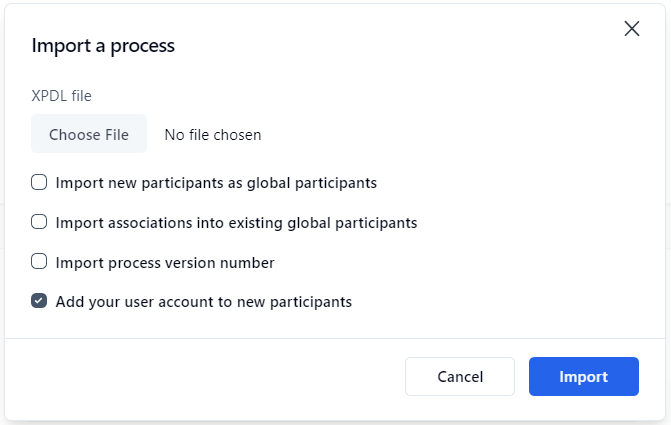
| Description               | Participant description limited to 255 characters (required field)                                                                                                                                                         |
| Participant type          | Type of participant defining possible associations to the directory (required field): **Person**, **List of persons**, or **List of persons with coordinator(s)**  (a link allows associated users to be added or deleted) |
| Users                     | List of users associated to a participant (a link allows associated users to be added or deleted)                                                                                                                          |
| Groups (see note 1)       | List of groups associated to a participant (a link allows associated groups to be added or deleted)                                                                                                                        |
| Directories (see note 1)  | List of directories associated to a participant (a link allows associated directories to be added or deleted)                                                                                                              |
| Coordinators (see note 2) | List of coordinators associated to a participant (a link allows associated coordinators to be added or deleted)                                                                                                            |

1. Accessible only to **List of persons** and Li**st of persons with coordinator** type participants.
2. Accessible only to **List of persons with coordinator** type participants.

## Directory associations

| **Fields** | **Remarks**                                    |
| ---------- | ---------------------------------------------- |
| Name \*    | Filters by person’s name                       |
| Available  | List of possible associations to the directory |
| Selected   | List of existing associations to the directory |

\* Visible only if associated with a user or a coordinator and if the number of users in the database is higher than the limit set by the software administrator.

* A **Person** type participant is associated with a single user.
* A **List of persons** type participant is associated to one or more users and/or groups and/or directories.
* A **List of persons with coordinator** type participant is associated with one or more coordinators, and to one or more users and/or groups and/or directories.

When adding users, groups, and directories to a participant, note that the list is cumulative in that adding 3 users, 2 groups, and 4 directories will result in a list of users that contain the sum of those users, groups, and directories.

A group or directory does not need to be specific to add users that belong to those groups or directories; adding those groups or directories will result in adding all the users that are part of those groups and directories to the participant list.

## Changing the participant type

The following conditions apply when changing the participant type:

* **Person** to **List of persons** or **List of persons with coordinator(s):** The participant must not be used in a process action.
* **List of persons** to **Person:** A single user must be associated to the participant, and the participant must not be used in a process action.
* **List of persons** to **List of persons with coordinator(s):** Add at least one coordinator.
* **List of persons with coordinator(s)** to **List of persons:** The participant must not be used in a process action where the assignment is made by the coordinator.

## Deleting a participant

A participant cannot be deleted if the person (or persons) is part of a process or is a process/folder manager.


# Applications

## Applications screen

In the left menu on the Administration Module home page, click  ![](https://content.gitbook.com/content/imiOCeaawutpXkzp4fhb/blobs/s9P8aAVgRA7QPodhYlxn/left_menu_applications_small.png)  to display the **Applications** screen.

<figure><img src="https://content.gitbook.com/content/imiOCeaawutpXkzp4fhb/blobs/QW37jdxxC9FXbQUQ0ZJp/applications_list.png" alt=""><figcaption></figcaption></figure>

## Menu banner

| **Buttons**     | **Remarks**                              |
| --------------- | ---------------------------------------- |
| Refresh         | Refreshes the displayed application list |
| New application | Opens a blank **New application** form   |

## Filters

| **Filter on \*** | **Remarks**                        |
| ---------------- | ---------------------------------- |
| Name             | Filters by application name        |
| Description      | Filters by application description |

\* A filter can be applied to a part of a field.

| **External filters** | **Remarks**                       |
| -------------------- | --------------------------------- |
| Active               | Displays active applications only |

## Applications list

| **Columns** | **Remarks**                                                                                                      |
| ----------- | ---------------------------------------------------------------------------------------------------------------- |
| Order       | Use the arrows to change the order in which the applications are listed when adding or editing a workflow action |
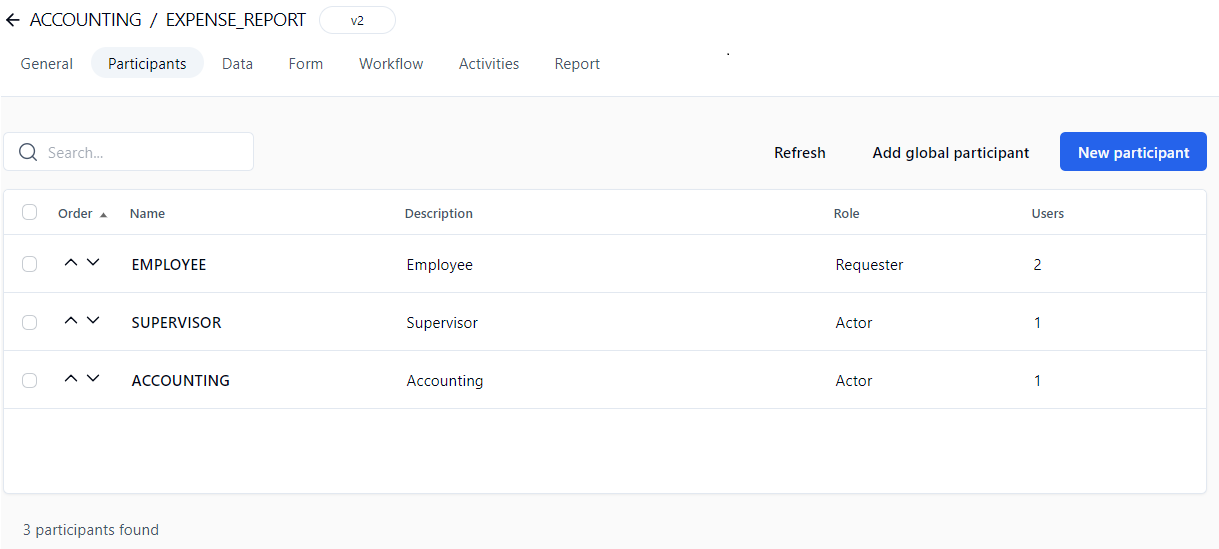
| Name        | Application name (click to display the application form in edit mode)                                            |
| Description | Application description                                                                                          |
| Active      | Application active status                                                                                        |
| Utilization | Number of actions in which the application is used                                                               |

## Application form

### General tab

{% hint style="info" %}
These fields are displayed as applicable to the selected application type.
{% endhint %}

| **Fields**           | **Remarks**                                                                                                                                                                                                                                                                              |
| -------------------- | ---------------------------------------------------------------------------------------------------------------------------------------------------------------------------------------------------------------------------------------------------------------------------------------- |
| Name                 | Unique identifier for the application; must respect nomenclature and be limited to 30 characters (required field)                                                                                                                                                                        |
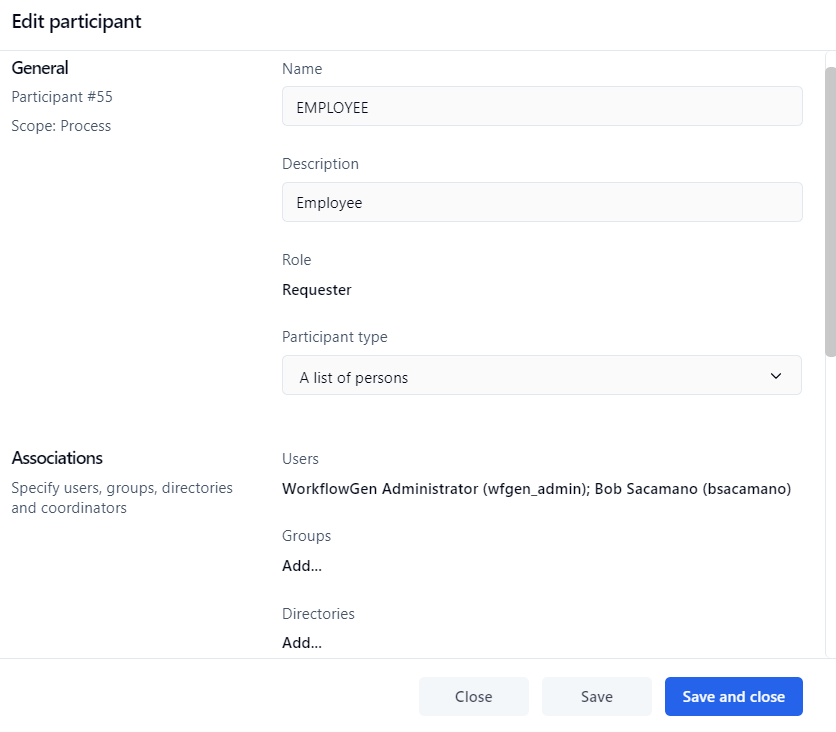
| Description          | Application description limited to 255 characters (required field)                                                                                                                                                                                                                       |
| Type                 | <p>Application type:</p><ul><li>Assembly</li><li>Asynchronous Web Procedure</li><li>Incoming Webhook</li><li>Non Interactive Client</li><li>SOAP Web Service</li><li>WCF Service</li><li>Web Application</li><li>Web Procedure</li></ul>                                                 |
| URL                  | The relative or the absolute URL of the application; both will work (required field)                                                                                                                                                                                                     |
| WSDL                 | The WSDL URL to define a WSDL-based web service (if applicable); see [WSDL web services](/workflowgen-administration-module-reference-guide/global-information/applications#wsdl-web-services) for details on WSDL-based web services                                                    |
| Username \*          | Username to be used if an authentication is required to access the application’s URL                                                                                                                                                                                                     |
| Password \*          | Password to be used if an authentication is required to access the application’s URL                                                                                                                                                                                                     |
| Content type         | <p>Type of data encoding to be used when the application returns to WorkflowGen: </p><ul><li><code>application/x-www-form-urlencoded</code></li><li><code>application/xml; charset=UTF-8</code></li><li><code>application/json</code></li><li><code>multipart/form-data</code></li></ul> |
| Context format       | <p>Defines the format type of the context parameters exchanged between the application and WorkflowGen:</p><ul><li>JSON</li><li>XML ADO.NET DataSet (default WorkflowGen schema)</li><li>XML ADO Recordset</li></ul>                                                                     |
| Schema definition    | If checked, the schema will be embedded inline in the XML (for XML context formats only)                                                                                                                                                                                                 |
| Parameters           | Application parameters (a link displays the parameters form in edit mode)                                                                                                                                                                                                                |
| Default application  | If checked, the application is selected by default                                                                                                                                                                                                                                       |
| Active               | If checked, the application is active                                                                                                                                                                                                                                                    |
| Impersonate username | A WorkflowGen username to impersonate by the application (for the **Incoming Webhook** and **Non Interactive Client** application types)                                                                                                                                                 |
| Client ID            | A client ID from the `registered application` of your authentication service provider e.g. Azure Active Directory (for the **Non Interactive Client** application type)                                                                                                                  |

\* Only needed by the web procedures and the web services.

### Parameters tab

<figure><img src="https://content.gitbook.com/content/imiOCeaawutpXkzp4fhb/blobs/i5ONBLkpEbgBS17fWpsv/applications_parameters_screen.png" alt=""><figcaption></figcaption></figure>

| **Columns** | **Remarks**                                                                                                                 |
| ----------- | --------------------------------------------------------------------------------------------------------------------------- |
| Name        | Application parameter name                                                                                                  |
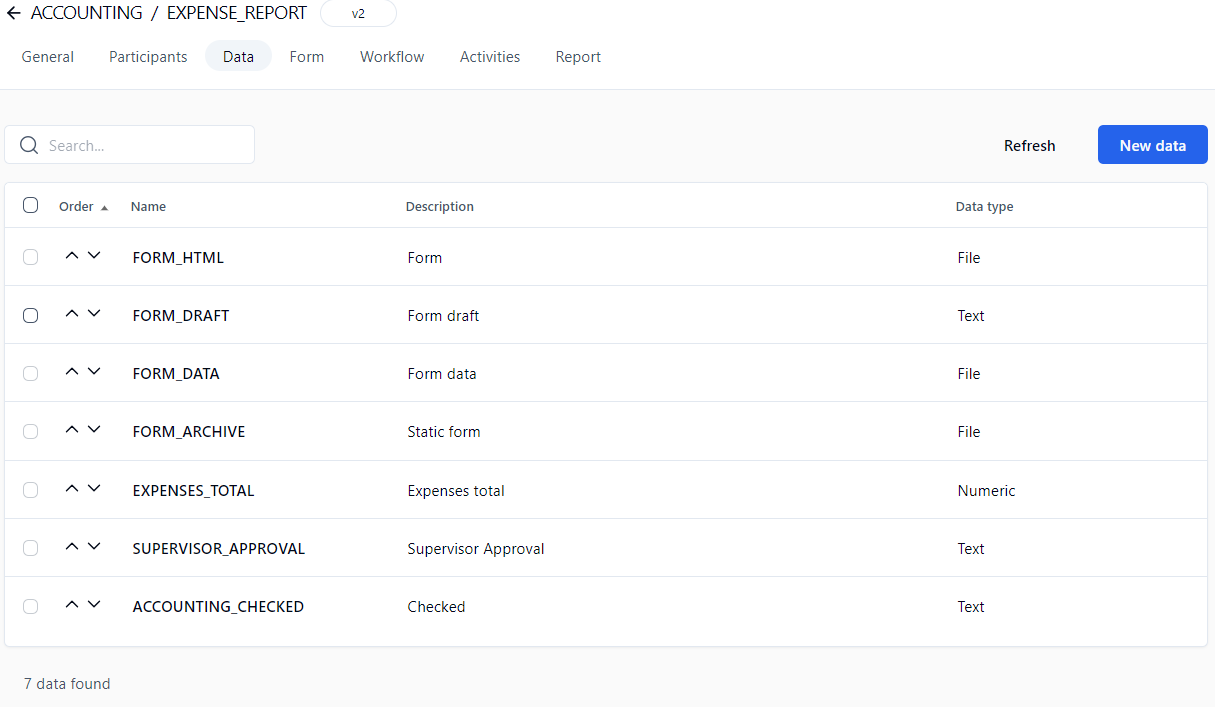
| Description | Application parameter description                                                                                           |
| Data type   | Application parameter data type                                                                                             |
| Direction   | Application parameter direction                                                                                             |
| Required    | Required parameter                                                                                                          |
| Default     | Optional parameter; displays the parameter in the parameter list of the actions based on the current application by default |

### Adding an application parameter

Click the **Add** button to open the **Add an application parameter** panel.

| **Fields**  | **Remarks**                                                                                                                                                                                                                 |
| ----------- | --------------------------------------------------------------------------------------------------------------------------------------------------------------------------------------------------------------------------- |
| Name        | Application parameter name (required field; see the list of XML naming rules below)                                                                                                                                         |
| Description | Application parameter description (required field)                                                                                                                                                                          |
| Data type   | <p>Application parameter data type:</p><ul><li>Text</li><li>Numeric</li><li>Date/Time</li><li>File</li></ul>                                                                                                                |
| Direction   | <p>Application parameter directions: </p><ul><li>IN (send the value into the parameter)</li><li>OUT (receive the value from the parameter)</li><li>INOUT (send and receive the value into and from the parameter)</li></ul> |
| Required    | <p>Is this parameter required? </p><ul><li>Yes (disables the default property)</li><li>No (enables the default property)</li></ul>                                                                                          |
| Default     | If checked, the parameter is displayed in the parameter list of the action based on the current application                                                                                                                 |

{% hint style="info" %}
Application parameter names should respect the following XML naming rules:

* They should begin with a letter or an underscore
* They should contain only letters, digits, hyphens, underscores, and periods
* They should not contain spaces
* They should not begin with the letters `XML` in any case (e.g. `xml` or `Xml`)

For more information, see <https://www.w3schools.com/xml/xml_elements.asp>.
{% endhint %}

## Deleting an application

An application cannot be deleted if it's used in a process.

## Deleting a parameter

A parameter cannot be deleted if its application is used in a process.

## Assembly application

This application allows you to declare a .NET class method as a workflow application. This is the fastest solution to develop a custom workflow application (compared to web services). The execution performance is exceptional because WorkflowGen instantiates the assembly directly without network communication or web service authentication.

#### 📌 **Example**

1. Copy a sample `.dll` assembly into a WorkflowGen `bin` folder.
2. In the **Administration Module**, click ![](https://content.gitbook.com/content/imiOCeaawutpXkzp4fhb/blobs/3QyirU1jzDRX71fpz3Sw/left_menu_applications_small.png) in the left menu and then **New application**.
3. Enter the following information in the appropriate fields:
   * **Name:** `SAMPLE_GET_STRING`
   * **Description:** Returns a string with a `!` (exclamation point)
   * **Type:** Assembly
4. **Assembly full name or path:** `WorkflowAppSample`
5. Click **Save**.

* **Class full name:** Select `WorkflowApp.Test`
  * **Method:** Select `GetString`

These parameters are automatically generated:

* **IN:** `message` (Text)
* **OUT:** `RETURN_VALUE` (Text)

You can now use this workflow application in your process.

## WCF service application

This application allows you to declare a WCF service client proxy .NET class method as a workflow application.

#### 📌 **Example**

1. In the WorkflowGen **Administration Module**, click ![](https://content.gitbook.com/content/imiOCeaawutpXkzp4fhb/blobs/37PLCJ7LN2FsXzVp7c72/left_menu_applications_small.png) in the left menu and then **New application**.
2. Enter the following information in the appropriate fields:
   * **Name:** `WCFSERVICE_SAMPLE_GET_STRING`
   * **Description:** Returns a string with a `!` (exclamation point)
   * **Type:** WCF service
3. **Assembly full name or path:** `WorkflowAppWCFSampleTest`&#x20;
4. Click **Save**.

* **Class full name:** Select `workflowAppWCFSampleTest.ServiceClient`
  * **Method:** Select `GetString`

These parameters are automatically generated:

* **IN:** `message` (Text)
* **OUT:** `RETURN_VALUE` (Text)

You can now use this workflow application in your process.

* **Name:** `WCFSERVICE_SAMPLE_GET_STRING`

## WSDL web services

### **Overview**

WorkflowGen supports web services based on the SOAP standard. This means that web services can be integrated into WorkflowGen to be used by process actions, without the need to program them. WorkflowGen can use predefined web services and reference them by using their WSDL (Web Services Description Language) files.

A URL to the WSDL file defining the web service is required to display the available web methods that can be called by WorkflowGen. Once the WSDL is referenced and saved (in the WorkflowGen application definition), and one of its defined web methods are selected, the WorkflowGen application parameters are automatically generated.

The data types of the parameters are mapped to the corresponding WorkflowGen data types (numeric, text, datetime). All complex XML types are mapped to a WorkflowGen file data.

### **Public web services**

Public web services are web services that are available for public re-use. To reference one as a WorkflowGen application, follow the example below.

#### **Creating a WSDL web service**

1. In the Administration Module, click ![](https://content.gitbook.com/content/imiOCeaawutpXkzp4fhb/blobs/AH7g3KConZ6PBsc5T6gz/left_menu_applications_small.png) in the left menu, then create a new WorkflowGen application and define the following:
   * **Name**
   * **Description**
   * **Type:** Web service
   * **Username:** A valid WorkflowGen Administrator
   * **Password:** The valid password for the username
2. Reference a web service and WSDL by defining a URL to a valid web service and to its related WSDL file and save the application.<br>

   📌 **URL example:**&#x20;

   ```
   http://quickstarts.asp.net/QuickStartv20/webservices/Samples/MathService/vb/Server/MathService.asmx
   ```

   \
   📌 **WSDL example:**&#x20;

   ```
   http://quickstarts.asp.net/QuickStartv20/webservices/Samples/MathService/vb/Server/MathService.asmx?WSDL
   ```
3. Select the web method to use. The WSDL defines which web methods are available to be used. Once you select a web method and save the application, the associated parameters are automatically mapped and the application may now be used by process actions.

## Private web service example

### Overview

Private web services are web services that are not available for public re-use. They generally use a secure URL that requires the proper authentication. To reference one as a WorkflowGen application, follow the example below.

### **Creating a WSDL web service**

1. In the Administration Module, click ![](https://content.gitbook.com/content/imiOCeaawutpXkzp4fhb/blobs/AH7g3KConZ6PBsc5T6gz/left_menu_applications_small.png) in the left menu, then create a new WorkflowGen application and define the following:
   * **Name**
   * **Description**
   * **Type:** Web service
   * **Username:** A valid WorkflowGen Administrator
   * **Password:** The valid password for the username<br>

2. Reference a web service and WSDL by defining a URL to a valid web service and to its related WSDL file and save the application.<br>

   The examples below demonstrate the use of a web service located on a SharePoint 2007 website. In this example, the web service is called `lists.asmx`. For more information, see <http://msdn2.microsoft.com/en-us/library/ms445760.aspx>.<br>

   📌 **URL example:** &#x20;

   ```
   http://myspsserver/_vti_bin/lists.asmx
   ```

   \
   📌 **WSDL example:** &#x20;

   ```
   http://myspsserver/_vti_bin/lists.asmx?WSDL
   ```

3. Select the web method to use. The WSDL defines which web methods are available to be used. Once you select a web method and save the application, the associated parameters are automatically mapped and the application can now be used by process actions.

## WSDL web service action: other parameters

### **Overview**

WorkflowGen will create some extra parameters when referencing a WSDL. Other parameters can also be used in addition to those already defined in the WSDL file.

### **Other parameters**

The other parameters that are defined by WorkflowGen are:

* `RETURN_VALUE`: If the web service returns a value, WorkflowGen will automatically add an OUT parameter.
* `WFG_WS_URL`: Specify a web service URL to override the predefined URL.
* `WFG_WS_USERNAME`: Specify a username to override the predefined username.
* `WFG_WS_PASSWORD`: Specify a password to override the predefined password.


# Categories

## Categories screen

In the left menu on the Administration Module home page, click ![](https://content.gitbook.com/content/imiOCeaawutpXkzp4fhb/blobs/g5ISsG77uY5Dk2wFPeiN/left_menu_categories_small.png) to display the **Categories** screen.

<figure><img src="https://content.gitbook.com/content/imiOCeaawutpXkzp4fhb/blobs/Twq3cukx2RXY1frqBoFT/categories_list.png" alt=""><figcaption></figcaption></figure>

## Menu banner

| **Links**    | **Remarks**                           |
| ------------ | ------------------------------------- |
| Refresh      | Refreshes the displayed category list |
| New category | Opens a blank **Add a category** form |

## Filters

| **Filter on \*** | **Remarks**                     |
| ---------------- | ------------------------------- |
| Name             | Filters by category name        |
| Description      | Filters by category description |

\* A filter can be applied to a part of a field.

## Category list

| **Columns** | **Remarks**                                                     |
| ----------- | --------------------------------------------------------------- |
| Name        | Category name (click to display the category form in edit mode) |
| Description | Category description                                            |
| Utilization | Number of processes listed in the category                      |

## Category form

| **Fields**  | **Remarks**                                                                                                    |
| ----------- | -------------------------------------------------------------------------------------------------------------- |
| Name        | Unique identifier for the category; must respect nomenclature and be limited to 30 characters (required field) |
| Description | Category description limited to 255 characters (required field)                                                |

## Deleting a category

A category cannot be deleted if it's used by a process.


# Global Lists

## Overview

The **Global lists** module allows authorized users to manage data lists from the Administration Module. It's a solution to manage and centralize data that you can use to populate drop-down lists in your web forms.

There's no limit to the number of items in a global list, which can have up to 20 columns. Good user interface performance depends on the number of cells (items × columns), and is optimized for at least 5000 cells (for example, 1000 items with 5 columns or 250 items with 20 columns).

The supported data types for columns are TEXT, NUMERIC, or DATE.

The data that populate a **static global list** come from within the user interface.

The data that populate a **dynamic global list** come from a database. The contents of the list are updated each time the web form is executed.

## Global lists screen

In the left menu on the Administration Module home page, click ![](https://content.gitbook.com/content/imiOCeaawutpXkzp4fhb/blobs/0dwoAAJlW7JKyLMnxlDd/left_menu_global_lists_small.png) to display the **Global lists** screen.

<figure><img src="https://content.gitbook.com/content/imiOCeaawutpXkzp4fhb/blobs/pfkpuwiCmKDNYh9aVfSc/global_lists_screen.png" alt=""><figcaption></figcaption></figure>

## Menu banner

| **Buttons** | **Remarks**                                                                                                                                                  |
| ----------- | ------------------------------------------------------------------------------------------------------------------------------------------------------------ |
| New list    | Adds a new global list                                                                                                                                       |
| Refresh     | Refreshes the global lists screen                                                                                                                            |
| Import      | Imports data from CSV or XML format into an existing list or as a new list; this is useful to quickly add data from a file or copy/paste from the clipboard. |
| Export      | Exports data to a CSV or XML file; this is useful to export data for use in multiple environments (development, production, test, etc.)                      |
| Duplicate   | Duplicates a global list                                                                                                                                     |
| Delete      | Deletes a global list                                                                                                                                        |

## Filters

| **Search**  | **Remarks**                                                                 |
| ----------- | --------------------------------------------------------------------------- |
| Name        | Filters on the list’s name                                                  |
| Manager     | Filters on the name of the manager of the list                              |
| Update date | Filters on the update date (period from/to)                                 |
| Updated by  | Filters on the last user who has updated the list (last name or first name) |

## Global lists list

| **Columns** | **Remarks**                                                                                                                                                       |
| ----------- | ----------------------------------------------------------------------------------------------------------------------------------------------------------------- |
| Name        | Name of the list                                                                                                                                                  |
| Manager     | None (no restriction) or the global participant authorized to update the list; you can restrict the access to the global list to user(s) of a global participant. |
| Content     | Number of items or a link to define the global list form                                                                                                          |
| Last update | Date and time of the last update                                                                                                                                  |
| By          | Last user who has updated the list                                                                                                                                |

## Global lists form

Click **Define** in the **Content** column to define or edit a global list.

| **Tabs** | **Remarks**                                                                                                                                                                                                                                                                                                                                                                                                                                                                                                                                       |
| -------- | ------------------------------------------------------------------------------------------------------------------------------------------------------------------------------------------------------------------------------------------------------------------------------------------------------------------------------------------------------------------------------------------------------------------------------------------------------------------------------------------------------------------------------------------------- |
| Items    | Add static items into the list; items can be sorted by value or descriptive text, and translation languages can be chosen from a drop-down list.                                                                                                                                                                                                                                                                                                                                                                                                  |
| Columns  | <p>Add columns (limited to 10 columns) </p><p></p><p>Supported datatypes:</p><ul><li>Text</li><li>Numeric</li><li>Date</li></ul><p>By default, columns are Text (text data type) and Value (text data type).</p>                                                                                                                                                                                                                                                                                                                                  |
| Databind | <p>Connection name or string to the bound database </p><ul><li>Name of the connection string defined by the Administrator in the WorkflowGen <code>web.config</code> file</li><li>Connection string to a database</li><li>SQL query (<code>SELECT</code> command) to retrieve data</li></ul><p>✏️ <strong>Note:</strong> It's strongly recommended to use a connection name rather than a connection string to simplify multi-environment management. Connection names are centrally managed in the WorkflowGen <code>web.config</code> file.</p> |

## Importing data

Click the **Import** button in the menu banner to import data into a global list from a file or a copy of your clipboard. The supported formats are WorkflowGen global list XML or CSV.

<div align="left"><figure><img src="https://content.gitbook.com/content/imiOCeaawutpXkzp4fhb/blobs/BuUoGapPCExVXwSXgKMx/import_global_list.png" alt=""><figcaption></figcaption></figure></div>

The CSV format must be as follows:

```
COL_NAME[,...n]
["TEXT|NUMERIC|DATE"[,...n]]
VALUE[ ,...n]
```

### **Examples**

#### **Importing text-only columns**

By default, columns are considered as TEXT data types; therefore, if all columns are TEXT data type, it's not necessary to specify the data types.

```
iso,country
AD,Andorra
AE,United Arab Emirates
AF,Afghanistan
AG,Antigua and Barbuda
AI,Anguilla
```

#### **Importing with numeric and/or date data types**

In this case, the second line is used to set the columns’ data types.

```
Id,iso,Country
NUMERIC,TEXT,TEXT
1,AD,Andorra
2,AE,United Arab Emirates
3,AF,Afghanistan
4,AG,Antigua and Barbuda
5,AI,Anguilla
```

#### **Importing with enclosed strings**

To protect some data like double quotes, commas, etc., you can enclose the string with double quotes.

```
Id,Lastname,Firstname,Address,Birthday
NUMERIC,TEXT,TEXT,TEXT,DATE
1,DOE,John,"1111 N. Sample, Mt. Prospect, IL 60000","01/01/1980"
```

## Exporting data

You can export data from a global list to a file by selecting the list and clicking the **Export** button in the menu banner.

<div align="left"><figure><img src="https://content.gitbook.com/content/imiOCeaawutpXkzp4fhb/blobs/iHmqQ6fvByOGSdBxseZu/export_global_list.png" alt=""><figcaption></figcaption></figure></div>

## Security

All connection strings in `\wwwroot\wfgen\web.config` are available for use in global lists and the Form Designer, except for the master database connection string. While the application tries to verify that user-supplied SQL queries used in these contexts are secure and contain only SELECT statements, you should also make sure that exposed connection strings are secured at the database level. This means that if you don’t want a process manager or a global list manager to be able to update or modify a certain database, the connection string should have read-only access to your database.

Keep in mind that process designers can also use any connection string that they have access to from the Form Designer’s code-behind editor. If you want to restrict a global list manager’s access to a connection string while still allowing the process designer to use it, you should add the connection string to the WebForm application’s `web.config` file (`\wwwroot\wfgen\WfApps\WebForms\web.config`).

Connection strings in the WebForms `web.config` aren't exposed in the WorkflowGen UI, so for process designers to be able to use them, they must know the name of the connection string. This is also a convenient way to give different process managers access to specific connection strings.


# Process Definition

## Overview

Processes are organized in folders administered by managers. Only one folder level is possible in WorkflowGen.

A folder is assigned to a global participant. The persons who are part of that participant are known as folder managers or process managers. A manager may be one or more persons. However, the participant type **List of persons with a coordinator** cannot be used for the purpose of assigning folder managers.

Managers have full access to the process definition of their processes, but not to other folders or other administration features.

Users with a WorkflowGen Administrator profile have complete access to all folders and their associated processes.

A process can have several versions, but only one can be active at any one time for the purpose of launching new requests. Existing requests launched in prior versions continue to function with the older process definition until the requests are closed but the processes for those prior versions cannot, for the most part, be edited.

A process can be declared as a sub-process and then used in another process action as an independent or embedded sub-process.

A process is made up of the following components:

* Participants (e.g. requester, actor)
* Relevant data (e.g. form, agreement, amount, etc.)
* Actions (e.g. find information, validate, process, wait)
* Transitions (e.g. next actions, conditions)
* Assignment method (e.g. automatic, manual, etc.)
* Notifications (e.g. assignment, closing, etc.)

Defining a process involves building a number of rules. To simplify implementation, WorkflowGen groups process definition into several sections:

#### Process information

Information related to process creation (status, version, etc.) and general parameters (archiving, notification upon closing, process lead time).

#### Participant

Global participants selected or process-specific participants that will take on the roles of either a requester, an actor, or a process supervisor.

#### Data

Data that are used by the process per request and that are relevant and necessary to carry out the process workflow.

#### Form

WYSIWYG built-in form designer to create the forms used by the workflow.

#### Workflow

Workflow definition that is made up of actions and their associated transitions, conditions, and exceptions.

#### Full screen / Exit full screen

Display or quit the process definition full screen mode.

#### Report

Provides both an overview and details of all parameters used in the process, and also provides a description of any workflow design errors. As well, the report shows summary usage statistics on the process.

#### Test

Allow testing the process if the status is set to **In test**. To be able to select the **Test** link, the process/folder manager must be one of the requesters of the process.

## Process folder

### Process folder list screen

In the left menu on the Administration Module home page, click ![](https://content.gitbook.com/content/imiOCeaawutpXkzp4fhb/blobs/zj1fbWlqCqUB1TdGKtkD/left_menu_folders_small.png) to display the **Folders** screen.

<figure><img src="https://content.gitbook.com/content/imiOCeaawutpXkzp4fhb/blobs/xYYtvVTF6VlkMiokZx4q/process_folder_screen.png" alt=""><figcaption></figcaption></figure>

### Menu banner

| **Links**  | **Remarks**                                      |
| ---------- | ------------------------------------------------ |
| Refresh    | Refreshes the folder list displayed              |
| New folder | Displays a blank folder form to add a new folder |

### Filters

| **Filter on \*** | **Remarks**                   |
| ---------------- | ----------------------------- |
| Name             | Filters by folder name        |
| Description      | Filters by folder description |

\* A filter can be applied to a part of a field.

### Folder list

| **Columns** | **Remarks**                                                           |
| ----------- | --------------------------------------------------------------------- |
| Folder      | Folder name; a link displays the process list contained in the folder |
| Description | Folder description                                                    |
| Process     | Number of processes contained in the folder                           |
| Edit        | Link to edit the folder information                                   |

### Folder form

| **Fields**      | **Remarks**                                                                                                  |
| --------------- | ------------------------------------------------------------------------------------------------------------ |
| Folder name     | Unique identifier for the folder; must respect nomenclature and be limited to 30 characters (required field) |
| Description     | Folder description limited to 255 characters (required field)                                                |
| Process manager | Name of the global participant managing the folder (required field)                                          |

### Process manager

A process manager must be a **Person** or **List of persons** type global participant.

### Deleting a folder

A folder cannot be deleted if it contains processes.

## Process list screen

<figure><img src="https://content.gitbook.com/content/imiOCeaawutpXkzp4fhb/blobs/CqUETh8faTz7ggYKMkqC/process_folder.png" alt=""><figcaption></figcaption></figure>

### Menu banner

| **Links** | **Remarks**                                                      |
| --------- | ---------------------------------------------------------------- |
| Refresh   | Updates the process list                                         |
| New       | Displays a blank process form to where you can add a new process |

### Filters

| **Filter on \*** | **Remarks**                    |
| ---------------- | ------------------------------ |
| Name             | Filters by process name        |
| Description      | Filters by process description |

\* A filter can be applied to a part of a field.

| **External filters** | **Remarks**               |
| -------------------- | ------------------------- |
| Status               | Filters by process status |

### Process list

| **Columns** | **Remarks**                                                             |
| ----------- | ----------------------------------------------------------------------- |
| Name        | Process name and version; a link displays the process form in edit mode |
| Description | Process description                                                     |
| Status      | Process status                                                          |


# Editing

## Process information screen

<figure><img src="https://content.gitbook.com/content/imiOCeaawutpXkzp4fhb/blobs/ZUfBhjZzz09QUqxd6P7X/process_info_screen.png" alt=""><figcaption></figcaption></figure>

## Menu banner

| **Tabs**                                                                                                                                          | **Remarks**                                                                              |
| ------------------------------------------------------------------------------------------------------------------------------------------------- | ---------------------------------------------------------------------------------------- |
| General                                                                                                                                           | Displays the process form in edit mode                                                   |
| Participants                                                                                                                                      | Displays the process participant list                                                    |
| Data                                                                                                                                              | Displays the process data list                                                           |
| Form                                                                                                                                              | Displays the Form Designer                                                               |
| Workflow                                                                                                                                          | Displays the Workflow Designer                                                           |
| Activities                                                                                                                                        | Displays the workflow activities list view                                               |
| Report                                                                                                                                            | Displays the process documentation and checks for the validity of the process definition |
| <img src="https://content.gitbook.com/content/imiOCeaawutpXkzp4fhb/blobs/opxU9PHXIPtuLGmJyfzd/test_process_icon.png" alt="" data-size="original"> | Launches a new test request for this process                                             |

## Process form

| **Sections / Fields**                                                     | **Remarks**                                                                                                                                                                                                                                                                                                                                                                                                                                                                                                                                                                                                                                                                                                                                                                                                                                                                                                                                                      |
| ------------------------------------------------------------------------- | ---------------------------------------------------------------------------------------------------------------------------------------------------------------------------------------------------------------------------------------------------------------------------------------------------------------------------------------------------------------------------------------------------------------------------------------------------------------------------------------------------------------------------------------------------------------------------------------------------------------------------------------------------------------------------------------------------------------------------------------------------------------------------------------------------------------------------------------------------------------------------------------------------------------------------------------------------------------- |
| <p><br>Template<br>(displayed only when creating a new process)</p>       | <p>Selection of customizable workflow templates</p><p><br><strong>Default:</strong></p><ul><li>2 levels approval</li><li>Parallel tasks</li><li>Simple approval</li><li>Simple request</li></ul><p><strong>Library:</strong></p><ul><li>Expense report</li><li>Software helpdesk</li><li>Investment application</li><li>IT Changes</li><li>IT Clearance application</li><li>Leave application</li><li>New Product Creation</li><li>Work Order</li></ul><p>A customized workflow template can be created and deployed on the server with the following folder and file structure: <code>\wfgen\App\_Data\Templates\Processes\[language]\[folder name]\[process name]v\[x].xml</code></p><p></p><p>📌 <strong>Example:</strong>  <code>\wfgen\App\_Data\Templates\Processes \En\MyCompany\MY\_PROCESSv1.xml</code></p><p></p><p>✏️ <strong>Note:</strong> Only processes with forms created with the built-in Form Designer can be used as workflow templates.</p> |
| **General**                                                               |                                                                                                                                                                                                                                                                                                                                                                                                                                                                                                                                                                                                                                                                                                                                                                                                                                                                                                                                                                  |
| Name                                                                      | Unique identifier for the process; must respect nomenclature and be limited to 30 characters (required field)                                                                                                                                                                                                                                                                                                                                                                                                                                                                                                                                                                                                                                                                                                                                                                                                                                                    |
| Description                                                               | Process description, limited to 255 characters (required field)                                                                                                                                                                                                                                                                                                                                                                                                                                                                                                                                                                                                                                                                                                                                                                                                                                                                                                  |
| Status                                                                    | <p>Process status:</p><ul><li>Active</li><li>In test</li><li>In development (default)</li><li>Archived</li></ul>                                                                                                                                                                                                                                                                                                                                                                                                                                                                                                                                                                                                                                                                                                                                                                                                                                                 |
| Built-in form: Enable Form Designer                                       | Activate the built-in Form Designer                                                                                                                                                                                                                                                                                                                                                                                                                                                                                                                                                                                                                                                                                                                                                                                                                                                                                                                              |
| Sub-process: Enable sub-process mode                                      | Determines if the process can be used as a sub-process by another process, from an API call, or as a stand-alone process                                                                                                                                                                                                                                                                                                                                                                                                                                                                                                                                                                                                                                                                                                                                                                                                                                         |
| Access level                                                              | <p>Required field if the sub-process option is checked</p><p></p><p>If the process was declared as a sub-process, you can choose between two access levels:</p><ul><li><strong>Private:</strong> The process can only be instantiated by a parent process</li><li><strong>API</strong>: The process can only be instantiated from one of the API endpoints (<code>GraphQL</code>, <code>Webhooks</code>, <code>SOAP Web Services</code>, and <code>Remote Launch URL</code>)  </li><li><strong>Public:</strong> The process can be manually launched from the User Portal or instantiated by a parent process or external application</li></ul>                                                                                                                                                                                                                                                                                                                  |
| **Options**                                                               |                                                                                                                                                                                                                                                                                                                                                                                                                                                                                                                                                                                                                                                                                                                                                                                                                                                                                                                                                                  |
| Categories                                                                | <p>Process categories list</p><p></p><p>The <strong>Add</strong> link lets you add or remove categories from the process.</p>                                                                                                                                                                                                                                                                                                                                                                                                                                                                                                                                                                                                                                                                                                                                                                                                                                    |
| Request lead time                                                         | <p>The amount of time before the process is considered late</p><p></p><p>Units:</p><ul><li>Years</li><li>Months</li><li>Days (takes only working days into account)</li><li>Hours (takes working days and hours into account)</li><li>Minutes (takes working days and hours into account)</li><li>Seconds (takes working days and hours into account)</li></ul><p>You can choose the way lead time will be calculated enabling or disabling the <strong>Use working days/hours to calculate the duration</strong> option.</p>                                                                                                                                                                                                                                                                                                                                                                                                                                    |
| Use working days/hours to calculate the duration                          | Calculate duration based on working hours                                                                                                                                                                                                                                                                                                                                                                                                                                                                                                                                                                                                                                                                                                                                                                                                                                                                                                                        |
| Request closure notification: Notify the requester of a request's closure | Send an email to the requester of the process upon closing the process (unchecked by default)                                                                                                                                                                                                                                                                                                                                                                                                                                                                                                                                                                                                                                                                                                                                                                                                                                                                    |
| Archiving of action results: Archive action associated data               | <p>Save the result of each request action at each step of the process (unchecked by default)</p><p></p><p>If this option is not activated, all of the action history data and files are deleted once the request is closed and only the final data and files will be stored.</p>                                                                                                                                                                                                                                                                                                                                                                                                                                                                                                                                                                                                                                                                                 |
| Request files storage                                                     | <p>Allow process file data (including attachments) to be stored in the database</p><p></p><p>This allows you to perform online WorkflowGen data backup without interrupting service (WorkflowGen users can continue to work during the backup). </p><p></p><p>✏️ <strong>Note:</strong> The maximum supported process data file size is 2147 MB (2.147 GB)</p>                                                                                                                                                                                                                                                                                                                                                                                                                                                                                                                                                                                                   |
| Help text                                                                 | Process help text in the user module; the **Add** link allows this text to be edited                                                                                                                                                                                                                                                                                                                                                                                                                                                                                                                                                                                                                                                                                                                                                                                                                                                                             |
| Help link                                                                 | URL of an external help document on the process, visible in the user module                                                                                                                                                                                                                                                                                                                                                                                                                                                                                                                                                                                                                                                                                                                                                                                                                                                                                      |
| Test                                                                      | Test the **Help** link in a new browser window                                                                                                                                                                                                                                                                                                                                                                                                                                                                                                                                                                                                                                                                                                                                                                                                                                                                                                                   |
| Support email                                                             | Email for process support which will be displayed in the user module                                                                                                                                                                                                                                                                                                                                                                                                                                                                                                                                                                                                                                                                                                                                                                                                                                                                                             |

## Process actions

| **Functions**   | **Remarks**                                                                                                                                                                                                                                                                                                              |
| --------------- | ------------------------------------------------------------------------------------------------------------------------------------------------------------------------------------------------------------------------------------------------------------------------------------------------------------------------ |
| New version     | <p>Creates a new version during process development</p><p></p><p>This also allows the capability to create a new version from an XPDL definition file. The version number found in the XPDL will be kept if the version number was not already used for the current process; otherwise, it automatically increments.</p> |
| Duplicate       | Duplicates the current process definition as a new process                                                                                                                                                                                                                                                               |
| Move            | Allows the process to be moved into a new folder                                                                                                                                                                                                                                                                         |
| Import          | Allows the process to be created from an XPDL file                                                                                                                                                                                                                                                                       |
| Export          | Allows the process to be exported as an XPDL file                                                                                                                                                                                                                                                                        |
| Delete requests | Displays the **Delete requests** dialog box (see [Deleting requests](#deleting-requests) below)                                                                                                                                                                                                                          |
| Delete          | Deletes the process                                                                                                                                                                                                                                                                                                      |

## Deleting requests

| **Fields**       | **Remarks**                                                                                                                                 |
| ---------------- | ------------------------------------------------------------------------------------------------------------------------------------------- |
| Request type     | <p>Type of requests to delete<strong>:</strong></p><ul><li>All</li><li>In test</li><li>Real</li></ul>                                       |
| Request status   | <p>Status of requests to delete:</p><ul><li>All</li><li>Open</li><li>Closed</li><li>Closed (completed)</li><li>Closed (cancelled)</li></ul> |
| Launching period | <p>Defines the launching period for requests to be deleted from<br><br>Icons display a calendar allowing the date to be chosen.</p>         |
| Request number   | Request numbers to delete (separated by commas)                                                                                             |

## Deleting a process

Only the process manager or an Administrator can delete a process. Deleting a process causes all of the associated requests to be deleted.

If the process has "real" (active) requests, only an Administrator can delete the process. This is allowed only if the process is not used as a sub-process by actions of another process.

## Deleting process requests

Only the process/folder manager or an Administrator can delete requests that are associated with a process in test mode.

Only an Administrator can delete requests that are associated with an active process.

## Operational restrictions on active and archived status processes

If the process is active, modifications on it are restricted to the following:

* Modify process status
* Modify process categories
* Modify text, link, or support email of the process and actions
* Delete the process
* Create a new version of the process
* Duplicate the process
* Delete associated requests
* Modify which users are associated with the process participants from the directories
* Modify data visibility (but not security)

If the process is archived, modifications on it are restricted to the following:

* Delete the process
* Create a new version of the process
* Duplicate the process
* Delete associated requests
* Modify which users are associated with the process participants from the directories
* Modify data visibility (but not security)

Activating a process causes a previous active version to be archived. Current/ongoing requests will continue to use the process version that was used when they were launched.

## Folder changes

Only a WorkflowGen Administrator can move a process from one folder to another. This does not affect the end users, but will affect which process/folder managers may then access the process.

## Process categories

<figure><img src="https://content.gitbook.com/content/imiOCeaawutpXkzp4fhb/blobs/7T3gg5EOAS1dUbvsn0VA/select_categories.png" alt=""><figcaption></figcaption></figure>

| **Area / Actions**                                                                                                                                                      | **Remarks**                                                                  |
| ----------------------------------------------------------------------------------------------------------------------------------------------------------------------- | ---------------------------------------------------------------------------- |
| Available                                                                                                                                                               | Available categories                                                         |
| Selected                                                                                                                                                                | Selected categories                                                          |
| Add ...                                                                                                                                                                 | Link to a simple add category screen                                         |
| Click ![](https://content.gitbook.com/content/imiOCeaawutpXkzp4fhb/blobs/OfwJgcHJ0U88Eo6PwSfB/double_arrow_right.png) or double-click an item in the **Available** list | Add selected categories from the **Available** list to the **Selected** list |
| Click ![](https://content.gitbook.com/content/imiOCeaawutpXkzp4fhb/blobs/n5omW4C6HNtS5B5RWNw2/double_arrow_left.png) or double-click an item in the **Selected** list   | Remove selected categories from the **Selected** list                        |
| Save button                                                                                                                                                             | Saves updates                                                                |
| Close button                                                                                                                                                            | Closes the window                                                            |

## Exporting and importing XPDL process definitions

Only a WorkflowGen Administrator or a process/folder manager can export and import a process as an XPDL file.

### Exported process elements

| **Elements**        | **Description**                 |
| ------------------- | ------------------------------- |
| Process Information | All process general information |
| Participants        | All participant information     |
| Data                | All data information            |
| Form                | All form data                   |
| Workflow            | All workflow action information |

### Imported process elements

| **Elements**        | **Description**                 |
| ------------------- | ------------------------------- |
| Process Information | All process general information |
| Participants        | All participant information     |
| Data                | All data information            |
| Form                | All form data                   |
| Workflow            | All workflow action information |

{% hint style="info" %}
As of version 5.1.7, any process that includes a Prior Overdue notification in an action cannot be imported into a version of WorkflowGen 5.1.6 or earlier due to incompatibilities.
{% endhint %}

### Import rules for specific process elements

| **Fields**                                  | **Remarks**                                                                                                                                                                                                                                                                                                                                                                                                                                                                                                                                                                                                  |
| ------------------------------------------- | ------------------------------------------------------------------------------------------------------------------------------------------------------------------------------------------------------------------------------------------------------------------------------------------------------------------------------------------------------------------------------------------------------------------------------------------------------------------------------------------------------------------------------------------------------------------------------------------------------------ |
| Process version                             | <ul><li>When creating a new process by importing an XPDL, the version number of the process in the XPDL will be used.</li><li>When creating a new version of a process from the WorkflowGen database, the version number of the new process will have the latest version number.</li><li>When creating a new version of a process from an XPDL file, the version number of the new process will have the version number in the XPDL file if the version number of the process hasn’t been already used; otherwise the latest version number will be automatically incremented for the new process.</li></ul> |
| Process category                            | No category will be added to the process if the category information is missing in the XPDL file. If the category doesn’t exist in WorkflowGen, it won't be added to the process.                                                                                                                                                                                                                                                                                                                                                                                                                            |
| Process notification to requester on closed | The notification will be checked if the notification value is missing in the XPDL file or the value is set to `Y`. If `N` is set as value in the XPDL file then the notification is unchecked.                                                                                                                                                                                                                                                                                                                                                                                                               |
| Participant scope                           | See the next section, [Import rules for participants](/workflowgen-administration-module-reference-guide/process-definition/editing#import-rules-for-participants).                                                                                                                                                                                                                                                                                                                                                                                                                                          |
| Participant associated user(s)              | No user will be added to the participant if the user information is missing in the XPDL file. If the user doesn’t exist in WorkflowGen, it won't be added to the participant.                                                                                                                                                                                                                                                                                                                                                                                                                                |
| Participant associated group(s)             | No group will be added to the participant if the group information is missing in the XPDL file. If the group of a directory doesn’t exist in WorkflowGen, it won't be added to the participant.                                                                                                                                                                                                                                                                                                                                                                                                              |
| Participant associated directory(ies)       | No directory will be added to the participant if the directory information is missing in the XPDL file. If the directory doesn’t exist in WorkflowGen, it won't be added to the participant.                                                                                                                                                                                                                                                                                                                                                                                                                 |
| Participant associated coordinator(s)       | No coordinator will be added to the participant if the coordinator information is missing in the XPDL file. If the coordinator doesn’t exist in WorkflowGen, it won't be added to the participant.                                                                                                                                                                                                                                                                                                                                                                                                           |
| Data security                               | In the "allow access for specific participants" case, if the user doesn’t exist in WorkflowGen, it won't be added to the access list.                                                                                                                                                                                                                                                                                                                                                                                                                                                                        |

### Import rules for participants

The import rules for participants vary depending on whether they are global or process participants, whether or not a participant with the same name already exists, and whether the import is being performed by an administrator or by a process manager.

#### Import rules for participants with global scope

If a global participant with the same name as the global participant being imported exists:

* The existing global participant will be associated to the process being imported.
* The associations in the XPDL file will be added to the existing global participant if the **Import associations into existing global participants** option is checked; otherwise, the associations in the XPDL file will be ignored.

  ✏️ **Note:** The **Import associations into existing global participants** option is always available to administrators, but is only available to process managers when **Restrict process managers from editing global participants** is set to **false**. For information on this, see [Security](/workflowgen-administration-module-reference-guide/configuration-panel#administration-security) in the [Configuration Panel](/workflowgen-administration-module-reference-guide/configuration-panel) section.

**If a process participant with the same name as the global participant being imported exists:**

* The participant will be created in the process scope.
* The associations in the XPDL file will be added to the new process participant.

**If the participant doesn't exist:**

* Only administrators can create new global participants. (Process managers can only create process participants.)
* The participant will be created in the global scope.
* The associations in the XPDL will be added to the new global participant.

#### Import rules for participants with process scope

**If a global participant (in WorkflowGen) with the same name as the process participant being imported exists:**

* The existing global participant will be associated to the process being imported.
* The associations in the XPDL file will be added to the existing global participant if the **Import associations into existing global participants** option is checked; otherwise, the associations in the XPDL file will be ignored.

  ✏️ **Note:** The **Import associations into existing global participants** option is always available to administrators, but is only available to process managers when **Restrict process managers from editing global participants** option is unchecked in the **Security** section on the **Administration** tab in the **Configuration Panel**.

**If a process participant (in WorkflowGen) with the same name as the process participant being imported exists:**

* The participant will be created in the process scope.

**If the participant doesn't exist:**

* The participant will be created in the process scope.

### Import procedure

1. Click the **Import** button.

   <figure><img src="https://content.gitbook.com/content/imiOCeaawutpXkzp4fhb/blobs/xIsWn9Q9yFLahW8Sn1hw/import_process.png" alt=""><figcaption></figcaption></figure>
2. Browse for the XPDL file.
3. Select **Import new participants as global participants** to import the new participants as global participants (see the previous section, [Import rules for participants](/workflowgen-administration-module-reference-guide/process-definition#import-rules-for-participants)).
4. Select **Import directory associations** to import users associated to existing participants.
5. Select **Import process version number** to import the version number.
6. Select **Add your user account to new participants** to add your user account as a user (and coordinator, if applicable) to participants representing more than one person (such as **A list of persons** or **A list of persons with coordinators**). This option is checked by default. Unchecking this option allows you to not add yourself as long as the participant has the minimum number of users and coordinators to be valid.
7. Click **Import** to start the import.


# Participants

## Process participant list screen

<figure><img src="https://content.gitbook.com/content/imiOCeaawutpXkzp4fhb/blobs/78NFUXqvMjOq7OUeTlKQ/participants_list.png" alt=""><figcaption></figcaption></figure>

## Participant list

| **Columns** | **Remarks**                                                                                                                                                                                                    |
| ----------- | -------------------------------------------------------------------------------------------------------------------------------------------------------------------------------------------------------------- |
| Order       | Use the arrows to change the display order of the participant                                                                                                                                                  |
| Name        | <p>Participant name<br></p><p>A link displays the participant form in edit mode. Click <strong>New participant</strong> to associate a global participant or to create a new process specific participant.</p> |
| Description | Participant description                                                                                                                                                                                        |
| Role        | Role of the participant in the process                                                                                                                                                                         |
| Users       | Number of users associated to the participant                                                                                                                                                                  |

## Participant form

<figure><img src="https://content.gitbook.com/content/imiOCeaawutpXkzp4fhb/blobs/Tp4M2RuwvDW8deA80Zoj/edit_participant.png" alt=""><figcaption></figcaption></figure>

| **Sections / Fields**          | **Remarks**                                                                                                                                                                                                                                                                                                                |
| ------------------------------ | -------------------------------------------------------------------------------------------------------------------------------------------------------------------------------------------------------------------------------------------------------------------------------------------------------------------------- |
| **General**                    |                                                                                                                                                                                                                                                                                                                            |
| Scope                          | Scope information: Process or Global                                                                                                                                                                                                                                                                                       |
| Name \[1]                      | Unique identifier for the participant (including global ones); must respect nomenclature and be limited to 30 characters (required field)                                                                                                                                                                                  |
| Description                    | Participant description limited to 255 characters (required field)                                                                                                                                                                                                                                                         |
| Role \[2]                      | <p>Role of the participant in the process:</p><ul><li>Requester</li><li>Actor</li><li>Process supervisor \[5]</li></ul>                                                                                                                                                                                                    |
| Participant type \[1]          | <p>Participant type, define possible associations to the directory (required field):</p><ul><li>Person</li><li>A list of persons</li><li>A list of persons with coordinator(s)</li></ul>                                                                                                                                   |
| **Associations**               |                                                                                                                                                                                                                                                                                                                            |
| Users                          | List of users associated with a participant; a link allows associated users to be added or deleted.                                                                                                                                                                                                                        |
| Groups \[3]                    | List of groups associated with a participant; a link allows associated groups to be added or deleted.                                                                                                                                                                                                                      |
| Directories \[3]               | List of directories associated with a participant; a link allows associated directories to be added or deleted.                                                                                                                                                                                                            |
| Coordinators \[4]              | List of coordinators associated with a participant; a link allows associated coordinators to be added or deleted.                                                                                                                                                                                                          |
| **Authorizations**             |                                                                                                                                                                                                                                                                                                                            |
| Graphical follow-up            | Allow the associated users of the participant to view the graphical follow-up of the requests and the graphical help of the process from the user module.                                                                                                                                                                  |
| Permission for requests \[6]   | Allow the associated users of the participant to access all requests, actions and data of the process in **read-only** user mode.                                                                                                                                                                                          |
| Permission for supervisors     | <ul><li>Reassign current actions</li><li>Cancel current requests</li><li>View statistics</li></ul>                                                                                                                                                                                                                         |
| Permission for comments        | <ul><li><strong>None:</strong> The comments list will be hidden to the participant’s associated users</li><li><strong>Read:</strong> The participant’s associated users can only view the comments list</li><li><strong>Read + Write:</strong> The participant’s associated users can view and post new comments</li></ul> |
| Supervisor limited scope query | The supervisor limited scope feature allows for dynamic filtering of requests and actions for process supervisor participants only. A test link is available to validate the syntax of the supervisor limited scope query.                                                                                                 |

1. In read-only mode if the participant is of the global type.
2. Only one requester is allowed per process.
3. Accessible only to **List of persons** and **List of persons with coordinator** type participants.
4. Accessible only to **List of persons with coordinator** type participants.
5. Supervisor’s participant does not have to be associated to an action.&#x20;
6. This request access permission is specific per process version.

## Association with the directory

| **Fields** | **Remarks**                                  |
| ---------- | -------------------------------------------- |
| Name \*    | Filters by person’s name                     |
| Available  | Lists possible associations to the directory |
| Selected   | Lists current associations to the directory  |

\* Visible only if associated with a user or a coordinator and when the number of users in the base is greater than the limit set by the software administrator.

* A **person** type participant can only be associated with a single user.
* A **list of persons** type participant is associated to one or several users or groups or directories.
* A **list of persons with coordinators** type participant is associated with one or several coordinators and to one or several users, groups or directories.

## Deleting a participant

A participant cannot be deleted if the participant is being used in a process action.

## Adding a global participant

A global participant can only be associated once to a process.

## Process requester

There can only be one participant in the Requester role in a process.

## Process supervisor

There can be multiple participants with the Supervisor role in a process, each with different security settings and different follow-up access specified via the limited scope query.

## Changing the participant type

The following conditions apply when changing the participant type:

* **A person** to **A list of persons** or **A list of persons with coordinators:** The participant must not be used in a process action.
* **A list of persons** to **A person:** A single user must be associated to the participant, and the participant must not be used in a process action.
* **A list of persons** to **A list of persons with coordinators:** Add at least one coordinator.
* **A list of persons with coordinators** to **A list of persons:** The participant must not be used in a process action where the assignment is made by the coordinator.

## Supervisor limited scope

The supervisor limited scope feature allows dynamic filtering of requests and action follow-up access for process supervisors. When a user is associated with a process supervisor participant with limited scope access enabled, the User Portal homepage follow-up results, Portlet RSS feeds, follow-up search results, and statistics reports will be shown only with accessible requests and actions. The supervisor limited scope is defined using criteria conditions in which the syntax is similar to SQL query criteria conditions and allows the usage of a user’s profile and requests data information as filter criteria in the query definition.

### Definitions

A limited scope query can be defined for process participant with the process supervisor role only. You need to add a new process or edit a process supervisor participant and define the query in order to enable the limited scope feature. The query length is limited to a maximum of 255 characters.

If a query is empty, then the process supervisor has follow-up access to all requests and actions of the specific process.

### Query help

To access online supervisor limited scope query definition help, click ![](https://content.gitbook.com/content/imiOCeaawutpXkzp4fhb/blobs/XxJCe3QbagUlHrmvv258/help_question_mark.png) next to **Supervisor limited scope query**.

### Query syntax validation

Click the **Test** button to validate the syntax of a supervisor limited scope query. Saving an invalid syntax query is not allowed.

### Available fields and macros for queries

The fields and macros available for supervisor limited scope queries are listed below. The fields refer to the user’s profile information. You can also use request data as a comparison value in criteria conditions for a query to filter the results.

| **Available fields** | **Definition**       |
| -------------------- | -------------------- |
| `LASTNAME`           | Last name            |
| `FIRSTNAME`          | First name           |
| `USERNAME`           | Username             |
| `EMAIL`              | Email                |
| `PHONE`              | Telephone            |
| `MOBILE`             | Mobile               |
| `PAGER`              | Pager                |
| `FAX`                | Fax                  |
| `OFFICE`             | Office               |
| `DEPARTMENT`         | Department           |
| `COMPANY`            | Company              |
| `JOBTITLE`           | Job title            |
| `PERSONALTITLE`      | Title                |
| `EMPLOYEENUMBER`     | Employee number      |
| `EMPLOYEETYPE`       | Employee type        |
| `POSTALADDRESS`      | Postal address       |
| `POSTALCODE`         | Zip/postal code      |
| `CITY`               | City                 |
| `STATE`              | State/Area           |
| `COUNTRY`            | Country              |
| `EXTATT_1`           | Extended attribute 1 |
| `EXTATT_2`           | Extended attribute 2 |
| `EXTATT_3`           | Extended attribute 3 |
| `EXTATT_4`           | Extended attribute 4 |
| `EXTATT_5`           | Extended attribute 5 |

| **Available macros**           | **Definition**                      |
| ------------------------------ | ----------------------------------- |
| `{ISMEMBER(groupname)}` \*     | Member of the group `groupname`     |
| `{ISMANAGER(username)}` \*     | Manager of the user `username`      |
| `{ISSTAFFMEMBER(username)}` \* | Staff member of the user `username` |

\* Macros only support hard-coded static text as a parameter. Indicating a process data name is not supported. For example:

* **Valid:** `{ISMEMBER(my_group_name)}`
* **Not valid:** `{ISMEMBER(@GROUP_NAME)}`

### Query examples

This example matches requests/actions for users is in the province of Quebec:

```
STATE = 'QC'
```

This example matches requests/actions for users who have an email ending with `advantys.com`:

```
EMAIL LIKE '%ADVANTYS.COM'
```

This example matches users in my group:

```
{ISMEMBER(MYGROUPNAME)}
```

This example matches requests/actions for users whose department is equal to the value of the `DEPT_DATA` request data:

```
DEPARTMENT = @DEPT_DATA
```

#### Comparing a text to a request data

To compare a text to a request data, you must **inverse the comparison order**, with the text first, followed by the operator and the data.

This example matches requests/actions for users whose city is equal to the value of the `MY_CITY` request data and the value of the `MY_COUNTRY` request data is `CANADA`:

```
CITY = @MY_CITY AND 'CANADA' = @MY_COUNTRY
```

### Comparison operators

You can use standard SQL comparison operators such as `=`, `!=`, `<>`, `IS NULL`, `NOT IS NULL`, `LIKE`, `NOT LIKE`, etc.

For better compatibility, it is recommended to use standard operators that are supported on the database hosting WorkflowGen.

#### 📌 **Example**

This example matches requests/actions for users who are not located in Montreal:

```
CITY <> 'MONTREAL'
```

### Logical operators and parentheses

You can use standard SQL logical operators such as `AND` and `OR` to combine multiple criteria conditions to a maximum of 255 characters length in the query. When there are many criteria conditions, it is strongly recommended to use parentheses to logically enclose them.

#### 📌 **Example**

This example matches requests/actions for users who are located in either Toronto or `CITY_DATA` of `CANADA`:

```
COUNTRY = 'CANADA' AND (CITY = 'TORONTO' OR CITY = @CITY_DATA)
```

### Text values

Text values in criteria conditions must be enclosed between single quotes. Double quotes (`"`) aren't supported for enclosure but are valid as a value. Wildcard characters such as `%` (percent sign) and `_` (underscore) can be used with the `LIKE` operator.

#### 📌 **Example**

This example matches requests/actions for users whose last name starts with `AN`:

```
LASTNAME LIKE 'AN%'
```

### Request data

You can use request data in criteria conditions to filter requests dynamically, since the request data value can be different from one request to another. To do this, call these request data in the criteria condition by prefixing them with the `@` character.

#### 📌 **Example**

This example matches requests/actions for users whose company is equal to the value of request data `DATA1`:

```
COMPANY = @DATA1
```

(`DATA1` is an arbitrary convention; any request data name may be used.)

{% hint style="info" %}
Ensure that the requested data name used in the criteria condition has the exact name as the one defined in the WorkflowGen process data list.
{% endhint %}

### Macros

You can also use macros in criteria conditions contained in the query. You just have to add an available macro in the criteria condition.

#### 📌 **Example**

This example matches requests/actions for a user who is member of the `Dev` group, member of the `WORKFLOWGEN` directory and comes from Montreal:

```
CITY = 'MONTREAL' and {ISMEMBER(Dev)}
```

{% hint style="warning" %}
It's very important to respect the syntax in the **Available macros** list.
{% endhint %}

### Performance impacts

In some cases, the WorkflowGen User Portal is reduced in performance or has a slower response time when the limited scope is applied for a process supervisor with filtering queries that use `LIKE` operators and wildcard characters (`%`,`_`) in criteria conditions. This is possibly due to large amount of information that needs to be filtered by the limited scope engine for user accessible requests and actions.

We suggest testing the supervisor-limited scope query in a development environment before releasing for production.


# Data

## Process data list screen

<figure><img src="https://content.gitbook.com/content/imiOCeaawutpXkzp4fhb/blobs/irxKOgElBqehQqBzqAbr/process_data_screen.png" alt=""><figcaption></figcaption></figure>

| **Columns**  | **Remarks**                                                                                                                                                                           |
| ------------ | ------------------------------------------------------------------------------------------------------------------------------------------------------------------------------------- |
| Order        | <p>The arrows allow the data display order to be modified (this can also be done by drag-and-drop)</p><p></p><p>This affects the position of the data in the User Portal as well.</p> |
| Name         | <p>Data name; a link displays the data form in edit mode</p><p></p><p>To add new data, click <strong>New data</strong> to open a blank data form.</p>                                 |
| Description  | Data description                                                                                                                                                                      |
| Data type    | Type of data                                                                                                                                                                          |
| Direction \* | Direction of the sub-process parameter                                                                                                                                                |

\* Only displayed if the process was defined as a sub-process.

## Editing data

The options available in the **Edit data** panel vary depending on the data file type (**File**, **Text**, **Numeric**, or **Date/Time**).

| **Sections / Fields**      | **Remarks**                                                                                                                                                                                                                                                                                                                                                                                                                                                                                                                                                                                                                                                                                                                                                                                                                                                                                                                                                                                                                                                                                                                                                                                                                                                                                                                                                                                                                   |
| -------------------------- | ----------------------------------------------------------------------------------------------------------------------------------------------------------------------------------------------------------------------------------------------------------------------------------------------------------------------------------------------------------------------------------------------------------------------------------------------------------------------------------------------------------------------------------------------------------------------------------------------------------------------------------------------------------------------------------------------------------------------------------------------------------------------------------------------------------------------------------------------------------------------------------------------------------------------------------------------------------------------------------------------------------------------------------------------------------------------------------------------------------------------------------------------------------------------------------------------------------------------------------------------------------------------------------------------------------------------------------------------------------------------------------------------------------------------------- |
| **General**                |                                                                                                                                                                                                                                                                                                                                                                                                                                                                                                                                                                                                                                                                                                                                                                                                                                                                                                                                                                                                                                                                                                                                                                                                                                                                                                                                                                                                                               |
| Name                       | <p>Unique identifier for the data; must respect nomenclature and be limited to 30 characters (required field)</p><p></p><p>✏️ <strong>Note:</strong> Data names should respect the following XML naming rules:</p><ul><li>They should begin with a letter or an underscore</li><li>They should contain only letters, digits, hyphens, underscores, and periods</li><li>They should not contain spaces</li><li>They should not begin with the letters <code>XML</code> in any case (e.g. <code>xml</code> or <code>Xml</code>)</li></ul><p>For more information, see <a href="https://www.w3schools.com/xml/xml_elements.asp"><https://www.w3schools.com/xml/xml_elements.asp></a>.</p>                                                                                                                                                                                                                                                                                                                                                                                                                                                                                                                                                                                                                                                                                                                                        |
| Browse                     | <p>Lists the IDs of all the form fields created with the built-in form designer and enables it to manually select the fields with their IDs to declare as process data</p><p></p><p>✏️ <strong>Note:</strong> This button appears on the <strong>Add data</strong> form.</p>                                                                                                                                                                                                                                                                                                                                                                                                                                                                                                                                                                                                                                                                                                                                                                                                                                                                                                                                                                                                                                                                                                                                                  |
| Description                | Data description limited to 255 characters (required field)                                                                                                                                                                                                                                                                                                                                                                                                                                                                                                                                                                                                                                                                                                                                                                                                                                                                                                                                                                                                                                                                                                                                                                                                                                                                                                                                                                   |
| Data type                  | <p>Type of data (required field):</p><ul><li><p>Text</p><ul><li>Includes automatic detection of URLs (<code>http\://</code>) and email addresses and displays them as links rather than plain text</li></ul></li><li>Numeric</li><li>Date/Time</li><li>File</li></ul>                                                                                                                                                                                                                                                                                                                                                                                                                                                                                                                                                                                                                                                                                                                                                                                                                                                                                                                                                                                                                                                                                                                                                         |
| **Value**                  |                                                                                                                                                                                                                                                                                                                                                                                                                                                                                                                                                                                                                                                                                                                                                                                                                                                                                                                                                                                                                                                                                                                                                                                                                                                                                                                                                                                                                               |
| Default value              | <p>Default value of the data</p><ul><li><strong>For text type data:</strong> Click the <img src="https://content.gitbook.com/content/imiOCeaawutpXkzp4fhb/blobs/o4hfo8zHG63ovGGwzOYm/pencil.png" alt=""> icon to open the <strong>Edit text</strong> inline editor. </li><li><strong>For file type data:</strong> Click the <img src="https://content.gitbook.com/content/imiOCeaawutpXkzp4fhb/blobs/gqV5FTLVYj77DCJAIo2T/pencil.png" alt=""> icon to open the <strong>Create file</strong> or <strong>Edit file</strong> inline editor. You can specify a file name (otherwise the file will be saved with the data name by default) and the file will be saved with the extension that matches its type. If you enter an extension that doesn’t match the file type, it will be appended with the correct extension. Alternately, click <strong>Browse</strong> or <strong>Choose file</strong> (depending on your browser) to choose a file. (If you choose a file in a format not supported by the editor, you will not be able to edit it and so the pencil icon will not appear.)</li></ul><p>In both editors, press <strong><code>Ctrl+Space</code></strong> to display a drop-down list from which you can choose and insert process data and WorkflowGen macros.</p>                                                                                                                                                 |
| **Formatting**             |                                                                                                                                                                                                                                                                                                                                                                                                                                                                                                                                                                                                                                                                                                                                                                                                                                                                                                                                                                                                                                                                                                                                                                                                                                                                                                                                                                                                                               |
| Format                     | <p>Only applicable to Numeric and Date/Time type data. Upon saving the data, the <strong>Format</strong> drop-down will be populated with the following formats:                  </p><p></p><p><strong>Numeric formats:</strong></p><ul><li>Custom (user-defined)</li><li>Currency (<code>{0:C}</code>)</li><li>Decimal (<code>{0:D}</code>)</li><li>Scientific (<code>{0:E}</code>)</li><li>Fixed-point (<code>{0:F}</code>)</li><li>General (<code>{0:G}</code>)</li><li>Number (<code>{0:N}</code>)</li><li>Percent (<code>{0:P}</code>)</li><li>Round-trip (float) (<code>{0:R}</code>)</li><li>Hexadecimal (<code>{0:X}</code>)</li></ul><p><strong>Date/Time formats:</strong></p><ul><li>Custom (user-defined)</li><li>Short date</li><li>Long date</li><li>Full date/time (short time)</li><li>Full date/time (long time)</li><li>General date/time (short time)</li><li>General date/time (long time)</li><li>Month day</li><li>Round-trip date/time</li><li>RFC 1123 date/time</li><li>Sortable date/time (ISO 8601)</li><li>Short time</li><li>Long time</li><li>Universal sortable date/time</li><li>Universal full date/time</li><li>Year month</li></ul>                                                                                                                                                                                                                                                       |
| Custom                     | Displays associated format; allows custom formats to be specified if Custom formatting is specified above.                                                                                                                                                                                                                                                                                                                                                                                                                                                                                                                                                                                                                                                                                                                                                                                                                                                                                                                                                                                                                                                                                                                                                                                                                                                                                                                    |
| Precision                  | Number of decimal places displayed (for applicable formats)                                                                                                                                                                                                                                                                                                                                                                                                                                                                                                                                                                                                                                                                                                                                                                                                                                                                                                                                                                                                                                                                                                                                                                                                                                                                                                                                                                   |
| Culture                    | Force data to display using the selected culture (language format); the default value is the current user’s culture.                                                                                                                                                                                                                                                                                                                                                                                                                                                                                                                                                                                                                                                                                                                                                                                                                                                                                                                                                                                                                                                                                                                                                                                                                                                                                                          |
| Time zone                  | Applicable only to Date/Time type data. Specifying a specific time zone will force data to display using the selected time zone. The default value is the current user’s time zone.                                                                                                                                                                                                                                                                                                                                                                                                                                                                                                                                                                                                                                                                                                                                                                                                                                                                                                                                                                                                                                                                                                                                                                                                                                           |
| New file \[1]              | File to update/add                                                                                                                                                                                                                                                                                                                                                                                                                                                                                                                                                                                                                                                                                                                                                                                                                                                                                                                                                                                                                                                                                                                                                                                                                                                                                                                                                                                                            |
| Choose file                | Displays a file browser in a pop-up window                                                                                                                                                                                                                                                                                                                                                                                                                                                                                                                                                                                                                                                                                                                                                                                                                                                                                                                                                                                                                                                                                                                                                                                                                                                                                                                                                                                    |
| Sub-process parameter \[2] | Direction of the data when used as parameter by a parent process                                                                                                                                                                                                                                                                                                                                                                                                                                                                                                                                                                                                                                                                                                                                                                                                                                                                                                                                                                                                                                                                                                                                                                                                                                                                                                                                                              |
| **Authorizations**         |                                                                                                                                                                                                                                                                                                                                                                                                                                                                                                                                                                                                                                                                                                                                                                                                                                                                                                                                                                                                                                                                                                                                                                                                                                                                                                                                                                                                                               |
| Security                   | <p>Defines participants who have access to the data; a link allows data access to be restricted to certain participants or processes.</p><p></p><p>✏️ <strong>Note:</strong> You can only select from Participants with Requester or Actor roles.</p>                                                                                                                                                                                                                                                                                                                                                                                                                                                                                                                                                                                                                                                                                                                                                                                                                                                                                                                                                                                                                                                                                                                                                                         |
| **Options**                |                                                                                                                                                                                                                                                                                                                                                                                                                                                                                                                                                                                                                                                                                                                                                                                                                                                                                                                                                                                                                                                                                                                                                                                                                                                                                                                                                                                                                               |
| Visibility                 | <p>Defines visibility options</p><p></p><p>✏️ <strong>Note:</strong> Data visibility is still updatable on active or archived processes.</p><p></p><p><strong>Option 1: Show the data into the follow-up forms (checked by default)</strong></p><p>The selected data will be visible in the following places:</p><ul><li>Request and Action follow-up forms</li><li>Default notification messages (e-mails)</li><li>Action data pop-up window</li><li>Search criteria list</li></ul><p>✏️ <strong>Note:</strong> Unchecking this option disables and unchecks the three other options.</p><p></p><p><strong>Option 2: Search criteria by default (unchecked by default)</strong></p><p>The selected data will appear in every search screen as selected criteria without search parameters.</p><p></p><p>✏️ <strong>Note:</strong> You can only filter by the data defined in the active process version or the latest process version if none are active.</p><p></p><p><strong>Option 3: Display in column in the lists (unchecked by default)</strong></p><p>The selected data will appear in every action or request list in a column when a single process is selected (single-process mode).</p><p></p><p><strong>Option 4: Display in column in home page (unchecked by default)</strong></p><p>The selected data will appear in the home page in a column when a single process is selected (single-process mode).</p> |
| Column size (in pixels)    | Define the data column size in the lists and home page; enabled when visibility option 3 or visibility option 4 is checked                                                                                                                                                                                                                                                                                                                                                                                                                                                                                                                                                                                                                                                                                                                                                                                                                                                                                                                                                                                                                                                                                                                                                                                                                                                                                                    |
| Read-only                  | <p>Define data as read-only<br><br>This saves disk space when used on file process data by associating a single copy of the file per process for all closed actions and closed requests.<br><br>✏️ <strong>Note:</strong> An action’s OUT and INOUT parameters using data declared as read-only will not be updated.<br><br>⚠️ <strong>Caution:</strong> In general, don't define EFORM applications'<code>FORM\_DATA</code> elements (which contain the data of a form) as read-only.</p>                                                                                                                                                                                                                                                                                                                                                                                                                                                                                                                                                                                                                                                                                                                                                                                                                                                                                                                                    |

1. Only displayed if the process data is a file.
2. Only displayed if the process was defined as a sub-process.&#x20;

## Changing the data type

The type of data can only be changed if the data are not used:

* By the parameters of the actions of the process
* In the dynamic assignment of an action of the process
* In the transition or notification conditions
* If the data is not a parameter of a sub-process that is in use

## Deleting data

Data cannot be deleted if they are involved in the workflow of the process (as a parameter or in the transition conditions). Data cannot be deleted if they are set as a sub-process parameter and used by a parent process.


# Form

## Form Designer

### Design mode

<figure><img src="https://content.gitbook.com/content/imiOCeaawutpXkzp4fhb/blobs/iAoKTwDW5GWqvTneAuSd/fd_simple_request.png" alt=""><figcaption></figcaption></figure>

### ASP.NET editor

Click ![](https://content.gitbook.com/content/imiOCeaawutpXkzp4fhb/blobs/AR9k5rRlKyY5FSJHBgXp/fd_aspnet.png) in the toolbar to open the ASP.NET code editor, which can be used to define server-side procedures, events, and global variables to handle any specific custom tasks. This feature is mainly intended for ASP.NET server-side development.

<figure><img src="https://content.gitbook.com/content/imiOCeaawutpXkzp4fhb/blobs/zNDqbyjaORXMcgcdfQCj/fd_aspnet_editor.png" alt=""><figcaption></figcaption></figure>

{% hint style="info" %}
As of WorkflowGen version 7.19.0, all `default.aspx` files are saved with the `Page Async` property set to `true` (e.g. `<%@ Page Async="true" ... %>`). This allows asynchronous ASP.NET web form development (see the [Using Asynchronous Methods in ASP.NET 4.5](https://docs.microsoft.com/en-us/aspnet/web-forms/overview/performance-and-caching/using-asynchronous-methods-in-aspnet-45) Microsoft article for more information).
{% endhint %}

### JavaScript editor

Click ![](https://content.gitbook.com/content/imiOCeaawutpXkzp4fhb/blobs/arq3cP2p33RrSXCFVhfv/fd_js_small.png) in the toolbar to open the JavaScript code editor, which can be used to define server-side procedures, events, and global variables to handle any specific custom tasks. This feature is mainly intended for JavaScript client-side development.

<figure><img src="https://content.gitbook.com/content/imiOCeaawutpXkzp4fhb/blobs/kOBSvCio8YKDUAey24hy/fd_js_editor.png" alt=""><figcaption></figcaption></figure>

### Advanced features

#### Server-side editing mode

Check **Enable server-side editing mode** on the **General** tab in the **Form configuration** panel to activate this mode, which allows form designers to modify the content of the form's C# `runat` server tag (e.g. `<script runat="server"`) and JavaScript script tag (e.g. `<script jseditor="true">`) directly in the generated `default.aspx` file on the server (usually located in the `\wfapps\webforms[PROCESSNAME]\V[VERSION]` folder) using Visual Studio Professional or Visual Studio Code.&#x20;

{% hint style="info" %}
The .NET and JavaScript editors are disabled when server-side editing mode is enabled.
{% endhint %}

{% hint style="warning" %}
You must save the form on the WorkflowGen **Form** screen every time you make changes to a script's code in the `default.aspx` file in order to keep the form's HTML script tags (`FORM_HTML`) up to date. This is mandatory before you can export the XPDL process definition for deployment on another server.
{% endhint %}

#### AJAX mode

If you're using the Form Designer, you can enable AJAX mode by checking **Enable AJAX mode** on the **General** tab of the **Form configuration** panel.

{% hint style="info" %}
When adding a custom control (e.g. a button to handle form submission), you must register the control ID as a postback control in the `Page_Load` event's `ScriptManager` object. For example:

```csharp
protected void Page_Load(object sender, EventArgs e)
{
    base.Page_Load(sender, e);    
    
    // Register the custom button to the script manager for postback management in AJAX mode
    if (ScriptManager.GetCurrent(this) != null) {
        ScriptManager.GetCurrent(this).RegisterPostBackControl(ACTION1_BUTTON1);
    }
}
```

{% endhint %}

## Toolbars

### Design mode

<table data-header-hidden><thead><tr><th align="center" valign="top">Icon</th><th valign="top">Name</th><th valign="top">Description</th></tr></thead><tbody><tr><td align="center" valign="top"><strong>Icon</strong></td><td valign="top"><strong>Name</strong></td><td valign="top"><strong>Description</strong></td></tr><tr><td align="center" valign="top"><img src="https://content.gitbook.com/content/imiOCeaawutpXkzp4fhb/blobs/rz8K7G76EPOsHyS2LDnw/fd_save.png" alt="" data-size="original"></td><td valign="top">Save the form</td><td valign="top">Saves the current form (you can also press <strong><code>Ctrl+S</code></strong> to save)</td></tr><tr><td align="center" valign="top"><img src="https://content.gitbook.com/content/imiOCeaawutpXkzp4fhb/blobs/5lLUcTuR2udt6neHoDC5/fd_duplicate.png" alt="" data-size="original"></td><td valign="top">Duplicate a section or field</td><td valign="top">Makes a copy of the selected section or field and inserts it in the form; the duplicate section or field will appear below the selected section or field</td></tr><tr><td align="center" valign="top"><img src="https://content.gitbook.com/content/imiOCeaawutpXkzp4fhb/blobs/B8LDiMVmmsq4UFhjhLSs/fd_delete.png" alt="" data-size="original"></td><td valign="top">Delete a section or field</td><td valign="top">Deletes the selected section or field from the form</td></tr><tr><td align="center" valign="top"><img src="https://content.gitbook.com/content/imiOCeaawutpXkzp4fhb/blobs/vqasRGoQDU7cH0Jib4CP/fd_undo.png" alt="" data-size="original"> <img src="https://content.gitbook.com/content/imiOCeaawutpXkzp4fhb/blobs/b6HL0qvdgGokbgLWrKhU/image.png" alt=""></td><td valign="top">Undo/redo</td><td valign="top">Undoes or redoes the most recent changes made to the form</td></tr><tr><td align="center" valign="top"><img src="https://content.gitbook.com/content/imiOCeaawutpXkzp4fhb/blobs/6u85zKsMMfP6t1rrhlFe/fd_style.png" alt="" data-size="original"></td><td valign="top">Select a style</td><td valign="top">List of default and custom styles; select an item to change the style of the current form</td></tr><tr><td align="center" valign="top"><strong>Tools</strong><br><strong>drop-down list</strong> </td><td valign="top">Select a tool</td><td valign="top">List of default and custom tools; select an item in order to add the tool to the form using the Insert button</td></tr><tr><td align="center" valign="top"><img src="https://content.gitbook.com/content/imiOCeaawutpXkzp4fhb/blobs/wZR8f8FzYn2TJiFD9Krs/fd_insert_tool.png" alt="" data-size="original"></td><td valign="top">Insert the selected tool</td><td valign="top">Inserts the selected tool in the form</td></tr><tr><td align="center" valign="top"><img src="https://content.gitbook.com/content/imiOCeaawutpXkzp4fhb/blobs/UDLIwOrNdfPC0fEUxdRn/fd_id.png" alt="" data-size="original"></td><td valign="top">Edit field ID</td><td valign="top">Edit section and field identifiers</td></tr><tr><td align="center" valign="top"><img src="https://content.gitbook.com/content/imiOCeaawutpXkzp4fhb/blobs/adR55pZlf604oByZZf21/fd_tooltip.png" alt="" data-size="original"></td><td valign="top">Edit field tooltip</td><td valign="top">Edit section and field tooltips</td></tr><tr><td align="center" valign="top"><img src="https://content.gitbook.com/content/imiOCeaawutpXkzp4fhb/blobs/7pRsbCxZp0TPEU6V4w7D/fd_field_format.png" alt="" data-size="original"></td><td valign="top">Edit field format</td><td valign="top">Edit section and field format</td></tr><tr><td align="center" valign="top"><img src="https://content.gitbook.com/content/imiOCeaawutpXkzp4fhb/blobs/YaezDm5Iak5hi5BI1B6k/fd_style_layout.png" alt="" data-size="original"></td><td valign="top">Edit form's style and layout</td><td valign="top">Edit the appearance of headers, footers, labels, sections, and fields (see <a href="/workflowgen-administration-module-reference-guide/form/form-appearance-and-management#appearance">Appearance</a>)</td></tr><tr><td align="center" valign="top"><img src="https://content.gitbook.com/content/imiOCeaawutpXkzp4fhb/blobs/l9g8LEexkOxTgxvgoVUj/fd_behavior.png" alt="" data-size="original"></td><td valign="top">Edit field's action behavior</td><td valign="top">Displays the interactive view of the workflow, activates the <strong>Required</strong>, <strong>Read-only</strong>, and <strong>Hidden</strong> clickable options for each form field, and sets the behavior of sections and form fields for each action (see <a href="/workflowgen-administration-module-reference-guide/form/form-appearance-and-management#field-and-section-behavior">Field &#x26; section behavior</a>)</td></tr><tr><td align="center" valign="top"><img src="https://content.gitbook.com/content/imiOCeaawutpXkzp4fhb/blobs/Lr20RRnqI5VajGIAMpe9/fd_mapping.png" alt="" data-size="original"></td><td valign="top">Edit field’s action data mapping</td><td valign="top">Displays the interactive view of the workflow, activates clickable options <strong>Retrieve the value</strong> and <strong>Send the value</strong> for each form field and defines the data input and output for each action (see <a href="/workflowgen-administration-module-reference-guide/form/form-appearance-and-management#field-data-mapping">Field data mapping</a>)</td></tr><tr><td align="center" valign="top"><img src="https://content.gitbook.com/content/imiOCeaawutpXkzp4fhb/blobs/xUGQR4B6Shu1Gp2zbZeN/fd_aspnet.png" alt="" data-size="original"></td><td valign="top">ASP.NET</td><td valign="top">Switch to the ASP.NET code-behind editor</td></tr><tr><td align="center" valign="top"><img src="https://content.gitbook.com/content/imiOCeaawutpXkzp4fhb/blobs/kA2kLMSfwh2aLKVrj655/fd_js.png" alt="" data-size="original"></td><td valign="top">JavaScript</td><td valign="top">Switch to the JavaScript code editor</td></tr><tr><td align="center" valign="top"><img src="https://content.gitbook.com/content/imiOCeaawutpXkzp4fhb/blobs/OhBrqHDd0W9M7I3VasIF/wfd_maximize.png" alt="" data-size="original"></td><td valign="top">Maximize canvas</td><td valign="top">Maximize the canvas size</td></tr><tr><td align="center" valign="top"><img src="https://content.gitbook.com/content/imiOCeaawutpXkzp4fhb/blobs/eOZ8ZXpYQRhZZFJuIJbN/wfd_restore_size.png" alt="" data-size="original"></td><td valign="top">Restore canvas</td><td valign="top">Restore the canvas to its default size</td></tr><tr><td align="center" valign="top"><em>Click</em> <img src="https://content.gitbook.com/content/imiOCeaawutpXkzp4fhb/blobs/e8hDlcaAa34SrcV52pvx/fd_additional_small.png" alt=""> <em>to display the additional functions listed below</em></td><td valign="top"></td><td valign="top"></td></tr><tr><td align="center" valign="top"><img src="https://content.gitbook.com/content/imiOCeaawutpXkzp4fhb/blobs/4flNnU5NnLFYAz4o70tB/fd_new_form.png" alt="" data-size="original"></td><td valign="top">New form</td><td valign="top">Creates a new form or replaces the current form</td></tr><tr><td align="center" valign="top"><img src="https://content.gitbook.com/content/imiOCeaawutpXkzp4fhb/blobs/rLwRjNsXTslFwKzEJzBD/fd_save_as_tool.png" alt="" data-size="original"></td><td valign="top">Save a section or field as tool</td><td valign="top">Saves the selected section or field as a custom tool</td></tr><tr><td align="center" valign="top"><img src="https://content.gitbook.com/content/imiOCeaawutpXkzp4fhb/blobs/EWnfnHvJiPgOdlmdWlbZ/fd_manage_tools.png" alt="" data-size="original"></td><td valign="top">Manage custom tools</td><td valign="top">Allows you to name custom sections and tools</td></tr><tr><td align="center" valign="top"><img src="https://content.gitbook.com/content/imiOCeaawutpXkzp4fhb/blobs/qwPiqLmjK4dQB98iAz2v/fd_workflow_view.png" alt="" data-size="original"></td><td valign="top">Workflow view</td><td valign="top">Displays the interactive workflow view</td></tr><tr><td align="center" valign="top"><img src="https://content.gitbook.com/content/imiOCeaawutpXkzp4fhb/blobs/rzUyZf0P1dnRl8PC65pu/fd_config.png" alt="" data-size="original"></td><td valign="top">Form configuration</td><td valign="top">Opens the <strong>Form configuration</strong> panel</td></tr><tr><td align="center" valign="top"><img src="https://content.gitbook.com/content/imiOCeaawutpXkzp4fhb/blobs/tKmjeLtq8kSCCEvlgM2Y/wfd_print.png" alt="" data-size="original"></td><td valign="top">Print</td><td valign="top">Prints the current form</td></tr></tbody></table>

### ASP.NET editor

<table data-header-hidden><thead><tr><th align="center" valign="top">Icon</th><th valign="top">Name</th><th valign="top">Description</th></tr></thead><tbody><tr><td align="center" valign="top"><strong>Icon</strong></td><td valign="top"><strong>Name</strong></td><td valign="top"><strong>Description</strong></td></tr><tr><td align="center" valign="top"><img src="https://content.gitbook.com/content/imiOCeaawutpXkzp4fhb/blobs/MqOU2jxBLFtDTydpQmQe/fd_save.png" alt="" data-size="original"></td><td valign="top">Save</td><td valign="top">Saves the ASP.NET code</td></tr><tr><td align="center" valign="top"><img src="https://content.gitbook.com/content/imiOCeaawutpXkzp4fhb/blobs/dwhsMzLiQqz3VNwc3ZNA/fd_asp_comment.png" alt="" data-size="original"></td><td valign="top">Comment/uncomment</td><td valign="top">Adds or removes <code>//</code> before the selected line(s)</td></tr><tr><td align="center" valign="top"><img src="https://content.gitbook.com/content/imiOCeaawutpXkzp4fhb/blobs/YnZdTCLUtmcqgW3H20fF/fd_asp_switch_form_designer.png" alt="" data-size="original"></td><td valign="top">Form Designer</td><td valign="top">Switch to the Form Designer</td></tr><tr><td align="center" valign="top"><img src="https://content.gitbook.com/content/imiOCeaawutpXkzp4fhb/blobs/3mHjxinKILB7tuW7kM45/fd_js.png" alt="" data-size="original"></td><td valign="top">JavaScript</td><td valign="top">Switch to the JavaScript code editor</td></tr><tr><td align="center" valign="top"><img src="https://content.gitbook.com/content/imiOCeaawutpXkzp4fhb/blobs/OhBrqHDd0W9M7I3VasIF/wfd_maximize.png" alt="" data-size="original"></td><td valign="top">Maximize canvas</td><td valign="top">Maximize the canvas size</td></tr><tr><td align="center" valign="top"><img src="https://content.gitbook.com/content/imiOCeaawutpXkzp4fhb/blobs/eOZ8ZXpYQRhZZFJuIJbN/wfd_restore_size.png" alt="" data-size="original"></td><td valign="top">Restore canvas</td><td valign="top">Restore the canvas to its default size</td></tr><tr><td align="center" valign="top"><em>Click</em> <img src="https://content.gitbook.com/content/imiOCeaawutpXkzp4fhb/blobs/e8hDlcaAa34SrcV52pvx/fd_additional_small.png" alt=""> <em>to display the additional function listed below</em></td><td valign="top"></td><td valign="top"></td></tr><tr><td align="center" valign="top"><img src="https://content.gitbook.com/content/imiOCeaawutpXkzp4fhb/blobs/xUGQR4B6Shu1Gp2zbZeN/fd_aspnet.png" alt="" data-size="original"></td><td valign="top">New</td><td valign="top">Clears the ASP.NET code</td></tr></tbody></table>

### JavaScript editor

<table data-header-hidden><thead><tr><th align="center" valign="top">Icon</th><th valign="top">Name</th><th valign="top">Description</th></tr></thead><tbody><tr><td align="center" valign="top"><strong>Icon</strong></td><td valign="top"><strong>Name</strong></td><td valign="top"><strong>Description</strong></td></tr><tr><td align="center" valign="top"><img src="https://content.gitbook.com/content/imiOCeaawutpXkzp4fhb/blobs/MqOU2jxBLFtDTydpQmQe/fd_save.png" alt="" data-size="original"></td><td valign="top">Save</td><td valign="top">Saves the JavaScript code</td></tr><tr><td align="center" valign="top"><img src="https://content.gitbook.com/content/imiOCeaawutpXkzp4fhb/blobs/dwhsMzLiQqz3VNwc3ZNA/fd_asp_comment.png" alt="" data-size="original"></td><td valign="top">Comment/uncomment</td><td valign="top">Adds or removes <code>//</code> before the selected line(s)</td></tr><tr><td align="center" valign="top"><img src="https://content.gitbook.com/content/imiOCeaawutpXkzp4fhb/blobs/YnZdTCLUtmcqgW3H20fF/fd_asp_switch_form_designer.png" alt="" data-size="original"></td><td valign="top">Form Designer</td><td valign="top">Switch to the Form Designer</td></tr><tr><td align="center" valign="top"><img src="https://content.gitbook.com/content/imiOCeaawutpXkzp4fhb/blobs/xUGQR4B6Shu1Gp2zbZeN/fd_aspnet.png" alt="" data-size="original"></td><td valign="top">ASP.NET</td><td valign="top">Switch to the ASP.NET code-behind editor</td></tr><tr><td align="center" valign="top"><em>Click</em> <img src="https://content.gitbook.com/content/imiOCeaawutpXkzp4fhb/blobs/e8hDlcaAa34SrcV52pvx/fd_additional_small.png" alt=""> <em>to display the additional function listed below</em></td><td valign="top"></td><td valign="top"></td></tr><tr><td align="center" valign="top"><img src="https://content.gitbook.com/content/imiOCeaawutpXkzp4fhb/blobs/8jF3PwHgwzFEVtgAcPAH/fd_js.png" alt="" data-size="original"></td><td valign="top">New</td><td valign="top">Clears the JavaScript code</td></tr></tbody></table>

## Form configuration

A form created with the built-in Form Designer has one header, one or several sections, one or several fields per section, a **Submit** button, an optional **Save as a draft** button, and one footer.

Click ![](https://content.gitbook.com/content/imiOCeaawutpXkzp4fhb/blobs/kNVOBcvgHSkr67uWonCd/image.png) in the top right corner of the Form Designer toolbar then ![](https://content.gitbook.com/content/imiOCeaawutpXkzp4fhb/blobs/q9Xmz1p5JEwNlvBJrw7k/fd_config_small.png) to open the **Form configuration** panel.&#x20;

### General tab

<figure><img src="https://content.gitbook.com/content/imiOCeaawutpXkzp4fhb/blobs/gx377Fb8zbOdVZCMAR9K/fd_form_config_general.png" alt=""><figcaption></figcaption></figure>

<table data-header-hidden><thead><tr><th valign="top">Name</th><th valign="top">Description</th></tr></thead><tbody><tr><td valign="top"><strong>Name</strong></td><td valign="top"><strong>Description</strong></td></tr><tr><td valign="top"><strong>Web forms</strong></td><td valign="top"></td></tr><tr><td valign="top">Enable server-side code editing mode</td><td valign="top">See <a href="/workflowgen-administration-module-reference-guide/form#server-side-editing-mode">Server-side editing mode</a></td></tr><tr><td valign="top">Enable AJAX mode</td><td valign="top">See <a href="/workflowgen-administration-module-reference-guide/form#ajax-mode">AJAX mode</a></td></tr><tr><td valign="top"><strong>Header</strong></td><td valign="top"></td></tr><tr><td valign="top">Title</td><td valign="top">The title of the form</td></tr><tr><td valign="top">Width</td><td valign="top"><p>The width of the form header</p><p></p><p>Numeric value with or without the unit of measure (<code>px</code>, <code>pt</code>, <code>in</code>, <code>cm</code>, <code>mm</code>, <code>pc</code>, <code>em</code>, <code>ex</code>, <code>%</code>), e.g. <code>720px</code></p></td></tr><tr><td valign="top">Height</td><td valign="top"><p>The height of the form header</p><p></p><p>Numeric value with or without the unit of measure (<code>px</code>, <code>pt</code>, <code>in</code>, <code>cm</code>, <code>mm</code>, <code>pc</code>, <code>em</code>, <code>ex</code>, <code>%</code>), e.g. <code>38px</code></p></td></tr><tr><td valign="top">Image alignment</td><td valign="top"><p>The alignment for the header image:</p><ul><li><strong>Right</strong>: The image will be aligned to the right</li><li><strong>Left</strong>: The image will be aligned to the left</li><li><strong>None</strong>: No alignment</li></ul></td></tr><tr><td valign="top">Image URL</td><td valign="top">The URL of the image to be shown</td></tr><tr><td valign="top">Image width</td><td valign="top">The width of the image</td></tr><tr><td valign="top">Image height</td><td valign="top">The height of the image</td></tr><tr><td valign="top">Image repeat</td><td valign="top"><p>Sets if and how the image will be repeated:</p><ul><li><strong>No-repeat</strong>: the image will not be repeated</li><li><strong>Repeat</strong>: the image will be repeated both vertically and horizontally (this is the default setting)</li><li><strong>Repeat x</strong>: the image will be repeated only horizontally</li><li><strong>Repeat y</strong>: the image will be repeated only vertically</li></ul></td></tr><tr><td valign="top"><strong>Sections</strong></td><td valign="top"></td></tr><tr><td valign="top">Width</td><td valign="top"><p>The width for all sections</p><p></p><p>Numeric value with or without the unit of measure (<code>px</code>, <code>pt</code>, <code>in</code>, <code>cm</code>, <code>mm</code>, <code>pc</code>, <code>em</code>, <code>ex</code>, <code>%</code>), e.g. <code>720px</code></p></td></tr><tr><td valign="top">Adjust width automatically</td><td valign="top">Check to apply adjusted width to all sections</td></tr><tr><td valign="top"><strong>Labels</strong></td><td valign="top"></td></tr><tr><td valign="top">Alignment</td><td valign="top"><p>The alignment for all field labels:</p><ul><li><strong>Right</strong>: the label will be aligned to the right of the field</li><li><strong>Left</strong>: the label will be aligned to the left of the field</li><li><strong>Top</strong>: the label will be aligned on top of the field</li></ul></td></tr><tr><td valign="top">Width</td><td valign="top"><p>The width for all field labels</p><p></p><p>Numeric value with or without the unit of measure (<code>px</code>, <code>pt</code>, <code>in</code>, <code>cm</code>, <code>mm</code>, <code>pc</code>, <code>em</code>, <code>ex</code>, <code>%</code>), e.g. <code>150px</code></p></td></tr><tr><td valign="top">Apply the width</td><td valign="top">Check to apply the width to all field labels</td></tr><tr><td valign="top"><strong>Buttons</strong></td><td valign="top"></td></tr><tr><td valign="top">Submit label</td><td valign="top">The label for the submit button</td></tr><tr><td valign="top">Save-as-draft label</td><td valign="top">The label for the save as draft button</td></tr><tr><td valign="top">Enable save-as-draft</td><td valign="top">Check to enable and display the save as draft button</td></tr><tr><td valign="top"><strong>Footer</strong></td><td valign="top"></td></tr><tr><td valign="top">Width</td><td valign="top"><p>The width of the form footer</p><p></p><p>Numeric value with or without the unit of measure (<code>px</code>, <code>pt</code>, <code>in</code>, <code>cm</code>, <code>mm</code>, <code>pc</code>, <code>em</code>, <code>ex</code>, <code>%</code>), e.g. <code>720px</code></p></td></tr><tr><td valign="top">Height</td><td valign="top"><p>The height of the form header</p><p></p><p>Numeric value with or without the unit of measure (<code>px</code>, <code>pt</code>, <code>in</code>, <code>cm</code>, <code>mm</code>, <code>pc</code>, <code>em</code>, <code>ex</code>, <code>%</code>), e.g. <code>22px</code></p></td></tr><tr><td valign="top">Image alignment</td><td valign="top"><p>The alignment for the footer image:</p><ul><li><strong>Right</strong>: the image will be aligned to the right side</li><li><strong>Left</strong>: the image will be aligned to the left side</li><li><strong>None</strong>: no alignment</li></ul></td></tr><tr><td valign="top">Image URL</td><td valign="top">The URL of the image to be shown</td></tr><tr><td valign="top">Image width</td><td valign="top">The width of the image</td></tr><tr><td valign="top">Image height</td><td valign="top">The height of the image</td></tr><tr><td valign="top">Image repeat</td><td valign="top"><p>Sets if and how the image will be repeated:</p><ul><li><strong>No repeat</strong>: the image will not be repeated</li><li><strong>Repeat</strong>: the image will be repeated both vertically and horizontally (this is the default setting)</li><li><strong>Repeat-x</strong>: the image will be repeated only horizontally</li><li><strong>Repeat-y</strong>: the image will be repeated only vertically</li></ul></td></tr><tr><td valign="top"><strong>Security</strong></td><td valign="top"></td></tr><tr><td valign="top">Enable XML Signature</td><td valign="top"><p>Check to enable the use of XML signature in the form data</p><p></p><p>Digital signatures are used to certify that a document has not been modified by the system or by someone who gained unauthorized access to the system. The XML signature is a W3C standard that defines the syntax and processing rules for creating and representing digital signatures. This is a method of associating a key with referenced data to insure the integrity of this data.</p></td></tr><tr><td valign="top"><strong>Misc.</strong></td><td valign="top"></td></tr><tr><td valign="top">Display a confirmation message for quick deletion</td><td valign="top">Check to prompt a confirmation message prior to deletion</td></tr></tbody></table>

### Web References tab

<figure><img src="https://content.gitbook.com/content/imiOCeaawutpXkzp4fhb/blobs/2iq0Fv7EAkN1uGWCMSXa/fd_form_config_web_ref.png" alt=""><figcaption></figcaption></figure>

<table data-header-hidden><thead><tr><th valign="top">Name</th><th valign="top">Description</th></tr></thead><tbody><tr><td valign="top"><strong>Name</strong></td><td valign="top"><strong>Description</strong></td></tr><tr><td valign="top">Include jQuery API and jQuery UI libraries</td><td valign="top"><p>Check this option to include the <strong>jQuery</strong> and <strong>jQuery UI</strong> libraries in runtime mode (form execution); by default, these libraries are available in design mode</p><p></p><p>Available versions:</p><ul><li>v1.7.2 &#x26; v1.8.20</li><li>v1.10.2 &#x26; v1.10.3</li><li>v3.5.1 &#x26; v1.12.1 (default)</li></ul></td></tr><tr><td valign="top">Free text</td><td valign="top"><p>Custom web references to be included in the HTML head that will be available in both design and run-time modes. Only <code>&#x3C;script></code>, <code>&#x3C;meta></code>, <code>&#x3C;link></code>, and <code>&#x3C;style></code> tags are supported. When you enter a tag, the free text editor automatically inserts its closing tag.</p><p></p><p>📌 <strong>Example:</strong></p><pre class="language-html"><code class="lang-html">&#x3C;link rel="stylesheet" type="text/css" href="mystyle.css" />
&#x3C;style type="text/css">
    body {background-color: yellow;}
    p {color: blue;}
&#x3C;/style>
&#x3C;meta name="description" content="my content" />
&#x3C;script type="text/javascript">
    alert("Hello World!");
&#x3C;/script>
&#x3C;script type="text/javascript" src="myscript.js">
&#x3C;/script>
</code></pre><p><br>To fold a code block, click the down arrow next to the line number, which will insert a double-arrow icon in place of the code. To unfold the code block, click the right arrow. <br><br>Press <strong><code>Ctrl+Space</code></strong>to display a drop-down menu that lists the available variables and keywords.</p></td></tr></tbody></table>

### Translations tab

<figure><img src="https://content.gitbook.com/content/imiOCeaawutpXkzp4fhb/blobs/pczymJxcpFK6VTmUnz6P/fd_form_config_translations.png" alt=""><figcaption></figcaption></figure>

<table data-header-hidden><thead><tr><th valign="top">Name</th><th valign="top">Description</th></tr></thead><tbody><tr><td valign="top"><strong>Name</strong></td><td valign="top"><strong>Description</strong></td></tr><tr><td valign="top">Select a language</td><td valign="top"><p>The Form Designer allows you to translate form labels and error messages to the languages available in WorkflowGen. Select a language for translation from the languages available in the drop-down list.</p><p></p><p>✏️ <strong>Note:</strong> Generic language selections such as English, French, Spanish, etc., correspond to the version of the language that the administrator initially used to create a form. For example, if the administrator used <strong>English (United States)</strong> to create a form, then in this instance the selections <strong>English (United States)</strong> and <strong>English</strong> would be one and the same.</p></td></tr><tr><td valign="top">Free text</td><td valign="top">Write translated text that corresponds to the selected language. If a field is left empty, then the language will defer in the following order: <strong>Country-specific language > Generic language > Default language</strong>.</td></tr></tbody></table>


# Structure, Sections & Fields

<figure><img src="https://content.gitbook.com/content/imiOCeaawutpXkzp4fhb/blobs/htisf4Wxfw3XCFctbMVn/form_structure_sections_fields.png" alt=""><figcaption></figcaption></figure>

## Structure

### Header

* The header contains a title, a label, and an optional image.
* The title can be used to display the process name. Its text can be edited directly in the form.
* The label is used to display the current request number. Its default identifier is `CURRENT_REQUEST` and can be referenced in an action parameter to receive the `Request.Id` macro.
* The image is used to display a logo. It can be resized or realigned.
* A fixed width and height can be set for the header in the form configuration window.

### Section

* The section has a title to display the section name. Its text can be edited directly on the form.
* It can have one or several fields.
* Each section must have a unique identifier.
* Sections can only be aligned vertically and reordered with a drag-and-drop.
* When inserting a section tool into the form, the new section will be placed in the last position.
* Section width will be resized automatically based on the widest field in the form whenever there is a field width change.
* A fixed width can be set for all sections.
* The section’s settings can be edited by clicking the pencil icon on the right side of the section name.

See [Tools](/workflowgen-administration-module-reference-guide/form/form-structure-sections-and-fields#tools) for the different types of default section.

### Field

* The field has a label and an input control.
* The label is used to display the name of the field. Its text can be edited directly on the form. It can be resized and realigned.
* A fixed width can be set for all labels (**General / Labels**).
* The input control is where a value is captured in the form. It can be resized and realigned.
* Each field must have a unique identifier.
* Fields within the same section are prefixed with the section’s identifier following an underscore character.
* Fields within a section can be reordered vertically with a drag-and-drop.
* A field can be moved from one section to another section with a drag-and-drop.
* When inserting a field tool into the form, the new field will be placed in the last position of the selected section or the first section if no section is selected.
* By default, fields are aligned vertically on the same column.
* Two fields can be aligned horizontally on the same row using the **Remove line break** button ( ![](https://content.gitbook.com/content/imiOCeaawutpXkzp4fhb/blobs/R7OlpbUCLo1oC1nEwQRD/remove_line_break.png) ) to the right of the first field.
* Two fields can be aligned vertically on the same column using the **Line break** button ( ![](https://content.gitbook.com/content/imiOCeaawutpXkzp4fhb/blobs/3DeQPR0JrUi2Dki0b2IT/line_break.png) ) to the right of the first field.
* The field’s settings can be edited edited by clicking the pencil icon ( ![](https://content.gitbook.com/content/imiOCeaawutpXkzp4fhb/blobs/iVCdku47GnAvIf3GaPnf/pencil.png) ) to the right of the field.

See [Tools](/workflowgen-administration-module-reference-guide/form/form-structure-sections-and-fields#tools) for the different types of default field.

### Button

* The **Submit** and **Save as draft** buttons can be renamed in the form configuration window (**General / Buttons**) or in the **Appearance editor** (see [Appearance editor](/workflowgen-administration-module-reference-guide/form/form-appearance-and-management#appearance-editor)).
* The **Save as draft** button can be enabled or disabled as well.
* Their identifiers are `submitButton` and `saveAsDraftButton`, respectively.

### Footer

* The footer contains a title and an optional image.
* The title can be used to display a note. Its text can be edited directly on the form.
* The image is used to display a logo. It can be resized or realigned in the form configuration window (**General / Footer**) or in the **Appearance Editor** (see [Appearance Editor](/workflowgen-administration-module-reference-guide/form/form-appearance-and-management#appearance-editor)).
* A fixed width and height can be set for the footer.

{% hint style="info" %}
You can also change the web form style sheet and other attributes (header image, footer, text, etc.) at runtime by adding the following .NET code to your form:

```csharp
protected void Page_Load(object sender, EventArgs e)
{
    base.Page_Load(sender, e);
    String stylePath=HttpContext.Current.Request.PhysicalApplicationPath.Replace("WfApps\\WebForms\\","App_Data\\Templates\\Forms\\En\\Default\\css");
    Page.Header.Controls.Remove(this.FindControl("StyleSheet"));
    Page.Header.Controls.Add(
        new LiteralControl(
            System.IO.File.ReadAllText(stylePath + "\\" + "metal.css")
        )
    );
    string imageUrl="http://mywebsite/mylogo.jpg"
    HeaderImage.Style["background-image"] = "url('" + imageUrl+ "')";
    HeaderTitleLabel.Text="My Title #";
    FooterTitleLabel.Text="My footer";
    imageUrl="http://mywebsite/myfooter.jpg";
    FooterImage.Style["background-image"] = "url('" + imageUrl+ "')";
}
```

This replaces:

* The current style sheet with the `metal.css` template
* The header title label
* The header image
* The footer title label
* The footer image
  {% endhint %}

{% hint style="info" %}
You should define the width and height of the images in the form configuration in the .NET code.

#### 📌 Example:

```
FooterImage.Style["width"] = "200px";
FooterImage.Style["height"] = "100px";
```

An absolute URL is recommended because the generated form archive (HTML) could be opened in the email notification.
{% endhint %}

## Sections & fields

### Tools

Default and custom tools are available in the **Tools** drop-down list.&#x20;

<table data-header-hidden><thead><tr><th valign="top">Name</th><th valign="top">Description</th></tr></thead><tbody><tr><td valign="top"><strong>Name</strong></td><td valign="top"><strong>Description</strong></td></tr><tr><td valign="top">Custom – sections</td><td valign="top">List of custom section templates<br><br>A custom section template can be created by using the <strong>Save a section or field as tool</strong> feature or by manually deploying it on the server with the following folder and file structures: <code>\wfgen\App_Data\Templates\Forms\[language]\[folder name]\sections\[section name].txt</code><br>📌 <strong>Example:</strong>  <code>\wfgen\App_Data\Templates\Forms\En\MyCompany\sections\MySection.txt</code><br><br>✏️ <strong>Note:</strong> A custom section template must comply with the content structures and rules used and known by the form designer. This is aimed at advanced users.</td></tr><tr><td valign="top">Custom – field</td><td valign="top"><p>List of custom field templates</p><p></p><p>A custom field template can be created by using the <strong>Save a section or field as tool</strong> feature or by manually deploying it on the server with the following folder and file structures: <code>\wfgen\App_Data\Templates\Forms\[language]\[folder name]\fields\[field name].txt</code><br>📌 <strong>Example:</strong> <code>\wfgen\App_Data\Templates\Forms\En\MyCompany\fields\MyField.txt</code><br><br>✏️ <strong>Note:</strong> A custom field template must comply with the content structures and rules used and known by the form designer. This is intended for advanced users.</p></td></tr><tr><td valign="top"><strong>Default sections</strong></td><td valign="top"></td></tr><tr><td valign="top">Approval</td><td valign="top"><p><img src="https://content.gitbook.com/content/imiOCeaawutpXkzp4fhb/blobs/PwyCuMkLHopuF1vPEJKn/approval_247x165.png" alt=""></p><p>A section that contains first name, last name, and date fields in read-only, plus an approval radio button list and comment multiline textbox</p></td></tr><tr><td valign="top">Empty</td><td valign="top"><p><img src="https://content.gitbook.com/content/imiOCeaawutpXkzp4fhb/blobs/hlB5WodoP1zVWJMQvxGe/empty_247x44.png" alt=""></p><p>A section that has no fields</p></td></tr><tr><td valign="top">Request</td><td valign="top"><p><img src="https://content.gitbook.com/content/imiOCeaawutpXkzp4fhb/blobs/EtXNm1aC9FOGPviBWmli/request_247x184.png" alt=""></p><p>A section that contains first name, last name, and date fields in read-only, plus a category drop-down list, subject textbox, and description multiline textbox</p></td></tr><tr><td valign="top">Standard</td><td valign="top"><p><img src="https://content.gitbook.com/content/imiOCeaawutpXkzp4fhb/blobs/5TnC3zWSB8Gtb8p6sH1W/standard_247x104.png" alt=""></p><p>A section that contains first name, last name, and date fields in read-only</p></td></tr><tr><td valign="top"><strong>Default fields</strong></td><td valign="top"></td></tr><tr><td valign="top">Attachment</td><td valign="top"><p><img src="https://content.gitbook.com/content/imiOCeaawutpXkzp4fhb/blobs/7qIPNqaO1RuxW8zNWZUi/attachment.png" alt=""></p><p>Attach one file</p></td></tr><tr><td valign="top">CheckBox</td><td valign="top"><p><img src="https://content.gitbook.com/content/imiOCeaawutpXkzp4fhb/blobs/T3K4Ay2GEXlkpq8CXyMt/checkbox.png" alt=""></p><p>Single checkbox</p></td></tr><tr><td valign="top">CheckBoxList</td><td valign="top"><p><img src="https://content.gitbook.com/content/imiOCeaawutpXkzp4fhb/blobs/WpLeM1Wy6xMarX6BHC9U/checkboxlist.png" alt=""></p><p>Multiple checkboxes in horizontal alignment</p></td></tr><tr><td valign="top">CheckBoxListVertical</td><td valign="top"><p><img src="https://content.gitbook.com/content/imiOCeaawutpXkzp4fhb/blobs/yfnXgZVepeExaVuQj1FR/checkboxlist_vertical.png" alt=""></p><p>Multiple checkboxes in vertical alignment</p></td></tr><tr><td valign="top">Currency</td><td valign="top"><p><img src="https://content.gitbook.com/content/imiOCeaawutpXkzp4fhb/blobs/qXPt3acDJtiHBy98b0Tb/currency.png" alt=""></p><p>Input for currency value</p></td></tr><tr><td valign="top">Date</td><td valign="top"><p><img src="https://content.gitbook.com/content/imiOCeaawutpXkzp4fhb/blobs/u3G7dKgJPlXAo7DvPO4P/date.png" alt=""></p><p>Input for date value</p></td></tr><tr><td valign="top">DateTime</td><td valign="top"><p><img src="https://content.gitbook.com/content/imiOCeaawutpXkzp4fhb/blobs/Ycy9BJQ92uCjdWKshZ6v/datetime.png" alt=""></p><p>Input for date time value</p></td></tr><tr><td valign="top">DropDownListBox</td><td valign="top"><p><img src="https://content.gitbook.com/content/imiOCeaawutpXkzp4fhb/blobs/YwumHytxBzTnbKWU1Yvo/dropdownlistbox.png" alt=""></p><p>List of items for a single choice selection</p></td></tr><tr><td valign="top">GridView</td><td valign="top"><p><img src="https://content.gitbook.com/content/imiOCeaawutpXkzp4fhb/blobs/i7a0ZiX9MMEkJqCdLXi3/gridview_247x35.png" alt=""></p><p>Dynamic table of multiple input fields; each column represents a field and each row represents a record</p></td></tr><tr><td valign="top">Label</td><td valign="top"><p><img src="https://content.gitbook.com/content/imiOCeaawutpXkzp4fhb/blobs/9bT5mJMK5ipevoDrtGoy/label.png" alt=""></p><p>Text displayed in read-only</p></td></tr><tr><td valign="top">ListBox</td><td valign="top"><p><img src="https://content.gitbook.com/content/imiOCeaawutpXkzp4fhb/blobs/MoPUKD0LzQYLNWke0GhE/listbox.png" alt=""></p><p>List of items for a multiple choice selection</p></td></tr><tr><td valign="top">Numeric</td><td valign="top"><p><img src="https://content.gitbook.com/content/imiOCeaawutpXkzp4fhb/blobs/4AdcEOlElRbi9FfTMW0Y/numeric.png" alt=""></p><p>Input for numeric value</p></td></tr><tr><td valign="top">Password</td><td valign="top"><p><img src="https://content.gitbook.com/content/imiOCeaawutpXkzp4fhb/blobs/CF05cQ0rbnjpEOdJtaxb/password.png" alt=""></p><p>Input for password value (the entered text will be masked)</p></td></tr><tr><td valign="top">RadioButton</td><td valign="top"><p><img src="https://content.gitbook.com/content/imiOCeaawutpXkzp4fhb/blobs/SE21qtFmcDNfMzGklaZz/radiobutton.png" alt=""></p><p>Single radio button</p></td></tr><tr><td valign="top">RadioButtonList</td><td valign="top"><p><img src="https://content.gitbook.com/content/imiOCeaawutpXkzp4fhb/blobs/uL9n2L914CptTmzoYpfI/radiobuttonlist.png" alt=""></p><p>Multiple radio buttons in horizontal alignment</p></td></tr><tr><td valign="top">RadioButtonListVertical</td><td valign="top"><p><img src="https://content.gitbook.com/content/imiOCeaawutpXkzp4fhb/blobs/auu3lxIz2v0VE61Wf30s/radiobuttonlist_vertical.png" alt=""></p><p>Multiple radio buttons in vertical alignment</p></td></tr><tr><td valign="top">ReadOnlyCurrency</td><td valign="top"><p><img src="https://content.gitbook.com/content/imiOCeaawutpXkzp4fhb/blobs/1Si3ujVXe99yvuvUslQT/readonly_currency.png" alt=""></p><p>Read-only currency value</p></td></tr><tr><td valign="top">ReadOnlyDate</td><td valign="top"><p><img src="https://content.gitbook.com/content/imiOCeaawutpXkzp4fhb/blobs/rGiCO0OVCH8lUKTEUB3L/readonly_date.png" alt=""></p><p>Read-only date value</p></td></tr><tr><td valign="top">ReadOnlyDateTime</td><td valign="top"><p><img src="https://content.gitbook.com/content/imiOCeaawutpXkzp4fhb/blobs/J3L3tS8nucYuw3SdqCb1/readonly_datetime.png" alt=""></p><p>Read-only date time value</p></td></tr><tr><td valign="top">ReadOnlyNumeric</td><td valign="top"><p><img src="https://content.gitbook.com/content/imiOCeaawutpXkzp4fhb/blobs/RRB4VdU6W2DiFWDPhrSj/readonly_numeric.png" alt=""></p><p>Read-only numeric value</p></td></tr><tr><td valign="top">ReadOnlyText</td><td valign="top"><p><img src="https://content.gitbook.com/content/imiOCeaawutpXkzp4fhb/blobs/XN8vMxvcireFKPwZGdSK/readonly_text.png" alt=""></p><p>Read-only text value</p></td></tr><tr><td valign="top">TextArea</td><td valign="top"><p><img src="https://content.gitbook.com/content/imiOCeaawutpXkzp4fhb/blobs/hwsSySKGwrG2dMOOgu3W/textarea.png" alt=""></p><p>Multiline textbox</p></td></tr><tr><td valign="top">TextBox</td><td valign="top"><p><img src="https://content.gitbook.com/content/imiOCeaawutpXkzp4fhb/blobs/EkKC4krZFKekv5HAwuih/textbox.png" alt=""></p><p>Single line textbox</p></td></tr></tbody></table>

### Save a section or field as tool

This feature allows a form designer to save an existing section or field in the current form as a custom tool template in order to be reused in other forms. To open the **Save as tool** panel, select a section or field, click ![](https://content.gitbook.com/content/imiOCeaawutpXkzp4fhb/blobs/xeQoKJFcGXin0PEMIzCF/fd_additional_small.png) in the right-hand corner of the toolbar, then click ![](https://content.gitbook.com/content/imiOCeaawutpXkzp4fhb/blobs/1s3cyKbGiLsAxibxMbnf/fd_save_as_tool_small.png) in the drop-down list that opens.

<table data-header-hidden><thead><tr><th valign="top">Field</th><th valign="top">Description</th></tr></thead><tbody><tr><td valign="top"><strong>Field</strong></td><td valign="top"><strong>Description</strong></td></tr><tr><td valign="top">Name</td><td valign="top">Enter a unique name for the custom tool</td></tr><tr><td valign="top">Tools</td><td valign="top">Select an existing tool in the drop-down list for replacement</td></tr></tbody></table>

### Manage custom tools

To open the **Manage custom tools** panel, click ![](https://content.gitbook.com/content/imiOCeaawutpXkzp4fhb/blobs/Srff2aeEOei3vC7RHXxV/fd_additional_small.png)  in the right-hand corner of the toolbar, then click ![](https://content.gitbook.com/content/imiOCeaawutpXkzp4fhb/blobs/2cHMxOxlG1nSNpIz8mLm/fd_manage_tools_small.png) in the drop-down list that opens.

<table data-header-hidden><thead><tr><th valign="top">Name / Icon</th><th valign="top">Description</th></tr></thead><tbody><tr><td valign="top"><strong>Name / Icon</strong></td><td valign="top"><strong>Description</strong></td></tr><tr><td valign="top"><strong>Sections</strong></td><td valign="top"></td></tr><tr><td valign="top">Name</td><td valign="top">Name of the custom section tool</td></tr><tr><td valign="top"><img src="https://content.gitbook.com/content/imiOCeaawutpXkzp4fhb/blobs/XNPaXoDOR0eYEH0WzYAm/delete_x_small.png" alt="" data-size="original"></td><td valign="top">Delete the current custom section tool</td></tr><tr><td valign="top"><strong>Fields</strong></td><td valign="top"></td></tr><tr><td valign="top">Name</td><td valign="top">Name of the custom field tool</td></tr><tr><td valign="top"><img src="https://content.gitbook.com/content/imiOCeaawutpXkzp4fhb/blobs/y8ONCldls6UB2Akqr2Ul/delete_x_small.png" alt="" data-size="original"></td><td valign="top">Delete the current custom field tool</td></tr></tbody></table>

### Section settings

Click the ![](https://content.gitbook.com/content/imiOCeaawutpXkzp4fhb/blobs/bQS0ki4Q7WHLtHVVfZWg/pencil.png) icon next to the section title to open its **Settings** panel.

<table data-header-hidden><thead><tr><th valign="top">Name / Icon</th><th valign="top">Description</th></tr></thead><tbody><tr><td valign="top"><strong>Name / Icon</strong></td><td valign="top"><strong>Description</strong></td></tr><tr><td valign="top"><img src="https://content.gitbook.com/content/imiOCeaawutpXkzp4fhb/blobs/FKVCMQOlczReVf3adntb/close_apply.png" alt="" data-size="original"></td><td valign="top">Close and apply the changes to the section</td></tr><tr><td valign="top"><img src="https://content.gitbook.com/content/imiOCeaawutpXkzp4fhb/blobs/SfaUcE4paWL4jOZXyJSK/close_cancel.png" alt="" data-size="original"></td><td valign="top">Close and cancel the changes</td></tr><tr><td valign="top"><strong>Validation</strong></td><td valign="top"></td></tr><tr><td valign="top"><strong>Section behavior</strong></td><td valign="top">✏️ <strong>Note:</strong> To simplify the capture of a condition, the form fields and operators are listed in the <strong>Select a field...</strong> and <strong>Select an operator...</strong> drop-down menus. You can also press <strong><code>Ctrl+Space</code></strong>to display a drop-down menu that lists the available variables and keywords.</td></tr><tr><td valign="top">Required</td><td valign="top">Sets the section fields to be required</td></tr><tr><td valign="top">Condition</td><td valign="top"><p>The section fields are required based on a custom condition. If the condition is empty then it will be true. The custom condition must be server-side C# syntax code.</p><p>📌 <strong>Example:</strong> <code>MyTextBox.Text == "Hello World"</code></p></td></tr><tr><td valign="top">Read-only</td><td valign="top">Sets the section’s fields to read-only</td></tr><tr><td valign="top">Condition</td><td valign="top"><p>The section fields are read-only based on a custom condition. If the condition is empty then it will be true. The custom condition must be server-side C# syntax code.</p><p>📌 <strong>Example:</strong> <code>MyTextBox.Text == "Hello World"</code></p></td></tr><tr><td valign="top">Hidden</td><td valign="top">Sets the section fields to be hidden</td></tr><tr><td valign="top">Condition</td><td valign="top"><p>The section fields are hidden based on a custom condition. If the condition is empty then it will be true. The custom condition must be server-side C# syntax code.</p><p>📌 <strong>Example:</strong> <code>MyTextBox.Text == "Hello World"</code></p></td></tr></tbody></table>

### File attachment field settings

Click the ![](https://content.gitbook.com/content/imiOCeaawutpXkzp4fhb/blobs/lZxjOW9dKOL9ABH2nxjv/pencil.png) icon next to the field to open its **Settings** panel.

<table data-header-hidden><thead><tr><th valign="top">Name / Icon</th><th valign="top">Description</th></tr></thead><tbody><tr><td valign="top"><strong>Name / Icon</strong></td><td valign="top"><strong>Description</strong></td></tr><tr><td valign="top"><img src="https://content.gitbook.com/content/imiOCeaawutpXkzp4fhb/blobs/KjIT8JJ4tG8Rj5vrfsrM/close_apply.png" alt="" data-size="original"></td><td valign="top">Close and apply the changes to the field</td></tr><tr><td valign="top"><img src="https://content.gitbook.com/content/imiOCeaawutpXkzp4fhb/blobs/fyxEylJVF1m2j47R0ZYs/close_cancel.png" alt="" data-size="original"></td><td valign="top">Close and cancel the changes</td></tr><tr><td valign="top"><strong>General</strong></td><td valign="top"></td></tr><tr><td valign="top">Enable advanced mode</td><td valign="top">Enables the file attachment settings listed below</td></tr><tr><td valign="top">Enable download link</td><td valign="top">Enables a link to open the file</td></tr><tr><td valign="top">Show file size</td><td valign="top">Displays the size of the uploaded file beside the download link</td></tr><tr><td valign="top">Upload file automatically</td><td valign="top">Automatically uploads the file; otherwise, an upload button will be displayed</td></tr><tr><td valign="top">Control style</td><td valign="top">Display the Modify and Delete controls as buttons or links</td></tr><tr><td valign="top">Image/PDF preview</td><td valign="top">Display an image or PDF preview (thumbnail)</td></tr><tr><td valign="top">Position</td><td valign="top">Display the image preview above (Top) or below (Bottom) the attachment filename and controls</td></tr><tr><td valign="top">Width / Height</td><td valign="top"><p>Sets the width and/or height of the image preview in pixels</p><p></p><p>⚠️ <strong>Important:</strong> You should only set one of these values in order to preserve the aspect ratio of the original image as displayed in the preview; otherwise, the image will appear distorted.</p></td></tr><tr><td valign="top">Storage in form archive</td><td valign="top"><ul><li><strong>Web address (URL):</strong> Stores the image in the form folder</li><li><strong>Embedded image:</strong> Embeds the image in the form archive HTML</li></ul></td></tr><tr><td valign="top">File size limit (kB)</td><td valign="top">Defines the maximum size of the uploaded file in kilobytes</td></tr><tr><td valign="top">Size restriction error message</td><td valign="top">Write error that will appear if file exceeds the file size limit</td></tr><tr><td valign="top">Allowed extensions</td><td valign="top">Restricts the allowed file types by extension, separated by commas (e.g. <code>txt,doc,html,xml,png</code>)</td></tr><tr><td valign="top">Forbidden extensions</td><td valign="top">List of file extensions not allowed for links</td></tr><tr><td valign="top">Extension restriction error message</td><td valign="top">Write error message that will be displayed when file extension error occurs</td></tr><tr><td valign="top">Empty file error message</td><td valign="top">Write error message that will display when there is no file to link to</td></tr><tr><td valign="top">Add button label</td><td valign="top">Display text for the add button</td></tr><tr><td valign="top">Update button label</td><td valign="top">Display text for update button</td></tr><tr><td valign="top">Delete button label</td><td valign="top">Display text for delete button</td></tr><tr><td valign="top">Overwrite button label</td><td valign="top">Allows you to choose a new file</td></tr><tr><td valign="top">Cancel button label</td><td valign="top">Allows you to cancel request for a new file</td></tr><tr><td valign="top">Display mode</td><td valign="top"><p>Sets the default display mode:</p><ul><li><strong>Display</strong>: the field is read-only</li><li><strong>Edit</strong>: the field can be edited</li></ul></td></tr><tr><td valign="top">Download link</td><td valign="top">Check to display a link to download the uploaded file</td></tr><tr><td valign="top"><strong>Validation</strong></td><td valign="top"></td></tr><tr><td valign="top"><strong>Field behavior</strong></td><td valign="top">✏️ <strong>Note:</strong> To simplify the capture of a condition, the form fields and operators are listed in the <strong>Select a field...</strong> and <strong>Select an operator...</strong> drop-down menus. You can also press <strong><code>Ctrl+Space</code></strong>to display a drop-down menu that lists the available variables and keywords.</td></tr><tr><td valign="top">Required</td><td valign="top">Sets the field to be required</td></tr><tr><td valign="top">Condition</td><td valign="top"><p>The field is required based on a custom condition. If the condition is empty then it will be true. The custom condition must be server-side C# syntax code. To help with the capture of the condition, the list of form fields and a list of operators are displayed. </p><p>📌 <strong>Example:</strong> <code>MyTextBox.Text == "Hello World"</code></p></td></tr><tr><td valign="top">Read-only</td><td valign="top">Sets the field to be read-only</td></tr><tr><td valign="top">Condition</td><td valign="top"><p>The field is read-only based on a custom condition. If the condition is empty then it will be true. The custom condition must be server-side C# syntax code. To help with the capture of the condition, the list of form fields and a list of operators are displayed.</p><p>📌 <strong>Example:</strong> <code>MyTextBox.Text == "Hello World"</code></p></td></tr><tr><td valign="top">Hidden</td><td valign="top">Sets the field to be hidden</td></tr><tr><td valign="top">Condition</td><td valign="top"><p>The field is hidden based on a custom condition. If the condition is empty then it will be true. The custom condition must be server-side C# syntax code. To help with the capture of the condition, the list of form fields and a list of operators are displayed.</p><p>📌 <strong>Example:</strong> <code>MyTextBox.Text == "Hello World"</code></p></td></tr><tr><td valign="top"><strong>Custom attributes</strong></td><td valign="top"></td></tr><tr><td valign="top">Name</td><td valign="top"><p>Any name that isn't in the list of standard reserved attribute names (<code>id</code>, <code>name</code>, <code>class</code>, <code>style</code>, <code>title</code>, <code>multiple</code>, <code>type</code>, <code>value</code>, <code>checked</code>, <code>runat</code>)</p><p></p><p>Additional reserved attribute names specific to <strong>File attachment / General</strong>: <code>accesskey</code>, <code>dir</code>, <code>lang</code>, <code>tabindex</code>, <code>xml:lang</code>, <code>onblur</code>, <code>onchange</code>, <code>onclick</code>, <code>onfocus</code>, <code>onmousedown</code>, <code>onmousemove</code>, <code>onmouseout</code>, <code>onmouseover</code>, <code>onmouseup</code>, <code>onkeydown</code>, <code>onkeypress</code>, <code>onkeyup</code>, <code>onselect</code>, <code>enabled</code>, <code>visible</code>, <code>ondatabinding</code>, <code>ondisposed</code>, <code>oninit</code>, <code>onload</code>, <code>onprerender</code>, <code>onunload</code></p><p></p><p>A list of examples of custom attributes is displayed at the beginning of the tab; you can choose one or enter a specific name.</p></td></tr><tr><td valign="top">Value</td><td valign="top">Any value</td></tr><tr><td valign="top"><img src="https://content.gitbook.com/content/imiOCeaawutpXkzp4fhb/blobs/gSqtkGbzrt7fGvBlHYDW/image.png" alt="" data-size="original"></td><td valign="top">Add a new attribute</td></tr><tr><td valign="top"><img src="https://content.gitbook.com/content/imiOCeaawutpXkzp4fhb/blobs/tvvihMlrLrJzaosrrgWM/image.png" alt="" data-size="original"></td><td valign="top">Remove the current attribute</td></tr></tbody></table>

### CheckBox/RadioButton field settings <a href="#checkbox-radio-button-field-settings" id="checkbox-radio-button-field-settings"></a>

Click the ![](https://content.gitbook.com/content/imiOCeaawutpXkzp4fhb/blobs/lZxjOW9dKOL9ABH2nxjv/pencil.png) icon next to the field to open its **Settings** panel.

{% hint style="info" %}
These settings apply to CheckBoxList, CheckBoxListVertical, RadioButtonList, and RadioButtonListVertical fields as well.
{% endhint %}

<table data-header-hidden><thead><tr><th valign="top">Name / Icon</th><th valign="top">Description</th></tr></thead><tbody><tr><td valign="top"><strong>Name / Icon</strong></td><td valign="top"><strong>Description</strong></td></tr><tr><td valign="top"><img src="https://content.gitbook.com/content/imiOCeaawutpXkzp4fhb/blobs/c767lhIWB4WFgQpETm88/add.png" alt="" data-size="original"></td><td valign="top">Add a new checkbox/radio button</td></tr><tr><td valign="top"><img src="https://content.gitbook.com/content/imiOCeaawutpXkzp4fhb/blobs/qw693eXVfW2weTinF5Ed/delete_x_small.png" alt="" data-size="original"></td><td valign="top">Delete the current checkbox/radio button</td></tr><tr><td valign="top"><strong>Items</strong></td><td valign="top"></td></tr><tr><td valign="top"><img src="https://content.gitbook.com/content/imiOCeaawutpXkzp4fhb/blobs/ftPkHqfDIyXnDjUFs0TK/reorder_arrow.png" alt="" data-size="original"></td><td valign="top">Drag and drop to change the order of the items</td></tr><tr><td valign="top">Checked</td><td valign="top">Check the default selected items in the field. The radio button field supports single selection whereas the checkbox field supports multiple selections.</td></tr><tr><td valign="top">Value</td><td valign="top">Value of the checkbox/radio button</td></tr><tr><td valign="top">Text</td><td valign="top">Display text of the checkbox/radio button</td></tr><tr><td valign="top"><strong>Validation</strong></td><td valign="top"></td></tr><tr><td valign="top"><strong>Behavior</strong></td><td valign="top">✏️ <strong>Note:</strong> To simplify the capture of a condition, the form fields and operators are listed in the <strong>Select a field…</strong> and <strong>Select an operator...</strong> drop-down menus. You can also press <strong><code>Ctrl+Space</code></strong>to display a drop-down menu that lists the available variables and keywords.</td></tr><tr><td valign="top">Required</td><td valign="top">Sets the field to be required</td></tr><tr><td valign="top">Condition</td><td valign="top"><p>The field is required based on a custom condition. If the condition is empty then it will be true. The custom condition must be server-side C# syntax code.<br>📌 <strong>Example:</strong> <code>MyTextBox.Text == "Hello World"</code></p><p></p><p>✏️ <strong>Note:</strong> The checkbox fields (list or single) and single radio button are not supported by this behavior.</p></td></tr><tr><td valign="top">Read-only</td><td valign="top">Sets the field to be read-only</td></tr><tr><td valign="top">Condition</td><td valign="top">The field is required based on a custom condition. If the condition is empty then it will be true. The custom condition must be server-side C# syntax code.<br>📌 <strong>Example:</strong> <code>MyTextBox.Text == "Hello World"</code></td></tr><tr><td valign="top">Hidden</td><td valign="top">Sets the field to be hidden</td></tr><tr><td valign="top">Condition</td><td valign="top">The field is required based on a custom condition. If the condition is empty then it will be true. The custom condition must be server-side C# syntax code.<br>📌 <strong>Example:</strong> <code>MyTextBox.Text == "Hello World"</code></td></tr><tr><td valign="top"><strong>Custom attributes</strong></td><td valign="top"></td></tr><tr><td valign="top"><code>aslist</code></td><td valign="top">This property allows a radio button and checkbox field with one item to be converted as a list control (RadioButtonList / CheckBoxList) instead of a RadioButton / CheckBox control in the web form. Accepted Boolean values: <code>true</code> or <code>false</code></td></tr></tbody></table>

### TextBox field settings

Click the ![](https://content.gitbook.com/content/imiOCeaawutpXkzp4fhb/blobs/lZxjOW9dKOL9ABH2nxjv/pencil.png) icon next to the field to open its **Settings** panel.

{% hint style="info" %}
These settings apply to Currency, Date, DateTime, Numeric, Password, and TextArea fields.
{% endhint %}

<table data-header-hidden><thead><tr><th valign="top">Name / Icon</th><th valign="top">Description</th></tr></thead><tbody><tr><td valign="top"><strong>Name / Icon</strong></td><td valign="top"><strong>Description</strong></td></tr><tr><td valign="top"><img src="https://content.gitbook.com/content/imiOCeaawutpXkzp4fhb/blobs/pyjPm7wJsnn82YbXi3J2/close_apply.png" alt="" data-size="original"></td><td valign="top">Close and apply the changes to the field</td></tr><tr><td valign="top"><img src="https://content.gitbook.com/content/imiOCeaawutpXkzp4fhb/blobs/SfaUcE4paWL4jOZXyJSK/close_cancel.png" alt="" data-size="original"></td><td valign="top">Close and cancel the changes</td></tr><tr><td valign="top"><strong>Validation</strong></td><td valign="top"></td></tr><tr><td valign="top"><strong>Behavior</strong></td><td valign="top">✏️ <strong>Note:</strong> To simplify the capture of a condition, the form fields and operators are listed in the <strong>Select a field...</strong> and <strong>Select an operator...</strong> drop-down menus. You can also press <strong><code>Ctrl+Space</code></strong>to display a drop-down menu that lists the available variables and keywords.</td></tr><tr><td valign="top">Maximum length</td><td valign="top"><p>The maximum number of characters that can be entered</p><p>✏️ <strong>Note:</strong> This is also available for TextArea fields.</p></td></tr><tr><td valign="top">Required</td><td valign="top">Sets the field to be required</td></tr><tr><td valign="top">Condition</td><td valign="top"><p>The field is required based on a custom condition. If the condition is empty then it will be true. The custom condition must be server-side C# syntax code. </p><p>📌 <strong>Example:</strong> <code>MyTextBox.Text == "Hello World"</code></p></td></tr><tr><td valign="top">Read-only</td><td valign="top">Sets the field to be read-only</td></tr><tr><td valign="top">Condition</td><td valign="top"><p>The field is read-only based on a custom condition. If the condition is empty then it will be true. The custom condition must be server-side C# syntax code. </p><p>📌 <strong>Example:</strong> <code>TextBox.Text == "Hello World"</code></p></td></tr><tr><td valign="top">Hidden</td><td valign="top">Sets the field to be hidden</td></tr><tr><td valign="top">Condition</td><td valign="top"><p>The field is hidden based on a custom condition. If the condition is empty then it will be true. The custom condition must be server-side C# syntax code. </p><p>📌 <strong>Example:</strong> <code>MyTextBox.Text == "Hello World"</code></p></td></tr><tr><td valign="top"><strong>Regular expression</strong></td><td valign="top"></td></tr><tr><td valign="top">Expression</td><td valign="top"><p>A regular expression to determine validity. </p><p>📌 <strong>Example:</strong> email address:  <code>\b[A-Za-z0-9._%+-]+@[A-Za-z0-9.-]+\.[A-Za-z]{2,4}\b</code></p><p></p><p>A regular expression can be entered freely into the designated area. It's also possible to use regular expressions in the <strong>Select a regular expression</strong> list.</p></td></tr><tr><td valign="top">Error message</td><td valign="top">Message to display when the validated field is invalid</td></tr><tr><td valign="top"><strong>Range</strong></td><td valign="top"></td></tr><tr><td valign="top">Minimum value</td><td valign="top">Minimum value for the field being validated</td></tr><tr><td valign="top">Maximum value</td><td valign="top">Maximum value for the field being validated</td></tr><tr><td valign="top">Error message</td><td valign="top">Message to display when the validated field is invalid</td></tr><tr><td valign="top"><strong>Custom</strong></td><td valign="top"></td></tr><tr><td valign="top">OnServerValidate</td><td valign="top">Server-side C# syntax validation code; must return a Boolean value (<code>true</code> or <code>false</code>)</td></tr><tr><td valign="top">Validate empty text</td><td valign="top">Whether the validator validates the control when the text of the control is empty</td></tr><tr><td valign="top">Error message</td><td valign="top">Message to display when the validated field is invalid</td></tr><tr><td valign="top"><strong>Compare</strong></td><td valign="top"></td></tr><tr><td valign="top">Value to compare</td><td valign="top">Value to compare against</td></tr><tr><td valign="top">Control to compare</td><td valign="top">Select another field in the current form to compare against</td></tr><tr><td valign="top">Operator</td><td valign="top"><p>Comparison operation to apply to values:</p><ul><li>Equal (<code>=</code>)</li><li>Greater than (<code>></code>)</li><li>Greater than or equal to (<code>>=</code>)</li><li>Less than (<code>&#x3C;</code>)</li><li>Less than or equal to (<code>&#x3C;=</code>)</li><li>Not equal (<code>&#x3C;></code>)</li></ul></td></tr><tr><td valign="top">Error message</td><td valign="top">Message to display when the validated field is invalid</td></tr><tr><td valign="top"><strong>Custom attributes</strong></td><td valign="top"></td></tr><tr><td valign="top"><code>timezoneconversion</code></td><td valign="top"><p>Applicable to Date and DateTime textbox fields only</p><p></p><p>This property allows the disabling of the default user time zone conversion behavior when the form field is in the Date or DateTime format.</p><p></p><p>This option is useful if you want to capture and maintain a consistent date-only value in the form field and process data without applying the time zone conversion that sometimes changes the date value depending on the original and current user time zones.</p><p></p><p>Accepted Boolean values: <code>true</code> or <code>false</code></p></td></tr><tr><td valign="top">Additional reserved attribute names specific to validation</td><td valign="top"><code>maxlength</code>, <code>requiredcondition</code>, <code>readonlycondition</code>, <code>hiddencondition</code>, <code>validationexpression</code>, <code>regularexpressionerrormessage</code>, <code>minimumvalue</code>, <code>maximumvalue</code>, <code>rangeerrormessage</code>, <code>onservervalidate</code>, <code>validateemptytext</code>, <code>customerrormessage</code>, <code>valuetocompare</code>, <code>controltocompare</code>, <code>operator</code>, <code>compareerrormessage</code></td></tr></tbody></table>

### ListBox/DropDownListBox field settings <a href="#listbox-dropdownlistbox-field-settings" id="listbox-dropdownlistbox-field-settings"></a>

Click the ![](https://content.gitbook.com/content/imiOCeaawutpXkzp4fhb/blobs/lZxjOW9dKOL9ABH2nxjv/pencil.png) icon next to the field to open its **Settings** panel.

{% hint style="info" %}
These settings (except **Items**) apply to Label, ReadOnlyCurrency, ReadOnlyDate, ReadOnlyDateTime, ReadOnlyNumeric, and ReadOnlyText fields as well.
{% endhint %}

<table data-header-hidden><thead><tr><th valign="top">Name / Icon</th><th valign="top">Description</th></tr></thead><tbody><tr><td valign="top"><strong>Name / Icon</strong></td><td valign="top"><strong>Description</strong></td></tr><tr><td valign="top"><img src="https://content.gitbook.com/content/imiOCeaawutpXkzp4fhb/blobs/CwezuHLRmK6KG13due3a/close_apply.png" alt="" data-size="original"></td><td valign="top">Close and apply the changes to the field</td></tr><tr><td valign="top"><img src="https://content.gitbook.com/content/imiOCeaawutpXkzp4fhb/blobs/WnvoipSTqlzUPiIm0ORp/close_cancel.png" alt="" data-size="original"></td><td valign="top">Close and cancel the changes</td></tr><tr><td valign="top"><strong>Items</strong></td><td valign="top"></td></tr><tr><td valign="top"><img src="https://content.gitbook.com/content/imiOCeaawutpXkzp4fhb/blobs/2MLMrO3q79QvXgW19eAU/reorder_arrow.png" alt="" data-size="original"></td><td valign="top">Drag and drop to change the order of the items</td></tr><tr><td valign="top">Selected</td><td valign="top"><p>Check the default selected items in the field<br></p><p>The DropdownListBox field supports single selection whereas the ListBox field supports multiple selections.</p></td></tr><tr><td valign="top">Value</td><td valign="top">Value of the item</td></tr><tr><td valign="top">Text</td><td valign="top">Displays text of the item</td></tr><tr><td valign="top"><img src="https://content.gitbook.com/content/imiOCeaawutpXkzp4fhb/blobs/hZ3jHy7ZZgJ4prJDaeka/add.png" alt="" data-size="original"></td><td valign="top">Add a new item</td></tr><tr><td valign="top"><img src="https://content.gitbook.com/content/imiOCeaawutpXkzp4fhb/blobs/t6oStPEqo1N9TDHvNAJs/delete_x_small.png" alt="" data-size="original"></td><td valign="top">Delete the current item</td></tr><tr><td valign="top"><strong>Databind</strong></td><td valign="top"></td></tr><tr><td valign="top">Connection mode</td><td valign="top"><p>Select the type of connection for databinding:</p><ul><li>Name</li><li>String</li><li>Global lists</li><li>XML</li><li>SharePoint</li></ul></td></tr><tr><td valign="top"><strong>Connection by name</strong></td><td valign="top"></td></tr><tr><td valign="top">Connection name</td><td valign="top"><p>List of connection names defined in the WorkflowGen web configuration file (<code>&#x3C;connectionStrings></code>)</p><p>✏️ <strong>Note:</strong> It is strongly recommended to use a connection name rather than a connection string to simplify multi-environment management. Connection names are centrally managed in the WorkflowGen <code>web.config</code> file.</p></td></tr><tr><td valign="top">Select command</td><td valign="top"><p>SQL select query</p><p>📌 <strong>Examples:</strong> <code>select column_id</code>, <code>column_text from table_name;</code></p></td></tr><tr><td valign="top">Data value field</td><td valign="top"><p>The data field that provides the item value</p><p>📌 <strong>Example:</strong> <code>column_id</code></p></td></tr><tr><td valign="top">Data text field</td><td valign="top"><p>The data field that provides the item text</p><p>📌 <strong>Example:</strong> <code>column_text</code></p></td></tr><tr><td valign="top">Append databound items</td><td valign="top">Check to append the databound items to the list. Otherwise, the data bound items will replace all the existing items in the list.</td></tr><tr><td valign="top"><strong>Parameters</strong></td><td valign="top"></td></tr><tr><td valign="top">Name</td><td valign="top"><p>Specifies the parameter name if the <code>Select</code> command uses a filter with a dynamic value from a parameter in the select query</p><p>📌 <strong>Example</strong>: <code>Name=PARAM; Select command=select column_id, column_text from table_name where column_id > @PARAM</code></p></td></tr><tr><td valign="top">Data type</td><td valign="top">Specifies the data type of the parameter: <code>Boolean</code>, <code>Byte</code>, <code>Char</code>, <code>DateTime</code>, <code>DBNull</code>, <code>Decimal</code>, <code>Double</code>, <code>Empty</code>, <code>Int16</code>, <code>Int32</code>, <code>Int64</code>, <code>Object</code>, <code>SByte</code>, <code>Single</code>, <code>String</code>, <code>UInt16</code>, <code>UInt32</code>, <code>UInt64</code></td></tr><tr><td valign="top">Filter by field</td><td valign="top">Specifies another field in the current form where the dynamic value will be retrieved</td></tr><tr><td valign="top">Default filter value</td><td valign="top">Specifies the default value if the parameter field has an empty value or no value</td></tr><tr><td valign="top">If the value is empty</td><td valign="top"><p>Select from one of the following:</p><ul><li>Do nothing</li><li>Remove all items</li><li>Filter on empty value</li></ul></td></tr><tr><td valign="top"><strong>Connection by string</strong></td><td valign="top"></td></tr><tr><td valign="top">Connection string</td><td valign="top"><p>Specifies the connection string</p><p>📌 <strong>Example:</strong> <code>Data Source=sqlserver_name;Initial Catalog=wfgen;User ID=wfgen_user;Password=abc123!;</code></p></td></tr><tr><td valign="top">Provider name</td><td valign="top"><p>List of provider names defined in the WorkflowGen web configuration file (<code>AdministrationFormDataProviderName</code>). It also supports custom defined third-party .NET data providers.</p><ul><li>NET FWK Data Provider for SQL Server</li><li>.NET FWK Data Provider for OLE DB</li><li>.NET FWK Data Provider for ODBC</li><li>.NET FWK Data Provider for Oracle</li><li>Oracle Data Provider for .NET</li></ul></td></tr><tr><td valign="top">Select command, Data value field, Data text field, Append data bound items, Parameters (Name, Field, Default value and Data type)</td><td valign="top">Same as <strong>Connection by name</strong></td></tr><tr><td valign="top"><strong>Connection by global lists</strong></td><td valign="top"></td></tr><tr><td valign="top">List name</td><td valign="top">Specifies the list name</td></tr><tr><td valign="top">Data value column</td><td valign="top">Select the column used for item’s value</td></tr><tr><td valign="top">Data text column</td><td valign="top">Select the column used for item’s label</td></tr><tr><td valign="top">Sort column</td><td valign="top">Select the column used to sort the list</td></tr><tr><td valign="top">Append data bound items</td><td valign="top">Check to append the data bound items to the list. Otherwise, the data bound items will replace all the existing items in the list.</td></tr><tr><td valign="top"><strong>Filter</strong></td><td valign="top"></td></tr><tr><td valign="top">Column</td><td valign="top">Specifies the column name used to filter data</td></tr><tr><td valign="top">Comparison operator</td><td valign="top"><ul><li>Equal (<code>=</code>)</li><li>Not equal (<code>&#x3C;></code>)</li><li>Greater than (<code>></code>)</li><li>Greater than or equal to (<code>>=</code>)</li><li>Less than (<code>&#x3C;</code>)</li><li>Less than or equal to (<code>>=</code>)</li><li>Contains</li><li>Begins with</li><li>Ends with</li><li>Is null</li><li>Is not null</li><li>In</li><li>Not In</li><li>Between</li></ul></td></tr><tr><td valign="top">Filter by field</td><td valign="top">Select the form field that contains the filter’s value</td></tr><tr><td valign="top">Default filter value</td><td valign="top">The default value if the field is empty</td></tr><tr><td valign="top">If the value is empty</td><td valign="top">Set the behavior of the filter if the value is empty</td></tr><tr><td valign="top"><strong>Connection by XML</strong></td><td valign="top"></td></tr><tr><td valign="top">URL</td><td valign="top"><p>Specifies the file name of an XML file for data binding</p><p>📌 <strong>Examples:</strong></p><ul><li><code>c:\myfile.xml</code></li><li><code>http://server_name/myfile.xml</code></li><li><code>http://server_name/service.asmx/getmyfilexml</code></li></ul><p>The XML file must be structured so that the properties of each element are expressed as attributes. If you have an XML file in which property values are expressed in a format other than attributes, you must:</p><ul><li>Create a transformation file (<code>.xslt</code>) that can dynamically reformat the <code>.xml</code> file so that it is compatible with the <code>XmlDataSource</code> control.</li><li>Specify the path of your XSLT file in the <code>XSL transform file</code> parameter (see below).</li></ul></td></tr><tr><td valign="top">XPath</td><td valign="top">Specifies an XPath expression to be applied to the XML data contained by the XML file, e.g. <code>rss/channel/item</code></td></tr><tr><td valign="top">XSL transform file</td><td valign="top"><p>Specifies the file name of an Extensible Stylesheet Language (XSL) file (<code>.xsl</code>) that defines an XSLT transformation to be performed on the XML file</p><p>📌 <strong>Example:</strong> <code>c:\myfile.xsl</code></p></td></tr><tr><td valign="top">Data value field, Data text field, Append data bound items</td><td valign="top">Same as <strong>Connection by Name</strong></td></tr><tr><td valign="top"><strong>Connection by SharePoint 2007 and 2010</strong></td><td valign="top">✏️ <strong>Note:</strong> The settings in the config file have to be set to detect SharePoint for this option to be active.</td></tr><tr><td valign="top">URL</td><td valign="top"><p>URL of the SharePoint list</p><p>📌 <strong>Example:</strong> <code>http://www.mysitesps.com/mylists</code></p></td></tr><tr><td valign="top">Name of the list</td><td valign="top"><p>Name of the SharePoint list</p><p>📌 <strong>Example:</strong> <code>Country</code></p></td></tr><tr><td valign="top">Data field value</td><td valign="top"><p>Name of the column containing the value of the item</p><p>📌 <strong>Example:</strong> <code>Id_Country</code></p></td></tr><tr><td valign="top">Data text field</td><td valign="top"><p>Name of the column containing the text of the item</p><p>📌 <strong>Example:</strong> <code>Description</code></p></td></tr><tr><td valign="top"><strong>Validation</strong></td><td valign="top"></td></tr><tr><td valign="top"><strong>Behavior</strong></td><td valign="top">✏️ <strong>Note:</strong> To simplify the capture of a condition, the form fields and operators are listed in the <strong>Select a field…</strong> and <strong>Select an operator…</strong> drop-down menus. You can also press <strong><code>Ctrl+Space</code></strong>to display a drop-down menu that lists the available variables and keywords.</td></tr><tr><td valign="top">Maximum length</td><td valign="top"><p>The maximum number of characters that can be entered</p><p>✏️ <strong>Note:</strong> Not available for TextArea fields.</p></td></tr><tr><td valign="top">Required</td><td valign="top">Sets the field to be required</td></tr><tr><td valign="top">Condition</td><td valign="top"><p>The field is required based on a custom condition. If the condition is empty then it will be true. The custom condition must be server-side C# syntax code.</p><p>📌 <strong>Example:</strong> <code>MyTextBox.Text == "Hello World"</code></p></td></tr><tr><td valign="top">Read-only</td><td valign="top">Sets the field to be read-only</td></tr><tr><td valign="top">Condition</td><td valign="top"><p>The field is read-only based on a custom condition. If the condition is empty then it will be true. The custom condition must be server-side C# syntax code.</p><p>📌 <strong>Example:</strong> <code>MyTextBox.Text == "Hello World"</code></p></td></tr><tr><td valign="top">Hidden</td><td valign="top">Sets the field to be hidden</td></tr><tr><td valign="top">Condition</td><td valign="top"><p>The field is hidden based on a custom condition. If the condition is empty then it will be true. The custom condition must be server-side C# syntax code.</p><p>📌 <strong>Example:</strong> <code>MyTextBox.Text == "Hello World"</code></p></td></tr><tr><td valign="top"><strong>Custom attributes</strong></td><td valign="top"></td></tr><tr><td valign="top">timezoneconversion</td><td valign="top"><p>Applicable to Date and DateTime Label fields only</p><p></p><p>This property allows for the disabling of the the default user time zone conversion behavior when the form field is in Date or DateTime format.</p><p></p><p>This option is useful if you want to capture and maintain a consistent date-only value in the form field and process data without applying the time zone conversion that sometimes changes the date value depending on the original and current user time zones.</p><p></p><p>Accepted Boolean value: <code>true</code> or <code>false</code></p></td></tr><tr><td valign="top">Additional reserved attribute names specific to Databind</td><td valign="top"><code>connectionname</code>, <code>connectionstring</code>, <code>providername</code>, <code>xmldatasource</code>, <code>xpath</code>, <code>transformfile</code>, <code>selectcommand</code>, <code>parametername</code>, <code>parametercontrolid</code>, <code>parameterdefaultvalue</code>, <code>parametertype</code>, <code>datavaluefield</code>, <code>datatextfield</code>, <code>appenddatabounditems</code>, <code>spsdatasource</code>, <code>spsdatalist</code>, <code>spsdatavaluefield</code>, <code>spsdatatextfield</code></td></tr></tbody></table>

### GridView field settings

Click the ![](https://content.gitbook.com/content/imiOCeaawutpXkzp4fhb/blobs/lZxjOW9dKOL9ABH2nxjv/pencil.png) icon next to the field to open its **Settings** panel.

<table data-header-hidden><thead><tr><th valign="top">Name / Icon</th><th valign="top">Description</th></tr></thead><tbody><tr><td valign="top"><strong>Name / Icon</strong></td><td valign="top"><strong>Description</strong></td></tr><tr><td valign="top"><img src="https://content.gitbook.com/content/imiOCeaawutpXkzp4fhb/blobs/AlIpn8DS40bvUoqRRv3t/close_apply.png" alt="" data-size="original"></td><td valign="top">Close and apply the changes to the field</td></tr><tr><td valign="top"><img src="https://content.gitbook.com/content/imiOCeaawutpXkzp4fhb/blobs/YO4XgaGfMGzThcjdyFH3/close_cancel.png" alt="" data-size="original"></td><td valign="top">Close and cancel the changes</td></tr><tr><td valign="top"><strong>Columns</strong></td><td valign="top"></td></tr><tr><td valign="top"><img src="https://content.gitbook.com/content/imiOCeaawutpXkzp4fhb/blobs/rfiffuqvhm333jjOcMji/reorder_arrow.png" alt="" data-size="original"></td><td valign="top">Drag and drop to change the order of the columns</td></tr><tr><td valign="top">Header text</td><td valign="top">Display text on the column header</td></tr><tr><td valign="top">Field type</td><td valign="top"><p>List of field types supported in the GridView:</p><ul><li>DropDownListBox</li><li>ListBox</li><li>Label</li><li>TextArea</li><li>TextBox</li></ul><p>✏️ <strong>Notes:</strong></p><ul><li>TextBox and TextArea fields in the GridView do not support the validation settings.</li><li>The Label field in the GridView does not support the databind settings.</li></ul></td></tr><tr><td valign="top">Footer text</td><td valign="top"><p>Display text of the column’s footer</p><p></p><p>The column’s footer text can be plain text or an expression used to filter rows, calculate the values in a column, or create an aggregate column (e.g. to calculate a summary from all the row values of the same column: <code>=SUM</code>). For more information, refer to <code>DataColumn.Expression</code> at <a href="http://msdn.microsoft.com/en-us/library/system.data.datacolumn.expression(v=VS.80).aspx">http://msdn.microsoft.com/en-us/library/system.data.datacolumn.expression(v=VS.80).aspx</a>.</p></td></tr><tr><td valign="top"><img src="https://content.gitbook.com/content/imiOCeaawutpXkzp4fhb/blobs/QpeBFZqZw6aN5JKAT3Qo/image.png" alt="" data-size="original"></td><td valign="top">Add a new column</td></tr><tr><td valign="top"><img src="https://content.gitbook.com/content/imiOCeaawutpXkzp4fhb/blobs/IK8Y2qzOPAgBMCVDPsoY/image.png" alt="" data-size="original"></td><td valign="top">Delete the current column</td></tr><tr><td valign="top"><strong>Appearance</strong></td><td valign="top"></td></tr><tr><td valign="top">Edit button label</td><td valign="top">Display text for the edit button</td></tr><tr><td valign="top">Delete button label</td><td valign="top">Display text for the delete button</td></tr><tr><td valign="top">Update button label</td><td valign="top">Display text for the update button</td></tr><tr><td valign="top">Cancel button label</td><td valign="top">Display text for the cancel button</td></tr><tr><td valign="top">Show edit button</td><td valign="top">Check to display edit button</td></tr><tr><td valign="top">Show delete button</td><td valign="top">Check to display delete button</td></tr><tr><td valign="top">Show header</td><td valign="top">Check to display the header</td></tr><tr><td valign="top">Show footer</td><td valign="top">Check to display the footer</td></tr><tr><td valign="top"><strong>Validation</strong></td><td valign="top"></td></tr><tr><td valign="top"><strong>Behavior</strong></td><td valign="top">✏️ <strong>Note:</strong> To simplify the capture of a condition, the form fields and operators are listed in the <strong>Select a field...</strong> and <strong>Select an operator...</strong> drop-down menus. You can also press <strong><code>Ctrl+Space</code></strong>to display a drop-down menu that lists the available variables and keywords.</td></tr><tr><td valign="top">Required</td><td valign="top">Sets the field to be required</td></tr><tr><td valign="top">Condition</td><td valign="top"><p>The field is required based on a custom condition. If the condition is empty then it will be true. The custom condition must be server-side C# syntax code.</p><p>📌 <strong>Example:</strong> <code>MyTextBox.Text == "Hello World"</code></p></td></tr><tr><td valign="top">Read-only</td><td valign="top">Sets the field to be read-only</td></tr><tr><td valign="top">Condition</td><td valign="top"><p>The field is read-only based on a custom condition. If the condition is empty then it will be true. The custom condition must be server-side C# syntax code.</p><p>📌 <strong>Example:</strong> <code>MyTextBox.Text == "Hello World"</code></p></td></tr><tr><td valign="top">Hidden</td><td valign="top">Sets the field to be hidden</td></tr><tr><td valign="top">Condition</td><td valign="top"><p>The field is hidden based on a custom condition. If the condition is empty then it will be true. The custom condition must be server-side C# syntax code.</p><p>📌 <strong>Example:</strong> <code>MyTextBox.Text == "Hello World"</code></p></td></tr><tr><td valign="top">Additional reserved attribute names specific to <strong>GridView / Appearance</strong></td><td valign="top"><code>edittext</code>, <code>deletetext</code>, <code>updatetext</code>, <code>showheader</code>, <code>showfooter</code></td></tr></tbody></table>

### ASP.NET user control field tool <a href="#asp-net-user-control-field-tool" id="asp-net-user-control-field-tool"></a>

The Form Designer supports a custom field tool that is an ASP.NET user control. You can create this tool and manually deploy it on the server. It must have the following elements, folder and file structures:

**User control field template:** \
\
`\wfgen\App_Data\Templates\Forms\[language]\[folder name]\fields\[user control name].txt`&#x20;

**User control sources:**

* ASCX: `\wfgen\WfApps\WebForms\[user control name].ascx`&#x20;
* Code-behind: `\wfgen\WfApps\WebForms\[user control name].ascx.cs`

When you enter a tag, the user control field automatically inserts its closing tag. To collapse a code block, click the down arrow next to the line number, which will insert a double-arrow icon in place of the code. To expand the code block, click the right arrow. Press **`Ctrl+Space`** to show a drop-down menu that displays the available variables and keywords.

The user control field supports the Custom attributes settings (see [File attachment field settings](/workflowgen-administration-module-reference-guide/form/form-structure-sections-and-fields#file-attachment-field-settings)).

### ID editing

Click ![](https://content.gitbook.com/content/imiOCeaawutpXkzp4fhb/blobs/9zTkJnegLMzcQHXlbRRo/fd_id_small.png) in the toolbar to activate the field’s identifier edit mode. You can change the identifier of the header label, sections and fields. Identifiers are normally used to identify a form element such as a section or a field in WorkflowGen’s action parameters (e.g. `FORM_FIELDS_REQUIRED`) or in the form’s ASP.NET code-behind.

#### Rules

* Each identifier must be unique.
* It must start with a letter.
* It can only contain alphanumeric and underscore characters.
* It is case sensitive.
* Each field within a section will be automatically prefixed with the section’s identifier following an underscore character (e.g. `section id=ACTION1; field id=ACTION1_MYFIELD1`)
* Each field within a GridView field will be automatically prefixed with the GridView’s identifier following the underscore character (e.g. `gridview id=ACTION1_MYGRIDVIEW1; field id=ACTION1_MYGRIDVIEW1_TITLE1`).
  * If the field is moved from one section to another section, then the field’s identifier will be automatically prefixed with the new section’s identifier.
  * If the section’s identifier is changed then all the fields within the section will be automatically prefixed with the new section’s identifier.

{% hint style="info" %}
A tooltip with the full/real identifier of the element will be displayed when you mouseover the identifier input field.
{% endhint %}

### Tooltip editing

Click ![](https://content.gitbook.com/content/imiOCeaawutpXkzp4fhb/blobs/0ZXcUPW4noAbvaNHufHv/fd_tooltip_small.png) in the toolbar to activate the field’s tooltip edit mode. You can change the tooltip for the form fields only. Tooltips are normally used to display more information about the field when the user moves the mouse pointer over it.

### Format editing

Click ![](https://content.gitbook.com/content/imiOCeaawutpXkzp4fhb/blobs/Na5HWdGrSloSTtMr6xmQ/fd_field_format_small.png) in the toolbar to activate the field’s format edit mode. You can change the format of TextBox, Currency, Date, DateTime, Numeric, Label, ReadOnlyCurrency, ReadOnlyDate, ReadOnlyDateTime, ReadOnlyNumeric and ReadOnlyText fields. Formats are normally used to specify the way to capture and display a specific type of value based on the user’s language and culture.

<table data-header-hidden><thead><tr><th valign="top">Format types</th><th valign="top">Description</th></tr></thead><tbody><tr><td valign="top"><strong>Format types</strong></td><td valign="top"><strong>Description</strong></td></tr><tr><td valign="top">Numeric</td><td valign="top">The value is numeric</td></tr><tr><td valign="top">Currency</td><td valign="top">The value is a currency</td></tr><tr><td valign="top">Date Time (system)</td><td valign="top">WorkflowGen's default date time</td></tr><tr><td valign="top">Short date</td><td valign="top">1/10/2024 1:45:30 PM ➞ 1<code>/10/2024</code> (en-US)</td></tr><tr><td valign="top">Long date</td><td valign="top">1/10/2024 1:45:30 PM ➞ <code>Wednesday, January 10, 2024</code> (en-US)</td></tr><tr><td valign="top">Short time</td><td valign="top">1/10/2024 1:45:30 PM ➞ <code>1:45 PM</code> (en-US)</td></tr><tr><td valign="top">Long time</td><td valign="top">1/10/2024 1:45:30 PM ➞ <code>1:45:30 PM</code> (en-US)</td></tr><tr><td valign="top">Full date/time (short time)</td><td valign="top">1/10/2024 1:45:30 PM ➞ <code>Wednesday, January 10, 2024 1:45 PM</code> (en-US)</td></tr><tr><td valign="top">Full date/time (long time)</td><td valign="top">1/10/2024 1:45:30 PM ➞ <code>Wednesday, January 10, 2024 1:45:30 PM</code> (en-US)</td></tr><tr><td valign="top">General date/time (short time)</td><td valign="top">1/10/2024 1:45:30 PM ➞ 1<code>/10/2025 1:45 PM</code> (en-US)</td></tr><tr><td valign="top">General date/time (long time)</td><td valign="top">1/10/2024 1:45:30 PM ➞ <code>1/10/2024 1:45:30 PM</code> (en-US)</td></tr><tr><td valign="top">Month/day</td><td valign="top">1/10/2024 1:45:30 PM ➞ <code>June 10</code> (en-US)</td></tr><tr><td valign="top">Round-trip date/time</td><td valign="top">1/10/2024 1:45:30 PM ➞ <code>2024-01-10T13:45:30.0900000</code></td></tr><tr><td valign="top">RFC1123</td><td valign="top">1/10/2024 1:45:30 PM ➞ <code>Wed, 10 Jan 2024 20:45:30 GMT</code></td></tr><tr><td valign="top">Sortable date/time</td><td valign="top">1/10/2024 1:45:30 PM ➞ <code>2024-01-10T13:45:30</code></td></tr><tr><td valign="top">Universal sortable date/time</td><td valign="top">1/10/2024 1:45:30 PM ➞ <code>2024-01-10 20:45:30Z</code></td></tr><tr><td valign="top">Universal full date/time</td><td valign="top">1/10/2024 1:45:30 PM ➞ <code>Wednesday, January 10, 2024 8:45:30 PM</code> (en-US)</td></tr><tr><td valign="top">Year/month</td><td valign="top">1/10/2024 1:45:30 PM ➞ <code>January, 2024</code> (en-US)</td></tr></tbody></table>


# Appearance, Behavior & Mapping

## Appearance

### Styles

Built-in style templates are available in the ![](https://content.gitbook.com/content/imiOCeaawutpXkzp4fhb/blobs/M0N7CzsFzbx8RR6aPf9f/fd_style_small.png) drop-down menu in the Form Designer toolbar. These contain additional CSS that will automatically format and optimize web forms to display on smartphone and tablet devices based on their screen resolution.

Custom styles can be created and deployed on the server using the following folder and file structure: `\wfgen\App_Data\Templates\Forms[language][folder name]\css[style name].css`

📌 **Example**

`\wfgen\App_Data\Templates\Forms\En\MyCompany\css\MyStyle.css`

{% hint style="info" %}
Styles selected in the ![](https://content.gitbook.com/content/imiOCeaawutpXkzp4fhb/blobs/z6sXPGyZWTPM2N5GQRcU/image.png) drop-down menu will be applied to the entire form. The **Appearance Editor** lets you fully customize individual form elements, such as font and size, text and background colors, border styles and colors, etc.
{% endhint %}

### Appearance Editor

The **Appearance Editor** lets you customize the appearance of individual form items and provides further options. You can change the appearance of headers and footers, fields and their labels, radio buttons, checkboxes, the **Submit** button, and the optional **Save-as-draft** button. Click ![](https://content.gitbook.com/content/imiOCeaawutpXkzp4fhb/blobs/GzurmgPPJvem94awrDlX/fd_style_layout_small.png) in the Form Designer toolbar to open the Appearance Editor, which you can use in **Express** or **Advanced** modes.

#### Express mode

To use **Express** mode, hover the mouse over the item you want to customize and a toolbar will appear that lets you change the appearance of text and the size of the top margin. (If the item contains several fields, toolbars will appear in the corresponding positions.) You can also change the width of labels and fields.&#x20;

<div align="left"><figure><img src="https://content.gitbook.com/content/imiOCeaawutpXkzp4fhb/blobs/BQZApQIKhFifF3pffdgp/form_appearance_express.png" alt=""><figcaption><p>Editing form item appearance in Express mode</p></figcaption></figure></div>

{% hint style="info" %}
To display the Express mode toolbars for all of the items on the form, press **`Ctrl+Shift+A`**.
{% endhint %}

<div align="left"><figure><img src="https://content.gitbook.com/content/imiOCeaawutpXkzp4fhb/blobs/9lBxpNbB8Hcv8VvGaZrH/appearance_editor_ctrlshifta.png" alt=""><figcaption><p>Express mode toolbars displayed for all form items</p></figcaption></figure></div>

#### **Advanced mode**

**Advanced** mode provides extended customization options. To display the Advanced mode panel, hover the mouse over the form item to display the Express mode toolbar, then click the ![](https://content.gitbook.com/content/imiOCeaawutpXkzp4fhb/blobs/0dKHxahR88tGTn6iyvKP/pencil.png) icon to the right.

<div align="left"><figure><img src="https://content.gitbook.com/content/imiOCeaawutpXkzp4fhb/blobs/8M4k68pkcwMDNp5nw39S/appearance_editor_advanced.png" alt=""><figcaption><p>Editing form item appearance in Advanced mode</p></figcaption></figure></div>

The **Text** section lets you set the text appearance, alignment, and word spacing. The **Layout** section sets the width and padding of the item. In the **Borders** section, you can add borders and customizes their appearance. The **Field** section sets the top, left, and right margins of the field.

On the **Apply to...** tab, you can choose the items to which you want to apply the customized appearance settings using the checkboxes.

To apply your customized appearance and exit the Advanced mode editor, click the ![](https://content.gitbook.com/content/imiOCeaawutpXkzp4fhb/blobs/sYdIXwneqvYL7JD6WnlO/close_apply.png) icon at the top right of the panel. To cancel changes and exit, click the ![](https://content.gitbook.com/content/imiOCeaawutpXkzp4fhb/blobs/dd0z3vznmPDlcw0Tx0t6/close_cancel.png) icon.

## Field & section behavior

<div align="left"><figure><img src="https://content.gitbook.com/content/imiOCeaawutpXkzp4fhb/blobs/25dUMQKswaSb4aYrIkP8/fd_behavior.png" alt=""><figcaption><p>Interactive workflow view: Behavior</p></figcaption></figure></div>

The **Behavior** screen is used to visually define the behavior of form sections nd fields for each action of the workflow.

To activate the interactive workflow view and define the behavior of the form, click ![](https://content.gitbook.com/content/imiOCeaawutpXkzp4fhb/blobs/xx21kkkbeWRg1TywS7ft/fd_behavior_small.png) on the toolbar.

To define the behavior of sections and fields of the form at the action level, click the desired action in the interactive workflow view. Once the action is selected, the **Required**, **Read-only**, and **Hidden** settings are activated as clickable buttons for each section and the form field.

To activate the **Required**, **Read-only**, and **Hidden** settings of each section and form field, click the button related to the section or field for which you want to manage the behavior.

To define the behavior of the form for the other actions of the workflow, click another action via the interactive workflow view and repeat the above operation according to the desired behavior.

#### Table of supported behaviors for sections

| **Sections** | **Required** | **Read-only** | **Hidden** |
| ------------ | :----------: | :-----------: | :--------: |
| All sections |      ✔️      |       ✔️      |     ✔️     |

#### Table of supported behaviors per field type

| **Default – Fields**                                 | **Required** | **Read-only** | **Hidden** |
| ---------------------------------------------------- | :----------: | :-----------: | :--------: |
| File attachment (Standard .NET `FileUpload` control) |      ✔️      |       ✔️      |     ✔️     |
| File attachment (`WorkflowFileUpload` control)       |       ❌      |       ✔️      |     ✔️     |
| CheckBox                                             |       ❌      |       ✔️      |     ✔️     |
| CheckBoxList                                         |       ❌      |       ✔️      |     ✔️     |
| CheckBoxListVertical                                 |       ❌      |       ✔️      |     ✔️     |
| Currency                                             |      ✔️      |       ✔️      |     ✔️     |
| Date                                                 |      ✔️      |       ✔️      |     ✔️     |
| DateTime                                             |      ✔️      |       ✔️      |     ✔️     |
| DropdownListBox                                      |      ✔️      |       ✔️      |     ✔️     |
| Gridview                                             |     ✔️\*     |       ✔️      |     ✔️     |
| Gridview - Column                                    |     ✔️\*     |       ❌       |      ❌     |
| Label                                                |       ❌      |       ❌       |     ✔️     |
| ListBox                                              |      ✔️      |       ✔️      |     ✔️     |
| Numeric                                              |      ✔️      |       ✔️      |     ✔️     |
| Password                                             |      ✔️      |       ✔️      |     ✔️     |
| RadioButton                                          |       ❌      |       ✔️      |     ✔️     |
| RadioButtonList                                      |      ✔️      |       ✔️      |     ✔️     |
| RadioButtonList Vertical                             |      ✔️      |       ✔️      |     ✔️     |
| ReadOnlyCurrency                                     |       ❌      |       ❌       |     ✔️     |
| ReadOnlyDate                                         |       ❌      |       ❌       |     ✔️     |
| ReadOnlyDateTime                                     |       ❌      |       ❌       |     ✔️     |
| ReadOnlyNumeric                                      |       ❌      |       ❌       |     ✔️     |
| ReadOnlyText                                         |       ❌      |       ❌       |     ✔️     |
| TextArea                                             |      ✔️      |       ✔️      |     ✔️     |
| Text                                                 |      ✔️      |       ✔️      |     ✔️     |

\* Not supported in field conditions.

## Field data mapping

The **Mapping** screen enables you to visually define the default values ​​(data in) and/or data to be stored by the workflow (data out) of the form fields for each action of the workflow.

To activate the interactive workflow view and manage the mapping of the form, click ![](https://content.gitbook.com/content/imiOCeaawutpXkzp4fhb/blobs/7KIjHgLdXKA4R0SFxwfW/fd_mapping_small.png) on the toolbar.

<figure><img src="https://content.gitbook.com/content/imiOCeaawutpXkzp4fhb/blobs/pRLqUbHrrs0TrfZ5kMFz/fd_mapping.png" alt=""><figcaption><p>Interactive workflow view: Mapping</p></figcaption></figure>

To set the default values ​​of form fields at the action level, click the desired action in the interactive workflow view.

Once the action is selected, the value **IN** and value **OUT** buttons are activated in each form field.

#### Default value (data in)

A default value will automatically populate a field when displaying the form following the launch of an action. These default values can be of several types:

* Manually-entered text
* A macro selected from the list of available macros
* Workflow data selected in the data list

To set the default value of a field at the action level, click the **IN** button to the right of the field concerned.

<div align="left"><figure><img src="https://content.gitbook.com/content/imiOCeaawutpXkzp4fhb/blobs/WydSdEQeUEN5B0oZ1lel/fd_mapping_default_value.png" alt=""><figcaption><p>Interactive workflow view: Mapping default IN values</p></figcaption></figure></div>

In the dialog box that appears, set the default value of the field by entering text in the **Text** section, by selecting a macro from the drop-down **Macro** list, or by selecting process data in the **Data** combo box. Click the check mark at the top right to save.

To set the default values ​​of other form fields for each of the actions of the workflow, click another action via the interactive workflow view and repeat the previous operation.

#### Data stored by the workflow (data out)

To set the form data to be stored for an action, click the desired action in the interactive workflow view.

Data stored by the workflow corresponds to the value of form fields that will be retrieved by the workflow as a result of an action, and that can be used for the following purposes:

* As workflow conditions
* In the assignment of an action, setting the time for action and content of notifications
* Through the tracking features and/or statistics (reporting)

To send the value of a form field and therefore store it as process data, click **OUT** to the right of each field in question.

<div align="left"><figure><img src="https://content.gitbook.com/content/imiOCeaawutpXkzp4fhb/blobs/xvP6DmWLsL2pgSrUJHq9/fd_mapping_out_value.png" alt=""><figcaption><p>Interactive workflow view: Mapping OUT values</p></figcaption></figure></div>

Fields whose values have been sent are automatically declared in the **Data** tab of the process definition and will be usable as workflow transitions, as tracking features and analytics (reporting), etc.

{% hint style="info" %}
Data names should respect the following XML naming rules:

* They should begin with a letter or an underscore
* They should contain only letters, digits, hyphens, underscores, and periods
* They should not contain spaces
* They should not begin with the letters `XML` in any case (e.g. `xml` or `Xml`)

Otherwise, the action parameter will be successfully saved, but a warning message will be displayed upon saving. For more information, see <https://www.w3schools.com/xml/xml_elements.asp>.
{% endhint %}

To define the data stored for each of the actions of the workflow, click another action via the interactive view and repeat the previous operation.

#### Quick approval

To enable the **Quick approval** feature on validation actions, click the **Quick approval** tab and check **Enable Quick approval**. Click **Edit email approval keywords** to specify email approval keywords (comma-separated) for the configured Quick approval parameters. Once enabled, you can also **Enable Quick approval comments** for comments actions.

To enable Quick approval by default, check **Enable Quick approval by default** on the **Portal** tab in the **Configuration** panel.

{% hint style="info" %}
If you've modified the default Quick approval parameters or added additional ones, the parameter values must be static and not bound to dynamic process data.
{% endhint %}


# Management

## Lifecycle

The Form Designer creates a web form (ASPX and code-behind) that's based mainly on both ASP.NET Framework and WorkflowGen.My libraries.

This gives you the advantage of many possibilities for customizing and integrating the web form to your specific needs, especially in an advanced and integrated development environment such as Visual Studio.

### Example of the process lifecycle

* A first version is created, which is done quickly and easily using the built-in form designer. The end-users will then test the first version as proof of concept.
* Later, the process can be deployed for production if it meets the organization's and end-users' expectations.
* If there are custom or advanced functionalities required in a new version that aren't available in the built-in form designer, then the process can be migrated to the web form development.

## Migrating a process

In order to migrate a process with a built-in form to a process web form, follow these steps:

1. Create a new version of or duplicate the process.
2. Uncheck the **Built-in form designer** option in the **New process** information tab.
3. In Visual Studio, open the web form website with the folder path (`\wfgen\wfapps\webforms[process name]\V[version number]`) and start your development.
4. You can choose to leave your web form folder (`[process name]\V[version number]`) as a sub-folder within the web forms web application (`\wfgen\wfapps\webforms`) or transform this folder into a web application in IIS.
   * The former case will make your web form dependent and uses the web form's web application resources (e.g. `\bin`, `\App_Data`, `\App_Resource`, `\App_Themes`, etc.) as it did prior to migration.
   * The latter case will make your web form as an independent web application. In this case, you'll need to copy the web form's `\bin` sub-folder to your web form’s folder and refresh the opened project in Visual Studio, if needed.

## Security

All connection strings in `\wwwroot\wfgen\web.config` are available for use in the Form Designer and Global Lists except for the master database connection string. While the application tries to verify that user-supplied SQL queries used in these contexts are secure and contain only `SELECT` statements, you should also make sure that exposed connection strings are secured at the database level. This means that if you don’t want a process manager or a Global List manager to be able to update or modify a certain database, the connection string should have read-only access to your database.

Keep in mind that process designers can also use any connection string that they have access to from the Form Designer’s code-behind editor. If you want to restrict a Global List manager’s access to a connection string, while still allowing the process designer to use it, you should add the connection string to the web form application’s `web.config` (`\wwwroot\wfgen\WfApps\WebForms\web.config`).

Connection strings in web forms'`web.config` files are not exposed in the WorkflowGen UI, so for process designers to be able to use them, they must know the name of the connection string. This is also a convenient way to give different process managers access to specific connection strings.


# Workflow

## Process workflow screen (activities list view) <a href="#process-workflow-screen-list-view" id="process-workflow-screen-list-view"></a>

<figure><img src="https://content.gitbook.com/content/imiOCeaawutpXkzp4fhb/blobs/V0Ysbot0VptBA6K3TTBu/wfd_activities_view.png" alt=""><figcaption></figcaption></figure>

<table data-header-hidden><thead><tr><th valign="top">Button/Column</th><th valign="top">Remarks</th></tr></thead><tbody><tr><td valign="top"><strong>Button/Column</strong></td><td valign="top"><strong>Remarks</strong></td></tr><tr><td valign="top">New action</td><td valign="top">Opens the <strong>Select an action type</strong> window and then the <strong>Add action</strong> form</td></tr><tr><td valign="top">Refresh</td><td valign="top">Updates the action list</td></tr><tr><td valign="top">Delete</td><td valign="top">Deletes the selected action</td></tr><tr><td valign="top">Order</td><td valign="top">The arrows allow the action display order to be modified within the process workflow</td></tr><tr><td valign="top">Name</td><td valign="top"><p>Action name</p><p></p><p>Click the name to open the <strong>Edit action</strong> panel.</p></td></tr><tr><td valign="top">Description</td><td valign="top">Action description</td></tr><tr><td valign="top">Previous actions</td><td valign="top">Lists actions preceding the current action within the workflow</td></tr><tr><td valign="top">Next actions</td><td valign="top"><p>Lists actions following the current action within the workflow</p><p></p><p>A link displays the <strong>Edit action</strong> form, which lists actions that following the current one. The <strong>Add</strong> link on the <strong>Edit action</strong> form displays the action form in edit mode for each following action.</p></td></tr></tbody></table>

## Process workflow screen (graphical view) <a href="#graphical-view" id="graphical-view"></a>

WorkflowGen features an HTML5 graphical process workflow designer, built on the latest HTML5 and SVG standards. It provides a simple user interface and intuitive behavior for a more fluid design experience and enhanced compatibility with different design environments (such as mobile devices).

<figure><img src="https://content.gitbook.com/content/imiOCeaawutpXkzp4fhb/blobs/vd37yX38daQ7muoV3mEX/wfd_leave_application.png" alt=""><figcaption></figcaption></figure>

### Toolbar

<table data-header-hidden><thead><tr><th align="center" valign="top">Icon</th><th valign="top">Tools</th><th valign="top">Remarks</th></tr></thead><tbody><tr><td align="center" valign="top"><strong>Icon</strong></td><td valign="top"><strong>Tools</strong></td><td valign="top"><strong>Remarks</strong></td></tr><tr><td align="center" valign="top"><img src="https://content.gitbook.com/content/imiOCeaawutpXkzp4fhb/blobs/DHSSt97uqtOlqu9WGJZS/wfd_save.png" alt="" data-size="original"></td><td valign="top">Save the layout</td><td valign="top">Save the current layout of the workflow diagram</td></tr><tr><td align="center" valign="top"><img src="https://content.gitbook.com/content/imiOCeaawutpXkzp4fhb/blobs/HPNoBhe4YHS9JeeVNTZA/wfd_print.png" alt="" data-size="original"></td><td valign="top">Print the diagram</td><td valign="top">Print the current diagram</td></tr><tr><td align="center" valign="top"><img src="https://content.gitbook.com/content/imiOCeaawutpXkzp4fhb/blobs/fvSJnH89MGVw9GVLN9Nq/wfd_add_participant.png" alt="" data-size="original"></td><td valign="top">Add participant</td><td valign="top">Add a new participant to the process</td></tr><tr><td align="center" valign="top"><img src="https://content.gitbook.com/content/imiOCeaawutpXkzp4fhb/blobs/tptB4HXPhm5YGrFADZvh/wfd_add_action.png" alt="" data-size="original"></td><td valign="top">Add action</td><td valign="top">Add a new action to the process</td></tr><tr><td align="center" valign="top"><img src="https://content.gitbook.com/content/imiOCeaawutpXkzp4fhb/blobs/yeRLtTF31mrYkQUKMp3i/wfd-designer-synchronization.png" alt=""></td><td valign="top">Add synchronization</td><td valign="top">Add a synchronization action to the process</td></tr><tr><td align="center" valign="top"><img src="https://content.gitbook.com/content/imiOCeaawutpXkzp4fhb/blobs/sbkcZAewSVd0hwMcgZwr/wfd-designer-endState.png" alt=""></td><td valign="top">Add end point</td><td valign="top">Add an end point to the process</td></tr><tr><td align="center" valign="top"><img src="https://content.gitbook.com/content/imiOCeaawutpXkzp4fhb/blobs/YH7cJUlFWlu0wuVFjsdP/wfd-designer-comment.png" alt=""></td><td valign="top">Add comment</td><td valign="top">Add a comment to the process</td></tr><tr><td align="center" valign="top"><img src="https://content.gitbook.com/content/imiOCeaawutpXkzp4fhb/blobs/TY8DAnxCFW7UTDymrRoi/wfd-designer-text.png" alt=""></td><td valign="top">Add text</td><td valign="top">Add text to the process</td></tr><tr><td align="center" valign="top"><img src="https://content.gitbook.com/content/imiOCeaawutpXkzp4fhb/blobs/kzUedDd3dXCJc9WPrVAz/wfd_breakpoint.png" alt="" data-size="original"></td><td valign="top">Add break points</td><td valign="top">Add break points to transitions</td></tr><tr><td align="center" valign="top"><img src="https://content.gitbook.com/content/imiOCeaawutpXkzp4fhb/blobs/2igvByC1GCuayA4CR3WZ/wfd_auto_positioning.png" alt="" data-size="original"></td><td valign="top">Choose auto positioning mode</td><td valign="top">Switch between auto and manual positioning mode for the transition anchors</td></tr><tr><td align="center" valign="top"><img src="https://content.gitbook.com/content/imiOCeaawutpXkzp4fhb/blobs/ZRbb0I6xTwrfzr10bKi2/wfd-designer-view-assignment-mode.png" alt=""></td><td valign="top">Show assignment methods</td><td valign="top">Show assignment methods on actions</td></tr><tr><td align="center" valign="top"><img src="https://content.gitbook.com/content/imiOCeaawutpXkzp4fhb/blobs/CpwZ9Wa2J98i4zFfvWkr/wfd_vert_swimlanes.png" alt="" data-size="original"></td><td valign="top">Display vertical swimlanes</td><td valign="top">Add a vertical swim lane overlay on the graphical view with actions displayed in the participant columns</td></tr><tr><td align="center" valign="top"><img src="https://content.gitbook.com/content/imiOCeaawutpXkzp4fhb/blobs/RvPLev99buaHI4uhvquF/wfd_horiz_swimlanes.png" alt="" data-size="original"></td><td valign="top">Display horizontal swimlanes</td><td valign="top">Add a horizontal swim lane overlay on the graphical view with actions displayed in the participant rows</td></tr><tr><td align="center" valign="top"><img src="https://content.gitbook.com/content/imiOCeaawutpXkzp4fhb/blobs/ombYUXTEGHYhpdE5K1HK/wfd_vert_panels.png" alt="" data-size="original"></td><td valign="top">Display vertical panels</td><td valign="top">Add a vertical panel overlay on the graphical view with actions displayed in the participant columns</td></tr><tr><td align="center" valign="top"><img src="https://content.gitbook.com/content/imiOCeaawutpXkzp4fhb/blobs/nD1yPfpwf7vJfZNSgdj8/wfd_horiz_panels.png" alt="" data-size="original"></td><td valign="top">Display horizontal panels</td><td valign="top">Add a horizontal panel overlay on the graphical view with actions displayed in the participant columns</td></tr><tr><td align="center" valign="top"><img src="https://content.gitbook.com/content/imiOCeaawutpXkzp4fhb/blobs/4OK02umamLdW3PROYOVi/wfd_color_picker.png" alt="" data-size="original"></td><td valign="top">Display color picker</td><td valign="top">Display a color picker from which you can choose the swimlane/panel and the background color</td></tr><tr><td align="center" valign="top"><img src="https://content.gitbook.com/content/imiOCeaawutpXkzp4fhb/blobs/dXPzaosymSJPDLA3WMui/wfd-designer-zoom-out.png" alt=""></td><td valign="top">Decrease zoom</td><td valign="top">Decrease the zoom scale by 15%</td></tr><tr><td align="center" valign="top"><img src="https://content.gitbook.com/content/imiOCeaawutpXkzp4fhb/blobs/EoaEHX0mkIVusQblX2u8/image.png" alt="" data-size="original"></td><td valign="top">Increase zoom</td><td valign="top">Increase the zoom scale by 15%</td></tr><tr><td align="center" valign="top"><img src="https://content.gitbook.com/content/imiOCeaawutpXkzp4fhb/blobs/l9ELlnJ8NMQssfr5rZJs/wfd_maximize.png" alt="" data-size="original"></td><td valign="top">Maximize canvas</td><td valign="top">Maximize the canvas size</td></tr><tr><td align="center" valign="top"><img src="https://content.gitbook.com/content/imiOCeaawutpXkzp4fhb/blobs/IpxqZDT4ch9rOQhwqTlc/wfd_restore_size.png" alt="" data-size="original"></td><td valign="top">Restore canvas</td><td valign="top">Restore the default canvas size</td></tr></tbody></table>

## Graphical workflow designer functions

<table data-header-hidden><thead><tr><th valign="top">Function</th><th valign="top">Method</th></tr></thead><tbody><tr><td valign="top"><strong>Function</strong></td><td valign="top"><strong>Method</strong></td></tr><tr><td valign="top">Add an element (action, synchronization, endpoint, comment, text)</td><td valign="top">Drag and drop the element from the toolbar onto the canvas.</td></tr><tr><td valign="top">Delete an element (action, synchronization, endpoint, comment, text)</td><td valign="top">Click the element, then click the <strong><code>x</code></strong> that appears in the top right corner.</td></tr><tr><td valign="top">Add a transition</td><td valign="top">Click the action and click the down arrow, then drag and drop it onto the desired action.</td></tr><tr><td valign="top">Add a transition loop</td><td valign="top">Click the action and click the down arrow, then drag and drop the transition onto the same action.</td></tr><tr><td valign="top">Delete a transition</td><td valign="top">Click the transition, then click the <strong><code>x</code></strong> that appears in the top right corner.</td></tr><tr><td valign="top">Add a condition</td><td valign="top">Double-click the transition.</td></tr><tr><td valign="top">Add more than one condition to a transition</td><td valign="top">You cannot add more than one condition to a single transition. Instead, create a new transition between the actions and add the condition here.</td></tr><tr><td valign="top">Update a condition</td><td valign="top">Double-click the transition or condition.</td></tr><tr><td valign="top">Delete a condition</td><td valign="top">Click the condition, then click the <strong><code>x</code></strong> that appears in the top right corner.</td></tr><tr><td valign="top">Delete a participant</td><td valign="top">Click the participant, then click the <strong><code>x</code></strong> that appears in the top right corner.</td></tr><tr><td valign="top">Auto positioning mode</td><td valign="top">Click the auto positioning mode tool then choose one of the options.</td></tr><tr><td valign="top">Add a breakpoint</td><td valign="top">Click the add breakpoint tool then click the transition (breakpoints will be created individually). As well, clicking the breakpoint tool will show all of the existing breakpoints.</td></tr><tr><td valign="top">Delete a breakpoint</td><td valign="top">Click the breakpoint, then click the <strong><code>x</code></strong> that appears in the top right corner or press the <strong><code>Delete</code></strong> key (only the selected breakpoint will be deleted). In the case of loop transitions, a minimum of two breakpoints are required.</td></tr><tr><td valign="top">Change the position of a loop transition</td><td valign="top">Change the position of each of the breakpoints so that the transition points to the new position.</td></tr><tr><td valign="top">Change the target/source of a transition</td><td valign="top">Click the transition, hover over the target/source of a transition until the hand pointer appears, then drag and drop the target/source onto another action.</td></tr><tr><td valign="top">Change the loop of an action toward another action</td><td valign="top">Click the loop, then change the target and the source toward the other action.</td></tr><tr><td valign="top">Resize swimlanes</td><td valign="top">Click the participant, place the pointer over the border between participants, click the border, then drop it on the new position.</td></tr><tr><td valign="top">Change the order of participants</td><td valign="top">Click the participant, then drag and drop it onto the new position (the orange header indicates the new position of the participant).</td></tr><tr><td valign="top">Associate actions with participants in swimlanes</td><td valign="top">Can be enabled and disabled in the <strong>Workflow</strong> section on the <strong>Administration</strong> tab in the <strong>Configuration</strong> panel.</td></tr><tr><td valign="top">Zoom</td><td valign="top">The zoom percentage is displayed in the top right corner of the workflow.</td></tr></tbody></table>


# Actions

## Adding an action

Drag and drop the **Add action** icon onto the view to open the **Select an action type** screen.

<table data-header-hidden><thead><tr><th valign="top">Fields</th><th valign="top">Remarks</th></tr></thead><tbody><tr><td valign="top"><strong>Fields</strong></td><td valign="top"><strong>Remarks</strong></td></tr><tr><td valign="top">Application</td><td valign="top">Allows an action to be created based on the selected application</td></tr><tr><td valign="top">Synchronization</td><td valign="top">Allows a synchronization type action to be created (synchronization bar)</td></tr><tr><td valign="top">Manual</td><td valign="top">Allows a manual type action to be created (an action that is not associated with a form)</td></tr><tr><td valign="top">Sub-process independent</td><td valign="top">Allows an independent sub-process type action to be created</td></tr><tr><td valign="top">Sub-process embedded</td><td valign="top">Allows an embedded sub-process type action to be created</td></tr></tbody></table>

## Action editing screen

<table data-header-hidden><thead><tr><th valign="top">Tab</th><th valign="top">Remarks</th></tr></thead><tbody><tr><td valign="top"><strong>Tab</strong></td><td valign="top"><strong>Remarks</strong></td></tr><tr><td valign="top">Information</td><td valign="top">Displays the action form in edit mode</td></tr><tr><td valign="top">Parameters</td><td valign="top">Displays the list of required and additional parameters of an application type action</td></tr><tr><td valign="top">Next actions</td><td valign="top">Displays the list of actions following the current action in the workflow process</td></tr><tr><td valign="top">Notifications</td><td valign="top">Displays the automatic and additional notification lists for the action</td></tr></tbody></table>

## Information tab

<figure><img src="https://content.gitbook.com/content/imiOCeaawutpXkzp4fhb/blobs/iUIxk6Kd5PVDNzpZaiQy/edit_action_information.png" alt=""><figcaption></figcaption></figure>

{% hint style="info" %}
The fields displayed in the **Edit action** panel vary depending on the action type (for example, a human-based web form action or a sub-process action).
{% endhint %}

<table data-header-hidden><thead><tr><th valign="top">Fields</th><th valign="top">Remarks</th></tr></thead><tbody><tr><td valign="top"><strong>Fields</strong></td><td valign="top"><strong>Remarks</strong></td></tr><tr><td valign="top">Application or action type</td><td valign="top">Type of action or application used by the action</td></tr><tr><td valign="top">Name</td><td valign="top">Unique identifier for the action; must respect nomenclature and be limited to 30 characters (required field)</td></tr><tr><td valign="top">Description</td><td valign="top">Action description (limited to 255 characters)</td></tr><tr><td valign="top">Participant [1]</td><td valign="top">Participant involved in the action (required field)</td></tr><tr><td valign="top">Sub-process [1]</td><td valign="top"><p>Sub-process associated to the action (required field)</p><p></p><p>The list of available sub-processes is built according to the process status:</p><ul><li>If the process is active, you can choose only active or archived sub-processes</li><li>If the process is in test or under construction, you can choose in test, active, or archived sub-processes</li></ul><p>⚠️ <strong>Warning:</strong> If you change the sub-process to another one, all of the current parameters of the previous sub-process will be deleted.</p></td></tr><tr><td valign="top">Sub-process version</td><td valign="top"><p>The sub-process version (optional)<br></p><p><strong>Auto</strong> finds the most recent active, in test, or archived version (in that order) and chooses it, but if you specify a specific version in the <strong>Number</strong> field, that version will be chosen regardless of its status.</p></td></tr><tr><td valign="top">Sub-process requester [1]</td><td valign="top">Process users automatically defined as the requester of the sub-process (required field)</td></tr><tr><td valign="top">Assignment method [2]</td><td valign="top">Method of assigning the action to a participant (required field)</td></tr><tr><td valign="top">Retrieve users from [3]</td><td valign="top">Process data containing a list of usernames (separated by commas) of the persons to whom the action will be assigned (required field)</td></tr><tr><td valign="top">Split mode</td><td valign="top"><p>Sets the action's behavior between a traditional <strong>synchronization bar</strong> and a <strong>split bar</strong>.<br><br><strong>Disabling incoming transition synchronization:</strong></p><ul><li>Checked (split bar): Do not synchronize incoming transitions (e.g. parallel actions)</li><li>Unchecked (synchronization bar): Synchronize incoming transitions (e.g. parallel actions) </li></ul><p>✏️ <strong>Note:</strong> Applicable to <strong>synchronization</strong> and <strong>split</strong> bars only.</p></td></tr><tr><td valign="top">Begin block activity</td><td valign="top"><p>Defines a new block of activities specifying the <strong>begin</strong> action of the block (e.g. <strong>split action</strong>). The <strong>split</strong> action can be any type;  the current synchronization bar will be automatically considered as the <strong>end</strong> action of the block (e.g. <strong>joint action</strong>).<br></p><p>✏️ <strong>Note:</strong> Applicable to <strong>synchronization</strong> bars only.</p></td></tr><tr><td valign="top">Lead time [4]</td><td valign="top"><p>Amount and unit of time before the action is considered late; the value can be specified by a fixed value or retrieved at runtime from a data value.</p><p></p><p><strong>Units:</strong></p><ul><li>Years</li><li>Months</li><li>Days (takes working days into account)</li><li>Hours (takes working days and hours into account)</li><li>Minutes (takes working days and hours into account)</li><li>Seconds (takes working days and hours into account)</li></ul><p>You can choose the way the lead time will be calculated by checking (or not checking) the <strong>Use working days/hours to calculate the duration</strong> option.</p></td></tr><tr><td valign="top">Pause during</td><td valign="top"><p>Amount and unit of time a <strong>synchronization</strong> or <strong>split</strong> bar will be paused before launch; the value can be specified by a fixed value or retrieved at runtime from a data value</p><p></p><p>You can choose the way the pause time will be calculated by checking (or not checking) the <strong>Use working days/hours to calculate the duration</strong> option.</p><p></p><p>✏️ <strong>Note:</strong> Applicable to <strong>synchronization</strong> and <strong>split</strong> bars only.</p></td></tr><tr><td valign="top">Delay / Start time</td><td valign="top"><p>Amount and unit of time a <strong>system</strong> action will be delayed before launch; the value can be specified by a fixed value or retrieved at runtime from a data value<br><br>You can choose the way the delay/start time will be calculated by checking (or not checking) the <strong>Use working days/hours to calculate the duration</strong> option.</p><p></p><p>You can also choose to start the first action execution without the specified delay by checking the <strong>Skip delay for the first execution when action is in direct loop</strong> option (enabled by default).</p><p></p><p>✏️ <strong>Note:</strong> Applicable to system actions only (e.g. assembly, web service, web procedure, etc.).</p></td></tr><tr><td valign="top">Cancel the assignment if the delay is greater than [5]</td><td valign="top">The action assignment can be automatically cancelled if the delay is greater than this specified value. You must specify a duration unit for this field.</td></tr><tr><td valign="top">Completion mode</td><td valign="top"><p>Indicates if the action must be completed by the workflow engine in background</p><p></p><p>This option is useful when the completion takes a long time (a lot of notifications, the action is followed by a web service or a web process, etc.).</p><p></p><p>In this case, the user doesn't have to wait for the action completion to be redirected to the request follow-up form or the portal home page (according to the redirection setting defined in the Configuration Panel by the administrator).</p></td></tr><tr><td valign="top">Direct loop history</td><td valign="top"><p><strong>Keep direct loop actions history:</strong></p><ul><li>Checked (default): Creates a separate action for every execution when the action loops to itself only (original behavior)</li><li>Unchecked: Creates a single action for all executions when the action loops to itself only</li></ul><p>✏️ <strong>Note:</strong> Applicable to system actions only (e.g. assembly, web service, web procedure, etc.).</p></td></tr><tr><td valign="top">Visible</td><td valign="top">Indicates if the action is displayed in the request follow-up form's actions history in the User Portal</td></tr><tr><td valign="top">Help text [6]</td><td valign="top">Help text for the action, visible in the User Portal; a link allows this text to be edited</td></tr><tr><td valign="top">Help link</td><td valign="top">URL of an external help document for the action, visible in the User Portal</td></tr><tr><td valign="top">Support email</td><td valign="top">Email address for support on the action, visible in user mode</td></tr><tr><td valign="top">Icon size</td><td valign="top">The action icon size for the process workflow graphical view; check <strong>Apply size to all actions</strong> to change the size of all action icons at once</td></tr><tr><td valign="top">Internal ID</td><td valign="top">Action’s ID</td></tr></tbody></table>

1. If the action is a sub-process.
2. If the action is an application.
3. Available for **Automatic to the person** and **Manual** assignment methods.
4. Enabled if the assignment method is **Manual**.
5. Enabled if a lead time is specified.&#x20;
6. The default help text limit of 10,000 characters can be customized by editing the value of the `AdministrationMaxHelpTextSize` parameter in the `web.config` file.

## Deleting an action

Only a process/folder manager or an administrator can delete an action. If the process is active or archived, the action cannot be deleted.

## Adding a loop on the first action

It's not possible to create a transition leading back to the first action of a process (this isn't the same as a loop transition, which is permitted). You must add a new action that will be automatically assigned to the requester and create a loop with it.

#### 📌 Example

Here, the action `UPDATES` is added:

`- INITIATES > VALIDATES > UPDATES > VALIDATES > UPDATES > VALIDATES > ...`

## Assignment methods

### Automatic

<table data-header-hidden><thead><tr><th valign="top">Method</th><th valign="top">Remarks</th></tr></thead><tbody><tr><td valign="top"><strong>Method</strong></td><td valign="top"><strong>Remarks</strong></td></tr><tr><td valign="top">Automatic to the requester</td><td valign="top">The action is assigned to the user who initiates the request (e.g. first action of the process is assigned to the requester).</td></tr><tr><td valign="top">Automatic to the action initiator [1]</td><td valign="top">The action is assigned to the user who handled the previous action (e.g. launch of several actions one after the other by the same person).</td></tr><tr><td valign="top">Automatic to the person [2]</td><td valign="top"><p>If the type of participant is <strong>Person</strong>, the action is assigned to the user associated with the participant.</p><p></p><p>If the type of participant is <strong>List of persons</strong>, the action can be assigned to the user whose username is found in the chosen process data. If the process data contains a list of usernames (separated by commas) then one instance of the activity is created and assigned to each user of the list. In this case, an assignment error might occur if the assigned user is not associated with the participant.</p></td></tr><tr><td valign="top">Automatic to the person who handled... (an action)</td><td valign="top">The action is assigned to the user who handled the selected action (e.g. the final approval must be done by the same user who approved first). The list of available actions to select (in the second drop-down) will be the ones to which the selected participant has previously been associated.</td></tr><tr><td valign="top">Automatic to the manager of the requester</td><td valign="top">The action is assigned to the manager of the user who initiates the request. An assignment error might occur if no manager is associated with the requester.</td></tr><tr><td valign="top">Automatic to the manager of the action initiator</td><td valign="top">The action is assigned to the manager of the user who handled the previous action. An assignment error might occur if no manager is associated with the action initiator.</td></tr><tr><td valign="top">Automatic to the manager of the person who handled  … (an action)</td><td valign="top">The action is assigned to the manager of the user who handled the selected action. An assignment error might occur if no manager is associated with the user who handled the selected action. The list of available actions to select (in the second drop-down) will be the ones that the selected participant has previously been associated to.</td></tr><tr><td valign="top">Automatic to the system</td><td valign="top">Used for a synchronization related application or an automatic application (web procedure, asynchronous web procedure, or web service).</td></tr></tbody></table>

1. The **Automatic to the action initiator** method is available if the participant of the previous action is the same as the participant of the current action.
2. If the **Automatic to the person** method is selected, the **Retrieve the user from the data** field must be filled in.

### Manual

<table data-header-hidden><thead><tr><th valign="top">Method</th><th valign="top">Remarks</th></tr></thead><tbody><tr><td valign="top"><strong>Method</strong></td><td valign="top"><strong>Remarks</strong></td></tr><tr><td valign="top">Manual by the action initiator</td><td valign="top">The user who handled the previous action selects the user to receive the next action assignment in the participant user list.</td></tr><tr><td valign="top">Manual by the person who handled... (an action)</td><td valign="top"><p>The user who handled the selected action chooses the user who will receive the next action assignment in the participant user list. The list of available actions to select (in the second drop-down) menu will be the ones to which the selected participant has previously been associated.</p><p></p><p>For processes that contain sub-processes or automatic applications, this method can replace <strong>By the action initiator</strong> when the previous action has been handled by the system.</p></td></tr><tr><td valign="top">Manual by the coordinator</td><td valign="top">(Dispatching) One of the coordinators (of the selected participant) assigns the action to a user associated with the action participant.</td></tr><tr><td valign="top">Self-service</td><td valign="top">The first user associated with the participant who decides to handle the action receives the action assignment, at which time others are not able to handle the action anymore.</td></tr></tbody></table>

### Available assignment methods by action type

The following table shows the available assignment methods depending on the action type (synchronization, application, or sub-process) and the action application type (web procedure, web service, asynchronous web procedure, or web application).

<table data-header-hidden><thead><tr><th>Available assignment methods</th><th width="259" align="center">Synchronization</th><th align="center">Web procedure, web service, asynchronous web procedure</th><th align="center">Web application</th><th align="center">Sub-process</th></tr></thead><tbody><tr><td><strong>Available assignment methods</strong></td><td align="center"><strong>Sync</strong></td><td align="center"><strong>Web procedure, web service, async web procedure</strong></td><td align="center"><strong>Web application</strong></td><td align="center"><strong>Sub-process</strong></td></tr><tr><td><strong>Automatic</strong></td><td align="center"></td><td align="center"></td><td align="center"></td><td align="center"></td></tr><tr><td>Automatic to the requester</td><td align="center">❌</td><td align="center">❌</td><td align="center">See next table</td><td align="center">✔️</td></tr><tr><td>Automatic to the action initiator [1]</td><td align="center">❌</td><td align="center">❌</td><td align="center">✔️</td><td align="center">✔️</td></tr><tr><td>Automatic to the person [2]</td><td align="center">❌</td><td align="center">❌</td><td align="center">✔️</td><td align="center">✔️</td></tr><tr><td>Automatic to the person who handled...</td><td align="center">❌</td><td align="center">❌</td><td align="center">See next table</td><td align="center">✔️</td></tr><tr><td>Automatic to the manager of the requester</td><td align="center">❌</td><td align="center">❌</td><td align="center">See next table</td><td align="center">✔️</td></tr><tr><td>Automatic to the manager of the action initiator</td><td align="center">❌</td><td align="center">❌</td><td align="center">See next table</td><td align="center">✔️</td></tr><tr><td>Automatic to the manager of the person who handled...</td><td align="center">❌</td><td align="center">❌</td><td align="center">See next table</td><td align="center">✔️</td></tr><tr><td>Automatic to the system</td><td align="center">✔️</td><td align="center">✔️</td><td align="center">See next table</td><td align="center">✔️</td></tr><tr><td><strong>Manual</strong></td><td align="center"></td><td align="center"></td><td align="center"></td><td align="center"></td></tr><tr><td>Manual by the action initiator</td><td align="center">❌</td><td align="center">❌</td><td align="center">See next table</td><td align="center">❌</td></tr><tr><td>Manual by the person who handled...</td><td align="center">❌</td><td align="center">❌</td><td align="center">See next table</td><td align="center">❌</td></tr><tr><td>Manual by the coordinator</td><td align="center">❌</td><td align="center">❌</td><td align="center">See next table</td><td align="center">❌</td></tr><tr><td>Self-service</td><td align="center">❌</td><td align="center">❌</td><td align="center">See next table</td><td align="center">❌</td></tr></tbody></table>

1. The **Automatic to the action initiator** method is available if the participant of the previous action is the same as the participant of the current action.
2. If the **Automatic to the person** method is selected, the **Retrieve the user from the data** field must be filled in.

### Available assignment methods for Web application actions by participant type and role

The following table shows the available assignment methods when selecting an **Application** action type and a **Web application** action application type depending on the associated participant type and participant role.

| **Available assignment methods**                      | **Person** | **List of persons: Participant** | **List of persons: Requester** | **List of persons with coordinator: Participant** | **List of persons with coordinator: Requester** |
| ----------------------------------------------------- | :--------: | :------------------------------: | :----------------------------: | :-----------------------------------------------: | :---------------------------------------------: |
| **Automatic**                                         |            |                                  |                                |                                                   |                                                 |
| Automatic to the requester                            |      ❌     |                 ❌                |               ✔️               |                         ❌                         |                        ✔️                       |
| Automatic to the action initiator \[1]                |     ✔️     |                 ❌                |                ❌               |                         ❌                         |                        ❌                        |
| Automatic to the person \[2]                          |     ✔️     |                ✔️                |               ✔️               |                         ✔️                        |                        ✔️                       |
| Automatic to the person who handled...                |      ❌     |                ✔️                |               ✔️               |                         ✔️                        |                        ✔️                       |
| Automatic to the manager of the requester             |      ❌     |                ✔️                |               ✔️               |                         ✔️                        |                        ✔️                       |
| Automatic to the manager of the action initiator      |      ❌     |                ✔️                |               ✔️               |                         ✔️                        |                        ✔️                       |
| Automatic to the manager of the person who handled... |      ❌     |                ✔️                |               ✔️               |                         ✔️                        |                        ✔️                       |
| Automatic to the system                               |      ❌     |                 ❌                |                ❌               |                         ❌                         |                        ❌                        |
| **Manual**                                            |            |                                  |                                |                                                   |                                                 |
| Manual by the action initiator                        |      ❌     |                ✔️                |               ✔️               |                         ✔️                        |                        ✔️                       |
| Manual by the person who handled...                   |      ❌     |                ✔️                |               ✔️               |                         ✔️                        |                        ✔️                       |
| Manual by the coordinator                             |      ❌     |                 ❌                |                ❌               |                         ✔️                        |                        ✔️                       |
| Self-service                                          |      ❌     |                ✔️                |               ✔️               |                         ✔️                        |                        ✔️                       |

1. The **Automatic to the action initiator** method is available if the participant of the previous action is the same as the participants of the current action.
2. If the **Automatic to the person** method is selected, the **Retrieve the user from the data** field must be filled in.

## Next action tab

<table data-header-hidden><thead><tr><th valign="top">Field</th><th>Remarks</th></tr></thead><tbody><tr><td valign="top"><strong>Field</strong></td><td><strong>Remarks</strong></td></tr><tr><td valign="top">Action to be added *</td><td>Process action to add as the action following the current action</td></tr></tbody></table>

\* An action can only be used once as the "next action" in the transition from the current action.

<table data-header-hidden><thead><tr><th valign="top">Columns</th><th>Remarks</th></tr></thead><tbody><tr><td valign="top"><strong>Columns</strong></td><td><strong>Remarks</strong></td></tr><tr><td valign="top">Next action</td><td>Name of the next action</td></tr><tr><td valign="top">Transitions to</td><td>List of possible actions to follow</td></tr><tr><td valign="top">Condition/Exception</td><td>A link displays the transition’s condition form in edit mode</td></tr><tr><td valign="top">Deletion</td><td>Clicking <strong><code>x</code></strong> deletes the transition to the next action</td></tr></tbody></table>


# Parameters

## Parameters tab

<figure><img src="https://content.gitbook.com/content/imiOCeaawutpXkzp4fhb/blobs/SNTQ3QFsTBZImusZlooS/edit_action_parameters.png" alt=""><figcaption></figcaption></figure>

### Required parameters list

<table data-header-hidden><thead><tr><th valign="top">Columns</th><th valign="top">Remarks</th></tr></thead><tbody><tr><td valign="top"><strong>Columns</strong></td><td valign="top"><strong>Remarks</strong></td></tr><tr><td valign="top">Parameter</td><td valign="top">Name of the application or sub-process parameter required by the action; a link displays the parameter form in edit mode</td></tr><tr><td valign="top">Direction</td><td valign="top">Parameter direction</td></tr><tr><td valign="top">Value</td><td valign="top">Process data associated to the parameter; a link displays the parameter form in edit mode</td></tr></tbody></table>

### Additional parameters list

<table data-header-hidden><thead><tr><th valign="top">Columns</th><th valign="top">Remarks</th></tr></thead><tbody><tr><td valign="top"><strong>Columns</strong></td><td valign="top"><strong>Remarks</strong></td></tr><tr><td valign="top">Parameter</td><td valign="top"><p>Parameter name; a link displays the parameter form in edit mode</p><p></p><p>The <strong>Add</strong> link displays a blank parameter form to add new data.</p></td></tr><tr><td valign="top">Direction</td><td valign="top">Parameter direction</td></tr><tr><td valign="top">Value</td><td valign="top">Data associated to the parameter</td></tr><tr><td valign="top">Deletion</td><td valign="top">Click <img src="https://content.gitbook.com/content/imiOCeaawutpXkzp4fhb/blobs/sa2FbbEC6ll4nUhYjFyA/delete_x_small.png" alt="">  to delete the parameter</td></tr></tbody></table>

### Invalid parameters list

If there are parameters that are no longer required by the selected sub-process, they become invalid and will appear in this list and can be deleted manually.

## Parameter editing screen

<table data-header-hidden><thead><tr><th valign="top">Fields</th><th valign="top">Remarks</th></tr></thead><tbody><tr><td valign="top"><strong>Fields</strong></td><td valign="top"><strong>Remarks</strong></td></tr><tr><td valign="top">Parameter</td><td valign="top"><p>Unique identifier for the parameter; must respect nomenclature and be limited to 30 characters (required field)</p><p></p><p>Application parameters such as <code>FORM_FIELDS_READONLY</code> are available through the <strong>Other parameters</strong> button. This is commonly associated with the name/ID of the form field.</p><p></p><p>✏️ <strong>Note:</strong> Parameter names should respect the following XML naming rules:</p><ul><li>They should begin with a letter or an underscore</li><li>They should contain only letters, digits, hyphens, underscores, and periods</li><li>They should not contain spaces</li><li>They should not begin with the letters <code>XML</code> in any case (e.g. <code>xml</code> or <code>Xml</code>)</li></ul><p>For more information, see <a href="https://www.w3schools.com/xml/xml_elements.asp">https://www.w3schools.com/xml/xml_elements.asp</a>.</p></td></tr><tr><td valign="top">Browse</td><td valign="top">This button is only visible for actions that have at least one default application parameter defined</td></tr><tr><td valign="top">Direction</td><td valign="top"><p>Parameter direction:</p><ul><li><strong>IN</strong>: When the action is instantiated, the value of the parameter is initialized with a text, or the value of a macro or process data.</li><li><strong>OUT</strong>: When the action is being closed, the value of the parameter is stored in a process data value.</li><li><strong>INOUT</strong>: When the action is instantiated, the value of the parameter is initialized with a text, or the value of a macro or process data, and then, when the action is being closed, the value of the parameter is stored in a process data value.</li></ul></td></tr><tr><td valign="top">Send the value of</td><td valign="top">The <strong>IN</strong> value to send to the parameter Depending on the type of data to be associated, this value can be process data, a macro or a freeform text value.</td></tr><tr><td valign="top">Receive the value into</td><td valign="top">The process data where the <strong>OUT</strong> value of the parameter is stored</td></tr><tr><td valign="top">Save button</td><td valign="top">Save changes</td></tr><tr><td valign="top">Save and close button</td><td valign="top">Save changes and close the screen</td></tr><tr><td valign="top">Add button</td><td valign="top">Save the current parameter and display a blank form to add a new parameter</td></tr><tr><td valign="top">Delete button</td><td valign="top">Allow the deletion of the current parameter</td></tr><tr><td valign="top">Close button</td><td valign="top">Close the screen without saving</td></tr></tbody></table>

## Editing parameter expressions

WorkflowGen supports VBScript and JavaScript expressions in action parameters, which can be created either directly as action parameter values, or in TEXT type process data mapped to action parameters as IN values.

### **Creating an expression as an action parameter value**

1. Under **Send the value of** in the **Edit parameter** panel, choose **a text** and place the expression in the text area.<br>
2. Next to **Scripting**, check **Enable**, then choose either **JavaScript** or **VBScript**.

### **Creating an expression as a TEXT process data**

1. In the **Edit data** panel, place the expression in the **Default value** text area.<br>

   **Tip:** Click the pencil icon next to the **Default value** text area to open a larger text editor that includes JavaScript and VBScript syntax highlighting.<br>
2. Specify the language either on the **Mapping** tab in the Form Designer, or in the **Edit parameter** panel:<br>
   * In the **Edit parameter** panel, check **Enable** next to **Scripting**, then choose either **JavaScript** or **VBScript**.<br>

     **OR**<br>
   * On the **Mapping** tab in the Form Designer, choose the data's **Value IN** button, select the expression from the **Data** drop-down list, check **Enable** next to **Scripting**, then choose either **JavaScript** or **VBScript**.

All WorkflowGen macros (except notification macros) are fully supported in both languages and are enclosed by `< >`(e.g. `<WF_PROCESS_INST_ID>` for the request number).

In both languages, the expected result must be either a number, a string, or a date.

### **Examples**

This example would return the request number plus 5 in both JavaScript and VBScript:

```
<WF_PROCESS_INST_ID> + 5
```

{% hint style="info" %}
No `return` keyword is needed for expressions, with the exception of JavaScript inside a function. However, you cannot directly return the function; instead, it must be invoked and must return something like the following example, which would get tomorrow's date:

```javascript
(function(){
    var today = <WF_SYSTEM_DATE>;
    var tomorrow = new Date();
    tomorrow.setDate(today.getDate()+1);
    return tomorrow;
})();
```

**OR**

```javascript
function test(){
    var today = <WF_SYSTEM_DATE>;
    var tomorrow = new Date();
    tomorrow.setDate(today.getDate()+1);
    return tomorrow;
}
test();
```

{% endhint %}


# Conditions & Exceptions

## Editing transition conditions

<figure><img src="https://content.gitbook.com/content/imiOCeaawutpXkzp4fhb/blobs/7oSBV0G5o9DV0IKYqt96/edit_condition_panel.png" alt=""><figcaption></figcaption></figure>

The **Edit condition** panel allows a condition (evaluated during the transition to the next action) to be modified. The banner located above the input area allows the condition’s expression syntax to be edited quickly. Any JavaScript or VBScript expression with a correct syntax can be used as a condition (select either **JavaScript** or **VBScript** next to **Language**). The syntax is validated upon saving the condition or by clicking the **Check the syntax** button.

{% hint style="info" %}

* This JavaScript implementation is based on ECMAScript 3.5.<br>
* In JavaScript, time units are expressed in milliseconds:

  * 1 minute = 60,000 milliseconds (`1 * 60 * 1000 = 60000`)
  * 1 hour = 3,600,000 milliseconds (`1 * 60 * 60 * 1000 = 3600000`)
  * 1 day = 86,400,000 milliseconds (`1 * 24 * 60 * 60 * 1000 = 86400000`)<br>

  In conditions, you can divide by the time unit's equivalent in milliseconds to use in comparisons. For example, a notification sent when a request is 12 or more hours late might look like this:

  ```
  <WF_SYSTEM_DATETIME> - <WF_ACTIVITY_INST_LIMIT_DATETIME>) / 3600000 >= 12
  ```

{% endhint %}

### Functions

<table data-header-hidden><thead><tr><th valign="top">Fields</th><th valign="top">Remarks</th></tr></thead><tbody><tr><td valign="top"><strong>Fields</strong></td><td valign="top"><strong>Remarks</strong></td></tr><tr><td valign="top">Data</td><td valign="top">List of process data that can be used in the condition</td></tr><tr><td valign="top">Macros</td><td valign="top">List of WorkflowGen macros that can be used in the condition</td></tr><tr><td valign="top"><code>Otherwise</code></td><td valign="top">Inserts the keyword <code>OTHERWISE</code></td></tr><tr><td valign="top"><strong>JavaScript</strong></td><td valign="top"></td></tr><tr><td valign="top"><code>Fnc()</code></td><td valign="top">Encapsulate the condition in an IIFE (see <a href="/workflowgen-administration-module-reference-guide/workflow/conditions-and-exceptions#iife">IIFE</a> below)</td></tr><tr><td valign="top"><code>&#x26;&#x26;</code></td><td valign="top">Inserts the logical operator <code>AND</code></td></tr><tr><td valign="top"><code>||</code></td><td valign="top">Inserts the logical operator <code>OR</code></td></tr><tr><td valign="top"><code>==</code></td><td valign="top">Inserts the logical operator <code>EQUAL TO</code></td></tr><tr><td valign="top"><code>!=</code></td><td valign="top">Inserts the logical operator <code>NOT</code></td></tr><tr><td valign="top"><code>null</code></td><td valign="top">Test function to find out if the data contains no value</td></tr><tr><td valign="top"><code>getTime()</code></td><td valign="top">Returns the numerical value of a date in milliseconds</td></tr><tr><td valign="top"><strong>VBScript</strong></td><td valign="top"></td></tr><tr><td valign="top"><code>( )</code></td><td valign="top">Enclose the selected text between parentheses</td></tr><tr><td valign="top"><code>And</code></td><td valign="top">Inserts the logical operator <code>AND</code></td></tr><tr><td valign="top"><code>Or</code></td><td valign="top">Inserts the logical operator <code>OR</code></td></tr><tr><td valign="top"><code>Not</code></td><td valign="top">Inserts the logical operator <code>NOT</code></td></tr><tr><td valign="top"><code>IsNull()</code></td><td valign="top">Test function to find out if the data contains no value</td></tr><tr><td valign="top"><code>DateDiff</code></td><td valign="top">Inserts blank <code>DateDiff</code> condition syntax to set values (see <a href="/workflowgen-administration-module-reference-guide/workflow/notifications#overdue-and-pre-overdue-notifications">Overdue and pre-overdue notifications</a>)</td></tr></tbody></table>

{% hint style="info" %}
Press **`Ctrl+Space`** or **`Alt+Space`** directly within the editor to display a drop-down list from which you can insert process data and WorkflowGen macros, instead of choosing them from the **Data** and **Macros** drop-down lists above the editor.
{% endhint %}

### IIFE

In JavaScript mode, use the `Fnc()` button to encapsulate the condition in an IIFE (Immediately-Invoked Function Expression). For example:

```javascript
(function(){
  var myVar = <DATA>
  return myVar == "Lorem ipsum"
})()
```

### Examples

#### Process data equal to `Lorem ipsum`:

* JavaScript: `<DATA> == "Lorem ipsum"`
* VBScript: `<DATA> = "Lorem ipsum"`&#x20;

#### Process data greater than `5`:

* JavaScript: `<DATA> > 5`
* VBScript: `<DATA> > 5` <br>

#### Compare process data dates:

* JavaScript: `<DATE1> > <DATE2>`
* VBScript: `DateDiff("s",<DATE1>,<DATE2>) > 0`

#### More than 5 hours have elapsed since:

* JavaScript: `(<WF_SYSTEM_DATETIME> - <DATE1>) * 3600000 > 5`
* VBScript: `DateDiff("h",<WF_SYSTEM_DATETIME>, <DATE1>) > 5`

#### Combination of different comparisons:

* JavaScript: `<DATA1> == "Lorem ipsum" || (<DATA2> > 10000 && <DATA3> == "Director")`
* VBScript: `<DATA1> = "Lorem ipsum" Or (<DATA2> > 10000 And <DATA3> = "Director")`&#x20;

### Condition rules

* You can only add one condition to a transition. To add more conditions between the same actions, create additional transitions between the actions and place the additional conditions on them.
* You can only place one condition or one exception on a given transition.
* Each condition is evaluated individually. For example, if there are two conditions on separate transitions between actions, and both are TRUE, then the next action will be created twice.

## Editing exceptions

To edit an exception, click the **Exception** tab in the **Edit condition** panel.

<figure><img src="https://content.gitbook.com/content/imiOCeaawutpXkzp4fhb/blobs/WT1dihjOEN9A59BNQkCA/edit_exception_panel.png" alt=""><figcaption></figcaption></figure>

<table data-header-hidden><thead><tr><th valign="top">Exception type</th><th valign="top">Remarks</th></tr></thead><tbody><tr><td valign="top"><strong>Exception type</strong></td><td valign="top"><strong>Remarks</strong></td></tr><tr><td valign="top">Action overdue</td><td valign="top">Exception triggered by the system when an action is overdue</td></tr><tr><td valign="top">Action cancellation triggered by</td><td valign="top"><p>Exception triggered when a user or supervisor cancels an ongoing action or sub-process</p><p></p><p>To prevent users and/or supervisors from cancelling the action, uncheck <strong>Users</strong> and/or <strong>Supervisors</strong>. Otherwise, <strong>Users</strong>, <strong>Supervisors</strong>, <strong>Administrators</strong>, and <strong>System</strong> are checked by default, and can all cancel actions.</p><p></p><p>✏️ <strong>Note: Administrators</strong> and <strong>System</strong> cannot be unchecked, and can always cancel actions.</p></td></tr><tr><td valign="top">Assignment error</td><td valign="top">Exception triggered when an action is assigned to a user that is not associated with the participant</td></tr><tr><td valign="top">Execution error</td><td valign="top">Exception triggered by the system when an error occurs during an automatic application execution (a system action)</td></tr><tr><td valign="top">Default</td><td valign="top">Exception triggered by default</td></tr></tbody></table>

### Exception rules

* You can only add one exception to a transition. To add more exceptions between the same actions, create additional transitions between the actions and place the additional exceptions on them.
* You can only place one exception or one condition on a given transition.
* Each exception is evaluated individually. For example, if there are two exceptions on separate transitions between actions, and both exceptions occur, then the next action will be created twice.
* When an exception occurs at runtime, the default exception is assumed if no specific exception path corresponding to the exception type was defined in the process definition.
* If an exception path is linked to the end of the process and the exception occurs at runtime, all the ongoing actions are cancelled and the request is closed with the status `Closed – Cancelled`.


# Notifications

## Notifications tab

<figure><img src="https://content.gitbook.com/content/imiOCeaawutpXkzp4fhb/blobs/oACr6RTJfgHVwBePCG0s/edit_action_notification.png" alt=""><figcaption></figcaption></figure>

## Automatic notifications

<table data-header-hidden><thead><tr><th valign="top">Fields</th><th valign="top">Remarks</th></tr></thead><tbody><tr><td valign="top"><strong>Fields</strong></td><td valign="top"><strong>Remarks</strong></td></tr><tr><td valign="top">To assign</td><td valign="top">Specifies if an email is automatically sent to the user who has to assign the action</td></tr><tr><td valign="top">To do</td><td valign="top">Specifies if an email is automatically sent to the user who has to handle the action</td></tr><tr><td valign="top">Overdue</td><td valign="top">Specifies if an email is automatically sent to the user who has to handle an overdue action</td></tr><tr><td valign="top">Assignment cancelled</td><td valign="top">Specifies if an email is automatically sent when an action assignment has been automatically or manually cancelled</td></tr></tbody></table>

## Additional notifications

<table data-header-hidden><thead><tr><th valign="top">Fields</th><th valign="top">Remarks</th></tr></thead><tbody><tr><td valign="top"><strong>Fields</strong></td><td valign="top"><strong>Remarks</strong></td></tr><tr><td valign="top">Event</td><td valign="top"><p>Type of event notifications:</p><ul><li>To do</li><li>Cancelled</li><li>Assignment cancelled</li><li>Assignment error</li><li>Overdue</li><li>Prior overdue (pre-overdue) *</li><li>Closed</li><li>Execution error</li></ul></td></tr><tr><td valign="top">Recipients</td><td valign="top"><p>Recipient(s) of the notification:</p><ul><li>The requester</li><li>The action initiator (if the assignment method is manual)</li><li>The action assignee</li><li>Free-form email addresses (comma or semicolon separated)</li><li>The users associated to a participant</li><li>The user who has handled the action ... (action name)</li><li>Email addresses contained in the data ... (selected from the list below). Use  <strong><code>,</code></strong>  (comma) or  <strong><code>;</code></strong> (semicolon) as email separator.</li></ul></td></tr><tr><td valign="top">Template</td><td valign="top"><p>Email message templates:</p><ul><li>Default (uses the standard email template located in <code>\App_Data\Templates\Emails</code>)</li><li>Use the content of the data (select one in the list below); the list is filled in with text and file process data.</li></ul><p>When defining your own template in data or a file you can use:</p><ul><li>The reserved keyword <code>SUBJECT</code> to define an email custom subject line</li><li>Macros</li><li>Custom email templates; see <a href="broken://pages/-LV-mVmjYhUTba6pXbDF#custom-notification-templates">Custom notification templates</a> for instructions on how to create custom email templates</li></ul></td></tr></tbody></table>

\* The pre-overdue notification feature is available in WorkflowGen 5.1.7 and higher. A process XPDL using this feature will not be compatible with previous versions of WorkflowGen including release 5.1.6. An error will be raised when trying to import the new XPDL into those versions.

<table data-header-hidden><thead><tr><th valign="top">Columns</th><th valign="top">Remarks</th></tr></thead><tbody><tr><td valign="top"><strong>Columns</strong></td><td valign="top"><strong>Remarks</strong></td></tr><tr><td valign="top">Event</td><td valign="top">The type of event notification</td></tr><tr><td valign="top">Recipients</td><td valign="top">Recipient(s) of the email</td></tr><tr><td valign="top">Template</td><td valign="top">The selected template of the message to be sent</td></tr><tr><td valign="top">Condition</td><td valign="top">A link displays the notifications condition form in edit mode</td></tr><tr><td valign="top">Deletion</td><td valign="top">Click the <strong><code>x</code></strong> to delete the notification</td></tr></tbody></table>

### Adding and editing additional notifications

To add an additional notification, click the plus sign (**`+`**) in the rightmost column header, choose an event and a template if desired (otherwise these will use the defaults of **To do** and **Default**, respectively), then choose the recipient(s). Click again to save the notification. You can then add a condition if desired.

Click on the event, the recipient(s), the template, or the condition to edit them. To remove a notification, click the **`x`** to the right of the notification.

{% hint style="info" %}
While additional notifications are automatically saved, you must click **Save** or **Save and close** to save changes to automatic notifications.
{% endhint %}

## Overdue and pre-overdue notifications

You can define a hierarchy to handle overdue and pre-overdue action notifications by specifying additional notification conditions based on JavaScript or VBScript date/time calculation functions. You can do this in JavaScript by manipulating the date object directly, in VBScript using the `DateDiff` function, or by using the `Current Action.Overdue` and `Current Action.Pre-overdue` macros (see the [Macros](broken://pages/-LV-mVmkmznsMq6vMuqs#macros) section for more information).

{% hint style="info" %}

* With overdue notification macros, the actual time overdue is rounded **down** to the nearest time unit, while with pre-overdue notification macros, the actual time pre-overdue is rounded **up** to the nearest time unit.
* For better precision in calculating the duration, it is suggested to use minutes as the time unit in your condition. For example, if you’re using the VBScript `DateDiff` function in a condition, use `n` as the unit parameter; if you’re using a macro, use `<WF_ACTIVITY_INST_OVERDUE_MINUTES>` or `<WF_ACTIVITY_INST_PREOVERDUE_MINUTES>`.
  {% endhint %}

### Examples

In a process action, if you want to notify the requester that the action is late within one day, and also notify the process supervisor should the action continue to be late after two days, you have to add the two additional notifications on the action with the following settings:

#### **Notify the requester if the action is late within 1 day**

**Type:** Overdue\
**Recipient:** Requester

* JavaScript: &#x20;

  ```javascript
  (<WF_SYSTEM_DATETIME> - <WF_ACTIVITY_INST_LIMIT_DATETIME>) / 3600000 < 24
  ```
* VBScript: &#x20;

  ```javascript
  DateDiff("h",<WF_ACTIVITY_INST_LIMIT_DATETIME>,<WF_SYSTEM_DATETIME>) < 24
  ```
* Using a macro:&#x20;

  ```
  <WF_ACTIVITY_INST_OVERDUE_HOURS> < 24
  ```

#### **Notify the process supervisor if the action is late by 2 days**

**Type:** Overdue\
**Recipient:** The supervisor participant

* JavaScript:&#x20;

  ```javascript
  (<WF_SYSTEM_DATETIME> - <WF_ACTIVITY_INST_LIMIT_DATETIME>) / 3600000 >= 48
  ```
* VBScript:&#x20;

  ```javascript
  DateDiff("h",<WF_ACTIVITY_INST_LIMIT_DATETIME>,<WF_SYSTEM_DATETIME>) >= 48
  ```
* Using a macro:&#x20;

  ```
  <WF_ACTIVITY_INST_OVERDUE_HOURS> >= 48j
  ```

### Pre-overdue notifications

In a process action, if you want to notify a user that an action will become late in advance of a due date, you have to add an additional notification on the action using the **Prior overdue** (pre-overdue) event.

To add a new pre-overdue notification to an action:

1. In a process action notification tab, under the **Additional** section, select the **Prior overdue** event.
2. Select the recipient(s).
3. Select the `Default` template or a custom template previously created.
4. Click **Add**.
5. Enter the condition (see below for examples).

#### 📌 Examples

#### **Notification sent within 3 days prior to being overdue**

* JavaScript:&#x20;

  ```javascript
  (<WF_ACTIVITY_INST_LIMIT_DATETIME> - <WF_SYSTEM_DATETIME>) / 86400000 <= 3
  ```
* VBScript: &#x20;

  ```javascript
  DateDiff("d", <WF_SYSTEM_DATETIME> , <WF_ACTIVITY_INST_LIMIT_DATETIME>) <= 3
  ```
* Using a macro:&#x20;

  ```
  <WF_ACTIVITY_INST_PREOVERDUE_DAYS> <= 3
  ```

#### **Notification sent within 15 minutes prior to being overdue**

* JavaScript: &#x20;

  ```javascript
  (<WF_ACTIVITY_INST_LIMIT_DATETIME> - <WF_SYSTEM_DATETIME>) / 60000 <= 15
  ```
* VBScript: &#x20;

  ```javascript
  DateDiff("n", <WF_SYSTEM_DATETIME> , <WF_ACTIVITY_INST_LIMIT_DATETIME>) <= 15
  ```
* Using a macro:&#x20;

  ```
  <WF_ACTIVITY_INST_PREOVERDUE_MINUTES> <= 15
  ```

There's no limit to the number of additional pre-overdue notifications that can be added to an action (e.g. 2 days, 1 day, 1 hour, 30 minutes, etc.).

{% hint style="info" %}

* If you don't specify a condition, the pre-overdue notification will be sent whenever an action is created with a lead time and the Windows Engine service is run. It is best practice to add a condition as per the above examples to control when the prior overdue notification is sent.
* As of version 5.1.7, any process that includes a pre-overdue notification in an action cannot be imported into WorkflowGen versions 5.1.6 and earlier due to incompatibilities.
  {% endhint %}


---

[Next Page](https://docs.advantys.com/workflowgen-administration-module-reference-guide/llms-full.txt/1)